

このページでは、Cloud Pub/Sub を使用して Chat からイベントを受信する Chat 用アプリを作成する方法について説明します。このアーキテクチャは、Chat 用アプリがファイアウォールの内側にある場合や、Google Workspace Events API を使用して Chat スペースまたはユーザーに関するイベントを送受信する場合に便利です。
次の図は、Pub/Sub で構築された Chat 用アプリのアーキテクチャを示しています。
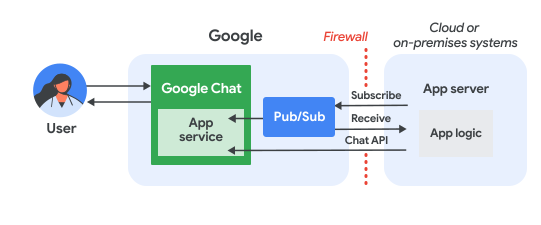
上の図では、Pub/Sub Chat アプリを操作するユーザーは、次の情報フローをたどります。
ユーザーが、メッセージの送信、コマンドの発行、Chat スペースへの追加や削除などによって Chat 用アプリを操作します。
Chat はメッセージを Pub/Sub トピックに送信します。
アプリケーション サーバー(Chat 用アプリのロジックを含むクラウド システムまたはオンプレミス システム)は、ファイアウォール経由でメッセージを受信するために Pub/Sub トピックをサブスクライブします。
必要に応じて、Chat 用アプリは Chat API を呼び出して、メッセージを非同期で投稿したり、他のオペレーションを実行したりできます。
前提条件
Node.js
- Google Chat へのアクセス権を持つ Business または Enterprise の Google Workspace アカウント。
- 課金を有効にした Google Cloud プロジェクト。既存のプロジェクトで課金が有効になっていることを確認するには、プロジェクトの課金ステータスを確認するをご覧ください。プロジェクトを作成して課金管理を設定するには、Google Cloud プロジェクトを作成するをご覧ください。
- Node.js 14 以降
- npm パッケージ管理ツール
- 初期化された Node.js プロジェクト。新しいプロジェクトを初期化するには、新しいフォルダを作成してそのフォルダに切り替え、コマンドライン インターフェースで次のコマンドを実行します。
npm init
Python
- Google Chat へのアクセス権を持つ Business または Enterprise の Google Workspace アカウント。
- 課金を有効にした Google Cloud プロジェクト。既存のプロジェクトで課金が有効になっていることを確認するには、プロジェクトの課金ステータスを確認するをご覧ください。プロジェクトを作成して課金管理を設定するには、Google Cloud プロジェクトを作成するをご覧ください。
- Python 3.6 以降
- pip パッケージ管理ツール
Java
- Google Chat へのアクセス権を持つ Business または Enterprise の Google Workspace アカウント。
- 課金を有効にした Google Cloud プロジェクト。既存のプロジェクトで課金が有効になっていることを確認するには、プロジェクトの課金ステータスを確認するをご覧ください。プロジェクトを作成して課金管理を設定するには、Google Cloud プロジェクトを作成するをご覧ください。
- Java 11 以降
- Maven パッケージ管理ツール
API を有効にする
Google API を使用する前に、Google Cloud プロジェクトで API を有効にする必要があります。1 つの Google Cloud プロジェクトで 1 つ以上の API を有効にできます。Google Cloud コンソールで、Google Chat API と Pub/Sub API を有効にします。
Pub/Sub を設定する
Chat API がメッセージを送信できる Pub/Sub トピックを作成します。Chat 用アプリごとに 1 つのトピックを使用することをおすすめします。
Chat 用アプリの サービス アカウントを作成して、Pub/Sub と Chat で認証し、秘密鍵ファイルを作業ディレクトリに保存します。
トピックにpull サブスクリプションを作成します。
以前に作成したサービス アカウントに、サブスクリプションに対する Pub/Sub サブスクライバー ロールを割り当てます。
スクリプトを作成する
このセクションでは、Chat 用アプリのアプリケーション ロジックを定義します。Google Cloud で認証を行い、Pub/Sub トピックをサブスクライブして、ユーザーが Chat 用アプリにメッセージを送信したときなどの Chat からのイベントを受信するスクリプトを記述します。
スクリプトがメッセージを受信すると、イベントデータを処理し、Google Chat API を使用してユーザーまたはスペースに応答を返信します。この設定により、Chat アプリはファイアウォールの背後で機能しながら、Chat ユーザーとやり取りできます。
Node.js
CLI で、サービス アカウントの認証情報を提供します。
export GOOGLE_APPLICATION_CREDENTIALS=SERVICE_ACCOUNT_FILE_PATHCLI で、Google Cloud プロジェクト ID を指定します。
export PROJECT_ID=PROJECT_IDCLI で、以前に作成した Pub/Sub サブスクリプションのサブスクリプション ID を指定します。
export SUBSCRIPTION_ID=SUBSCRIPTION_ID作業ディレクトリに
package.jsonという名前のファイルを作成します。package.jsonファイルに、次のコードを貼り付けます。{ "name": "pub-sub-app", "version": "1.0.0", "description": "Google Chat App that listens for messages via Cloud Pub/Sub", "main": "index.js", "scripts": { "start": "node index.js", "test": "echo \"Error: no test specified\" && exit 1" }, "dependencies": { "@google-apps/chat": "^0.4.0", "@google-cloud/pubsub": "^4.5.0" }, "license": "Apache-2.0" }作業ディレクトリに
index.jsという名前のファイルを作成します。index.jsに、次のコードを貼り付けます。const {ChatServiceClient} = require('@google-apps/chat'); const {MessageReplyOption} = require('@google-apps/chat').protos.google.chat.v1.CreateMessageRequest; const {PubSub} = require('@google-cloud/pubsub'); const {SubscriberClient} = require('@google-cloud/pubsub/build/src/v1'); // Receives messages from a pull subscription. function receiveMessages() { const chat = new ChatServiceClient({ keyFile: process.env.GOOGLE_APPLICATION_CREDENTIALS, scopes: ['https://www.googleapis.com/auth/chat.bot'], }); const subscriptionPath = new SubscriberClient() .subscriptionPath(process.env.PROJECT_ID, process.env.SUBSCRIPTION_ID) const subscription = new PubSub() .subscription(subscriptionPath); // Handle incoming message, then acknowledge the received message const messageHandler = message => { console.log(`Id : ${message.id}`); const event = JSON.parse(message.data); console.log(`Data : ${JSON.stringify(event)}`); // Post the response to Google Chat. const request = formatRequest(event); if (request != null) { chat.createMessage(request); } // Acknowledge the message. message.ack(); } subscription.on('message', messageHandler); console.log(`Listening for messages on ${subscriptionPath}`); // Keep main thread from exiting while waiting for messages setTimeout(() => { subscription.removeListener('message', messageHandler); console.log(`Stopped listening for messages.`); }, 60 * 1000); } // Send message to Google Chat based on the type of event function formatRequest(event) { const chatEvent = event.chat || {}; // If the app was removed, we don't respond. if (chatEvent.removedFromSpacePayload) { console.log(`App removed from space.`); return null; } const payload = chatEvent.messagePayload || chatEvent.addedToSpacePayload; const spaceName = payload?.space?.name; if (!spaceName) { console.log('No space name in event.'); return null; } if (chatEvent.addedToSpacePayload) { // An app can also be added to a space by @mentioning it in a // message. In that case, we fall through to the message case // and let the app respond. If the app was added using the // invite flow, we just post a thank you message in the space. return { parent: spaceName, message: { text: 'Thank you for adding me!' }, }; } else if (chatEvent.messagePayload) { // In case of message, post the response in the same thread. const message = chatEvent.messagePayload.message; return { parent: spaceName, messageReplyOption: MessageReplyOption.REPLY_MESSAGE_FALLBACK_TO_NEW_THREAD, message: { text: 'You said: `' + message.text + '`', thread: { name: message.thread.name }, }, }; } } if (!process.env.PROJECT_ID) { console.log('Missing PROJECT_ID env var.'); process.exit(1); } if (!process.env.SUBSCRIPTION_ID) { console.log('Missing SUBSCRIPTION_ID env var.'); process.exit(1); } if (!process.env.GOOGLE_APPLICATION_CREDENTIALS) { console.log('Missing GOOGLE_APPLICATION_CREDENTIALS env var.'); process.exit(1); } receiveMessages();
Python
CLI で、サービス アカウントの認証情報を提供します。
export GOOGLE_APPLICATION_CREDENTIALS=SERVICE_ACCOUNT_FILE_PATHCLI で、Google Cloud プロジェクト ID を指定します。
export PROJECT_ID=PROJECT_IDCLI で、以前に作成した Pub/Sub サブスクリプションのサブスクリプション ID を指定します。
export SUBSCRIPTION_ID=SUBSCRIPTION_ID作業ディレクトリに
requirements.txtという名前のファイルを作成します。requirements.txtファイルに、次のコードを貼り付けます。google-cloud-pubsub>=2.23.0 google-apps-chat==0.1.9作業ディレクトリに
app.pyという名前のファイルを作成します。app.pyに、次のコードを貼り付けます。import json import logging import os import sys import time from google.apps import chat_v1 as google_chat from google.cloud import pubsub_v1 from google.oauth2.service_account import Credentials def receive_messages(): """Receives messages from a pull subscription.""" scopes = ['https://www.googleapis.com/auth/chat.bot'] service_account_key_path = os.environ.get('GOOGLE_APPLICATION_CREDENTIALS') creds = Credentials.from_service_account_file(service_account_key_path) chat = google_chat.ChatServiceClient( credentials=creds, client_options={'scopes': scopes} ) project_id = os.environ.get('PROJECT_ID') subscription_id = os.environ.get('SUBSCRIPTION_ID') subscriber = pubsub_v1.SubscriberClient() subscription_path = subscriber.subscription_path(project_id, subscription_id) # Handle incoming message, then acknowledge the received message def callback(message): event = json.loads(message.data) logging.info('Data : %s', event) # Post the response to Google Chat. request = format_request(event) if request is not None: chat.create_message(request) # Acknowledge the message. message.ack() subscriber.subscribe(subscription_path, callback = callback) logging.info('Listening for messages on %s', subscription_path) # Keep main thread from exiting while waiting for messages while True: time.sleep(60) def format_request(event): """Send message to Google Chat based on the type of event. Args: event: A dictionary with the event data. """ chat_event = event.get('chat', {}) # If the app was removed, we don't respond. if 'removedFromSpacePayload' in chat_event: logging.info('App removed from space.') return payload = chat_event.get('messagePayload') or chat_event.get( 'addedToSpacePayload' ) space_name = payload.get('space', {}).get('name') if payload else None if not space_name: logging.warning('No space name in event.') return if 'addedToSpacePayload' in chat_event: # An app can also be added to a space by @mentioning it in a # message. In that case, we fall through to the message case # and let the app respond. If the app was added using the # invite flow, we just post a thank you message in the space. return google_chat.CreateMessageRequest( parent = space_name, message = { 'text': 'Thank you for adding me!' } ) elif 'messagePayload' in chat_event: # In case of message, post the response in the same thread. message = chat_event['messagePayload']['message'] return google_chat.CreateMessageRequest( parent = space_name, message_reply_option = google_chat.CreateMessageRequest.MessageReplyOption.REPLY_MESSAGE_FALLBACK_TO_NEW_THREAD, message = { 'text': 'You said: `' + message['text'] + '`', 'thread': { 'name': message['thread']['name'] } } ) if __name__ == '__main__': if 'PROJECT_ID' not in os.environ: logging.error('Missing PROJECT_ID env var.') sys.exit(1) if 'SUBSCRIPTION_ID' not in os.environ: logging.error('Missing SUBSCRIPTION_ID env var.') sys.exit(1) if 'GOOGLE_APPLICATION_CREDENTIALS' not in os.environ: logging.error('Missing GOOGLE_APPLICATION_CREDENTIALS env var.') sys.exit(1) logging.basicConfig( level=logging.INFO, style='{', format='{levelname:.1}{asctime} {filename}:{lineno}] {message}') receive_messages()
Java
CLI で、サービス アカウントの認証情報を提供します。
export GOOGLE_APPLICATION_CREDENTIALS=SERVICE_ACCOUNT_FILE_PATHCLI で、Google Cloud プロジェクト ID を指定します。
export PROJECT_ID=PROJECT_IDCLI で、以前に作成した Pub/Sub サブスクリプションのサブスクリプション ID を指定します。
export SUBSCRIPTION_ID=SUBSCRIPTION_ID作業ディレクトリに
pom.xmlという名前のファイルを作成します。pom.xmlファイルに、次のコードを貼り付けます。<project xmlns="http://maven.apache.org/POM/4.0.0" xmlns:xsi="http://www.w3.org/2001/XMLSchema-instance" xsi:schemaLocation="http://maven.apache.org/POM/4.0.0 http://maven.apache.org/xsd/maven-4.0.0.xsd"> <modelVersion>4.0.0</modelVersion> <groupId>com.google.chat.addon</groupId> <artifactId>pubsub-addon-chat-app</artifactId> <version>0.1.0</version> <name>pubsub-addon-chat-app-java</name> <properties> <maven.compiler.release>11</maven.compiler.release> <project.build.sourceEncoding>UTF-8</project.build.sourceEncoding> </properties> <dependencyManagement> <dependencies> <dependency> <groupId>com.google.cloud</groupId> <artifactId>libraries-bom</artifactId> <version>26.41.0</version> <!-- Use a recent BOM version --> <type>pom</type> <scope>import</scope> </dependency> </dependencies> </dependencyManagement> <dependencies> <!-- Google Chat GAPIC library --> <dependency> <groupId>com.google.cloud</groupId> <artifactId>google-cloud-chat</artifactId> </dependency> <!-- Google Cloud Pub/Sub library --> <dependency> <groupId>com.google.cloud</groupId> <artifactId>google-cloud-pubsub</artifactId> </dependency> <!-- Google Apps Add-ons Event Object --> <dependency> <groupId>com.google.apps.addons.v1</groupId> <artifactId>google-apps-addons-v1-java</artifactId> <version>0.2.0</version> <!-- Check for latest version --> </dependency> <!-- Protobuf JSON utility --> <dependency> <groupId>com.google.protobuf</groupId> <artifactId>protobuf-java-util</artifactId> </dependency> <!-- Google Auth Library --> <dependency> <groupId>com.google.auth</groupId> <artifactId>google-auth-library-oauth2-http</artifactId> </dependency> <dependency> <groupId>com.google.api</groupId> <artifactId>gax</artifactId> </dependency> <!-- JSON utilities for PubSub message (if needed, though protobuf-java-util is primary for EventObject) --> <dependency> <groupId>com.fasterxml.jackson.core</groupId> <artifactId>jackson-databind</artifactId> <version>2.14.2</version> </dependency> <dependency> <groupId>org.slf4j</groupId> <artifactId>slf4j-jdk14</artifactId> <version>1.7.36</version> <scope>runtime</scope> </dependency> </dependencies> <build> <plugins> <plugin> <groupId>org.apache.maven.plugins</groupId> <artifactId>maven-compiler-plugin</artifactId> <version>3.13.0</version> <configuration> <source>11</source> <target>11</target> </configuration> </plugin> <plugin> <groupId>org.codehaus.mojo</groupId> <artifactId>exec-maven-plugin</artifactId> <version>3.3.0</version> <configuration> <mainClass>Main</mainClass> </configuration> </plugin> </plugins> </build> </project>作業ディレクトリに
src/main/javaというディレクトリ構造を作成します。src/main/javaディレクトリにMain.javaという名前のファイルを作成します。Main.javaに、次のコードを貼り付けます。import com.fasterxml.jackson.databind.JsonNode; import com.fasterxml.jackson.databind.ObjectMapper; import com.google.api.gax.core.FixedCredentialsProvider; import com.google.auth.oauth2.GoogleCredentials; import com.google.chat.v1.ChatServiceClient; import com.google.chat.v1.ChatServiceSettings; import com.google.chat.v1.CreateMessageRequest; import com.google.chat.v1.CreateMessageRequest.MessageReplyOption; import com.google.chat.v1.Message; import com.google.chat.v1.Thread; import com.google.cloud.pubsub.v1.AckReplyConsumer; import com.google.cloud.pubsub.v1.MessageReceiver; import com.google.cloud.pubsub.v1.Subscriber; import com.google.pubsub.v1.ProjectSubscriptionName; import com.google.pubsub.v1.PubsubMessage; import java.io.FileInputStream; import java.util.Collections; public class Main { public static final String PROJECT_ID_ENV_PROPERTY = "PROJECT_ID"; public static final String SUBSCRIPTION_ID_ENV_PROPERTY = "SUBSCRIPTION_ID"; public static final String CREDENTIALS_PATH_ENV_PROPERTY = "GOOGLE_APPLICATION_CREDENTIALS"; public static void main(String[] args) throws Exception { ProjectSubscriptionName subscriptionName = ProjectSubscriptionName.of( System.getenv(Main.PROJECT_ID_ENV_PROPERTY), System.getenv(Main.SUBSCRIPTION_ID_ENV_PROPERTY)); // Instantiate app, which implements an asynchronous message receiver. EchoApp echoApp = new EchoApp(); // Create a subscriber for <var>SUBSCRIPTION_ID</var> bound to the message receiver final Subscriber subscriber = Subscriber.newBuilder(subscriptionName, echoApp).build(); System.out.println("Subscriber is listening to events..."); subscriber.startAsync(); // Wait for termination subscriber.awaitTerminated(); } } /** * A demo app which implements {@link MessageReceiver} to receive messages. * It echoes incoming messages. */ class EchoApp implements MessageReceiver { // Path to the private key JSON file of the service account to be used for posting response // messages to Google Chat. // In this demo, we are using the same service account for authorizing with Cloud Pub/Sub to // receive messages and authorizing with Google Chat to post messages. If you are using // different service accounts, set the path to the private key JSON file of the service // account used to post messages to Google Chat here. private static final String SERVICE_ACCOUNT_KEY_PATH = System.getenv(Main.CREDENTIALS_PATH_ENV_PROPERTY); // Developer code for Google Chat API scope. private static final String GOOGLE_CHAT_API_SCOPE = "https://www.googleapis.com/auth/chat.bot"; private static final String ADDED_RESPONSE = "Thank you for adding me!"; ChatServiceClient chatServiceClient; EchoApp() throws Exception { GoogleCredentials credential = GoogleCredentials.fromStream(new FileInputStream(SERVICE_ACCOUNT_KEY_PATH)) .createScoped(Collections.singleton(GOOGLE_CHAT_API_SCOPE)); // Create the ChatServiceSettings with the app credentials ChatServiceSettings chatServiceSettings = ChatServiceSettings.newBuilder() .setCredentialsProvider(FixedCredentialsProvider.create(credential)) .build(); // Set the Chat service client chatServiceClient = ChatServiceClient.create(chatServiceSettings); } // Called when a message is received by the subscriber. @Override public void receiveMessage(PubsubMessage pubsubMessage, AckReplyConsumer consumer) { System.out.println("Id : " + pubsubMessage.getMessageId()); // Handle incoming message, then acknowledge the received message try { ObjectMapper mapper = new ObjectMapper(); JsonNode dataJson = mapper.readTree(pubsubMessage.getData().toStringUtf8()); System.out.println("Data : " + dataJson.toString()); handle(dataJson); consumer.ack(); } catch (Exception e) { System.out.println(e); // Negative acknowledgement makes Pub/Sub redeliver the message. consumer.nack(); } } // Send message to Google Chat based on the type of event. public void handle(JsonNode eventJson) throws Exception { // Google Chat events for add-ons are wrapped in a 'chat' object. if (!eventJson.has("chat")) { System.out.println("Ignored: Not a Chat event (missing 'chat' field)."); return; } JsonNode chatNode = eventJson.get("chat"); CreateMessageRequest createMessageRequest = null; if (chatNode.has("messagePayload")) { // HANDLE MESSAGE JsonNode messagePayload = chatNode.get("messagePayload"); JsonNode message = messagePayload.get("message"); JsonNode space = messagePayload.get("space"); String spaceName = space.get("name").asText(); String userText = message.has("text") ? message.get("text").asText() : ""; String threadName = message.has("thread") ? message.get("thread").get("name").asText() : ""; System.out.println("Received message in " + spaceName + ": " + userText); createMessageRequest = CreateMessageRequest.newBuilder() .setParent(spaceName) .setMessageReplyOption(MessageReplyOption.REPLY_MESSAGE_FALLBACK_TO_NEW_THREAD) .setMessage( Message.newBuilder() .setText("You said: `" + userText + "`") .setThread(Thread.newBuilder().setName(threadName).build()) .build()) .build(); } else if (chatNode.has("addedToSpacePayload")) { // HANDLE ADDED TO SPACE JsonNode addedPayload = chatNode.get("addedToSpacePayload"); JsonNode space = addedPayload.get("space"); String spaceName = space.get("name").asText(); System.out.println("Added to space: " + spaceName); createMessageRequest = CreateMessageRequest.newBuilder() .setParent(spaceName) .setMessage(Message.newBuilder().setText(ADDED_RESPONSE).build()) .build(); } else if (chatNode.has("removedFromSpacePayload")) { System.out.println("Removed from space."); return; } else { System.out.println("Ignored: Unhandled Chat event type."); return; } if (createMessageRequest != null) { // Post the response to Google Chat. chatServiceClient.createMessage(createMessageRequest); System.out.println("Sent reply."); } } }
Chat 用アプリを構成する
Google Cloud コンソールで Chat 用アプリを設定して、名前やアバターなどの詳細を指定し、Pub/Sub トピックへの接続を設定します。
Pub/Sub トピックに接続すると、Chat からアプリにイベントを送信できるようになります。トピックをサブスクライブするスクリプトは、これらのイベントを受信してユーザーに応答できます。
Google Cloud コンソールで、メニュー > [API とサービス] > [有効な API とサービス] > [Google Chat API] > [構成] に移動します。
Pub/Sub 用に Chat 用アプリを構成します。
- [アプリ名] に「
Add-on Chat App」と入力します。 - [アバターの URL] に「
https://developers.google.com/workspace/add-ons/images/quickstart-app-avatar.png」と入力します。 - [説明] に「
Quickstart app」と入力します。 - [機能] で、[スペースとグループの会話に参加する] を選択します。
- [接続設定] で、[Cloud Pub/Sub] を選択し、前に作成した Pub/Sub トピックの名前を貼り付けます。
- [公開設定] で、[ドメイン内の特定のユーザーとグループにこの Google Chat 用アプリの利用を許可する] を選択し、メールアドレスを入力します。
- [ログ] で、[エラーを Logging にロギング] を選択します。
- [アプリ名] に「
[保存] をクリックします。
Chat 用アプリを構成したので、Pub/Sub 構成を更新する必要があります。
- Chat API 構成ページの [接続設定] で、サービス アカウントのメールアドレスをコピーします。これは、Google Cloud プロジェクト用に生成された一意のメールアドレスです。
Pub/Sub パブリッシャー ロールを、前にコピーしたサービス アカウントのメールアドレスに割り当てて、トピックに公開する Chat 権限を付与します。
アプリで Chat のメッセージを受信して返信できるようになりました。
スクリプトを実行する
CLI で、作業ディレクトリに移動してスクリプトを実行します。
Node.js
npm install
npm start
Python
python -m venv env
source env/bin/activate
pip install -r requirements.txt -U
python app.py
Java
mvn compile exec:java -Dexec.mainClass=Main
コードを実行すると、アプリケーションは Pub/Sub トピックにパブリッシュされたメッセージのリッスンを開始します。
Chat 用アプリをテストする
Chat 用アプリをテストするには、Chat 用アプリとのダイレクト メッセージ スペースを開いてメッセージを送信します。
信頼できるテスターとして登録した際に指定した Google Workspace アカウントを使用して、Google Chat を開きます。
- [ チャットを新規作成] をクリックします。
- [ユーザーを 1 人以上追加] フィールドに、Chat 用アプリの名前を入力します。
検索結果から Chat 用アプリを選択します。ダイレクト メッセージが開きます。
- そのアプリの新しいダイレクト メッセージに、「
Hello」と入力してenterを押します。
信頼できるテスターを追加して、インタラクティブ機能のテストについて詳しくは、Google Chat 用アプリのインタラクティブ機能をテストするをご覧ください。
トラブルシューティング
Google Chat アプリまたはカードがエラーを返すと、Chat インターフェースに「エラーが発生しました」というメッセージが表示されます。または「リクエストを処理できません。」と表示されます。Chat UI にエラー メッセージが表示されない場合でも、Chat 用アプリやカードで予期しない結果が生じることがあります。たとえば、カード メッセージが表示されないことがあります。
Chat UI にエラー メッセージが表示されない場合でも、Chat 用アプリのエラー ロギングが有効になっている場合は、エラーの修正に役立つ説明的なエラー メッセージとログデータを利用できます。エラーの表示、デバッグ、修正については、Google Chat のエラーのトラブルシューティングと修正をご覧ください。
クリーンアップ
このチュートリアルで使用したリソースについて、Google Cloud アカウントに課金されないようにするには、クラウド プロジェクトを削除することをおすすめします。
- Google Cloud コンソールで、[リソースの管理] ページに移動します。メニュー アイコン > [IAM と管理] > [リソースの管理] をクリックします。
- プロジェクト リストで、削除するプロジェクトを選択し、[削除] をクリックします。
- ダイアログでプロジェクト ID を入力し、[シャットダウン] をクリックしてプロジェクトを削除します。
関連トピック
Chat 用アプリに機能を追加するには、以下をご覧ください。