

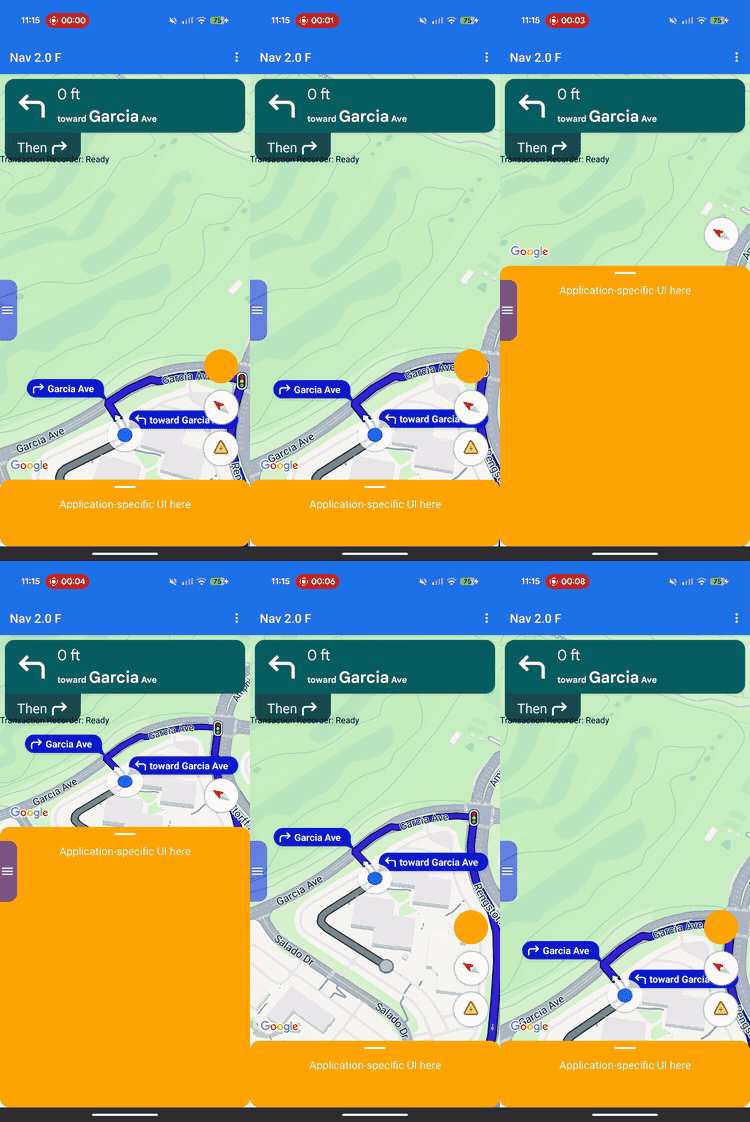
গুগল-প্রদত্ত ভিউ এবং আপনার নিজস্ব কাস্টম বিজনেস ভিউ উভয়ের জন্যই ভিউয়ের স্তরবিন্যাস ও স্ক্রিনে অবস্থান নিয়ন্ত্রণ করতে লেআউট কাস্টমাইজেশন ব্যবহার করুন।
পূর্বনির্ধারিত হেডার বা ফুটার স্লটে কাস্টম ভিউ যোগ করার পরিবর্তে, পুরো স্ক্রিনের লেআউট পরিচালনা করার জন্য একটি লেআউট ডেলিগেট প্রয়োগ করুন। নেভিগেশন স্টেট ট্রানজিশনের সময়, আপনার লেআউট ডেলিগেট গুগল-প্রদত্ত কম্পোনেন্টগুলো, যেমন টার্ন কার্ড, ইটিএ কার্ড এবং বাটনগুলো গ্রহণ করে। ConstraintLayout , CoordinatorLayout বা LinearLayout মতো স্ট্যান্ডার্ড অ্যান্ড্রয়েড লেআউট সিস্টেম ব্যবহার করে এই এলিমেন্টগুলোকে আপনার নিজস্ব কাস্টম কন্টেন্টের পাশে স্থাপন করুন।
এই ফ্রেমওয়ার্কটি ব্যবহার করে অর্ডার স্ট্যাটাস বা পিকআপ নির্দেশাবলীর মতো কাস্টম ব্যবসায়িক তথ্য স্ক্রিনে নির্ভুলভাবে স্থাপন করুন এবং একই সাথে আপনার ভিউগুলোকে একে অপরের উপর ওভারল্যাপ করা থেকে বিরত রাখুন।
লেআউট কাস্টমাইজেশন কীভাবে কাজ করে
লেআউট কাস্টমাইজেশনে ডেলিগেশন ডিজাইন প্যাটার্ন ব্যবহার করা হয়। স্ক্রিনে UI কম্পোনেন্টগুলোকে স্বয়ংক্রিয়ভাবে আঁকা বা স্থাপন করার পরিবর্তে, SDK সেগুলোকে সরাসরি আপনার লেখা একটি কাস্টম ক্লাসে পাঠিয়ে দেয়: যা লেআউট ডেলিগেট নামে পরিচিত।
আপনার লেআউট কাস্টমাইজ করতে, অ্যাবস্ট্রাক্টNavigationLayoutDelegate ক্লাসকে এক্সটেন্ড করে এমন একটি ক্লাস তৈরি করুন এবং আপনার NavigationView বা SupportNavigationFragment এর একটি ইনস্ট্যান্স অ্যাসাইন করুন। যখনই নেভিগেশন স্টেটের পরিবর্তন হয়—যেমন বেস ম্যাপ থেকে সক্রিয় টার্ন-বাই-টার্ন গাইডেন্সে যাওয়ার সময়—SDK আপনার ডেলিগেটের কলব্যাক মেথডগুলো এক্সিকিউট করে এবং সেই নির্দিষ্ট স্টেটের জন্য উপলব্ধ UI কম্পোনেন্টগুলো সরবরাহ করে।একটি নির্বিঘ্ন ও সমন্বিত ব্যবহারকারীর অভিজ্ঞতা প্রদানের জন্য, এই ফ্রেমওয়ার্কটি আপনার অ্যাপ এবং SDK-এর মধ্যে দায়িত্বের একটি সুস্পষ্ট বিভাজন স্থাপন করে। নিম্নলিখিত বিষয়গুলো কাস্টমাইজ করতে লেআউট ডেলিগেট ব্যবহার করুন:
- ভিউ হায়ারার্কি তৈরি করুন: প্রতিটি UI স্টেটের জন্য স্ক্রিনে ঠিক কোন কোন Google কম্পোনেন্ট এবং কাস্টম বিজনেস ভিউ যোগ করবেন তা বেছে নিন।
- প্রতিটি উপাদানের অবস্থান নির্ধারণ করুন: সুনির্দিষ্ট স্ক্রিন অ্যাঙ্কর, মার্জিন এবং লেআউট প্লেসমেন্ট সেট করুন। গুগল কম্পোনেন্টগুলিতে কাস্টম প্রস্থ বা উচ্চতার সীমাবদ্ধতা প্রয়োগ করা থেকে বিরত থাকুন, কারণ গুগল কম্পোনেন্টগুলি তাদের নিজস্ব অভ্যন্তরীণ মাত্রা গণনা করে।
- বেস ম্যাপের কাঠামো তৈরি করুন: ভিউপোর্ট কম্পোনেন্টের স্থানাঙ্ক ব্যবহার করে ম্যাপ ক্যামেরার দৃশ্যমান সীমানা নির্ধারণ করুন।
- স্ক্রিনে স্তরবিন্যাস করুন: কাস্টম ভিউগুলো গুগলের অন্তর্নির্মিত কন্ট্রোলগুলোর উপরে, নিচে, নাকি পাশাপাশি ভাসবে, তা নির্ধারণ করুন।
অন্যদিকে, আপনি লেআউট ডেলিগেট ব্যবহার করে নিম্নলিখিত গুগল কম্পোনেন্টগুলো কাস্টমাইজ করতে পারবেন না:
- কম্পোনেন্টের মাত্রা: গুগল-প্রদত্ত কম্পোনেন্টগুলোর আকার এবং অভ্যন্তরীণ মাত্রা, যা এসডিকে স্বয়ংক্রিয়ভাবে গণনা করে।
- ট্রিগার শর্ত: যখন রিয়েল-টাইম রুট ডেটার উপর ভিত্তি করে ডায়নামিক অ্যালার্ট বা প্রম্পট প্রদর্শিত হয়।
বাস্তবায়নের নীতিমালা
লেআউট ডেলিগেট লেখার সময়, লেআউট বাগ বা রানটাইম ক্র্যাশ এড়াতে নিম্নলিখিত নিয়মগুলি মনে রাখবেন:
- ডিফল্ট হলো একটি খালি স্ক্রিন: গুগল-প্রদত্ত কম্পোনেন্টগুলো কেবল তখনই প্রদর্শিত হয়, যখন আপনার ডেলিগেট সেগুলোকে ভিউ হায়ারার্কিতে স্পষ্টভাবে যুক্ত করে এবং অবস্থান নির্ধারণ করে।
- লিগ্যাসি এপিআই সমর্থিত নয়: যে প্রোপার্টি এবং মেথডগুলো লিগ্যাসি স্লট-ভিত্তিক লেআউট মডেল নিয়ন্ত্রণ করে, সেগুলো সমর্থিত হবে না এবং একটি কাস্টম ডেলিগেট সক্রিয় থাকলে প্রত্যাশিতভাবে কাজ নাও করতে পারে।
- অভ্যন্তরীণ ভিউ কাঠামো পরিবর্তন করবেন না: গুগল-প্রদত্ত কম্পোনেন্টগুলোর (যেমন টার্ন কার্ড বা ETA কার্ড) ভিউ হায়ারার্কি ট্র্যাভার্স বা পরিবর্তন করতে
findViewById()এর মতো মেথড ব্যবহার করবেন না। যেহেতু এই অভ্যন্তরীণ ভিউ হায়ারার্কিগুলো হলো অন্তর্নিহিত ইমপ্লিমেন্টেশন ডিটেইলস, তাই SDK রিলিজভেদে এগুলো পরিবর্তিত হতে পারে। এগুলো পরিবর্তন করলে ভবিষ্যতের SDK আপডেটের সময় আপনার লেআউট ভেঙে যেতে পারে।
লিগ্যাসি এপিআই সামঞ্জস্যতা
কাস্টম লেআউট ডেলিগেট ব্যবহার করার সময় নির্ভরযোগ্য লেআউট আচরণের জন্য, নিম্নলিখিত লিগ্যাসি স্লট-ভিত্তিক API-গুলি ব্যবহার করা থেকে বিরত থাকুন, যেগুলি বাতিল করার পরিকল্পনা রয়েছে। একটি বিদ্যমান অ্যাপ মাইগ্রেট করতে, আপনার কাস্টম লেআউট ডেলিগেটের কোড দিয়ে এই API-গুলির ব্যবহার প্রতিস্থাপন করুন:
লিগ্যাসি স্লট-ভিত্তিক এপিআইগুলি দেখান
| লিগ্যাসি এপিআই | লেআউট ডেলিগেট প্রতিস্থাপন |
|---|---|
setCustomControl(View, CustomControlPosition) | আপনার ভিউগুলো সরাসরি আপনার ConstraintLayout বা অন্য কোনো ভিউ গ্রুপে যোগ করুন। |
removeCustomControl(View) | আপনার ভিউ হায়ারার্কি থেকে সরাসরি ভিউগুলি সরিয়ে ফেলুন। |
setEtaCardEnabled(boolean) | onEnterActiveGuidance এ etaCard ভিউটি পড়ুন। |
setHeaderEnabled(boolean) | onEnterActiveGuidance এ turnCard ভিউটি পড়ুন। |
setReportIncidentButtonEnabled(boolean) | getActiveGuidanceButtons() -এ REPORTING বাটনটি খুঁজুন। |
setTripProgressBarEnabled(boolean) | onEnterActiveGuidance এ tripProgressBar ভিউটি পড়ুন। |
addOnNavigationUiChangedListener(...) | আপনার NavigationLayoutDelegate স্টেট ট্রানজিশন কলব্যাকগুলোর ওপর নির্ভর করুন। |
removeOnNavigationUiChangedListener(...) | ডেলিগেট ব্যবহার করে সরাসরি লেআউটের অবস্থার পরিবর্তন পরিচালনা করুন। |
addPromptVisibilityChangedListener(...) | আপনার NavigationLayoutDelegate প্রম্পট কলব্যাকগুলির (যেমন onShowPrompt() ) উপর নির্ভর করুন। |
removePromptVisibilityChangedListener(...) | ডেলিগেট ব্যবহার করে সরাসরি প্রম্পট প্রদর্শনের লজিক পরিচালনা করুন। |
setCompassEnabled(boolean) | getNavigationReadyButtons() অথবা getActiveGuidanceButtons() -এর মধ্যে কম্পাসটি খুঁজুন। |
প্রয়োজনীয় জিনিসপত্রের চেকলিস্ট
আপনার লেআউট ডেলিগেট সফলভাবে বাস্তবায়ন করতে এই অপরিহার্য পদক্ষেপ এবং প্রয়োজনীয়তাগুলো অনুসরণ করুন:
UI তৈরি করার আগে ডেলিগেটটি ইনিশিয়ালাইজ করুন: SDK নেভিগেশন UI ইনিশিয়ালাইজ করার আগে
setLayoutDelegate()কল করুন। আপনার অ্যাপ্লিকেশনের কাঠামোর জন্য সঠিক সেটআপের সময় যাচাই করতে নিম্নলিখিত কোড বাস্তবায়নের উদাহরণগুলো দেখুন। UI তৈরির পরে ডেলিগেট ইনিশিয়ালাইজ করলে একটিApiIllegalStateExceptionট্রিগার হয়।কোটলিন
// For SupportNavigationFragment
override fun onCreate(savedInstanceState: Bundle?) {
    super.onCreate(savedInstanceState)
    setContentView(R.layout.activity_main)
    val navFragment = supportFragmentManager.findFragmentById(R.id.nav_fragment) as SupportNavigationFragment
    navFragment.setLayoutDelegate(MyLayoutDelegate())
}

// For a programmatic NavigationView
val navigationView = NavigationView(context)
navigationView.setLayoutDelegate(MyLayoutDelegate())
navigationView.onCreate(savedInstanceState)
জাভা
// For SupportNavigationFragment
@Override
protected void onCreate(Bundle savedInstanceState) {
    super.onCreate(savedInstanceState);
    setContentView(R.layout.activity_main);
    SupportNavigationFragment navFragment = (SupportNavigationFragment) getSupportFragmentManager().findFragmentById(R.id.nav_fragment);
    navFragment.setLayoutDelegate(new MyLayoutDelegate());
}

// For a programmatic NavigationView
NavigationView navigationView = new NavigationView(context);
navigationView.setLayoutDelegate(new MyLayoutDelegate());
navigationView.onCreate(savedInstanceState);
আপনার নিজস্ব লেআউট কন্টেইনার তৈরি করুন: আপনার নিজস্ব UI এলিমেন্ট এবং গুগল-প্রদত্ত ভিউগুলো রাখার জন্য একটি কাস্টম ভিউ গ্রুপ—যেমন একটি
ConstraintLayoutতৈরি করুন।বাধ্যতামূলক ভিউ সংযুক্ত করুন: আপনাকে অবশ্যই সমস্ত নেভিগেশন স্টেটে আপনার লেআউট কন্টেইনারে গুগল লোগো (
getGoogleLogo()) এবং ভিউপোর্ট (getViewport()) যোগ করতে হবে। এই দুটি ভিউ অন্তর্ভুক্ত করতে ব্যর্থ হলে একটি রানটাইমApiIllegalStateExceptionট্রিগার হয় এবং অ্যাপটি ক্র্যাশ করে।নির্দিষ্ট মাপ মেনে চলুন: এসডিকে (SDK) গুগল-প্রদত্ত বেশ কিছু কম্পোনেন্টের মাপ নির্ধারণ করে দেয়। নিম্নলিখিত এলিমেন্টগুলিতে কাস্টম প্রস্থ বা উচ্চতার সীমাবদ্ধতা প্রয়োগ করবেন না:
- কার্ড উল্টান
- ইটিএ কার্ড
- আগত প্রম্পট
- গুগল লোগো
- স্পিড উইজেট
আপনার লেআউটকে ভিউয়ের সাথে সংযুক্ত করুন: আপনার কন্টেইনারকে ম্যাপ ভিউ হায়ারার্কির সাথে সংযুক্ত করতে,
onEnterNavigationReady()এবংonEnterActiveGuidance()কলব্যাকের ভিতরেnavigationView.setNavigationLayout()কল করুন।স্টেট থেকে বের হওয়ার সময় পরিষ্কার-পরিচ্ছন্নতা: মেমরি লিক এবং ওভারল্যাপিং UI স্টেট প্রতিরোধ করতে আপনার
onLeaveকলব্যাকের ভিতরেnavigationView.removeNavigationLayout()কল করুন এবং আপনার কাস্টম ভিউগুলি সরিয়ে ফেলুন।লিগ্যাসি লেআউট এপিআই পরিহার করুন: একটি কাস্টম ডেলিগেট সক্রিয় থাকা অবস্থায়
setCustomControl()বাsetHeaderEnabled()এর মতো ডেপ্রিকেটেড স্লট-ভিত্তিক এপিআই কল করবেন না। একটি কাস্টম ডেলিগেট সংযুক্ত থাকলে এসডিকে এই লিগ্যাসি কলগুলিকে উপেক্ষা করতে পারে।
UI অবস্থা এবং গুগল উপাদান
যখন একটি নেভিগেশন স্টেট ট্রানজিশন ঘটে, তখন SDK আপনার ডেলিগেট কলব্যাকে একটি রিড-অনলি UiState অবজেক্ট পাঠায়। এই অবজেক্টটি বর্তমান লেআউট কনফিগারেশন ফ্ল্যাগগুলোকে স্ক্রিন রেন্ডার করার জন্য প্রয়োজনীয় গুগল কম্পোনেন্টগুলোর (যেমন, View ইনস্ট্যান্স) সাথে একত্রিত করে।
লেআউট ডেলিগেট চারটি অপারেশনাল স্টেটের মাধ্যমে ভিউ হায়ারার্কি পরিচালনা করে। নিম্নলিখিত স্টেট ডায়াগ্রামটি দেখায় যে SDK কীভাবে নেভিগেশন স্টেটগুলির মধ্যে ট্রানজিশন করে এবং এটি আপনার ডেলিগেটে কোন কলব্যাক মেথডগুলি এক্সিকিউট করে:
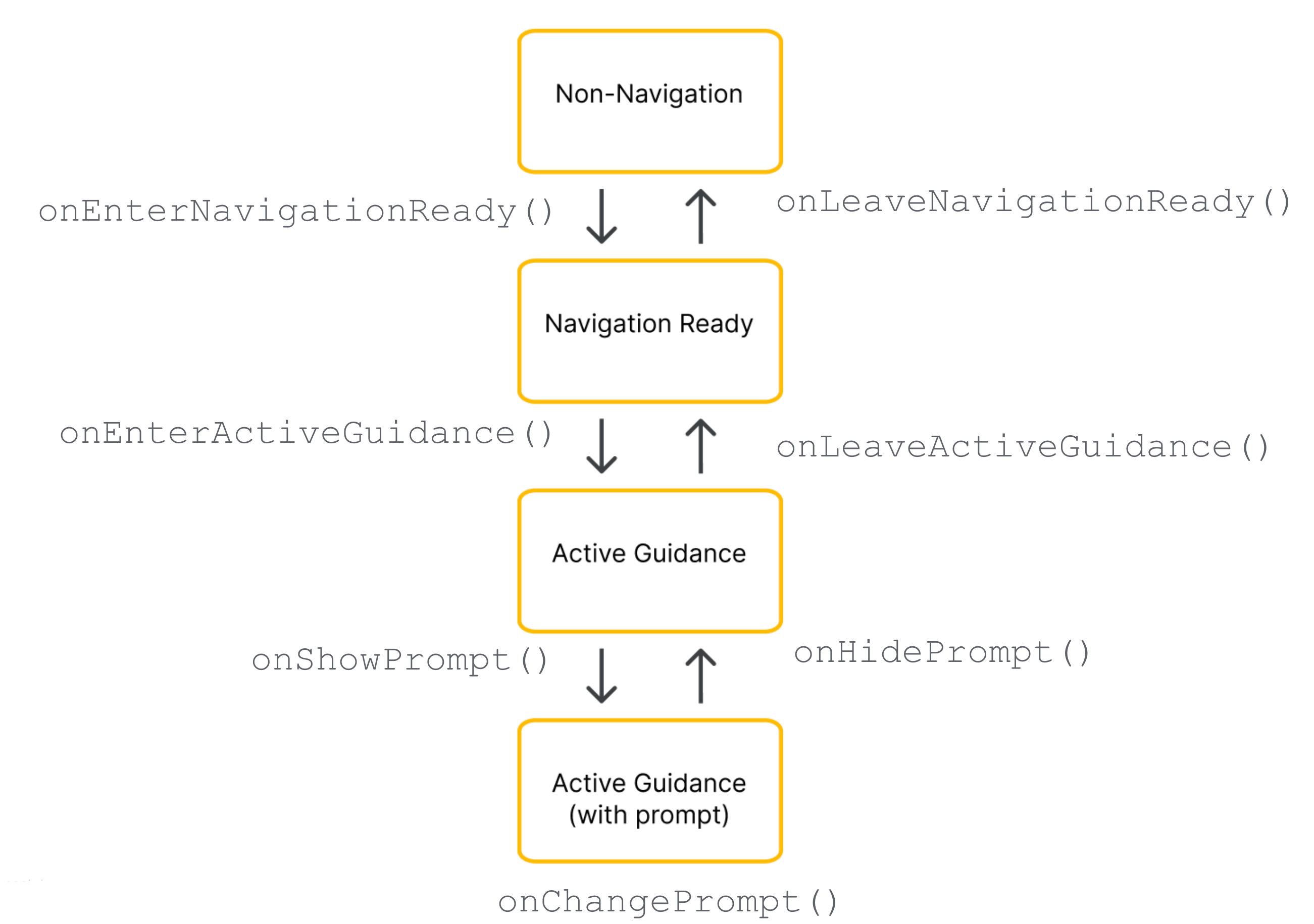
আপনার ডেলিগেটকে যে নির্দিষ্ট গুগল কম্পোনেন্টগুলো প্রদান করা হয়, তা নেভিগেশন লাইফসাইকেলের বর্তমান পর্যায়ের উপর নির্ভর করে।
প্রয়োজনীয় উপাদান (সকল নেভিগেশন অবস্থা)
বর্তমান ন্যাভিগেশন পর্যায় নির্বিশেষে, আপনাকে অবশ্যই আপনার ভিউ হায়ারার্কিতে নিম্নলিখিত গুগল কম্পোনেন্টগুলো অন্তর্ভুক্ত, স্থাপন এবং দৃশ্যমান রাখতে হবে:
গুগল লোগো (
getGoogleLogo()): এই কম্পোনেন্টটি বাধ্যতামূলক গুগল ম্যাপস লোগো প্রদর্শন করে। যদি ‘রি-সেন্টার’ বাটনটি সক্রিয় থাকে, তাহলে চালক যখন ম্যাপটি তার যানবাহন থেকে দূরে স্ক্রল করেন, তখন লোগোটি স্বয়ংক্রিয়ভাবে এই বাটনে রূপান্তরিত হয়। ফলে, লোগোটির অবস্থানই নির্ধারণ করে দেয় যে ‘রি-সেন্টার’ বাটনটি কোথায় প্রদর্শিত হবে। স্ট্যান্ডার্ড ম্যাপ UI-এর প্রত্যাশার সাথে সামঞ্জস্য রাখতে, লোগোটি আপনার লেআউটের একেবারে নিচের-বামের (bottom-left) কোণায় রাখার পরামর্শ দেওয়া হয়।ভিউপোর্ট (
getViewport()): একটি অদৃশ্যViewযা ক্যামেরার ফ্রেমের সীমানা নির্ধারণ করে। আপনার ভিউপোর্টের অবস্থানই ঠিক করে দেয় যে SDK কোথায় গাড়ির শেভরনটিকে কেন্দ্র করবে এবং সক্রিয় রুটের লাইনটি আঁকবে। ভিউপোর্টটিকে এমনভাবে স্থাপন করুন যাতে এটি আপনার স্ক্রিনের খোলা, বাধাহীন অংশটিকে আবৃত করে এবং কাস্টম বটম শীটের মতো অস্বচ্ছ ওভারলেগুলিকে নিরাপদে এড়িয়ে চলে।
নেভিগেশন-প্রস্তুত উপাদানগুলি
নেভিগেশন-প্রস্তুত অবস্থায়, বেস ম্যাপের উপর মনোযোগ ধরে রাখার জন্য UI ন্যূনতম থাকে। আপনার NavigationReadyUiState অবজেক্টটি নিম্নলিখিত বিষয়গুলিতে অ্যাক্সেস প্রদান করে:
- getNavigationReadyButtons(): বেস ম্যাপের জন্য কনফিগার করা ফ্লোটিং অ্যাকশন ভিউগুলির একটি তালিকা (সাধারণত শুধু কম্পাস বাটন)। যেহেতু Google ভবিষ্যতের SDK রিলিজগুলিতে বাটন যোগ করতে বা সেগুলির ক্রম পরিবর্তন করতে পারে, তাই নির্দিষ্ট তালিকা সূচকের উপর নির্ভর করা এড়িয়ে চলুন। এর পরিবর্তে, তালিকাটির মধ্য দিয়ে যান,
getType()কেButtonKnownType.COMPASSএর সাথে তুলনা করে প্রতিটি বাটনের ধরন পড়ুন, এবংgetView()কল করে ফিজিক্যাল ভিউটি বের করে নিন। মনে রাখবেন যে এই তালিকার নির্দিষ্ট বাটনগুলি সক্রিয় গাইডেন্সের সময় উপলব্ধ বাটনগুলি থেকে ভিন্ন।
সক্রিয় নির্দেশিকা উপাদান
যখন টার্ন-বাই-টার্ন গাইডেন্স শুরু হয়, তখন SDK নেভিগেশন কন্ট্রোলের সম্পূর্ণ সেটটি আনলক করে দেয়। আপনার ActiveGuidanceUiState অবজেক্টটি নিম্নলিখিত গুগল কম্পোনেন্টগুলিতে অ্যাক্সেস প্রদান করে:
getTurnCard(): এটি প্রধান হেডার ব্যানার যা আসন্ন চালনার দিকনির্দেশনা, দূরত্বের পরিমাপ এবং লেন নির্দেশিকা প্রদর্শন করে। একটি পরিচিত নেভিগেশন স্তরবিন্যাস প্রতিষ্ঠা করতে এটিকে আপনার লেআউটের শীর্ষে রাখুন এবং এর চারপাশে আপনার কাস্টম ভিউগুলিকে অ্যাঙ্কর করুন।getEtaCard(): ফুটার ব্যানার যা আনুমানিক পৌঁছানোর সময়, অবশিষ্ট যাত্রা সময় এবং গন্তব্যে পৌঁছানোর অবশিষ্ট দূরত্ব প্রদর্শন করে। এটিকে আপনার স্ক্রিনের নীচের প্রান্তে রাখুন, অথবা এর স্থানাঙ্কগুলি আপনার নিজস্ব টাস্ক-ম্যানেজমেন্ট শীটের সাথে একীভূত করুন।getTripProgressBar(): একটি উল্লম্ব প্রোগ্রেস বার যা চালককে দেখায় যে তিনি বর্তমান রুটে কতটা পথ ভ্রমণ করেছেন। পুরোনো লেআউটগুলোর মতো নয়, যেখানে এটি শুধুমাত্র ম্যাপের প্রান্তে নির্দিষ্ট থাকত, এখানে আপনি এটিকে যেকোনো জায়গায় অ্যাঙ্কর করার সম্পূর্ণ স্বাধীনতা পাবেন—উদাহরণস্বরূপ, আপনার কাস্টম কন্টেইনারের কোনো পাশের প্রান্তে।getSpeedWidget(): স্পিডোমিটার এবং নির্ধারিত গতিসীমার জন্য একটি ফ্লোটিং কন্ট্রোল। আপনার API সেটিংস এবং ডেটার প্রাপ্যতার উপর নির্ভর করে, এই ভিউটি রানটাইমে চারটি ভিজ্যুয়াল অবস্থার মধ্যে গতিশীলভাবে আকার পরিবর্তন করে (কিছুই প্রদর্শন না করা, শুধুমাত্র বর্তমান গতি, শুধুমাত্র গতিসীমা, অথবা উভয় রিডিং)। যেহেতু উইজেটটি কোনো পূর্বসূচনা ছাড়াই এই আকারগুলির মধ্যে পরিবর্তিত হতে পারে, তাই সর্বদা কনস্ট্রেইন্ট ব্যবহার করে পার্শ্ববর্তী ভিউগুলিকে অ্যাঙ্কর করুন, যাতে আপনার লেআউট স্বয়ংক্রিয়ভাবে খাপ খাইয়ে নিয়ে স্থানিক ওভারল্যাপ প্রতিরোধ করতে পারে।
-
getActiveGuidanceButtons(): সক্রিয় গাইডেন্স অবস্থার জন্য ফ্লোটিং অ্যাকশন ভিউগুলির একটি বর্ধিত তালিকা (সাধারণত কম্পাস এবং ইনসিডেন্ট রিপোর্টিং উভয় বাটনই অন্তর্ভুক্ত থাকে)। নেভিগেশন-রেডি অবস্থার মতোই, আপনিButtonKnownType(COMPASSবাREPORTING) দ্বারা তালিকাটি ফিল্টার করে এবংgetView()ব্যবহার করে ভিউটি বের করে স্বতন্ত্র বাটন ভিউগুলি সনাক্ত ও নিষ্কাশন করতে পারেন। এরপর আপনি সেগুলিকে স্বাধীনভাবে স্থাপন করতে পারেন অথবা স্থানিক দ্বন্দ্ব ছাড়াই নিরাপদে অ্যারেটিকে স্ট্যাক করার জন্যAutoHidingLinearLayoutএর মতো একটি লেআউট ব্যবহার করতে পারেন।
ডায়নামিক প্রম্পট উপাদান
সক্রিয় দিকনির্দেশনা চলাকালীন, ঘটনা সতর্কতা বা নিরাপত্তা ক্যামেরার সতর্কবার্তার মতো সংকেতগুলো স্বাধীনভাবে সক্রিয় হয়।
যখন কোনো প্রম্পট প্রদর্শনের জন্য প্রস্তুত হয়, তখন SDK আপনার ডেলিগেটের onShowPrompt() কলব্যাককে কল করে এবং একটি newPrompt ভিউ পাস করে। আপনার লেআউটের উপর এই প্রম্পটটিকে মসৃণভাবে স্থাপন করার দায়িত্ব আপনার ডেলিগেটের (যা সাধারণত আপনার ম্যাপ কন্টেইনারের নিচের প্রান্তে অ্যাঙ্কর করা থাকে)।
যেহেতু আগত প্রম্পটটি স্ক্রিনের নিচের অংশ ঢেকে ফেলে, তাই আপনাকে আপনার লেআউটটি এমনভাবে আপডেট করতে হবে যাতে প্রম্পটটি ভিউপোর্ট, গুগল লোগো বা নিচের দিকে থাকা কোনো বাটনের উপর চলে না আসে।
স্ক্রিন সাইজ এবং ওয়াইড মোড পরিচালনা করা
ম্যাপের মাত্রা ও স্ক্রিনের অভিমুখের পরিবর্তন সামলাতে, লেআউট ডেলিগেট নিম্নলিখিত বৈশিষ্ট্যগুলো ব্যবহার করে:
ভিউ রিসাইজিং: ম্যাপের প্রকৃত আকার পরিবর্তিত হলে এটি আপনার লেআউটকে সামঞ্জস্য করে।
ওয়াইড মোড: ম্যাপটি যথেষ্ট চওড়া হলে এটি একটি প্রশস্ত লেআউট সংস্করণে পরিবর্তিত হয়।
ভিউয়ের আকার পরিবর্তনের প্রতিক্রিয়ায়
যখনই ম্যাপ কন্টেইনারের ভৌত মাত্রা পরিবর্তিত হয়, SDKonSizeChanged() কলব্যাকটি কার্যকর করে। স্প্লিট-স্ক্রিন লেআউট, লেআউট স্লাইডার এবং ডিভাইস রোটেশন সাধারণত onSizeChanged() কলব্যাকটি ট্রিগার করে। আপনার কাস্টম UI-তে সাধারণ রেসপন্সিভ অ্যাডজাস্টমেন্ট করার জন্য এই কলব্যাকটি ব্যবহার করুন। নতুন স্ক্রিন অ্যাস্পেক্ট রেশিওর জন্য কাস্টম এলিমেন্টগুলোর অবস্থান পরিবর্তন করতে, আপনার নিজস্ব কাস্টম প্রস্থ বা উচ্চতার ব্রেকপয়েন্ট প্রয়োগ করতে এবং নিরাপদে লেআউট ভ্যারিয়েন্ট অদলবদল করার জন্য কখন একটি রিসাইজ ইভেন্ট ওয়াইড মোড টগল করে তা শনাক্ত করতে onSizeChanged() ইমপ্লিমেন্ট করুন।ওয়াইড মোড বোঝা
ম্যাপ কন্টেইনারটি যখন UI কম্পোনেন্টগুলোকে পাশাপাশি প্রদর্শন করার জন্য যথেষ্ট প্রশস্ত হয়, তখন ওয়াইড মোড সক্রিয় হয়।
আপনার কাস্টম UI এলিমেন্টগুলোর অবস্থান পরিবর্তন করতে এবং ড্রাইভারের জন্য ম্যাপের কেন্দ্রভাগ পরিষ্কার রাখতে state অবজেক্ট থেকে isWideMode() বুলিয়ানটি পড়ুন। যেহেতু টার্ন কার্ড এবং ETA কার্ডের মতো গুগল-প্রদত্ত কম্পোনেন্টগুলো ওয়াইড মোডে স্বয়ংক্রিয়ভাবে সংকুচিত ও নতুন আকার ধারণ করে, তাই এই বুলিয়ানটি পড়া নিশ্চিত করে যে গুগল কম্পোনেন্টগুলো আপডেট হওয়ার ঠিক একই মুহূর্তে আপনার লেআউটটিও মানিয়ে নেবে।
স্ট্যান্ডার্ড এবং ওয়াইড মোডে আপনার লেআউট কম্পোনেন্টগুলোর অবস্থান নির্ধারণের জন্য নিম্নলিখিত উদাহরণগুলো বিবেচনা করুন:
স্ট্যান্ডার্ড পোর্ট্রেট মোড: টার্ন কার্ডটি স্ক্রিনের উপরে এবং ETA কার্ডটি নীচে রাখুন।
ওয়াইড মোড: টার্ন কার্ডটি স্ক্রিনের শুরুর দিকে এবং ETA কার্ডটি শেষের দিকে সরান।
স্টেট পরিবর্তনের সময় ওয়াইড মোড পরীক্ষা করা
যদি আপনার লেআউট ওয়াইড-মোড ভ্যারিয়েশন সমর্থন করে, তাহলে শুধুমাত্র onSizeChanged() এর উপর নির্ভর না করে প্রতিটি স্টেট ট্রানজিশন কলব্যাকের ভিতরে isWideMode() বুলিয়ানটি মূল্যায়ন করুন।
onEnterNavigationReady() এবং onEnterActiveGuidance() এর মতো কলব্যাকের সময় স্টেট অবজেক্টটি পরীক্ষা করুন। এই পদ্ধতিটি আপনার লেআউটকে অ্যান্ড্রয়েড সিস্টেম লাইফসাইকেল ইভেন্ট—যেমন ডিফল্ট অ্যাক্টিভিটি পুনরায় তৈরি হওয়া—থেকে সুরক্ষিত রাখে, যা রিসাইজিং কলব্যাককে সম্পূর্ণরূপে বাইপাস করে। এটি নিশ্চিত করে যে একটি নতুন নেভিগেশন স্টেট শুরু হওয়ার মুহূর্তেই সঠিক স্ট্যান্ডার্ড বা ওয়াইড লেআউট ভ্যারিয়েন্টটি সক্রিয় হয়।গুগল স্টাইলিং অনুসারে সাজানো
আপনার কাস্টম UI-কে গুগলের ভিজ্যুয়াল ছন্দের সাথে মেলাতে সাহায্য করার জন্য, SDK-টি StyleValues ইউটিলিটি ক্লাস প্রদান করে। আপনি এই মানগুলিকে ঘনত্ব-নিরপেক্ষ পিক্সেল (dp)-এ পড়তে পারেন, যাতে আপনার ভিউগুলি গুগল কম্পোনেন্টগুলির সাথে নিখুঁতভাবে সারিবদ্ধ হয়।
উদাহরণস্বরূপ, যদি আপনি টার্ন কার্ডের বিপরীতে স্ক্রিনের উপরের কোণায় একটি কাস্টম বাটন রাখতে চান, তাহলে আপনি StyleValues.headerTopPaddingDp() কল করতে পারেন এবং এর থেকে প্রাপ্ত মানটিকে আপনার বাটনের টপ মার্জিন হিসেবে নির্ধারণ করতে পারেন। এটি নিশ্চিত করে যে আপনার কাস্টম বাটনটি টার্ন কার্ডের উপরের প্রান্তের সাথে দৃশ্যত সারিবদ্ধ থাকবে এবং স্ক্রিনের প্রতিসাম্য বজায় রাখবে।
উপলব্ধ স্টাইল প্যাডিং এবং মাপগুলো হলো:
-
StyleValues.headerNominalHeightDp() -
StyleValues.headerTopPaddingDp() -
StyleValues.headerFooterSidePaddingDp() -
StyleValues.mapControlSidePaddingDp() -
StyleValues.buttonMapControlSidePaddingDp()
উদাহরণ: সীমাবদ্ধতা-ভিত্তিক লেআউট বাস্তবায়ন
নিম্নলিখিত উদাহরণটি একটি মৌলিক লেআউট ডেলিগেট প্রদর্শন করে যা প্রোগ্রাম্যাটিক ConstraintLayout এবং ConstraintSet সংজ্ঞা ব্যবহার করে অবস্থার পরিবর্তন পরিচালনা করে।
যদিও এই উদাহরণটি কোডের মাধ্যমে ভিউ কনস্ট্রেইন্ট তৈরি করে, লেআউট ডেলিগেটগুলো স্ট্যান্ডার্ড অ্যান্ড্রয়েড এক্সএমএল লেআউটও ইনফ্লেট করতে পারে।
কোটলিন
/*
 * Copyright 2026 Google LLC
 *
 * Licensed under the Apache License, Version 2.0 (the "License");
 * you may not use this file except in compliance with the License.
 * You may obtain a copy of the License at
 *
 *     http://www.apache.org/licenses/LICENSE-2.0
 *
 * Unless required by applicable law or agreed to in writing, software
 * distributed under the License is distributed on an "AS IS" BASIS,
 * WITHOUT WARRANTIES OR CONDITIONS OF ANY KIND, either express or implied.
 * See the License for the specific language governing permissions and
 * limitations under the License.
 */

package com.example.navigationapidemo.layoutdelegate

import android.content.Context
import android.util.TypedValue
import android.view.View
import android.view.ViewGroup
import androidx.constraintlayout.widget.ConstraintLayout
import androidx.constraintlayout.widget.ConstraintSet
import com.google.android.libraries.navigation.layoutcustomization.ActiveGuidanceUiState
import com.google.android.libraries.navigation.layoutcustomization.AutoHidingVerticalLayout
import com.google.android.libraries.navigation.layoutcustomization.NavigationLayoutDelegate
import com.google.android.libraries.navigation.layoutcustomization.NavigationReadyUiState
import com.google.android.libraries.navigation.layoutcustomization.NavigationUiButton.ButtonKnownType.COMPASS
import com.google.android.libraries.navigation.layoutcustomization.NavigationUiParent
import com.google.android.libraries.navigation.layoutcustomization.StyleValues.headerNominalHeightDp

/** Kotlin equivalent of StandardUiElementsLayoutDelegate. */
class StandardUiElementsLayoutDelegateKt : NavigationLayoutDelegate() {

  private val layoutId = View.generateViewId()
  private val buttonsContainerId = View.generateViewId()

  private var layout: ConstraintLayout? = null
  private var buttonsContainer: AutoHidingVerticalLayout? = null

  private var navigationReadyConstraintSet: ConstraintSet? = null
  private var activeGuidanceConstraintSet: ConstraintSet? = null
  private var activeGuidanceWithPromptConstraintSet: ConstraintSet? = null

  private var activeGuidanceUiState: ActiveGuidanceUiState? = null

  override fun onEnterNavigationReady(
    navigationUiParent: NavigationUiParent,
    newState: NavigationReadyUiState,
  ) {
    val context = navigationUiParent.viewContext

    var currentLayout = layout
    if (currentLayout == null) {
      currentLayout =
        ConstraintLayout(context).apply {
          layoutParams =
            ViewGroup.LayoutParams(
              ViewGroup.LayoutParams.MATCH_PARENT,
              ViewGroup.LayoutParams.MATCH_PARENT,
            )
          id = layoutId
        }
      layout = currentLayout
    }

    removeFromParentView(newState.viewport)
    currentLayout.addView(
      newState.viewport,
      ViewGroup.LayoutParams(
        ViewGroup.LayoutParams.MATCH_PARENT,
        ViewGroup.LayoutParams.MATCH_PARENT,
      ),
    )

    removeFromParentView(newState.googleLogo)
    currentLayout.addView(
      newState.googleLogo,
      ViewGroup.LayoutParams(
        ViewGroup.LayoutParams.MATCH_PARENT,
        ViewGroup.LayoutParams.WRAP_CONTENT,
      ),
    )

    var currentButtonsContainer = buttonsContainer
    if (currentButtonsContainer == null) {
      currentButtonsContainer = AutoHidingVerticalLayout(context).apply { id = buttonsContainerId }
      buttonsContainer = currentButtonsContainer
    }

    removeFromParentView(currentButtonsContainer)
    currentLayout.addView(
      currentButtonsContainer,
      ViewGroup.LayoutParams(
        ViewGroup.LayoutParams.WRAP_CONTENT,
        ConstraintLayout.LayoutParams.MATCH_CONSTRAINT,
      ),
    )

    for (button in newState.navigationReadyButtons) {
      removeFromParentView(button.view)
      currentButtonsContainer.addView(button.view)
    }

    if (navigationReadyConstraintSet == null) {
      navigationReadyConstraintSet = buildNavigationReadyConstraintSet(newState)
    }
    navigationReadyConstraintSet?.applyTo(currentLayout)

    navigationUiParent.removeNavigationLayout(currentLayout)
    navigationUiParent.setNavigationLayout(currentLayout)
  }

  private fun buildNavigationReadyConstraintSet(uiState: NavigationReadyUiState): ConstraintSet {
    return ConstraintSet().apply {
      clone(layout)

      connect(
        uiState.viewport.id,
        ConstraintSet.START,
        ConstraintSet.PARENT_ID,
        ConstraintSet.START,
      )
      connect(uiState.viewport.id, ConstraintSet.TOP, ConstraintSet.PARENT_ID, ConstraintSet.TOP)
      connect(uiState.viewport.id, ConstraintSet.END, ConstraintSet.PARENT_ID, ConstraintSet.END)
      connect(
        uiState.viewport.id,
        ConstraintSet.BOTTOM,
        ConstraintSet.PARENT_ID,
        ConstraintSet.BOTTOM,
      )

      connect(
        uiState.googleLogo.id,
        ConstraintSet.BOTTOM,
        ConstraintSet.PARENT_ID,
        ConstraintSet.BOTTOM,
      )
      connect(
        uiState.googleLogo.id,
        ConstraintSet.START,
        ConstraintSet.PARENT_ID,
        ConstraintSet.START,
      )

      constrainButtonsToBottomEnd()
    }
  }

  override fun onLeaveNavigationReady(
    navigationUiParent: NavigationUiParent,
    oldState: NavigationReadyUiState,
  ) {
    buttonsContainer?.removeAllViews()
    layout?.removeAllViews()
    layout?.let { navigationUiParent.removeNavigationLayout(it) }
  }

  override fun onEnterActiveGuidance(
    navigationUiParent: NavigationUiParent,
    oldState: NavigationReadyUiState,
    newState: ActiveGuidanceUiState,
  ) {
    activeGuidanceUiState = newState
    val context = navigationUiParent.viewContext
    val currentLayout = checkNotNull(layout) { "layout must be initialized" }
    val currentButtonsContainer =
      checkNotNull(buttonsContainer) { "buttonsContainer must be initialized" }

    removeFromParentView(newState.turnCard)
    currentLayout.addView(
      newState.turnCard,
      ViewGroup.LayoutParams(
        ViewGroup.LayoutParams.WRAP_CONTENT,
        ViewGroup.LayoutParams.WRAP_CONTENT,
      ),
    )

    removeFromParentView(newState.etaCard)
    currentLayout.addView(
      newState.etaCard,
      ViewGroup.LayoutParams(
        ViewGroup.LayoutParams.WRAP_CONTENT,
        ViewGroup.LayoutParams.WRAP_CONTENT,
      ),
    )

    for (button in oldState.navigationReadyButtons) {
      removeFromParentView(button.view)
    }

    for (button in newState.activeGuidanceButtons) {
      val buttonLayoutParams =
        AutoHidingVerticalLayout.LayoutParams(
          ViewGroup.LayoutParams.WRAP_CONTENT,
          ViewGroup.LayoutParams.WRAP_CONTENT,
        )
      if (button.type == COMPASS) {
        buttonLayoutParams.isHighPriority = true
      }
      removeFromParentView(button.view)
      currentButtonsContainer.addView(button.view, buttonLayoutParams)
    }

    if (activeGuidanceConstraintSet == null) {
      activeGuidanceConstraintSet = buildActiveGuidanceConstraintSet(context, newState)
    }

    activeGuidanceConstraintSet?.applyTo(currentLayout)
  }

  override fun onLeaveActiveGuidance(
    navigationUiParent: NavigationUiParent,
    oldState: ActiveGuidanceUiState,
    newState: NavigationReadyUiState,
  ) {
    removeFromParentView(oldState.etaCard)
    removeFromParentView(oldState.turnCard)
    buttonsContainer?.removeAllViews()

    val currentButtonsContainer =
      checkNotNull(buttonsContainer) { "buttonsContainer must be initialized" }
    for (button in newState.navigationReadyButtons) {
      currentButtonsContainer.addView(
        button.view,
        ViewGroup.LayoutParams(
          ViewGroup.LayoutParams.WRAP_CONTENT,
          ViewGroup.LayoutParams.WRAP_CONTENT,
        ),
      )
    }

    navigationReadyConstraintSet?.applyTo(layout)
  }

  private fun buildActiveGuidanceConstraintSet(
    context: Context,
    uiState: ActiveGuidanceUiState,
  ): ConstraintSet {
    return ConstraintSet().apply {
      clone(layout)

      connect(uiState.turnCard.id, ConstraintSet.TOP, ConstraintSet.PARENT_ID, ConstraintSet.TOP)
      connect(
        uiState.turnCard.id,
        ConstraintSet.START,
        ConstraintSet.PARENT_ID,
        ConstraintSet.START,
      )

      clear(uiState.viewport.id)
      connect(
        uiState.viewport.id,
        ConstraintSet.START,
        ConstraintSet.PARENT_ID,
        ConstraintSet.START,
      )
      connect(uiState.viewport.id, ConstraintSet.TOP, ConstraintSet.PARENT_ID, ConstraintSet.TOP)
      setMargin(uiState.viewport.id, ConstraintSet.TOP, dpToPx(headerNominalHeightDp(), context))
      connect(uiState.viewport.id, ConstraintSet.END, ConstraintSet.PARENT_ID, ConstraintSet.END)
      connect(uiState.viewport.id, ConstraintSet.BOTTOM, uiState.etaCard.id, ConstraintSet.TOP)

      clear(uiState.googleLogo.id, ConstraintSet.BOTTOM)
      constrainLogoToTopOfEtaCard(uiState)
      constrainEtaCardToBottomStart(uiState)
      constrainButtonsToTopOfEtaCard(context, uiState)
    }
  }

  private fun ConstraintSet.constrainEtaCardToBottomStart(uiState: ActiveGuidanceUiState) {
    connect(uiState.etaCard.id, ConstraintSet.START, ConstraintSet.PARENT_ID, ConstraintSet.START)
    connect(uiState.etaCard.id, ConstraintSet.BOTTOM, ConstraintSet.PARENT_ID, ConstraintSet.BOTTOM)
  }

  private fun ConstraintSet.constrainLogoToTopOfEtaCard(uiState: ActiveGuidanceUiState) {
    connect(uiState.googleLogo.id, ConstraintSet.BOTTOM, uiState.etaCard.id, ConstraintSet.TOP)
  }

  private fun ConstraintSet.constrainButtonsToBottomEnd() {
    clear(buttonsContainerId, ConstraintSet.BOTTOM)
    clear(buttonsContainerId, ConstraintSet.TOP)
    connect(buttonsContainerId, ConstraintSet.TOP, ConstraintSet.PARENT_ID, ConstraintSet.TOP)
    connect(buttonsContainerId, ConstraintSet.BOTTOM, ConstraintSet.PARENT_ID, ConstraintSet.BOTTOM)
    connect(buttonsContainerId, ConstraintSet.END, ConstraintSet.PARENT_ID, ConstraintSet.END)
  }

  private fun ConstraintSet.constrainButtonsToTopOfEtaCard(
    context: Context,
    uiState: ActiveGuidanceUiState,
  ) {
    clear(buttonsContainerId, ConstraintSet.BOTTOM)
    clear(buttonsContainerId, ConstraintSet.TOP)
    connect(buttonsContainerId, ConstraintSet.BOTTOM, uiState.etaCard.id, ConstraintSet.TOP)
    connect(buttonsContainerId, ConstraintSet.TOP, ConstraintSet.PARENT_ID, ConstraintSet.TOP)
    connect(buttonsContainerId, ConstraintSet.END, ConstraintSet.PARENT_ID, ConstraintSet.END)
    setMargin(buttonsContainerId, ConstraintSet.TOP, dpToPx(headerNominalHeightDp(), context))
  }

  override fun onShowPrompt(navigationUiParent: NavigationUiParent, newPrompt: View) {
    val context = navigationUiParent.viewContext
    layout?.addView(newPrompt)

    if (activeGuidanceUiState != null) {
      activeGuidanceWithPromptConstraintSet =
        buildActiveGuidanceWithPromptConstraintSet(context, newPrompt)
      activeGuidanceWithPromptConstraintSet?.applyTo(layout)
    }
  }

  override fun onChangePrompt(
    navigationUiParent: NavigationUiParent,
    oldPrompt: View,
    newPrompt: View,
  ) {
    val context = navigationUiParent.viewContext
    activeGuidanceWithPromptConstraintSet?.clear(oldPrompt.id)

    val currentLayout = checkNotNull(layout) { "layout must be initialized" }
    currentLayout.removeView(oldPrompt)
    currentLayout.addView(newPrompt)

    if (activeGuidanceUiState != null) {
      activeGuidanceWithPromptConstraintSet =
        buildActiveGuidanceWithPromptConstraintSet(context, newPrompt)
      activeGuidanceWithPromptConstraintSet?.applyTo(currentLayout)
    }
  }

  override fun onHidePrompt(navigationUiParent: NavigationUiParent, oldPrompt: View) {
    activeGuidanceWithPromptConstraintSet?.clear(oldPrompt.id)
    layout?.removeView(oldPrompt)

    activeGuidanceConstraintSet?.applyTo(layout)
  }

  private fun buildActiveGuidanceWithPromptConstraintSet(
    context: Context,
    prompt: View,
  ): ConstraintSet {
    return ConstraintSet().apply {
      clone(layout)

      val state =
        checkNotNull(activeGuidanceUiState) { "activeGuidanceUiState must be initialized" }

      clear(state.viewport.id)
      connect(state.viewport.id, ConstraintSet.START, ConstraintSet.PARENT_ID, ConstraintSet.START)
      connect(state.viewport.id, ConstraintSet.TOP, ConstraintSet.PARENT_ID, ConstraintSet.TOP)
      setMargin(state.viewport.id, ConstraintSet.TOP, dpToPx(headerNominalHeightDp(), context))
      connect(state.viewport.id, ConstraintSet.END, ConstraintSet.PARENT_ID, ConstraintSet.END)
      connect(state.viewport.id, ConstraintSet.BOTTOM, prompt.id, ConstraintSet.TOP)

      clear(state.googleLogo.id, ConstraintSet.BOTTOM)
      connect(state.googleLogo.id, ConstraintSet.BOTTOM, prompt.id, ConstraintSet.TOP)

      connect(prompt.id, ConstraintSet.START, ConstraintSet.PARENT_ID, ConstraintSet.START)
      connect(prompt.id, ConstraintSet.BOTTOM, ConstraintSet.PARENT_ID, ConstraintSet.BOTTOM)
    }
  }

  private fun removeFromParentView(view: View?) {
    if (view?.parent != null) {
      (view.parent as ViewGroup).removeView(view)
    }
  }

  private fun dpToPx(dp: Int, context: Context): Int {
    return TypedValue.applyDimension(
        TypedValue.COMPLEX_UNIT_DIP,
        dp.toFloat(),
        context.resources.displayMetrics,
      )
      .toInt()
  }
}
জাভা
/*
 * Copyright 2026 Google LLC
 *
 * Licensed under the Apache License, Version 2.0 (the "License");
 * you may not use this file except in compliance with the License.
 * You may obtain a copy of the License at
 *
 *     http://www.apache.org/licenses/LICENSE-2.0
 *
 * Unless required by applicable law or agreed to in writing, software
 * distributed under the License is distributed on an "AS IS" BASIS,
 * WITHOUT WARRANTIES OR CONDITIONS OF ANY KIND, either express or implied.
 * See the License for the specific language governing permissions and
 * limitations under the License.
 */

package com.example.navigationapidemo.layoutdelegate;

import static android.view.ViewGroup.LayoutParams.MATCH_PARENT;
import static android.view.ViewGroup.LayoutParams.WRAP_CONTENT;
import static androidx.constraintlayout.widget.ConstraintLayout.LayoutParams.MATCH_CONSTRAINT;
import static com.google.android.libraries.navigation.layoutcustomization.NavigationUiButton.ButtonKnownType.COMPASS;

import android.content.Context;
import android.util.TypedValue;
import android.view.View;
import android.view.ViewGroup;
import android.view.ViewGroup.LayoutParams;
import androidx.constraintlayout.widget.ConstraintLayout;
import androidx.constraintlayout.widget.ConstraintSet;
import com.google.android.libraries.navigation.layoutcustomization.ActiveGuidanceUiState;
import com.google.android.libraries.navigation.layoutcustomization.AutoHidingVerticalLayout;
import com.google.android.libraries.navigation.layoutcustomization.NavigationLayoutDelegate;
import com.google.android.libraries.navigation.layoutcustomization.NavigationReadyUiState;
import com.google.android.libraries.navigation.layoutcustomization.NavigationUiButton;
import com.google.android.libraries.navigation.layoutcustomization.NavigationUiParent;
import com.google.android.libraries.navigation.layoutcustomization.StyleValues;

/**
 * A sample implementation of {@link NavigationLayoutDelegate} demonstrating a basic,
 * portrait-optimized layout using {@link ConstraintLayout}.
 *
 * <p><b>Understanding the Layout Delegate State Machine:</b> Navigation SDK transitions through
 * distinct states, each calling corresponding lifecycle methods on this delegate:
 *
 * <ul>
 *   <li><b>Navigation Ready:</b> Initiated by {@link #onEnterNavigationReady}. We initialize the
 *       layout here and add non-guidance views, then pass it to {@link NavigationUiParent} as the
 *       navigation layout.
 *   <li><b>Active Guidance (Turn-by-Turn Mode):</b> Initiated by {@link #onEnterActiveGuidance}. We
 *       set up the layout for Active Guidance, adding elements such as the turn card and ETA card.
 *   <li><b>Prompts:</b> Prompts (e.g., incident alerts) may be triggered during Active Guidance
 *       mode and can be added to the layout via {@link #onShowPrompt}.
 * </ul>
 *
 * This class caches its {@link ConstraintSet}s to ensure smooth transitions without needing to
 * recreate or inflate layouts continuously.
 */
public class StandardUiElementsLayoutDelegate extends NavigationLayoutDelegate {
  private final int layoutId;
  private final int buttonsContainerId;

  private ConstraintLayout layout;
  private AutoHidingVerticalLayout buttonsContainer;

  // We cache our ConstraintSet definitions to avoid cloning or rebuilding
  // constraint configurations programmatically on every transition. This optimization
  // keeps UI state switches (such as entering active guidance or popping up prompts) highly
  // performant.
  private ConstraintSet navigationReadyConstraintSet;
  private ConstraintSet activeGuidanceConstraintSet;
  private ConstraintSet activeGuidanceWithPromptConstraintSet;

  private ActiveGuidanceUiState activeGuidanceUiState;

  public StandardUiElementsLayoutDelegate() {
    layoutId = View.generateViewId();
    buttonsContainerId = View.generateViewId();
  }

  @Override
  public void onEnterNavigationReady(
      NavigationUiParent navigationUiParent, NavigationReadyUiState newState) {
    Context context = navigationUiParent.getViewContext();

    // Implementation Tip: For simplicity, this sample instantiates views and constraints
    // programmatically. In a production application, you can safely inflate standard XML
    // layout templates to build your layout hierarchies and define base UI constraints.

    // Create the root layout
    if (layout == null) {
      layout = new ConstraintLayout(context);
      LayoutParams layoutParams = new LayoutParams(MATCH_PARENT, MATCH_PARENT);
      layout.setLayoutParams(layoutParams);
      layout.setId(layoutId);
    }

    // Add the Viewport (REQUIRED):
    // The viewport is an invisible bounding box used by Nav SDK to frame the vehicle
    // chevron and the upcoming route line. We want to position this view such that it avoids
    // being obscured by fully-opaque UI elements (like the turn card or the ETA card).
    removeFromParentView(newState.getViewport());
    LayoutParams viewportLayoutParams = new LayoutParams(MATCH_PARENT, MATCH_PARENT);
    layout.addView(newState.getViewport(), viewportLayoutParams);

    // Add the Google Logo / Re-center Button (REQUIRED):
    // This view displays the Google logo during guidance and may transition into a
    // "Re-center" button if the user scrolls away from the vehicle chevron. It must
    // be added to the view hierarchy in all states.
    removeFromParentView(newState.getGoogleLogo());
    LayoutParams googleLogoLayoutParams = new LayoutParams(MATCH_PARENT, WRAP_CONTENT);
    layout.addView(newState.getGoogleLogo(), googleLogoLayoutParams);

    // Add the container for UI buttons
    if (buttonsContainer == null) {
      // We use AutoHidingVerticalLayout to create an adaptive vertical button container that
      // automatically hides or shows child views based on available screen height.
      buttonsContainer = new AutoHidingVerticalLayout(context);
      buttonsContainer.setId(buttonsContainerId);
    }
    removeFromParentView(buttonsContainer);
    LayoutParams buttonsContainerLayoutParams = new LayoutParams(WRAP_CONTENT, MATCH_CONSTRAINT);
    layout.addView(buttonsContainer, buttonsContainerLayoutParams);

    // Add UI buttons to the container
    for (NavigationUiButton button : newState.getNavigationReadyButtons()) {
      removeFromParentView(button.getView());
      buttonsContainer.addView(button.getView());
    }

    // Build constraint set for Navigation Ready state
    if (navigationReadyConstraintSet == null) {
      navigationReadyConstraintSet = buildNavigationReadyConstraintSet(newState);
    }

    // Apply the constraints
    navigationReadyConstraintSet.applyTo(layout);

    // Set the layout in NavigationUiParent
    navigationUiParent.removeNavigationLayout(layout);
    navigationUiParent.setNavigationLayout(layout);
  }

  private ConstraintSet buildNavigationReadyConstraintSet(NavigationReadyUiState uiState) {
    ConstraintSet constraintSet = new ConstraintSet();
    constraintSet.clone(layout);

    // Constrain viewport to the edges of its parent
    constraintSet.connect(
        uiState.getViewport().getId(),
        ConstraintSet.START,
        ConstraintSet.PARENT_ID,
        ConstraintSet.START);
    constraintSet.connect(
        uiState.getViewport().getId(),
        ConstraintSet.TOP,
        ConstraintSet.PARENT_ID,
        ConstraintSet.TOP);
    constraintSet.connect(
        uiState.getViewport().getId(),
        ConstraintSet.END,
        ConstraintSet.PARENT_ID,
        ConstraintSet.END);
    constraintSet.connect(
        uiState.getViewport().getId(),
        ConstraintSet.BOTTOM,
        ConstraintSet.PARENT_ID,
        ConstraintSet.BOTTOM);

    // Constrain the logo to the bottom start corner
    constraintSet.connect(
        uiState.getGoogleLogo().getId(),
        ConstraintSet.BOTTOM,
        ConstraintSet.PARENT_ID,
        ConstraintSet.BOTTOM);
    constraintSet.connect(
        uiState.getGoogleLogo().getId(),
        ConstraintSet.START,
        ConstraintSet.PARENT_ID,
        ConstraintSet.START);

    constrainButtonsToBottomEnd(constraintSet);

    return constraintSet;
  }

  @Override
  public void onLeaveNavigationReady(
      NavigationUiParent navigationUiParent, NavigationReadyUiState oldState) {
    buttonsContainer.removeAllViews();
    layout.removeAllViews();
    navigationUiParent.removeNavigationLayout(layout);
  }

  @Override
  public void onEnterActiveGuidance(
      NavigationUiParent navigationUiParent,
      NavigationReadyUiState oldState,
      ActiveGuidanceUiState newState) {
    activeGuidanceUiState = newState;

    Context context = navigationUiParent.getViewContext();

    // Sizing Guideline: The turn card and ETA card are internally configured to adapt and size
    // themselves dynamically based on the layout width (non-wideMode vs. wideMode). Forcing fixed
    // widths or heights on these elements via layouts is unsupported. Always use WRAP_CONTENT to
    // let the elements determine their optimal proportions.

    // Add the turn card
    removeFromParentView(newState.getTurnCard());
    LayoutParams turnCardLayoutParams = new LayoutParams(WRAP_CONTENT, WRAP_CONTENT);
    layout.addView(newState.getTurnCard(), turnCardLayoutParams);

    // Add the ETA card
    removeFromParentView(newState.getEtaCard());
    LayoutParams etaCardLayoutParams = new LayoutParams(WRAP_CONTENT, WRAP_CONTENT);
    layout.addView(newState.getEtaCard(), etaCardLayoutParams);

    // Remove the Navigation Ready UI buttons
    for (NavigationUiButton button : oldState.getNavigationReadyButtons()) {
      removeFromParentView(button.getView());
    }

    // By adding all buttons to the AutoHidingVerticalLayout, we can easily incorporate the latest
    // set of buttons when upgrading without any code changes required
    for (NavigationUiButton button : newState.getActiveGuidanceButtons()) {
      AutoHidingVerticalLayout.LayoutParams buttonLayoutParams =
          new AutoHidingVerticalLayout.LayoutParams(
              ViewGroup.LayoutParams.WRAP_CONTENT, ViewGroup.LayoutParams.WRAP_CONTENT);

      // Mark critical buttons (such as the compass) as high priority so they are the last to be
      // hidden by AutoHidingVerticalLayout when layout space is limited.
      if (button.getType() == COMPASS) {
        buttonLayoutParams.isHighPriority = true;
      }

      removeFromParentView(button.getView());
      buttonsContainer.addView(button.getView(), buttonLayoutParams);
    }

    // Build constraint set for Active Guidance state
    if (activeGuidanceConstraintSet == null) {
      activeGuidanceConstraintSet = buildActiveGuidanceConstraintSet(context, newState);
    }

    // Apply the constraints
    activeGuidanceConstraintSet.applyTo(layout);
  }

  @Override
  public void onLeaveActiveGuidance(
      NavigationUiParent navigationUiParent,
      ActiveGuidanceUiState oldState,
      NavigationReadyUiState newState) {

    // Remove Active Guidance UI elements
    removeFromParentView(oldState.getEtaCard());
    removeFromParentView(oldState.getTurnCard());
    buttonsContainer.removeAllViews();

    // Add Navigation Ready UI buttons
    for (NavigationUiButton button : newState.getNavigationReadyButtons()) {
      LayoutParams buttonLayoutParams = new LayoutParams(WRAP_CONTENT, WRAP_CONTENT);
      buttonsContainer.addView(button.getView(), buttonLayoutParams);
    }

    navigationReadyConstraintSet.applyTo(layout);
  }

  private ConstraintSet buildActiveGuidanceConstraintSet(
      Context context, ActiveGuidanceUiState uiState) {
    ConstraintSet constraintSet = new ConstraintSet();
    constraintSet.clone(layout);

    // Constrain turn card to top start corner
    constraintSet.connect(
        uiState.getTurnCard().getId(),
        ConstraintSet.TOP,
        ConstraintSet.PARENT_ID,
        ConstraintSet.TOP);
    constraintSet.connect(
        uiState.getTurnCard().getId(),
        ConstraintSet.START,
        ConstraintSet.PARENT_ID,
        ConstraintSet.START);

    // Constrain viewport to top of ETA card
    constraintSet.clear(uiState.getViewport().getId());
    constraintSet.connect(
        uiState.getViewport().getId(),
        ConstraintSet.START,
        ConstraintSet.PARENT_ID,
        ConstraintSet.START);
    constraintSet.connect(
        uiState.getViewport().getId(),
        ConstraintSet.TOP,
        ConstraintSet.PARENT_ID,
        ConstraintSet.TOP);

    // Instead of constraining the viewport's top directly to the bottom of the turn card
    // (which varies in height and would trigger jumpy camera framing updates), we use a fixed
    // nominal height to estimate the height of the turncard.
    constraintSet.setMargin(
        uiState.getViewport().getId(),
        ConstraintSet.TOP,
        dpToPx(StyleValues.headerNominalHeightDp(), context));

    constraintSet.connect(
        uiState.getViewport().getId(),
        ConstraintSet.END,
        ConstraintSet.PARENT_ID,
        ConstraintSet.END);
    constraintSet.connect(
        uiState.getViewport().getId(),
        ConstraintSet.BOTTOM,
        uiState.getEtaCard().getId(),
        ConstraintSet.TOP);

    constraintSet.clear(uiState.getGoogleLogo().getId(), ConstraintSet.BOTTOM);
    constrainLogoToTopOfEtaCard(uiState, constraintSet);

    constrainEtaCardToBottomStart(uiState, constraintSet);

    constrainButtonsToTopOfEtaCard(context, uiState, constraintSet);

    return constraintSet;
  }

  private static void constrainEtaCardToBottomStart(
      ActiveGuidanceUiState uiState, ConstraintSet constraintSet) {
    constraintSet.connect(
        uiState.getEtaCard().getId(),
        ConstraintSet.START,
        ConstraintSet.PARENT_ID,
        ConstraintSet.START);
    constraintSet.connect(
        uiState.getEtaCard().getId(),
        ConstraintSet.BOTTOM,
        ConstraintSet.PARENT_ID,
        ConstraintSet.BOTTOM);
  }

  private static void constrainLogoToTopOfEtaCard(
      ActiveGuidanceUiState uiState, ConstraintSet constraintSet) {
    constraintSet.connect(
        uiState.getGoogleLogo().getId(),
        ConstraintSet.BOTTOM,
        uiState.getEtaCard().getId(),
        ConstraintSet.TOP);
  }

  private void constrainButtonsToBottomEnd(ConstraintSet constraintSet) {
    constraintSet.clear(buttonsContainerId, ConstraintSet.BOTTOM);
    constraintSet.clear(buttonsContainerId, ConstraintSet.TOP);
    constraintSet.connect(
        buttonsContainerId, ConstraintSet.TOP, ConstraintSet.PARENT_ID, ConstraintSet.TOP);
    constraintSet.connect(
        buttonsContainerId, ConstraintSet.BOTTOM, ConstraintSet.PARENT_ID, ConstraintSet.BOTTOM);
    constraintSet.connect(
        buttonsContainerId, ConstraintSet.END, ConstraintSet.PARENT_ID, ConstraintSet.END);
  }

  private void constrainButtonsToTopOfEtaCard(
      Context context, ActiveGuidanceUiState uiState, ConstraintSet constraintSet) {
    constraintSet.clear(buttonsContainerId, ConstraintSet.BOTTOM);
    constraintSet.clear(buttonsContainerId, ConstraintSet.TOP);
    constraintSet.connect(
        buttonsContainerId, ConstraintSet.BOTTOM, uiState.getEtaCard().getId(), ConstraintSet.TOP);
    constraintSet.connect(
        buttonsContainerId, ConstraintSet.TOP, ConstraintSet.PARENT_ID, ConstraintSet.TOP);
    constraintSet.connect(
        buttonsContainerId, ConstraintSet.END, ConstraintSet.PARENT_ID, ConstraintSet.END);
    constraintSet.setMargin(
        buttonsContainerId,
        ConstraintSet.TOP,
        dpToPx(StyleValues.headerNominalHeightDp(), context));
  }

  @Override
  public void onShowPrompt(NavigationUiParent navigationUiParent, View newPrompt) {
    Context context = navigationUiParent.getViewContext();

    layout.addView(newPrompt);

    // When a prompt is displayed at the bottom of the screen, we update our active constraints so
    // that the invisible Viewport sits entirely above the prompt. This automatically forces the
    // Nav SDK camera to adjust its zoom and framing so that the route chevron is always visible to
    // the driver.
    activeGuidanceWithPromptConstraintSet =
        buildActiveGuidanceWithPromptConstraintSet(context, newPrompt);
    activeGuidanceWithPromptConstraintSet.applyTo(layout);
  }

  @Override
  public void onChangePrompt(
      NavigationUiParent navigationUiParent, View oldPrompt, View newPrompt) {
    Context context = navigationUiParent.getViewContext();

    activeGuidanceWithPromptConstraintSet.clear(oldPrompt.getId());

    layout.removeView(oldPrompt);
    layout.addView(newPrompt);

    // When a prompt is displayed at the bottom of the screen, we update our active constraints so
    // that the invisible Viewport sits entirely above the prompt. This automatically forces the
    // Nav SDK camera to adjust its zoom and framing so that the route chevron is always visible to
    // the driver.
    activeGuidanceWithPromptConstraintSet =
        buildActiveGuidanceWithPromptConstraintSet(context, newPrompt);
    activeGuidanceWithPromptConstraintSet.applyTo(layout);
  }

  @Override
  public void onHidePrompt(NavigationUiParent navigationUiParent, View oldPrompt) {
    activeGuidanceWithPromptConstraintSet.clear(oldPrompt.getId());

    layout.removeView(oldPrompt);

    activeGuidanceConstraintSet.applyTo(layout);
  }

  private ConstraintSet buildActiveGuidanceWithPromptConstraintSet(Context context, View prompt) {
    ConstraintSet constraintSet = new ConstraintSet();
    constraintSet.clone(layout);

    // Constrain viewport to top of prompt
    constraintSet.clear(activeGuidanceUiState.getViewport().getId());
    constraintSet.connect(
        activeGuidanceUiState.getViewport().getId(),
        ConstraintSet.START,
        ConstraintSet.PARENT_ID,
        ConstraintSet.START);
    constraintSet.connect(
        activeGuidanceUiState.getViewport().getId(),
        ConstraintSet.TOP,
        ConstraintSet.PARENT_ID,
        ConstraintSet.TOP);
    constraintSet.setMargin(
        activeGuidanceUiState.getViewport().getId(),
        ConstraintSet.TOP,
        dpToPx(StyleValues.headerNominalHeightDp(), context));
    constraintSet.connect(
        activeGuidanceUiState.getViewport().getId(),
        ConstraintSet.END,
        ConstraintSet.PARENT_ID,
        ConstraintSet.END);
    constraintSet.connect(
        activeGuidanceUiState.getViewport().getId(),
        ConstraintSet.BOTTOM,
        prompt.getId(),
        ConstraintSet.TOP);

    // Constrain prompt to bottom start corner
    constraintSet.connect(
        prompt.getId(), ConstraintSet.START, ConstraintSet.PARENT_ID, ConstraintSet.START);
    constraintSet.connect(
        prompt.getId(), ConstraintSet.BOTTOM, ConstraintSet.PARENT_ID, ConstraintSet.BOTTOM);

    return constraintSet;
  }

  private void removeFromParentView(View view) {
    if (view != null && view.getParent() != null) {
      ((ViewGroup) view.getParent()).removeView(view);
    }
  }

  private static int dpToPx(int dp, Context context) {
    return (int)
        TypedValue.applyDimension(
            TypedValue.COMPLEX_UNIT_DIP, dp, context.getResources().getDisplayMetrics());
  }
}
সম্পূর্ণ নমুনা কোড দেখতে বা অতিরিক্ত লেআউট ডেলিগেট ইমপ্লিমেন্টেশনগুলো অন্বেষণ করতে, গিটহাবে থাকা লেআউট ডেলিগেট নমুনাগুলো দেখুন। এছাড়াও আপনি গিটহাবে এই উদাহরণটির স্বতন্ত্র সোর্স ফাইলগুলো দেখতে পারেন: