

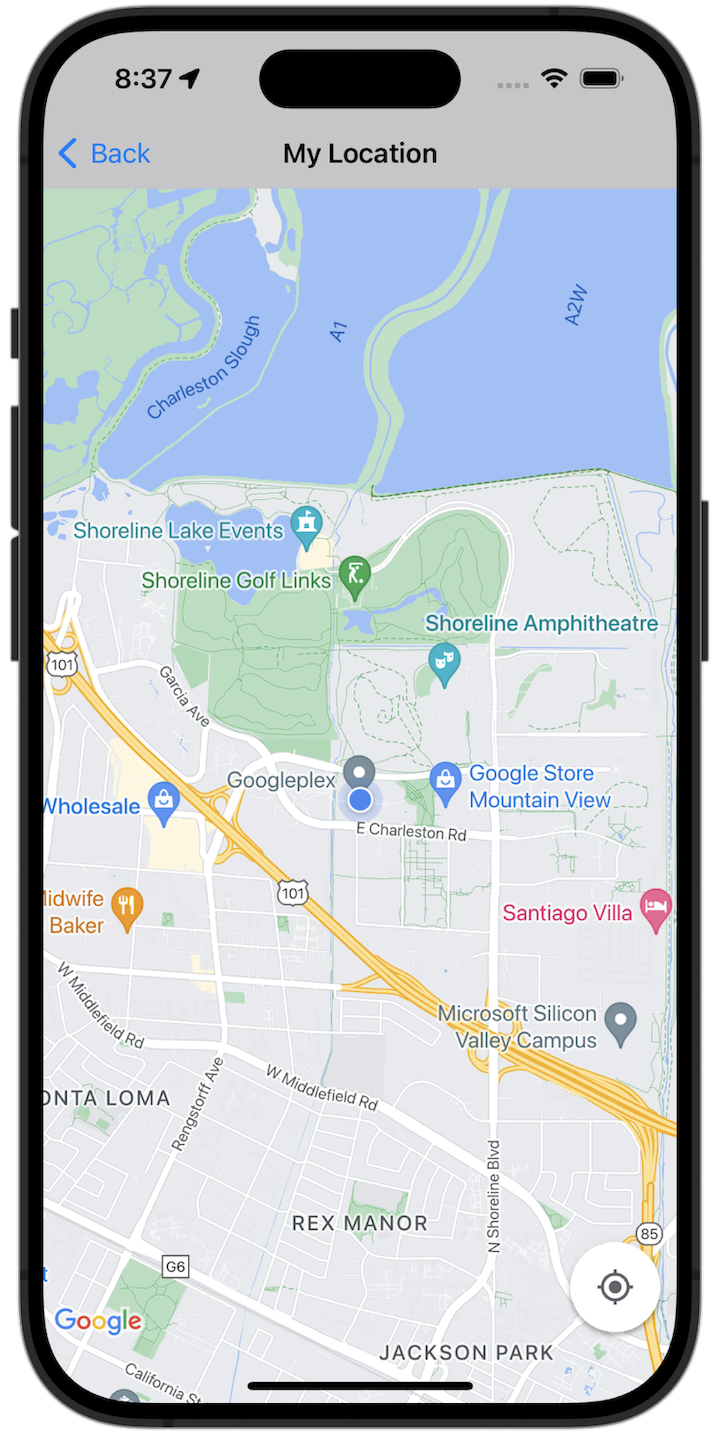
শুরু করুন
স্যাম্পেল কোড ব্যবহার করে দেখার আগে, আপনাকে ডেভেলপমেন্ট এনভায়রনমেন্ট কনফিগার করতে হবে। আরও তথ্যের জন্য, iOS-এর জন্য Maps SDK কোড স্যাম্পেল দেখুন।
কোড দেখুন
Swift
import GoogleMaps import UIKit class MyLocationViewController: UIViewController { private let cameraLatitude: CLLocationDegrees = -33.868 private let cameraLongitude: CLLocationDegrees = 151.2086 private let cameraZoom: Float = 12 lazy var mapView: GMSMapView = { let camera = GMSCameraPosition( latitude: cameraLatitude, longitude: cameraLongitude, zoom: cameraZoom) return GMSMapView(frame: .zero, camera: camera) }() var observation: NSKeyValueObservation? var location: CLLocation? { didSet { guard oldValue == nil, let firstLocation = location else { return } mapView.camera = GMSCameraPosition(target: firstLocation.coordinate, zoom: 14) } } override func viewDidLoad() { super.viewDidLoad() mapView.delegate = self mapView.settings.compassButton = true mapView.settings.myLocationButton = true mapView.isMyLocationEnabled = true view = mapView // Listen to the myLocation property of GMSMapView. observation = mapView.observe(\.myLocation, options: [.new]) { [weak self] mapView, _ in self?.location = mapView.myLocation } } deinit { observation?.invalidate() } } extension MyLocationViewController: GMSMapViewDelegate { func mapView(_ mapView: GMSMapView, didTapMyLocation location: CLLocationCoordinate2D) { let alert = UIAlertController( title: "Location Tapped", message: "Current location: <\(location.latitude), \(location.longitude)>", preferredStyle: .alert) alert.addAction(UIAlertAction(title: "OK", style: .default)) present(alert, animated: true) } }
Objective-C
#import "GoogleMapsDemos/Samples/MyLocationViewController.h" #import <GoogleMaps/GoogleMaps.h> @implementation MyLocationViewController { GMSMapView *_mapView; BOOL _firstLocationUpdate; } - (void)viewDidLoad { [super viewDidLoad]; GMSCameraPosition *camera = [GMSCameraPosition cameraWithLatitude:-33.868 longitude:151.2086 zoom:12]; _mapView = [GMSMapView mapWithFrame:CGRectZero camera:camera]; _mapView.delegate = self; _mapView.settings.compassButton = YES; _mapView.settings.myLocationButton = YES; // Listen to the myLocation property of GMSMapView. [_mapView addObserver:self forKeyPath:@"myLocation" options:NSKeyValueObservingOptionNew context:NULL]; self.view = _mapView; // Ask for My Location data after the map has already been added to the UI. GMSMapView *mapView = _mapView; dispatch_async(dispatch_get_main_queue(), ^{ mapView.myLocationEnabled = YES; }); } - (void)mapView:(GMSMapView *)mapView didTapMyLocation:(CLLocationCoordinate2D)location { NSString *message = [NSString stringWithFormat:@"My Location Dot Tapped at: [lat: %f, lng: %f]", location.latitude, location.longitude]; UIAlertController *alertController = [UIAlertController alertControllerWithTitle:@"Location Tapped" message:message preferredStyle:UIAlertControllerStyleAlert]; UIAlertAction *okAction = [UIAlertAction actionWithTitle:@"OK" style:UIAlertActionStyleDefault handler:^(UIAlertAction *action){ }]; [alertController addAction:okAction]; [self presentViewController:alertController animated:YES completion:nil]; } - (void)dealloc { [_mapView removeObserver:self forKeyPath:@"myLocation" context:NULL]; } #pragma mark - KVO updates - (void)observeValueForKeyPath:(NSString *)keyPath ofObject:(id)object change:(NSDictionary *)change context:(void *)context { if (!_firstLocationUpdate) { // If the first location update has not yet been received, then jump to that location. _firstLocationUpdate = YES; CLLocation *location = [change objectForKey:NSKeyValueChangeNewKey]; _mapView.camera = [GMSCameraPosition cameraWithTarget:location.coordinate zoom:14]; } } @end
স্থানীয়ভাবে সম্পূর্ণ স্যাম্পেল অ্যাপ রান করুন
iOS-এর জন্য Maps SDK স্যাম্পেল অ্যাপ GitHub থেকে ডাউনলোড আর্কাইভ হিসেবে উপলভ্য। iOS-এর জন্য Maps SDK স্যাম্পেল অ্যাপ ইনস্টল ও ব্যবহার করে দেখতে এইসব ধাপ অনুসরণ করুন।
- লোকাল ডিরেক্টরিতে স্যাম্পেল রিপোজিটরি ক্লোন করতে
git clone https://github.com/googlemaps-samples/maps-sdk-for-ios-samples.gitরান করুন। টার্মিনাল উইন্ডো খুলে, যে ডিরেক্টরিতে স্যাম্পেল ফাইল ক্লোন করেছেন সেখানে নেভিগেট করুন এবং GoogleMaps ডিরেক্টরিতে ড্রিল ডাউন করুন:
Swift
cd maps-sdk-for-ios-samples/GoogleMaps-Swift
open GoogleMapsSwiftXCFrameworkDemos.xcodeproj
Objective-C
cd maps-sdk-for-ios-samples-main/GoogleMaps
open GoogleMapsDemos.xcodeproj- Xcode প্রোজেক্টে, ফাইল > প্যাকেজ ডিপেন্ডেন্সি যোগ করুন বিকল্পে যান।
URL হিসেবে
https://github.com/googlemaps/ios-maps-sdkলিখুন, প্যাকেজটি নিয়ে আসার জন্য Enter প্রেস করুন এবং প্যাকেজ যোগ করুন বিকল্পে ক্লিক করুন। - Xcode-এ, বর্তমান স্কিম সহ
অ্যাপ তৈরি করতে
কম্পাইল বোতাম প্রেস করুন। বিল্ডে কোনও সমস্যা হলে, আপনাকে Swift-এর জন্য
SDKConstants.swiftফাইলে অথবা Objective-C-এর জন্যSDKDemoAPIKey.hফাইলে API key লিখতে বলা হবে। - iOS-এর জন্য Maps SDK চালু আছে এমন প্রোজেক্ট থেকে API কী পান।
- Swift-এর জন্য
SDKConstants.swiftফাইল অথবাSDKDemoAPIKey.hObjective-C-এর জন্য ফাইল এডিট করুন এবং আপনার API কীapiKeyঅথবাkAPIKeyকনস্ট্যান্টের সংজ্ঞায় পেস্ট করুন। যেমন:Swift
static let apiKey = "YOUR_API_KEY"Objective-C
static NSString *const kAPIKey = @"YOUR_API_KEY";
SDKConstants.swiftফাইল (Swift) বাSDKDemoAPIKey.hফাইল (Objective-C)-এ, নিম্নলিখিত লাইনটি সরিয়ে দিন, কারণ এটি ব্যবহারকারীর-নির্ধারিত সমস্যা রেজিস্টার করতে ব্যবহার করা হয়:Swift
#error (Register for API Key and insert here. Then delete this line.)
Objective-C
#error Register for API Key and insert here.
- প্রোজেক্ট তৈরি করে রান করুন। iOS সিমুলেটর উইন্ডো দেখা যাবে, যেখানে Maps SDK ডেমো-এর তালিকা দেখানো হবে।
- iOS-এর জন্য Maps SDK-এর কোনও ফিচার নিয়ে পরীক্ষা করতে, দেখানো বিকল্পগুলির মধ্যে থেকে একটি বেছে নিন।
- GoogleMapsDemos-কে আপনার লোকেশন অ্যাক্সেস করার অনুমতি দিতে বলা হলে, অনুমতি দিন বিকল্পটি বেছে নিন।