
Gemini, Google's AI assistant, along with other developer tools, can help you understand Google Health API documentation and test API calls through features available directly on this site.
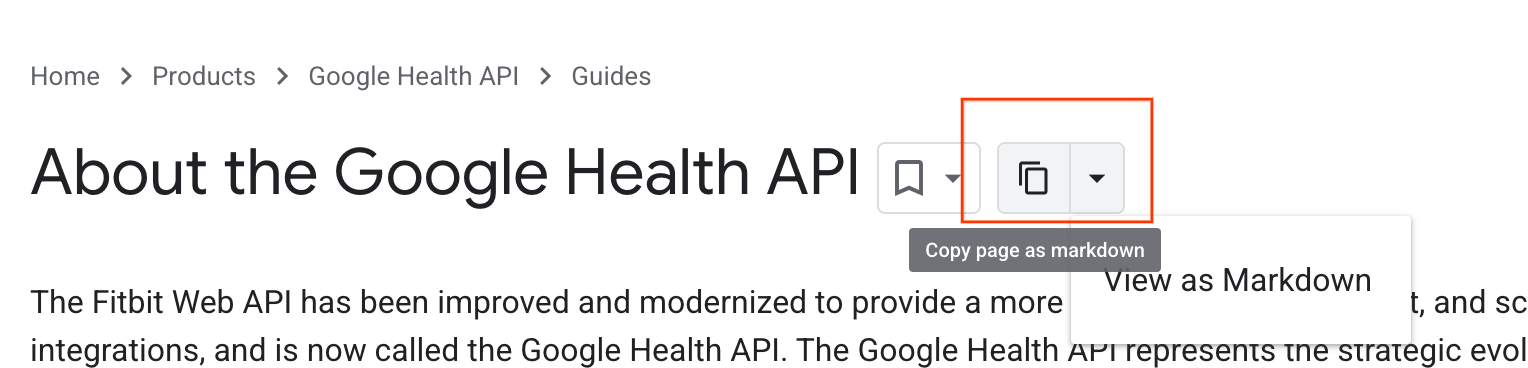
Copy or export page as Markdown
Choose one of these methods to copy or export page content for use with other tools:
- Copy page as markdown: Copies the raw Markdown version of the page's source text directly to your clipboard.
- View as Markdown: Opens the raw Markdown version of the page in a new browser tab.
You can also access the raw source content programmatically. Every page on this
site has a text version available by appending .md.txt to its URL. For
example, the plain text version of this page is located at
ai-assistance-and-developer-tools.md.txt.
Developer Knowledge API
The source content from this site is also available programmatically through the Developer Knowledge API, which organizes Google's public developer content.
A common use case is integrating the Developer Knowledge MCP Server with AI-powered developer tools, including Gemini CLI, Cursor, Claude Desktop, and custom agents. This lets you use the API as a retrieval source for developer queries within your preferred AI tools and environments.
Info Panel with Chat
This feature provides real-time documentation assistance while you browse. Access chat through the Info Panel sidebar on any technical article on this site. Chat responses are based only on the content of the page you are viewing. If chat indicates it cannot answer a question, the information is not available on the current page. This helps you confirm you are on the correct page for the topic you are interested in. This feature is ideal for summarizing complex pages or quickly finding specific details within the text.
Follow these steps to use Gemini chat:
- Click the icon on the top right side of any page.
- Create an account to join the Google Developer Program.
- Accept the terms and privacy agreement.
Code Explain
Use Code Explain to understand implementation details in code samples. Every code block includes a icon button. Click this icon to open an explanation in the Info Panel. Gemini identifies the code's language and explains its logic. Ask follow-up questions in the Info Panel to deepen your understanding, such as "Why was this callback used?" or "How do I adapt this for a different scenario?"
Prompting best practices
To get the best results from Gemini's on-site features, use these prompting techniques:
- Assign a persona: Tell Gemini its role to tailor its responses. For example: "Assume you are an experienced Kotlin developer integrating the Google Health API."
- Use step-by-step logic: Avoid asking Gemini to perform complex tasks in a single prompt. Instead, break down your request and iterate: provide notes, ask for a draft, provide feedback, and ask for revisions.
- Provide format examples: If you require a specific output, such as an HTML table, include a small example of the selected format in your prompt.
Interactive APIs Explorer
This site includes the APIs Explorer, an interactive tool for testing API calls directly in your browser without any local setup. For more guidance on using this tool, see the APIs Explorer documentation.
How it works
On API reference pages, use the Try this method panel to input parameters and click Execute. This sends a live request to the Health API and displays the JSON response directly in your browser. For example, see users.dataTypes.dataPoints/list.
To access the APIs Explorer:
- Locate the Try this method panel on the right side of an API reference page.
- Ensure you are logged into your Google Developer account and have obtained an OAuth 2.0 access token to authorize requests.
- In the Try this method panel, uncheck API Key and enter your access token in that field instead.
- Fill in the required fields and click Execute.
Benefits for developers
- Zero-setup validation: Verify API responses before writing code.
- Response structure: View the exact JSON structure of API responses. You can use this output to build parsing logic or provide context for AI prompts.
- Speed: Accelerate development by reducing trial and error.