
Page Summary
-
The Programmable Search Element Control API allows embedding customizable search boxes and results pages into websites using HTML markup and attributes.
-
Different types of Search Elements are available for various layouts, including standard, two-column, searchbox-only, and searchresults-only.
-
Elements can be customized extensively using
data-attributes to override default settings. -
The API supports initialization and search callbacks for more advanced control and data manipulation during the search process.
-
Static JavaScript functions are provided for rendering elements, retrieving element objects, executing queries, and other functionalities.
You can embed Programmable Search Engine components (search boxes and search results pages) in your web pages and other web applications using HTML markup. These Programmable Search Engine elements consist of components that are rendered based on settings stored by the Programmable Search server, along with any customizations you make.
All JavaScript is loaded asynchronously, which allows your webpage to continue loading while the browser fetches the Programmable Search Engine JavaScript.
Introduction
This document provides a basic model for adding Programmable Search Engine elements to your web page, along with explanations of the element's configurable components and flexible JavaScript API.
Scope
This document describes how to use the functions and properties specific to the Programmable Search Engine Control API.
Browser compatibility
The list of browsers supported by Programmable Search Engine can be found here.
Audience
This documentation is intended for developers who wish to add Google Programmable Search functionality to their pages.
Programmable Search Elements
You can use HTML markup to add a Programmable Search Element to your page. Each element consists of at least one component: a search box, a block of search results, or both. The search box accepts user input in any of the following ways:
- A search query typed in the text input field
- A query string embedded in a URL
- Programmatic execution
In addition, the block of search results accepts input in the following ways:
- A query string embedded in a URL
- Programmatic execution
The following types of Programmable Search Elements are available:
| Element type | Component(s) | Description |
|---|---|---|
| standard | <div class="gcse-search"> |
A search box and search results,
displayed in the same <div>. |
| two-column | <div class="gcse-searchbox"> and <div class="gcse-searchresults"> |
A two-column layout with search results on one side and a search box
on the other. If you plan to insert multiple elements in two-column mode
in your webpage, you can use the gname attribute to pair a
search box with a block of search results. |
| searchbox-only | <div class="gcse-searchbox-only"> |
A standalone search box. |
| searchresults-only | <div class="gcse-searchresults-only"> |
A standalone block of search results. |
You can add any number of valid Search Elements to your webpage. For two-column mode, all required components (a searchbox and search results block) must be present.
Here is an example of a simple Search Element:
<!-- Put the following javascript before the closing </head> tag
and replace 123456 with your own Programmable Search Engine ID. -->
<script async src="https://cse.google.com/cse.js?cx=123456"></script>

<!-- Place this tag where you want both of the search box and the search results to render -->
<div class="gcse-search"></div>
Compose different layout options using Programmable Search Elements
The following layout options are available on the Look and Feel page of the Programmable Search Engine control panel. Here are some general guidelines about composing layout options using Programmable Search Elements. To see a demo of any of these options, click the link.
| Option | Component(s) |
|---|---|
| Full-width | <div class="gcse-search"> |
| Compact | <div class="gcse-search"> |
| Two-column | <div class="gcse-searchbox">, <div class="gcse-searchresults"> |
| Two-page | <div class="gcse-searchbox-only"> on first page, <div class="gcse-searchresults-only"> (or other components) on second page. |
| Results only | <div class="gcse-searchresults-only"> |
| Google-hosted | <div class="gcse-searchbox-only"> |
More information about layout options.
Customizing Programmable Search Elements
To customize colors, font, or link style, go to the Look and Feel page of your programmable search engine.
You can use optional attributes to overwrite configurations created in the
Programmable Search Engine
control panel. This enables you to create a page-specific search experience.
For example, the following code creates a search box that opens a result page
(http://www.example.com?search=lady+gaga) in a new window. The value of the
queryParameterName attribute, along with the user query string, is
used to create the results URL.
Note that the queryParameterName attribute is prefixed with data-.
This prefix is required for all attributes.
<div class="gcse-searchbox-only" data-resultsUrl="http://www.example.com" data-newWindow="true" data-queryParameterName="search">
If you've used the Programmable Search Engine control panel to enable features like autocomplete or refinements, you can use attributes to customize those features. Any customizations you specify using these attributes will override settings made in the control panel. The following example creates a two-column Search Element with the following features:
- History management is enabled
- The maximum number of displayed autocompletions is set to 5
- Refinements are displayed as links.
<div class="gcse-searchbox" data-enableHistory="true" data-autoCompleteMaxCompletions="5">
<div class="gcse-searchresults" data-refinementStyle="link">
Supported attributes
| Attribute | Type | Description | Component |
|---|---|---|---|
| General | |||
gname |
String | (Optional) A name for the Search Element object. A name is used to retrieve
an associated component by name, or to pair a searchbox
component with a searchresults component. If not supplied,
Programmable Search Engine will automatically generate a gname, based on
the order of components on the webpage. For example, the first unnamed
searchbox-only has the gname "searchbox-only0"
and the second has the gname "seachbox-only1", and so on.
Note that the automatically generated gname for a component in
two-column layout will be two-column. The following example
uses the gname storesearch to link a searchbox
component with a searchresults component:
<div class="gcse-searchbox" data-gname="storesearch"></div>
<div class="gcse-searchresults" data-gname="storesearch"></div>
When retrieving an object, if more than one component has the same
|
Any |
autoSearchOnLoad |
Boolean | Specifies whether to execute a search by the query embedded in the URL
of the page that's loading. Note that a query string has to be present in the URL
to execute the auto search. Default: true. |
Any |
enableHistory |
Boolean | If true, enables history management for the browser Back
and Forward buttons. See a demo. |
searchbox searchbox-only |
queryParameterName |
String | The query parameter name—for example, q (default)
or query. This will be embedded in the URL (for example,
http://www.example.com?q=lady+gaga). Note that specifying the
query parameter name alone doesn't trigger auto-search on load. A query
string has to be present in the URL to execute the auto search. |
Any |
resultsUrl |
URL | The URL of the results page. (Default is the Google-hosted page.) | searchbox-only |
newWindow |
Boolean | Specifies whether the results page opens in a new window.
Default: false. |
searchbox-only |
ivt |
Boolean |
This parameter allows you to supply a boolean that informs Google that you wish to allow ads that use an invalid traffic-only cookie & local storage on both consented and unconsented traffic.
Default: Sample usage: |
searchresults searchresults-only |
mobileLayout |
String |
Specifies whether the mobile layout styles should be used for mobile devices.
Default: Sample usage: |
Any |
| Autocomplete | |||
enableAutoComplete |
Boolean | Only available if autocomplete has been enabled in the Programmable Search Engine control panel.
true enables autocomplete. |
Any |
autoCompleteMaxCompletions |
Integer | The maximum number of autocompletions to display. | searchbox searchbox-only |
autoCompleteMaxPromotions |
Integer | The maximum number of promotions to display in autocomplete. | searchbox searchbox-only |
autoCompleteValidLanguages |
String | Comma-separated list of languages for which autocomplete should be enabled. Supported languages. | searchbox searchbox-only |
| Refinements | |||
defaultToRefinement |
String | Available only if refinements have been created in the Programmable Search Engine control panel. Specifies the default refinement label to display.Note: This attribute is not supported for Google Hosted layout. | Any |
refinementStyle |
String | Acceptable values are tab (default) and link.
link is supported only if image search is disabled, or if
image search is enabled but web search is disabled. |
searchresults searchresults-only |
| Image search | |||
enableImageSearch |
Boolean | Available only if
image search has been enabled in the Programmable Search Engine control panel.
If |
searchresults searchresults-only |
defaultToImageSearch |
Boolean | Available only if
image search has been enabled in the Programmable Search Engine control panel.
If |
Any |
imageSearchLayout |
String | Available only if
image search has been enabled in the Programmable Search Engine control panel.
Specifies the layout of the image search results page. Acceptable values
are |
searchresults searchresults-only |
imageSearchResultSetSize |
Integer, String | Available only if
image search has been enabled in the Programmable Search Engine control panel.
Specifies the maximum size of the search results set for image search.
For example, |
Any |
image_as_filetype |
String | Available only if
image search has been enabled in the Programmable Search Engine control panel.
Restricts results to files of a specified extension. Supported extensions are | Any |
image_as_oq |
String | Available only if
image search has been enabled in the Programmable Search Engine control panel.
Filter search results using Logical OR. Sample usage if you want search results that include either "term1" or "term2": | Any |
image_as_rights |
String | Available only if
image search has been enabled in the Programmable Search Engine control panel.
Filters based on licensing. Supported values are See typical combinations. | Any |
image_as_sitesearch |
String | Available only if
image search has been enabled in the Programmable Search Engine control panel.
Restrict results to pages from a specific site. Sample usage: | Any |
image_colortype |
String | Available only if
image search has been enabled in the Programmable Search Engine control panel.
Restricts search to black and white (mono), grayscale, or color images. Supported values are | Any |
image_cr |
String | Available only if
image search has been enabled in the Programmable Search Engine control panel.
Restricts search results to documents originating in a particular country. | Any |
image_dominantcolor |
String | Available only if
image search has been enabled in the Programmable Search Engine control panel.
Restricts search to images of a specific dominant color.
Supported values are | Any |
image_filter |
String | Available only if
image search has been enabled in the Programmable Search Engine control panel.
Automatic filtering of search results. Supported values: 0/1 Sample usage: | Any |
image_gl |
String | Available only if image search has been enabled in the Programmable Search Engine control panel. Boost search results whose country of origin matches the parameter value. | Any |
image_size |
String | Available only if
image search has been enabled in the Programmable Search Engine control panel.
Returns images of a specified size, where size can be one of: | Any |
image_sort_by |
String | Available only if
image search has been enabled in the Programmable Search Engine control panel.
Sort results using either date or other structured content. To sort by relevance use an empty string (image_sort_by=""). Sample usage: | Any |
image_type |
String | Available only if
image search has been enabled in the Programmable Search Engine control panel.
Restricts search to images of a specific type.
Supported values are | Any |
| Web search | |||
disableWebSearch |
Boolean | If true, disables web search. Usually used only if
image search has been enabled in the Programmable Search Engine control panel. |
searchresults searchresults-only |
webSearchQueryAddition |
String | Extra terms added to search query using logical OR.
Sample usage: |
Any |
webSearchResultSetSize |
Integer, String | The maximum size of the results set. Applies to
both image search and web search. The default depends on the layout and
whether the Programmable Search Engine is configured to search the whole web or only specified
sites. Acceptable values include:
|
Any |
webSearchSafesearch |
String |
Specifies if
SafeSearch is
enabled for websearch results. Accepted values are off and active.
|
Any |
as_filetype |
String | Restricts results to files of a specified extension. A list of file types indexable by Google can be found in Search Console Help Center. | Any |
as_oq |
String | Filter search results using Logical OR.
Sample usage if you want search results that include either "term1" or "term2": |
Any |
as_rights |
String | Filters based on licensing.
Supported values are See https://wiki.creativecommons.org/wiki/CC_Search_integration for typicall combinations. | Any |
as_sitesearch |
String | Restrict results to pages from a specific site.
Sample usage: |
Any |
cr |
String | Restricts search results to documents originating in a particular country.
Sample usage: |
Any |
filter |
String | Automatic filtering of search results.
Supported values: 0/1 Sample usage: |
Any |
gl |
String | Boost search results whose country of origin matches the parameter value.
This will only work in conjunction with the language value setting. Sample usage: |
Any |
lr |
String | Restricts search results to documents written in a particular language.
Sample usage: |
Any |
sort_by |
String | Sort results using either date or other structured content. The attribute value must be one of the options provided in the Results Sorting settings of the programmable search egnine.
To sort by relevance use an empty string (sort_by=""). Sample usage: |
Any |
| Search results | |||
enableOrderBy |
Boolean | Enables the sorting of results by relevance, date, or label. | Any |
linkTarget |
String | Sets the link target. Default: _blank. |
searchresults searchresults-only |
noResultsString |
String | Specifies the default text to display when no results match the query. The default result string can be used to display a localized string in all supported languages, while the customized one does not. | searchresults searchresults-only |
resultSetSize |
Integer, String | The maximum size of the results set. For example, large,
small, filtered_cse, 10. The
default depends on the layout and whether the engine is configured to search
the whole web or only specified sites. |
Any |
safeSearch |
String | Specifies if
SafeSearch is enabled for both web and image search. Accepted values are off
and active. |
Any |
Callbacks
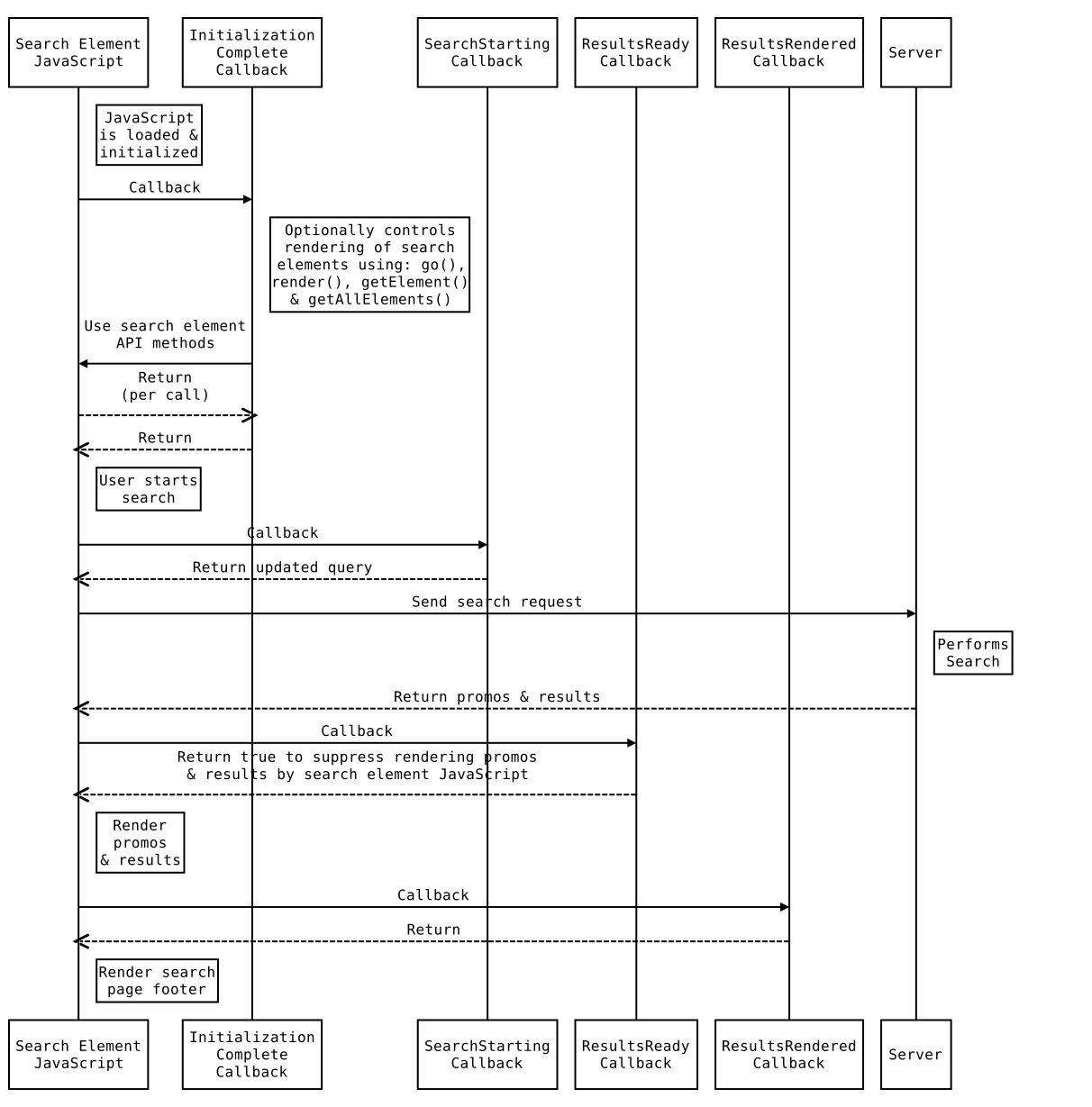
Callbacks support detailed control of the search-element initialization and search processes.
They are registered with the Search Element JavaScript through the global __gcse
object. Register Callbacks illustrates registration of all the
supported callbacks.
  window.__gcse = {
    parsetags: 'explicit', // Defaults to 'onload'
    initializationCallback: myInitializationCallback,
    searchCallbacks: {
      image: {
        starting: myImageSearchStartingCallback,
        ready: myImageResultsReadyCallback,
        rendered: myImageResultsRenderedCallback,
      },
      web: {
        starting: myWebSearchStartingCallback,
        ready: myWebResultsReadyCallback,
        rendered: myWebResultsRenderedCallback,
      },
    },
  };
The Initialization Callback
The initialization callback is invoked before the Search Element JavaScript renders search
elements in the DOM. If parsetags is set to explicit in
__gcse, the Search Element JavaScript leaves rendering Search Elements to the
initialization callback (as shown in Register Callbacks).
This might be used to select elements to render, or to defer rendering elements until they are
needed. It can also override the attributes of the elements; for instance, it can turn a
searchbox that is configured through the Control Panel or HTML attributes to default to web
search into an image search box, or specify that queries submitted via a Programmable Search Engine form are
executed in a searchresults-only element.
See a demo.
The role of the initialization callback is controlled by the value of the parsetags
property of __gcse.
- If its value is
onload, the Search Element JavaScript renders all Search Elements on the page automatically. The initialization callback is still invoked, but it is not responsible for rendering the Search Elements. - If its value is
explicit, the Search Element JavaScript does not render Search Elements. The callback may render them selectively using therender()function, or render all Search Elements with thego()function
The following code demonstrates how to render a search box, together with search results, in a
div, using the explicit parsetag and initialization callback:
We need to include a <div> with an id value
where we'd like the Search Element code:
<div id="test"></div><div>. Note that it
references test, the id we used to identify the
<div>const myInitCallback = function() {
if (document.readyState == 'complete') {
// Document is ready when Search Element is initialized.
// Render an element with both search box and search results in div with id 'test'.
google.search.cse.element.render(
{
div: "test",
tag: 'search'
});
} else {
// Document is not ready yet, when Search Element is initialized.
google.setOnLoadCallback(function() {
// Render an element with both search box and search results in div with id 'test'.
google.search.cse.element.render(
{
div: "test",
tag: 'search'
});
}, true);
}
};
// Insert it before the Search Element code snippet so the global properties like parsetags and callback
// are available when cse.js runs.
window.__gcse = {
parsetags: 'explicit',
initializationCallback: myInitCallback
};
Include this HTML to start loading the Search Element. Replace the cx value in the
src clause with your own cx.
<script async
  src="https://cse.google.com/cse.js?cx=000888210889775888983:y9tkcjel090"></script>
Search Callbacks
The Search Element JavaScript supports six callbacks that operate in the search control flow. The search callbacks come in pairs, a web-search callback and matching image-search callback:
- Search Starting
- For image search
- For web search
- Results ready
- For image search
- For web search
- Results rendered
- For image search
- For web search
Like the initialization callback, the search callbacks are
configured using entries in the __gcse object. This happens as the Search Element
JavaScript starts. Modifications to __gcse after startup are ignored.
Each of these callbacks is passed the gName for
the Search Element as an argument.
The gname is useful when a page contains more than one search. Give a search
element a gname values using the data-gname attribute:
<div class="gcse-searchbox" data-gname="storesearch"></div>
If the HTML doesn’t identify the gname, the Search Element JavaScript generates a value that will remain consistent until the HTML is modified.
Image/Web Search-Starting Callback
The search starting callbacks are invoked immediately before the Search Element JavaScript requests search results from its server. An example use-case would be using the local time of day to control changes to the query.
searchStartingCallback(gname, query)
gname- Search Element's identifying string
query- value entered by the user (possibly modified by search element JavaScript.)
The callback returns the value that should be used as the query for this search. If it returns an empty string, the return value is ignored and the caller uses the unmodified query.
Alternatively, you can put the callback function in the __gcse object or
dynamically add the callback to the object with JavaScript:
window.__gcse['searchCallbacks']['web']['starting'] = function(gname, query) {...};Example Search Starting Callback
The example search starting callback in
Example Search Starting Callback adds either morning
or afternoon to the query depending on the time of day.
    const myWebSearchStartingCallback = (gname, query) => {
      const hour = new Date().getHours();
      return query + (hour < 12 ? ' morning' : ' afternoon');
    };
    window.myImageSearchStartingCallbackName = myWebSearchStartingCallback;
Install this callback in window.__gcse:
  window.__gcse || (window.__gcse = {});
    window.__gcse.searchCallbacks = {
      image: {
        starting: 'myImageSearchStartingCallbackName',
      },
      web: {
        starting: myWebSearchStartingCallback,
      },
    };
  <script
  async src="https://cse.google.com/cse.js?cx=000888210889775888983:y9tkcjel090"></script>
<div class="gcse-searchbox"></div>
<div class="gcse-searchresults"></div>
Image/Web Search Results-Ready Callback
These callbacks are invoked immediately before the Search Element JavaScript renders promotions and results. An example use case would a callback that renders promotions and results in a style that cannot be specified with normal customization.
resultsReadyCallback(gname, query, promos, results, div)
gname- Search Element's identifying string
query- query that produced these results
promos- an array of promotion objects, which correspond to matched promotions for the user’s query. See the promotion object definition.
results- an array of result objects. See the result object definition.
div- an HTML div positioned in the DOM where the Search Element would ordinarily
place promotions and search results. Normally, the Search Element JavaScript would handle
populating this div, but this callback may choose to stop the automatic rendering of results
and use this
divto render results itself.
If this callback returns a true value, the Search Element JavaScript skips to its
page-footer work.
Example Results Ready Callback
The example resultsReady callback in
Example Results Ready Callback overrides the default presentation
of promotions and results with a very simple replacement.
    const myResultsReadyCallback = function(name, q, promos, results, resultsDiv) {
      const makePromoElt = (promo) => {
        const anchor = document.createElement('a');
        anchor.href = promo['url'];
        anchor.target = '_blank';
        anchor.classList.add('gs-title');
        const span = document.createElement('span');
        span.innerHTML = 'Promo: ' + promo['title'];
        anchor.appendChild(span);
        return anchor;
      };
      const makeResultParts = (result) => {
        const anchor = document.createElement('a');
        anchor.href = result['url'];
        anchor.target = '_blank';
        anchor.classList.add('gs_title');
        anchor.appendChild(document.createTextNode(result['visibleUrl']));
        const span = document.createElement('span');
        span.innerHTML = ' ' + result['title'];
        return [anchor, span];
      };

      const table = document.createElement('table');
      if (promos) {
        for (const promo of promos) {
          const row = table.insertRow(-1);
          const cell = row.insertCell(-1);
          cell.appendChild(makePromoElt(promo));
        }
        resultsDiv.appendChild(table);
        resultsDiv.appendChild(document.createElement('br'));
      }
      if (results) {
        const table = document.createElement('table');
        for (const result of results) {
          const row = table.insertRow(-1);
          const cell = row.insertCell(-1);
          const [anchor, span] = makeResultParts(result);
          cell.appendChild(anchor);
          const cell2 = row.insertCell(-1);
          cell2.appendChild(span);
        }
        resultsDiv.appendChild(table);
      }
      return true;
    };
Install this callback in window.__gcse:
  window.__gcse || (window.__gcse = {});
    window.__gcse.searchCallbacks = {
      web: {
        ready: myResultsReadyCallback,
      },
    };
<script async
src="https://cse.google.com/cse.js?cx=000888210889775888983:y9tkcjel090"></script>
<div class="gcse-searchbox"></div>
<div class="gcse-searchresults"></div>
As with the search starting callback, the above is one of many ways to put the callback in the
__gcse object.
Image/Web Search Results-Rendered Callback
These callbacks are invoked immediately before the Search Element JavaScript renders the page footer. Example use cases would include a callback that adds result content that the search element does not display such as a save this checkbox or information that is not automatically rendered, or a callback that adds for more information buttons.
If a results rendered callback needs information that was in the promos and
results
parameters of the results ready callback, it can pass that between them, like this:
callback(gname, query, promoElts, resultElts);
gname- Search Element's identifying string
query- search string.
promoElts- an array of the DOM elements containing promotions.
resultElts- an array of the DOM elements containing results.
There is no return value.
Example Results Rendered Callback
The example resultsRendered callback in
Example Results Rendered Callback adds a dummy Keep
checkbox to each promotion and result.
myWebResultsRenderedCallback = function(name, q, promos, results) {
    for (const div of promos.concat(results)) {
      const innerDiv = document.createElement('div');
      innerDiv.appendChild(document.createTextNode('Keep: '));
      const checkBox = document.createElement('input');
      checkBox.type = 'checkbox';
      checkBox.name = 'save';
      innerDiv.appendChild(checkBox);
      div.insertAdjacentElement('afterbegin', innerDiv);
    }
  };
Install this callback in window.__gcse:
window.__gcse || (window.__gcse = {});
window.__gcse.searchCallbacks = {
  web: {
    rendered: 'myWebResultsRenderedCallback',
  },
};
<script async
src="https://cse.google.com/cse.js?cx=000888210889775888983:y9tkcjel090"></script>
<div class="gcse-searchbox"></div>
<div class="gcse-searchresults"></div>
If the results rendered callback needs
information that was passed to the results ready callback it can pass that data between
the callbacks. The following example shows one of many ways to pass a rating value from
richSnippet from the results ready callback to the results rendered
callback.
const makeTwoPartCallback = () => {
  let saveForRenderCallback;
  const readyCallback = (name, q, promos, results, resultsDiv) =>
  {
    saveForRenderCallback = [];
    for (const result of results) {
      const {
        richSnippet: {
          answer = []
        } = {},
      } = result;
      const firstAnswer = answer[0];
      if (firstAnswer) {
        const upVotes = firstAnswer['upvotecount'];
        if (upVotes) {
          saveForRenderCallback.push(
            {upvotes: parseInt(upVotes, 10)}
          );
          continue;
        }
      }
      saveForRenderCallback.push({});
    }
  };
  const renderedCallback = (name, q, promos, results) => {
    for (let i = 0; i < results.length; ++i) {
      const div = results[i];
      const votes = saveForRenderCallback[i]['upvotes'];
      if (votes) {
        const innerDiv = document.createElement('div');
        innerDiv.innerHTML = '<b>Upvotes: ' + votes + '</b>';
         div.insertAdjacentElement('afterbegin', innerDiv);
      }
    }
  };
  return {readyCallback, renderedCallback};
};__gcse:
const {
  readyCallback: webResultsReadyCallback,
  renderedCallback: webResultsRenderedCallback,
} = makeTwoPartCallback();
window.__gcse || (window.__gcse = {});
window.__gcse.searchCallbacks = {
  web: {
    ready: webResultsReadyCallback,
    rendered: webResultsRenderedCallback,
  },
};
<script async
src="https://cse.google.com/cse.js?cx=000888210889775888983:kdroeu4mwju"></script>
<div class="gcse-searchbox"></div>
<div class="gcse-searchresults"></div>Example Results Rendered Callback: Opening specific file types in new tab/window
The following callback example can modify search result links after they are rendered to open a specific file in a new tab/page instead of the current window (for example: PDF, Excel or Word). This improves the browsing experience when users do not want to open a file on the same window and move away from the results page.
This callback example identifies PDF links in the search results and sets the target="_blank" attribute on PDF links so that they open in a new tab. A MutationObserver is used to dynamically handle new results if the page updates. Note: You can replace .pdf in handleSearchResults with any other filetype as per your requirement.
This callback example does not work on Google Hosted and Overlay layouts.
function handleSearchResults() {
  const links = document.querySelectorAll('.gsc-results .gs-title');
  links.forEach(link => {
    const url = link.href;
    if (url?.toLowerCase().endsWith('.pdf')) {
      link.setAttribute('target', '_blank');
    }
  });
}

const myWebResultsRenderedCallback = () => {
  // Call handleSearchResults when results are rendered
  handleSearchResults();
  // Set up a MutationObserver to handle subsequent updates to the results
  const observer = new MutationObserver(handleSearchResults);
  const searchResultsContainer = document.querySelector('.gsc-results');
  if (searchResultsContainer) {
    observer.observe(searchResultsContainer, {
      childList: true,
      subtree: true
    });
  } else {
    console.log('No Results.');
  }
};
Install this callback in window.__gcse:
window.__gcse || (window.__gcse = {});
window.__gcse.searchCallbacks = {
  web: {
    rendered: myWebResultsRenderedCallback,
  },
};
<script async
src="https://cse.google.com/cse.js?cx=000888210889775888983:y9tkcjel090"></script>
<div class="gcse-searchbox"></div>
<div class="gcse-searchresults"></div>More Callback Examples
Additional callback examples can be found in the More Callback Examples document.
Promotion and Result Properties
Using JSDoc notation, these are the properties of promotion and result objects. Here, we list all the properties that might be present. The presence of many of the properties depend on the details of the promotion or search result.
{
  content: string,
  image: {
    height: number,
    url: string,
    width: number,
  },
  title: string,
  url: string,
  visibleUrl: string,
}{
content: string,
contentNoFormatting: string,
contextUrl: string, // For image search results only
fileFormat: string,
image: { // For image search reseults only
height: number,
url: string,
width: number,
},
perResultLabels: !Array<{
anchor: string,
label: string,
labelWithOp: string,
}>,
richSnippet: !Array<!Object>, // For web search results only
thumbnailImage: {
height: number,
url: string,
width: number,
},
title: string,
titleNoFormatting: string,
url: string,
visibleUrl: string,
}richSnippet in results has the loose type of an array of
objects. The values of entries in this array are controlled by the
structured data
found on the web page for each search result. For instance, a review web site might include
structured data that adds this array entry to richSnippet:
'review': {
  'ratingstars': '3.0',
  'ratingcount': '1024',
},
Programmable Search Element Control API (V2)
The google.search.cse.element object publishes the following
static functions:
| Function | Description | ||||||
|---|---|---|---|---|---|---|---|
.render(componentConfig, opt_componentConfig) |
Renders a Search Element.
Parameters
|
||||||
.go(opt_container) |
Renders all Search Element tags/classes in the specified container.
Parameters
|
||||||
.getElement(gname) |
Gets the element object by gname. If not found, return null.
The returned
The following code executes the query "news" in the Search Element "element1": var element = google.search.cse.element.getElement('element1'); element.execute('news'); |
||||||
.getAllElements() |
Returns a map of all successfully created element objects, keyed by gname. |