ইন্টারেক্টিভ ডায়ালগ সমর্থন করুন

এই পৃষ্ঠায় বর্ণনা করা হয়েছে, কীভাবে আপনার চ্যাট অ্যাপ ব্যবহারকারীদের উত্তর দেওয়ার জন্য ডায়ালগ খুলতে পারে।

ডায়ালগ হলো উইন্ডোযুক্ত, কার্ড-ভিত্তিক ইন্টারফেস যা চ্যাট স্পেস বা মেসেজ থেকে খোলে। ডায়ালগ এবং এর বিষয়বস্তু শুধুমাত্র সেই ব্যবহারকারীই দেখতে পান যিনি এটি খুলেছেন।

চ্যাট অ্যাপগুলো চ্যাট ব্যবহারকারীদের কাছ থেকে তথ্য অনুরোধ ও সংগ্রহ করার জন্য ডায়ালগ ব্যবহার করতে পারে, যার মধ্যে একাধিক ধাপের ফর্মও অন্তর্ভুক্ত। ফর্ম ইনপুট তৈরি করার বিষয়ে আরও বিস্তারিত জানতে, “ব্যবহারকারীদের কাছ থেকে তথ্য সংগ্রহ ও প্রক্রিয়াকরণ” দেখুন।

পূর্বশর্ত

নোড.জেএস

একটি গুগল চ্যাট অ্যাপ যা ইন্টারঅ্যাকশন ইভেন্ট গ্রহণ করে এবং সেগুলোর উত্তর দেয়। একটি HTTP সার্ভিস ব্যবহার করে ইন্টারেক্টিভ চ্যাট অ্যাপ তৈরি করতে, এই কুইকস্টার্টটি সম্পূর্ণ করুন।

পাইথন

একটি গুগল চ্যাট অ্যাপ যা ইন্টারঅ্যাকশন ইভেন্ট গ্রহণ করে এবং সেগুলোর উত্তর দেয়। একটি HTTP সার্ভিস ব্যবহার করে ইন্টারেক্টিভ চ্যাট অ্যাপ তৈরি করতে, এই কুইকস্টার্টটি সম্পূর্ণ করুন।

জাভা

একটি গুগল চ্যাট অ্যাপ যা ইন্টারঅ্যাকশন ইভেন্ট গ্রহণ করে এবং সেগুলোর উত্তর দেয়। একটি HTTP সার্ভিস ব্যবহার করে ইন্টারেক্টিভ চ্যাট অ্যাপ তৈরি করতে, এই কুইকস্টার্টটি সম্পূর্ণ করুন।

অ্যাপস স্ক্রিপ্ট

একটি গুগল চ্যাট অ্যাপ যা ইন্টারঅ্যাকশন ইভেন্ট গ্রহণ করে এবং সেগুলোর উত্তর দেয়। অ্যাপস স্ক্রিপ্টে একটি ইন্টারেক্টিভ চ্যাট অ্যাপ তৈরি করতে, এই কুইকস্টার্টটি সম্পূর্ণ করুন।

একটি সংলাপ শুরু করুন

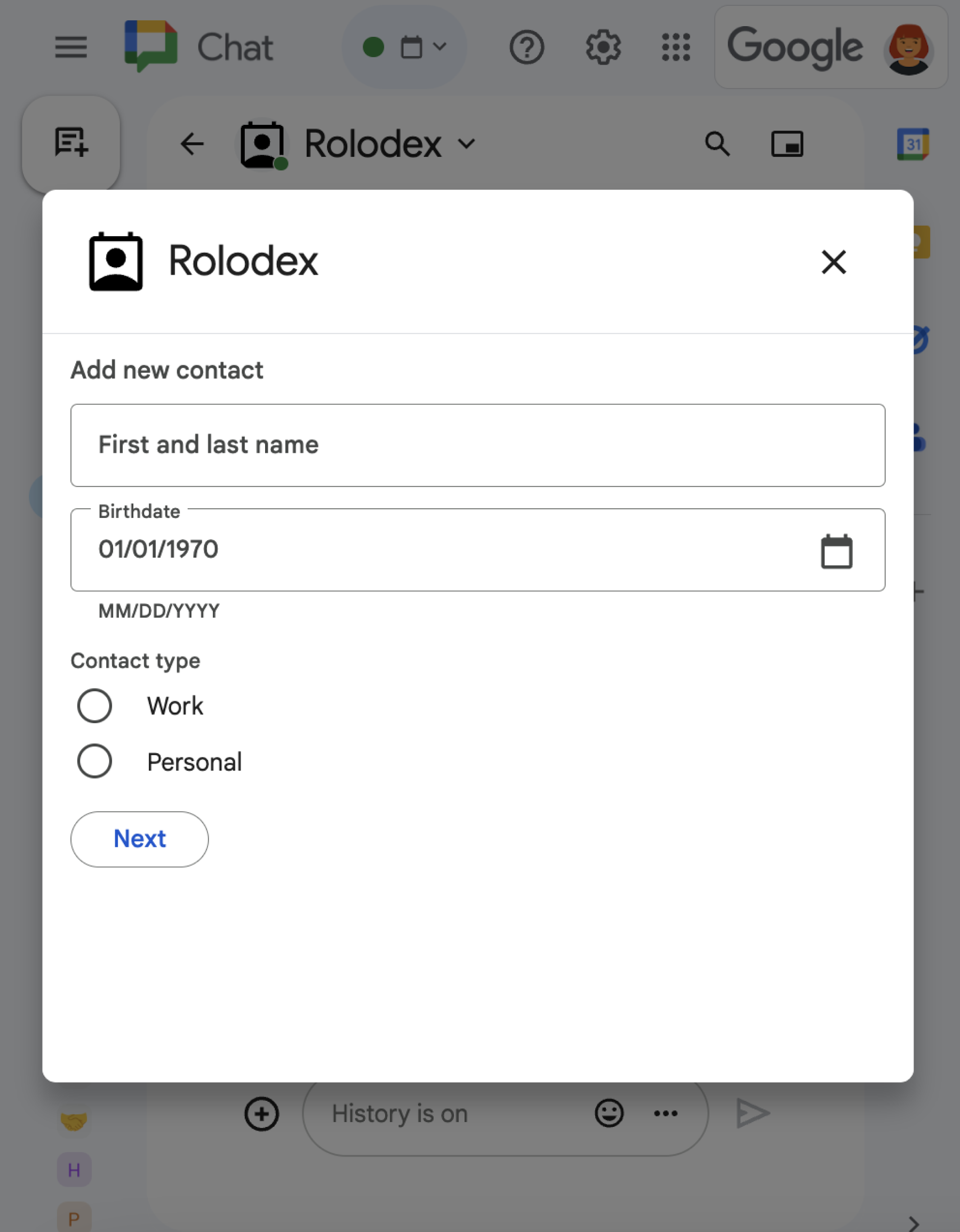
একটি ডায়ালগ বক্স যেখানে বিভিন্ন ধরনের উইজেট রয়েছে।
চিত্র ১ : একটি নমুনা চ্যাট অ্যাপ যা যোগাযোগের তথ্য সংগ্রহের জন্য একটি ডায়ালগ খোলে।

এই বিভাগে নিম্নলিখিত কাজগুলো করার মাধ্যমে কীভাবে প্রতিক্রিয়া জানাতে ও সংলাপ শুরু করতে হয় তা ব্যাখ্যা করা হয়েছে:

  1. ব্যবহারকারীর কোনো কার্যকলাপের মাধ্যমে ডায়ালগ অনুরোধটি চালু করুন।
  2. ফিরে এসে একটি ডায়ালগ খুলে অনুরোধটি পরিচালনা করুন।
  3. ব্যবহারকারীরা তথ্য জমা দেওয়ার পর, ডায়ালগটি বন্ধ করে অথবা অন্য একটি ডায়ালগে ফিরে গিয়ে জমা দেওয়া তথ্যটি প্রক্রিয়া করুন।

একটি ডায়ালগ অনুরোধ শুরু করুন

একটি চ্যাট অ্যাপ শুধুমাত্র ব্যবহারকারীর কোনো ইন্টারঅ্যাকশনের প্রতিক্রিয়া জানাতে ডায়ালগ খুলতে পারে, যেমন কোনো কমান্ড বা কার্ডের মেসেজ থেকে কোনো বাটনে ক্লিক।

ব্যবহারকারীদের ডায়ালগের মাধ্যমে উত্তর দিতে, একটি চ্যাট অ্যাপকে অবশ্যই এমন একটি ইন্টারঅ্যাকশন তৈরি করতে হবে যা ডায়ালগ অনুরোধটি ট্রিগার করে, যেমনটি নিচে দেওয়া হলো:

  • একটি কমান্ডের প্রতিক্রিয়া জানান। কোনো কমান্ড থেকে অনুরোধটি সক্রিয় করতে, কমান্ডটি কনফিগার করার সময় আপনাকে অবশ্যই ‘একটি ডায়ালগ খোলে’ চেকবক্সটি চেক করতে হবে।
  • মেসেজের মধ্যে থাকা কোনো বাটন ক্লিকে সাড়া দিন , যা কার্ডের অংশ হিসেবে অথবা মেসেজের একেবারে নিচে থাকতে পারে। মেসেজের কোনো বাটন থেকে অনুরোধটি চালু করতে, বাটনটির onClick অ্যাকশনের interaction OPEN_DIALOG এ সেট করে কনফিগার করতে হয়।
  • চ্যাট অ্যাপের হোমপেজে কোনো বাটন ক্লিকের প্রতিক্রিয়া জানান । হোমপেজ থেকে ডায়ালগ খোলার বিষয়ে জানতে, আপনার গুগল চ্যাট অ্যাপের জন্য একটি হোমপেজ তৈরি করুন দেখুন।
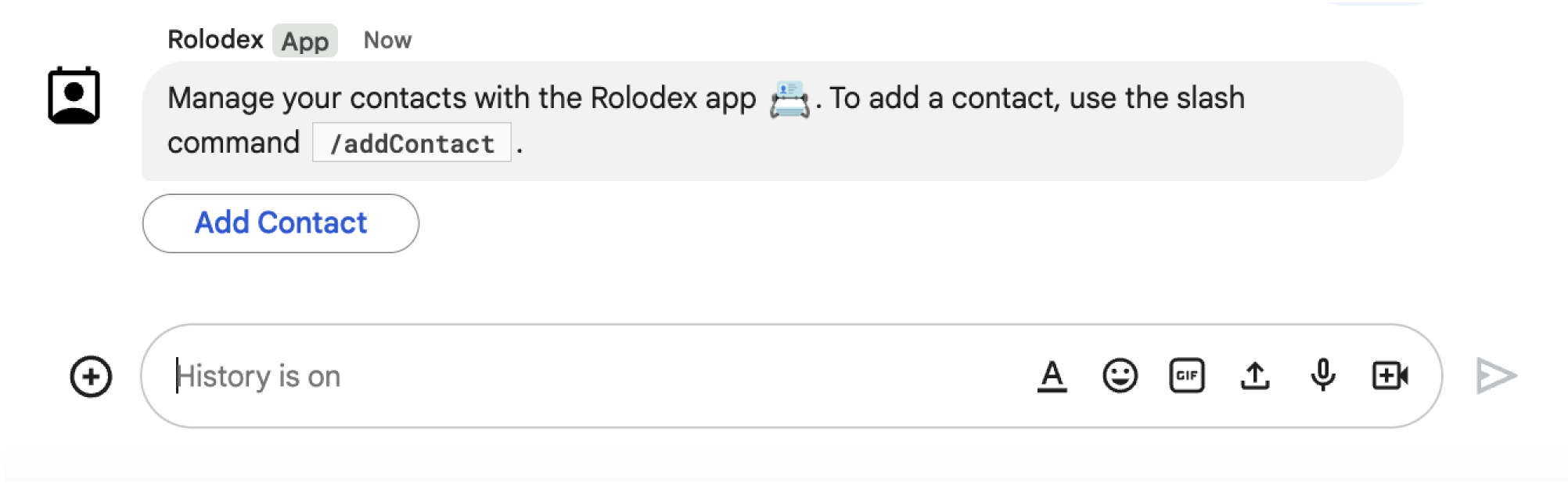
যে বোতামটি একটি ডায়ালগ বক্স চালু করে
চিত্র ২ : একটি চ্যাট অ্যাপ ব্যবহারকারীদের /addContact স্ল্যাশ কমান্ডটি ব্যবহার করতে অনুরোধ জানিয়ে একটি বার্তা পাঠায়।
বার্তাটিতে একটি বাটনও রয়েছে, যেটিতে ক্লিক করে ব্যবহারকারীরা কমান্ডটি চালু করতে পারেন।

নিম্নলিখিত কোড নমুনাটি দেখায় কিভাবে একটি কার্ড মেসেজের বাটন থেকে ডায়ালগ অনুরোধ ট্রিগার করতে হয়। ডায়ালগটি খোলার জন্য, button.interaction ফিল্ডটি OPEN_DIALOG এ সেট করা হয়:

নোড.জেএস

node/contact-form-app/index.js
buttonList: { buttons: [{
  text: "Add Contact",
  onClick: { action: {
    function: "openInitialDialog",
    interaction: "OPEN_DIALOG"
  }}
}]}

পাইথন

python/contact-form-app/main.py
'buttonList': { 'buttons': [{
  'text': "Add Contact",
  'onClick': { 'action': {
    'function': "openInitialDialog",
    'interaction': "OPEN_DIALOG"
  }}
}]}

জাভা

java/contact-form-app/src/main/java/com/google/chat/contact/App.java
.setButtonList(new GoogleAppsCardV1ButtonList().setButtons(List.of(new GoogleAppsCardV1Button()
  .setText("Add Contact")
  .setOnClick(new GoogleAppsCardV1OnClick().setAction(new GoogleAppsCardV1Action()
    .setFunction("openInitialDialog")
    .setInteraction("OPEN_DIALOG"))))))));

অ্যাপস স্ক্রিপ্ট

এই উদাহরণটি কার্ডের JSON রিটার্ন করার মাধ্যমে একটি কার্ড মেসেজ পাঠায়। আপনি অ্যাপস স্ক্রিপ্টের কার্ড সার্ভিসটিও ব্যবহার করতে পারেন।

apps-script/contact-form-app/main.gs
buttonList: { buttons: [{
  text: "Add Contact",
  onClick: { action: {
    function: "openInitialDialog",
    interaction: "OPEN_DIALOG"
  }}
}]}

প্রাথমিক ডায়ালগ খুলুন

যখন কোনো ব্যবহারকারী একটি ডায়ালগ অনুরোধ শুরু করেন, তখন আপনার চ্যাট অ্যাপ একটি ইন্টারঅ্যাকশন ইভেন্ট পায়, যা চ্যাট এপিআই-তে একটি event টাইপ হিসেবে উপস্থাপিত হয়। যদি ইন্টারঅ্যাকশনটি একটি ডায়ালগ অনুরোধ শুরু করে, তাহলে ইভেন্টটির ` dialogEventType ফিল্ডটি ` REQUEST_DIALOG এ সেট করা হয়।

একটি ডায়ালগ খোলার জন্য, আপনার চ্যাট অ্যাপটি DIALOG type একটি actionResponse অবজেক্ট এবং Message অবজেক্ট রিটার্ন করে অনুরোধটির উত্তর দিতে পারে। ডায়ালগের বিষয়বস্তু নির্দিষ্ট করার জন্য, আপনাকে নিম্নলিখিত অবজেক্টগুলো অন্তর্ভুক্ত করতে হবে:

  • একটি actionResponse অবজেক্ট, যার type DIALOG হিসেবে সেট করা আছে।
  • একটি dialogAction অবজেক্ট। body ফিল্ডটিতে কার্ডে প্রদর্শিত হওয়ার জন্য ইউজার ইন্টারফেস (UI) এলিমেন্টগুলো থাকে, যার মধ্যে এক বা একাধিক উইজেট sections অন্তর্ভুক্ত। ব্যবহারকারীদের কাছ থেকে তথ্য সংগ্রহ করার জন্য, আপনি ফর্ম ইনপুট উইজেট এবং একটি বাটন উইজেট নির্দিষ্ট করতে পারেন। ফর্ম ইনপুট ডিজাইন সম্পর্কে আরও জানতে, “ব্যবহারকারীদের কাছ থেকে তথ্য সংগ্রহ ও প্রক্রিয়াকরণ” দেখুন।

নিম্নলিখিত কোড নমুনাটি দেখায় কিভাবে একটি চ্যাট অ্যাপ এমন একটি প্রতিক্রিয়া প্রদান করে যা একটি ডায়ালগ খোলে:

নোড.জেএস

node/contact-form-app/index.js
/**
 * Opens the initial step of the dialog that lets users add contact details.
 *
 * @return {Object} a message with an action response to open a dialog.
 */
function openInitialDialog() {
  return { actionResponse: {
    type: "DIALOG",
    dialogAction: { dialog: { body: { sections: [{
      header: "Add new contact",
      widgets: CONTACT_FORM_WIDGETS.concat([{
        buttonList: { buttons: [{
          text: "Review and submit",
          onClick: { action: { function: "openConfirmation" }}
        }]}
      }])
    }]}}}
  }};
}

পাইথন

python/contact-form-app/main.py
def open_initial_dialog() -> dict:
  """Opens the initial step of the dialog that lets users add contact details."""
  return { 'actionResponse': {
    'type': "DIALOG",
    'dialogAction': { 'dialog': { 'body': { 'sections': [{
      'header': "Add new contact",
      'widgets': CONTACT_FORM_WIDGETS + [{
        'buttonList': { 'buttons': [{
          'text': "Review and submit",
          'onClick': { 'action': { 'function': "openConfirmation" }}
        }]}
      }]
    }]}}}
  }}

জাভা

java/contact-form-app/src/main/java/com/google/chat/contact/App.java
// Opens the initial step of the dialog that lets users add contact details.
Message openInitialDialog() {
  return new Message().setActionResponse(new ActionResponse()
    .setType("DIALOG")
    .setDialogAction(new DialogAction().setDialog(new Dialog().setBody(new GoogleAppsCardV1Card()
      .setSections(List.of(new GoogleAppsCardV1Section()
        .setHeader("Add new contact")
        .setWidgets(Stream.concat(
          CONTACT_FORM_WIDGETS.stream(),
          List.of(new GoogleAppsCardV1Widget()
            .setButtonList(new GoogleAppsCardV1ButtonList().setButtons(List.of(new GoogleAppsCardV1Button()
            .setText("Review and submit")
            .setOnClick(new GoogleAppsCardV1OnClick().setAction(new GoogleAppsCardV1Action()
              .setFunction("openConfirmation"))))))).stream()).collect(Collectors.toList()))))))));
}

অ্যাপস স্ক্রিপ্ট

এই উদাহরণটি কার্ডের JSON রিটার্ন করার মাধ্যমে একটি কার্ড মেসেজ পাঠায়। আপনি অ্যাপস স্ক্রিপ্টের কার্ড সার্ভিসটিও ব্যবহার করতে পারেন।

apps-script/contact-form-app/main.gs
/**
 * Opens the initial step of the dialog that lets users add contact details.
 *
 * @return {Object} a message with an action response to open a dialog.
 */
function openInitialDialog() {
  return { actionResponse: {
    type: "DIALOG",
    dialogAction: { dialog: { body: { sections: [{
      header: "Add new contact",
      widgets: CONTACT_FORM_WIDGETS.concat([{
        buttonList: { buttons: [{
          text: "Review and submit",
          onClick: { action: { function: "openConfirmation" }}
        }]}
      }])
    }]}}}
  }};
}

ডায়ালগ জমা পরিচালনা করুন

যখন ব্যবহারকারীরা একটি ডায়ালগ সাবমিট করার জন্য কোনো বাটনে ক্লিক করেন, তখন আপনার চ্যাট অ্যাপ একটি CARD_CLICKED ইন্টার‍্যাকশন ইভেন্ট পায়, যার dialogEventType হলো SUBMIT_DIALOG । ডায়ালগের তথ্য কীভাবে সংগ্রহ ও প্রসেস করতে হয় তা জানতে, “চ্যাট ব্যবহারকারীদের কাছ থেকে তথ্য সংগ্রহ ও প্রসেস করুন” দেখুন।

আপনার চ্যাট অ্যাপকে অবশ্যই ইন্টারঅ্যাকশন ইভেন্টের জবাবে নিম্নলিখিত কাজগুলোর মধ্যে যেকোনো একটি করতে হবে:

ঐচ্ছিক: অন্য একটি ডায়ালগ ফেরত দিন

ব্যবহারকারীরা প্রাথমিক ডায়ালগটি জমা দেওয়ার পরে, চ্যাট অ্যাপগুলি এক বা একাধিক অতিরিক্ত ডায়ালগ ফেরত দিতে পারে, যা ব্যবহারকারীদের জমা দেওয়ার আগে তথ্য পর্যালোচনা করতে, একাধিক ধাপের ফর্ম পূরণ করতে, বা গতিশীলভাবে ফর্মের বিষয়বস্তু পূরণ করতে সহায়তা করে।

ব্যবহারকারীদের ইনপুট করা ডেটা প্রসেস করার জন্য, চ্যাট অ্যাপটি event.common.formInputs অবজেক্টটি ব্যবহার করে। ইনপুট উইজেট থেকে ভ্যালু পুনরুদ্ধার করার বিষয়ে আরও জানতে, “ব্যবহারকারীদের কাছ থেকে তথ্য সংগ্রহ ও প্রসেস করুন” দেখুন।

প্রাথমিক ডায়ালগ থেকে ব্যবহারকারীদের দেওয়া ডেটার হিসাব রাখতে, পরবর্তী ডায়ালগটি খোলার বাটনে আপনাকে অবশ্যই প্যারামিটার যোগ করতে হবে। বিস্তারিত জানতে, ‘অন্য কার্ডে ডেটা স্থানান্তর’ দেখুন।

এই উদাহরণে, একটি চ্যাট অ্যাপ জমা দেওয়ার আগে নিশ্চিতকরণের জন্য একটি প্রাথমিক ডায়ালগ খোলে, যা দ্বিতীয় একটি ডায়ালগে নিয়ে যায়:

নোড.জেএস

node/contact-form-app/index.js
/**
 * Responds to CARD_CLICKED interaction events in Google Chat.
 *
 * @param {Object} event the CARD_CLICKED interaction event from Google Chat.
 * @return {Object} message responses specific to the dialog handling.
 */
function onCardClick(event) {
  // Initial dialog form page
  if (event.common.invokedFunction === "openInitialDialog") {
    return openInitialDialog();
  // Confirmation dialog form page
  } else if (event.common.invokedFunction === "openConfirmation") {
    return openConfirmation(event);
  // Submission dialog form page
  } else if (event.common.invokedFunction === "submitForm") {
    return submitForm(event);
  }
}

/**
 * Opens the initial step of the dialog that lets users add contact details.
 *
 * @return {Object} a message with an action response to open a dialog.
 */
function openInitialDialog() {
  return { actionResponse: {
    type: "DIALOG",
    dialogAction: { dialog: { body: { sections: [{
      header: "Add new contact",
      widgets: CONTACT_FORM_WIDGETS.concat([{
        buttonList: { buttons: [{
          text: "Review and submit",
          onClick: { action: { function: "openConfirmation" }}
        }]}
      }])
    }]}}}
  }};
}

/**
 * Returns the second step as a dialog or card message that lets users confirm details.
 *
 * @param {Object} event the interactive event with form inputs.
 * @return {Object} returns a dialog or private card message.
 */
function openConfirmation(event) {
  const name = fetchFormValue(event, "contactName") ?? "";
  const birthdate = fetchFormValue(event, "contactBirthdate") ?? "";
  const type = fetchFormValue(event, "contactType") ?? "";
  const cardConfirmation = {
    header: "Your contact",
    widgets: [{
      textParagraph: { text: "Confirm contact information and submit:" }}, {
      textParagraph: { text: "<b>Name:</b> " + name }}, {
      textParagraph: {
        text: "<b>Birthday:</b> " + convertMillisToDateString(birthdate)
      }}, {
      textParagraph: { text: "<b>Type:</b> " + type }}, {
      buttonList: { buttons: [{
        text: "Submit",
        onClick: { action: {
          function: "submitForm",
          parameters: [{
            key: "contactName", value: name }, {
            key: "contactBirthdate", value: birthdate }, {
            key: "contactType", value: type
          }]
        }}
      }]}
    }]
  };

  // Returns a dialog with contact information that the user input.
  if (event.isDialogEvent) {
    return { action_response: {
      type: "DIALOG",
      dialogAction: { dialog: { body: { sections: [ cardConfirmation ]}}}
    }};
  }

  // Updates existing card message with contact information that the user input.
  return {
    actionResponse: { type: "UPDATE_MESSAGE" },
    privateMessageViewer: event.user,
    cardsV2: [{
      card: { sections: [cardConfirmation]}
    }]
  }
}

পাইথন

python/contact-form-app/main.py
def on_card_click(event: dict) -> dict:
  """Responds to CARD_CLICKED interaction events in Google Chat."""
  # Initial dialog form page
  if "openInitialDialog" == event.get('common').get('invokedFunction'):
    return open_initial_dialog()
  # Confirmation dialog form page
  elif "openConfirmation" == event.get('common').get('invokedFunction'):
    return open_confirmation(event)
  # Submission dialog form page
  elif "submitForm" == event.get('common').get('invokedFunction'):
    return submit_form(event)


def open_initial_dialog() -> dict:
  """Opens the initial step of the dialog that lets users add contact details."""
  return { 'actionResponse': {
    'type': "DIALOG",
    'dialogAction': { 'dialog': { 'body': { 'sections': [{
      'header': "Add new contact",
      'widgets': CONTACT_FORM_WIDGETS + [{
        'buttonList': { 'buttons': [{
          'text': "Review and submit",
          'onClick': { 'action': { 'function': "openConfirmation" }}
        }]}
      }]
    }]}}}
  }}


def open_confirmation(event: dict) -> dict:
  """Returns the second step as a dialog or card message that lets users confirm details."""
  name = fetch_form_value(event, "contactName") or ""
  birthdate = fetch_form_value(event, "contactBirthdate") or ""
  type = fetch_form_value(event, "contactType") or ""
  card_confirmation = {
    'header': "Your contact",
    'widgets': [{
      'textParagraph': { 'text': "Confirm contact information and submit:" }}, {
      'textParagraph': { 'text': "<b>Name:</b> " + name }}, {
      'textParagraph': {
        'text': "<b>Birthday:</b> " + convert_millis_to_date_string(birthdate)
      }}, {
      'textParagraph': { 'text': "<b>Type:</b> " + type }}, {
      'buttonList': { 'buttons': [{
        'text': "Submit",
        'onClick': { 'action': {
          'function': "submitForm",
          'parameters': [{
            'key': "contactName", 'value': name }, {
            'key': "contactBirthdate", 'value': birthdate }, {
            'key': "contactType", 'value': type
          }]
        }}
      }]}
    }]
  }

  # Returns a dialog with contact information that the user input.
  if event.get('isDialogEvent'): 
    return { 'action_response': {
      'type': "DIALOG",
      'dialogAction': { 'dialog': { 'body': { 'sections': [card_confirmation] }}}
    }}

  # Updates existing card message with contact information that the user input.
  return {
    'actionResponse': { 'type': "UPDATE_MESSAGE" },
    'privateMessageViewer': event.get('user'),
    'cardsV2': [{
      'card': { 'sections': [card_confirmation] }
    }]
  }

জাভা

java/contact-form-app/src/main/java/com/google/chat/contact/App.java
// Responds to CARD_CLICKED interaction events in Google Chat.
Message onCardClick(JsonNode event) {
  String invokedFunction = event.at("/common/invokedFunction").asText();
  // Initial dialog form page
  if ("openInitialDialog".equals(invokedFunction)) {
    return openInitialDialog();
  // Confirmation dialog form page
  } else if ("openConfirmation".equals(invokedFunction)) {
    return openConfirmation(event);
  // Submission dialog form page
  } else if ("submitForm".equals(invokedFunction)) {
    return submitForm(event);
  }
  return null; 
}

// Opens the initial step of the dialog that lets users add contact details.
Message openInitialDialog() {
  return new Message().setActionResponse(new ActionResponse()
    .setType("DIALOG")
    .setDialogAction(new DialogAction().setDialog(new Dialog().setBody(new GoogleAppsCardV1Card()
      .setSections(List.of(new GoogleAppsCardV1Section()
        .setHeader("Add new contact")
        .setWidgets(Stream.concat(
          CONTACT_FORM_WIDGETS.stream(),
          List.of(new GoogleAppsCardV1Widget()
            .setButtonList(new GoogleAppsCardV1ButtonList().setButtons(List.of(new GoogleAppsCardV1Button()
            .setText("Review and submit")
            .setOnClick(new GoogleAppsCardV1OnClick().setAction(new GoogleAppsCardV1Action()
              .setFunction("openConfirmation"))))))).stream()).collect(Collectors.toList()))))))));
}

// Returns the second step as a dialog or card message that lets users confirm details.
Message openConfirmation(JsonNode event) {
  String name = fetchFormValue(event, "contactName") != null ?
    fetchFormValue(event, "contactName") : "";
  String birthdate = fetchFormValue(event, "contactBirthdate") != null ?
    fetchFormValue(event, "contactBirthdate") : "";
  String type = fetchFormValue(event, "contactType") != null ?
    fetchFormValue(event, "contactType") : "";
  GoogleAppsCardV1Section cardConfirmationSection = new GoogleAppsCardV1Section()
    .setHeader("Your contact")
    .setWidgets(List.of(
      new GoogleAppsCardV1Widget().setTextParagraph(new GoogleAppsCardV1TextParagraph()
        .setText("Confirm contact information and submit:")),
      new GoogleAppsCardV1Widget().setTextParagraph(new GoogleAppsCardV1TextParagraph()
        .setText("<b>Name:</b> " + name)),
      new GoogleAppsCardV1Widget().setTextParagraph(new GoogleAppsCardV1TextParagraph()
        .setText("<b>Birthday:</b> " + convertMillisToDateString(birthdate))),
      new GoogleAppsCardV1Widget().setTextParagraph(new GoogleAppsCardV1TextParagraph()
        .setText("<b>Type:</b> " + type)),
      new GoogleAppsCardV1Widget().setButtonList(new GoogleAppsCardV1ButtonList().setButtons(List.of(new GoogleAppsCardV1Button()
        .setText("Submit")
        .setOnClick(new GoogleAppsCardV1OnClick().setAction(new GoogleAppsCardV1Action()
          .setFunction("submitForm")
          .setParameters(List.of(
            new GoogleAppsCardV1ActionParameter().setKey("contactName").setValue(name),
            new GoogleAppsCardV1ActionParameter().setKey("contactBirthdate").setValue(birthdate),
            new GoogleAppsCardV1ActionParameter().setKey("contactType").setValue(type))))))))));

  // Returns a dialog with contact information that the user input.
  if (event.at("/isDialogEvent") != null && event.at("/isDialogEvent").asBoolean()) {
    return new Message().setActionResponse(new ActionResponse()
      .setType("DIALOG")
      .setDialogAction(new DialogAction().setDialog(new Dialog().setBody(new GoogleAppsCardV1Card()
        .setSections(List.of(cardConfirmationSection))))));
  }

  // Updates existing card message with contact information that the user input.
  return new Message()
    .setActionResponse(new ActionResponse()
      .setType("UPDATE_MESSAGE"))
    .setPrivateMessageViewer(new User().setName(event.at("/user/name").asText()))
    .setCardsV2(List.of(new CardWithId().setCard(new GoogleAppsCardV1Card()
      .setSections(List.of(cardConfirmationSection)))));
}

অ্যাপস স্ক্রিপ্ট

এই উদাহরণটি কার্ডের JSON রিটার্ন করার মাধ্যমে একটি কার্ড মেসেজ পাঠায়। আপনি অ্যাপস স্ক্রিপ্টের কার্ড সার্ভিসটিও ব্যবহার করতে পারেন।

apps-script/contact-form-app/main.gs
/**
 * Responds to CARD_CLICKED interaction events in Google Chat.
 *
 * @param {Object} event the CARD_CLICKED interaction event from Google Chat.
 * @return {Object} message responses specific to the dialog handling.
 */
function onCardClick(event) {
  // Initial dialog form page
  if (event.common.invokedFunction === "openInitialDialog") {
    return openInitialDialog();
  // Confirmation dialog form page
  } else if (event.common.invokedFunction === "openConfirmation") {
    return openConfirmation(event);
  // Submission dialog form page
  } else if (event.common.invokedFunction === "submitForm") {
    return submitForm(event);
  }
}

/**
 * Opens the initial step of the dialog that lets users add contact details.
 *
 * @return {Object} a message with an action response to open a dialog.
 */
function openInitialDialog() {
  return { actionResponse: {
    type: "DIALOG",
    dialogAction: { dialog: { body: { sections: [{
      header: "Add new contact",
      widgets: CONTACT_FORM_WIDGETS.concat([{
        buttonList: { buttons: [{
          text: "Review and submit",
          onClick: { action: { function: "openConfirmation" }}
        }]}
      }])
    }]}}}
  }};
}

/**
 * Returns the second step as a dialog or card message that lets users confirm details.
 *
 * @param {Object} event the interactive event with form inputs.
 * @return {Object} returns a dialog or private card message.
 */
function openConfirmation(event) {
  const name = fetchFormValue(event, "contactName") ?? "";
  const birthdate = fetchFormValue(event, "contactBirthdate") ?? "";
  const type = fetchFormValue(event, "contactType") ?? "";
  const cardConfirmation = {
    header: "Your contact",
    widgets: [{
      textParagraph: { text: "Confirm contact information and submit:" }}, {
      textParagraph: { text: "<b>Name:</b> " + name }}, {
      textParagraph: {
        text: "<b>Birthday:</b> " + convertMillisToDateString(birthdate)
      }}, {
      textParagraph: { text: "<b>Type:</b> " + type }}, {
      buttonList: { buttons: [{
        text: "Submit",
        onClick: { action: {
          function: "submitForm",
          parameters: [{
            key: "contactName", value: name }, {
            key: "contactBirthdate", value: birthdate }, {
            key: "contactType", value: type
          }]
        }}
      }]}
    }]
  };

  // Returns a dialog with contact information that the user input.
  if (event.isDialogEvent) {
    return { action_response: {
      type: "DIALOG",
      dialogAction: { dialog: { body: { sections: [ cardConfirmation ]}}}
    }};
  }

  // Updates existing card message with contact information that the user input.
  return {
    actionResponse: { type: "UPDATE_MESSAGE" },
    privateMessageViewer: event.user,
    cardsV2: [{
      card: { sections: [cardConfirmation]}
    }]
  }
}

ডায়ালগটি বন্ধ করুন

যখন ব্যবহারকারীরা কোনো ডায়ালগের বোতামে ক্লিক করেন, তখন আপনার চ্যাট অ্যাপ এর সাথে সম্পর্কিত অ্যাকশনটি সম্পাদন করে এবং ইভেন্ট অবজেক্টকে নিম্নলিখিত তথ্য সরবরাহ করে:

চ্যাট অ্যাপটির একটি ActionResponse অবজেক্ট রিটার্ন করা উচিত, যার type হবে DIALOG এবং dialogAction এ ডেটা দেওয়া থাকবে। যদি অ্যাকশনটি ব্যর্থ না হয়, তাহলে dialogAction.actionStatus এর OK হওয়া উচিত, যেমনটি নিচের উদাহরণে দেখানো হয়েছে:

নোড.জেএস

node/contact-form-app/index.js
// The Chat app indicates that it received form data from the dialog or card.
// Sends private text message that confirms submission.
const confirmationMessage = "✅ " + contactName + " has been added to your contacts.";
if (event.dialogEventType === "SUBMIT_DIALOG") {
  return {
    actionResponse: {
      type: "DIALOG",
      dialogAction: { actionStatus: {
        statusCode: "OK",
        userFacingMessage: "Success " + contactName
      }}
    }
  };
}

পাইথন

python/contact-form-app/main.py
# The Chat app indicates that it received form data from the dialog or card.
# Sends private text message that confirms submission.
confirmation_message = "✅ " + contact_name + " has been added to your contacts.";
if "SUBMIT_DIALOG" == event.get('dialogEventType'):
  return {
    'actionResponse': {
      'type': "DIALOG",
      'dialogAction': { 'actionStatus': {
        'statusCode': "OK",
        'userFacingMessage': "Success " + contact_name
      }}
    }
  }

জাভা

java/contact-form-app/src/main/java/com/google/chat/contact/App.java
// The Chat app indicates that it received form data from the dialog or card.
// Sends private text message that confirms submission.
String confirmationMessage = "✅ " + contactName + " has been added to your contacts.";
if (event.at("/dialogEventType") != null && "SUBMIT_DIALOG".equals(event.at("/dialogEventType").asText())) {
  return new Message().setActionResponse(new ActionResponse()
    .setType("DIALOG")
    .setDialogAction(new DialogAction().setActionStatus(new ActionStatus()
      .setStatusCode("OK")
      .setUserFacingMessage("Success " + contactName))));
}

অ্যাপস স্ক্রিপ্ট

এই উদাহরণটি কার্ডের JSON রিটার্ন করার মাধ্যমে একটি কার্ড মেসেজ পাঠায়। আপনি অ্যাপস স্ক্রিপ্টের কার্ড সার্ভিসটিও ব্যবহার করতে পারেন।

apps-script/contact-form-app/main.gs
// The Chat app indicates that it received form data from the dialog or card.
// Sends private text message that confirms submission.
const confirmationMessage = "✅ " + contactName + " has been added to your contacts.";
if (event.dialogEventType === "SUBMIT_DIALOG") {
  return {
    actionResponse: {
      type: "DIALOG",
      dialogAction: { actionStatus: {
        statusCode: "OK",
        userFacingMessage: "Success " + contactName
      }}
    }
  };
}

ঐচ্ছিক: একটি অস্থায়ী বিজ্ঞপ্তি প্রদর্শন করুন

ডায়ালগটি বন্ধ করার সময়, আপনি অ্যাপটি ব্যবহারকারী ব্যবহারকারীকে একটি অস্থায়ী টেক্সট নোটিফিকেশনও দেখাতে পারেন।

চ্যাট অ্যাপটি actionStatus সেট করে একটি ActionResponse রিটার্ন করার মাধ্যমে সাফল্য বা ত্রুটির নোটিফিকেশন দিয়ে সাড়া দিতে পারে।

নিম্নলিখিত উদাহরণটি প্যারামিটারগুলি বৈধ কিনা তা পরীক্ষা করে এবং অবৈধ হলে টেক্সট নোটিফিকেশন সহ ডায়ালগটি বন্ধ করে দেয়:

নোড.জেএস

node/contact-form-app/index.js
const contactName = event.common.parameters["contactName"];
// Checks to make sure the user entered a contact name.
// If no name value detected, returns an error message.
const errorMessage = "Don't forget to name your new contact!";
if (!contactName && event.dialogEventType === "SUBMIT_DIALOG") {
  return { actionResponse: {
    type: "DIALOG",
    dialogAction: { actionStatus: {
      statusCode: "INVALID_ARGUMENT",
      userFacingMessage: errorMessage
    }}
  }};
}

পাইথন

python/contact-form-app/main.py
contact_name = event.get('common').get('parameters')["contactName"]
# Checks to make sure the user entered a contact name.
# If no name value detected, returns an error message.
error_message = "Don't forget to name your new contact!"
if contact_name == "" and "SUBMIT_DIALOG" == event.get('dialogEventType'):
  return { 'actionResponse': {
    'type': "DIALOG",
    'dialogAction': { 'actionStatus': {
      'statusCode': "INVALID_ARGUMENT",
      'userFacingMessage': error_message
    }}
  }}

জাভা

java/contact-form-app/src/main/java/com/google/chat/contact/App.java
String contactName = event.at("/common/parameters/contactName").asText();
// Checks to make sure the user entered a contact name.
// If no name value detected, returns an error message.
String errorMessage = "Don't forget to name your new contact!";
if (contactName.isEmpty() && event.at("/dialogEventType") != null && "SUBMIT_DIALOG".equals(event.at("/dialogEventType").asText())) {
  return new Message().setActionResponse(new ActionResponse()
    .setType("DIALOG")
    .setDialogAction(new DialogAction().setActionStatus(new ActionStatus()
      .setStatusCode("INVALID_ARGUMENT")
      .setUserFacingMessage(errorMessage))));
}

অ্যাপস স্ক্রিপ্ট

এই উদাহরণটি কার্ডের JSON রিটার্ন করার মাধ্যমে একটি কার্ড মেসেজ পাঠায়। আপনি অ্যাপস স্ক্রিপ্টের কার্ড সার্ভিসটিও ব্যবহার করতে পারেন।

apps-script/contact-form-app/main.gs
const contactName = event.common.parameters["contactName"];
// Checks to make sure the user entered a contact name.
// If no name value detected, returns an error message.
const errorMessage = "Don't forget to name your new contact!";
if (!contactName && event.dialogEventType === "SUBMIT_DIALOG") {
  return { actionResponse: {
    type: "DIALOG",
    dialogAction: { actionStatus: {
      statusCode: "INVALID_ARGUMENT",
      userFacingMessage: errorMessage
    }}
  }};
}

ডায়ালগগুলোর মধ্যে প্যারামিটার আদান-প্রদান করার বিস্তারিত তথ্যের জন্য, ‘অন্য কার্ডে ডেটা স্থানান্তর’ দেখুন।

ঐচ্ছিক: একটি নিশ্চিতকরণ চ্যাট বার্তা পাঠান

ডায়ালগটি বন্ধ করার সময়, আপনি একটি নতুন চ্যাট বার্তা পাঠাতে বা বিদ্যমান কোনো বার্তা আপডেট করতে পারেন।

নতুন বার্তা পাঠাতে, type NEW_MESSAGE হিসেবে সেট করে একটি ActionResponse অবজেক্ট রিটার্ন করুন। নিচের উদাহরণটি একটি নিশ্চিতকরণ টেক্সট মেসেজ সহ ডায়ালগটি বন্ধ করে দেয়:

নোড.জেএস

node/contact-form-app/index.js
return {
  actionResponse: { type: "NEW_MESSAGE" },
  privateMessageViewer: event.user,
  text: confirmationMessage
};

পাইথন

python/contact-form-app/main.py
return {
  'actionResponse': { 'type': "NEW_MESSAGE" },
  'privateMessageViewer': event.get('user'),
  'text': confirmation_message
}

জাভা

java/contact-form-app/src/main/java/com/google/chat/contact/App.java
return new Message()
  .setActionResponse(new ActionResponse().setType("NEW_MESSAGE"))
  .setPrivateMessageViewer(new User().setName(event.at("/user/name").asText()))
  .setText(confirmationMessage);

অ্যাপস স্ক্রিপ্ট

এই উদাহরণটি কার্ডের JSON রিটার্ন করার মাধ্যমে একটি কার্ড মেসেজ পাঠায়। আপনি অ্যাপস স্ক্রিপ্টের কার্ড সার্ভিসটিও ব্যবহার করতে পারেন।

apps-script/contact-form-app/main.gs
return {
  actionResponse: { type: "NEW_MESSAGE" },
  privateMessageViewer: event.user,
  text: confirmationMessage
};

একটি বার্তা আপডেট করতে, একটি actionResponse অবজেক্ট রিটার্ন করুন যাতে আপডেট করা বার্তাটি থাকে এবং এর type নিম্নলিখিতগুলির মধ্যে একটিতে সেট করুন:

সমস্যা সমাধান

যখন কোনো গুগল চ্যাট অ্যাপ বা কার্ডে ত্রুটি দেখা দেয়, তখন চ্যাট ইন্টারফেসে "কিছু একটা ভুল হয়েছে" বা "আপনার অনুরোধটি প্রক্রিয়া করা সম্ভব হয়নি" লেখা একটি বার্তা প্রদর্শিত হয়। কখনও কখনও চ্যাট UI কোনো ত্রুটির বার্তা প্রদর্শন করে না, কিন্তু চ্যাট অ্যাপ বা কার্ডটি একটি অপ্রত্যাশিত ফলাফল দেয়; উদাহরণস্বরূপ, কার্ডের বার্তাটি হয়তো দেখা যায় না।

যদিও চ্যাট UI-তে কোনো ত্রুটির বার্তা প্রদর্শিত নাও হতে পারে, চ্যাট অ্যাপের জন্য ত্রুটি লগিং চালু থাকলে, ত্রুটিগুলি সমাধান করতে সাহায্য করার জন্য বর্ণনামূলক ত্রুটির বার্তা এবং লগ ডেটা উপলব্ধ থাকে। ত্রুটি দেখা, ডিবাগ করা এবং সমাধান করার জন্য, "গুগল চ্যাটের ত্রুটি সমাধান ও প্রতিকার" দেখুন।