

本页介绍的步骤说明了如何快速创建一个简单的 iOS 应用,该应用会向 YouTube Data API 发出请求。此示例展示了如何检索有关 GoogleDevelopers YouTube 频道的数据。该代码还包含注释,说明了如何修改查询以检索有关当前用户的 YouTube 频道的数据。
前提条件
如需运行此快速入门,您需要:
第 1 步:启用 YouTube Data API
-
使用 此向导 在 Google Developers Console 中创建或选择项目,并 自动启用该 API。依次点击继续,然后 前往凭据。
-
在创建凭据 页面上,点击 取消 按钮。
-
在页面顶部,选择 OAuth 权限请求页面 标签页。选择一个电子邮件地址 ,输入商品名称 (如果尚未 设置),然后点击保存 按钮。
-
选择凭据 标签页,点击创建凭据 按钮,然后选择 OAuth 客户端 ID。
- 选择应用类型 iOS,输入名称“YouTube Data API
Quickstart”、软件包 ID
com.example.QuickstartApp,然后点击创建 按钮。
第 2 步:准备工作区
- 打开 Xcode 并创建一个新项目:
- 依次点击 File > New > Project ,选择 iOS > Application > Single View Application 模板,然后点击 Next 。
- 将产品名称 设置为“QuickstartApp”,将组织标识符
设置为“com.example”,并将语言 设置为
Objective-C。
在组织标识符下方,您应该会看到生成的
软件包标识符 与您在
第 1 步 b 中输入的 iOS 软件包 ID
(
com.example.QuickstartApp) 相匹配。 - 点击 Next 。
- 为项目选择目标目录,然后点击创建 。
- 依次点击 File > Close Project ,关闭项目。
- 打开终端窗口,然后前往包含您刚刚创建的
QuickstartApp.xcodeproj文件的目录。 运行以下命令以创建 Podfile、安装库并打开生成的 XCode 项目:
cat << EOF > Podfile &&
platform :ios, '8.0'
target 'QuickstartApp' do
    pod 'GoogleAPIClientForREST/YouTube', '~> 1.2.1'
    pod 'Google/SignIn', '~> 3.0.3'
end
EOF
pod install &&
open QuickstartApp.xcworkspace
在 XCode 项目导航器中,选择项目节点“QuickstartApp”。 然后,点击菜单项 File > Add files to "QuickstartApp" 。
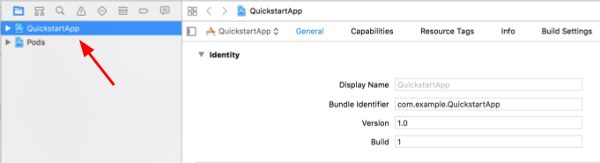
找到之前下载的
GoogleService-Info.plist文件并选择它。 点击 Options 按钮。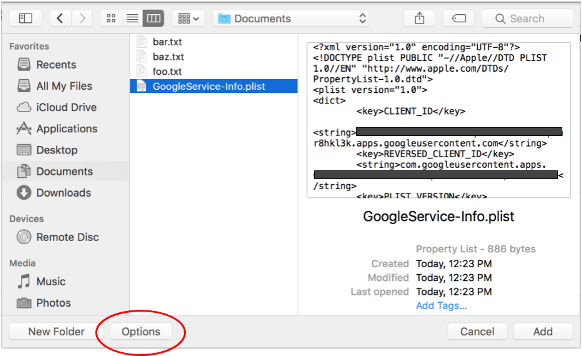
在“Options”窗口中进行以下选择,然后点击 Add 按钮:
- 选中 Copy items if needed 复选框。
- 选中添加到目标 部分中列出的所有目标。

在项目节点仍处于选中状态的情况下,在 TARGETS 部分中选择“QuickstartApp”,如下图所示:
点击此屏幕截图中显示的区域:
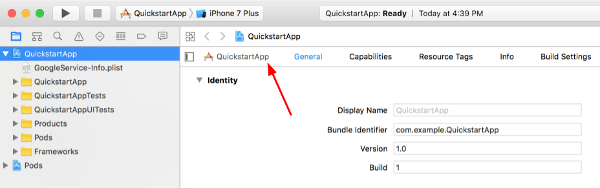
然后选择适当的目标:
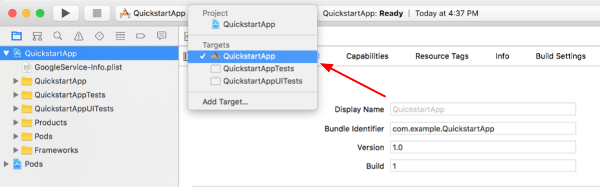
选择 Info 标签页,然后展开 URL Types 部分。
点击 + 按钮,然后为您的倒序客户端 ID 添加一个 网址协议 。如需查找此值,请打开您在第 2 步 f 中选择的
GoogleService-Info.plist配置文件。找到 REVERSED_CLIENT_ID 键。复制该键的值,并将其粘贴到配置页面上的 网址协议 框中。将其他字段留空。重新构建项目:
- 点击 Product > Clean Build Folder (同时按住 option 键)。
- 点击 Product > Build 。
第 3 步:设置示例
将以下文件的内容替换为提供的代码:#import <UIKit/UIKit.h> @import GoogleSignIn; @interface AppDelegate : UIResponder <UIApplicationDelegate> @property (strong, nonatomic) UIWindow *window; @end
#import "AppDelegate.h"

@implementation AppDelegate

- (BOOL)application:(UIApplication *)application
didFinishLaunchingWithOptions:(NSDictionary *)launchOptions {
    // Initialize Google sign-in.
    [GIDSignIn sharedInstance].clientID = @"<YOUR_CLIENT_ID>";

    return YES;
}

- (BOOL)application:(UIApplication *)application
            openURL:(NSURL *)url
  sourceApplication:(NSString *)sourceApplication
         annotation:(id)annotation {
    return [[GIDSignIn sharedInstance] handleURL:url
                               sourceApplication:sourceApplication
                                      annotation:annotation];
}


@end
#import <UIKit/UIKit.h>
@import GoogleSignIn;
#import <GTLRYouTube.h>

@interface ViewController : UIViewController <GIDSignInDelegate, GIDSignInUIDelegate>

@property (nonatomic, strong) IBOutlet GIDSignInButton *signInButton;
@property (nonatomic, strong) UITextView *output;
@property (nonatomic, strong) GTLRYouTubeService *service;


@end
#import "ViewController.h"

@implementation ViewController

- (void)viewDidLoad {
    [super viewDidLoad];
    // Configure Google Sign-in.
    GIDSignIn* signIn = [GIDSignIn sharedInstance];
    signIn.delegate = self;
    signIn.uiDelegate = self;
    signIn.scopes = [NSArray arrayWithObjects:kGTLRAuthScopeYouTubeReadonly, nil];
    [signIn signInSilently];

    // Add the sign-in button.
    self.signInButton = [[GIDSignInButton alloc] init];
    [self.view addSubview:self.signInButton];

    // Create a UITextView to display output.
    self.output = [[UITextView alloc] initWithFrame:self.view.bounds];
    self.output.editable = false;
    self.output.contentInset = UIEdgeInsetsMake(20.0, 0.0, 20.0, 0.0);
    self.output.autoresizingMask = UIViewAutoresizingFlexibleHeight | UIViewAutoresizingFlexibleWidth;
    self.output.hidden = true;
    [self.view addSubview:self.output];

    // Initialize the service object.
    self.service = [[GTLRYouTubeService alloc] init];
}

- (void)signIn:(GIDSignIn *)signIn
didSignInForUser:(GIDGoogleUser *)user
     withError:(NSError *)error {
    if (error != nil) {
        [self showAlert:@"Authentication Error" message:error.localizedDescription];
        self.service.authorizer = nil;
    } else {
        self.signInButton.hidden = true;
        self.output.hidden = false;
        self.service.authorizer = user.authentication.fetcherAuthorizer;
        [self fetchChannelResource];
    }
}


// Construct a query and retrieve the channel resource for the GoogleDevelopers
// YouTube channel. Display the channel title, description, and view count.
- (void)fetchChannelResource {
    GTLRYouTubeQuery_ChannelsList *query =
    [GTLRYouTubeQuery_ChannelsList queryWithPart:@"snippet,statistics"];
  query.identifier = @"UC_x5XG1OV2P6uZZ5FSM9Ttw";
  // To retrieve data for the current user's channel, comment out the previous
  // line (query.identifier ...) and uncomment the next line (query.mine ...).
  // query.mine = true;

  [self.service executeQuery:query
                    delegate:self
           didFinishSelector:@selector(displayResultWithTicket:finishedWithObject:error:)];
}

// Process the response and display output
- (void)displayResultWithTicket:(GTLRServiceTicket *)ticket
             finishedWithObject:(GTLRYouTube_ChannelListResponse *)channels
                          error:(NSError *)error {
  if (error == nil) {
    NSMutableString *output = [[NSMutableString alloc] init];
    if (channels.items.count > 0) {
      [output appendString:@"Channel information:\n"];
      for (GTLRYouTube_Channel *channel in channels) {
        NSString *title = channel.snippet.title;
        NSString *description = channel.snippet.description;
        NSNumber *viewCount = channel.statistics.viewCount;
        [output appendFormat:@"Title: %@\nDescription: %@\nViewCount: %@\n", title, description, viewCount];
      }
    } else {
      [output appendString:@"Channel not found."];
    }
    self.output.text = output;
  } else {
    [self showAlert:@"Error" message:error.localizedDescription];
  }
}


// Helper for showing an alert
- (void)showAlert:(NSString *)title message:(NSString *)message {
    UIAlertController *alert =
    [UIAlertController alertControllerWithTitle:title
                                        message:message
                                 preferredStyle:UIAlertControllerStyleAlert];
    UIAlertAction *ok =
    [UIAlertAction actionWithTitle:@"OK"
                             style:UIAlertActionStyleDefault
                           handler:^(UIAlertAction * action)
     {
         [alert dismissViewControllerAnimated:YES completion:nil];
     }];
    [alert addAction:ok];
    [self presentViewController:alert animated:YES completion:nil];
}


@end
第 4 步:运行示例
依次点击 Product > Scheme > QuickstartApp ,切换到 QuickstartApp 方案,然后使用设备模拟器或配置的设备运行示例 (Cmd+R)。首次运行该示例时,系统会提示您登录 Google 账号并授权访问。
备注
- 授权信息存储在您的钥匙串中,因此后续执行不会提示您进行授权。