

В этом руководстве рассказывается, как создать приложение Google Chat, которое поможет пользователям Google Chat управлять личными и рабочими контактами. Чтобы собрать информацию, приложение Chat предлагает пользователям заполнить форму обратной связи в сообщениях-карточках и диалоговых окнах.
Посмотрите, как работает приложение Chat:
-
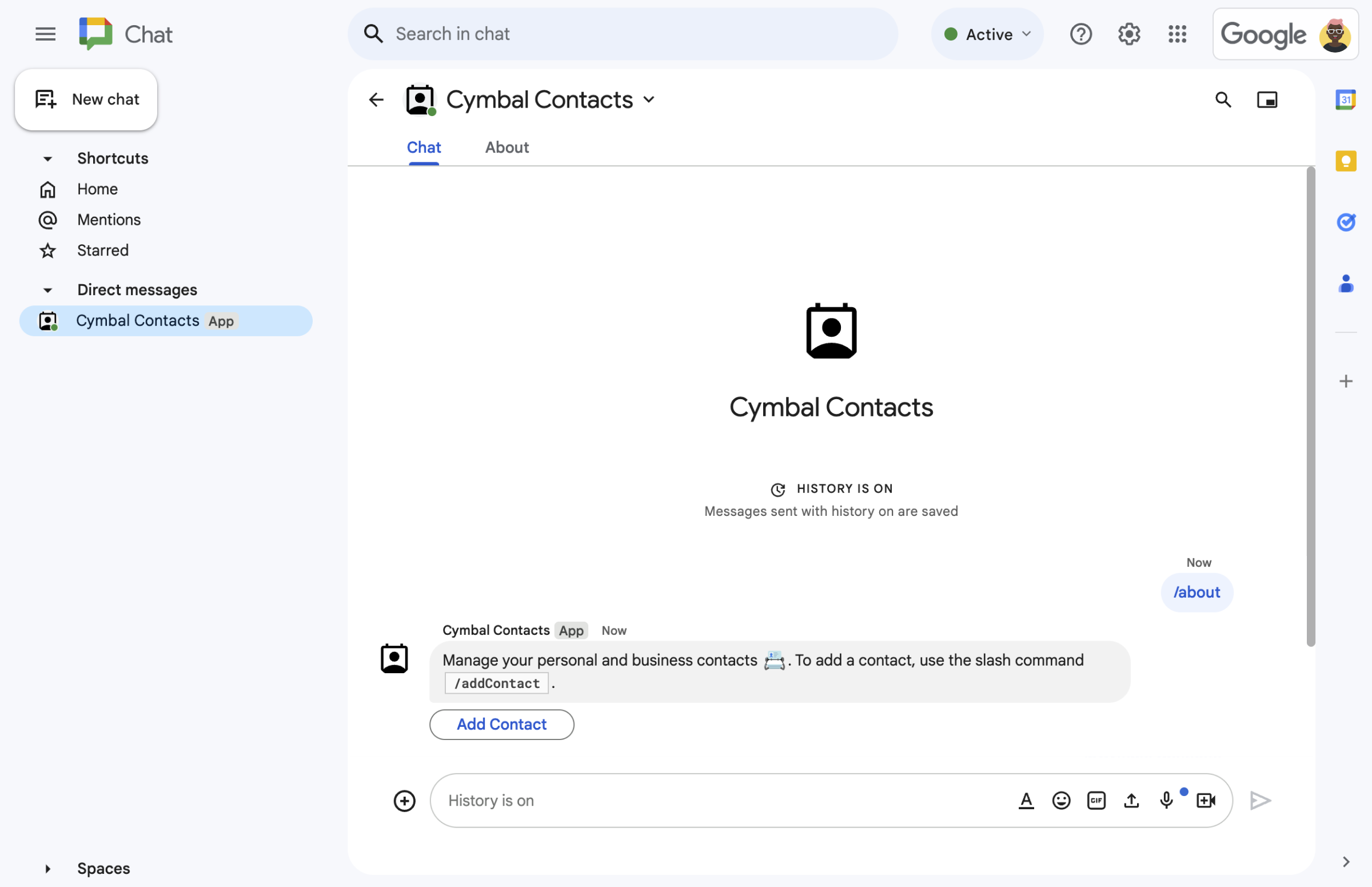
Рисунок 1. Приложение Chat отвечает на слеш-команду /aboutтекстовым сообщением и кнопкой, которая открывает форму обратной связи. -
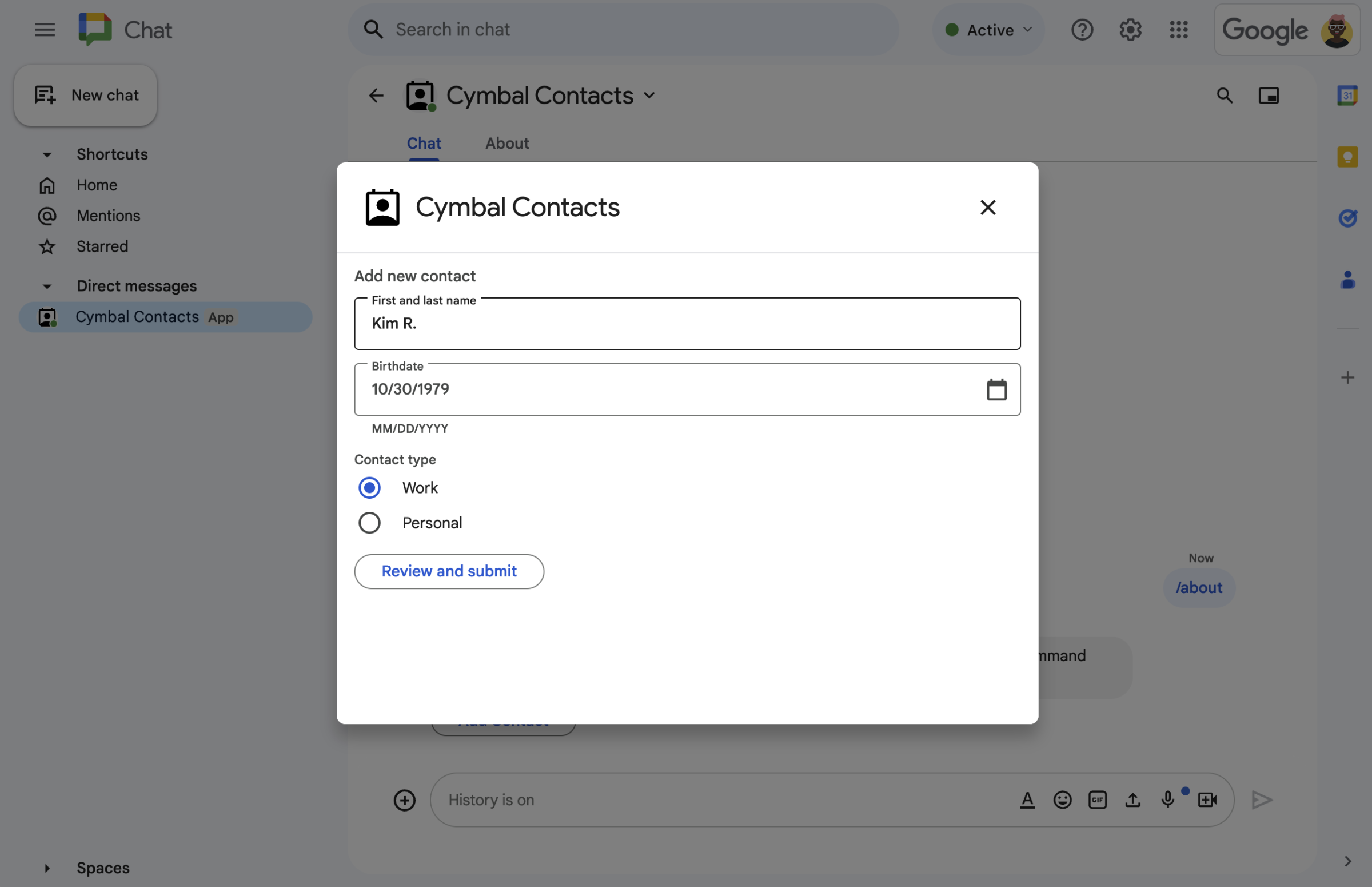
Рисунок 2. В приложении Chat откроется диалоговое окно, в котором пользователи могут ввести информацию о контакте. -
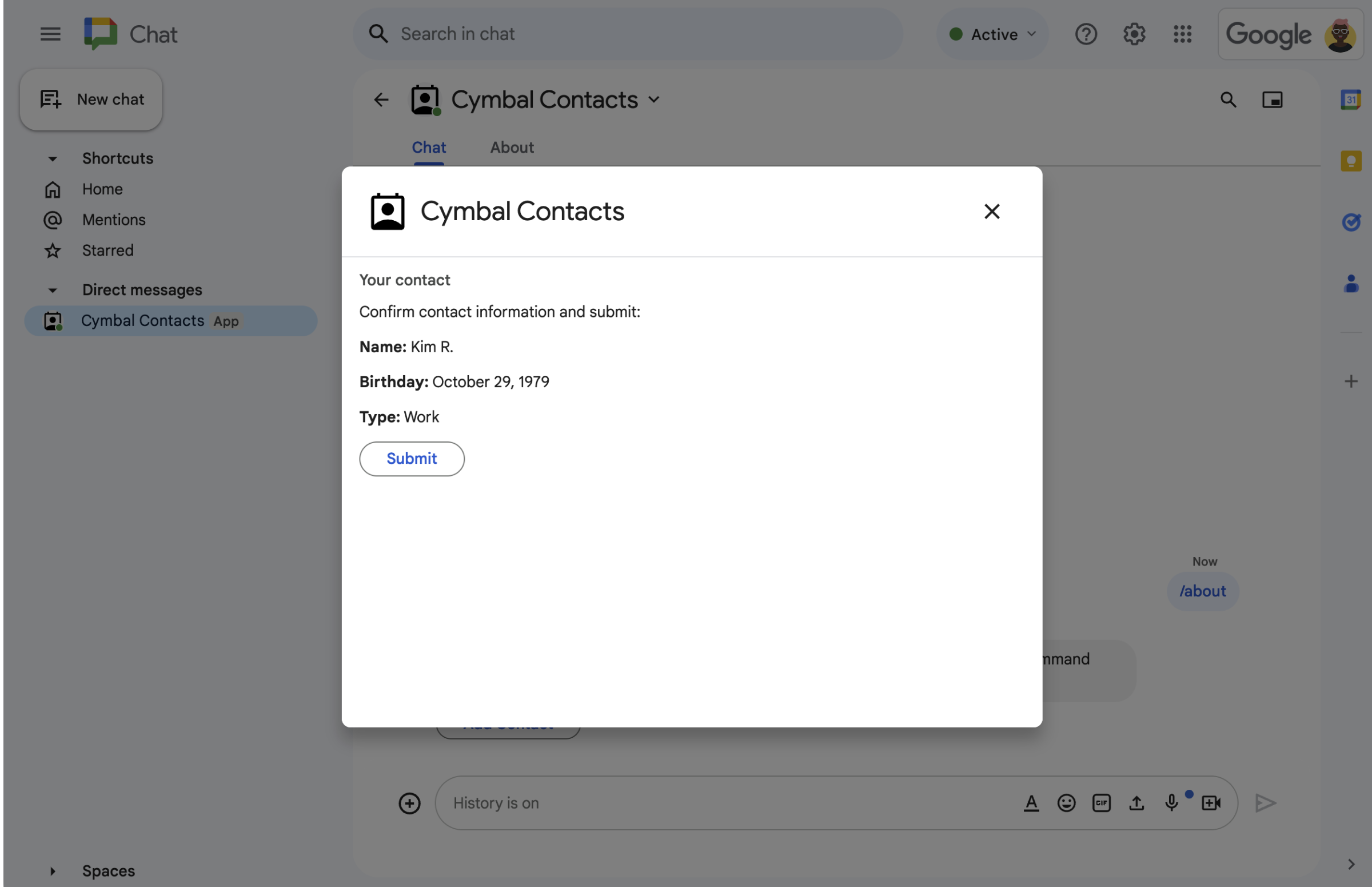
Рисунок 3. Приложение Chat возвращает диалоговое окно с подтверждением, чтобы пользователи могли проверить и подтвердить информацию перед отправкой. -
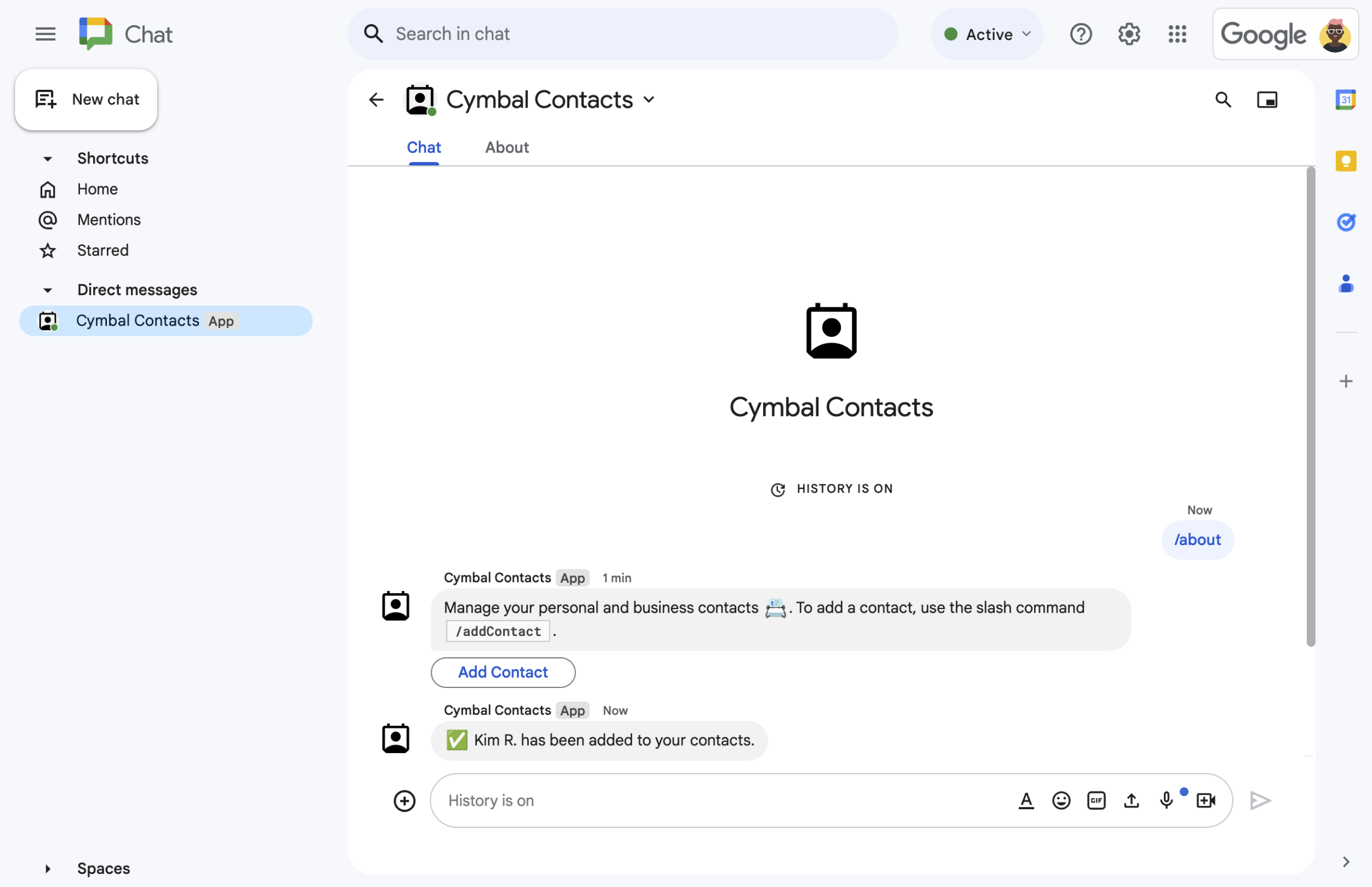
Рисунок 4. После того как пользователь отправит форму, приложение Chat отправит ему личное текстовое сообщение с подтверждением. -
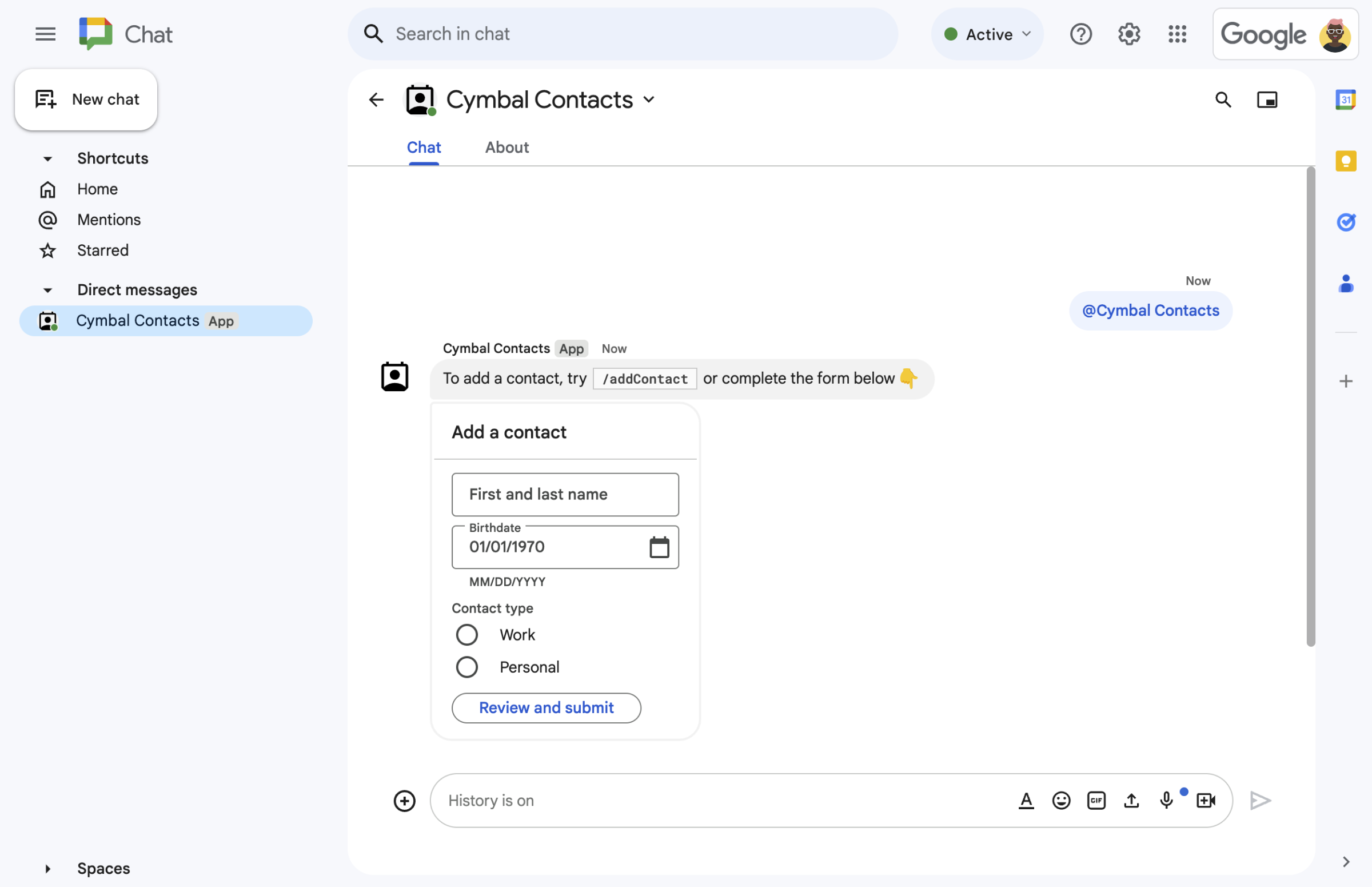
Рисунок 5. Приложение Chat также предлагает пользователям добавить контакт из карточки в сообщении.
Требования
- Аккаунт Google Workspace версии Business или Enterprise с доступом к Google Chat.
- Создайте проект Google Cloud.
Цели
- Создавайте пользовательские интерфейсы в виде объектов
cardи показывайте их в сообщениях и диалоговых окнах. - Получать и обрабатывать информацию, которую пользователи отправляют с помощью виджетов для ввода данных в форму.
- Отвечать на команды сообщениями, содержащими текст, карточки и виджеты аксессуаров.
Архитектура
Приложение Chat создано на основе Google Apps Script (как дополнение Google Workspace, расширяющее возможности Google Chat) и реагирует на действия пользователей (onMessage, onAppCommand и нажатия кнопок, которые вызывают openInitialDialog, openConfirmationDialog и submitForm), чтобы обрабатывать запросы пользователей Chat и отвечать на них.
Ниже описано, как пользователь обычно взаимодействует с приложением Chat.
Пользователь открывает прямую переписку с приложением Chat или добавляет приложение Chat в существующую чат-группу.
Приложение Chat предлагает пользователю добавить контакт, создавая и отображая форму контакта в виде объекта
card. Чтобы показать форму обратной связи, приложение Chat отвечает пользователям следующим образом:- Отвечает на @упоминания и прямые переписки (
onMessage) сообщением с карточкой, содержащей форму обратной связи. - Отвечает на слеш-команду
/addContact(onAppCommand), открывая диалоговое окно с формой обратной связи. - Отвечает на слеш-команду
/about(onAppCommand) текстовым сообщением с кнопкой Добавить контакт, при нажатии на которую вызываетсяopenInitialDialogи открывается диалоговое окно с формой обратной связи.
- Отвечает на @упоминания и прямые переписки (
Когда пользователь видит форму обратной связи, он вводит контактную информацию в следующие поля и виджеты:
- Имя и фамилия – виджет
textInput, в который можно ввести текст. - Дата рождения – виджет
dateTimePicker, в который можно ввести только дату. - Тип контакта – виджет
selectionInputс переключателями, позволяющий пользователям выбрать и отправить одно строковое значение (PersonalилиWork). - Кнопка Проверить и отправить: массив
buttonListс виджетомbutton, на который нажимает пользователь, чтобы отправить введенные им значения.
- Имя и фамилия – виджет
Приложение Google Chat вызывает
openConfirmationDialogдля обработки введенных пользователем значений и показывает их на карточке подтверждения.Пользователь проверяет карточку подтверждения и нажимает кнопку Отправить, чтобы вызвать
submitFormи завершить ввод контактной информации.Приложение Google Chat отправит вам личное текстовое сообщение с подтверждением отправки.
Подготовка среды
В этом разделе рассказывается, как настроить проект Google Cloud для приложения Chat.
Откройте облачный проект в Google API Console
Если он ещё не открыт, откройте облачный проект, который вы хотите использовать для этого примера:
- В Google API Console перейдите на страницу Select a project (Выберите проект).
- Выберите проект Google Cloud, который хотите использовать. Или нажмите Создать проект и следуйте инструкциям на экране. Если вы создадите проект Google Cloud, вам может понадобиться включить для него платежные функции.
Настройка аутентификации и авторизации
Приложения Google Chat требуют настройки экрана запроса согласия OAuth, чтобы пользователи могли авторизовать ваше приложение в приложениях Google Workspace, включая Google Chat.
В этом руководстве вы развернете приложение Chat, предназначенное только для тестирования и внутреннего использования, поэтому для экрана согласия можно использовать информацию-заполнитель. Перед публикацией приложения Chat замените все плейсхолдеры реальной информацией.
В консоли API Google выберите "Меню > Платформа аутентификации Google > Брендинг".
Если вы уже настроили платформу Google Auth, вы можете задать следующие настройки окна запроса доступа OAuth в разделах Брендинг, Аудитория и Доступ к данным. Если вы видите сообщение Google Auth platform not configured yet (Платформа аутентификации Google ещё не настроена), нажмите Get Started (Начать):
- В разделе Информация о приложении в поле Название приложения введите
Contact Manager. - В поле Электронный адрес службы поддержки выберите свой адрес электронной почты или подходящую группу Google.
- Нажмите Далее.
- В разделе Аудитория выберите Внутренние. Если вы не можете выбрать Внутренний, выберите Внешний.
- Нажмите Далее.
- В разделе Контактная информация укажите адрес электронной почты, на который вы хотите получать уведомления об изменениях в проекте.
- Нажмите Далее.
- В разделе Завершение ознакомьтесь с правилами в отношении пользовательских данных сервисов API Google и, если вы согласны с ними, выберите Я принимаю правила в отношении пользовательских данных сервисов API Google.
- Нажмите Продолжить.
- Нажмите Создать.
- Если в качестве типа пользователя вы выбрали Внешний, добавьте тестовых пользователей:
- Нажмите Аудитория.
- В разделе Тестировщики нажмите Добавить пользователей.
- Введите свой адрес электронной почты и адреса других авторизованных тестировщиков, а затем нажмите Сохранить.
- В разделе Информация о приложении в поле Название приложения введите
Как создать и развернуть приложение Chat
В следующем разделе вы создадите и обновите проект Apps Script с кодом приложения (Code.gs и appsscript.json) для приложения Chat.
При желании вы можете посмотреть весь проект на GitHub.
Ниже приведена информация о каждом файле.
Code.gsОбрабатывает всю логику приложения, включая взаимодействие с пользователем (
onMessage,onAppCommand,openInitialDialog,openConfirmationDialogиsubmitForm), а также виджеты ввода форм, которые отображаются на карточках в сообщениях и диалоговых окнах.Посмотреть
Code.gsкодappsscript.jsonМанифест Apps Script, который определяет и настраивает проект Apps Script для приложения Chat.
Посмотреть
appsscript.jsonкод
Как создать проект Apps Script
Чтобы создать проект Apps Script на основе файлов Code.gs и appsscript.json:
- Перейдите на страницу Google Apps Script и нажмите Новый проект.
Назовите проект Apps Script:
Нажмите Проект без названия.
В поле Название проекта введите
Contact Manager - Google Chat app.Нажмите Переименовать.
Замените содержимое
Code.gsна образец кодаCode.gs, приведенный выше.Нажмите Настройки проекта
 и выберите Показывать файл манифеста appsscript.json в редакторе.
Вернитесь в Редактор и замените содержимое
appsscript.jsonкодом манифестаappsscript.json, приведенным выше. Затем сохраните проект.
В будущем, если вы захотите использовать определенные API Google или опубликовать приложение, вам нужно будет связать облачный проект с проектом Apps Script. В этом руководстве вам не нужно этого делать. Подробнее о проектах Google Cloud…
Как создать развертывание Apps Script
Теперь, когда весь код добавлен, разверните проект Apps Script. Идентификатор развертывания используется при настройке приложения Chat в Google Cloud.
В Apps Script откройте проект приложения Chat.
Нажмите Развернуть > Новое развертывание.
Если Дополнение ещё не выбрано, рядом с пунктом Выберите тип нажмите на типы развертывания
и выберите Дополнение.В поле Описание введите описание этой версии, например:
Test of Contact Manager.Нажмите Развернуть. Apps Script сообщает об успешном развертывании и предоставляет идентификатор развертывания.
Нажмите Копировать, чтобы скопировать идентификатор развертывания, а затем нажмите Готово.
Как настроить приложение Chat в Google API Console
В этом разделе рассказывается, как настроить Google Chat API в Google API Console, указав информацию о приложении Chat, в том числе идентификатор развертывания, созданного в проекте Apps Script.
В Google API Console нажмите Меню > API и сервисы > Включенные API и сервисы > Google Chat API > Конфигурация.
В поле Название приложения введите
Contact Manager.В поле URL аватара введите
https://developers.google.com/chat/images/contact-icon.png.В поле Описание введите
Manage your personal and business contacts.Переведите переключатель Включить интерактивные функции в положение "Включено".
В разделе Функциональность выберите Присоединяться к чат-группам и групповым чатам.
В разделе Настройки подключения выберите Скрипт приложений.
В поле Идентификатор развертывания вставьте идентификатор развертывания Apps Script, который вы скопировали в предыдущем разделе при создании развертывания Apps Script.
В разделе Триггеры настройте функции, которые реагируют на действия пользователя:
- Для триггера Сообщение введите
onMessage. - В качестве триггера Команда приложения введите
onAppCommand.
- Для триггера Сообщение введите
В разделе Команды настройте слеш-команды
/aboutи/addContact:- Нажмите Добавить команду, чтобы настроить первую слеш-команду.
- В поле Идентификатор команды введите
1. - В поле Описание введите
Learn how to use this Chat app to manage your contacts. - В разделе Тип команды выберите
Slash command. - В поле Название слеш-команды введите
/about. - Нажмите Готово.
- Нажмите Добавить команду, чтобы настроить ещё одну слеш-команду.
- В поле Идентификатор команды введите
2. - В поле Описание введите
Submit information about a contact. - В разделе Тип команды выберите
Slash command. - В поле Название слеш-команды введите
/addContact. - Выберите Открыть диалоговое окно.
- Нажмите Готово.
В разделе Видимость установите флажок Сделать это приложение Chat доступным для определенных пользователей и групп в YOUR DOMAIN и введите свой адрес электронной почты.
В разделе Журналы выберите Регистрировать ошибки в Logging.
Нажмите Сохранить. Появится сообщение о том, что конфигурация сохранена.
Приложение Chat готово к установке и тестированию в Chat.
Как протестировать приложение Chat
Чтобы протестировать приложение Chat, откройте прямую переписку с ним и отправьте сообщение:
Откройте Google Chat, используя аккаунт Google Workspace, который вы указали, когда добавляли себя в качестве доверенного тестировщика.
- Нажмите Новый чат.
- В поле Добавьте одного или нескольких пользователей введите название приложения Chat.
Выберите приложение Chat в результатах поиска. Откроется прямая переписка.
В новой прямой переписке с приложением Chat введите
/addContactи нажмите Ввод.В открывшемся диалоговом окне введите контактную информацию:
- В текстовом поле Имя и фамилия введите имя.
- В окне выбора даты Дата рождения выберите дату.
- В разделе Тип контакта выберите переключатель Рабочий или Личный.
Нажмите Проверить и отправить.
В диалоговом окне подтверждения проверьте введенную информацию и нажмите Отправить. Приложение Chat ответит текстовым сообщением с текстом
✅ CONTACT NAME has been added to your contacts..Вы также можете протестировать и отправить форму обратной связи следующими способами:
- Используйте слеш-команду
/about. Приложение для обмена сообщениями отвечает текстовым сообщением и кнопкой виджета аксессуара с надписьюAdd a contact. Нажав на кнопку, вы откроете диалоговое окно с формой обратной связи. - Отправьте приложению Chat прямое сообщение без слеш-команды, например
Hello. Приложение Chat ответит текстом и карточкой с формой обратной связи.
- Используйте слеш-команду
Организовать
Чтобы избежать списания средств с аккаунта Google Cloud за ресурсы, использованные в этом руководстве, рекомендуем удалить облачный проект.
- В Google API Console перейдите на страницу Управление ресурсами. Нажмите Меню > IAM и администрирование > Управление ресурсами.
- В списке проектов выберите проект, который хотите удалить, и нажмите Удалить .
- В диалоговом окне введите идентификатор проекта и нажмите Закрыть, чтобы удалить проект.
Статьи по теме
- Как отвечать на команды
- Сбор и обработка информации о пользователях Google Chat
- Как открыть интерактивные диалоговые окна
- Другие примеры приложений Google Chat
Приложения для Chat, которые не являются дополнениями: управление контактами из Google Chat
Приведенные ниже инструкции и примеры кода относятся к приложению Chat, которое не является дополнением Google Workspace (посмотреть на GitHub).
Файлы Apps Script
main.gsОбрабатывает всю логику приложения, включая события взаимодействия, когда пользователи отправляют сообщения в приложение Chat, нажимают кнопки в сообщении приложения Chat или открывают и закрывают диалоговые окна.
contactForm.gsСодержит виджеты, которые получают данные из форм от пользователей. Эти виджеты ввода форм отображаются на карточках, которые появляются в сообщениях и диалоговых окнах.
appsscript.jsonМанифест Apps Script, который определяет и настраивает проект Apps Script для приложения Chat, не являющегося дополнением.
Как создать и настроить проект Apps Script
- Откройте проект Apps Script Управление контактами в Google Chat для приложения Chat, которое не является дополнением, и создайте его копию.
- При настройке Chat API в Google API Console: снимите флажок Создать это приложение Chat как дополнение Google Workspace. Откроется диалоговое окно с запросом на подтверждение. В диалоговом окне нажмите Отключить.