

本指南說明如何驗證輸入變數。
定義輸入變數時,最佳做法是驗證使用者輸入的值是否適當。舉例來說,如果您要求使用者輸入數字,驗證使用者輸入 1 而非 a,即可確認步驟執行時不會發生錯誤。
驗證輸入變數的方式有兩種:
- 用戶端驗證: 透過用戶端驗證,您可以直接在使用者裝置上驗證輸入內容。使用者會立即收到意見回饋,並在設定步驟時修正輸入內容中的任何錯誤。
- 伺服器端驗證: 伺服器端驗證可讓您在驗證期間於伺服器上執行邏輯,這在您需要查詢用戶端沒有的資訊 (例如其他系統或資料庫中的資料) 時非常實用。
用戶端驗證
導入用戶端驗證的方法有兩種:
- 如要進行基本驗證,例如驗證小工具是否包含少於特定數量的字元或包含
@符號,請叫用 Google Workspace 外掛程式 Card 服務的Validation類別。 - 如要進行嚴謹的驗證 (例如比較小工具值與其他小工具值),可以使用
CardService,將一般運算語言 (CEL) 驗證新增至下列支援的資訊卡小工具。
叫用 Validation 類別
以下範例會驗證 TextInput 小工具是否包含 10 個或更少的字元:
Apps Script
const validation = CardService.newValidation().setCharacterLimit('10').setInputType(
    CardService.InputType.TEXT);
如需其他驗證選項,請使用 CEL 驗證。
CEL 驗證
一般運算語言 (CEL) 驗證可立即檢查輸入內容,不會因伺服器端驗證而產生延遲,因為系統會將不需從其他服務查詢資料的輸入值檢查作業,卸載至用戶端。
您也可以使用 CEL 建立資訊卡行為,例如根據驗證結果顯示或隱藏小工具。這類行為有助於顯示或隱藏錯誤訊息,協助使用者修正輸入內容。
建構完整的 CEL 驗證包含下列元件:
ExpressionData(在「資訊卡」中):包含指定的驗證邏輯和微件觸發邏輯 (如果符合其中一個定義的條件)。Id:目前 內ExpressionData的專屬 ID。Expression:定義驗證邏輯的 CEL 字串 (例如"value1 == value2")。Conditions:條件清單,內含預先定義的驗證結果 (SUCCESS 或 FAILURE)。條件會透過共用actionRuleId繫結至小工具端的EventActionTriggers。- 卡片層級
EventAction:在卡片中啟用 CEL 驗證,並透過事件後觸發程序,將ExpressionData欄位與結果小工具建立關聯。actionRuleId:這個EventAction的專屬 ID。ExpressionDataAction:設為START_EXPRESSION_EVALUATION,表示此動作會開始評估 CEL。Trigger:根據actionRuleId將Conditions連線至小工具端EventActions。
小工具層級
EventAction:控制結果小工具在符合成功或失敗條件時的行為。舉例來說,結果小工具可以是包含錯誤訊息的TextParagraph,只有在驗證失敗時才會顯示。actionRuleId:比對卡片端Trigger中的actionRuleId。CommonWidgetAction:定義不涉及評估的動作,例如更新小工具顯示狀態。UpdateVisibilityAction:更新小工具顯示狀態 (VISIBLE 或 HIDDEN) 的動作。
以下範例說明如何實作 CEL 驗證,檢查兩個文字輸入內容是否相等。如果兩者不相等,系統會顯示錯誤訊息。
-
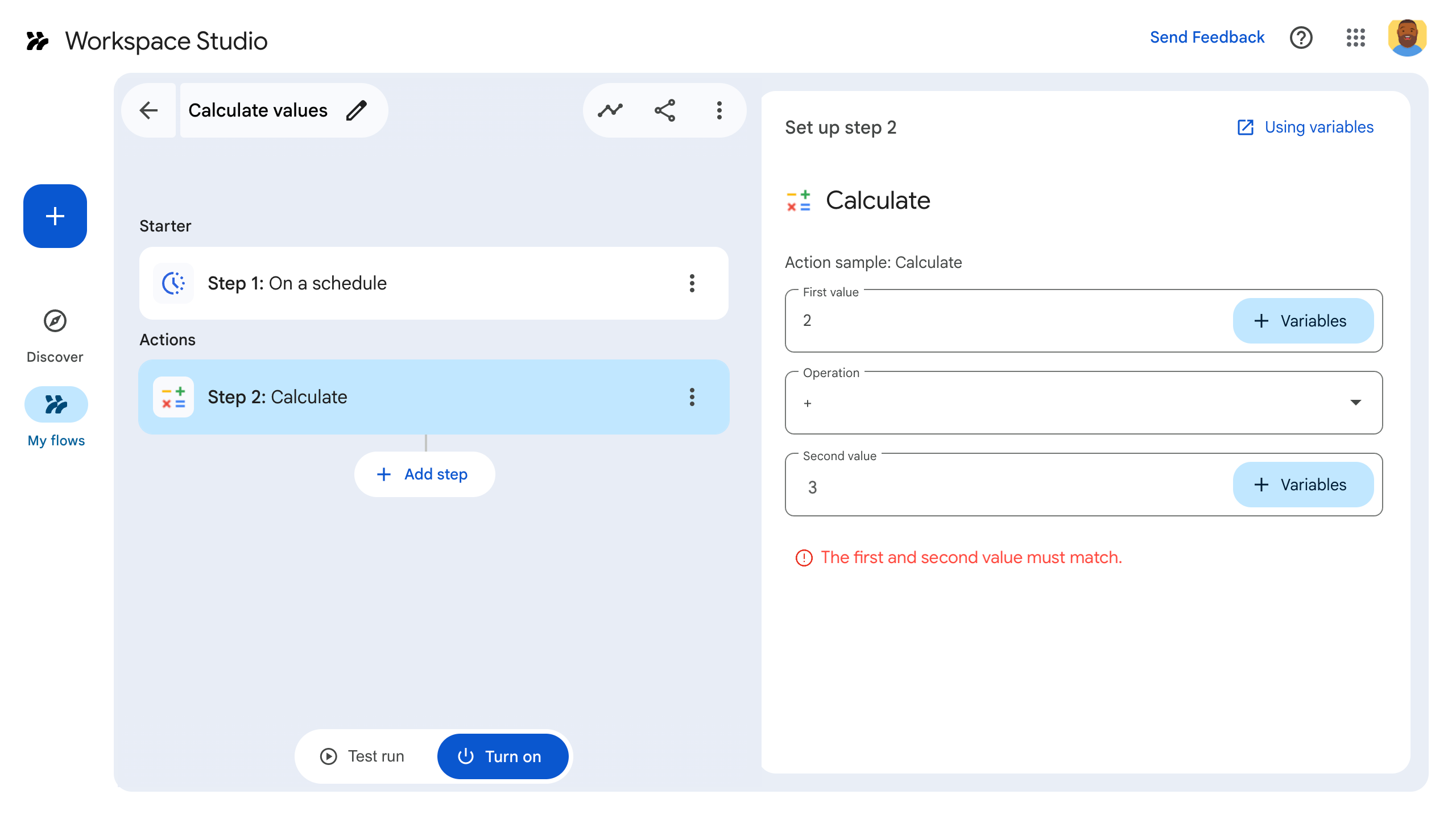
圖 1:當 failCondition條件成立 (輸入內容不相等) 時,錯誤訊息小工具會設為VISIBLE並顯示。 -

圖 2:當 successCondition達到條件 (輸入內容相同) 時,錯誤訊息小工具會設為HIDDEN,且不會顯示。
下列程式碼範例和 JSON 資訊清單顯示:
Apps Script
function onConfig() {
  // Create a Card
  let cardBuilder = CardService.newCardBuilder();

  const textInput_1 = CardService.newTextInput()
    .setTitle("Input field 1")
    .setFieldName("value1"); // FieldName's value must match a corresponding ID defined in the inputs[] array in the manifest file.
  const textInput_2 = CardService.newTextInput()
    .setTitle("Input field 2")
    .setFieldName("value2"); // FieldName's value must match a corresponding ID defined in the inputs[] array in the manifest file.
  let sections = CardService.newCardSection()
    .setHeader("Enter same values for the two input fields")
    .addWidget(textInput_1)
    .addWidget(textInput_2);

  // CEL Validation

  // Define Conditions
  const condition_success = CardService.newCondition()
    .setActionRuleId("CEL_TEXTINPUT_SUCCESS_RULE_ID")
    .setExpressionDataCondition(
      CardService.newExpressionDataCondition()
      .setConditionType(
        CardService.ExpressionDataConditionType.EXPRESSION_EVALUATION_SUCCESS));
  const condition_fail = CardService.newCondition()
    .setActionRuleId("CEL_TEXTINPUT_FAILURE_RULE_ID")
    .setExpressionDataCondition(
      CardService.newExpressionDataCondition()
      .setConditionType(
        CardService.ExpressionDataConditionType.EXPRESSION_EVALUATION_FAILURE));

  // Define Card-side EventAction
  const expressionDataAction = CardService.newExpressionDataAction()
    .setActionType(
      CardService.ExpressionDataActionType.START_EXPRESSION_EVALUATION);
  // Define Triggers for each Condition respectively
  const trigger_success = CardService.newTrigger()
    .setActionRuleId("CEL_TEXTINPUT_SUCCESS_RULE_ID");
  const trigger_failure = CardService.newTrigger()
    .setActionRuleId("CEL_TEXTINPUT_FAILURE_RULE_ID");

  const eventAction = CardService.newEventAction()
    .setActionRuleId("CEL_TEXTINPUT_EVALUATION_RULE_ID")
    .setExpressionDataAction(expressionDataAction)
    .addPostEventTrigger(trigger_success)
    .addPostEventTrigger(trigger_failure);

  // Define ExpressionData for the current Card
  const expressionData = CardService.newExpressionData()
    .setId("expData_id")
    .setExpression("value1 == value2") // CEL expression
    .addCondition(condition_success)
    .addCondition(condition_fail)
    .addEventAction(eventAction);
  card = card.addExpressionData(expressionData);

  // Create Widget-side EventActions and a widget to display error message
  const widgetEventActionFail = CardService.newEventAction()
    .setActionRuleId("CEL_TEXTINPUT_FAILURE_RULE_ID")
    .setCommonWidgetAction(
      CardService.newCommonWidgetAction()
      .setUpdateVisibilityAction(
        CardService.newUpdateVisibilityAction()
        .setVisibility(
          CardService.Visibility.VISIBLE)));
  const widgetEventActionSuccess = CardService.newEventAction()
    .setActionRuleId("CEL_TEXTINPUT_SUCCESS_RULE_ID")
    .setCommonWidgetAction(
      CardService.newCommonWidgetAction()
      .setUpdateVisibilityAction(
        CardService.newUpdateVisibilityAction()
        .setVisibility(
          CardService.Visibility.HIDDEN)));
  const errorWidget = CardService.newTextParagraph()
    .setText("<font color=\"#FF0000\"><b>Error:</b> Please enter the same values for both input fields.</font>")
    .setVisibility(CardService.Visibility.HIDDEN) // Initially hidden
    .addEventAction(widgetEventActionFail)
    .addEventAction(widgetEventActionSuccess);
  sections = sections.addWidget(errorWidget);

  card = card.addSection(sections);
  // Build and return the Card
  return card.build();
}
JSON 資訊清單檔案
{
  "timeZone": "America/Los_Angeles",
  "exceptionLogging": "STACKDRIVER",
  "runtimeVersion": "V8",
  "addOns": {
    "common": {
      "name": "CEL validation example",
      "logoUrl": "https://www.gstatic.com/images/branding/productlogos/calculator_search/v1/web-24dp/logo_calculator_search_color_1x_web_24dp.png",
      "useLocaleFromApp": true
    },
    "flows": {
      "workflowElements": [
        {
          "id": "cel_validation_demo",
          "state": "ACTIVE",
          "name": "CEL Demo",
          "description": "Demonstrates CEL Validation",
          "workflowAction": {
            "inputs": [
              {
                "id": "value1",
                "description": "The first number",
                "cardinality": "SINGLE",
                "dataType": {
                  "basicType": "STRING"
                }
              },
              {
                "id": "value2",
                "description": "The second number",
                "cardinality": "SINGLE",
                "dataType": {
                  "basicType": "STRING"
                }
              }
            ],
            "onConfigFunction": "onConfig",
            "onExecuteFunction": "onExecute"
          }
        }
      ]
    }
  }
}
支援的 CEL 驗證小工具和作業
支援 CEL 驗證的資訊卡小工具
下列小工具支援 CEL 驗證:
TextInputSelectionInputDateTimePicker
支援的 CEL 驗證作業
- 算術運算
+:新增兩個int64、uint64或double數字。-:從兩個int64、uint64或double數字中減去一個數字。*:將兩個int64、uint64或double數字相乘。/:將兩個int64、uint64或double數字相除 (整數除法)。%:計算兩個int64或uint64數字的模數。-:將int64或uint64數字取負數。
- 邏輯運算:
&&:對兩個布林值執行邏輯AND運算。||:對兩個布林值執行邏輯OR運算。!:對布林值執行邏輯NOT運算。
- 比較作業:
==:檢查兩個值是否相等。支援數字和清單。!=:檢查兩個值是否不相等。支援數字和清單。<:檢查第一個int64、uint64或double數字是否小於第二個數字。<=:檢查第一個數字 (int64、uint64或double) 是否小於或等於第二個數字。>:檢查第一個int64、uint64或double數字是否大於第二個數字。>=:檢查第一個數字 (int64、uint64或double) 是否大於或等於第二個數字。
- 列出作業:
in:檢查清單中是否有值。支援數字、字串和巢狀清單。size:傳回清單中的項目數量。支援數字和巢狀清單。
不支援的 CEL 驗證情境
- 二元運算的引數大小有誤:二元運算 (例如
add_int64、等於) 只能有兩個引數。如果提供的引數數量不同,系統就會擲回錯誤。 - 一元運算的引數大小有誤:一元運算 (例如
negate_int64) 只能有一個引數。如果提供的引數數量不同,系統就會擲回錯誤。 - 數值運算中不支援的型別:數值二元和一元運算只接受數字引數。提供其他類型 (例如布林值) 會擲回錯誤。
伺服器端驗證
透過伺服器端驗證,您可以在步驟的程式碼中指定 onSaveFunction,藉此執行伺服器端邏輯。當使用者離開步驟的設定資訊卡時,onSaveFunction 會執行並驗證使用者的輸入內容。
如果使用者輸入的內容有效,請傳回 saveWorkflowAction。
如果使用者輸入的內容無效,請傳回設定資訊卡,向使用者顯示錯誤訊息,說明如何解決錯誤。
由於伺服器端驗證是非同步作業,使用者可能要等到發布流程時,才會發現輸入錯誤。
資訊清單檔案中每個經過驗證的輸入內容的 id,都必須與程式碼中資訊卡小工具的 name 相符。
以下範例會驗證使用者輸入的文字是否包含「@」符號:
資訊清單檔案
資訊清單檔案摘錄指定名為「onSave」的 onSaveFunction:
JSON
{
  "timeZone": "America/Los_Angeles",
  "exceptionLogging": "STACKDRIVER",
  "runtimeVersion": "V8",
  "addOns": {
    "common": {
      "name": "Server-side validation example",
      "logoUrl": "https://www.gstatic.com/images/branding/productlogos/calculator_search/v1/web-24dp/logo_calculator_search_color_1x_web_24dp.png",
      "useLocaleFromApp": true
    },
    "flows": {
      "workflowElements": [
        {
          "id": "server_validation_demo",
          "state": "ACTIVE",
          "name": "Email address validation",
          "description": "Asks the user for an email address",
          "workflowAction": {
            "inputs": [
              {
                "id": "email",
                "description": "email address",
                "cardinality": "SINGLE",
                "required": true,
                "dataType": {
                  "basicType": "STRING"
                }
              }
            ],
            "onConfigFunction": "onConfig",
            "onExecuteFunction": "onExecute",
            "onSaveFunction": "onSave"
          }
        }
      ]
    }
  }
}
應用程式程式碼
這個步驟的程式碼包含名為 onSave 的函式。驗證使用者輸入的字串是否包含「@」。如果包含,系統就會儲存這個步驟。如果沒有,系統會傳回設定資訊卡,並顯示錯誤訊息,說明如何修正錯誤。
Apps Script
// A helper method to push a card interface
function pushCard(card) {
  const navigation = AddOnsResponseService.newNavigation()
    .pushCard(card);

  const action = AddOnsResponseService.newAction()
    .addNavigation(navigation);

  return AddOnsResponseService.newRenderActionBuilder()
    .setAction(action)
    .build();
}

function onConfig() {
  const emailInput = CardService.newTextInput()
    .setFieldName("email")
    .setTitle("User e-mail")
    .setId("email");

  const saveButton = CardService.newTextButton()
    .setText("Save!")
    .setOnClickAction(
      CardService.newAction()
        .setFunctionName('onSave')
    )

  const sections = CardService.newCardSection()
    .setHeader("Server-side validation")
    .setId("section_1")
    .addWidget(emailInput)
    .addWidget(saveButton);

  let card = CardService.newCardBuilder()
    .addSection(sections)
    .build();

  return pushCard(card);
}

function onExecute(event) {
}

/**
* Validates user input asynchronously when the user
* navigates away from a step's configuration card.
*/
function onSave(event) {
  console.log(JSON.stringify(event, null, 2));

  // "email" matches the input ID specified in the manifest file.
  var email = event.formInputs["email"][0];

  console.log(JSON.stringify(email, null, 2));

  // Validate that the email address contains an "@" sign:
  if (email.includes("@")) {
    // If successfully validated, save and proceed.
    const hostAppAction = AddOnsResponseService.newHostAppAction()
      .setWorkflowAction(
        AddOnsResponseService.newSaveWorkflowAction()
      );

    const textDeletion = AddOnsResponseService.newRemoveWidget()
      .setWidgetId("errorMessage");

    const modifyAction = AddOnsResponseService.newAction()
      .addModifyCard(
        AddOnsResponseService.newModifyCard()
          .setRemoveWidget(textDeletion)
      );

    return AddOnsResponseService.newRenderActionBuilder()
      .setHostAppAction(hostAppAction)
      .setAction(modifyAction)
      .build();

  } else {
    // If the input is invalid, return a card with an error message

    const textParagraph = CardService.newTextParagraph()
      .setId("errorMessage")
      .setMaxLines(1)
      .setText("<font color=\"#FF0000\"><b>Error:</b> Email addresses must include the '@' sign.</font>");

    const emailInput = CardService.newTextInput()
      .setFieldName("email")
      .setTitle("User e-mail")
      .setId("email");

    const saveButton = CardService.newTextButton()
      .setText("Save!")
      .setOnClickAction(
        CardService.newAction().setFunctionName('onSave')
      )

    const sections = CardService.newCardSection()
      .setHeader("Server-side validation")
      .setId("section_1")
      .addWidget(emailInput)
      .addWidget(textParagraph) //Insert the error message
      .addWidget(saveButton);

    let card = CardService.newCardBuilder()
      .addSection(sections)
      .build();

    const navigation = AddOnsResponseService.newNavigation()
      .pushCard(card);

    const action = AddOnsResponseService.newAction()
      .addNavigation(navigation);

    const hostAppAction = AddOnsResponseService.newHostAppAction()
      .setWorkflowAction(
        AddOnsResponseService.newWorkflowValidationErrorAction()
          .setSeverity(AddOnsResponseService.ValidationErrorSeverity.CRITICAL)
      );

    return AddOnsResponseService.newRenderActionBuilder()
      .setHostAppAction(hostAppAction)
      .setAction(action)
      .build();
  }
}