

本指南介绍了如何验证输入变量。
定义输入变量时,最佳做法是验证用户输入的值是否合适。例如,如果您要求用户输入数字,验证他们输入的是 1 而不是 a,即可验证您的步骤是否无误运行。
您可以通过以下两种方式验证输入变量:
- 客户端验证: 通过客户端验证,您可以直接在用户的设备上验证用户的输入。 用户可以立即收到反馈,并可以在配置步骤时更正输入中的任何错误。
- 服务器端验证: 通过服务器端验证,您可以在验证期间在服务器上运行逻辑, 这在您需要查找客户端没有的 信息(例如其他系统或数据库中的数据)时非常有用。
客户端验证
您可以通过以下两种方式实现客户端验证:
- 对于基本验证(例如验证微件包含的字符数是否少于特定数量或是否包含
@符号),请调用 Google Workspace 插件的卡片服务的Validation类。 - 对于稳健的验证(例如将微件值与其他微件
值进行比较),您可以使用通用表达式语言 (CEL)
验证添加到以下受支持的卡片微件,方法是使用
CardService。
调用 Validation 类
以下示例验证 TextInput 微件是否包含 10 个或更少的字符:
Apps 脚本
const validation = CardService.newValidation().setCharacterLimit('10').setInputType(
    CardService.InputType.TEXT);
如需了解其他验证选项,请使用 CEL 验证。
CEL 验证
通用表达式语言 (CEL) 验证可提供即时 输入检查,而无需服务器端验证的延迟,方法是将不依赖于从其他服务查找数据的输入 值检查卸载到 客户端。
您还可以使用 CEL 创建卡片行为,例如根据验证结果显示或隐藏微件。这种行为对于显示或隐藏错误消息非常有用,可帮助用户更正输入。
构建完整的 CEL 验证涉及以下组件:
卡片中的
ExpressionData:当满足其中一个定义的条件时,包含指定的验证逻辑和微件触发逻辑。Id:当前卡片中ExpressionData的唯一标识符。Expression:定义验证逻辑的 CEL 字符串(例如"value1 == value2")。Conditions:包含预定义验证结果(SUCCESS 或 FAILURE)选择的条件列表。条件通过具有共享actionRuleId的Triggers绑定到微件端EventAction。- 卡片级
EventAction:激活卡片中的 CEL 验证,并通过事件后触发器将ExpressionData字段与结果微件相关联。actionRuleId:此EventAction的唯一 ID。ExpressionDataAction:设置为START_EXPRESSION_EVALUATION,表示此操作会启动 CEL 评估。Trigger:根据actionRuleId将Conditions连接到微件端EventActions。
微件级
EventAction:控制在满足成功或失败条件时结果微件的行为。例如,结果微件可以是包含错误消息的TextParagraph,该错误消息仅在验证失败时可见。actionRuleId:与卡片端Trigger中的actionRuleId匹配。CommonWidgetAction:定义不涉及评估的操作,例如更新微件可见性。UpdateVisibilityAction:用于更新微件可见性状态(VISIBLE 或 HIDDEN)的操作。
以下示例演示了如何实现 CEL 验证来检查两个文本输入是否相等。如果不相等,系统会显示错误消息。
-
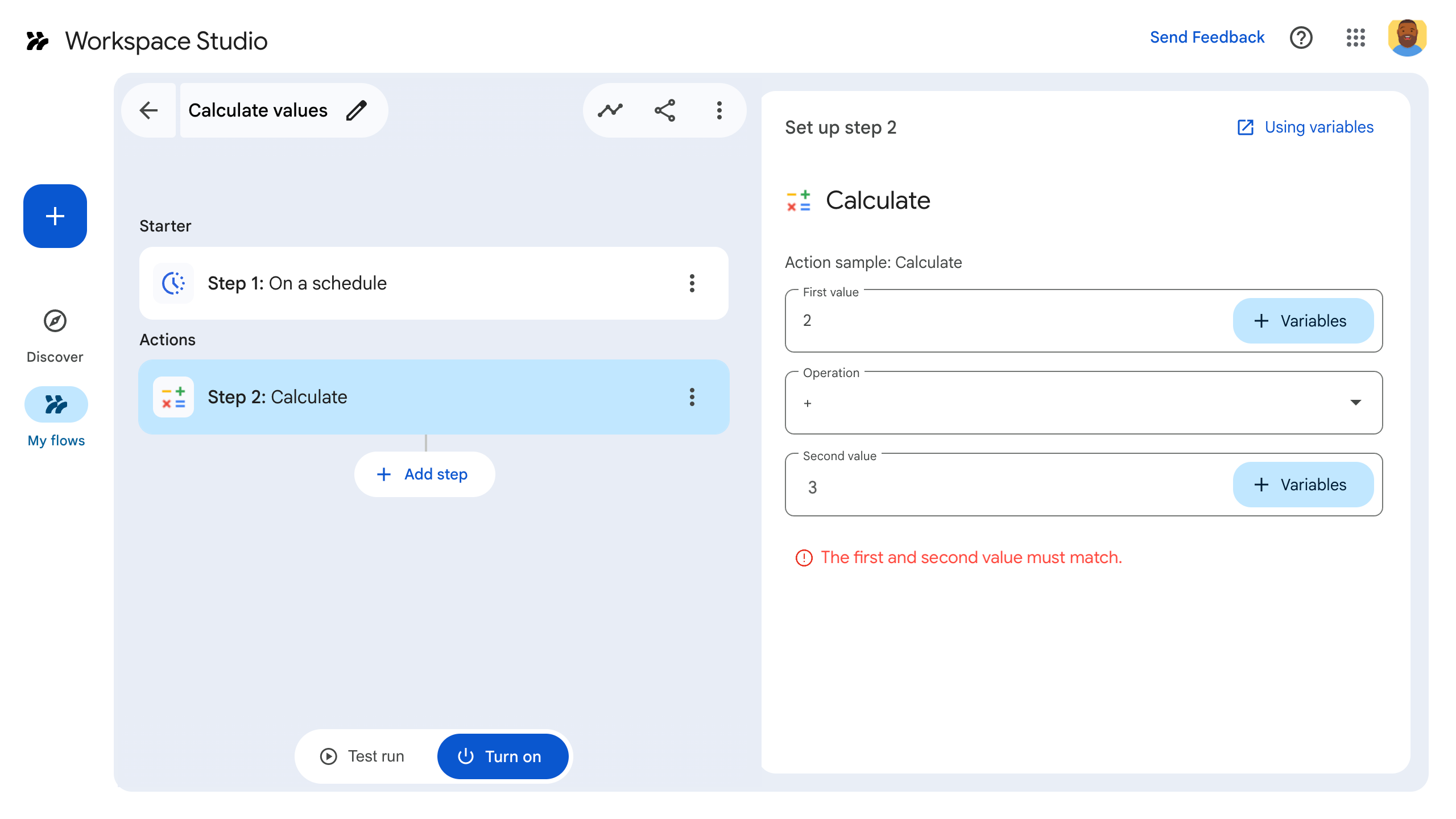
图 1: 当满足 failCondition(输入不相等)时,错误消息 微件设置为VISIBLE并显示。 -
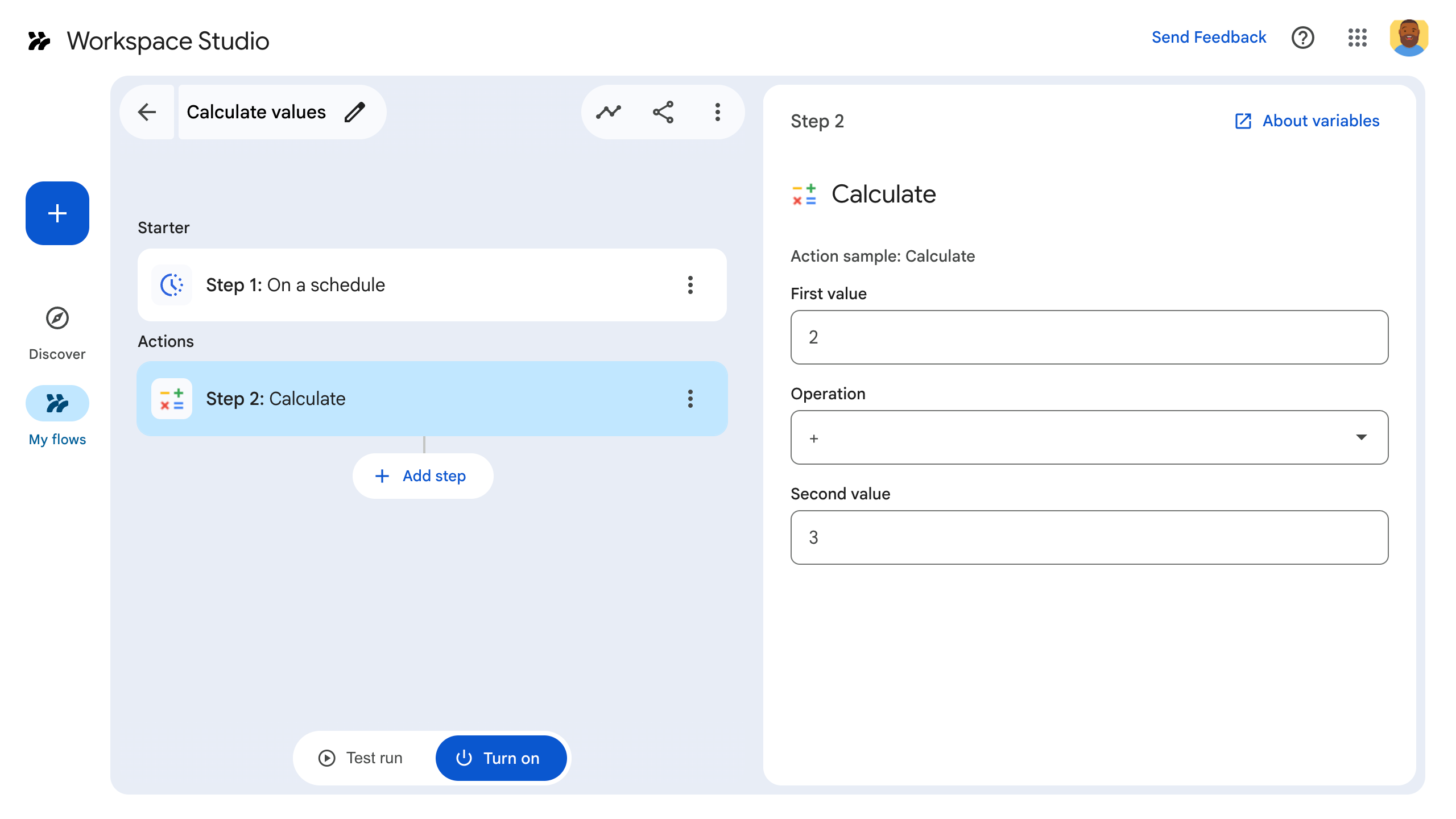
图 2: 当满足 successCondition时(输入相等),错误消息 微件设置为HIDDEN且不显示。
以下代码示例和 JSON 清单显示:
Apps 脚本
function onConfig() {
  // Create a Card
  let cardBuilder = CardService.newCardBuilder();

  const textInput_1 = CardService.newTextInput()
    .setTitle("Input field 1")
    .setFieldName("value1"); // FieldName's value must match a corresponding ID defined in the inputs[] array in the manifest file.
  const textInput_2 = CardService.newTextInput()
    .setTitle("Input field 2")
    .setFieldName("value2"); // FieldName's value must match a corresponding ID defined in the inputs[] array in the manifest file.
  let sections = CardService.newCardSection()
    .setHeader("Enter same values for the two input fields")
    .addWidget(textInput_1)
    .addWidget(textInput_2);

  // CEL Validation

  // Define Conditions
  const condition_success = CardService.newCondition()
    .setActionRuleId("CEL_TEXTINPUT_SUCCESS_RULE_ID")
    .setExpressionDataCondition(
      CardService.newExpressionDataCondition()
      .setConditionType(
        CardService.ExpressionDataConditionType.EXPRESSION_EVALUATION_SUCCESS));
  const condition_fail = CardService.newCondition()
    .setActionRuleId("CEL_TEXTINPUT_FAILURE_RULE_ID")
    .setExpressionDataCondition(
      CardService.newExpressionDataCondition()
      .setConditionType(
        CardService.ExpressionDataConditionType.EXPRESSION_EVALUATION_FAILURE));

  // Define Card-side EventAction
  const expressionDataAction = CardService.newExpressionDataAction()
    .setActionType(
      CardService.ExpressionDataActionType.START_EXPRESSION_EVALUATION);
  // Define Triggers for each Condition respectively
  const trigger_success = CardService.newTrigger()
    .setActionRuleId("CEL_TEXTINPUT_SUCCESS_RULE_ID");
  const trigger_failure = CardService.newTrigger()
    .setActionRuleId("CEL_TEXTINPUT_FAILURE_RULE_ID");

  const eventAction = CardService.newEventAction()
    .setActionRuleId("CEL_TEXTINPUT_EVALUATION_RULE_ID")
    .setExpressionDataAction(expressionDataAction)
    .addPostEventTrigger(trigger_success)
    .addPostEventTrigger(trigger_failure);

  // Define ExpressionData for the current Card
  const expressionData = CardService.newExpressionData()
    .setId("expData_id")
    .setExpression("value1 == value2") // CEL expression
    .addCondition(condition_success)
    .addCondition(condition_fail)
    .addEventAction(eventAction);
  card = card.addExpressionData(expressionData);

  // Create Widget-side EventActions and a widget to display error message
  const widgetEventActionFail = CardService.newEventAction()
    .setActionRuleId("CEL_TEXTINPUT_FAILURE_RULE_ID")
    .setCommonWidgetAction(
      CardService.newCommonWidgetAction()
      .setUpdateVisibilityAction(
        CardService.newUpdateVisibilityAction()
        .setVisibility(
          CardService.Visibility.VISIBLE)));
  const widgetEventActionSuccess = CardService.newEventAction()
    .setActionRuleId("CEL_TEXTINPUT_SUCCESS_RULE_ID")
    .setCommonWidgetAction(
      CardService.newCommonWidgetAction()
      .setUpdateVisibilityAction(
        CardService.newUpdateVisibilityAction()
        .setVisibility(
          CardService.Visibility.HIDDEN)));
  const errorWidget = CardService.newTextParagraph()
    .setText("<font color=\"#FF0000\"><b>Error:</b> Please enter the same values for both input fields.</font>")
    .setVisibility(CardService.Visibility.HIDDEN) // Initially hidden
    .addEventAction(widgetEventActionFail)
    .addEventAction(widgetEventActionSuccess);
  sections = sections.addWidget(errorWidget);

  card = card.addSection(sections);
  // Build and return the Card
  return card.build();
}
JSON 清单文件
{
  "timeZone": "America/Los_Angeles",
  "exceptionLogging": "STACKDRIVER",
  "runtimeVersion": "V8",
  "addOns": {
    "common": {
      "name": "CEL validation example",
      "logoUrl": "https://www.gstatic.com/images/branding/productlogos/calculator_search/v1/web-24dp/logo_calculator_search_color_1x_web_24dp.png",
      "useLocaleFromApp": true
    },
    "flows": {
      "workflowElements": [
        {
          "id": "cel_validation_demo",
          "state": "ACTIVE",
          "name": "CEL Demo",
          "description": "Demonstrates CEL Validation",
          "workflowAction": {
            "inputs": [
              {
                "id": "value1",
                "description": "The first number",
                "cardinality": "SINGLE",
                "dataType": {
                  "basicType": "STRING"
                }
              },
              {
                "id": "value2",
                "description": "The second number",
                "cardinality": "SINGLE",
                "dataType": {
                  "basicType": "STRING"
                }
              }
            ],
            "onConfigFunction": "onConfig",
            "onExecuteFunction": "onExecute"
          }
        }
      ]
    }
  }
}
支持的 CEL 验证微件和操作
支持 CEL 验证的卡片微件
以下微件支持 CEL 验证:
TextInputSelectionInputDateTimePicker
支持的 CEL 验证操作
- 算术运算
+:将两个int64、uint64或double数字相加。-:将两个int64、uint64或double数字相减。*:将两个int64、uint64或double数字相乘。/:将两个int64、uint64或double数字相除(整数除法)。%:计算两个int64或uint64数字的模数。-:对int64或uint64数字取反。
- 逻辑运算:
&&:对两个布尔值执行逻辑AND运算。||:对两个布尔值执行逻辑OR运算。!:对布尔值执行逻辑NOT运算。
- 比较运算:
==:检查两个值是否相等。支持数字和列表。!=:检查两个值是否不相等。支持数字和列表。<:检查第一个int64、uint64或double数字是否小于第二个。<=:检查第一个int64、uint64或double数字是否小于或等于第二个。>:检查第一个int64、uint64或double数字是否大于第二个。>=:检查第一个int64、uint64或double数字是否大于或等于第二个。
- 列表运算:
in:检查列表中是否存在某个值。支持数字、字符串和嵌套列表。size:返回列表中的项数。支持数字和嵌套列表。
不支持的 CEL 验证场景
- 二元运算的实参大小不正确:二元运算(例如
add_int64、等于)需要正好两个实参。提供不同数量的实参会抛出错误。 - 一元运算的实参大小不正确:一元运算(例如
negate_int64)需要正好一个实参。提供不同数量的实参会抛出错误。 - 数值运算中不支持的类型:数值二元运算和一元运算仅接受数字实参。提供其他类型(例如布尔值)会抛出错误。
服务器端验证
通过服务器端验证,您可以通过在步骤的代码中指定 onSaveFunction 来运行服务器端逻辑。当用户离开步骤的配置卡片时,onSaveFunction 会运行,让您验证用户的输入。
如果用户的输入有效,则返回 saveWorkflowAction。
如果用户的输入无效,则返回一个配置卡片,向用户显示一条错误消息,说明如何解决该错误。
由于服务器端验证是异步的,因此用户可能在发布流程之前不知道输入错误。
清单文件中每个经过验证的输入的 id 必须与代码中卡片微件的 name 匹配。
以下示例验证用户文本输入是否包含“@”符号:
清单文件
清单文件摘录指定了一个名为“onSave”的 onSaveFunction:
JSON
{
  "timeZone": "America/Los_Angeles",
  "exceptionLogging": "STACKDRIVER",
  "runtimeVersion": "V8",
  "addOns": {
    "common": {
      "name": "Server-side validation example",
      "logoUrl": "https://www.gstatic.com/images/branding/productlogos/calculator_search/v1/web-24dp/logo_calculator_search_color_1x_web_24dp.png",
      "useLocaleFromApp": true
    },
    "flows": {
      "workflowElements": [
        {
          "id": "server_validation_demo",
          "state": "ACTIVE",
          "name": "Email address validation",
          "description": "Asks the user for an email address",
          "workflowAction": {
            "inputs": [
              {
                "id": "email",
                "description": "email address",
                "cardinality": "SINGLE",
                "required": true,
                "dataType": {
                  "basicType": "STRING"
                }
              }
            ],
            "onConfigFunction": "onConfig",
            "onExecuteFunction": "onExecute",
            "onSaveFunction": "onSave"
          }
        }
      ]
    }
  }
}
应用代码
该步骤的代码包含一个名为 onSave 的函数。它会验证用户输入的字符串是否包含 @。如果包含,则保存该步骤。如果不包含,则返回一个配置卡片,其中包含一条错误消息,说明如何修复该错误。
Apps 脚本
// A helper method to push a card interface
function pushCard(card) {
  const navigation = AddOnsResponseService.newNavigation()
    .pushCard(card);

  const action = AddOnsResponseService.newAction()
    .addNavigation(navigation);

  return AddOnsResponseService.newRenderActionBuilder()
    .setAction(action)
    .build();
}

function onConfig() {
  const emailInput = CardService.newTextInput()
    .setFieldName("email")
    .setTitle("User e-mail")
    .setId("email");

  const saveButton = CardService.newTextButton()
    .setText("Save!")
    .setOnClickAction(
      CardService.newAction()
        .setFunctionName('onSave')
    )

  const sections = CardService.newCardSection()
    .setHeader("Server-side validation")
    .setId("section_1")
    .addWidget(emailInput)
    .addWidget(saveButton);

  let card = CardService.newCardBuilder()
    .addSection(sections)
    .build();

  return pushCard(card);
}

function onExecute(event) {
}

/**
* Validates user input asynchronously when the user
* navigates away from a step's configuration card.
*/
function onSave(event) {
  console.log(JSON.stringify(event, null, 2));

  // "email" matches the input ID specified in the manifest file.
  var email = event.formInputs["email"][0];

  console.log(JSON.stringify(email, null, 2));

  // Validate that the email address contains an "@" sign:
  if (email.includes("@")) {
    // If successfully validated, save and proceed.
    const hostAppAction = AddOnsResponseService.newHostAppAction()
      .setWorkflowAction(
        AddOnsResponseService.newSaveWorkflowAction()
      );

    const textDeletion = AddOnsResponseService.newRemoveWidget()
      .setWidgetId("errorMessage");

    const modifyAction = AddOnsResponseService.newAction()
      .addModifyCard(
        AddOnsResponseService.newModifyCard()
          .setRemoveWidget(textDeletion)
      );

    return AddOnsResponseService.newRenderActionBuilder()
      .setHostAppAction(hostAppAction)
      .setAction(modifyAction)
      .build();

  } else {
    // If the input is invalid, return a card with an error message

    const textParagraph = CardService.newTextParagraph()
      .setId("errorMessage")
      .setMaxLines(1)
      .setText("<font color=\"#FF0000\"><b>Error:</b> Email addresses must include the '@' sign.</font>");

    const emailInput = CardService.newTextInput()
      .setFieldName("email")
      .setTitle("User e-mail")
      .setId("email");

    const saveButton = CardService.newTextButton()
      .setText("Save!")
      .setOnClickAction(
        CardService.newAction().setFunctionName('onSave')
      )

    const sections = CardService.newCardSection()
      .setHeader("Server-side validation")
      .setId("section_1")
      .addWidget(emailInput)
      .addWidget(textParagraph) //Insert the error message
      .addWidget(saveButton);

    let card = CardService.newCardBuilder()
      .addSection(sections)
      .build();

    const navigation = AddOnsResponseService.newNavigation()
      .pushCard(card);

    const action = AddOnsResponseService.newAction()
      .addNavigation(navigation);

    const hostAppAction = AddOnsResponseService.newHostAppAction()
      .setWorkflowAction(
        AddOnsResponseService.newWorkflowValidationErrorAction()
          .setSeverity(AddOnsResponseService.ValidationErrorSeverity.CRITICAL)
      );

    return AddOnsResponseService.newRenderActionBuilder()
      .setHostAppAction(hostAppAction)
      .setAction(action)
      .build();
  }
}