

หน้านี้อธิบายวิธีตั้งค่าและตอบกลับคำสั่งในฐานะแอป Google Chat
คำสั่งจะช่วยให้ผู้ใช้ค้นพบและใช้ฟีเจอร์หลักของแอป Chat ได้ โดยมีเพียงแอป Chat เท่านั้นที่จะเห็นเนื้อหาของคำสั่ง ตัวอย่างเช่น หากผู้ใช้ส่งข้อความที่มีคำสั่งเครื่องหมายทับ ระบบจะแสดงข้อความดังกล่าวต่อผู้ใช้และแอป Chat เท่านั้น
หากต้องการตัดสินใจว่าจะสร้างคำสั่งหรือไม่ และทำความเข้าใจวิธีออกแบบ การโต้ตอบของผู้ใช้ โปรดดูกำหนดเส้นทางของผู้ใช้ทั้งหมด
ประเภทของคำสั่งแอป Chat
คุณสร้างคำสั่งแอป Chat เป็นคำสั่งเครื่องหมายทับ คำสั่งด่วน หรือการดำเนินการกับข้อความได้ หากต้องการใช้คำสั่งแต่ละประเภท ผู้ใช้สามารถทำสิ่งต่อไปนี้ได้-
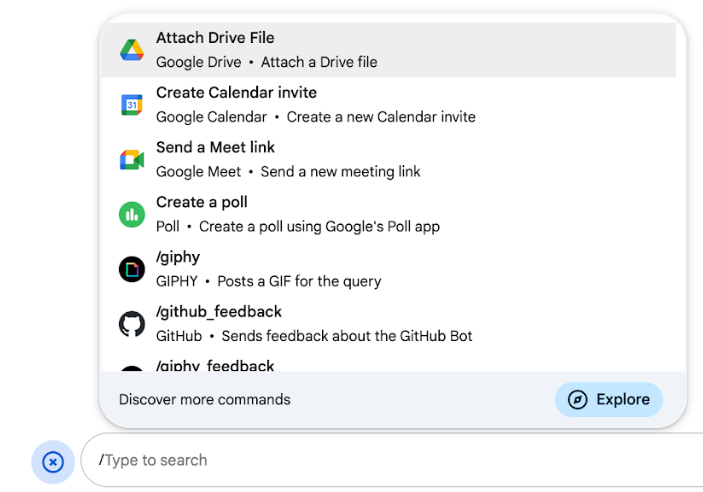
คำสั่งเครื่องหมายทับ: ผู้ใช้สามารถเลือกคำสั่งเครื่องหมายทับจากเมนูหรือพิมพ์เครื่องหมายทับ (
/) แล้วตามด้วยข้อความที่กำหนดไว้ล่วงหน้า เช่น/aboutโดยปกติแล้วแอปแชทจะกำหนดให้ต้องมีข้อความอาร์กิวเมนต์สำหรับคำสั่งเครื่องหมายทับสร้างคำสั่งเครื่องหมายทับ หากแอป Chat ของคุณต้องใช้ข้อมูลเพิ่มเติม จากผู้ใช้ เช่น คุณสามารถสร้างคำสั่งเครื่องหมายทับที่ชื่อ
/searchซึ่งจะทำงานหลังจากที่ผู้ใช้ป้อนวลีที่จะ ค้นหา เช่น/search receipts -
คำสั่งด่วน: ผู้ใช้ใช้คำสั่งโดยเปิดเมนูจากส่วนตอบกลับ ของข้อความ Chat หากต้องการใช้คำสั่ง ผู้ใช้จะต้องคลิกเพิ่ม
 และ
เลือกคำสั่งจากเมนู
และ
เลือกคำสั่งจากเมนู
สร้างคำสั่งด่วนหากแอป Chat ตอบกลับผู้ใช้ได้ทันทีโดยไม่ต้องรอข้อมูลเพิ่มเติม ตัวอย่างเช่น คุณสร้างคำสั่งด่วนที่ชื่อรูปภาพแบบสุ่มซึ่ง ตอบกลับด้วยรูปภาพได้ทันที
-
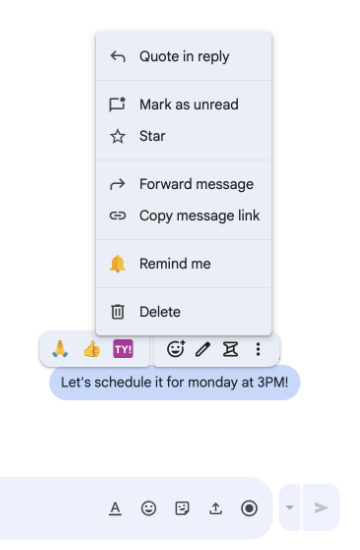
การดำเนินการกับข้อความ: ( เวอร์ชันตัวอย่างสำหรับนักพัฒนาซอฟต์แวร์) ผู้ใช้จะใช้การดำเนินการกับข้อความได้โดยวางเมาส์เหนือข้อความ แล้วคลิกเมนู 3 จุด หากต้องการใช้คำสั่ง ผู้ใช้จะเปิดเมนู 3 จุดและเลือก คำสั่งจากเมนู
สร้างการดำเนินการเกี่ยวกับข้อความหากแอป Chat สามารถดำเนินการตามบริบทของข้อความได้
รูปภาพต่อไปนี้แสดงวิธีที่ผู้ใช้ค้นพบเมนูสำหรับคำสั่งเครื่องหมายทับและคำสั่งด่วน รวมถึงการดำเนินการกับข้อความ
ข้อกำหนดเบื้องต้น
HTTP
ส่วนเสริมของ Google Workspace ที่ขยายการทำงานของ Google Chat หากต้องการสร้าง ให้ทำตามคู่มือเริ่มใช้งานฉบับย่อ HTTP
Apps Script
ส่วนเสริมของ Google Workspace ที่ขยายการทำงานของ Google Chat หากต้องการสร้าง ให้ทำตามคู่มือเริ่มใช้งาน Apps Script ฉบับย่อ
ตั้งค่าคำสั่ง
ส่วนนี้จะอธิบายวิธีทําตามขั้นตอนต่อไปนี้เพื่อตั้งค่า คําสั่ง
- สร้างชื่อและคำอธิบายสำหรับคำสั่ง
- กำหนดค่าคำสั่งในคอนโซล Google Cloud
ตั้งชื่อและอธิบายคำสั่ง
ชื่อของคำสั่งคือสิ่งที่ผู้ใช้พิมพ์หรือเลือกเพื่อเรียกใช้แอป Chat คำอธิบายสั้นๆ จะปรากฏใต้ชื่อเพื่อแจ้งให้ ผู้ใช้ทราบเพิ่มเติมเกี่ยวกับวิธีใช้คำสั่ง
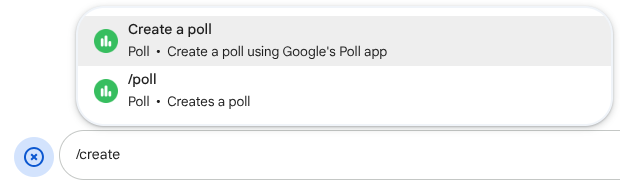
เมื่อเลือกชื่อและคำอธิบายสำหรับคำสั่ง ให้พิจารณาคำแนะนำต่อไปนี้
วิธีตั้งชื่อคำสั่ง
- ใช้คำหรือวลีที่สั้น สื่อความหมาย และนำไปใช้ได้จริงเพื่อให้คำสั่งชัดเจนสำหรับผู้ใช้
เช่น แทนที่จะใช้ชื่อ
Create a reminderให้ใช้Remind me - พิจารณาใช้ชื่อที่ไม่ซ้ำกันหรือชื่อทั่วไปสำหรับคำสั่ง หากคำสั่งอธิบายการโต้ตอบหรือฟีเจอร์ทั่วไป คุณสามารถใช้ชื่อทั่วไปที่ผู้ใช้รู้จักและคาดหวังได้ เช่น
SettingsหรือFeedbackไม่เช่นนั้น ให้ลองใช้ชื่อคำสั่งที่ไม่ซ้ำกัน เนื่องจากหากชื่อคำสั่งของคุณเหมือนกับแอป Chat อื่นๆ ผู้ใช้ จะต้องกรองคำสั่งที่คล้ายกันเพื่อค้นหาและใช้คำสั่งของคุณ
วิธีอธิบายคำสั่ง
- เขียนคำอธิบายให้สั้นและชัดเจนเพื่อให้ผู้ใช้ทราบว่าจะเกิดอะไรขึ้นเมื่อใช้คำสั่ง
- แจ้งให้ผู้ใช้ทราบหากมีข้อกำหนดในการจัดรูปแบบคำสั่ง เช่น หากคุณ
สร้างคำสั่งเครื่องหมายทับ ที่ต้องใช้ข้อความอาร์กิวเมนต์ ให้ตั้งค่าคำอธิบายเป็นข้อความที่คล้ายกับ
Remind me to do [something] at [time] - แจ้งให้ผู้ใช้ทราบว่าแอป Chat จะตอบกลับทุกคนในพื้นที่ทำงาน หรือ
ตอบกลับแบบส่วนตัวไปยังผู้ใช้ที่เรียกใช้คำสั่ง เช่น สำหรับคำสั่งด่วน
Aboutคุณอาจอธิบายว่าLearn about this app (Only visible to you)
กำหนดค่าคำสั่งในคอนโซล Google Cloud
หากต้องการสร้างคำสั่งเครื่องหมายทับ คำสั่งด่วน หรือการกระทำกับข้อความ คุณต้องระบุ ข้อมูลเกี่ยวกับคำสั่งหรือการกระทำในการกำหนดค่าของแอป Chat สำหรับ Google Chat API
หากต้องการกำหนดค่าคำสั่งใน Google Chat API ให้ทำตามขั้นตอนต่อไปนี้
ในคอนโซล Google Cloud ให้คลิกเมนู > API และบริการ > API และบริการที่เปิดใช้ > Google Chat API
คลิกการกำหนดค่า
ในส่วนการตั้งค่าการเชื่อมต่อ ให้ไปที่ทริกเกอร์และระบุรายละเอียดของปลายทาง คุณต้องใช้ทริกเกอร์นี้ในส่วนต่อไปนี้เพื่อตอบสนองต่อ คำสั่ง
- URL ปลายทาง HTTP: คุณระบุ URL ปลายทาง HTTP ทั่วไปได้ 1 รายการที่นี่ หรือหากต้องการใช้ปลายทาง HTTP ที่แตกต่างกันสำหรับทริกเกอร์ที่แตกต่างกัน ให้ระบุปลายทางโดยตรงในช่องคำสั่งแอป
- Apps Script: ป้อนรหัสการทำให้ใช้งานได้ของ Apps Script โดยค่าเริ่มต้น ระบบจะเรียกใช้ฟังก์ชัน
onAppCommandหากต้องการใช้ฟังก์ชัน Apps Script อื่น ให้ระบุชื่อฟังก์ชันที่กำหนดเองใน ช่องคำสั่งแอป
ในส่วนคำสั่ง ให้คลิกเพิ่มคำสั่ง
ป้อนข้อมูลต่อไปนี้เกี่ยวกับคำสั่ง
- รหัสคำสั่ง: ตัวเลขตั้งแต่ 1 ถึง 1000 ที่แอป Chat ใช้เพื่อจดจำคำสั่ง และส่งคืนการตอบกลับ
- คำอธิบาย: ข้อความที่อธิบายวิธีใช้และจัดรูปแบบ คำสั่ง คำอธิบายมีความยาวได้ไม่เกิน 50 อักขระ
- ประเภทคำสั่ง: เลือกคำสั่งด่วน คำสั่งเครื่องหมายทับ หรือการดำเนินการกับข้อความ
- ระบุชื่อสำหรับคำสั่ง
- ชื่อคำสั่งด่วน: ชื่อที่แสดงซึ่งผู้ใช้เลือกจากเมนู
เพื่อเรียกใช้คำสั่ง มีความยาวได้สูงสุด 50 อักขระและมี
อักขระพิเศษ เช่น
Remind me - ชื่อคำสั่งเครื่องหมายทับ: ข้อความที่ผู้ใช้พิมพ์เพื่อเรียกใช้คำสั่งในข้อความ
ต้องขึ้นต้นด้วยเครื่องหมายทับ มีเฉพาะข้อความ และ
มีความยาวได้สูงสุด 50 อักขระ เช่น
/remindMe - ชื่อการดำเนินการกับข้อความ:
( เวอร์ชันตัวอย่างสำหรับนักพัฒนาซอฟต์แวร์)
ชื่อที่แสดงซึ่งผู้ใช้เลือกจาก
เมนูเพื่อเรียกใช้การดำเนินการกับข้อความ มีความยาวได้สูงสุด 50 อักขระและมี
อักขระพิเศษ ตัวอย่างเช่น
Remind me
- ชื่อคำสั่งด่วน: ชื่อที่แสดงซึ่งผู้ใช้เลือกจากเมนู
เพื่อเรียกใช้คำสั่ง มีความยาวได้สูงสุด 50 อักขระและมี
อักขระพิเศษ เช่น
ไม่บังคับ: ข้อความแจ้งการโหลด ( เวอร์ชันตัวอย่างสำหรับนักพัฒนาซอฟต์แวร์) ข้อความแจ้งแบบข้อความโทสต์ที่จะแสดงต่อผู้ใช้ขณะที่ระบบดำเนินการตามข้อความ ใช้ได้เฉพาะ กับการดำเนินการกับข้อความที่ไม่เปิดกล่องโต้ตอบ
ไม่บังคับ: หากต้องการให้แอป Chat ตอบกลับคำสั่งด้วยกล่องโต้ตอบ ให้เลือกช่องทําเครื่องหมายเปิดกล่องโต้ตอบ
คลิกบันทึก
ตอนนี้กำหนดค่าคำสั่งสำหรับแอป Chat แล้ว
ตอบกลับคำสั่ง
เมื่อผู้ใช้ใช้คำสั่ง แอป Chat ของคุณจะได้รับออบเจ็กต์เหตุการณ์
เพย์โหลดของเหตุการณ์มีออบเจ็กต์
appCommandPayload
ที่มีรายละเอียดเกี่ยวกับคำสั่งที่เรียกใช้ (รวมถึงรหัสคำสั่งและประเภทคำสั่ง) เพื่อให้คุณส่งคืนการตอบกลับที่เหมาะสมได้
ระบบจะส่งออบเจ็กต์เหตุการณ์ไปยังปลายทาง HTTP หรือฟังก์ชัน Apps Script ที่คุณระบุเมื่อกำหนดค่าทริกเกอร์คำสั่งแอป

/helpแบบส่วนตัวเพื่ออธิบายวิธีรับการสนับสนุนโค้ดต่อไปนี้แสดงตัวอย่างแอป Chat ที่ตอบกลับคำสั่งเครื่องหมายทับ /about ด้วยข้อความ หากต้องการตอบกลับ
คำสั่ง Slash แอป Chat จะจัดการออบเจ็กต์เหตุการณ์จากทริกเกอร์คำสั่งแอป เมื่อเพย์โหลดของออบเจ็กต์เหตุการณ์มีรหัสคำสั่ง
เครื่องหมายทับ แอป Chat จะแสดงผลการดำเนินการ DataActions
พร้อมออบเจ็กต์ createMessageAction
Node.js
Python
Java
Apps Script
หากต้องการใช้ตัวอย่างโค้ดนี้ ให้แทนที่ ABOUT_COMMAND_ID ด้วยรหัสคำสั่งที่คุณระบุเมื่อกำหนดค่าคำสั่งใน Chat API
ตอบกลับการดำเนินการกับข้อความ
โค้ดต่อไปนี้แสดงตัวอย่างแอป Chat
ที่ตอบกลับการดำเนินการกับข้อความ Remind me ด้วยข้อความ หากต้องการตอบสนองต่อการดำเนินการกับข้อความ แอป Chat จะจัดการออบเจ็กต์เหตุการณ์จากทริกเกอร์คำสั่งแอป เมื่อเพย์โหลดของออบเจ็กต์เหตุการณ์มีรหัสคำสั่งการดำเนินการของข้อความ
แอป Chat จะแสดงการดำเนินการ
DataActionsพร้อมออบเจ็กต์ createMessageAction
Node.js
/**
 * Responds to an APP_COMMAND interaction event from Google Chat.
 *
 * @param {Object} event The interaction event from Google Chat.
 * @param {Object} res The HTTP response object.
 * @return {Object} The JSON response message with a confirmation.
 */
function onAppCommand(event, res) {
  // Collect the command ID and type from the event metadata.
  const {appCommandId, appCommandType} =
    event.chat.appCommandPayload.appCommandMetadata;

  if (appCommandType === 'MESSAGE_ACTION' &&
      appCommandId === REMIND_ME_COMMAND_ID) {

    // Message actions can access the context of the message they were
    // invoked on, such as the text or sender of that message.
    const messageText = event.chat.appCommandPayload.message.text;

    // Return a response that includes details from the original message.
    return res.json({
      "hostAppDataAction": {
        "chatDataAction": {
          "createMessageAction": {
            "message": {
              "text": `Setting a reminder for message: "${messageText}"`
            }
          }
        }
      }
    });
  }
}
Python
def on_app_command(event):
    """Responds to an APP_COMMAND interaction event from Google Chat.

    Args:
        event (dict): The interaction event from Google Chat.

    Returns:
        dict: The JSON response message with a confirmation.
    """
    # Collect the command ID and type from the event metadata.
    payload = event.get('chat', {}).get('appCommandPayload', {})
    metadata = payload.get('appCommandMetadata', {})
    if metadata.get('appCommandType') == 'MESSAGE_ACTION' and \
       metadata.get('appCommandId') == REMIND_ME_COMMAND_ID:

        # Message actions can access the context of the message they were
        # invoked on, such as the text or sender of that message.
        message_text = payload.get('message', {}).get('text')

        # Return a response that includes details from the original message.
        return {
            "hostAppDataAction": {
                "chatDataAction": {
                    "createMessageAction": {
                        "message": {
                            "text": f'Setting a reminder for message: "{message_text}"'
                        }
                    }
                }
            }
        }
Java
/**
 * Responds to an APP_COMMAND interaction event from Google Chat.
 *
 * @param event The interaction event from Google Chat.
 * @param response The HTTP response object.
 */
void onAppCommand(JsonObject event, HttpResponse response) throws Exception {
  // Collect the command ID and type from the event metadata.
  JsonObject payload = event.getAsJsonObject("chat").getAsJsonObject("appCommandPayload");
  JsonObject metadata = payload.getAsJsonObject("appCommandMetadata");
  String appCommandType = metadata.get("appCommandType").getAsString();

  if (appCommandType.equals("MESSAGE_ACTION")) {
    int commandId = metadata.get("appCommandId").getAsInt();
    if (commandId == REMIND_ME_COMMAND_ID) {
      // Message actions can access the context of the message they were
      // invoked on, such as the text or sender of that message.
      String messageText = payload.getAsJsonObject("message").get("text").getAsString();

      // Return a response that includes details from the original message.
      JsonObject responseMessage = new JsonObject();
      responseMessage.addProperty("text", "Setting a reminder for message: " + messageText);

      JsonObject createMessageAction = new JsonObject();
      createMessageAction.add("message", responseMessage);

      JsonObject chatDataAction = new JsonObject();
      chatDataAction.add("createMessageAction", createMessageAction);

      JsonObject hostAppDataAction = new JsonObject();
      hostAppDataAction.add("chatDataAction", chatDataAction);

      JsonObject finalResponse = new JsonObject();
      finalResponse.add("hostAppDataAction", hostAppDataAction);

      response.getWriter().write(finalResponse.toString());
    }
  }
}
Apps Script
/**
 * Responds to an APP_COMMAND interaction event in Google Chat.
 *
 * @param {Object} event The interaction event from Google Chat.
 * @return {Object} The JSON response message with a confirmation.
 */
function onAppCommand(event) {
  // Collect the command ID and type from the event metadata.
  const {appCommandId, appCommandType} =
    event.chat.appCommandPayload.appCommandMetadata;

  if (appCommandType === 'MESSAGE_ACTION' &&
      appCommandId === REMIND_ME_COMMAND_ID) {

    // Message actions can access the context of the message they were
    // invoked on, such as the text or sender of that message.
    const messageText = event.chat.appCommandPayload.message.text;

    // Return a response that includes details from the original message.
    return CardService.newChatResponseBuilder()
        .setText("Setting a reminder for message: " + messageText)
        .build();
  }
}
หากต้องการใช้ตัวอย่างโค้ดนี้ ให้แทนที่ REMIND_ME_COMMAND_ID ด้วยรหัสคำสั่งที่คุณระบุเมื่อกำหนดค่าคำสั่งใน Chat API
ทดสอบคำสั่ง
หากต้องการทดสอบคำสั่งและโค้ด โปรดดูทดสอบฟีเจอร์แบบอินเทอร์แอกทีฟสำหรับแอป Google Chat
หากต้องการดูวิธีทดสอบและใช้คำสั่งใน UI ของ Chat โปรดดูใช้แอปใน Google Chat ในเอกสารประกอบของศูนย์ช่วยเหลือของ Google Chat