

इस पेज पर, ऐसा Chat ऐप्लिकेशन बनाने का तरीका बताया गया है जो Cloud Pub/Sub का इस्तेमाल करके, Chat से इवेंट पाता है. अगर आपका Chat ऐप्लिकेशन फ़ायरवॉल के पीछे है या आपको Google Workspace Events API की मदद से, किसी Chat स्पेस या उपयोगकर्ता के बारे में इवेंट भेजने या पाने हैं, तो यह आर्किटेक्चर आपके लिए फ़ायदेमंद है.
यहां दिए गए डायग्राम में, Pub/Sub की मदद से बनाए गए चैट ऐप्लिकेशन का आर्किटेक्चर दिखाया गया है:
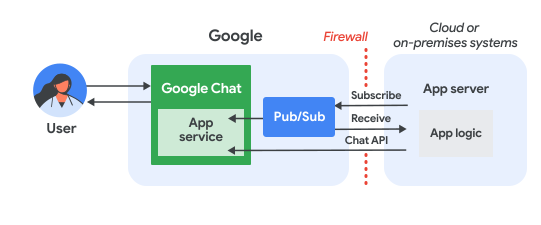
ऊपर दिए गए डायग्राम में, Pub/Sub Chat ऐप्लिकेशन के साथ इंटरैक्ट करने वाले उपयोगकर्ता के लिए, जानकारी का फ़्लो इस तरह होता है:
कोई उपयोगकर्ता Chat ऐप्लिकेशन के साथ इंटरैक्ट करता है. जैसे, उसे मैसेज भेजता है, कोई कमांड देता है या उसे किसी Chat स्पेस में जोड़ता या उससे हटाता है.
Chat, मैसेज को Pub/Sub विषय पर भेजता है.
ऐप्लिकेशन सर्वर, जो क्लाउड या कंपनी की इमारत में मौजूद सिस्टम होता है, जिसमें Chat ऐप्लिकेशन का लॉजिक होता है, Pub/Sub विषय की सदस्यता लेता है, ताकि फ़ायरवॉल के ज़रिए मैसेज मिल सके.
Chat ऐप्लिकेशन, Chat API को कॉल करके मैसेज पोस्ट कर सकता है या अन्य कार्रवाइयाँ कर सकता है. हालाँकि, ऐसा करना ज़रूरी नहीं है.
ज़रूरी शर्तें
Node.js
- Business या Enterprise वर्शन वाला Google Workspace खाता, जिसमें Google Chat का ऐक्सेस हो.
- बिलिंग की सुविधा वाला Google क्लाउड प्रोजेक्ट. यह देखने के लिए कि किसी मौजूदा प्रोजेक्ट के लिए बिलिंग की सुविधा चालू है या नहीं, अपने प्रोजेक्ट के बिलिंग स्टेटस की पुष्टि करें लेख पढ़ें. प्रोजेक्ट बनाने और बिलिंग सेट अप करने के लिए, Google Cloud प्रोजेक्ट बनाना लेख पढ़ें.
- Node.js 14 या इसके बाद का वर्शन
- npm पैकेज मैनेजमेंट टूल
- शुरू किया गया Node.js प्रोजेक्ट. नया प्रोजेक्ट शुरू करने के लिए, एक नया फ़ोल्डर बनाएं और उसमें स्विच करें. इसके बाद, अपने कमांड-लाइन इंटरफ़ेस में यह कमांड चलाएं:
npm init
Python
- Business या Enterprise वर्शन वाला Google Workspace खाता, जिसमें Google Chat का ऐक्सेस हो.
- बिलिंग की सुविधा वाला Google क्लाउड प्रोजेक्ट. यह देखने के लिए कि किसी मौजूदा प्रोजेक्ट के लिए बिलिंग की सुविधा चालू है या नहीं, अपने प्रोजेक्ट के बिलिंग स्टेटस की पुष्टि करें लेख पढ़ें. प्रोजेक्ट बनाने और बिलिंग सेट अप करने के लिए, Google Cloud प्रोजेक्ट बनाना लेख पढ़ें.
- Python 3.6 या इसके बाद का वर्शन
- pip पैकेज मैनेजमेंट टूल
Java
- Business या Enterprise वर्शन वाला Google Workspace खाता, जिसमें Google Chat का ऐक्सेस हो.
- बिलिंग की सुविधा वाला Google क्लाउड प्रोजेक्ट. यह देखने के लिए कि किसी मौजूदा प्रोजेक्ट के लिए बिलिंग की सुविधा चालू है या नहीं, अपने प्रोजेक्ट के बिलिंग स्टेटस की पुष्टि करें लेख पढ़ें. प्रोजेक्ट बनाने और बिलिंग सेट अप करने के लिए, Google Cloud प्रोजेक्ट बनाना लेख पढ़ें.
- Java 11 या इसके बाद का वर्शन
- Maven पैकेज मैनेजमेंट टूल
एपीआई चालू करना
Google API का इस्तेमाल करने से पहले, आपको उन्हें Google Cloud प्रोजेक्ट में चालू करना होगा. एक ही Google Cloud प्रोजेक्ट में, एक या उससे ज़्यादा एपीआई चालू किए जा सकते हैं.Google Cloud Console में, Google Chat API और Pub/Sub API को चालू करें.
Pub/Sub सेट अप करना
Pub/Sub का कोई ऐसा विषय बनाएं जिस पर Chat API मैसेज भेज सके. हमारा सुझाव है कि आप Chat ऐप्लिकेशन में, हर विषय के लिए एक ही चैट का इस्तेमाल करें.
Chat ऐप्लिकेशन के लिए, एक सेवा खाता बनाएं, ताकि Pub/Sub और Chat के साथ पुष्टि की जा सके. साथ ही, निजी पासकोड फ़ाइल को अपनी वर्किंग डायरेक्ट्री में सेव करें.
विषय के लिए, पुल सदस्यता बनाएं.
आपने पहले जो सेवा खाता बनाया था उसके लिए, सदस्यता पर Pub/Sub सदस्य की भूमिका असाइन करें.
स्क्रिप्ट लिखना
इस सेक्शन में, अपने Chat ऐप्लिकेशन के लिए ऐप्लिकेशन लॉजिक तय करें. आपको एक ऐसी स्क्रिप्ट लिखनी होगी जो Google Cloud से पुष्टि करती है और Pub/Sub विषय की सदस्यता लेती है, ताकि Chat से इवेंट मिल सकें. जैसे, जब कोई उपयोगकर्ता आपके Chat ऐप्लिकेशन को मैसेज भेजता है.
जब स्क्रिप्ट को कोई मैसेज मिलता है, तो वह इवेंट डेटा को प्रोसेस करती है. इसके बाद, Google Chat API का इस्तेमाल करके, उपयोगकर्ता या स्पेस को जवाब पोस्ट करती है. इस सेटअप की मदद से, आपका Chat ऐप्लिकेशन फ़ायरवॉल के पीछे काम कर सकता है. साथ ही, Chat के उपयोगकर्ताओं से इंटरैक्ट भी कर सकता है.
Node.js
सीएलआई में, सेवा खाते के क्रेडेंशियल दें:
export GOOGLE_APPLICATION_CREDENTIALS=SERVICE_ACCOUNT_FILE_PATHसीएलआई में, Google Cloud प्रोजेक्ट आईडी डालें:
export PROJECT_ID=PROJECT_IDसीएलआई में, उस Pub/Sub सदस्यता के लिए सदस्यता आईडी दें जिसे आपने पहले बनाया था:
export SUBSCRIPTION_ID=SUBSCRIPTION_IDअपनी वर्किंग डायरेक्ट्री में,
package.jsonनाम की एक फ़ाइल बनाएं.package.jsonफ़ाइल में, यह कोड चिपकाएं:{ "name": "pub-sub-app", "version": "1.0.0", "description": "Google Chat App that listens for messages via Cloud Pub/Sub", "main": "index.js", "scripts": { "start": "node index.js", "test": "echo \"Error: no test specified\" && exit 1" }, "dependencies": { "@google-apps/chat": "^0.4.0", "@google-cloud/pubsub": "^4.5.0" }, "license": "Apache-2.0" }अपनी वर्किंग डायरेक्ट्री में,
index.jsनाम की एक फ़ाइल बनाएं.index.jsमें, यह कोड चिपकाएं:const {ChatServiceClient} = require('@google-apps/chat'); const {MessageReplyOption} = require('@google-apps/chat').protos.google.chat.v1.CreateMessageRequest; const {PubSub} = require('@google-cloud/pubsub'); const {SubscriberClient} = require('@google-cloud/pubsub/build/src/v1'); // Receives messages from a pull subscription. function receiveMessages() { const chat = new ChatServiceClient({ keyFile: process.env.GOOGLE_APPLICATION_CREDENTIALS, scopes: ['https://www.googleapis.com/auth/chat.bot'], }); const subscriptionPath = new SubscriberClient() .subscriptionPath(process.env.PROJECT_ID, process.env.SUBSCRIPTION_ID) const subscription = new PubSub() .subscription(subscriptionPath); // Handle incoming message, then acknowledge the received message const messageHandler = message => { console.log(`Id : ${message.id}`); const event = JSON.parse(message.data); console.log(`Data : ${JSON.stringify(event)}`); // Post the response to Google Chat. const request = formatRequest(event); if (request != null) { chat.createMessage(request); } // Acknowledge the message. message.ack(); } subscription.on('message', messageHandler); console.log(`Listening for messages on ${subscriptionPath}`); // Keep main thread from exiting while waiting for messages setTimeout(() => { subscription.removeListener('message', messageHandler); console.log(`Stopped listening for messages.`); }, 60 * 1000); } // Send message to Google Chat based on the type of event function formatRequest(event) { const chatEvent = event.chat || {}; // If the app was removed, we don't respond. if (chatEvent.removedFromSpacePayload) { console.log(`App removed from space.`); return null; } const payload = chatEvent.messagePayload || chatEvent.addedToSpacePayload; const spaceName = payload?.space?.name; if (!spaceName) { console.log('No space name in event.'); return null; } if (chatEvent.addedToSpacePayload) { // An app can also be added to a space by @mentioning it in a // message. In that case, we fall through to the message case // and let the app respond. If the app was added using the // invite flow, we just post a thank you message in the space. return { parent: spaceName, message: { text: 'Thank you for adding me!' }, }; } else if (chatEvent.messagePayload) { // In case of message, post the response in the same thread. const message = chatEvent.messagePayload.message; return { parent: spaceName, messageReplyOption: MessageReplyOption.REPLY_MESSAGE_FALLBACK_TO_NEW_THREAD, message: { text: 'You said: `' + message.text + '`', thread: { name: message.thread.name }, }, }; } } if (!process.env.PROJECT_ID) { console.log('Missing PROJECT_ID env var.'); process.exit(1); } if (!process.env.SUBSCRIPTION_ID) { console.log('Missing SUBSCRIPTION_ID env var.'); process.exit(1); } if (!process.env.GOOGLE_APPLICATION_CREDENTIALS) { console.log('Missing GOOGLE_APPLICATION_CREDENTIALS env var.'); process.exit(1); } receiveMessages();
Python
सीएलआई में, सेवा खाते के क्रेडेंशियल दें:
export GOOGLE_APPLICATION_CREDENTIALS=SERVICE_ACCOUNT_FILE_PATHसीएलआई में, Google Cloud प्रोजेक्ट आईडी डालें:
export PROJECT_ID=PROJECT_IDसीएलआई में, उस Pub/Sub सदस्यता के लिए सदस्यता आईडी दें जिसे आपने पहले बनाया था:
export SUBSCRIPTION_ID=SUBSCRIPTION_IDअपनी वर्किंग डायरेक्ट्री में,
requirements.txtनाम की एक फ़ाइल बनाएं.requirements.txtफ़ाइल में, यह कोड चिपकाएं:google-cloud-pubsub>=2.23.0 google-apps-chat==0.1.9अपनी वर्किंग डायरेक्ट्री में,
app.pyनाम की एक फ़ाइल बनाएं.app.pyमें, यह कोड चिपकाएं:import json import logging import os import sys import time from google.apps import chat_v1 as google_chat from google.cloud import pubsub_v1 from google.oauth2.service_account import Credentials def receive_messages(): """Receives messages from a pull subscription.""" scopes = ['https://www.googleapis.com/auth/chat.bot'] service_account_key_path = os.environ.get('GOOGLE_APPLICATION_CREDENTIALS') creds = Credentials.from_service_account_file(service_account_key_path) chat = google_chat.ChatServiceClient( credentials=creds, client_options={'scopes': scopes} ) project_id = os.environ.get('PROJECT_ID') subscription_id = os.environ.get('SUBSCRIPTION_ID') subscriber = pubsub_v1.SubscriberClient() subscription_path = subscriber.subscription_path(project_id, subscription_id) # Handle incoming message, then acknowledge the received message def callback(message): event = json.loads(message.data) logging.info('Data : %s', event) # Post the response to Google Chat. request = format_request(event) if request is not None: chat.create_message(request) # Acknowledge the message. message.ack() subscriber.subscribe(subscription_path, callback = callback) logging.info('Listening for messages on %s', subscription_path) # Keep main thread from exiting while waiting for messages while True: time.sleep(60) def format_request(event): """Send message to Google Chat based on the type of event. Args: event: A dictionary with the event data. """ chat_event = event.get('chat', {}) # If the app was removed, we don't respond. if 'removedFromSpacePayload' in chat_event: logging.info('App removed from space.') return payload = chat_event.get('messagePayload') or chat_event.get( 'addedToSpacePayload' ) space_name = payload.get('space', {}).get('name') if payload else None if not space_name: logging.warning('No space name in event.') return if 'addedToSpacePayload' in chat_event: # An app can also be added to a space by @mentioning it in a # message. In that case, we fall through to the message case # and let the app respond. If the app was added using the # invite flow, we just post a thank you message in the space. return google_chat.CreateMessageRequest( parent = space_name, message = { 'text': 'Thank you for adding me!' } ) elif 'messagePayload' in chat_event: # In case of message, post the response in the same thread. message = chat_event['messagePayload']['message'] return google_chat.CreateMessageRequest( parent = space_name, message_reply_option = google_chat.CreateMessageRequest.MessageReplyOption.REPLY_MESSAGE_FALLBACK_TO_NEW_THREAD, message = { 'text': 'You said: `' + message['text'] + '`', 'thread': { 'name': message['thread']['name'] } } ) if __name__ == '__main__': if 'PROJECT_ID' not in os.environ: logging.error('Missing PROJECT_ID env var.') sys.exit(1) if 'SUBSCRIPTION_ID' not in os.environ: logging.error('Missing SUBSCRIPTION_ID env var.') sys.exit(1) if 'GOOGLE_APPLICATION_CREDENTIALS' not in os.environ: logging.error('Missing GOOGLE_APPLICATION_CREDENTIALS env var.') sys.exit(1) logging.basicConfig( level=logging.INFO, style='{', format='{levelname:.1}{asctime} {filename}:{lineno}] {message}') receive_messages()
Java
सीएलआई में, सेवा खाते के क्रेडेंशियल दें:
export GOOGLE_APPLICATION_CREDENTIALS=SERVICE_ACCOUNT_FILE_PATHसीएलआई में, Google Cloud प्रोजेक्ट आईडी डालें:
export PROJECT_ID=PROJECT_IDसीएलआई में, उस Pub/Sub सदस्यता के लिए सदस्यता आईडी दें जिसे आपने पहले बनाया था:
export SUBSCRIPTION_ID=SUBSCRIPTION_IDअपनी वर्किंग डायरेक्ट्री में,
pom.xmlनाम की एक फ़ाइल बनाएं.pom.xmlफ़ाइल में, यह कोड चिपकाएं:<project xmlns="http://maven.apache.org/POM/4.0.0" xmlns:xsi="http://www.w3.org/2001/XMLSchema-instance" xsi:schemaLocation="http://maven.apache.org/POM/4.0.0 http://maven.apache.org/xsd/maven-4.0.0.xsd"> <modelVersion>4.0.0</modelVersion> <groupId>com.google.chat.addon</groupId> <artifactId>pubsub-addon-chat-app</artifactId> <version>0.1.0</version> <name>pubsub-addon-chat-app-java</name> <properties> <maven.compiler.release>11</maven.compiler.release> <project.build.sourceEncoding>UTF-8</project.build.sourceEncoding> </properties> <dependencyManagement> <dependencies> <dependency> <groupId>com.google.cloud</groupId> <artifactId>libraries-bom</artifactId> <version>26.41.0</version> <!-- Use a recent BOM version --> <type>pom</type> <scope>import</scope> </dependency> </dependencies> </dependencyManagement> <dependencies> <!-- Google Chat GAPIC library --> <dependency> <groupId>com.google.cloud</groupId> <artifactId>google-cloud-chat</artifactId> </dependency> <!-- Google Cloud Pub/Sub library --> <dependency> <groupId>com.google.cloud</groupId> <artifactId>google-cloud-pubsub</artifactId> </dependency> <!-- Google Apps Add-ons Event Object --> <dependency> <groupId>com.google.apps.addons.v1</groupId> <artifactId>google-apps-addons-v1-java</artifactId> <version>0.2.0</version> <!-- Check for latest version --> </dependency> <!-- Protobuf JSON utility --> <dependency> <groupId>com.google.protobuf</groupId> <artifactId>protobuf-java-util</artifactId> </dependency> <!-- Google Auth Library --> <dependency> <groupId>com.google.auth</groupId> <artifactId>google-auth-library-oauth2-http</artifactId> </dependency> <dependency> <groupId>com.google.api</groupId> <artifactId>gax</artifactId> </dependency> <!-- JSON utilities for PubSub message (if needed, though protobuf-java-util is primary for EventObject) --> <dependency> <groupId>com.fasterxml.jackson.core</groupId> <artifactId>jackson-databind</artifactId> <version>2.14.2</version> </dependency> <dependency> <groupId>org.slf4j</groupId> <artifactId>slf4j-jdk14</artifactId> <version>1.7.36</version> <scope>runtime</scope> </dependency> </dependencies> <build> <plugins> <plugin> <groupId>org.apache.maven.plugins</groupId> <artifactId>maven-compiler-plugin</artifactId> <version>3.13.0</version> <configuration> <source>11</source> <target>11</target> </configuration> </plugin> <plugin> <groupId>org.codehaus.mojo</groupId> <artifactId>exec-maven-plugin</artifactId> <version>3.3.0</version> <configuration> <mainClass>Main</mainClass> </configuration> </plugin> </plugins> </build> </project>अपनी वर्किंग डायरेक्ट्री में,
src/main/javaडायरेक्ट्री स्ट्रक्चर बनाएं.src/main/javaडायरेक्ट्री में,Main.javaनाम की फ़ाइल बनाएं.Main.javaमें, यह कोड चिपकाएं:import com.fasterxml.jackson.databind.JsonNode; import com.fasterxml.jackson.databind.ObjectMapper; import com.google.api.gax.core.FixedCredentialsProvider; import com.google.auth.oauth2.GoogleCredentials; import com.google.chat.v1.ChatServiceClient; import com.google.chat.v1.ChatServiceSettings; import com.google.chat.v1.CreateMessageRequest; import com.google.chat.v1.CreateMessageRequest.MessageReplyOption; import com.google.chat.v1.Message; import com.google.chat.v1.Thread; import com.google.cloud.pubsub.v1.AckReplyConsumer; import com.google.cloud.pubsub.v1.MessageReceiver; import com.google.cloud.pubsub.v1.Subscriber; import com.google.pubsub.v1.ProjectSubscriptionName; import com.google.pubsub.v1.PubsubMessage; import java.io.FileInputStream; import java.util.Collections; public class Main { public static final String PROJECT_ID_ENV_PROPERTY = "PROJECT_ID"; public static final String SUBSCRIPTION_ID_ENV_PROPERTY = "SUBSCRIPTION_ID"; public static final String CREDENTIALS_PATH_ENV_PROPERTY = "GOOGLE_APPLICATION_CREDENTIALS"; public static void main(String[] args) throws Exception { ProjectSubscriptionName subscriptionName = ProjectSubscriptionName.of( System.getenv(Main.PROJECT_ID_ENV_PROPERTY), System.getenv(Main.SUBSCRIPTION_ID_ENV_PROPERTY)); // Instantiate app, which implements an asynchronous message receiver. EchoApp echoApp = new EchoApp(); // Create a subscriber for <var>SUBSCRIPTION_ID</var> bound to the message receiver final Subscriber subscriber = Subscriber.newBuilder(subscriptionName, echoApp).build(); System.out.println("Subscriber is listening to events..."); subscriber.startAsync(); // Wait for termination subscriber.awaitTerminated(); } } /** * A demo app which implements {@link MessageReceiver} to receive messages. * It echoes incoming messages. */ class EchoApp implements MessageReceiver { // Path to the private key JSON file of the service account to be used for posting response // messages to Google Chat. // In this demo, we are using the same service account for authorizing with Cloud Pub/Sub to // receive messages and authorizing with Google Chat to post messages. If you are using // different service accounts, set the path to the private key JSON file of the service // account used to post messages to Google Chat here. private static final String SERVICE_ACCOUNT_KEY_PATH = System.getenv(Main.CREDENTIALS_PATH_ENV_PROPERTY); // Developer code for Google Chat API scope. private static final String GOOGLE_CHAT_API_SCOPE = "https://www.googleapis.com/auth/chat.bot"; private static final String ADDED_RESPONSE = "Thank you for adding me!"; ChatServiceClient chatServiceClient; EchoApp() throws Exception { GoogleCredentials credential = GoogleCredentials.fromStream(new FileInputStream(SERVICE_ACCOUNT_KEY_PATH)) .createScoped(Collections.singleton(GOOGLE_CHAT_API_SCOPE)); // Create the ChatServiceSettings with the app credentials ChatServiceSettings chatServiceSettings = ChatServiceSettings.newBuilder() .setCredentialsProvider(FixedCredentialsProvider.create(credential)) .build(); // Set the Chat service client chatServiceClient = ChatServiceClient.create(chatServiceSettings); } // Called when a message is received by the subscriber. @Override public void receiveMessage(PubsubMessage pubsubMessage, AckReplyConsumer consumer) { System.out.println("Id : " + pubsubMessage.getMessageId()); // Handle incoming message, then acknowledge the received message try { ObjectMapper mapper = new ObjectMapper(); JsonNode dataJson = mapper.readTree(pubsubMessage.getData().toStringUtf8()); System.out.println("Data : " + dataJson.toString()); handle(dataJson); consumer.ack(); } catch (Exception e) { System.out.println(e); // Negative acknowledgement makes Pub/Sub redeliver the message. consumer.nack(); } } // Send message to Google Chat based on the type of event. public void handle(JsonNode eventJson) throws Exception { // Google Chat events for add-ons are wrapped in a 'chat' object. if (!eventJson.has("chat")) { System.out.println("Ignored: Not a Chat event (missing 'chat' field)."); return; } JsonNode chatNode = eventJson.get("chat"); CreateMessageRequest createMessageRequest = null; if (chatNode.has("messagePayload")) { // HANDLE MESSAGE JsonNode messagePayload = chatNode.get("messagePayload"); JsonNode message = messagePayload.get("message"); JsonNode space = messagePayload.get("space"); String spaceName = space.get("name").asText(); String userText = message.has("text") ? message.get("text").asText() : ""; String threadName = message.has("thread") ? message.get("thread").get("name").asText() : ""; System.out.println("Received message in " + spaceName + ": " + userText); createMessageRequest = CreateMessageRequest.newBuilder() .setParent(spaceName) .setMessageReplyOption(MessageReplyOption.REPLY_MESSAGE_FALLBACK_TO_NEW_THREAD) .setMessage( Message.newBuilder() .setText("You said: `" + userText + "`") .setThread(Thread.newBuilder().setName(threadName).build()) .build()) .build(); } else if (chatNode.has("addedToSpacePayload")) { // HANDLE ADDED TO SPACE JsonNode addedPayload = chatNode.get("addedToSpacePayload"); JsonNode space = addedPayload.get("space"); String spaceName = space.get("name").asText(); System.out.println("Added to space: " + spaceName); createMessageRequest = CreateMessageRequest.newBuilder() .setParent(spaceName) .setMessage(Message.newBuilder().setText(ADDED_RESPONSE).build()) .build(); } else if (chatNode.has("removedFromSpacePayload")) { System.out.println("Removed from space."); return; } else { System.out.println("Ignored: Unhandled Chat event type."); return; } if (createMessageRequest != null) { // Post the response to Google Chat. chatServiceClient.createMessage(createMessageRequest); System.out.println("Sent reply."); } } }
Chat ऐप्लिकेशन को कॉन्फ़िगर करना
Google Cloud Console में Chat ऐप्लिकेशन को कॉन्फ़िगर करें, ताकि उसका नाम और अवतार जैसी जानकारी दी जा सके. साथ ही, Pub/Sub विषय से कनेक्शन सेट अप किया जा सके.
Pub/Sub विषय से कनेक्ट करके, Chat को अपने ऐप्लिकेशन पर इवेंट भेजने की अनुमति दी जाती है. आपकी स्क्रिप्ट, जो विषय की सदस्यता लेती है, इन इवेंट को पा सकती है और उपयोगकर्ताओं को जवाब दे सकती है.
Google Cloud Console में, मेन्यू > एपीआई और सेवाएं > चालू किए गए एपीआई और सेवाएं > Google Chat API > कॉन्फ़िगरेशन पर जाएं.
Pub/Sub के लिए Chat ऐप्लिकेशन को कॉन्फ़िगर करें:
- ऐप्लिकेशन का नाम में,
Add-on Chat Appडालें. - अवतार यूआरएल में,
https://developers.google.com/workspace/add-ons/images/quickstart-app-avatar.pngडालें. - ब्यौरा में,
Quickstart appडालें. - सुविधाएं में जाकर, स्पेस और ग्रुप बातचीत में शामिल हों को चुनें.
- कनेक्शन सेटिंग में जाकर, Cloud Pub/Sub चुनें. इसके बाद, उस Pub/Sub विषय का नाम चिपकाएं जिसे आपने पहले बनाया था.
- दिखने की सेटिंग में जाकर, अपने डोमेन में इस Google Chat ऐप्लिकेशन को चुनिंदा लोगों और ग्रुप के लिए उपलब्ध कराएं को चुनें. इसके बाद, अपना ईमेल पता डालें.
- लॉग में जाकर, लॉगिंग में गड़बड़ियों को लॉग करें चुनें.
- ऐप्लिकेशन का नाम में,
सेव करें पर क्लिक करें.
Chat ऐप्लिकेशन को कॉन्फ़िगर करने के बाद, आपको Pub/Sub कॉन्फ़िगरेशन अपडेट करना होगा.
- Chat API कॉन्फ़िगरेशन पेज पर, कनेक्शन सेटिंग में जाकर, सेवा खाते का ईमेल कॉपी करें. यह आपके Google Cloud प्रोजेक्ट के लिए जनरेट किया गया एक यूनीक ईमेल होता है.
चैट को पब्लिश करने की अनुमति दें. इसके लिए, उस विषय को Pub/Sub पब्लिशर की भूमिका असाइन करें जिसे आपने पहले कॉपी किया था.
यह ऐप्लिकेशन, Chat पर मैसेज पाने और उनका जवाब देने के लिए तैयार है.
स्क्रिप्ट चलाना
सीएलआई में, अपनी वर्किंग डायरेक्ट्री पर जाएं और स्क्रिप्ट चलाएं:
Node.js
npm install
npm start
Python
python -m venv env
source env/bin/activate
pip install -r requirements.txt -U
python app.py
Java
mvn compile exec:java -Dexec.mainClass=Main
कोड चलाने पर, ऐप्लिकेशन Pub/Sub विषय पर पब्लिश किए गए मैसेज सुनने लगता है.
Chat ऐप्लिकेशन की जांच करना
Chat ऐप्लिकेशन को आज़माने के लिए, Chat ऐप्लिकेशन के साथ कोई डायरेक्ट मैसेज स्पेस खोलें और एक मैसेज भेजें:
Google Workspace खाते का इस्तेमाल करके Google Chat खोलें. आपने इस खाते का इस्तेमाल, भरोसेमंद टेस्टर के तौर पर खुद को जोड़ने के लिए किया था.
- नई चैट पर क्लिक करें.
- एक या उससे ज़्यादा लोगों को जोड़ें फ़ील्ड में, अपने Chat ऐप्लिकेशन का नाम डालें.
नतीजों में से अपना Chat ऐप्लिकेशन चुनें. एक डायरेक्ट मैसेज खुलता है.
- ऐप्लिकेशन को भेजे गए नए डायरेक्ट मैसेज में,
Helloटाइप करें औरenterदबाएं.
भरोसेमंद टेस्टर जोड़ने और इंटरैक्टिव सुविधाओं को टेस्ट करने के बारे में ज़्यादा जानने के लिए, Google Chat ऐप्लिकेशन के लिए इंटरैक्टिव सुविधाओं को टेस्ट करना लेख पढ़ें.
समस्या हल करें
जब Google Chat ऐप्लिकेशन या कार्ड में कोई गड़बड़ी होती है, तो Chat इंटरफ़ेस पर "कोई गड़बड़ी हुई" मैसेज दिखता है. या "आपका अनुरोध प्रोसेस नहीं किया जा सका." कभी-कभी Chat के यूज़र इंटरफ़ेस (यूआई) में कोई गड़बड़ी का मैसेज नहीं दिखता है, लेकिन Chat ऐप्लिकेशन या कार्ड से कोई अनचाहा नतीजा मिलता है. उदाहरण के लिए, ऐसा हो सकता है कि कार्ड मैसेज न दिखे.
ऐसा हो सकता है कि Chat के यूज़र इंटरफ़ेस (यूआई) में गड़बड़ी का मैसेज न दिखे. हालांकि, Chat ऐप्लिकेशन के लिए गड़बड़ी के लॉगिंग की सुविधा चालू होने पर, गड़बड़ी के बारे में बताने वाले मैसेज और लॉग डेटा उपलब्ध होता है. इससे आपको गड़बड़ियों को ठीक करने में मदद मिलती है. गड़बड़ियां देखने, उन्हें ठीक करने, और उनसे जुड़ी समस्याओं को हल करने के लिए, Google Chat से जुड़ी गड़बड़ियों को ठीक करना और उनसे जुड़ी समस्याओं को हल करना लेख पढ़ें.
व्यवस्थित करें
इस ट्यूटोरियल में इस्तेमाल किए गए संसाधनों के लिए, अपने Google Cloud खाते से शुल्क न लिए जाने के लिए, हमारा सुझाव है कि आप Cloud प्रोजेक्ट मिटा दें.
- Google Cloud Console में, संसाधन मैनेज करें पेज पर जाएं. मेन्यू > IAM और एडमिन > संसाधन मैनेज करें पर क्लिक करें.
- प्रोजेक्ट की सूची में, वह प्रोजेक्ट चुनें जिसे आपको मिटाना है. इसके बाद, मिटाएं पर क्लिक करें.
- डायलॉग बॉक्स में, प्रोजेक्ट आईडी डालें. इसके बाद, प्रोजेक्ट मिटाने के लिए बंद करें पर क्लिक करें.
मिलते-जुलते विषय
Chat ऐप्लिकेशन में ज़्यादा सुविधाएं जोड़ने के लिए, यहां जाएं: