

На этой странице объясняется, как создать надстройку для Google Workspace, работающую в Google Chat, с помощью Google Apps Script.
Приложение «Чат» позволяет отправлять сообщения напрямую и отвечать на них, повторяя ваши сообщения.
На следующей диаграмме показана архитектура и схема обмена сообщениями:
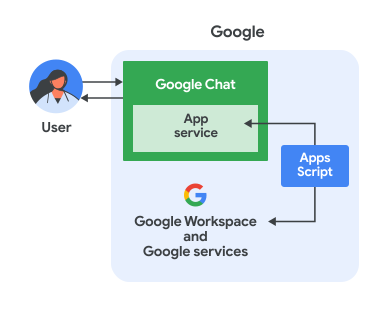
На приведенной выше диаграмме показано следующее взаимодействие пользователя с приложением Apps Script Chat:
- Пользователь отправляет сообщение в приложение для чата, либо в личном сообщении, либо в чате.
- Логика чат-приложения, реализованная в Apps Script, размещенном в Google Cloud, получает и обрабатывает сообщение.
- При желании логика приложения «Чат» может интегрироваться с сервисами Google Workspace, такими как «Календарь» или «Газеты», или с другими сервисами Google, такими как Google Maps или YouTube.
- Логика приложения «Чат» отправляет ответ обратно в службу приложения «Чат» внутри приложения «Чат».
- Ответ отправляется пользователю.
Цели
- Настройте свою среду.
- Настройте скрипт.
- Настройте приложение «Чат».
- Протестируйте приложение «Чат».
Предварительные требования
- Корпоративный аккаунт Google Workspace с доступом к Google Chat .
- Проект Google Cloud. Чтобы создать его, см. раздел «Создание проекта Google Cloud» .
Настройте свою среду
Откройте свой облачный проект в консоли Google Cloud.
Если проект Cloud, который вы собираетесь использовать в этом примере, еще не открыт, откройте его:
- В консоли Google Cloud перейдите на страницу «Выберите проект» .
- Выберите проект Google Cloud, который хотите использовать. Или нажмите «Создать проект» и следуйте инструкциям на экране. Если вы создаете проект Google Cloud, вам может потребоваться включить оплату для этого проекта .
Включите API чата
Перед использованием API Google необходимо включить их в проекте Google Cloud. В одном проекте Google Cloud можно включить один или несколько API.В консоли Google Cloud включите API Google Chat.
Настройте экран согласия OAuth.
Для всех приложений, использующих OAuth 2.0, требуется настройка экрана согласия. Настройка экрана согласия OAuth в вашем приложении определяет, что отображается пользователям и модераторам приложения, а также регистрирует ваше приложение, чтобы вы могли опубликовать его позже.
- В консоли Google API перейдите в > Платформа аутентификации Google > Брендинг .
- Если вы уже настроили платформу Google Auth, вы можете настроить следующие параметры экрана согласия OAuth в разделах «Брендинг» , «Аудитория» и «Доступ к данным» . Если вы видите сообщение о том, что платформа Google Auth еще не настроена , нажмите «Начать» :
- В разделе «Информация о приложении» , в поле «Название приложения» , введите название для приложения.
- В разделе «Электронная почта службы поддержки пользователей» выберите адрес электронной почты, по которому пользователи смогут связаться с вами, если у них возникнут вопросы относительно их согласия.
- Нажмите «Далее» .
- В разделе «Аудитория» выберите «Внутренняя» .
- Нажмите «Далее» .
- В поле «Контактная информация» укажите адрес электронной почты , на который вы сможете получать уведомления об изменениях в вашем проекте.
- Нажмите «Далее» .
- В разделе «Завершить» ознакомьтесь с Политикой использования пользовательских данных сервисов Google API и, если вы согласны, выберите «Я согласен с Политикой использования пользовательских данных сервисов Google API» .
- Нажмите «Продолжить» .
- Нажмите «Создать» .
- На данный момент добавление областей действия можно пропустить. В будущем, при создании приложения для использования за пределами вашей организации Google Workspace, необходимо изменить тип пользователя на «Внешний» . Затем добавьте необходимые для вашего приложения области авторизации. Для получения дополнительной информации см. полное руководство по настройке согласия OAuth .
Настройте скрипт
Для настройки скрипта используйте шаблон приложения «Чат» со страницы « Начало работы с Apps Script».
Создайте проект Apps Script.
На странице « Начало работы » в Apps Script перейдите к разделу «Стартовые шаблоны дополнений Google Workspace» и выберите шаблон приложения «Чат» :
В открывшемся новом проекте Apps Script назовите проект следующим образом:
Нажмите на «Безымянный проект» .
В поле «Название проекта» введите
Add-on Chat app.Нажмите «Переименовать» .
В будущем, если вы захотите использовать определенные API Google или опубликовать свое приложение, вам необходимо будет связать свой проект Cloud с проектом Apps Script. В этом руководстве это делать не требуется. Для получения дополнительной информации см. руководство по проектам Google Cloud .
Создайте тестовое развертывание.
Для этого проекта Apps Script вам потребуется идентификатор развертывания, чтобы вы могли использовать его на следующем шаге.
Чтобы получить идентификатор головного развертывания, выполните следующие действия:
- В проекте Apps Script приложения «Чат» нажмите «Развернуть» > «Проверить развертывания» .
- Скопируйте идентификатор развертывания Head для использования на следующем шаге и нажмите «Готово» .
Настройте приложение «Чат».
Для настройки приложения Google Chat выполните следующие действия:
- В консоли API найдите Google
Google Chat APIи нажмите на него. - Нажмите «Управление» .
Нажмите «Конфигурация» и настройте приложение «Чат»:
- В поле «Название приложения» введите
Add-on Chat app. - В поле «URL-адрес аватара» введите
https://developers.google.com/workspace/add-ons/images/quickstart-app-avatar.png. - В поле «Описание» введите
Add-on Chat app. - В разделе «Функциональность» выберите «Присоединяйтесь к пространствам и групповым беседам» .
- В разделе «Настройки подключения» выберите проект Apps Script .
- В поле «Идентификатор развертывания» вставьте ранее скопированный идентификатор развертывания Head.
- В разделе «Видимость» выберите «Конкретные люди и группы в вашем домене» и введите свой адрес электронной почты.
- В поле «Название приложения» введите
Нажмите « Сохранить ».
Приложение «Чат» готово отвечать на сообщения.
Протестируйте приложение для чата
Чтобы протестировать приложение «Чат», откройте личное сообщение в приложении «Чат» и отправьте сообщение:
Откройте Google Chat, используя учетную запись Google Workspace, которую вы указали при добавлении себя в качестве доверенного тестировщика.
- Нажмите новый чат» .
- В поле «Добавить 1 или более человек» введите название вашего приложения для чата.
Выберите ваше приложение для чата из результатов поиска. Откроется личное сообщение.
В новом личном сообщении в приложении напишите
Helloи нажмитеenter.Приложение «Чат» благодарит вас за добавление и повторяет ваше сообщение.
Чтобы добавить доверенных тестировщиков и узнать больше о тестировании интерактивных функций, см. раздел «Тестирование интерактивных функций для приложений Google Chat» .
Устранение неполадок
Когда приложение или карточка Google Chat выдает ошибку, интерфейс чата отображает сообщение «Что-то пошло не так» или «Не удалось обработать ваш запрос». Иногда интерфейс чата не отображает никаких сообщений об ошибке, но приложение или карточка чата выдает неожиданный результат; например, сообщение на карточке может не появиться.
Хотя сообщение об ошибке может не отображаться в пользовательском интерфейсе чата, подробные сообщения об ошибках и данные журнала доступны для исправления ошибок, если включено ведение журнала ошибок для приложений чата. Для получения помощи по просмотру, отладке и исправлению ошибок см. раздел «Устранение неполадок и исправление ошибок Google Chat» .
Уборка
Чтобы избежать списания средств с вашего аккаунта Google Cloud за ресурсы, использованные в этом руководстве, мы рекомендуем удалить проект Cloud.
- В консоли Google API перейдите на страницу «Управление ресурсами» > IAM и администрирование > Управление ресурсами .
- В списке проектов выберите проект, который хотите удалить, и нажмите кнопку «Удалить .
- В диалоговом окне введите идентификатор проекта, а затем нажмите «Завершить» , чтобы удалить проект.