使用 Agent2Agent 代理程式建構 Google Chat 應用程式

本頁說明如何建構可在 Google Chat 中運作的 Google Workspace 外掛程式,並與使用 Agent2Agent (A2A) 通訊協定的 AI 代理互動。您可以使用 Agent Development Kit (ADK) 開發代理程式,並在 Vertex AI Agent Engine 中代管。

AI 代理能自主感知環境、推論,並執行複雜的多步驟動作,以達成特定目標。在本教學課程中,您將部署 LLM Auditor 多代理範例,該範例會使用 Gemini 和 Google 搜尋基礎,評論及修正事實。

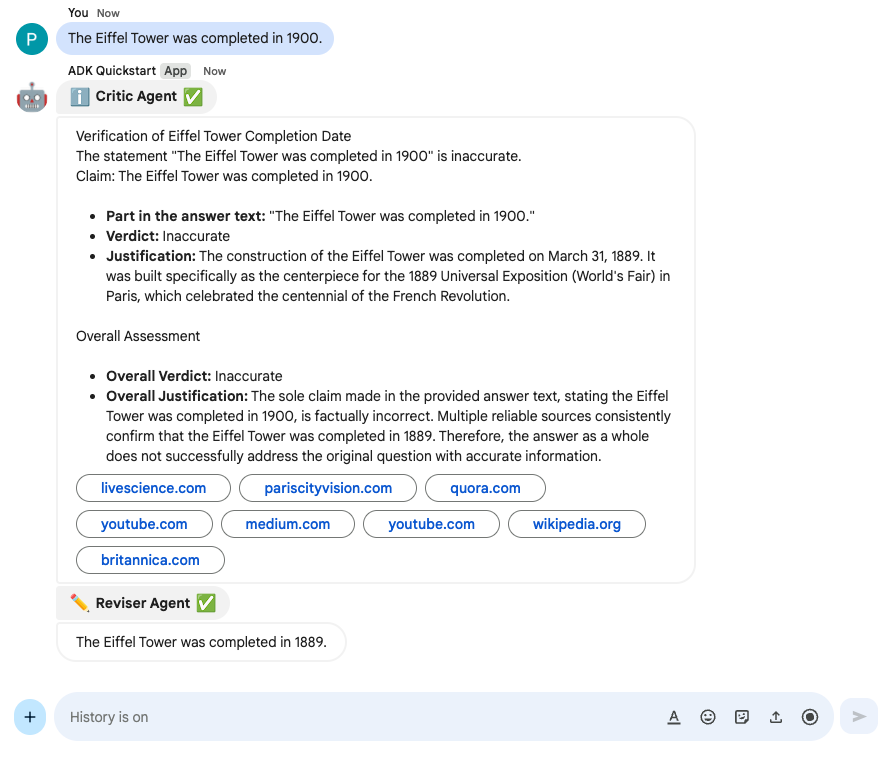
LLM Auditor 多代理範例,以即時通訊應用程式的形式呈現。

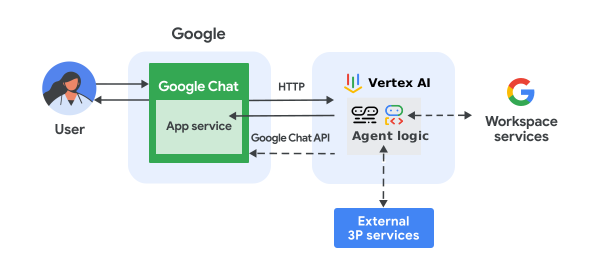
下圖顯示架構和訊息傳遞模式:

使用 A2A AI 代理程式實作的即時通訊應用程式架構。

在圖表中,使用者與透過 A2A 代理程式實作的即時通訊應用程式互動時,資訊流程如下:

  1. 使用者透過即時訊息或 Chat 聊天室傳送訊息給 Chat 應用程式。
  2. 在 Apps Script 或以 HTTP 端點形式實作的網頁伺服器中,Chat 應用程式邏輯會接收及處理訊息。
  3. Vertex AI Agent Engine 代管的 A2A 代理會接收及處理互動。
  4. 視需要,Chat 應用程式或 AI 代理程式可以與 Google Workspace 服務 (例如 Google 日曆或 Google 試算表) 或其他 Google 服務 (例如 Google 地圖或 YouTube) 整合。
  5. Chat 應用程式會使用 Google Chat API 傳送非同步回應,告知 AI 代理程式的進度。
  6. 並將回覆傳送給使用者。

目標

  • 設定環境。
  • 部署 A2A 代理程式。
  • 部署 Chat 應用程式。
  • 設定 Chat 應用程式。
  • 測試 Chat 應用程式。

必要條件

設定環境

啟用 Google Cloud API

使用 Google API 前,您需要在 Google Cloud 專案中啟用這些 API。 您可以在單一 Google Cloud 專案中啟用一或多個 API。
  • 在 Google Cloud 控制台中,啟用 Google Chat、Vertex AI 和 Cloud Resource Manager API。

    啟用 API

設定 OAuth 同意畫面

使用 OAuth 2.0 的所有應用程式都必須設定同意畫面。設定應用程式的 OAuth 同意畫面,可決定向使用者和應用程式審查人員顯示的內容,並註冊應用程式,以便日後發布。

  1. 在 Google Cloud 控制台中,依序前往「Menu」(選單) > Google Auth platform >「Branding」(品牌)

    前往「Branding」(品牌宣傳)

  2. 如果您已設定 Google Auth platform,可以在「Branding」(品牌)、「Audience」(目標對象) 和「Data Access」(資料存取權) 中設定下列 OAuth 同意畫面設定。如果看到「Get Started」(尚未設定)Google Auth platform 訊息,請按一下「開始使用」
    1. 在「App Information」(應用程式資訊) 下方的「App name」(應用程式名稱) 欄位中,輸入應用程式名稱。
    2. 在「User support email」(使用者支援電子郵件) 中,選擇支援電子郵件地址,方便使用者在同意聲明方面有任何疑問時與您聯絡。
    3. 點選 [Next] (下一步)
    4. 在「Audience」(目標對象) 下方,選取「Internal」(內部)
    5. 點選 [Next] (下一步)
    6. 在「Contact Information」(聯絡資訊) 下方,輸入可接收專案異動通知的電子郵件地址
    7. 點選 [Next] (下一步)
    8. 在「Finish」(完成) 部分,請詳閱《Google API 服務使用者資料政策》,然後選取「我同意《Google API 服務:使用者資料政策》」
    9. 按一下 [Continue] (繼續)。
    10. 按一下「Create」(建立)。
  3. 目前可以略過新增範圍。 日後建立應用程式供 Google Workspace 機構以外的使用者使用時,請務必將「使用者類型」變更為「外部」。然後新增應用程式需要的授權範圍。詳情請參閱完整的「設定 OAuth 同意畫面」指南。

在 Google Cloud 控制台中建立服務帳戶

按照下列步驟,建立具備 Vertex AI User 角色的新服務帳戶:

Google Cloud 控制台

  1. 在 Google Cloud 控制台中,依序前往「選單」圖示 >「IAM 與管理」 >「服務帳戶」

    前往「Service Accounts」(服務帳戶) 頁面

  2. 按一下「建立服務帳戶」
  3. 填寫服務帳戶詳細資料,然後按一下「建立並繼續」
  4. 選用步驟:將角色指派給服務帳戶,授予 Google Cloud 專案資源的存取權。詳情請參閱「授予、變更及撤銷資源的存取權」。
  5. 按一下「繼續」
  6. 選用:輸入可管理這個服務帳戶及執行動作的使用者或群組。詳情請參閱「管理服務帳戶模擬功能」。
  7. 按一下「完成」,請記下服務帳戶的電子郵件地址。

gcloud CLI

  1. 建立服務帳戶:
    gcloud iam service-accounts create SERVICE_ACCOUNT_NAME \
      --display-name="SERVICE_ACCOUNT_NAME"
  2. 選用步驟:將角色指派給服務帳戶,授予 Google Cloud 專案資源的存取權。詳情請參閱「授予、變更及撤銷資源的存取權」。

服務帳戶會顯示在服務帳戶頁面。

建立私密金鑰

如要建立及下載服務帳戶的私密金鑰,請按照下列步驟操作:

  1. 在 Google Cloud 控制台中,依序前往「Menu」(選單) >「IAM & Admin」(IAM 與管理) >「Service Accounts」(服務帳戶)

    前往「Service Accounts」(服務帳戶) 頁面

  2. 選取服務帳戶。
  3. 依序點選「金鑰」>「新增金鑰」>「建立新的金鑰」
  4. 選取「JSON」,然後按一下「建立」

    接著,系統就會為您產生一對新的公開/私密金鑰,並以新檔案的形式下載至您的電腦中。將下載的 JSON 檔案儲存為工作目錄中的 credentials.json。這個檔案是這組金鑰的唯一副本,如要瞭解如何安全儲存金鑰,請參閱「管理服務帳戶金鑰」一文。

  5. 點選「關閉」

如要進一步瞭解服務帳戶,請參閱 Google Cloud IAM 說明文件中的服務帳戶

部署 A2A 代理

  1. 如果尚未執行此操作,請使用 Google Cloud 帳戶進行驗證,並將 Google Cloud CLI 設為使用您的 Google Cloud 專案。

    gcloud auth application-default login
    gcloud config set project PROJECT_ID
    gcloud auth application-default set-quota-project PROJECT_ID

    PROJECT_ID 替換為 Cloud 專案的 ID。

  2. 使用這個按鈕下載 ADK 範例 GitHub 存放區:

    下載 adk-samples

  3. 在偏好的本機開發環境中,解壓縮下載的封存檔,然後開啟 adk-samples/python/agents/llm-auditor 目錄。

    unzip adk-samples-main.zip
    cd adk-samples-main/python/agents/llm-auditor
  4. 更新實作項目,將 ADK 代理部署為 A2A 遠端代理:

    1. pyproject.toml:在部署群組中新增 ADK 和 A2A SDK 依附元件。

      apps-script/chat/a2a-ai-agent/llm-auditor/pyproject.toml
      [project]
      name = "llm-auditor"
      version = "0.1.0"
      description = "The LLM Auditor evaluates LLM-generated answers, verifies actual accuracy using the web, and refines the response to ensure alignment with real-world knowledge."
      authors = [
          { name = "Chun-Sung Ferng", email = "csferng@google.com" },
          { name = "Cyrus Rashtchian", email = "cyroid@google.com" },
          { name = "Da-Cheng Juan", email = "dacheng@google.com" },
          { name = "Ivan Kuznetsov", email = "ivanku@google.com" },
      ]
      license = "Apache License 2.0"
      readme = "README.md"
      
      [tool.poetry.dependencies]
      python = "^3.10"
      google-adk = "^1.0.0"
      google-cloud-aiplatform = { extras = [
          "adk",
          "agent-engines",
      ], version = "^1.93.0" }
      google-genai = "^1.9.0"
      pydantic = "^2.10.6"
      python-dotenv = "^1.0.1"
      
      [tool.poetry.group.dev]
      optional = true
      
      [tool.poetry.group.dev.dependencies]
      google-adk = { version = "^1.0.0", extras = ["eval"] }
      pytest = "^8.3.5"
      pytest-asyncio = "^0.26.0"
      
      [tool.poetry.group.deployment]
      optional = true
      
      [tool.poetry.group.deployment.dependencies]
      absl-py = "^2.2.1"
      google-adk = "^1.0.0"
      a2a-sdk = "^0.3.0"
      
      [build-system]
      requires = ["poetry-core>=2.0.0,<3.0.0"]
      build-backend = "poetry.core.masonry.api"
    2. deployment/deploy.py:將 ADK 應用程式部署作業替換為 A2A 代理程式和卡片。

      apps-script/chat/a2a-ai-agent/llm-auditor/deployment/deploy.py
      # Copyright 2025 Google LLC
      #
      # Licensed under the Apache License, Version 2.0 (the "License");
      # you may not use this file except in compliance with the License.
      # You may obtain a copy of the License at
      #
      #     http://www.apache.org/licenses/LICENSE-2.0
      #
      # Unless required by applicable law or agreed to in writing, software
      # distributed under the License is distributed on an "AS IS" BASIS,
      # WITHOUT WARRANTIES OR CONDITIONS OF ANY KIND, either express or implied.
      # See the License for the specific language governing permissions and
      # limitations under the License.
      
      """Deployment script for LLM Auditor."""
      
      import os
      
      from absl import app
      from absl import flags
      from dotenv import load_dotenv
      from llm_auditor.agent import root_agent
      import vertexai
      from vertexai import agent_engines
      
      # A2A wrapping
      from a2a.types import AgentSkill
      from google.adk.a2a.executor.a2a_agent_executor import A2aAgentExecutor
      from google.adk.runners import InMemoryRunner
      from vertexai.preview.reasoning_engines.templates.a2a import create_agent_card
      from vertexai.preview.reasoning_engines import A2aAgent
      
      FLAGS = flags.FLAGS
      flags.DEFINE_string("project_id", None, "GCP project ID.")
      flags.DEFINE_string("location", None, "GCP location.")
      flags.DEFINE_string("bucket", None, "GCP bucket.")
      flags.DEFINE_string("resource_id", None, "ReasoningEngine resource ID.")
      
      flags.DEFINE_bool("list", False, "List all agents.")
      flags.DEFINE_bool("create", False, "Creates a new agent.")
      flags.DEFINE_bool("delete", False, "Deletes an existing agent.")
      flags.mark_bool_flags_as_mutual_exclusive(["create", "delete"])
      
      
      def create() -> None:
          """Creates an agent engine for LLM Auditor."""
          agent_card = create_agent_card(
              agent_name=root_agent.name,
              description=root_agent.description,
              skills=[AgentSkill(
                  id='audit_llm_output',
                  name='Audit LLM Output',
                  description='Critiques and revises outputs from large language models.',
                  tags=['LLM', 'Audit', 'Revision'],
                  examples=[
                      'The earth is flat.',
                      'The capital of France is Berlin.',
                      'The last winner of the Super Bowl was the New England Patriots in 2020.',
                  ],
              )]
          )
          a2a_agent = A2aAgent(
              agent_card=agent_card,
              agent_executor_builder=lambda: A2aAgentExecutor(
                  runner=InMemoryRunner(
                      app_name=root_agent.name,
                      agent=root_agent,
                  )
              )
          )
          a2a_agent.set_up()
      
          remote_agent = agent_engines.create(
              a2a_agent,
              display_name=root_agent.name,
              requirements=[
                      "google-adk (>=0.0.2)",
                      "google-cloud-aiplatform[agent_engines] (>=1.88.0,<2.0.0)",
                      "google-genai (>=1.5.0,<2.0.0)",
                      "pydantic (>=2.10.6,<3.0.0)",
                      "absl-py (>=2.2.1,<3.0.0)",
                      "a2a-sdk>=0.3.22",
                      "uvicorn",
              ],
              # In-memory runner
              max_instances=1,
              env_vars ={
                  "NUM_WORKERS": "1"
              },
              extra_packages=["./llm_auditor"],
          )
          print(f"Created remote agent: {remote_agent.resource_name}")
      
      
      def delete(resource_id: str) -> None:
          remote_agent = agent_engines.get(resource_id)
          remote_agent.delete(force=True)
          print(f"Deleted remote agent: {resource_id}")
      
      
      def list_agents() -> None:
          remote_agents = agent_engines.list()
          TEMPLATE = '''
      {agent.name} ("{agent.display_name}")
      - Create time: {agent.create_time}
      - Update time: {agent.update_time}
      '''
          remote_agents_string = '\n'.join(TEMPLATE.format(agent=agent) for agent in remote_agents)
          print(f"All remote agents:\n{remote_agents_string}")
      
      def main(argv: list[str]) -> None:
          del argv  # unused
          load_dotenv()
      
          project_id = (
              FLAGS.project_id
              if FLAGS.project_id
              else os.getenv("GOOGLE_CLOUD_PROJECT")
          )
          location = (
              FLAGS.location if FLAGS.location else os.getenv("GOOGLE_CLOUD_LOCATION")
          )
          bucket = (
              FLAGS.bucket if FLAGS.bucket
              else os.getenv("GOOGLE_CLOUD_STORAGE_BUCKET")
          )
      
          print(f"PROJECT: {project_id}")
          print(f"LOCATION: {location}")
          print(f"BUCKET: {bucket}")
      
          if not project_id:
              print("Missing required environment variable: GOOGLE_CLOUD_PROJECT")
              return
          elif not location:
              print("Missing required environment variable: GOOGLE_CLOUD_LOCATION")
              return
          elif not bucket:
              print(
                  "Missing required environment variable: GOOGLE_CLOUD_STORAGE_BUCKET"
              )
              return
      
          vertexai.init(
              project=project_id,
              location=location,
              staging_bucket=f"gs://{bucket}",
          )
      
          if FLAGS.list:
              list_agents()
          elif FLAGS.create:
              create()
          elif FLAGS.delete:
              if not FLAGS.resource_id:
                  print("resource_id is required for delete")
                  return
              delete(FLAGS.resource_id)
          else:
              print("Unknown command")
      
      
      if __name__ == "__main__":
          app.run(main)
  5. 建立專供 ADK 代理程式使用的新 Cloud Storage bucket。

    gcloud storage buckets create gs://CLOUD_STORAGE_BUCKET_NAME --project=PROJECT_ID --location=PROJECT_LOCATION

    更改下列內容:

    1. CLOUD_STORAGE_BUCKET_NAME 替換成您要使用的不重複 bucket 名稱。
    2. PROJECT_ID 替換為 Cloud 專案的 ID。
    3. PROJECT_LOCATION 改成 Cloud 專案的位置。
  6. 請設定下列環境變數:

    export GOOGLE_GENAI_USE_VERTEXAI=true
    export GOOGLE_CLOUD_PROJECT=PROJECT_ID
    export GOOGLE_CLOUD_LOCATION=PROJECT_LOCATION
    export GOOGLE_CLOUD_STORAGE_BUCKET=CLOUD_STORAGE_BUCKET_NAME

    更改下列內容:

    1. CLOUD_STORAGE_BUCKET_NAME 替換為您建立的值區名稱。
    2. PROJECT_ID 替換為 Cloud 專案的 ID。
    3. PROJECT_LOCATION,並將其替換為 Cloud 專案的位置。
  7. 從虛擬環境安裝及部署 ADK 代理。

    python3 -m venv myenv
    source myenv/bin/activate
    poetry install --with deployment
    python3 deployment/deploy.py --create
  8. 擷取代理商 ID。稍後設定 Chat 應用程式時會用到。

    python3 deployment/deploy.py --list

建立及設定 Chat 應用程式專案

  1. 點選下列按鈕,開啟 A2A AI 代理程式快速入門 Apps Script 專案。

    開啟專案

  2. 依序點選「總覽」>建立副本的圖示「建立副本」

  3. 在 Apps Script 專案中,依序點選 專案設定圖示「專案設定」>「編輯指令碼屬性」>「新增指令碼屬性」,加入下列指令碼屬性:

    1. REASONING_ENGINE_RESOURCE_NAME,並貼上先前步驟中複製的 Vertex AI 代理程式資源名稱。
    2. SERVICE_ACCOUNT_KEY,其中包含先前步驟下載的服務帳戶 JSON 金鑰,例如 { ... }
  4. 按一下「儲存指令碼屬性」

  5. 在 Google Cloud 控制台中,依序前往「選單」 >「IAM 與管理」>「設定」

    前往「IAM & Admin Settings」(IAM 與管理員設定)

  6. 在「專案編號」欄位中,複製該值。

  7. 在 Apps Script 專案中,按一下「專案設定」專案設定圖示

  8. 點選「Google Cloud Platform (GCP) 專案」下方的「變更專案」

  9. 在「GCP 專案編號」中,貼上先前步驟複製的 Google Cloud 專案編號。

  10. 點選「設定專案」。Cloud 專案和 Apps Script 專案現已連結。

建立測試部署作業

您需要這個 Apps Script 專案的部署作業 ID,才能在下一個步驟中使用。

如要取得主要部署 ID,請按照下列步驟操作:

  1. 在 Chat 應用程式的 Apps Script 專案中,依序點選「部署」>「測試部署作業」
  2. 在「Head deployment ID」(主要部署作業 ID) 下方,按一下「複製」圖示 建立副本的圖示
  3. 按一下 [完成]。

設定 Chat 應用程式

使用 Apps Script 部署作業,按照下列步驟部署 Google Chat 應用程式以進行測試:

  1. 控制台中搜尋 Google Chat API,然後按一下「Google Chat API」
  2. 按一下「管理」
  3. 按一下「設定」,然後設定 Chat 應用程式:

    1. 在「應用程式名稱」欄位中輸入 A2A Quickstart
    2. 在「Avatar URL」(大頭貼網址) 欄位中,輸入 https://developers.google.com/workspace/add-ons/images/quickstart-app-avatar.png
    3. 在「Description」(說明) 欄位輸入 A2A Quickstart
    4. 在「功能」下方,選取「加入聊天室和群組對話」
    5. 在「連線設定」下方,選取「Apps Script 專案」
    6. 在「Deployment ID」欄位中,貼上您先前複製的 Head 部署作業 ID。
    7. 在「瀏覽權限」下方,選取「僅限您網域中的特定使用者和群組」,然後輸入您的電子郵件地址。
  4. 按一下 [儲存]

Chat 應用程式已準備好回覆訊息。

測試 Chat 應用程式

如要測試 Chat 應用程式,請開啟與該應用程式互傳的即時訊息,然後傳送訊息:

  1. 使用您在新增自己為信任測試人員時提供的 Google Workspace 帳戶,開啟 Google Chat。

    前往 Google Chat

  2. 按一下 「發起新即時通訊」
  3. 在「新增 1 位以上使用者」欄位中,輸入 Chat 應用程式的名稱。
  4. 從搜尋結果中選取 Chat 應用程式。系統會開啟即時訊息。

  5. 在與應用程式互傳的新即時訊息中輸入 The Eiffel Tower was completed in 1900,然後按下 enter

    Chat 應用程式會回覆「評論家」和「修訂者」子代理程式的回覆。

如要新增信任的測試人員,並進一步瞭解如何測試互動式功能,請參閱「測試 Google Chat 應用程式的互動式功能」。

疑難排解

如果 Google Chat 應用程式或資訊卡傳回錯誤,Chat 介面會顯示「發生錯誤」訊息。或「無法處理您的要求。」有時 Chat UI 不會顯示任何錯誤訊息,但 Chat 應用程式或資訊卡會產生非預期的結果,例如資訊卡訊息可能不會顯示。

即使 Chat 使用者介面未顯示錯誤訊息,只要開啟 Chat 應用程式的錯誤記錄功能,系統就會提供說明性錯誤訊息和記錄資料,協助您修正錯誤。如需查看、偵錯及修正錯誤的相關協助,請參閱「排解及修正 Google Chat 錯誤」。

清除所用資源

為避免系統向您的 Google Cloud 帳戶收取本教學課程中所用資源的相關費用,建議您刪除 Cloud 專案。

  1. 在 Google Cloud 控制台中,前往「管理資源」頁面。依序點選「選單」「IAM 與管理」「管理資源」

    前往 Resource Manager

  2. 在專案清單中選取要刪除的專案,然後按一下「刪除」圖示
  3. 在對話方塊中輸入專案 ID,然後按一下「Shut down」(關閉) 即可刪除專案。