Vorschau von Links in Google Chat-Nachrichten

Damit Nutzer nicht den Kontext wechseln müssen, wenn sie einen Link in Google Chat teilen, kann Ihre Chat-App eine Vorschau des Links anzeigen. Dazu wird der Nachricht eine Karte angehängt, die weitere Informationen enthält und Nutzern ermöglicht, direkt in Google Chat Aktionen auszuführen.

Stellen Sie sich beispielsweise einen Google Chat-Gruppenbereich vor, der alle Kundenservicemitarbeiter eines Unternehmens sowie eine Chat-App namens Case-y enthält. Mitarbeiter teilen häufig Links zu Kundenservicefällen im Chat-Gruppenbereich. Jedes Mal müssen ihre Kollegen den Link zum Fall öffnen, um Details wie den Fallbearbeiter, den Status und den Betreff zu sehen. Wenn jemand den Fall übernehmen oder den Status ändern möchte, muss er ebenfalls den Link öffnen.

Mit der Linkvorschau kann die im Gruppenbereich vorhandene Chat-App Case-y eine Karte mit dem Fallbearbeiter, dem Status und dem Betreff anhängen, wenn jemand einen Link zu einem Fall teilt. Über die Schaltflächen auf der Karte können Mitarbeiter den Fall übernehmen und den Status direkt im Chatstream ändern.

Wenn jemand einen Link zu seiner Nachricht hinzufügt, wird ein Chip angezeigt, der darauf hinweist, dass eine Chat-App möglicherweise eine Vorschau des Links anzeigt.
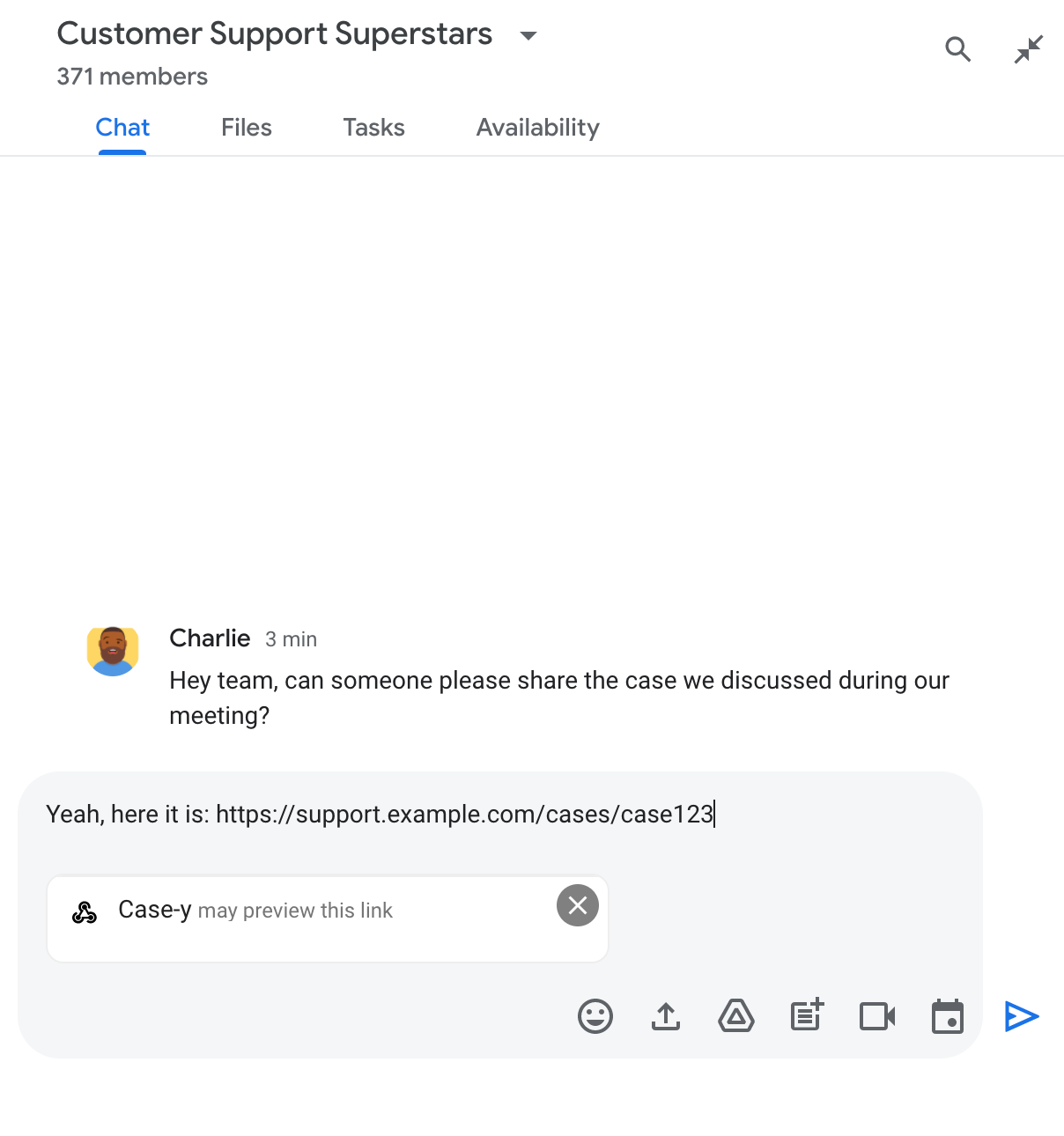
Chip, der angibt, dass eine Chat-App möglicherweise eine Vorschau eines Links anzeigt

Nach dem Senden der Nachricht wird der Link an die Chat-App gesendet, die dann die Karte generiert und an die Nachricht des Nutzers anhängt.
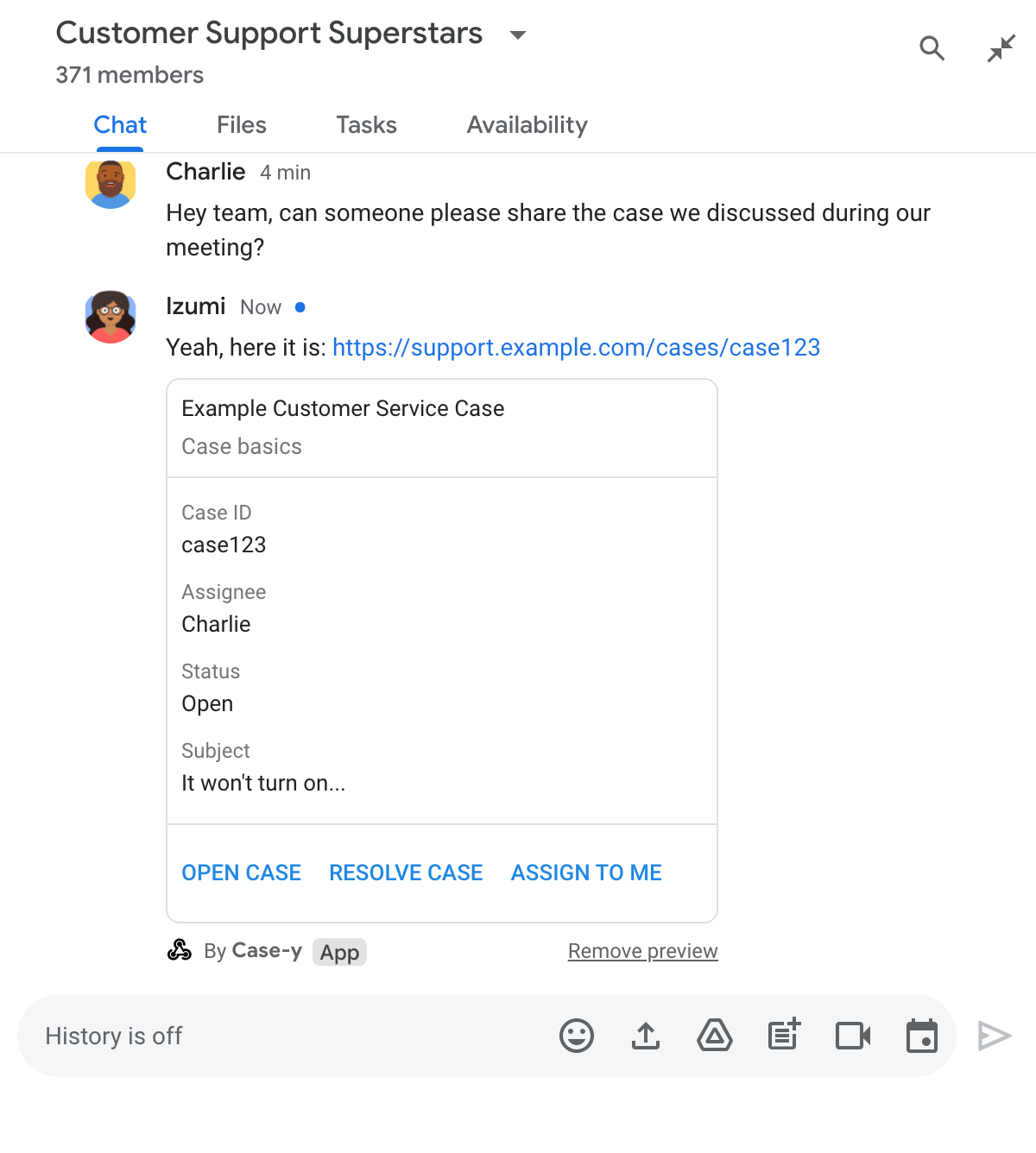
Chat-App, die einen Link in einer Karte in der Nachricht vorschaut

Neben dem Link enthält die Karte zusätzliche Informationen zum Link, einschließlich interaktiver Elemente wie Schaltflächen. Ihre Chat-App kann die angehängte Karte als Reaktion auf Nutzerinteraktionen wie Schaltflächenklicks aktualisieren.

Wenn ein Nutzer nicht möchte, dass die Chat-App eine Vorschau des Links anzeigt, indem sie eine Karte an die Nachricht anhängt, kann er die Vorschau verhindern, indem er auf dem Vorschau-Chip auf klickt. Nutzer können die angehängte Karte jederzeit entfernen, indem sie auf Vorschau entfernen klicken.

Vorbereitung

HTTP

Ein Google Workspace-Add‑on, das Google Chat erweitert. Führen Sie die HTTP Schnellstartanleitung aus, um ein solches Add‑on zu erstellen.

Apps Script

Ein Google Workspace-Add‑on, das Google Chat erweitert. Führen Sie die Apps Script-Schnellstartanleitung aus, um ein solches Add‑on zu erstellen.

Registrieren Sie bestimmte Links wie example.com, support.example.com und support.example.com/cases/ als URL-Muster auf der Konfigurationsseite Ihrer Chat-App in der Google Cloud Console, damit Ihre Chat-App eine Vorschau dieser Links anzeigen kann.
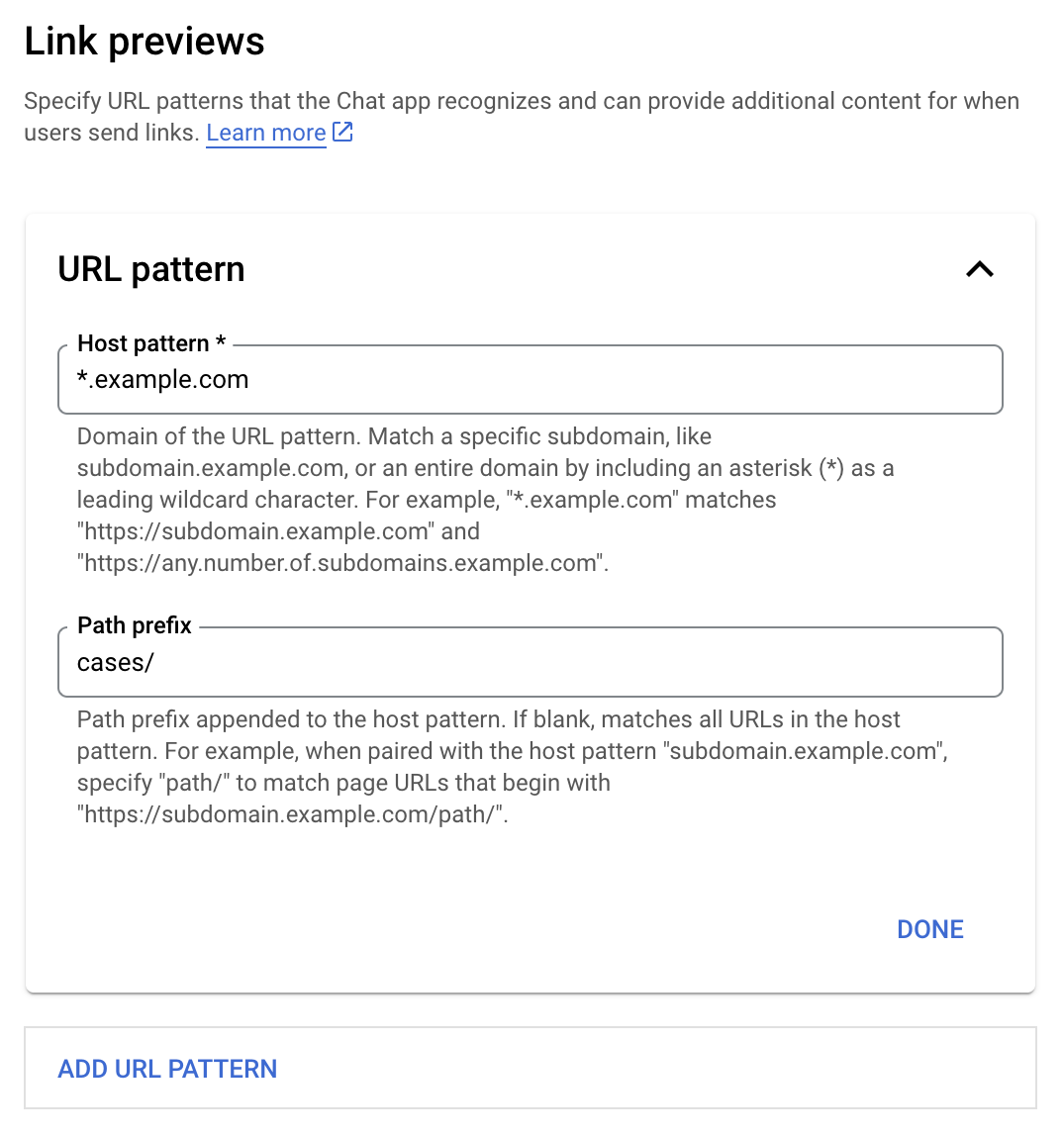
Konfigurationsmenü für Linkvorschauen

  1. Öffnen Sie die Google Cloud Console.
  2. Klicken Sie neben "Google Cloud" auf den Abwärtspfeil und öffnen Sie das Projekt Ihrer Chat-App.
  3. Geben Sie im Suchfeld Google Chat API ein und klicken Sie auf Google Chat API.
  4. Klicken Sie auf Verwalten > Konfiguration.
  5. Fügen Sie unter „Linkvorschauen“ ein URL-Muster hinzu oder bearbeiten Sie ein vorhandenes.
    1. Wenn Sie Linkvorschauen für ein neues URL-Muster konfigurieren möchten, klicken Sie auf URL-Muster hinzufügen.
    2. Wenn Sie die Konfiguration für ein vorhandenes URL-Muster bearbeiten möchten, klicken Sie auf den Abwärtspfeil .
  6. Geben Sie im Feld Hostmuster die Domain des URL-Musters ein. Die Chat-App zeigt eine Vorschau von Links zu dieser Domain an.

    Wenn die Chat-App eine Vorschau von Links für eine bestimmte Subdomain wie subdomain.example.com anzeigen soll, geben Sie die Subdomain an.

    Wenn die Chat-App eine Vorschau von Links für die gesamte Domain anzeigen soll, geben Sie ein Platzhalterzeichen mit einem Sternchen (*) als Subdomain an. Beispiel: *.example.com entspricht subdomain.example.com und any.number.of.subdomains.example.com.

  7. Geben Sie im Feld Pfadpräfix einen Pfad ein, der an die Domain des Hostmusters angehängt werden soll.

    Wenn alle URLs in der Domain des Hostmusters übereinstimmen sollen, lassen Sie das Feld Pfadpräfix leer.

    Wenn das Hostmuster beispielsweise support.example.com ist und Sie URLs für Fälle finden möchten, die unter support.example.com/cases/ gehostet werden, geben Sie cases/ ein.

  8. Klicken Sie auf Fertig.

  9. Klicken Sie auf Speichern.

Wenn jemand einen Link, der einem URL-Muster für die Linkvorschau entspricht, in eine Nachricht in einem Chat-Gruppenbereich einfügt, der Ihre Chat-App enthält, zeigt Ihre App eine Vorschau des Links an.

Nachdem Sie die Linkvorschau für einen bestimmten Link konfiguriert haben, kann Ihre Chat-App den Link erkennen und eine Vorschau anzeigen, indem sie weitere Informationen anhängt.

Wenn die Nachricht eines Nutzers in Chat-Gruppenbereichen, die Ihre Chat-App enthalten, einen Link enthält, der einem URL-Muster für die Linkvorschau entspricht, empfängt Ihre Chat-App ein Ereignisobjekt mit einer MessagePayload. In der Nutzlast enthält das message.matchedUrl Objekt den Link, den der Nutzer in die Nachricht eingefügt hat:

JSON

message: {
  matchedUrl: {
    url: "https://support.example.com/cases/case123"
  },
  ... // other message attributes redacted
}

Wenn Ihre Chat-App das Feld matchedUrl in der Nutzlast des Ereignisses MESSAGE findet, kann sie der Nachricht Informationen mit dem Link in der Vorschau hinzufügen. Ihre Chat-App kann entweder mit einer einfachen Textnachricht antworten oder eine Karte anhängen.

Mit einer Textnachricht antworten

Bei einfachen Antworten kann Ihre Chat-App eine Vorschau eines Links anzeigen, indem sie mit einer Textnachricht auf einen Link antwortet. In diesem Beispiel wird eine Nachricht angehängt, die die Link-URL wiederholt, die einem URL-Muster für die Linkvorschau entspricht.

Node.js

node/chat/preview-link/index.js
// Reply with a text message for URLs of the subdomain "text"
if (chatMessage.matchedUrl.url.includes("text.example.com")) {
  return { hostAppDataAction: { chatDataAction: { createMessageAction: { message: {
    text: 'event.chat.messagePayload.message.matchedUrl.url: ' + chatMessage.matchedUrl.url
  }}}}};
}

Ersetzen Sie FUNCTION_URL durch den HTTP-Endpunkt, der Schaltflächenklicks verarbeitet.

Python

python/chat/preview-link/main.py
# Reply with a text message for URLs of the subdomain "text"
if "text.example.com" in chatMessage.get('matchedUrl').get('url'):
  return { 'hostAppDataAction': { 'chatDataAction': { 'createMessageAction': { 'message': {
    'text': 'event.chat.messagePayload.message.matchedUrl.url: ' + chatMessage.get('matchedUrl').get('url')
  }}}}}

Ersetzen Sie FUNCTION_URL durch den HTTP-Endpunkt, der Schaltflächenklicks verarbeitet.

Java

java/chat/preview-link/src/main/java/com/google/chat/previewLink/App.java
// Reply with a text message for URLs of the subdomain "text"
if (chatMessage.at("/matchedUrl/url").asText().contains("text.example.com")) {
  return new GenericJson() {{
    put("hostAppDataAction", new GenericJson() {{
      put("chatDataAction", new GenericJson() {{
        put("createMessageAction", new GenericJson() {{
          put("message", new Message()
            .setText("event.chat.messagePayload.message.matchedUrl.url: " + chatMessage.at("/matchedUrl/url").asText()));
        }});
      }});
    }});
  }};
}

Ersetzen Sie FUNCTION_URL durch den HTTP-Endpunkt, der Schaltflächenklicks verarbeitet.

Apps Script

apps-script/chat/preview-link/preview-link.gs
// Reply with a text message for URLs of the subdomain "text".
if (chatMessage.matchedUrl.url.includes("text.example.com")) {
  return { hostAppDataAction: { chatDataAction: { createMessageAction: { message: {
    text: 'event.chat.messagePayload.message.matchedUrl.url: ' + chatMessage.matchedUrl.url
  }}}}};
}

Wenn Sie eine Karte an einen Link in der Vorschau anhängen möchten, geben Sie die Aktion DataActions mit dem ChatDataActionMarkup Objekt vom Typ UpdateInlinePreviewAction zurück.

Im folgenden Beispiel fügt eine Chat-App Nachrichten, die das URL-Muster support.example.com enthalten, eine Vorschaukarte hinzu.

Chat-App, die einen Link in einer Karte in der Nachricht vorschaut

Node.js

node/chat/preview-link/index.js
// Attach a card to the message for URLs of the subdomain "support"
if (chatMessage.matchedUrl.url.includes("support.example.com")) {
  // A hard-coded card is used in this example. In a real-life scenario,
  // the case information would be fetched and used to build the card.
  return { hostAppDataAction: { chatDataAction: { updateInlinePreviewAction: { cardsV2: [{
    cardId: 'attachCard',
    card: {
      header: {
        title: 'Example Customer Service Case',
        subtitle: 'Case basics',
      },
      sections: [{ widgets: [
      { decoratedText: { topLabel: 'Case ID', text: 'case123'}},
      { decoratedText: { topLabel: 'Assignee', text: 'Charlie'}},
      { decoratedText: { topLabel: 'Status', text: 'Open'}},
      { decoratedText: { topLabel: 'Subject', text: 'It won\'t turn on...' }},
      { buttonList: { buttons: [{
        text: 'OPEN CASE',
        onClick: { openLink: {
          url: 'https://support.example.com/orders/case123'
        }},
      }, {
        text: 'RESOLVE CASE',
        onClick: { openLink: {
          url: 'https://support.example.com/orders/case123?resolved=y',
        }},
      }, {
        text: 'ASSIGN TO ME',
        onClick: { action: { function: FUNCTION_URL }}
      }]}}
      ]}]
    }
  }]}}}};
}

Ersetzen Sie FUNCTION_URL durch den HTTP-Endpunkt, der Schaltflächenklicks verarbeitet.

Python

python/chat/preview-link/main.py
# Attach a card to the message for URLs of the subdomain "support"
if "support.example.com" in chatMessage.get('matchedUrl').get('url'):
  # A hard-coded card is used in this example. In a real-life scenario,
  # the case information would be fetched and used to build the card.
  return { 'hostAppDataAction': { 'chatDataAction': { 'updateInlinePreviewAction': { 'cardsV2': [{
    'cardId': 'attachCard',
    'card': {
      'header': {
        'title': 'Example Customer Service Case',
        'subtitle': 'Case basics',
      },
      'sections': [{ 'widgets': [
      { 'decoratedText': { 'topLabel': 'Case ID', 'text': 'case123'}},
      { 'decoratedText': { 'topLabel': 'Assignee', 'text': 'Charlie'}},
      { 'decoratedText': { 'topLabel': 'Status', 'text': 'Open'}},
      { 'decoratedText': { 'topLabel': 'Subject', 'text': 'It won\'t turn on...' }},
      { 'buttonList': { 'buttons': [{
        'text': 'OPEN CASE',
        'onClick': { 'openLink': {
          'url': 'https://support.example.com/orders/case123'
        }},
      }, {
        'text': 'RESOLVE CASE',
        'onClick': { 'openLink': {
          'url': 'https://support.example.com/orders/case123?resolved=y',
        }},
      }, {
        'text': 'ASSIGN TO ME',
        'onClick': { 'action': { 'function': FUNCTION_URL }}
      }]}}
      ]}]
    }
  }]}}}}

Ersetzen Sie FUNCTION_URL durch den HTTP-Endpunkt, der Schaltflächenklicks verarbeitet.

Java

java/chat/preview-link/src/main/java/com/google/chat/previewLink/App.java
// Attach a card to the message for URLs of the subdomain "support"
if (chatMessage.at("/matchedUrl/url").asText().contains("support.example.com")) {
  // A hard-coded card is used in this example. In a real-life scenario,
  // the case information would be fetched and used to build the card.
  CardWithId cardV2 = new CardWithId()
    .setCardId("attachCard")
    .setCard(new GoogleAppsCardV1Card()
      .setHeader(new GoogleAppsCardV1CardHeader()
        .setTitle("Example Customer Service Case")
        .setSubtitle("Case basics"))
      .setSections(List.of(new GoogleAppsCardV1Section().setWidgets(List.of(
        new GoogleAppsCardV1Widget().setDecoratedText(new GoogleAppsCardV1DecoratedText()
          .setTopLabel("Case ID")
          .setText("case123")),
        new GoogleAppsCardV1Widget().setDecoratedText(new GoogleAppsCardV1DecoratedText()
          .setTopLabel("Assignee")
          .setText("Charlie")),
        new GoogleAppsCardV1Widget().setDecoratedText(new GoogleAppsCardV1DecoratedText()
          .setTopLabel("Status")
          .setText("Open")),
        new GoogleAppsCardV1Widget().setDecoratedText(new GoogleAppsCardV1DecoratedText()
          .setTopLabel("Subject")
          .setText("It won't turn on...")),
        new GoogleAppsCardV1Widget().setButtonList(new GoogleAppsCardV1ButtonList()
          .setButtons(List.of(
            new GoogleAppsCardV1Button()
              .setText("OPEN CASE")
            .setOnClick(new GoogleAppsCardV1OnClick()
                .setOpenLink(new GoogleAppsCardV1OpenLink()
                  .setUrl("https://support.example.com/orders/case123"))),
            new GoogleAppsCardV1Button()
              .setText("RESOLVE CASE")
            .setOnClick(new GoogleAppsCardV1OnClick()
                .setOpenLink(new GoogleAppsCardV1OpenLink()
                  .setUrl("https://support.example.com/orders/case123?resolved=y"))),
            new GoogleAppsCardV1Button()
              .setText("ASSIGN TO ME")
              .setOnClick(new GoogleAppsCardV1OnClick()
                .setAction(new GoogleAppsCardV1Action().setFunction(FUNCTION_URL)))
          ))
        )
      ))))
    );

  return new GenericJson() {{
    put("hostAppDataAction", new GenericJson() {{
      put("chatDataAction", new GenericJson() {{
        put("updateInlinePreviewAction", new GenericJson() {{
          put("cardsV2", List.of(cardV2));
        }});
      }});
    }});
  }};
}

Ersetzen Sie FUNCTION_URL durch den HTTP-Endpunkt, der Schaltflächenklicks verarbeitet.

Apps Script

apps-script/chat/preview-link/preview-link.gs
// Attach a card to the message for URLs of the subdomain "support".
if (chatMessage.matchedUrl.url.includes("support.example.com")) {
  // A hard-coded card is used in this example. In a real-life scenario,
  // the case information would be fetched and used to build the card.
  return { hostAppDataAction: { chatDataAction: { updateInlinePreviewAction: { cardsV2: [{
    cardId: 'attachCard',
    card: {
      header: {
        title: 'Example Customer Service Case',
        subtitle: 'Case summary',
      },
      sections: [{ widgets: [
      { decoratedText: { topLabel: 'Case ID', text: 'case123'}},
      { decoratedText: { topLabel: 'Assignee', text: 'Charlie'}},
      { decoratedText: { topLabel: 'Status', text: 'Open'}},
      { decoratedText: { topLabel: 'Subject', text: 'It won\'t turn on...' }},
      { buttonList: { buttons: [{
        text: 'OPEN CASE',
        onClick: { openLink: {
          url: 'https://support.example.com/orders/case123'
        }},
      }, {
        text: 'RESOLVE CASE',
        onClick: { openLink: {
          url: 'https://support.example.com/orders/case123?resolved=y',
        }},
      }, {
        text: 'ASSIGN TO ME',
        // Clicking this button triggers the execution of the function
        // "assign" from the Apps Script project.
        onClick: { action: { function: 'assign'}}
      }]}}
      ]}]
    }
  }]}}}};
}

Ihre Chat-App kann eine Karte mit Linkvorschau aktualisieren, wenn Nutzer damit interagieren, z. B. auf eine Schaltfläche auf der Karte klicken.

Wenn Sie die Karte aktualisieren möchten, muss Ihre Chat-App die Aktion DataActions mit einem der folgenden ChatDataActionMarkup Objekte zurückgeben:

Verwenden Sie die Ereignisnutzlast (buttonClickedPayload) , um zu ermitteln, wer die Nachricht gesendet hat. Prüfen Sie dazu, ob der Absender (message.sender.type) auf HUMAN (Nutzer) oder BOT (Chat-App) festgelegt ist.

Im folgenden Beispiel aktualisiert eine Chat-App eine Linkvorschau, wenn ein Nutzer auf die Schaltfläche Mir zuweisen klickt. Dazu wird das Feld Fallbearbeiter der Karte aktualisiert und die Schaltfläche deaktiviert.
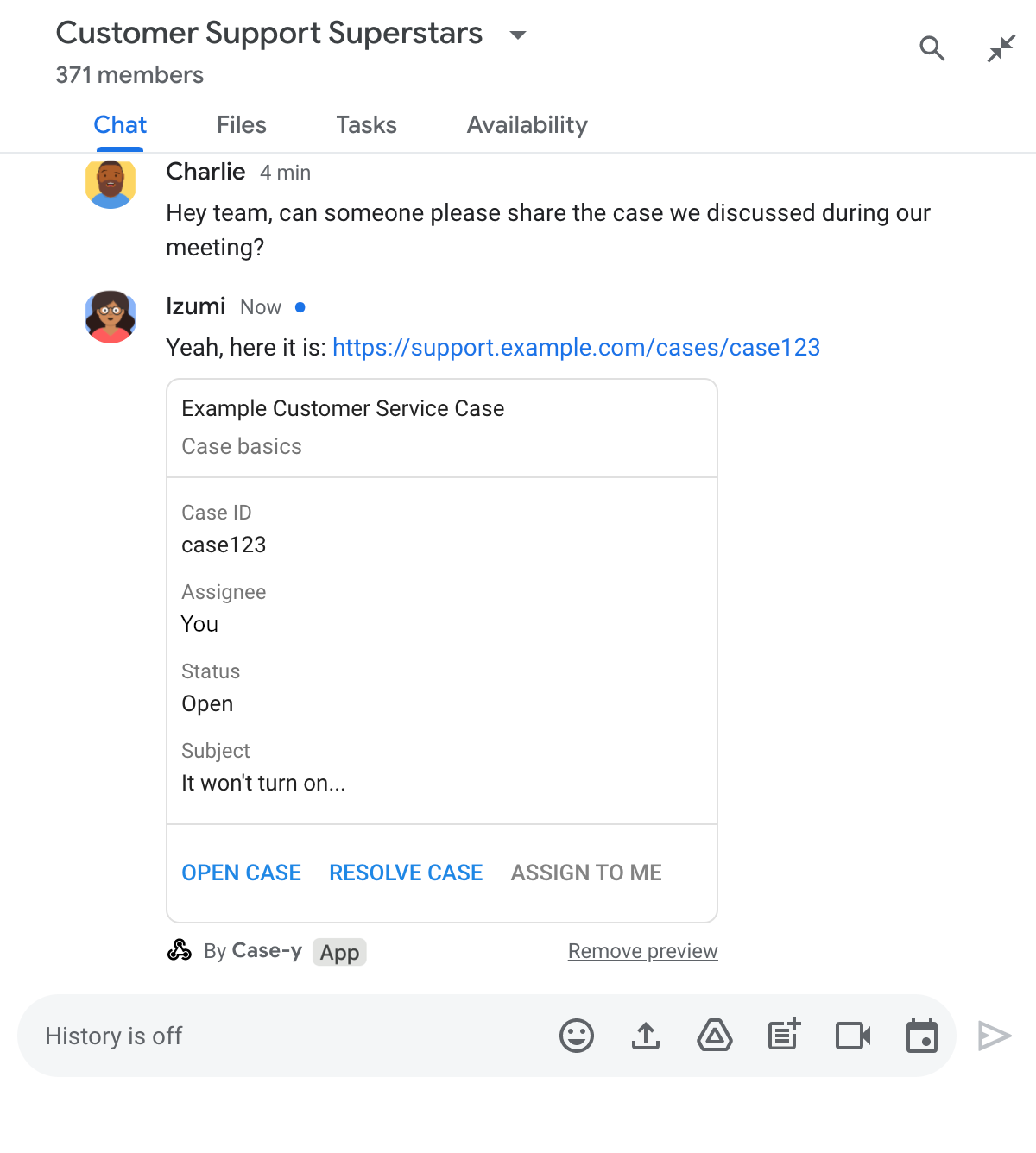
Chat-App mit Vorschau eines Links mit einer aktualisierten Version einer Karte, die an eine Nachricht angehängt ist

Node.js

node/chat/preview-link/index.js
/**
 * Respond to clicks by assigning and updating the card that's attached to a
 * message previewed link of the pattern "support.example.com".
 *
 * @param {Object} chatMessage The chat message object from Google Workspace Add On event.
 * @return {Object} Action response depending on the message author.
 */
function handleCardClick(chatMessage) {
  // Creates the updated card that displays "You" for the assignee
  // and that disables the button.
  //
  // A hard-coded card is used in this example. In a real-life scenario,
  // an actual assign action would be performed before building the card.
  const message = { cardsV2: [{
    cardId: 'attachCard',
    card: {
      header: {
        title: 'Example Customer Service Case',
        subtitle: 'Case basics',
      },
      sections: [{ widgets: [
        { decoratedText: { topLabel: 'Case ID', text: 'case123'}},
        // The assignee is now "You"
        { decoratedText: { topLabel: 'Assignee', text: 'You'}},
        { decoratedText: { topLabel: 'Status', text: 'Open'}},
        { decoratedText: { topLabel: 'Subject', text: 'It won\'t turn on...' }},
        { buttonList: { buttons: [{
          text: 'OPEN CASE',
          onClick: { openLink: {
            url: 'https://support.example.com/orders/case123'
          }},
        }, {
          text: 'RESOLVE CASE',
          onClick: { openLink: {
            url: 'https://support.example.com/orders/case123?resolved=y',
          }},
        }, {
          text: 'ASSIGN TO ME',
          // The button is now disabled
          disabled: true,
          onClick: { action: { function: FUNCTION_URL }}
        }]}}
      ]}]
    }
  }]};

  // Use the adequate action response type. It depends on whether the message
  // the preview link card is attached to was created by a human or a Chat app.
  if(chatMessage.sender.type === 'HUMAN') {
    return { hostAppDataAction: { chatDataAction: { updateInlinePreviewAction: message }}};
  } else {
    return { hostAppDataAction: { chatDataAction: { updateMessageAction: message }}};
  }
}

Ersetzen Sie FUNCTION_URL durch den HTTP-Endpunkt, der Schaltflächenklicks verarbeitet.

Python

python/chat/preview-link/main.py
def handle_card_click(chatMessage: dict) -> dict:
  """Respond to clicks by assigning and updating the card that's attached to a
  message previewed link of the pattern "support.example.com".

  - Reply with text messages that echo "text.example.com" link URLs in messages.
  - Attach cards to messages with "support.example.com" link URLs.

  Args:
      chatMessage (Mapping[str, Any]): The chat message object from Google Workspace Add On event.

  Returns:
      Mapping[str, Any]: Action response depending on the message author.
  """
  # Creates the updated card that displays "You" for the assignee
  # and that disables the button.
  #
  # A hard-coded card is used in this example. In a real-life scenario,
  # an actual assign action would be performed before building the card.
  message = { 'cardsV2': [{
    'cardId': 'attachCard',
    'card': {
      'header': {
        'title': 'Example Customer Service Case',
        'subtitle': 'Case basics',
      },
      'sections': [{ 'widgets': [
      { 'decoratedText': { 'topLabel': 'Case ID', 'text': 'case123'}},
      # The assignee is now "You"
      { 'decoratedText': { 'topLabel': 'Assignee', 'text': 'You'}},
      { 'decoratedText': { 'topLabel': 'Status', 'text': 'Open'}},
      { 'decoratedText': { 'topLabel': 'Subject', 'text': 'It won\'t turn on...' }},
      { 'buttonList': { 'buttons': [{
        'text': 'OPEN CASE',
        'onClick': { 'openLink': {
          'url': 'https://support.example.com/orders/case123'
        }},
      }, {
        'text': 'RESOLVE CASE',
        'onClick': { 'openLink': {
          'url': 'https://support.example.com/orders/case123?resolved=y',
        }},
      }, {
        'text': 'ASSIGN TO ME',
        # The button is now disabled
        'disabled': True,
        'onClick': { 'action': { 'function': FUNCTION_URL }}
      }]}}
      ]}]
    }
  }]}

  # Use the adequate action response type. It depends on whether the message
  # the preview link card is attached to was created by a human or a Chat app.
  if chatMessage.get('sender').get('type') == 'HUMAN':
    return { 'hostAppDataAction': { 'chatDataAction': { 'updateInlinePreviewAction': message }}}
  else:
    return { 'hostAppDataAction': { 'chatDataAction': { 'updateMessageAction': message }}}

Ersetzen Sie FUNCTION_URL durch den HTTP-Endpunkt, der Schaltflächenklicks verarbeitet.

Java

java/chat/preview-link/src/main/java/com/google/chat/previewLink/App.java
/**
 * Respond to clicks by assigning and updating the card that's attached to a
 * message previewed link of the pattern "support.example.com".
 *
 * @param chatMessage The chat message object from Google Workspace Add On event.
 * @return Action response depending on the message author.
 */
GenericJson handleCardClick(JsonNode chatMessage) {
  // Creates the updated card that displays "You" for the assignee
  // and that disables the button.
  //
  // A hard-coded card is used in this example. In a real-life scenario,
  // an actual assign action would be performed before building the card.
  Message message = new Message().setCardsV2(List.of(new CardWithId()
    .setCardId("attachCard")
    .setCard(new GoogleAppsCardV1Card()
      .setHeader(new GoogleAppsCardV1CardHeader()
        .setTitle("Example Customer Service Case")
        .setSubtitle("Case basics"))
      .setSections(List.of(new GoogleAppsCardV1Section().setWidgets(List.of(
        new GoogleAppsCardV1Widget().setDecoratedText(new GoogleAppsCardV1DecoratedText()
          .setTopLabel("Case ID")
          .setText("case123")),
        // The assignee is now "You"
        new GoogleAppsCardV1Widget().setDecoratedText(new GoogleAppsCardV1DecoratedText()
          .setTopLabel("Assignee")
          .setText("You")),
        new GoogleAppsCardV1Widget().setDecoratedText(new GoogleAppsCardV1DecoratedText()
          .setTopLabel("Status")
          .setText("Open")),
        new GoogleAppsCardV1Widget().setDecoratedText(new GoogleAppsCardV1DecoratedText()
          .setTopLabel("Subject")
          .setText("It won't turn on...")),
        new GoogleAppsCardV1Widget().setButtonList(new GoogleAppsCardV1ButtonList()
          .setButtons(List.of(
            new GoogleAppsCardV1Button()
              .setText("OPEN CASE")
              .setOnClick(new GoogleAppsCardV1OnClick()
                .setOpenLink(new GoogleAppsCardV1OpenLink()
                  .setUrl("https://support.example.com/orders/case123"))),
            new GoogleAppsCardV1Button()
              .setText("RESOLVE CASE")
              .setOnClick(new GoogleAppsCardV1OnClick()
                .setOpenLink(new GoogleAppsCardV1OpenLink()
                  .setUrl("https://support.example.com/orders/case123?resolved=y"))),
            new GoogleAppsCardV1Button()
              .setText("ASSIGN TO ME")
              // The button is now disabled
              .setDisabled(true)
              .setOnClick(new GoogleAppsCardV1OnClick()
                .setAction(new GoogleAppsCardV1Action().setFunction(FUNCTION_URL)))
          ))
        )
      ))))
    )
  ));

  // Use the adequate action response type. It depends on whether the message
  // the preview link card is attached to was created by a human or a Chat app.
  if("HUMAN".equals(chatMessage.at("/sender/type").asText())) {
    return new GenericJson() {{
      put("hostAppDataAction", new GenericJson() {{
        put("chatDataAction", new GenericJson() {{
          put("updateInlinePreviewAction", message);
        }});
      }});
    }};
  } else {
    return new GenericJson() {{
      put("hostAppDataAction", new GenericJson() {{
        put("chatDataAction", new GenericJson() {{
          put("updateMessageAction", message);
        }});
      }});
    }};
  }
}

Ersetzen Sie FUNCTION_URL durch den HTTP-Endpunkt, der Schaltflächenklicks verarbeitet.

Apps Script

apps-script/chat/preview-link/preview-link.gs
/**
 * Assigns and updates the card that's attached to a message with a
 * previewed link of the pattern "support.example.com".
 *
 * @param {Object} event The event object from the Google Workspace add-on.
 * @return {Object} Action response depending on the message author.
 */
function assign(event) {
  // Creates the updated card that displays "You" for the assignee
  // and that disables the button.
  //
  // A hard-coded card is used in this example. In a real-life scenario,
  // an actual assign action would be performed before building the card.
  const message = { cardsV2: [{
    cardId: 'attachCard',
    card: {
      header: {
        title: 'Example Customer Service Case',
        subtitle: 'Case summary',
      },
      sections: [{ widgets: [
        { decoratedText: { topLabel: 'Case ID', text: 'case123'}},
        // The assignee is now "You"
        { decoratedText: { topLabel: 'Assignee', text: 'You'}},
        { decoratedText: { topLabel: 'Status', text: 'Open'}},
        { decoratedText: { topLabel: 'Subject', text: 'It won\'t turn on...' }},
        { buttonList: { buttons: [{
          text: 'OPEN CASE',
          onClick: { openLink: {
            url: 'https://support.example.com/orders/case123'
          }},
        }, {
          text: 'RESOLVE CASE',
          onClick: { openLink: {
            url: 'https://support.example.com/orders/case123?resolved=y',
          }},
        }, {
          text: 'ASSIGN TO ME',
          // The button is now disabled
          disabled: true,
          onClick: { action: { function: 'assign'}}
        }]}}
      ]}]
    }
  }]};

  // Use the adequate action response type. It depends on whether the message
  // the preview link card is attached to was created by a human or a Chat app.
  if(event.chat.buttonClickedPayload.message.sender.type === 'HUMAN') {
    return { hostAppDataAction: { chatDataAction: { updateInlinePreviewAction: message }}};
  } else {
    return { hostAppDataAction: { chatDataAction: { updateMessageAction: message }}};
  }
}

Einschränkungen und Überlegungen

Beachten Sie bei der Konfiguration von Linkvorschauen für Ihre Chat-App die folgenden Einschränkungen und Überlegungen:

  • Jede Chat-App unterstützt Linkvorschauen für bis zu fünf URL-Muster.
  • Chat-Apps zeigen eine Vorschau von einem Link pro Nachricht an. Wenn eine Nachricht mehrere Links enthält, für die eine Vorschau angezeigt werden kann, wird nur für den ersten Link eine Vorschau angezeigt.
  • Chat-Apps zeigen nur eine Vorschau von Links an, die mit https:// beginnen. Für https://support.example.com/cases/ wird also eine Vorschau angezeigt, für support.example.com/cases/ jedoch nicht.
  • Sofern die Nachricht keine anderen Informationen enthält, die an die Chat-App gesendet werden, z. B. einen Slash-Befehl, wird nur die Link-URL an die Chat-App gesendet.
  • Wenn ein Nutzer den Link postet, kann eine Chat-App die Karte mit der Linkvorschau nur aktualisieren, wenn Nutzer mit der Karte interagieren, z. B. auf eine Schaltfläche klicken. Sie können die Methode update() der Chat API nicht für die Ressource Message aufrufen, um die Nachricht eines Nutzers asynchron zu aktualisieren.
  • Chat-Apps müssen eine Vorschau von Links für alle Nutzer im Gruppenbereich anzeigen. Daher muss das Feld privateMessageViewer in der Nachricht weggelassen werden.

Bei der Implementierung von Linkvorschauen müssen Sie möglicherweise Fehler in Ihrer Chat-App beheben, indem Sie die Logs der App lesen. Die Logs finden Sie im Log-Explorer in der Google Cloud Console.