

本頁說明如何設定及回應 Google Chat 應用程式的指令。
指令可協助使用者探索及使用 Chat 擴充應用程式的主要功能。只有 Chat 擴充應用程式可以查看指令內容。舉例來說,如果使用者傳送含有斜線指令的訊息,只有使用者和 Chat 應用程式會看到該訊息。
如要決定是否應建構指令,並瞭解如何設計使用者互動,請參閱「定義所有使用者歷程」。
Chat 應用程式指令類型
您可以將 Chat 應用程式指令建構為斜線指令、快速指令或訊息動作。如要使用各類指令,使用者可以採取下列做法:-
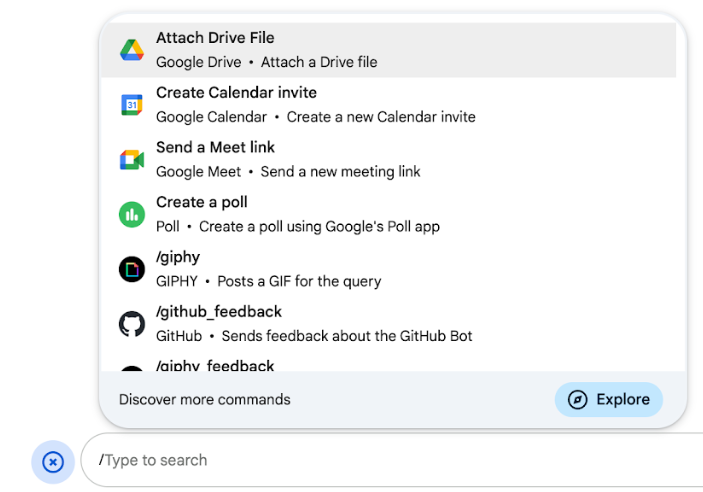
斜線指令:使用者可以從選單中選取斜線指令,或輸入斜線 (
/) 和預先定義的文字,例如/about。通常,Chat 應用程式需要斜線指令的引數文字。如果 Chat 應用程式需要使用者提供額外輸入內容,請建立斜線指令。舉例來說,您可以建立名為
/search的斜線指令,在使用者輸入要搜尋的詞組 (例如/search receipts) 後執行。 -
快速指令:使用者可以開啟 Chat 訊息回覆區的選單,然後使用指令。如要使用指令,請按一下「新增」
 ,然後從選單中選取指令。
如果 Chat 應用程式可以立即回覆使用者,不必等待其他輸入內容,請建立快速指令。舉例來說,你可以建立名為「隨機圖片」的快速指令,立即回應圖片。
-
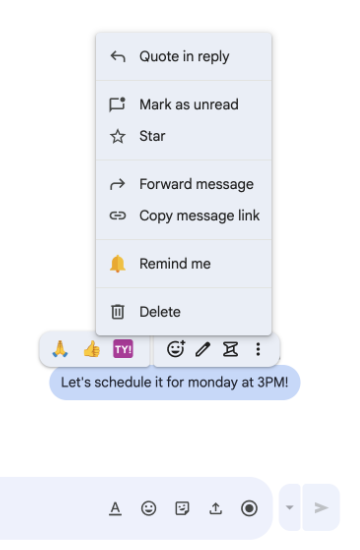
訊息動作: ( 開發人員預覽版) 使用者只要將游標懸停在訊息上,然後點選三點選單,即可使用訊息動作。如要使用指令,請開啟三點選單,然後從選單中選取指令。
如果 Chat 應用程式可以根據訊息內容執行動作,請建立訊息動作。
下圖顯示使用者如何找到斜線和快速指令,以及訊息動作的選單:
必要條件
HTTP
可擴充 Google Chat 的 Google Workspace 外掛程式。如要建構一個,請完成 HTTP 快速入門。
Apps Script
可擴充 Google Chat 的 Google Workspace 外掛程式。如要建構巨集,請完成 Apps Script 快速入門導覽。
設定指令
本節說明如何完成下列步驟來設定指令:
為指令命名並輸入說明
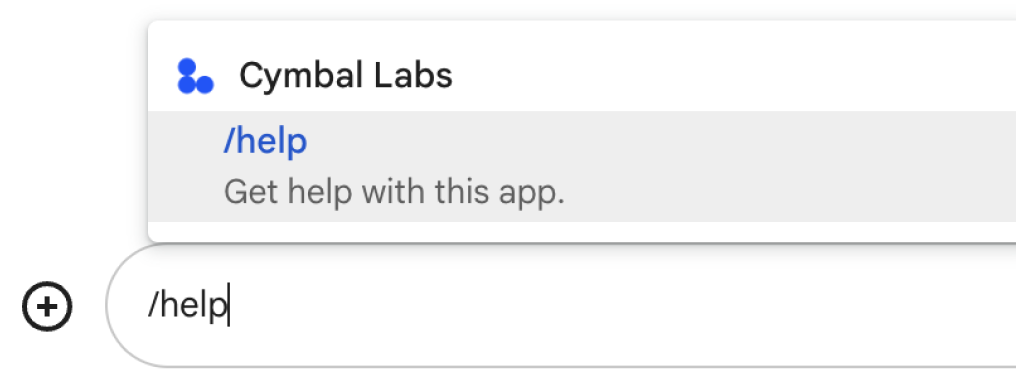
使用者輸入或選取指令名稱,即可叫用 Chat 應用程式。名稱下方也會顯示簡短說明,進一步提示使用者如何使用指令:
為指令選擇名稱和說明時,請參考下列建議:
如何命名指令:
- 使用簡短、描述性強且可執行的字詞或片語,讓使用者清楚瞭解指令。舉例來說,請使用
Remind me,而不是Create a reminder。 - 建議為指令使用專屬或常見名稱。如果指令說明的是一般互動或功能,可以使用使用者可辨識且預期的常見名稱,例如
Settings或Feedback。否則,請盡量使用不重複的指令名稱,因為如果其他 Chat 應用程式的指令名稱相同,使用者就必須篩選類似的指令,才能找到並使用您的指令。
如要說明指令,請按照下列步驟操作:
- 請簡潔明瞭地說明指令用途,讓使用者瞭解使用指令後會發生什麼事。
- 告知使用者指令的格式規定。舉例來說,如果您建立的斜線指令需要引數文字,請將說明設為類似
Remind me to do [something] at [time]的內容。 - 讓使用者知道 Chat 應用程式會回覆聊天室中的所有人,還是只回覆叫用指令的使用者。舉例來說,快速指令
About可以描述為Learn about this app (Only visible to you)。
在 Google Cloud 控制台中設定指令
如要建立斜線指令、快速指令或訊息動作,請在 Google Chat API 的 Chat 應用程式設定中,指定指令或動作的相關資訊。
如要在 Google Chat API 中設定指令,請完成下列步驟:
前往 Google Cloud 控制台,依序點選「選單」 >「API 和服務」>「已啟用的 API 和服務」>「Google Chat API」
按一下「設定」。
在「連線設定」下方,前往「觸發條件」並指定端點詳細資料。您必須在下一節中使用這個觸發條件,才能回應指令。
- HTTP 端點網址:您可以在這裡指定一個通用的 HTTP 端點網址。 或者,如要為不同觸發條件使用不同的 HTTP 端點,請直接在「應用程式指令」欄位中指定端點。
- Apps Script:輸入 Apps Script 部署作業 ID。根據預設,系統會叫用
onAppCommand函式。如要使用其他 Apps Script 函式,請在「應用程式指令」欄位中指定自訂函式名稱。
在「指令」下方,按一下「新增指令」。
輸入下列指令相關資訊:
- 指令 ID:介於 1 到 1000 之間的數字,Chat 應用程式會使用這個 ID 辨識指令並傳回回應。
- 說明:說明如何使用及格式化指令的文字。說明最多可輸入 50 個半形字元。
- 指令類型:選取「快速指令」、「斜線指令」或「訊息動作」。
- 指定指令名稱:
- 快速指令名稱:使用者從選單中選取並叫用指令時,顯示的名稱。最多 50 個半形字元,可包含特殊字元。例如:
Remind me。 - 斜線指令名稱:使用者在訊息中輸入的文字,可叫用指令。開頭須為正斜線,只能包含文字,且最多 50 個半形字元。例如:
/remindMe。 - 訊息動作名稱:
( 開發人員預覽版)
使用者從選單選取的顯示名稱,用於叫用訊息動作。最多 50 個半形字元,可包含特殊字元。例如:
Remind me。
- 快速指令名稱:使用者從選單中選取並叫用指令時,顯示的名稱。最多 50 個半形字元,可包含特殊字元。例如:
選用:載入通知訊息: ( 開發人員預覽版) 在執行訊息動作時,向使用者顯示的浮動式通知訊息。僅適用於不會開啟對話方塊的訊息動作。
選用:如要讓 Chat 應用程式以對話方塊回覆指令,請選取「開啟對話方塊」核取方塊。
按一下 [儲存]。
現在已為 Chat 應用程式設定指令。
回應指令
使用者發出指令時,Chat 應用程式會收到事件物件。事件酬載包含 appCommandPayload 物件,其中含有所叫用指令的詳細資料 (包括指令 ID 和指令類型),方便您傳回適當的回應。系統會將事件物件傳送至您設定 App 指令觸發條件時指定的 HTTP 端點或 Apps Script 函式。

/help,說明如何取得支援。下列程式碼範例顯示 Chat 應用程式如何回覆斜線指令 /about,並附上文字訊息。如要回應斜線指令,Chat 應用程式會處理應用程式指令觸發事件中的事件物件。如果事件物件的酬載包含斜線指令 ID,Chat 應用程式會傳回含有 createMessageAction 物件的動作 DataActions:
Node.js
Python
Java
Apps Script
如要使用這個程式碼範例,請將 ABOUT_COMMAND_ID 替換為您在Chat API 中設定指令時指定的指令 ID。
回應訊息動作
下列程式碼範例顯示 Chat 應用程式如何回覆「提醒我」訊息動作。如要回應訊息動作,Chat 應用程式會處理應用程式指令觸發事件的事件物件。當事件物件的酬載包含訊息動作指令 ID 時,Chat 應用程式會傳回動作 DataActions 和 createMessageAction 物件:
Node.js
/**
 * Responds to an APP_COMMAND interaction event from Google Chat.
 *
 * @param {Object} event The interaction event from Google Chat.
 * @param {Object} res The HTTP response object.
 * @return {Object} The JSON response message with a confirmation.
 */
function onAppCommand(event, res) {
  // Collect the command ID and type from the event metadata.
  const {appCommandId, appCommandType} =
    event.chat.appCommandPayload.appCommandMetadata;

  if (appCommandType === 'MESSAGE_ACTION' &&
      appCommandId === REMIND_ME_COMMAND_ID) {

    // Message actions can access the context of the message they were
    // invoked on, such as the text or sender of that message.
    const messageText = event.chat.appCommandPayload.message.text;

    // Return a response that includes details from the original message.
    return res.json({
      "hostAppDataAction": {
        "chatDataAction": {
          "createMessageAction": {
            "message": {
              "text": `Setting a reminder for message: "${messageText}"`
            }
          }
        }
      }
    });
  }
}
Python
def on_app_command(event):
    """Responds to an APP_COMMAND interaction event from Google Chat.

    Args:
        event (dict): The interaction event from Google Chat.

    Returns:
        dict: The JSON response message with a confirmation.
    """
    # Collect the command ID and type from the event metadata.
    payload = event.get('chat', {}).get('appCommandPayload', {})
    metadata = payload.get('appCommandMetadata', {})
    if metadata.get('appCommandType') == 'MESSAGE_ACTION' and \
       metadata.get('appCommandId') == REMIND_ME_COMMAND_ID:

        # Message actions can access the context of the message they were
        # invoked on, such as the text or sender of that message.
        message_text = payload.get('message', {}).get('text')

        # Return a response that includes details from the original message.
        return {
            "hostAppDataAction": {
                "chatDataAction": {
                    "createMessageAction": {
                        "message": {
                            "text": f'Setting a reminder for message: "{message_text}"'
                        }
                    }
                }
            }
        }
Java
/**
 * Responds to an APP_COMMAND interaction event from Google Chat.
 *
 * @param event The interaction event from Google Chat.
 * @param response The HTTP response object.
 */
void onAppCommand(JsonObject event, HttpResponse response) throws Exception {
  // Collect the command ID and type from the event metadata.
  JsonObject payload = event.getAsJsonObject("chat").getAsJsonObject("appCommandPayload");
  JsonObject metadata = payload.getAsJsonObject("appCommandMetadata");
  String appCommandType = metadata.get("appCommandType").getAsString();

  if (appCommandType.equals("MESSAGE_ACTION")) {
    int commandId = metadata.get("appCommandId").getAsInt();
    if (commandId == REMIND_ME_COMMAND_ID) {
      // Message actions can access the context of the message they were
      // invoked on, such as the text or sender of that message.
      String messageText = payload.getAsJsonObject("message").get("text").getAsString();

      // Return a response that includes details from the original message.
      JsonObject responseMessage = new JsonObject();
      responseMessage.addProperty("text", "Setting a reminder for message: " + messageText);

      JsonObject createMessageAction = new JsonObject();
      createMessageAction.add("message", responseMessage);

      JsonObject chatDataAction = new JsonObject();
      chatDataAction.add("createMessageAction", createMessageAction);

      JsonObject hostAppDataAction = new JsonObject();
      hostAppDataAction.add("chatDataAction", chatDataAction);

      JsonObject finalResponse = new JsonObject();
      finalResponse.add("hostAppDataAction", hostAppDataAction);

      response.getWriter().write(finalResponse.toString());
    }
  }
}
Apps Script
/**
 * Responds to an APP_COMMAND interaction event in Google Chat.
 *
 * @param {Object} event The interaction event from Google Chat.
 * @return {Object} The JSON response message with a confirmation.
 */
function onAppCommand(event) {
  // Collect the command ID and type from the event metadata.
  const {appCommandId, appCommandType} =
    event.chat.appCommandPayload.appCommandMetadata;

  if (appCommandType === 'MESSAGE_ACTION' &&
      appCommandId === REMIND_ME_COMMAND_ID) {

    // Message actions can access the context of the message they were
    // invoked on, such as the text or sender of that message.
    const messageText = event.chat.appCommandPayload.message.text;

    // Return a response that includes details from the original message.
    return CardService.newChatResponseBuilder()
        .setText("Setting a reminder for message: " + messageText)
        .build();
  }
}
如要使用這個程式碼範例,請將 REMIND_ME_COMMAND_ID 替換為您在Chat API 中設定指令時指定的指令 ID。
測試指令
如要測試指令和程式碼,請參閱「測試 Google Chat 應用程式的互動功能」。
如要瞭解如何在 Chat UI 中測試及使用指令,請參閱 Google Chat 說明文件中的「在 Google Chat 中使用應用程式」。