

このページでは、Google Chat 用アプリとしてコマンドを設定して応答する方法について説明します。
コマンドを使用すると、ユーザーは Chat 用アプリの主な機能を見つけて使用できます。コマンドの内容を表示できるのは Chat 用アプリのみです。たとえば、ユーザーがスラッシュ コマンドを含むメッセージを送信した場合、そのメッセージはユーザーと Chat 用アプリにのみ表示されます。
コマンドを構築するかどうかを判断し、ユーザー インタラクションを設計する方法については、すべてのユーザー ジャーニーを定義するをご覧ください。
Chat 用アプリのコマンドの種類
Chat 用アプリのコマンドは、スラッシュ コマンド、クイック コマンド、メッセージ アクションとして作成できます。各タイプのコマンドを使用するには、次の操作を行います。-
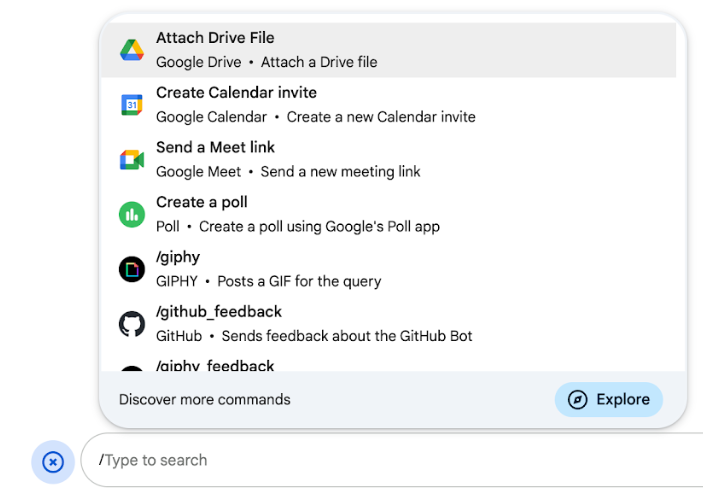
スラッシュ コマンド: メニューからスラッシュ コマンドを選択するか、スラッシュ(
/)を入力してから、/aboutなどの事前定義されたテキストを入力します。通常、Chat 用アプリではスラッシュ コマンドの引数テキストが必要です。Chat 用アプリでユーザーからの追加の入力が必要な場合は、スラッシュ コマンドを作成します。たとえば、ユーザーが検索するフレーズ(
/search receiptsなど)を入力した後に実行される/searchというスラッシュ コマンドを作成できます。 -
クイック コマンド: ユーザーは、Chat メッセージの返信欄からメニューを開いてコマンドを使用します。コマンドを使用するには、[追加]
 をクリックし、メニューからコマンドを選択します。
Chat 用アプリが追加の入力を待たずにユーザーにすぐに返信できる場合は、クイック コマンドを作成します。たとえば、ランダムな画像というクイック コマンドを作成して、画像ですぐに応答できるようにします。
-
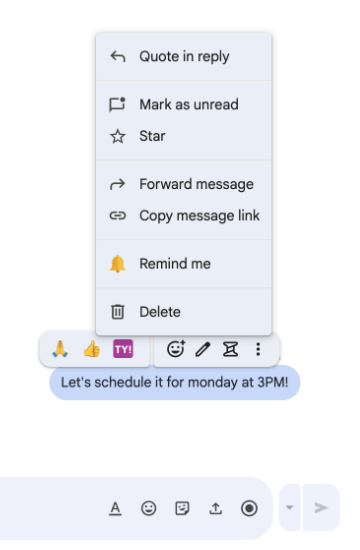
メッセージ アクション: ( デベロッパー プレビュー) ユーザーは、メッセージにカーソルを合わせてその他メニューをクリックすることで、メッセージ アクションを使用します。コマンドを使用するには、その他メニューを開き、メニューからコマンドを選択します。
Chat 用アプリがメッセージのコンテキストに基づいてアクションを実行できる場合は、メッセージ アクションを作成します。
次の画像は、ユーザーがスラッシュ コマンドとクイック コマンドのメニュー、メッセージ アクションをどのように見つけるかを示しています。
前提条件
HTTP
Google Chat を拡張する Google Workspace アドオン。ビルドするには、HTTP クイックスタートを完了します。
Apps Script
Google Chat を拡張する Google Workspace アドオン。作成するには、Apps Script のクイックスタートを完了します。
コマンドを設定する
このセクションでは、次の手順でコマンドを設定する方法について説明します。
コマンドの名前と説明を入力する
コマンド名は、ユーザーが Chat 用アプリを呼び出すために入力または選択するものです。コマンド名の横には、コマンドの使用方法をユーザーに促す短い説明も表示されます。
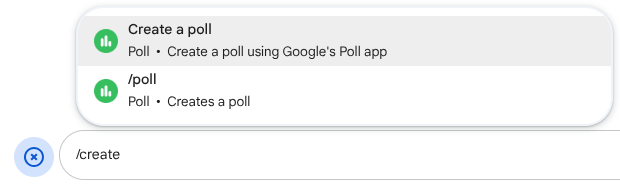
コマンドの名前と説明を選択する際は、次の推奨事項を考慮してください。
コマンドに名前を付けるには:
- 短く、説明的で、アクション可能な単語やフレーズを使用して、ユーザーにコマンドを明確に伝えます。たとえば、
Create a reminderではなくRemind meを使用します。 - コマンドには一意の名前または一般的な名前を使用することを検討してください。コマンドが一般的な操作や機能を説明している場合は、ユーザーが認識して期待する一般的な名前(
SettingsやFeedbackなど)を使用できます。コマンド名が他の Chat 用アプリと同じ場合、ユーザーは類似したコマンドをフィルタして、自分のコマンドを見つけて使用する必要があります。そのため、コマンド名が重複しないようにしてください。
コマンドの説明を取得するには:
- コマンドを使用する際にユーザーが期待する内容を把握できるよう、説明は短くわかりやすくします。
- コマンドに書式設定の要件がある場合は、ユーザーに伝えます。たとえば、引数テキストを必要とするスラッシュ コマンドを作成する場合は、説明を
Remind me to do [something] at [time]のように設定します。 - Chat 用アプリがスペース内の全員に返信するか、コマンドを呼び出したユーザーに非公開で返信するかをユーザーに知らせます。たとえば、クイック コマンド
Aboutの場合、Learn about this app (Only visible to you)と説明できます。
Google Cloud コンソールでコマンドを構成する
スラッシュ コマンド、クイック コマンド、メッセージ アクションを作成するには、Google Chat API の Chat 用アプリの構成で、コマンドまたはアクションに関する情報を指定します。
Google Chat API でコマンドを構成する手順は次のとおりです。
Google Cloud コンソールで、メニュー > [API とサービス] > [有効な API とサービス] > [Google Chat API] をクリックします。
[構成] をクリックします。
[接続設定] で、[トリガー] に移動して、エンドポイントの詳細を指定します。次のセクションでは、このトリガーを使用してコマンドに応答する必要があります。
- HTTP エンドポイント URL: ここで共通の HTTP エンドポイント URL を 1 つ指定できます。または、トリガーごとに異なる HTTP エンドポイントを使用するには、[アプリコマンド] フィールドでエンドポイントを直接指定します。
- Apps Script: Apps Script のデプロイ ID を入力します。デフォルトでは、
onAppCommand関数が呼び出されます。別の Apps Script 関数を使用するには、[アプリコマンド] フィールドにカスタム関数名を指定します。
[コマンド] で、[コマンドを追加] をクリックします。
コマンドに関する次の情報を入力します。
- コマンド ID: Chat 用アプリがコマンドを認識してレスポンスを返すために使用する 1 ~ 1,000 の数値。
- 説明: コマンドの使用方法と形式を説明するテキスト。説明文は半角 50 文字(全角 25 文字)以内で指定できます。
- コマンドの種類: [クイック コマンド]、[スラッシュ コマンド]、[メッセージ アクション] のいずれかを選択します。
- コマンドの名前を指定します。
- クイック コマンド名: ユーザーがメニューから選択してコマンドを呼び出す表示名。半角 50 文字以内で、特殊文字を含めることができます。例:
Remind me - スラッシュ コマンド名: ユーザーがメッセージ内でコマンドを呼び出すために入力するテキスト。先頭はスラッシュにする必要があります。含めることができるのはテキストのみで、最大 50 文字です。例:
/remindMe - メッセージ アクション名:
( デベロッパー プレビュー)
ユーザーがメニューから選択してメッセージ アクションを呼び出すときに表示される名前。半角 50 文字以内で、特殊文字を含めることができます。例:
Remind me
- クイック コマンド名: ユーザーがメニューから選択してコマンドを呼び出す表示名。半角 50 文字以内で、特殊文字を含めることができます。例:
省略可: 読み込み通知メッセージ: ( デベロッパー プレビュー) メッセージ アクションの実行中にユーザーに表示するトースト通知メッセージ。ダイアログを開かないメッセージ アクションでのみ使用できます。
省略可: Chat 用アプリがダイアログでコマンドに応答するようにするには、[ダイアログを開く] チェックボックスをオンにします。
[保存] をクリックします。
これで、Chat 用アプリのコマンドが構成されました。
コマンドに応答する
ユーザーがコマンドを使用すると、Chat 用アプリはイベント オブジェクトを受け取ります。イベント ペイロードには、呼び出されたコマンドの詳細(コマンド ID やコマンドタイプなど)を含む appCommandPayload オブジェクトが含まれています。これにより、適切なレスポンスを返すことができます。イベント オブジェクトは、アプリコマンド トリガーを構成したときに指定した HTTP エンドポイントまたは Apps Script 関数に送信されます。

/help に非公開で応答し、サポートを受ける方法を説明します。次のコードは、スラッシュ コマンド /about にテキスト メッセージで応答する Chat 用アプリの例を示しています。スラッシュ コマンドに応答するには、Chat 用アプリでアプリコマンド トリガーからのイベント オブジェクトを処理します。イベント オブジェクトのペイロードにスラッシュ コマンド ID が含まれている場合、Chat 用アプリは createMessageAction オブジェクトを含むアクション DataActions を返します。
Node.js
Python
Java
Apps Script
このコードサンプルを使用するには、ABOUT_COMMAND_ID を Chat API でコマンドを構成したときに指定したコマンド ID に置き換えます。
メッセージ アクションに応答する
次のコードは、メッセージ アクション [Remind me] にテキスト メッセージで返信する Chat 用アプリの例を示しています。メッセージ アクションに応答するには、Chat 用アプリがアプリコマンド トリガーからのイベント オブジェクトを処理します。イベント オブジェクトのペイロードにメッセージ アクション コマンド ID が含まれている場合、Chat 用アプリは createMessageAction オブジェクトを含むアクション DataActions を返します。
Node.js
/**
 * Responds to an APP_COMMAND interaction event from Google Chat.
 *
 * @param {Object} event The interaction event from Google Chat.
 * @param {Object} res The HTTP response object.
 * @return {Object} The JSON response message with a confirmation.
 */
function onAppCommand(event, res) {
  // Collect the command ID and type from the event metadata.
  const {appCommandId, appCommandType} =
    event.chat.appCommandPayload.appCommandMetadata;

  if (appCommandType === 'MESSAGE_ACTION' &&
      appCommandId === REMIND_ME_COMMAND_ID) {

    // Message actions can access the context of the message they were
    // invoked on, such as the text or sender of that message.
    const messageText = event.chat.appCommandPayload.message.text;

    // Return a response that includes details from the original message.
    return res.json({
      "hostAppDataAction": {
        "chatDataAction": {
          "createMessageAction": {
            "message": {
              "text": `Setting a reminder for message: "${messageText}"`
            }
          }
        }
      }
    });
  }
}
Python
def on_app_command(event):
    """Responds to an APP_COMMAND interaction event from Google Chat.

    Args:
        event (dict): The interaction event from Google Chat.

    Returns:
        dict: The JSON response message with a confirmation.
    """
    # Collect the command ID and type from the event metadata.
    payload = event.get('chat', {}).get('appCommandPayload', {})
    metadata = payload.get('appCommandMetadata', {})
    if metadata.get('appCommandType') == 'MESSAGE_ACTION' and \
       metadata.get('appCommandId') == REMIND_ME_COMMAND_ID:

        # Message actions can access the context of the message they were
        # invoked on, such as the text or sender of that message.
        message_text = payload.get('message', {}).get('text')

        # Return a response that includes details from the original message.
        return {
            "hostAppDataAction": {
                "chatDataAction": {
                    "createMessageAction": {
                        "message": {
                            "text": f'Setting a reminder for message: "{message_text}"'
                        }
                    }
                }
            }
        }
Java
/**
 * Responds to an APP_COMMAND interaction event from Google Chat.
 *
 * @param event The interaction event from Google Chat.
 * @param response The HTTP response object.
 */
void onAppCommand(JsonObject event, HttpResponse response) throws Exception {
  // Collect the command ID and type from the event metadata.
  JsonObject payload = event.getAsJsonObject("chat").getAsJsonObject("appCommandPayload");
  JsonObject metadata = payload.getAsJsonObject("appCommandMetadata");
  String appCommandType = metadata.get("appCommandType").getAsString();

  if (appCommandType.equals("MESSAGE_ACTION")) {
    int commandId = metadata.get("appCommandId").getAsInt();
    if (commandId == REMIND_ME_COMMAND_ID) {
      // Message actions can access the context of the message they were
      // invoked on, such as the text or sender of that message.
      String messageText = payload.getAsJsonObject("message").get("text").getAsString();

      // Return a response that includes details from the original message.
      JsonObject responseMessage = new JsonObject();
      responseMessage.addProperty("text", "Setting a reminder for message: " + messageText);

      JsonObject createMessageAction = new JsonObject();
      createMessageAction.add("message", responseMessage);

      JsonObject chatDataAction = new JsonObject();
      chatDataAction.add("createMessageAction", createMessageAction);

      JsonObject hostAppDataAction = new JsonObject();
      hostAppDataAction.add("chatDataAction", chatDataAction);

      JsonObject finalResponse = new JsonObject();
      finalResponse.add("hostAppDataAction", hostAppDataAction);

      response.getWriter().write(finalResponse.toString());
    }
  }
}
Apps Script
/**
 * Responds to an APP_COMMAND interaction event in Google Chat.
 *
 * @param {Object} event The interaction event from Google Chat.
 * @return {Object} The JSON response message with a confirmation.
 */
function onAppCommand(event) {
  // Collect the command ID and type from the event metadata.
  const {appCommandId, appCommandType} =
    event.chat.appCommandPayload.appCommandMetadata;

  if (appCommandType === 'MESSAGE_ACTION' &&
      appCommandId === REMIND_ME_COMMAND_ID) {

    // Message actions can access the context of the message they were
    // invoked on, such as the text or sender of that message.
    const messageText = event.chat.appCommandPayload.message.text;

    // Return a response that includes details from the original message.
    return CardService.newChatResponseBuilder()
        .setText("Setting a reminder for message: " + messageText)
        .build();
  }
}
このコードサンプルを使用するには、REMIND_ME_COMMAND_ID を Chat API でコマンドを構成したときに指定したコマンド ID に置き換えます。
コマンドをテストする
コマンドとコードをテストするには、Google Chat 用アプリのインタラクティブ機能をテストするをご覧ください。
Chat UI でコマンドをテストして使用する方法については、Google Chat ヘルプ ドキュメントの Google Chat でアプリを使用するをご覧ください。
関連トピック
- コマンドを使用する Chat 用アプリのサンプルを表示する
- メッセージを送信する
- インタラクティブ ダイアログを開く