

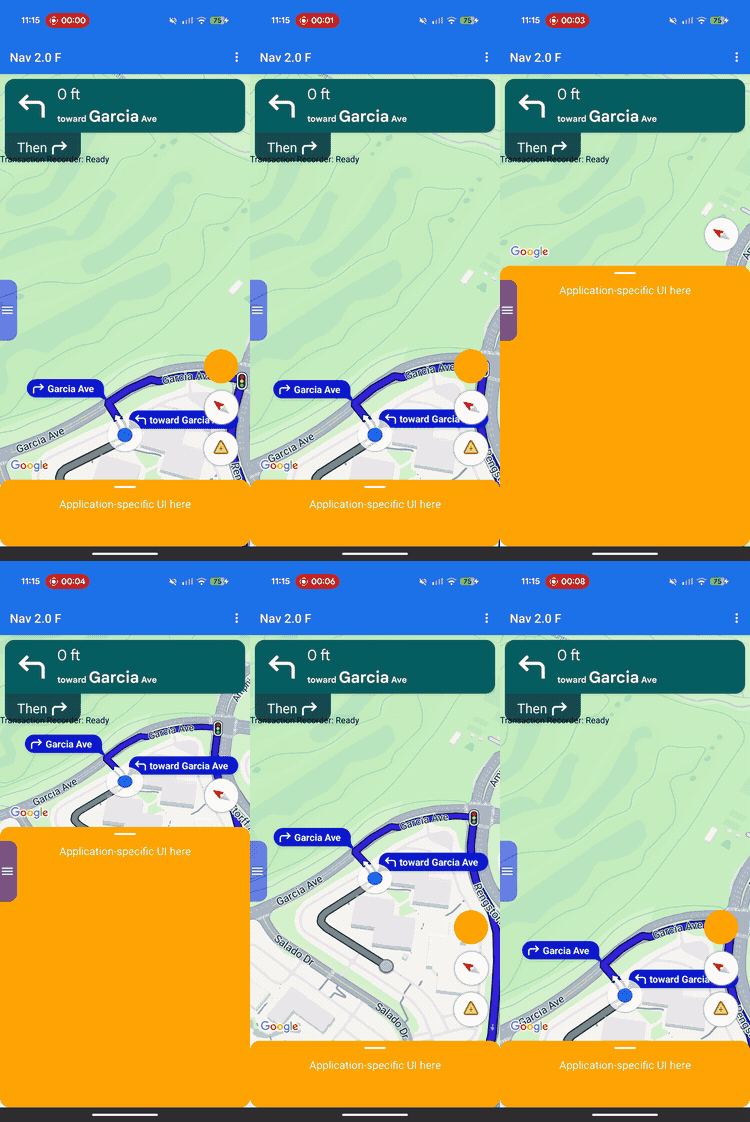
Sử dụng tính năng tuỳ chỉnh bố cục để kiểm soát hệ phân cấp view và vị trí màn hình cho cả khung hiển thị do Google cung cấp và khung hiển thị tuỳ chỉnh của riêng bạn.
Thay vì thêm các thành phần hiển thị tuỳ chỉnh vào các vùng đầu trang hoặc chân trang được xác định trước, hãy triển khai một trình uỷ quyền bố cục để quản lý bố cục cho toàn bộ màn hình. Trong quá trình chuyển đổi trạng thái điều hướng, trình uỷ nhiệm bố cục sẽ nhận được các thành phần do Google cung cấp, chẳng hạn như thẻ rẽ, thẻ thời gian đến dự kiến (ETA) và các nút. Đặt các phần tử này cùng với nội dung tuỳ chỉnh của riêng bạn bằng cách sử dụng các hệ thống bố cục Android tiêu chuẩn như ConstraintLayout, CoordinatorLayout hoặc LinearLayout.
Hãy sử dụng khung này để định vị thông tin doanh nghiệp tuỳ chỉnh (chẳng hạn như trạng thái đơn đặt hàng hoặc hướng dẫn đến lấy hàng) một cách chính xác trên màn hình, đồng thời ngăn các khung hiển thị chồng chéo lên nhau.
Cách hoạt động của tính năng tuỳ chỉnh bố cục
Tính năng tuỳ chỉnh bố cục sử dụng mẫu thiết kế uỷ quyền. Thay vì tự động vẽ hoặc định vị các thành phần giao diện người dùng trên màn hình, SDK sẽ truyền trực tiếp các thành phần đó đến một lớp tuỳ chỉnh mà bạn viết: uỷ quyền bố cục.
Để tuỳ chỉnh bố cục, hãy tạo một lớp mở rộng lớpNavigationLayoutDelegate trừu tượng và chỉ định một thực thể cho NavigationView hoặc SupportNavigationFragment. Bất cứ khi nào trạng thái điều hướng chuyển đổi (chẳng hạn như chuyển từ bản đồ cơ sở sang hướng dẫn từng chặng đang hoạt động), SDK sẽ thực thi các phương thức gọi lại trên đối tượng uỷ quyền và cung cấp các thành phần giao diện người dùng có sẵn cho trạng thái cụ thể đó.
Để mang lại trải nghiệm người dùng liền mạch và tích hợp, khung này thiết lập sự phân tách rõ ràng về trách nhiệm giữa ứng dụng của bạn và SDK. Sử dụng đại diện bố cục để tuỳ chỉnh những nội dung sau:
- Xây dựng hệ phân cấp view: Chọn chính xác thành phần Google và thành phần hiển thị doanh nghiệp tuỳ chỉnh nào cần thêm vào màn hình cho mỗi trạng thái giao diện người dùng.
- Đặt vị trí cho mọi phần tử: Đặt neo màn hình, lề và vị trí bố cục chính xác. Tránh áp dụng các quy tắc ràng buộc về chiều rộng hoặc chiều cao tuỳ chỉnh cho các thành phần của Google vì các thành phần của Google sẽ tự tính toán kích thước nội bộ của chúng.
- Định khung bản đồ cơ sở: Xác định ranh giới hiển thị của camera bản đồ bằng cách sử dụng toạ độ của thành phần khung nhìn.
- Xếp lớp màn hình: Quyết định xem các chế độ xem tuỳ chỉnh sẽ nổi lên trên, xuống dưới hay bên cạnh các chế độ điều khiển tích hợp của Google.
Trong khi đó, bạn không thể tuỳ chỉnh các thành phần sau đây của Google bằng trình uỷ quyền bố cục:
- Kích thước thành phần: Kích thước và kích thước bên trong của các thành phần do Google cung cấp, được SDK tự động tính toán.
- Điều kiện kích hoạt: Thời điểm cảnh báo hoặc lời nhắc linh hoạt xuất hiện dựa trên dữ liệu tuyến đường theo thời gian thực.
Nguyên tắc triển khai
Khi viết một trình uỷ quyền bố cục, hãy lưu ý các quy tắc sau để tránh lỗi bố cục hoặc sự cố trong thời gian chạy:
- Màn hình mặc định là màn hình trống: Các thành phần do Google cung cấp chỉ xuất hiện nếu đối tượng uỷ quyền của bạn thêm chúng vào hệ phân cấp view và định vị chúng một cách rõ ràng.
- Không hỗ trợ các API cũ: Các thuộc tính và phương thức kiểm soát mô hình bố cục dựa trên vùng quảng cáo cũ sẽ không được hỗ trợ và có thể không hoạt động như mong đợi khi một trình uỷ quyền tuỳ chỉnh đang hoạt động.
- Không sửa đổi cấu trúc khung hiển thị nội bộ:
Không sử dụng các phương thức như
findViewById()để duyệt qua hoặc sửa đổi hệ phân cấp view của các thành phần do Google cung cấp (chẳng hạn như thẻ rẽ hoặc thẻ ETA). Vì các hệ phân cấp view nội bộ này là thông tin triển khai cơ bản, nên chúng có thể thay đổi tuỳ theo bản phát hành SDK. Việc sửa đổi các tài nguyên này có thể khiến bố cục của bạn bị hỏng trong các bản cập nhật SDK sau này.
Khả năng tương thích với API cũ
Để đảm bảo hành vi bố cục đáng tin cậy khi sử dụng một trình uỷ nhiệm bố cục tuỳ chỉnh, hãy tránh sử dụng các API dựa trên vùng chứa cũ sau đây, vì chúng dự kiến sẽ ngừng hoạt động. Để di chuyển một ứng dụng hiện có, hãy thay thế cách sử dụng các API này bằng mã trong trình uỷ quyền bố cục tuỳ chỉnh:
Hiện các API dựa trên vùng quảng cáo cũ
| API cũ | Thay thế Layout Delegate |
|---|---|
setCustomControl(View, CustomControlPosition) |
Thêm trực tiếp các thành phần hiển thị vào ConstraintLayout hoặc nhóm thành phần hiển thị khác. |
removeCustomControl(View) |
Xoá khung hiển thị ngay khỏi hệ phân cấp view. |
setEtaCardEnabled(boolean) |
Đọc chế độ xem etaCard trong onEnterActiveGuidance. |
setHeaderEnabled(boolean) |
Đọc chế độ xem turnCard trong onEnterActiveGuidance. |
setReportIncidentButtonEnabled(boolean) |
Tìm nút REPORTING trong getActiveGuidanceButtons(). |
setTripProgressBarEnabled(boolean) |
Đọc chế độ xem tripProgressBar trong onEnterActiveGuidance. |
addOnNavigationUiChangedListener(...) |
Dựa vào lệnh gọi lại chuyển đổi trạng thái NavigationLayoutDelegate. |
removeOnNavigationUiChangedListener(...) |
Quản lý trực tiếp các chuyển đổi trạng thái bố cục bằng cách sử dụng đối tượng uỷ quyền. |
addPromptVisibilityChangedListener(...) |
Dựa vào lệnh gọi lại lời nhắc NavigationLayoutDelegate (như onShowPrompt()). |
removePromptVisibilityChangedListener(...) |
Quản lý logic hiển thị lời nhắc trực tiếp bằng cách sử dụng đối tượng uỷ quyền. |
setCompassEnabled(boolean) |
Tìm la bàn trong getNavigationReadyButtons() hoặc getActiveGuidanceButtons(). |
Danh sách kiểm tra về các yếu tố cần thiết
Hãy làm theo các bước và yêu cầu thiết yếu sau đây để triển khai thành công trình uỷ quyền bố cục:
-
Khởi chạy trình uỷ quyền trước khi tạo giao diện người dùng: Gọi
setLayoutDelegate()trước khi SDK khởi chạy giao diện người dùng điều hướng. Hãy xem các ví dụ về cách triển khai mã sau đây để xác minh thời gian thiết lập chính xác cho cấu trúc ứng dụng của bạn. Việc khởi chạy trình uỷ quyền sau khi tạo giao diện người dùng sẽ kích hoạtApiIllegalStateException.Kotlin
// For SupportNavigationFragment
override fun onCreate(savedInstanceState: Bundle?) {
    super.onCreate(savedInstanceState)
    setContentView(R.layout.activity_main)
    val navFragment = supportFragmentManager.findFragmentById(R.id.nav_fragment) as SupportNavigationFragment
    navFragment.setLayoutDelegate(MyLayoutDelegate())
}

// For a programmatic NavigationView
val navigationView = NavigationView(context)
navigationView.setLayoutDelegate(MyLayoutDelegate())
navigationView.onCreate(savedInstanceState)
Java
// For SupportNavigationFragment
@Override
protected void onCreate(Bundle savedInstanceState) {
    super.onCreate(savedInstanceState);
    setContentView(R.layout.activity_main);
    SupportNavigationFragment navFragment = (SupportNavigationFragment) getSupportFragmentManager().findFragmentById(R.id.nav_fragment);
    navFragment.setLayoutDelegate(new MyLayoutDelegate());
}

// For a programmatic NavigationView
NavigationView navigationView = new NavigationView(context);
navigationView.setLayoutDelegate(new MyLayoutDelegate());
navigationView.onCreate(savedInstanceState);
-
Tạo vùng chứa bố cục của riêng bạn: Tạo một nhóm khung hiển thị tuỳ chỉnh (chẳng hạn như
ConstraintLayout) để lưu giữ các thành phần giao diện người dùng tuỳ chỉnh và khung hiển thị do Google cung cấp. -
Đính kèm các thành phần hiển thị bắt buộc: Bạn phải thêm biểu trưng Google (
getGoogleLogo()) và Khung nhìn (getViewport()) vào vùng chứa bố cục ở mọi trạng thái điều hướng. Nếu không bao gồm cả hai chế độ xem này, thìApiIllegalStateExceptionthời gian chạy sẽ được kích hoạt và ứng dụng sẽ gặp sự cố. -
Tuân thủ kích thước cố định: SDK xác định kích thước cho một số thành phần do Google cung cấp. Đừng áp dụng các quy tắc ràng buộc về chiều rộng hoặc chiều cao tuỳ chỉnh cho các phần tử sau:
- Thẻ lượt chơi
- Thẻ thời gian đến dự kiến
- Câu lệnh đến
- Biểu trưng Google
- Tiện ích tốc độ
-
Đính kèm bố cục vào thành phần hiển thị: Gọi
navigationView.setNavigationLayout()bên trong lệnh gọi lạionEnterNavigationReady()vàonEnterActiveGuidance()để đính kèm vùng chứa vào hệ phân cấp view bản đồ. -
Dọn dẹp khi thoát trạng thái: Gọi
navigationView.removeNavigationLayout()và xoá các thành phần hiển thị tuỳ chỉnh bên trong lệnh gọi lạionLeaveđể ngăn chặn rò rỉ bộ nhớ và trạng thái giao diện người dùng chồng chéo. -
Tránh các API bố cục cũ: Đừng gọi các API dựa trên vùng quảng cáo không còn được dùng nữa như
setCustomControl()hoặcsetHeaderEnabled()khi một trình uỷ quyền tuỳ chỉnh đang hoạt động. SDK có thể bỏ qua các cuộc gọi dùng tính năng cũ này khi có một trình uỷ quyền tuỳ chỉnh được đính kèm.
Trạng thái giao diện người dùng và thành phần của Google
Khi quá trình chuyển đổi trạng thái điều hướng xảy ra, SDK sẽ truyền một đối tượng UiState chỉ có thể đọc đến lệnh gọi lại của thực thể đại diện. Đối tượng này gói các cờ cấu hình bố cục hiện tại với các thành phần của Google (ví dụ: các thực thể View) mà bạn cần để kết xuất màn hình.
Đại diện bố cục quản lý hệ phân cấp view trên 4 trạng thái hoạt động. Sơ đồ trạng thái sau đây minh hoạ cách SDK chuyển đổi giữa các trạng thái điều hướng và phương thức gọi lại mà SDK thực thi trên trình uỷ quyền của bạn:
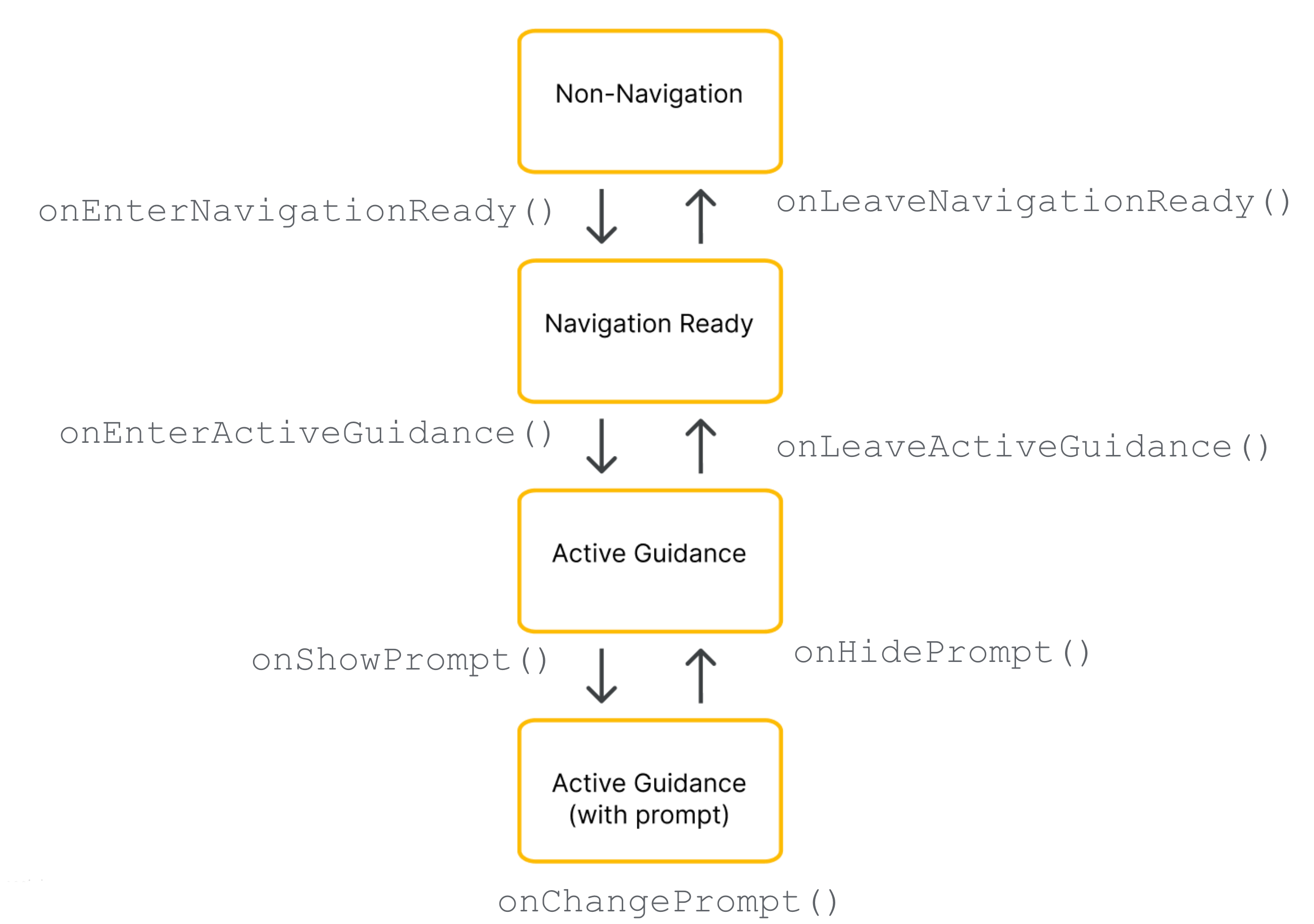
Các thành phần cụ thể của Google được cung cấp cho đối tượng uỷ quyền của bạn phụ thuộc vào giai đoạn hiện tại của vòng đời điều hướng.
Thành phần bắt buộc (tất cả trạng thái điều hướng)
Bất kể giai đoạn điều hướng hiện tại là gì, bạn phải đưa vào, định vị và giữ cho các thành phần sau đây của Google hiển thị trong hệ phân cấp view:
Biểu trưng Google (
getGoogleLogo()): Thành phần này hiển thị biểu trưng bắt buộc của Google Maps. Nếu nút Căn giữa lại được bật, thì biểu trưng sẽ tự động chuyển đổi thành nút này khi người lái xe di chuyển bản đồ ra khỏi vị trí xe của họ. Do đó, vị trí của biểu trưng sẽ quyết định vị trí xuất hiện của nút Căn giữa lại. Bạn nên đặt biểu trưng ở góc dưới cùng bên trái của bố cục để phù hợp với giao diện người dùng bản đồ chuẩn.Khung nhìn (
getViewport()): MộtViewvô hình xác định ranh giới khung hình của camera. Vị trí của khung nhìn sẽ quyết định chính xác vị trí SDK căn giữa chữ V của xe và vẽ đường tuyến đường đang hoạt động. Đặt khung nhìn sao cho khung nhìn bao phủ khu vực mở, không bị che khuất trên màn hình, tránh các lớp phủ mờ như bảng dưới cùng tuỳ chỉnh một cách an toàn.
Thành phần hỗ trợ điều hướng
Trong trạng thái sẵn sàng điều hướng, giao diện người dùng vẫn ở mức tối thiểu để tập trung vào bản đồ cơ sở. Đối tượng NavigationReadyUiState của bạn cung cấp quyền truy cập vào những thông tin sau:
- getNavigationReadyButtons(): Danh sách các thành phần hiển thị hành động nổi được định cấu hình cho bản đồ cơ sở (thường chỉ là nút La bàn). Vì Google có thể thêm hoặc sắp xếp lại các nút trong các bản phát hành SDK sau này, nên hãy tránh dựa vào chỉ mục danh sách cố định. Thay vào đó, hãy lặp lại danh sách, đọc từng loại nút bằng cách so sánh
getType()vớiButtonKnownType.COMPASSvà trích xuất chế độ xem thực tế bằng cách gọigetView(). Xin lưu ý rằng các nút chính xác trong danh sách này khác với các nút có sẵn trong quá trình hướng dẫn đang hoạt động.
thành phần hướng dẫn đang hoạt động
Khi bắt đầu hướng dẫn từng chặng, SDK sẽ mở khoá toàn bộ bộ điều khiển điều hướng. Đối tượng ActiveGuidanceUiState của bạn cung cấp quyền truy cập vào các thành phần sau đây của Google:
getTurnCard(): Biểu ngữ tiêu đề chính hiển thị hướng dẫn rẽ sắp tới, số đo khoảng cách và hướng dẫn làn đường. Đặt thanh này ở đầu bố cục để thiết lập hệ thống phân cấp điều hướng quen thuộc và cố định các thành phần hiển thị tuỳ chỉnh xung quanh thanh này.getEtaCard(): Biểu ngữ chân trang hiển thị thời gian đến dự kiến, thời gian còn lại của hành trình và khoảng cách còn lại đến đích. Đặt thanh này dọc theo cạnh dưới của màn hình hoặc tích hợp toạ độ của thanh này với trang tính quản lý công việc tuỳ chỉnh của bạn.getTripProgressBar(): Thanh tiến trình dọc cho người lái xe biết họ đã đi được bao xa trên tuyến đường hiện tại. Không giống như các bố cục cũ cố định chặt chẽ vào cạnh bản đồ, bạn có toàn quyền neo bố cục này ở bất cứ đâu, chẳng hạn như dọc theo cạnh bên của vùng chứa tuỳ chỉnh.getSpeedWidget(): Một nút điều khiển nổi cho đồng hồ tốc độ và giới hạn tốc độ được đăng. Tuỳ thuộc vào chế độ cài đặt API và khả năng cung cấp dữ liệu, chế độ xem này sẽ tự động đổi kích thước giữa 4 trạng thái hình ảnh trong thời gian chạy (không hiển thị gì, chỉ hiển thị tốc độ hiện tại, chỉ hiển thị giới hạn tốc độ hoặc hiển thị cả hai chỉ số). Vì tiện ích có thể chuyển đổi giữa các kích thước này mà không cần thông báo, nên hãy luôn cố định các thành phần hiển thị xung quanh bằng các quy tắc ràng buộc để bố cục của bạn tự động điều chỉnh nhằm tránh tình trạng chồng chéo không gian.
getActiveGuidanceButtons(): Danh sách mở rộng các chế độ xem hành động nổi cho trạng thái hướng dẫn đang hoạt động (thường bao gồm cả nút La bàn và nút Báo cáo sự cố). Giống như trong trạng thái sẵn sàng điều hướng, bạn có thể tìm và trích xuất từng thành phần hiển thị nút bằng cách lọc danh sách theoButtonKnownType(COMPASShoặcREPORTING) và trích xuất thành phần hiển thị bằnggetView(). Sau đó, bạn có thể định vị các thành phần một cách độc lập hoặc sử dụng bố cục nhưAutoHidingLinearLayoutđể xếp chồng mảng một cách an toàn mà không có xung đột về không gian.
thành phần của Lời nhắc linh hoạt
Các lời nhắc, chẳng hạn như cảnh báo sự cố hoặc cảnh báo camera an toàn, sẽ kích hoạt độc lập trong quá trình hướng dẫn chủ động.
Khi lời nhắc đã sẵn sàng hiển thị, SDK sẽ gọi lệnh gọi lại onShowPrompt() của đối tượng uỷ quyền và truyền một khung hiển thị newPrompt. Đại diện của bạn chịu trách nhiệm định vị lời nhắc này một cách mượt mà trên bố cục (thường được neo vào cạnh dưới của vùng chứa bản đồ).
Vì lời nhắc sắp tới sẽ che phần dưới của màn hình, nên bạn phải cập nhật bố cục để ngăn lời nhắc chồng lên khung nhìn, biểu trưng Google hoặc bất kỳ nút nào được căn chỉnh ở dưới cùng.
Xử lý kích thước màn hình và chế độ rộng
Để xử lý các thay đổi về kích thước bản đồ và hướng màn hình, trình uỷ nhiệm bố cục sử dụng các tính năng sau:
Đổi kích thước thành phần hiển thị: Điều chỉnh bố cục bất cứ khi nào kích thước thực của bản đồ thay đổi.
Chế độ rộng: Chuyển sang biến thể bố cục định dạng rộng khi bản đồ đủ rộng.
Phản hồi khi thay đổi kích thước khung hiển thị
Bất cứ khi nào kích thước thực của vùng chứa bản đồ thay đổi, SDK sẽ thực thi lệnh gọi lạionSizeChanged(). Bố cục chia đôi màn hình, thanh trượt bố cục và chế độ xoay thiết bị thường kích hoạt lệnh gọi lại onSizeChanged(). Sử dụng lệnh gọi lại này để điều chỉnh thích ứng chung cho giao diện người dùng tuỳ chỉnh. Triển khai onSizeChanged() để định vị lại các phần tử tuỳ chỉnh cho tỷ lệ khung hình mới của màn hình, áp dụng các điểm ngắt chiều rộng hoặc chiều cao tuỳ chỉnh của riêng bạn và phát hiện thời điểm sự kiện đổi kích thước chuyển sang chế độ rộng để hoán đổi các biến thể bố cục một cách an toàn.
Tìm hiểu về chế độ rộng
Chế độ rộng sẽ kích hoạt khi vùng chứa bản đồ đủ rộng để hiển thị các thành phần giao diện người dùng cạnh nhau.
Đọc boolean isWideMode() từ đối tượng trạng thái để đặt lại vị trí các phần tử trên giao diện người dùng tuỳ chỉnh và giữ cho tâm bản đồ luôn rõ ràng cho người lái xe. Vì các thành phần do Google cung cấp như thẻ rẽ và thẻ ETA sẽ tự động thu nhỏ và định hình lại ở chế độ rộng, nên việc đọc boolean này đảm bảo bố cục của bạn điều chỉnh chính xác tại thời điểm các thành phần của Google cập nhật.
Hãy xem các ví dụ sau đây về cách định vị các thành phần bố cục ở chế độ tiêu chuẩn và chế độ rộng:
Chế độ dọc tiêu chuẩn: Đặt thẻ rẽ ở đầu màn hình và thẻ ETA ở dưới cùng.
Chế độ rộng: Di chuyển thẻ rẽ sang phía bắt đầu của màn hình và thẻ ETA sang phía kết thúc.
Kiểm tra chế độ rộng trong quá trình chuyển đổi trạng thái
Nếu bố cục của bạn hỗ trợ biến thể chế độ rộng, hãy đánh giá boolean isWideMode() bên trong mọi lệnh gọi lại chuyển đổi trạng thái, thay vì chỉ dựa vào onSizeChanged().
onEnterNavigationReady() và onEnterActiveGuidance() để xử lý các lần chạy ứng dụng ban đầu ở chế độ ngang. Phương pháp này bảo vệ bố cục của bạn khỏi các sự kiện trong vòng đời của hệ thống Android (chẳng hạn như việc tạo lại Hoạt động mặc định) bỏ qua hoàn toàn lệnh gọi lại đổi kích thước, đảm bảo rằng biến thể bố cục chuẩn hoặc rộng chính xác sẽ kích hoạt thời điểm trạng thái điều hướng mới bắt đầu.
Căn chỉnh theo kiểu của Google
Để giúp giao diện người dùng tuỳ chỉnh của bạn phù hợp với nhịp điệu hình ảnh của Google, SDK cung cấp lớp tiện ích StyleValues. Bạn có thể đọc các giá trị này theo đơn vị pixel không phụ thuộc vào mật độ (dp) để căn chỉnh khung hiển thị sao cho khớp hoàn toàn với các thành phần của Google.
Ví dụ: nếu muốn đặt một nút tuỳ chỉnh ở góc trên cùng của màn hình đối diện với thẻ rẽ, bạn có thể gọi StyleValues.headerTopPaddingDp() và chỉ định giá trị được trả về làm lề trên của nút. Việc này đảm bảo nút tuỳ chỉnh của bạn căn chỉnh trực quan với cạnh trên của thẻ rẽ, duy trì tính đối xứng của màn hình.
Các khoảng đệm và số đo kiểu có sẵn bao gồm:
StyleValues.headerNominalHeightDp()StyleValues.headerTopPaddingDp()StyleValues.headerFooterSidePaddingDp()StyleValues.mapControlSidePaddingDp()StyleValues.buttonMapControlSidePaddingDp()
Ví dụ: Triển khai bố cục dựa trên quy tắc ràng buộc
Ví dụ sau đây minh hoạ một trình uỷ nhiệm bố cục cơ bản quản lý các chuyển đổi trạng thái bằng cách sử dụng các định nghĩa ConstraintLayout và ConstraintSet có lập trình.
Mặc dù ví dụ này xây dựng các quy tắc ràng buộc về khung hiển thị trong mã, nhưng các trình uỷ quyền bố cục cũng có thể tăng cường bố cục XML chuẩn của Android.
Kotlin
/*
 * Copyright 2026 Google LLC
 *
 * Licensed under the Apache License, Version 2.0 (the "License");
 * you may not use this file except in compliance with the License.
 * You may obtain a copy of the License at
 *
 *     http://www.apache.org/licenses/LICENSE-2.0
 *
 * Unless required by applicable law or agreed to in writing, software
 * distributed under the License is distributed on an "AS IS" BASIS,
 * WITHOUT WARRANTIES OR CONDITIONS OF ANY KIND, either express or implied.
 * See the License for the specific language governing permissions and
 * limitations under the License.
 */

package com.example.navigationapidemo.layoutdelegate

import android.content.Context
import android.util.TypedValue
import android.view.View
import android.view.ViewGroup
import androidx.constraintlayout.widget.ConstraintLayout
import androidx.constraintlayout.widget.ConstraintSet
import com.google.android.libraries.navigation.layoutcustomization.ActiveGuidanceUiState
import com.google.android.libraries.navigation.layoutcustomization.AutoHidingVerticalLayout
import com.google.android.libraries.navigation.layoutcustomization.NavigationLayoutDelegate
import com.google.android.libraries.navigation.layoutcustomization.NavigationReadyUiState
import com.google.android.libraries.navigation.layoutcustomization.NavigationUiButton.ButtonKnownType.COMPASS
import com.google.android.libraries.navigation.layoutcustomization.NavigationUiParent
import com.google.android.libraries.navigation.layoutcustomization.StyleValues.headerNominalHeightDp

/** Kotlin equivalent of StandardUiElementsLayoutDelegate. */
class StandardUiElementsLayoutDelegateKt : NavigationLayoutDelegate() {

  private val layoutId = View.generateViewId()
  private val buttonsContainerId = View.generateViewId()

  private var layout: ConstraintLayout? = null
  private var buttonsContainer: AutoHidingVerticalLayout? = null

  private var navigationReadyConstraintSet: ConstraintSet? = null
  private var activeGuidanceConstraintSet: ConstraintSet? = null
  private var activeGuidanceWithPromptConstraintSet: ConstraintSet? = null

  private var activeGuidanceUiState: ActiveGuidanceUiState? = null

  override fun onEnterNavigationReady(
    navigationUiParent: NavigationUiParent,
    newState: NavigationReadyUiState,
  ) {
    val context = navigationUiParent.viewContext

    var currentLayout = layout
    if (currentLayout == null) {
      currentLayout =
        ConstraintLayout(context).apply {
          layoutParams =
            ViewGroup.LayoutParams(
              ViewGroup.LayoutParams.MATCH_PARENT,
              ViewGroup.LayoutParams.MATCH_PARENT,
            )
          id = layoutId
        }
      layout = currentLayout
    }

    removeFromParentView(newState.viewport)
    currentLayout.addView(
      newState.viewport,
      ViewGroup.LayoutParams(
        ViewGroup.LayoutParams.MATCH_PARENT,
        ViewGroup.LayoutParams.MATCH_PARENT,
      ),
    )

    removeFromParentView(newState.googleLogo)
    currentLayout.addView(
      newState.googleLogo,
      ViewGroup.LayoutParams(
        ViewGroup.LayoutParams.MATCH_PARENT,
        ViewGroup.LayoutParams.WRAP_CONTENT,
      ),
    )

    var currentButtonsContainer = buttonsContainer
    if (currentButtonsContainer == null) {
      currentButtonsContainer = AutoHidingVerticalLayout(context).apply { id = buttonsContainerId }
      buttonsContainer = currentButtonsContainer
    }

    removeFromParentView(currentButtonsContainer)
    currentLayout.addView(
      currentButtonsContainer,
      ViewGroup.LayoutParams(
        ViewGroup.LayoutParams.WRAP_CONTENT,
        ConstraintLayout.LayoutParams.MATCH_CONSTRAINT,
      ),
    )

    for (button in newState.navigationReadyButtons) {
      removeFromParentView(button.view)
      currentButtonsContainer.addView(button.view)
    }

    if (navigationReadyConstraintSet == null) {
      navigationReadyConstraintSet = buildNavigationReadyConstraintSet(newState)
    }
    navigationReadyConstraintSet?.applyTo(currentLayout)

    navigationUiParent.removeNavigationLayout(currentLayout)
    navigationUiParent.setNavigationLayout(currentLayout)
  }

  private fun buildNavigationReadyConstraintSet(uiState: NavigationReadyUiState): ConstraintSet {
    return ConstraintSet().apply {
      clone(layout)

      connect(
        uiState.viewport.id,
        ConstraintSet.START,
        ConstraintSet.PARENT_ID,
        ConstraintSet.START,
      )
      connect(uiState.viewport.id, ConstraintSet.TOP, ConstraintSet.PARENT_ID, ConstraintSet.TOP)
      connect(uiState.viewport.id, ConstraintSet.END, ConstraintSet.PARENT_ID, ConstraintSet.END)
      connect(
        uiState.viewport.id,
        ConstraintSet.BOTTOM,
        ConstraintSet.PARENT_ID,
        ConstraintSet.BOTTOM,
      )

      connect(
        uiState.googleLogo.id,
        ConstraintSet.BOTTOM,
        ConstraintSet.PARENT_ID,
        ConstraintSet.BOTTOM,
      )
      connect(
        uiState.googleLogo.id,
        ConstraintSet.START,
        ConstraintSet.PARENT_ID,
        ConstraintSet.START,
      )

      constrainButtonsToBottomEnd()
    }
  }

  override fun onLeaveNavigationReady(
    navigationUiParent: NavigationUiParent,
    oldState: NavigationReadyUiState,
  ) {
    buttonsContainer?.removeAllViews()
    layout?.removeAllViews()
    layout?.let { navigationUiParent.removeNavigationLayout(it) }
  }

  override fun onEnterActiveGuidance(
    navigationUiParent: NavigationUiParent,
    oldState: NavigationReadyUiState,
    newState: ActiveGuidanceUiState,
  ) {
    activeGuidanceUiState = newState
    val context = navigationUiParent.viewContext
    val currentLayout = checkNotNull(layout) { "layout must be initialized" }
    val currentButtonsContainer =
      checkNotNull(buttonsContainer) { "buttonsContainer must be initialized" }

    removeFromParentView(newState.turnCard)
    currentLayout.addView(
      newState.turnCard,
      ViewGroup.LayoutParams(
        ViewGroup.LayoutParams.WRAP_CONTENT,
        ViewGroup.LayoutParams.WRAP_CONTENT,
      ),
    )

    removeFromParentView(newState.etaCard)
    currentLayout.addView(
      newState.etaCard,
      ViewGroup.LayoutParams(
        ViewGroup.LayoutParams.WRAP_CONTENT,
        ViewGroup.LayoutParams.WRAP_CONTENT,
      ),
    )

    for (button in oldState.navigationReadyButtons) {
      removeFromParentView(button.view)
    }

    for (button in newState.activeGuidanceButtons) {
      val buttonLayoutParams =
        AutoHidingVerticalLayout.LayoutParams(
          ViewGroup.LayoutParams.WRAP_CONTENT,
          ViewGroup.LayoutParams.WRAP_CONTENT,
        )
      if (button.type == COMPASS) {
        buttonLayoutParams.isHighPriority = true
      }
      removeFromParentView(button.view)
      currentButtonsContainer.addView(button.view, buttonLayoutParams)
    }

    if (activeGuidanceConstraintSet == null) {
      activeGuidanceConstraintSet = buildActiveGuidanceConstraintSet(context, newState)
    }

    activeGuidanceConstraintSet?.applyTo(currentLayout)
  }

  override fun onLeaveActiveGuidance(
    navigationUiParent: NavigationUiParent,
    oldState: ActiveGuidanceUiState,
    newState: NavigationReadyUiState,
  ) {
    removeFromParentView(oldState.etaCard)
    removeFromParentView(oldState.turnCard)
    buttonsContainer?.removeAllViews()

    val currentButtonsContainer =
      checkNotNull(buttonsContainer) { "buttonsContainer must be initialized" }
    for (button in newState.navigationReadyButtons) {
      currentButtonsContainer.addView(
        button.view,
        ViewGroup.LayoutParams(
          ViewGroup.LayoutParams.WRAP_CONTENT,
          ViewGroup.LayoutParams.WRAP_CONTENT,
        ),
      )
    }

    navigationReadyConstraintSet?.applyTo(layout)
  }

  private fun buildActiveGuidanceConstraintSet(
    context: Context,
    uiState: ActiveGuidanceUiState,
  ): ConstraintSet {
    return ConstraintSet().apply {
      clone(layout)

      connect(uiState.turnCard.id, ConstraintSet.TOP, ConstraintSet.PARENT_ID, ConstraintSet.TOP)
      connect(
        uiState.turnCard.id,
        ConstraintSet.START,
        ConstraintSet.PARENT_ID,
        ConstraintSet.START,
      )

      clear(uiState.viewport.id)
      connect(
        uiState.viewport.id,
        ConstraintSet.START,
        ConstraintSet.PARENT_ID,
        ConstraintSet.START,
      )
      connect(uiState.viewport.id, ConstraintSet.TOP, ConstraintSet.PARENT_ID, ConstraintSet.TOP)
      setMargin(uiState.viewport.id, ConstraintSet.TOP, dpToPx(headerNominalHeightDp(), context))
      connect(uiState.viewport.id, ConstraintSet.END, ConstraintSet.PARENT_ID, ConstraintSet.END)
      connect(uiState.viewport.id, ConstraintSet.BOTTOM, uiState.etaCard.id, ConstraintSet.TOP)

      clear(uiState.googleLogo.id, ConstraintSet.BOTTOM)
      constrainLogoToTopOfEtaCard(uiState)
      constrainEtaCardToBottomStart(uiState)
      constrainButtonsToTopOfEtaCard(context, uiState)
    }
  }

  private fun ConstraintSet.constrainEtaCardToBottomStart(uiState: ActiveGuidanceUiState) {
    connect(uiState.etaCard.id, ConstraintSet.START, ConstraintSet.PARENT_ID, ConstraintSet.START)
    connect(uiState.etaCard.id, ConstraintSet.BOTTOM, ConstraintSet.PARENT_ID, ConstraintSet.BOTTOM)
  }

  private fun ConstraintSet.constrainLogoToTopOfEtaCard(uiState: ActiveGuidanceUiState) {
    connect(uiState.googleLogo.id, ConstraintSet.BOTTOM, uiState.etaCard.id, ConstraintSet.TOP)
  }

  private fun ConstraintSet.constrainButtonsToBottomEnd() {
    clear(buttonsContainerId, ConstraintSet.BOTTOM)
    clear(buttonsContainerId, ConstraintSet.TOP)
    connect(buttonsContainerId, ConstraintSet.TOP, ConstraintSet.PARENT_ID, ConstraintSet.TOP)
    connect(buttonsContainerId, ConstraintSet.BOTTOM, ConstraintSet.PARENT_ID, ConstraintSet.BOTTOM)
    connect(buttonsContainerId, ConstraintSet.END, ConstraintSet.PARENT_ID, ConstraintSet.END)
  }

  private fun ConstraintSet.constrainButtonsToTopOfEtaCard(
    context: Context,
    uiState: ActiveGuidanceUiState,
  ) {
    clear(buttonsContainerId, ConstraintSet.BOTTOM)
    clear(buttonsContainerId, ConstraintSet.TOP)
    connect(buttonsContainerId, ConstraintSet.BOTTOM, uiState.etaCard.id, ConstraintSet.TOP)
    connect(buttonsContainerId, ConstraintSet.TOP, ConstraintSet.PARENT_ID, ConstraintSet.TOP)
    connect(buttonsContainerId, ConstraintSet.END, ConstraintSet.PARENT_ID, ConstraintSet.END)
    setMargin(buttonsContainerId, ConstraintSet.TOP, dpToPx(headerNominalHeightDp(), context))
  }

  override fun onShowPrompt(navigationUiParent: NavigationUiParent, newPrompt: View) {
    val context = navigationUiParent.viewContext
    layout?.addView(newPrompt)

    if (activeGuidanceUiState != null) {
      activeGuidanceWithPromptConstraintSet =
        buildActiveGuidanceWithPromptConstraintSet(context, newPrompt)
      activeGuidanceWithPromptConstraintSet?.applyTo(layout)
    }
  }

  override fun onChangePrompt(
    navigationUiParent: NavigationUiParent,
    oldPrompt: View,
    newPrompt: View,
  ) {
    val context = navigationUiParent.viewContext
    activeGuidanceWithPromptConstraintSet?.clear(oldPrompt.id)

    val currentLayout = checkNotNull(layout) { "layout must be initialized" }
    currentLayout.removeView(oldPrompt)
    currentLayout.addView(newPrompt)

    if (activeGuidanceUiState != null) {
      activeGuidanceWithPromptConstraintSet =
        buildActiveGuidanceWithPromptConstraintSet(context, newPrompt)
      activeGuidanceWithPromptConstraintSet?.applyTo(currentLayout)
    }
  }

  override fun onHidePrompt(navigationUiParent: NavigationUiParent, oldPrompt: View) {
    activeGuidanceWithPromptConstraintSet?.clear(oldPrompt.id)
    layout?.removeView(oldPrompt)

    activeGuidanceConstraintSet?.applyTo(layout)
  }

  private fun buildActiveGuidanceWithPromptConstraintSet(
    context: Context,
    prompt: View,
  ): ConstraintSet {
    return ConstraintSet().apply {
      clone(layout)

      val state =
        checkNotNull(activeGuidanceUiState) { "activeGuidanceUiState must be initialized" }

      clear(state.viewport.id)
      connect(state.viewport.id, ConstraintSet.START, ConstraintSet.PARENT_ID, ConstraintSet.START)
      connect(state.viewport.id, ConstraintSet.TOP, ConstraintSet.PARENT_ID, ConstraintSet.TOP)
      setMargin(state.viewport.id, ConstraintSet.TOP, dpToPx(headerNominalHeightDp(), context))
      connect(state.viewport.id, ConstraintSet.END, ConstraintSet.PARENT_ID, ConstraintSet.END)
      connect(state.viewport.id, ConstraintSet.BOTTOM, prompt.id, ConstraintSet.TOP)

      clear(state.googleLogo.id, ConstraintSet.BOTTOM)
      connect(state.googleLogo.id, ConstraintSet.BOTTOM, prompt.id, ConstraintSet.TOP)

      connect(prompt.id, ConstraintSet.START, ConstraintSet.PARENT_ID, ConstraintSet.START)
      connect(prompt.id, ConstraintSet.BOTTOM, ConstraintSet.PARENT_ID, ConstraintSet.BOTTOM)
    }
  }

  private fun removeFromParentView(view: View?) {
    if (view?.parent != null) {
      (view.parent as ViewGroup).removeView(view)
    }
  }

  private fun dpToPx(dp: Int, context: Context): Int {
    return TypedValue.applyDimension(
        TypedValue.COMPLEX_UNIT_DIP,
        dp.toFloat(),
        context.resources.displayMetrics,
      )
      .toInt()
  }
}
Java
/*
 * Copyright 2026 Google LLC
 *
 * Licensed under the Apache License, Version 2.0 (the "License");
 * you may not use this file except in compliance with the License.
 * You may obtain a copy of the License at
 *
 *     http://www.apache.org/licenses/LICENSE-2.0
 *
 * Unless required by applicable law or agreed to in writing, software
 * distributed under the License is distributed on an "AS IS" BASIS,
 * WITHOUT WARRANTIES OR CONDITIONS OF ANY KIND, either express or implied.
 * See the License for the specific language governing permissions and
 * limitations under the License.
 */

package com.example.navigationapidemo.layoutdelegate;

import static android.view.ViewGroup.LayoutParams.MATCH_PARENT;
import static android.view.ViewGroup.LayoutParams.WRAP_CONTENT;
import static androidx.constraintlayout.widget.ConstraintLayout.LayoutParams.MATCH_CONSTRAINT;
import static com.google.android.libraries.navigation.layoutcustomization.NavigationUiButton.ButtonKnownType.COMPASS;

import android.content.Context;
import android.util.TypedValue;
import android.view.View;
import android.view.ViewGroup;
import android.view.ViewGroup.LayoutParams;
import androidx.constraintlayout.widget.ConstraintLayout;
import androidx.constraintlayout.widget.ConstraintSet;
import com.google.android.libraries.navigation.layoutcustomization.ActiveGuidanceUiState;
import com.google.android.libraries.navigation.layoutcustomization.AutoHidingVerticalLayout;
import com.google.android.libraries.navigation.layoutcustomization.NavigationLayoutDelegate;
import com.google.android.libraries.navigation.layoutcustomization.NavigationReadyUiState;
import com.google.android.libraries.navigation.layoutcustomization.NavigationUiButton;
import com.google.android.libraries.navigation.layoutcustomization.NavigationUiParent;
import com.google.android.libraries.navigation.layoutcustomization.StyleValues;

/**
 * A sample implementation of {@link NavigationLayoutDelegate} demonstrating a basic,
 * portrait-optimized layout using {@link ConstraintLayout}.
 *
 * <p><b>Understanding the Layout Delegate State Machine:</b> Navigation SDK transitions through
 * distinct states, each calling corresponding lifecycle methods on this delegate:
 *
 * <ul>
 *   <li><b>Navigation Ready:</b> Initiated by {@link #onEnterNavigationReady}. We initialize the
 *       layout here and add non-guidance views, then pass it to {@link NavigationUiParent} as the
 *       navigation layout.
 *   <li><b>Active Guidance (Turn-by-Turn Mode):</b> Initiated by {@link #onEnterActiveGuidance}. We
 *       set up the layout for Active Guidance, adding elements such as the turn card and ETA card.
 *   <li><b>Prompts:</b> Prompts (e.g., incident alerts) may be triggered during Active Guidance
 *       mode and can be added to the layout via {@link #onShowPrompt}.
 * </ul>
 *
 * This class caches its {@link ConstraintSet}s to ensure smooth transitions without needing to
 * recreate or inflate layouts continuously.
 */
public class StandardUiElementsLayoutDelegate extends NavigationLayoutDelegate {
  private final int layoutId;
  private final int buttonsContainerId;

  private ConstraintLayout layout;
  private AutoHidingVerticalLayout buttonsContainer;

  // We cache our ConstraintSet definitions to avoid cloning or rebuilding
  // constraint configurations programmatically on every transition. This optimization
  // keeps UI state switches (such as entering active guidance or popping up prompts) highly
  // performant.
  private ConstraintSet navigationReadyConstraintSet;
  private ConstraintSet activeGuidanceConstraintSet;
  private ConstraintSet activeGuidanceWithPromptConstraintSet;

  private ActiveGuidanceUiState activeGuidanceUiState;

  public StandardUiElementsLayoutDelegate() {
    layoutId = View.generateViewId();
    buttonsContainerId = View.generateViewId();
  }

  @Override
  public void onEnterNavigationReady(
      NavigationUiParent navigationUiParent, NavigationReadyUiState newState) {
    Context context = navigationUiParent.getViewContext();

    // Implementation Tip: For simplicity, this sample instantiates views and constraints
    // programmatically. In a production application, you can safely inflate standard XML
    // layout templates to build your layout hierarchies and define base UI constraints.

    // Create the root layout
    if (layout == null) {
      layout = new ConstraintLayout(context);
      LayoutParams layoutParams = new LayoutParams(MATCH_PARENT, MATCH_PARENT);
      layout.setLayoutParams(layoutParams);
      layout.setId(layoutId);
    }

    // Add the Viewport (REQUIRED):
    // The viewport is an invisible bounding box used by Nav SDK to frame the vehicle
    // chevron and the upcoming route line. We want to position this view such that it avoids
    // being obscured by fully-opaque UI elements (like the turn card or the ETA card).
    removeFromParentView(newState.getViewport());
    LayoutParams viewportLayoutParams = new LayoutParams(MATCH_PARENT, MATCH_PARENT);
    layout.addView(newState.getViewport(), viewportLayoutParams);

    // Add the Google Logo / Re-center Button (REQUIRED):
    // This view displays the Google logo during guidance and may transition into a
    // "Re-center" button if the user scrolls away from the vehicle chevron. It must
    // be added to the view hierarchy in all states.
    removeFromParentView(newState.getGoogleLogo());
    LayoutParams googleLogoLayoutParams = new LayoutParams(MATCH_PARENT, WRAP_CONTENT);
    layout.addView(newState.getGoogleLogo(), googleLogoLayoutParams);

    // Add the container for UI buttons
    if (buttonsContainer == null) {
      // We use AutoHidingVerticalLayout to create an adaptive vertical button container that
      // automatically hides or shows child views based on available screen height.
      buttonsContainer = new AutoHidingVerticalLayout(context);
      buttonsContainer.setId(buttonsContainerId);
    }
    removeFromParentView(buttonsContainer);
    LayoutParams buttonsContainerLayoutParams = new LayoutParams(WRAP_CONTENT, MATCH_CONSTRAINT);
    layout.addView(buttonsContainer, buttonsContainerLayoutParams);

    // Add UI buttons to the container
    for (NavigationUiButton button : newState.getNavigationReadyButtons()) {
      removeFromParentView(button.getView());
      buttonsContainer.addView(button.getView());
    }

    // Build constraint set for Navigation Ready state
    if (navigationReadyConstraintSet == null) {
      navigationReadyConstraintSet = buildNavigationReadyConstraintSet(newState);
    }

    // Apply the constraints
    navigationReadyConstraintSet.applyTo(layout);

    // Set the layout in NavigationUiParent
    navigationUiParent.removeNavigationLayout(layout);
    navigationUiParent.setNavigationLayout(layout);
  }

  private ConstraintSet buildNavigationReadyConstraintSet(NavigationReadyUiState uiState) {
    ConstraintSet constraintSet = new ConstraintSet();
    constraintSet.clone(layout);

    // Constrain viewport to the edges of its parent
    constraintSet.connect(
        uiState.getViewport().getId(),
        ConstraintSet.START,
        ConstraintSet.PARENT_ID,
        ConstraintSet.START);
    constraintSet.connect(
        uiState.getViewport().getId(),
        ConstraintSet.TOP,
        ConstraintSet.PARENT_ID,
        ConstraintSet.TOP);
    constraintSet.connect(
        uiState.getViewport().getId(),
        ConstraintSet.END,
        ConstraintSet.PARENT_ID,
        ConstraintSet.END);
    constraintSet.connect(
        uiState.getViewport().getId(),
        ConstraintSet.BOTTOM,
        ConstraintSet.PARENT_ID,
        ConstraintSet.BOTTOM);

    // Constrain the logo to the bottom start corner
    constraintSet.connect(
        uiState.getGoogleLogo().getId(),
        ConstraintSet.BOTTOM,
        ConstraintSet.PARENT_ID,
        ConstraintSet.BOTTOM);
    constraintSet.connect(
        uiState.getGoogleLogo().getId(),
        ConstraintSet.START,
        ConstraintSet.PARENT_ID,
        ConstraintSet.START);

    constrainButtonsToBottomEnd(constraintSet);

    return constraintSet;
  }

  @Override
  public void onLeaveNavigationReady(
      NavigationUiParent navigationUiParent, NavigationReadyUiState oldState) {
    buttonsContainer.removeAllViews();
    layout.removeAllViews();
    navigationUiParent.removeNavigationLayout(layout);
  }

  @Override
  public void onEnterActiveGuidance(
      NavigationUiParent navigationUiParent,
      NavigationReadyUiState oldState,
      ActiveGuidanceUiState newState) {
    activeGuidanceUiState = newState;

    Context context = navigationUiParent.getViewContext();

    // Sizing Guideline: The turn card and ETA card are internally configured to adapt and size
    // themselves dynamically based on the layout width (non-wideMode vs. wideMode). Forcing fixed
    // widths or heights on these elements via layouts is unsupported. Always use WRAP_CONTENT to
    // let the elements determine their optimal proportions.

    // Add the turn card
    removeFromParentView(newState.getTurnCard());
    LayoutParams turnCardLayoutParams = new LayoutParams(WRAP_CONTENT, WRAP_CONTENT);
    layout.addView(newState.getTurnCard(), turnCardLayoutParams);

    // Add the ETA card
    removeFromParentView(newState.getEtaCard());
    LayoutParams etaCardLayoutParams = new LayoutParams(WRAP_CONTENT, WRAP_CONTENT);
    layout.addView(newState.getEtaCard(), etaCardLayoutParams);

    // Remove the Navigation Ready UI buttons
    for (NavigationUiButton button : oldState.getNavigationReadyButtons()) {
      removeFromParentView(button.getView());
    }

    // By adding all buttons to the AutoHidingVerticalLayout, we can easily incorporate the latest
    // set of buttons when upgrading without any code changes required
    for (NavigationUiButton button : newState.getActiveGuidanceButtons()) {
      AutoHidingVerticalLayout.LayoutParams buttonLayoutParams =
          new AutoHidingVerticalLayout.LayoutParams(
              ViewGroup.LayoutParams.WRAP_CONTENT, ViewGroup.LayoutParams.WRAP_CONTENT);

      // Mark critical buttons (such as the compass) as high priority so they are the last to be
      // hidden by AutoHidingVerticalLayout when layout space is limited.
      if (button.getType() == COMPASS) {
        buttonLayoutParams.isHighPriority = true;
      }

      removeFromParentView(button.getView());
      buttonsContainer.addView(button.getView(), buttonLayoutParams);
    }

    // Build constraint set for Active Guidance state
    if (activeGuidanceConstraintSet == null) {
      activeGuidanceConstraintSet = buildActiveGuidanceConstraintSet(context, newState);
    }

    // Apply the constraints
    activeGuidanceConstraintSet.applyTo(layout);
  }

  @Override
  public void onLeaveActiveGuidance(
      NavigationUiParent navigationUiParent,
      ActiveGuidanceUiState oldState,
      NavigationReadyUiState newState) {

    // Remove Active Guidance UI elements
    removeFromParentView(oldState.getEtaCard());
    removeFromParentView(oldState.getTurnCard());
    buttonsContainer.removeAllViews();

    // Add Navigation Ready UI buttons
    for (NavigationUiButton button : newState.getNavigationReadyButtons()) {
      LayoutParams buttonLayoutParams = new LayoutParams(WRAP_CONTENT, WRAP_CONTENT);
      buttonsContainer.addView(button.getView(), buttonLayoutParams);
    }

    navigationReadyConstraintSet.applyTo(layout);
  }

  private ConstraintSet buildActiveGuidanceConstraintSet(
      Context context, ActiveGuidanceUiState uiState) {
    ConstraintSet constraintSet = new ConstraintSet();
    constraintSet.clone(layout);

    // Constrain turn card to top start corner
    constraintSet.connect(
        uiState.getTurnCard().getId(),
        ConstraintSet.TOP,
        ConstraintSet.PARENT_ID,
        ConstraintSet.TOP);
    constraintSet.connect(
        uiState.getTurnCard().getId(),
        ConstraintSet.START,
        ConstraintSet.PARENT_ID,
        ConstraintSet.START);

    // Constrain viewport to top of ETA card
    constraintSet.clear(uiState.getViewport().getId());
    constraintSet.connect(
        uiState.getViewport().getId(),
        ConstraintSet.START,
        ConstraintSet.PARENT_ID,
        ConstraintSet.START);
    constraintSet.connect(
        uiState.getViewport().getId(),
        ConstraintSet.TOP,
        ConstraintSet.PARENT_ID,
        ConstraintSet.TOP);

    // Instead of constraining the viewport's top directly to the bottom of the turn card
    // (which varies in height and would trigger jumpy camera framing updates), we use a fixed
    // nominal height to estimate the height of the turncard.
    constraintSet.setMargin(
        uiState.getViewport().getId(),
        ConstraintSet.TOP,
        dpToPx(StyleValues.headerNominalHeightDp(), context));

    constraintSet.connect(
        uiState.getViewport().getId(),
        ConstraintSet.END,
        ConstraintSet.PARENT_ID,
        ConstraintSet.END);
    constraintSet.connect(
        uiState.getViewport().getId(),
        ConstraintSet.BOTTOM,
        uiState.getEtaCard().getId(),
        ConstraintSet.TOP);

    constraintSet.clear(uiState.getGoogleLogo().getId(), ConstraintSet.BOTTOM);
    constrainLogoToTopOfEtaCard(uiState, constraintSet);

    constrainEtaCardToBottomStart(uiState, constraintSet);

    constrainButtonsToTopOfEtaCard(context, uiState, constraintSet);

    return constraintSet;
  }

  private static void constrainEtaCardToBottomStart(
      ActiveGuidanceUiState uiState, ConstraintSet constraintSet) {
    constraintSet.connect(
        uiState.getEtaCard().getId(),
        ConstraintSet.START,
        ConstraintSet.PARENT_ID,
        ConstraintSet.START);
    constraintSet.connect(
        uiState.getEtaCard().getId(),
        ConstraintSet.BOTTOM,
        ConstraintSet.PARENT_ID,
        ConstraintSet.BOTTOM);
  }

  private static void constrainLogoToTopOfEtaCard(
      ActiveGuidanceUiState uiState, ConstraintSet constraintSet) {
    constraintSet.connect(
        uiState.getGoogleLogo().getId(),
        ConstraintSet.BOTTOM,
        uiState.getEtaCard().getId(),
        ConstraintSet.TOP);
  }

  private void constrainButtonsToBottomEnd(ConstraintSet constraintSet) {
    constraintSet.clear(buttonsContainerId, ConstraintSet.BOTTOM);
    constraintSet.clear(buttonsContainerId, ConstraintSet.TOP);
    constraintSet.connect(
        buttonsContainerId, ConstraintSet.TOP, ConstraintSet.PARENT_ID, ConstraintSet.TOP);
    constraintSet.connect(
        buttonsContainerId, ConstraintSet.BOTTOM, ConstraintSet.PARENT_ID, ConstraintSet.BOTTOM);
    constraintSet.connect(
        buttonsContainerId, ConstraintSet.END, ConstraintSet.PARENT_ID, ConstraintSet.END);
  }

  private void constrainButtonsToTopOfEtaCard(
      Context context, ActiveGuidanceUiState uiState, ConstraintSet constraintSet) {
    constraintSet.clear(buttonsContainerId, ConstraintSet.BOTTOM);
    constraintSet.clear(buttonsContainerId, ConstraintSet.TOP);
    constraintSet.connect(
        buttonsContainerId, ConstraintSet.BOTTOM, uiState.getEtaCard().getId(), ConstraintSet.TOP);
    constraintSet.connect(
        buttonsContainerId, ConstraintSet.TOP, ConstraintSet.PARENT_ID, ConstraintSet.TOP);
    constraintSet.connect(
        buttonsContainerId, ConstraintSet.END, ConstraintSet.PARENT_ID, ConstraintSet.END);
    constraintSet.setMargin(
        buttonsContainerId,
        ConstraintSet.TOP,
        dpToPx(StyleValues.headerNominalHeightDp(), context));
  }

  @Override
  public void onShowPrompt(NavigationUiParent navigationUiParent, View newPrompt) {
    Context context = navigationUiParent.getViewContext();

    layout.addView(newPrompt);

    // When a prompt is displayed at the bottom of the screen, we update our active constraints so
    // that the invisible Viewport sits entirely above the prompt. This automatically forces the
    // Nav SDK camera to adjust its zoom and framing so that the route chevron is always visible to
    // the driver.
    activeGuidanceWithPromptConstraintSet =
        buildActiveGuidanceWithPromptConstraintSet(context, newPrompt);
    activeGuidanceWithPromptConstraintSet.applyTo(layout);
  }

  @Override
  public void onChangePrompt(
      NavigationUiParent navigationUiParent, View oldPrompt, View newPrompt) {
    Context context = navigationUiParent.getViewContext();

    activeGuidanceWithPromptConstraintSet.clear(oldPrompt.getId());

    layout.removeView(oldPrompt);
    layout.addView(newPrompt);

    // When a prompt is displayed at the bottom of the screen, we update our active constraints so
    // that the invisible Viewport sits entirely above the prompt. This automatically forces the
    // Nav SDK camera to adjust its zoom and framing so that the route chevron is always visible to
    // the driver.
    activeGuidanceWithPromptConstraintSet =
        buildActiveGuidanceWithPromptConstraintSet(context, newPrompt);
    activeGuidanceWithPromptConstraintSet.applyTo(layout);
  }

  @Override
  public void onHidePrompt(NavigationUiParent navigationUiParent, View oldPrompt) {
    activeGuidanceWithPromptConstraintSet.clear(oldPrompt.getId());

    layout.removeView(oldPrompt);

    activeGuidanceConstraintSet.applyTo(layout);
  }

  private ConstraintSet buildActiveGuidanceWithPromptConstraintSet(Context context, View prompt) {
    ConstraintSet constraintSet = new ConstraintSet();
    constraintSet.clone(layout);

    // Constrain viewport to top of prompt
    constraintSet.clear(activeGuidanceUiState.getViewport().getId());
    constraintSet.connect(
        activeGuidanceUiState.getViewport().getId(),
        ConstraintSet.START,
        ConstraintSet.PARENT_ID,
        ConstraintSet.START);
    constraintSet.connect(
        activeGuidanceUiState.getViewport().getId(),
        ConstraintSet.TOP,
        ConstraintSet.PARENT_ID,
        ConstraintSet.TOP);
    constraintSet.setMargin(
        activeGuidanceUiState.getViewport().getId(),
        ConstraintSet.TOP,
        dpToPx(StyleValues.headerNominalHeightDp(), context));
    constraintSet.connect(
        activeGuidanceUiState.getViewport().getId(),
        ConstraintSet.END,
        ConstraintSet.PARENT_ID,
        ConstraintSet.END);
    constraintSet.connect(
        activeGuidanceUiState.getViewport().getId(),
        ConstraintSet.BOTTOM,
        prompt.getId(),
        ConstraintSet.TOP);

    // Constrain prompt to bottom start corner
    constraintSet.connect(
        prompt.getId(), ConstraintSet.START, ConstraintSet.PARENT_ID, ConstraintSet.START);
    constraintSet.connect(
        prompt.getId(), ConstraintSet.BOTTOM, ConstraintSet.PARENT_ID, ConstraintSet.BOTTOM);

    return constraintSet;
  }

  private void removeFromParentView(View view) {
    if (view != null && view.getParent() != null) {
      ((ViewGroup) view.getParent()).removeView(view);
    }
  }

  private static int dpToPx(int dp, Context context) {
    return (int)
        TypedValue.applyDimension(
            TypedValue.COMPLEX_UNIT_DIP, dp, context.getResources().getDisplayMetrics());
  }
}
Để xem mã mẫu hoàn chỉnh hoặc khám phá các cách triển khai trình uỷ quyền bố cục khác, hãy xem mẫu trình uỷ quyền bố cục trên GitHub. Bạn cũng có thể xem từng tệp nguồn cho ví dụ này trên GitHub: