

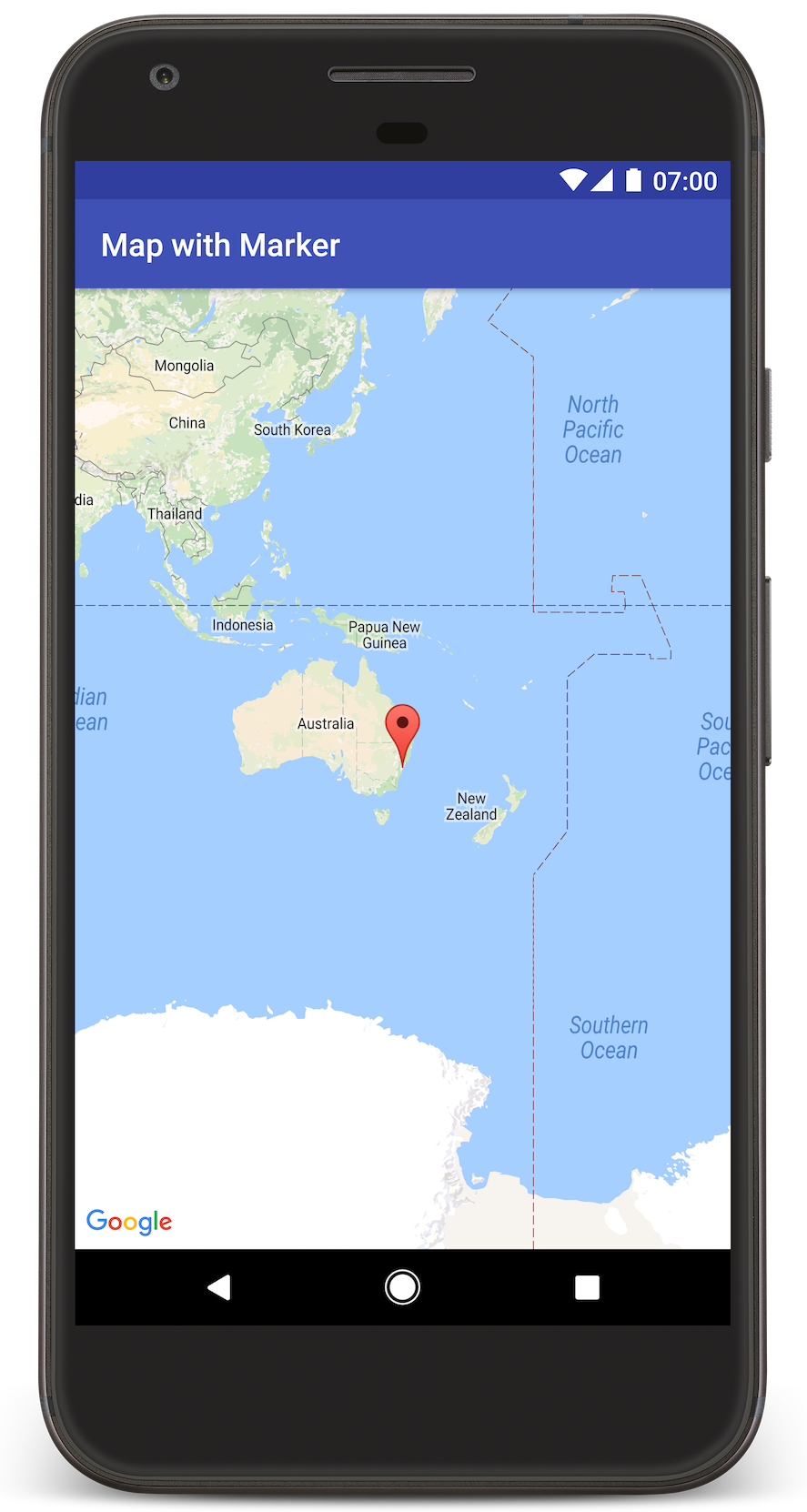
บทแนะนำนี้จะแสดงวิธีเพิ่ม Google Maps ลงในแอป Android โดยแผนที่จะมีเครื่องหมายหรือที่เรียกว่าหมุดเพื่อระบุตำแหน่งที่เฉพาะเจาะจง
ทำตามบทแนะนำเพื่อสร้างแอป Android โดยใช้ Maps SDK สำหรับ Android สภาพแวดล้อมในการพัฒนาซอฟต์แวร์ที่แนะนำคือ Android Studio
รับโค้ด
โคลนหรือดาวน์โหลดที่เก็บตัวอย่าง Google Maps Android API v2 จาก GitHub
ดูกิจกรรมเวอร์ชัน Java
// Copyright 2020 Google LLC // // Licensed under the Apache License, Version 2.0 (the "License"); // you may not use this file except in compliance with the License. // You may obtain a copy of the License at // // http://www.apache.org/licenses/LICENSE-2.0 // // Unless required by applicable law or agreed to in writing, software // distributed under the License is distributed on an "AS IS" BASIS, // WITHOUT WARRANTIES OR CONDITIONS OF ANY KIND, either express or implied. // See the License for the specific language governing permissions and // limitations under the License. package com.example.mapwithmarker; import android.os.Bundle; import androidx.appcompat.app.AppCompatActivity; import com.google.android.gms.maps.CameraUpdateFactory; import com.google.android.gms.maps.GoogleMap; import com.google.android.gms.maps.OnMapReadyCallback; import com.google.android.gms.maps.SupportMapFragment; import com.google.android.gms.maps.model.LatLng; import com.google.android.gms.maps.model.MarkerOptions; /** An activity that displays a Google map with a marker (pin) to indicate a particular location. */ public class MapsMarkerActivity extends AppCompatActivity implements OnMapReadyCallback { @Override protected void onCreate(Bundle savedInstanceState) { super.onCreate(savedInstanceState); // Retrieve the content view that renders the map. setContentView(R.layout.activity_maps); // Get the SupportMapFragment and request notification when the map is ready to be used. SupportMapFragment mapFragment = (SupportMapFragment) getSupportFragmentManager().findFragmentById(R.id.map); mapFragment.getMapAsync(this); } /** * Manipulates the map when it's available. The API invokes this callback when the map is ready * to be used. This is where we can add markers or lines, add listeners or move the camera. In * this case, we just add a marker near Sydney, Australia. If Google Play services is not * installed on the device, the user receives a prompt to install Play services inside the * SupportMapFragment. The API invokes this method after the user has installed Google Play * services and returned to the app. */ @Override public void onMapReady(GoogleMap googleMap) { // Add a marker in Sydney, Australia, // and move the map's camera to the same location. LatLng sydney = new LatLng(-33.852, 151.211); googleMap.addMarker(new MarkerOptions().position(sydney).title("Marker in Sydney")); googleMap.moveCamera(CameraUpdateFactory.newLatLng(sydney)); } }
ดูกิจกรรมเวอร์ชัน Kotlin
// Copyright 2020 Google LLC // // Licensed under the Apache License, Version 2.0 (the "License"); // you may not use this file except in compliance with the License. // You may obtain a copy of the License at // // http://www.apache.org/licenses/LICENSE-2.0 // // Unless required by applicable law or agreed to in writing, software // distributed under the License is distributed on an "AS IS" BASIS, // WITHOUT WARRANTIES OR CONDITIONS OF ANY KIND, either express or implied. // See the License for the specific language governing permissions and // limitations under the License. package com.example.mapwithmarker import android.os.Bundle import android.widget.Toast import androidx.appcompat.app.AppCompatActivity import com.google.android.gms.maps.CameraUpdateFactory import com.google.android.gms.maps.GoogleMap import com.google.android.gms.maps.OnMapReadyCallback import com.google.android.gms.maps.SupportMapFragment import com.google.android.gms.maps.model.LatLng import com.google.android.gms.maps.model.MarkerOptions /** * An activity that displays a Google map with a marker (pin) to indicate a particular location. */ class MapsMarkerActivity : AppCompatActivity(), OnMapReadyCallback { override fun onCreate(savedInstanceState: Bundle?) { super.onCreate(savedInstanceState) // Retrieve the content view that renders the map. setContentView(R.layout.activity_maps) // Get the SupportMapFragment and request notification when the map is ready to be used. val mapFragment = supportFragmentManager.findFragmentById(R.id.map) as? SupportMapFragment mapFragment?.getMapAsync(this) } override fun onMapReady(googleMap: GoogleMap) { val sydney = LatLng(-33.852, 151.211) googleMap.addMarker( MarkerOptions() .position(sydney) .title("Marker in Sydney"), ) googleMap.moveCamera(CameraUpdateFactory.newLatLng(sydney)) } }
ตั้งค่าโปรเจ็กต์การพัฒนา
ทำตามขั้นตอนต่อไปนี้เพื่อสร้างโปรเจ็กต์บทแนะนำใน Android Studio
- ดาวน์โหลดและติดตั้ง Android Studio
- เพิ่มแพ็กเกจบริการ Google Play ลงใน Android Studio
- โคลนหรือดาวน์โหลดที่เก็บตัวอย่าง Google Maps Android API v2 หากคุณไม่ได้ทำเมื่อเริ่มอ่านบทแนะนำนี้
เปิดโปรเจ็กต์ใน Android Studio โดยทำดังนี้
- ใน Android Studio ให้เลือก File > Open
- ไปที่ตำแหน่งที่คุณบันทึกที่เก็บตัวอย่าง Google Maps Android API v2 ไว้หลังจากดาวน์โหลด เลือกไดเรกทอรีราก
android-samplesแล้วคลิกเปิด Android Studio จะซิงค์โปรเจ็กต์แบบหลายโมดูลโดยใช้ Gradle - ในเมนูการกำหนดค่าการเรียกใช้ Android Studio ในแถบเครื่องมือ ให้เลือก tutorials.java.MapWithMarker (แหล่งที่มาใน
tutorials/java/MapWithMarker) หรือ tutorials.kotlin.MapWithMarker (แหล่งที่มาในtutorials/kotlin/MapWithMarker)
เปิดใช้ API ที่จำเป็นและรับคีย์ API
หากต้องการทำตามบทแนะนำนี้ให้เสร็จสมบูรณ์ คุณต้องมีโปรเจ็กต์ที่อยู่ในระบบคลาวด์ของ Google Cloud ที่เปิดใช้ API ที่จำเป็นและคีย์ API ที่ได้รับอนุญาตให้ใช้ Maps SDK สำหรับ Android ดูรายละเอียดเพิ่มเติมได้ที่หัวข้อต่อไปนี้
เพิ่มคีย์ API ลงในแอป
- ในไดเรกทอรีราก
android-samples(โฟลเดอร์เดียวกับlocal.defaults.properties) ให้เปิดหรือสร้างไฟล์secrets.propertiesอย่าเช็คอินไฟล์นี้ลงในการควบคุมเวอร์ชัน เพิ่มสตริงต่อไปนี้ลงใน
secrets.propertiesและแทนที่YOUR_API_KEYด้วยค่าของคีย์ APIMAPS_API_KEY=YOUR_API_KEYเมื่อคุณสร้างแอป ปลั๊กอินข้อมูลลับ Gradle สำหรับ Android จะคัดลอกคีย์ API และทำให้พร้อมใช้งานเป็นตัวแปรบิลด์ในไฟล์ Manifest ของ Android ตามที่อธิบายไว้ในตรวจสอบไฟล์ Manifest ของ Android
สร้างและเรียกใช้แอป
วิธีสร้างและเรียกใช้แอป
เชื่อมต่ออุปกรณ์ Android กับคอมพิวเตอร์ ทำตามวิธีการเพื่อเปิดใช้ตัวเลือกสำหรับนักพัฒนาแอปในอุปกรณ์ Android และกำหนดค่าระบบให้ตรวจหาอุปกรณ์
หรือจะใช้โปรแกรมจัดการอุปกรณ์ใน Android Studio เพื่อกำหนดค่าอุปกรณ์เสมือนจริงก็ได้ เมื่อเลือกโปรแกรมจำลอง ให้เลือกโปรไฟล์อุปกรณ์ที่มีไอคอน Google Play ในคอลัมน์ Play เพื่อให้อิมเมจระบบมี Google APIs ดูรายละเอียดเพิ่มเติมได้ที่ตั้งค่าโปรเจ็กต์ Android Studio
ใน Android Studio ให้ตรวจสอบว่าได้เลือก tutorials.java.MapWithMarker หรือ tutorials.kotlin.MapWithMarker ในเมนูการกำหนดค่าการเรียกใช้ จากนั้นคลิกเรียกใช้ แล้วเลือกอุปกรณ์ตามข้อความแจ้ง
นอกจากนี้ คุณยังสร้างบทแนะนำจากไดเรกทอรีราก
android-samplesในบรรทัดคำสั่งได้ด้วย โดยทำดังนี้./gradlew :tutorials:java:MapWithMarker:assembleDebug ./gradlew :tutorials:kotlin:MapWithMarker:assembleDebug
Android Studio จะเรียกใช้ Gradle เพื่อสร้างแอป แล้วเรียกใช้แอปในอุปกรณ์หรือในโปรแกรมจำลอง คุณควรเห็นแผนที่ที่มีเครื่องหมายชี้ไปที่ซิดนีย์บนชายฝั่งตะวันออกของออสเตรเลีย คล้ายกับรูปภาพในหน้านี้
การแก้ปัญหา:
- หากไม่เห็นแผนที่ ให้ตรวจสอบว่าคุณได้รับคีย์ API และเพิ่มลงใน
secrets.propertiesแล้ว ตามที่อธิบายไว้ในเปิดใช้ API ที่จำเป็นและรับคีย์ API ตรวจสอบ Logcat ใน Android Studio เพื่อดูข้อความแสดงข้อผิดพลาดเกี่ยวกับคีย์ API - ใช้เครื่องมือแก้ไขข้อบกพร่องของ Android Studio เพื่อดูบันทึกและแก้ไขข้อบกพร่องของแอป
ทำความเข้าใจโค้ด
บทแนะนำส่วนนี้จะอธิบายส่วนที่สำคัญที่สุดของแอป MapWithMarker เพื่อช่วยให้คุณเข้าใจวิธีสร้างแอปที่คล้ายกัน
ตรวจสอบไฟล์ Manifest ของ Android
โปรดสังเกตองค์ประกอบต่อไปนี้ในไฟล์ AndroidManifest.xml ของแอป
เพิ่มองค์ประกอบ
meta-dataเพื่อฝังเวอร์ชันของบริการ Google Play ที่ใช้คอมไพล์แอป<meta-data android:name="com.google.android.gms.version" android:value="@integer/google_play_serv>ices_version" /เพิ่มองค์ประกอบ
meta-dataที่ระบุคีย์ API ตัวอย่างที่มาพร้อมกับบทแนะนำนี้จะแมปค่าของคีย์ API กับตัวแปรบิลด์ที่ตรงกับชื่อคีย์ที่คุณกำหนดไว้ก่อนหน้านี้ ซึ่งก็คือMAPS_API_KEYเมื่อคุณสร้างแอป ปลั๊กอินข้อมูลลับ Gradle สำหรับ Android จะทำให้คีย์ในไฟล์secrets.propertiesพร้อมใช้งานเป็นตัวแปรบิลด์ไฟล์ Manifest<meta-data android:name="com.google.android.geo.API_KEY" android:value="${M>APS_API_KEY}" /ในไฟล์
build.gradle.ktsระดับโมดูล ปลั๊กอินcom.google.android.libraries.mapsplatform.secrets-gradle-pluginและบล็อกsecretsต่อไปนี้จะกำหนดค่าปลั๊กอิน Secrets Gradle ให้อ่านคีย์ API จากsecrets.properties(โดยมีlocal.defaults.propertiesเป็นทางเลือกสำรอง) และส่งไปยังไฟล์ Manifest ของ Android ดังนี้secrets { // To add your Maps API key to this project: // 1. If the secrets.properties file does not exist, create it in the root directory (the same folder as the root local.properties file). // 2. Add this line, where YOUR_API_KEY is your API key: // MAPS_API_KEY=YOUR_API_KEY propertiesFileName = "secrets.properties" // A properties file containing default secret values. This file can be // checked in version control. defaultPropertiesFileName = "local.defaultt; }build.gradle.kts
ตัวอย่างต่อไปนี้แสดงไฟล์ Manifest ที่สมบูรณ์
<?xml version="1.0" encodin>g<="utf-8"?
!--
 Copyright 2020 Google LLC

 Licensed under the Apache License, Version 2.0 (the "License");
 you may not use this file except in compliance with the License.
 You may obtain a copy of the License at

      http://www.apache.org/licenses/LICENSE-2.0

 Unless required by applicable law or agreed to in writing, software
 distributed under the License is distributed on an "AS IS" BASIS,
 WITHOUT WARRANTIES OR CONDITIONS OF ANY KIND, either express or implied.
 See the License for the specific language governing permission>s <and
 limitations under the License.
--

manifest xmlns:android=&quo>t;http<://schemas.android.com/apk/res/android"

    application
        android:allowBackup="true"
        android:icon="@mipmap/ic_launcher"
        android:label="@string/app_name&>quot;
    <    android:supportsRtl="true"
        android:theme="@style/AppTheme"

        meta-data
            android:name=>"com.<google.android.gms.version"
            android:value="@i>nteger/go<ogle_play_services_version" /

        !--
             The API key for Google Maps-based APIs.
        --
 >       met<a-data
            android:name="com.google.android.geo.API_KEY"
            android:value="${MAPS_API_KEY}" /

        activit>y
           < android:name>=".MapsMarke<rActivity"
            android:label="@s>tring/title_activi<ty_maps"
            android:exported="true">;
           < intent-filter>
        <        a>ction< android:nam>e=<"and>roid.intent.action.MAIN" /

                category android:name="android.intent.category.LAUNCHER" /
            /intent-filter
        /activity
    /application

/manifest
เพิ่มแผนที่
แสดงแผนที่โดยใช้ Maps SDK สำหรับ Android
เพิ่มองค์ประกอบ
<fragment>ลงในไฟล์เลย์เอาต์ของกิจกรรมactivity_maps.xmlองค์ประกอบนี้กำหนดSupportMapFragmentเพื่อทำหน้าที่เป็นคอนเทนเนอร์สำหรับแผนที่และให้สิทธิ์เข้าถึงออบเจ็กต์GoogleMapบทแนะนำนี้ใช้ Fragment แผนที่เวอร์ชัน AndroidX เพื่อให้มั่นใจว่าเข้ากันได้แบบย้อนหลังกับเฟรมเวิร์ก Android เวอร์ชันก่อนหน้า<!-- Copyright 2020 Google LLC Licensed under the Apache License, Version 2.0 (the "License"); you may not use this file except in compliance with the License. You may obtain a copy of the License at http://www.apache.org/licenses/LICENSE-2.0 Unless required by applicable law or agreed to in writing, software distributed under the License is distributed on an "AS IS" BASIS, WITHOUT WARRANTIES OR CONDITIONS OF ANY KIND, either express or implied. See the License for the specific language governing permissions and limitations u>nd<er the License. -- fragment xmlns:android="http://schemas.android.com/apk/res/android" xmlns:tools="http://schemas.android.com/tools" android:id="@+id/map" android:name="com.google.android.gms.maps.SupportMapFragment" android:layout_width="match_parent" android:layout_height="match>_parent" tools:context="com.example.mapwithmarker.MapsMarkerActivity" /
ในเมธอด
onCreateของกิจกรรม ให้ตั้งค่าไฟล์เลย์เอาต์เป็นมุมมองเนื้อหา รับแฮนเดิลไปยังส่วนย่อยของแผนที่โดยเรียกใช้FragmentManager.findFragmentByIdจากนั้นใช้getMapAsyncเพื่อลงทะเบียน Callback ของแผนที่Java
@Override protected void onCreate(Bundle savedInstanceState) { super.onCreate(savedInstanceState); // Retrieve the content view that renders the map. setContentView(R.layout.activity_maps); // Get the SupportMapFragment and request notification when the map is ready to be used. SupportMapFragment mapFragment = (SupportMapFragment) getSupportFragmentManager().findFragmentById(R.id.map); mapFragment.getMapAsync(this); }
Kotlin
override fun onCreate(savedInstanceState: Bundle?) { super.onCreate(savedInstanceState) // Retrieve the content view that renders the map. setContentView(R.layout.activity_maps) // Get the SupportMapFragment and request notification when the map is ready to be used. val mapFragment = supportFragmentManager.findFragmentById(R.id.map) as? SupportMapFragment mapFragment?.getMapAsync(this) }
ใช้
OnMapReadyCallbackและลบล้างเมธอดonMapReadyเพื่อตั้งค่าแผนที่เมื่อออบเจ็กต์GoogleMapพร้อมใช้งานJava
public class MapsMarkerActivity extends AppCompatActivity implements OnMapReadyCallback { // ... @Override public void onMapReady(GoogleMap googleMap) { LatLng sydney = new LatLng(-33.852, 151.211); googleMap.addMarker(new MarkerOptions().position(sydney).title("Marker in Sydney")); } }
Kotlin
class MapsMarkerActivity : AppCompatActivity(), OnMapReadyCallback { // ... override fun onMapReady(googleMap: GoogleMap) { val sydney = LatLng(-33.852, 151.211) googleMap.addMarker( MarkerOptions() .position(sydney) .title("Marker in Sydney"), ) } }
โดยค่าเริ่มต้น Maps SDK สำหรับ Android จะแสดงเนื้อหาของหน้าต่างข้อมูลเมื่อผู้ใช้แตะเครื่องหมาย คุณไม่จำเป็นต้องเพิ่มฟังก์ชันรอคลิกสำหรับเครื่องหมายหากพอใจที่จะใช้ลักษณะการทำงานเริ่มต้น
ขั้นตอนถัดไป
ดูข้อมูลเพิ่มเติมเกี่ยวกับออบเจ็กต์แผนที่และสิ่งที่คุณทำได้ด้วยเครื่องหมาย