

이 튜토리얼에서는 Android 앱에 Google 지도를 추가하는 방법을 설명합니다. 지도에는 특정 위치를 나타내는 마커(핀이라고도 함)가 포함됩니다.
튜토리얼에 따라 Android용 Maps SDK를 사용하여 Android 앱을 빌드하세요. 권장되는 개발 환경은 Android 스튜디오입니다.
코드 가져오기
GitHub에서 Google Maps Android API v2 샘플 저장소를 클론하거나 다운로드합니다.
활동의 자바 버전을 확인하세요.
// Copyright 2020 Google LLC // // Licensed under the Apache License, Version 2.0 (the "License"); // you may not use this file except in compliance with the License. // You may obtain a copy of the License at // // http://www.apache.org/licenses/LICENSE-2.0 // // Unless required by applicable law or agreed to in writing, software // distributed under the License is distributed on an "AS IS" BASIS, // WITHOUT WARRANTIES OR CONDITIONS OF ANY KIND, either express or implied. // See the License for the specific language governing permissions and // limitations under the License. package com.example.mapwithmarker; import android.os.Bundle; import androidx.appcompat.app.AppCompatActivity; import com.google.android.gms.maps.CameraUpdateFactory; import com.google.android.gms.maps.GoogleMap; import com.google.android.gms.maps.OnMapReadyCallback; import com.google.android.gms.maps.SupportMapFragment; import com.google.android.gms.maps.model.LatLng; import com.google.android.gms.maps.model.MarkerOptions; /** An activity that displays a Google map with a marker (pin) to indicate a particular location. */ public class MapsMarkerActivity extends AppCompatActivity implements OnMapReadyCallback { @Override protected void onCreate(Bundle savedInstanceState) { super.onCreate(savedInstanceState); // Retrieve the content view that renders the map. setContentView(R.layout.activity_maps); // Get the SupportMapFragment and request notification when the map is ready to be used. SupportMapFragment mapFragment = (SupportMapFragment) getSupportFragmentManager().findFragmentById(R.id.map); mapFragment.getMapAsync(this); } /** * Manipulates the map when it's available. The API invokes this callback when the map is ready * to be used. This is where we can add markers or lines, add listeners or move the camera. In * this case, we just add a marker near Sydney, Australia. If Google Play services is not * installed on the device, the user receives a prompt to install Play services inside the * SupportMapFragment. The API invokes this method after the user has installed Google Play * services and returned to the app. */ @Override public void onMapReady(GoogleMap googleMap) { // Add a marker in Sydney, Australia, // and move the map's camera to the same location. LatLng sydney = new LatLng(-33.852, 151.211); googleMap.addMarker(new MarkerOptions().position(sydney).title("Marker in Sydney")); googleMap.moveCamera(CameraUpdateFactory.newLatLng(sydney)); } }
활동의 Kotlin 버전을 확인하세요.
// Copyright 2020 Google LLC // // Licensed under the Apache License, Version 2.0 (the "License"); // you may not use this file except in compliance with the License. // You may obtain a copy of the License at // // http://www.apache.org/licenses/LICENSE-2.0 // // Unless required by applicable law or agreed to in writing, software // distributed under the License is distributed on an "AS IS" BASIS, // WITHOUT WARRANTIES OR CONDITIONS OF ANY KIND, either express or implied. // See the License for the specific language governing permissions and // limitations under the License. package com.example.mapwithmarker import android.os.Bundle import android.widget.Toast import androidx.appcompat.app.AppCompatActivity import com.google.android.gms.maps.CameraUpdateFactory import com.google.android.gms.maps.GoogleMap import com.google.android.gms.maps.OnMapReadyCallback import com.google.android.gms.maps.SupportMapFragment import com.google.android.gms.maps.model.LatLng import com.google.android.gms.maps.model.MarkerOptions /** * An activity that displays a Google map with a marker (pin) to indicate a particular location. */ class MapsMarkerActivity : AppCompatActivity(), OnMapReadyCallback { override fun onCreate(savedInstanceState: Bundle?) { super.onCreate(savedInstanceState) // Retrieve the content view that renders the map. setContentView(R.layout.activity_maps) // Get the SupportMapFragment and request notification when the map is ready to be used. val mapFragment = supportFragmentManager.findFragmentById(R.id.map) as? SupportMapFragment mapFragment?.getMapAsync(this) } override fun onMapReady(googleMap: GoogleMap) { val sydney = LatLng(-33.852, 151.211) googleMap.addMarker( MarkerOptions() .position(sydney) .title("Marker in Sydney"), ) googleMap.moveCamera(CameraUpdateFactory.newLatLng(sydney)) } }
개발 프로젝트 설정
다음 단계에 따라 Android 스튜디오에서 튜토리얼 프로젝트를 만듭니다.
- Android 스튜디오를 다운로드하여 설치합니다.
- Android 스튜디오에 Google Play 서비스 패키지를 추가합니다.
- 이 튜토리얼을 읽기 전에 Google Maps Android API v2 샘플 저장소를 클론하거나 다운로드하지 않았다면 지금 진행합니다.
Android 스튜디오에서 프로젝트를 엽니다.
- Android 스튜디오에서 File > Open을 선택합니다.
- Google Maps Android API v2 샘플 저장소를 다운로드한 후 저장한 위치로 이동하여 루트
android-samples디렉터리를 선택하고 열기를 클릭합니다. Android 스튜디오는 Gradle을 사용하여 멀티 모듈 프로젝트를 동기화합니다. - 툴바의 Android 스튜디오 실행 구성 메뉴에서 tutorials.java.MapWithMarker (
tutorials/java/MapWithMarker의 소스) 또는 tutorials.kotlin.MapWithMarker(tutorials/kotlin/MapWithMarker의 소스)를 선택합니다.
필요한 API 사용 설정 및 API 키 가져오기
이 튜토리얼을 완료하려면 필요한 API가 사용 설정되고 Android용 Maps SDK를 사용할 수 있도록 승인된 API 키가 포함된 Google Cloud 프로젝트가 필요합니다. 자세한 내용은 다음을 참고하세요.
앱에 API 키 추가
- 루트
android-samples디렉터리 (local.defaults.properties와 동일한 폴더)에서secrets.properties파일을 열거나 만듭니다. 이 파일을 버전 제어에 체크인하지 마세요. 다음 문자열을
secrets.properties에 추가하고YOUR_API_KEY를 API 키 값으로 바꿉니다.MAPS_API_KEY=YOUR_API_KEY앱을 빌드할 때 Android용 Secrets Gradle 플러그인에서 API 키를 복사하여 이를 Android 매니페스트에서 빌드 변형으로 제공합니다(Android 매니페스트 확인 참고).
앱 빌드 및 실행
앱을 빌드 및 실행하려면 다음 안내를 따르세요.
컴퓨터에 Android 기기를 연결합니다. 안내에 따라 Android 기기에서 개발자 옵션을 사용 설정하고 기기를 감지하도록 시스템을 구성합니다.
또는 Android 스튜디오의 기기 관리도구를 사용하여 가상 기기를 구성할 수 있습니다. 에뮬레이터를 선택할 때 시스템 이미지에 Google API가 포함되도록 Play 열에 Google Play 아이콘이 있는 기기 프로필을 선택합니다. 자세한 내용은 Android 스튜디오 프로젝트 설정을 참고하세요.
Android 스튜디오에서 실행 구성 메뉴에 tutorials.java.MapWithMarker 또는 tutorials.kotlin.MapWithMarker가 선택되어 있는지 확인한 다음 Run을 클릭하고 메시지에 따라 기기를 선택합니다.
명령줄의 루트
android-samples디렉터리에서 튜토리얼을 빌드할 수도 있습니다../gradlew :tutorials:java:MapWithMarker:assembleDebug ./gradlew :tutorials:kotlin:MapWithMarker:assembleDebug
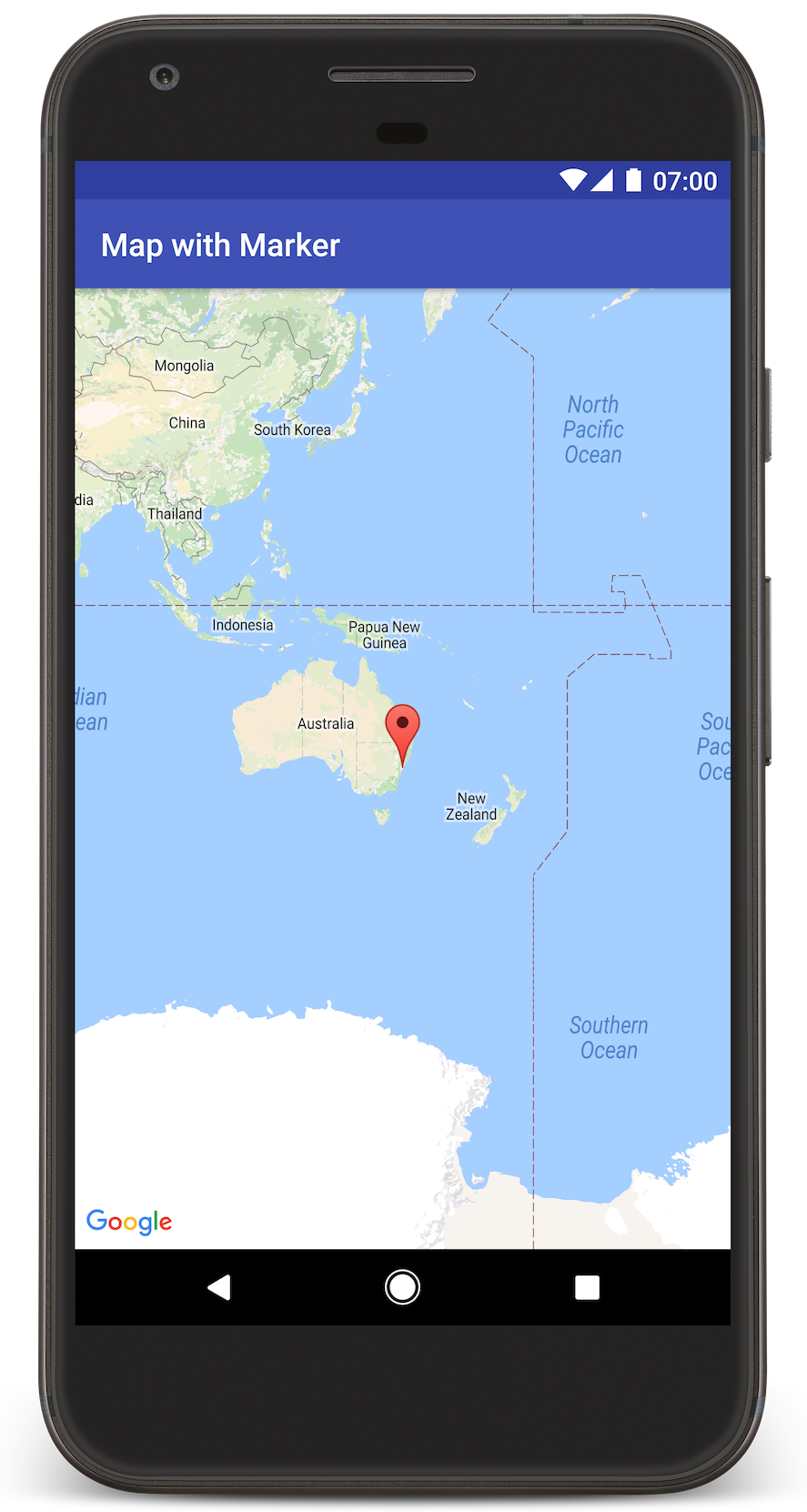
Android 스튜디오에서 Gradle을 호출하여 앱을 빌드한 다음 기기 또는 에뮬레이터에서 앱을 실행합니다. 이 페이지의 이미지와 비슷하게, 오스트레일리아의 동쪽 해안에 있는 시드니를 가리키는 마커가 있는 지도가 표시됩니다.
문제 해결:
- 지도가 표시되지 않으면 필요한 API를 사용 설정하고 API 키 가져오기에 설명된 대로 API 키를 가져와
secrets.properties에 추가했는지 확인하세요. Android 스튜디오의 Logcat에 API 키 관련 오류 메시지가 있는지 확인합니다. - Android 스튜디오 디버깅 도구를 사용하여 로그를 확인하고 앱을 디버깅하세요.
코드 이해하기
여기에서는 유사한 앱을 빌드하는 방법을 이해할 수 있도록 MapWithMarker 앱의 가장 중요한 부분을 설명합니다.
Android 매니페스트 확인
앱의 AndroidManifest.xml 파일에서 다음 요소를 확인합니다.
meta-data요소를 추가하여 앱이 컴파일된 Google Play 서비스의 버전을 삽입합니다.<meta-data android:name="com.google.android.gms.version" android:value="@integer/google_play_services_version" />API 키를 지정하는
meta-data요소를 추가합니다. 이 튜토리얼에 포함된 샘플에서는 API 키의 값을 앞부분에서 정의한 키의 이름(MAPS_API_KEY)과 일치하는 빌드 변수에 매핑합니다. 앱을 빌드할 때 Android용 Secrets Gradle 플러그인에서secrets.properties파일의 키를 매니페스트 빌드 변형으로 제공합니다.<meta-data android:name="com.google.android.geo.API_KEY" android:value="${MAPS_API_KEY}" />모듈 수준
build.gradle.kts파일에서com.google.android.libraries.mapsplatform.secrets-gradle-plugin플러그인과 다음secrets블록은 Secrets Gradle 플러그인을 구성하여secrets.properties에서 API 키를 읽고 (local.defaults.properties를 대체로 사용) 이를 Android 매니페스트에 전달합니다.secrets { // To add your Maps API key to this project: // 1. If the secrets.properties file does not exist, create it in the root directory (the same folder as the root local.properties file). // 2. Add this line, where YOUR_API_KEY is your API key: // MAPS_API_KEY=YOUR_API_KEY propertiesFileName = "secrets.properties" // A properties file containing default secret values. This file can be // checked in version control. defaultPropertiesFileName = "local.defaults.properties" }
다음 예시에서는 전체 매니페스트를 보여줍니다.
<?xml version="1.0" encoding="utf-8"?>
<!--
 Copyright 2020 Google LLC

 Licensed under the Apache License, Version 2.0 (the "License");
 you may not use this file except in compliance with the License.
 You may obtain a copy of the License at

      http://www.apache.org/licenses/LICENSE-2.0

 Unless required by applicable law or agreed to in writing, software
 distributed under the License is distributed on an "AS IS" BASIS,
 WITHOUT WARRANTIES OR CONDITIONS OF ANY KIND, either express or implied.
 See the License for the specific language governing permissions and
 limitations under the License.
-->

<manifest xmlns:android="http://schemas.android.com/apk/res/android">

    <application
        android:allowBackup="true"
        android:icon="@mipmap/ic_launcher"
        android:label="@string/app_name"
        android:supportsRtl="true"
        android:theme="@style/AppTheme">

        <meta-data
            android:name="com.google.android.gms.version"
            android:value="@integer/google_play_services_version" />

        <!--
             The API key for Google Maps-based APIs.
        -->
        <meta-data
            android:name="com.google.android.geo.API_KEY"
            android:value="${MAPS_API_KEY}" />

        <activity
            android:name=".MapsMarkerActivity"
            android:label="@string/title_activity_maps"
            android:exported="true">
            <intent-filter>
                <action android:name="android.intent.action.MAIN" />

                <category android:name="android.intent.category.LAUNCHER" />
            </intent-filter>
        </activity>
    </application>

</manifest>
지도 추가
Android용 Maps SDK를 사용하여 지도를 표시합니다.
활동의 레이아웃 파일인
activity_maps.xml에<fragment>요소를 추가합니다. 이 요소는 지도의 컨테이너 역할을 하고GoogleMap객체에 대한 액세스 권한을 제공하도록SupportMapFragment를 정의합니다. 이 튜토리얼에서는 이전 버전 Android 프레임워크와의 호환성을 위해 지도 프래그먼트의 AndroidX 버전을 사용합니다.<!-- Copyright 2020 Google LLC Licensed under the Apache License, Version 2.0 (the "License"); you may not use this file except in compliance with the License. You may obtain a copy of the License at http://www.apache.org/licenses/LICENSE-2.0 Unless required by applicable law or agreed to in writing, software distributed under the License is distributed on an "AS IS" BASIS, WITHOUT WARRANTIES OR CONDITIONS OF ANY KIND, either express or implied. See the License for the specific language governing permissions and limitations under the License. --> <fragment xmlns:android="http://schemas.android.com/apk/res/android" xmlns:tools="http://schemas.android.com/tools" android:id="@+id/map" android:name="com.google.android.gms.maps.SupportMapFragment" android:layout_width="match_parent" android:layout_height="match_parent" tools:context="com.example.mapwithmarker.MapsMarkerActivity" />
활동의
onCreate메서드에서 레이아웃 파일을 콘텐츠 뷰로 설정합니다.FragmentManager.findFragmentById를 호출하여 지도 프래그먼트에 핸들을 가져옵니다. 그런 다음getMapAsync를 사용하여 지도 콜백에 등록합니다.Java
@Override protected void onCreate(Bundle savedInstanceState) { super.onCreate(savedInstanceState); // Retrieve the content view that renders the map. setContentView(R.layout.activity_maps); // Get the SupportMapFragment and request notification when the map is ready to be used. SupportMapFragment mapFragment = (SupportMapFragment) getSupportFragmentManager().findFragmentById(R.id.map); mapFragment.getMapAsync(this); }
Kotlin
override fun onCreate(savedInstanceState: Bundle?) { super.onCreate(savedInstanceState) // Retrieve the content view that renders the map. setContentView(R.layout.activity_maps) // Get the SupportMapFragment and request notification when the map is ready to be used. val mapFragment = supportFragmentManager.findFragmentById(R.id.map) as? SupportMapFragment mapFragment?.getMapAsync(this) }
OnMapReadyCallback인터페이스를 구현하고,GoogleMap객체를 사용할 수 있을 때 지도를 설정하도록onMapReady메서드를 재정의합니다.Java
public class MapsMarkerActivity extends AppCompatActivity implements OnMapReadyCallback { // ... @Override public void onMapReady(GoogleMap googleMap) { LatLng sydney = new LatLng(-33.852, 151.211); googleMap.addMarker(new MarkerOptions().position(sydney).title("Marker in Sydney")); } }
Kotlin
class MapsMarkerActivity : AppCompatActivity(), OnMapReadyCallback { // ... override fun onMapReady(googleMap: GoogleMap) { val sydney = LatLng(-33.852, 151.211) googleMap.addMarker( MarkerOptions() .position(sydney) .title("Marker in Sydney"), ) } }
기본적으로 Android용 Maps SDK는 사용자가 마커를 탭할 때 정보 창의 콘텐츠를 표시합니다. 기본 동작으로 충분하면 마커에 클릭 리스너를 추가하지 않아도 됩니다.
다음 단계
지도 객체 및 마커로 할 수 있는 작업에 대해 자세히 알아보세요.