

কীভাবে Android ডিভাইসের বর্তমান লোকেশন খুঁজে পেতে হয় এবং সেই লোকেশনে জায়গার (ব্যবসা বা অন্যান্য আকর্ষণীয় স্থান) বিবরণ দেখাতে হয় তা জানুন। Google Play পরিষেবা লোকেশন API-তে Android-এর জন্য Maps SDK, Android-এর জন্য Places SDK এবং ফিউজড লোকেশন প্রোভাইডার ব্যবহার করে Android অ্যাপ তৈরি করতে এই টিউটোরিয়াল অনুসরণ করুন।
কোড পান
GitHub থেকে Google Maps Android API v2 Samples রিপোজিটরি ক্লোন বা ডাউনলোড করুন।
অ্যাক্টিভিটির Java ভার্সন দেখুন:
// Copyright 2020 Google LLC // // Licensed under the Apache License, Version 2.0 (the "License"); // you may not use this file except in compliance with the License. // You may obtain a copy of the License at // // http://www.apache.org/licenses/LICENSE-2.0 // // Unless required by applicable law or agreed to in writing, software // distributed under the License is distributed on an "AS IS" BASIS, // WITHOUT WARRANTIES OR CONDITIONS OF ANY KIND, either express or implied. // See the License for the specific language governing permissions and // limitations under the License. package com.example.currentplacedetailsonmap; import android.content.DialogInterface; import android.content.pm.PackageManager; import android.location.Location; import android.os.Bundle; import android.util.Log; import android.view.Menu; import android.view.MenuItem; import android.view.View; import android.widget.FrameLayout; import android.widget.TextView; import androidx.annotation.NonNull; import androidx.appcompat.app.AlertDialog; import androidx.appcompat.app.AppCompatActivity; import androidx.core.app.ActivityCompat; import androidx.core.content.ContextCompat; import com.google.android.gms.location.FusedLocationProviderClient; import com.google.android.gms.location.LocationServices; import com.google.android.gms.maps.CameraUpdateFactory; import com.google.android.gms.maps.GoogleMap; import com.google.android.gms.maps.OnMapReadyCallback; import com.google.android.gms.maps.SupportMapFragment; import com.google.android.gms.maps.model.CameraPosition; import com.google.android.gms.maps.model.LatLng; import com.google.android.gms.maps.model.Marker; import com.google.android.gms.maps.model.MarkerOptions; import com.google.android.gms.tasks.OnCompleteListener; import com.google.android.gms.tasks.Task; import com.google.android.libraries.places.api.Places; import com.google.android.libraries.places.api.model.CircularBounds; import com.google.android.libraries.places.api.model.Place; import com.google.android.libraries.places.api.net.PlacesClient; import com.google.android.libraries.places.api.net.SearchNearbyRequest; import com.google.android.libraries.places.api.net.SearchNearbyResponse; import java.util.Arrays; import java.util.List; /** An activity that displays a map showing the place at the device's current location. */ public class MapsActivityCurrentPlace extends AppCompatActivity implements OnMapReadyCallback { private static final String TAG = MapsActivityCurrentPlace.class.getSimpleName(); private GoogleMap map; private CameraPosition cameraPosition; // The entry point to the Places API. private PlacesClient placesClient; // The entry point to the Fused Location Provider. private FusedLocationProviderClient fusedLocationProviderClient; // A default location (Sydney, Australia) and default zoom to use when location permission is // not granted. private final LatLng defaultLocation = new LatLng(-33.8523341, 151.2106085); private static final int DEFAULT_ZOOM = 15; private static final int PERMISSIONS_REQUEST_ACCESS_FINE_LOCATION = 1; private boolean locationPermissionGranted; // The geographical location where the device is currently located. That is, the last-known // location retrieved by the Fused Location Provider. private Location lastKnownLocation; // Keys for storing activity state. private static final String KEY_CAMERA_POSITION = "camera_position"; private static final String KEY_LOCATION = "location"; // Used for selecting the current place. private static final int M_MAX_ENTRIES = 5; private static final double SEARCH_RADIUS_METERS = 100.0; private String[] likelyPlaceNames; private String[] likelyPlaceAddresses; private List[] likelyPlaceAttributions; private LatLng[] likelyPlaceLatLngs; @Override protected void onCreate(Bundle savedInstanceState) { super.onCreate(savedInstanceState); // Retrieve location and camera position from saved instance state. if (savedInstanceState != null) { lastKnownLocation = savedInstanceState.getParcelable(KEY_LOCATION); cameraPosition = savedInstanceState.getParcelable(KEY_CAMERA_POSITION); } // Retrieve the content view that renders the map. setContentView(R.layout.activity_maps); // Construct a PlacesClient Places.initializeWithNewPlacesApiEnabled(getApplicationContext(), BuildConfig.MAPS_API_KEY); placesClient = Places.createClient(this); // Construct a FusedLocationProviderClient. fusedLocationProviderClient = LocationServices.getFusedLocationProviderClient(this); // Build the map. SupportMapFragment mapFragment = (SupportMapFragment) getSupportFragmentManager().findFragmentById(R.id.map); mapFragment.getMapAsync(this); } /** Saves the state of the map when the activity is paused. */ @Override protected void onSaveInstanceState(Bundle outState) { if (map != null) { outState.putParcelable(KEY_CAMERA_POSITION, map.getCameraPosition()); outState.putParcelable(KEY_LOCATION, lastKnownLocation); } super.onSaveInstanceState(outState); } /** * Sets up the options menu. * * @param menu The options menu. * @return Boolean. */ @Override public boolean onCreateOptionsMenu(Menu menu) { getMenuInflater().inflate(R.menu.current_place_menu, menu); return true; } /** * Handles a click on the menu option to get a place. * * @param item The menu item to handle. * @return Boolean. */ @Override public boolean onOptionsItemSelected(MenuItem item) { if (item.getItemId() == R.id.option_get_place) { showCurrentPlace(); } return true; } /** * Manipulates the map when it's available. This callback is triggered when the map is ready to * be used. */ @Override public void onMapReady(GoogleMap map) { this.map = map; // Use a custom info window adapter to handle multiple lines of text in the // info window contents. this.map.setInfoWindowAdapter( new GoogleMap.InfoWindowAdapter() { @Override // Return null here, so that getInfoContents() is called next. public View getInfoWindow(Marker arg0) { return null; } @Override public View getInfoContents(Marker marker) { // Inflate the layouts for the info window, title and snippet. View infoWindow = getLayoutInflater() .inflate( R.layout.custom_info_contents, (FrameLayout) findViewById(R.id.map), false); TextView title = infoWindow.findViewById(R.id.title); title.setText(marker.getTitle()); TextView snippet = infoWindow.findViewById(R.id.snippet); snippet.setText(marker.getSnippet()); return infoWindow; } }); // Prompt the user for permission. getLocationPermission(); // Turn on the My Location layer and the related control on the map. updateLocationUI(); // Get the current location of the device and set the position of the map. getDeviceLocation(); } /** Gets the current location of the device, and positions the map's camera. */ private void getDeviceLocation() { /* * Get the best and most recent location of the device, which may be null in rare * cases when a location is not available. */ try { if (locationPermissionGranted) { Task<Location> locationResult = fusedLocationProviderClient.getLastLocation(); locationResult.addOnCompleteListener( this, new OnCompleteListener<Location>() { @Override public void onComplete(@NonNull Task<Location> task) { if (task.isSuccessful()) { // Set the map's camera position to the current location of the // device. lastKnownLocation = task.getResult(); if (lastKnownLocation != null) { map.moveCamera( CameraUpdateFactory.newLatLngZoom( new LatLng( lastKnownLocation.getLatitude(), lastKnownLocation.getLongitude()), DEFAULT_ZOOM)); } } else { Log.d(TAG, "Current location is null. Using defaults."); Log.e(TAG, "Exception: %s", task.getException()); map.moveCamera( CameraUpdateFactory.newLatLngZoom( defaultLocation, DEFAULT_ZOOM)); map.getUiSettings().setMyLocationButtonEnabled(false); } } }); } } catch (SecurityException e) { Log.e("Exception: %s", e.getMessage(), e); } } /** Prompts the user for permission to use the device location. */ private void getLocationPermission() { /* * Request location permission, so that we can get the location of the * device. The result of the permission request is handled by a callback, * onRequestPermissionsResult. */ if (ContextCompat.checkSelfPermission( this.getApplicationContext(), android.Manifest.permission.ACCESS_FINE_LOCATION) == PackageManager.PERMISSION_GRANTED) { locationPermissionGranted = true; } else { ActivityCompat.requestPermissions( this, new String[] {android.Manifest.permission.ACCESS_FINE_LOCATION}, PERMISSIONS_REQUEST_ACCESS_FINE_LOCATION); } } /** Handles the result of the request for location permissions. */ @Override public void onRequestPermissionsResult( int requestCode, @NonNull String[] permissions, @NonNull int[] grantResults) { locationPermissionGranted = false; if (requestCode == PERMISSIONS_REQUEST_ACCESS_FINE_LOCATION) { // If request is cancelled, the // result arrays are empty. if (grantResults.length > 0 && grantResults[0] == PackageManager.PERMISSION_GRANTED) { locationPermissionGranted = true; } } else { super.onRequestPermissionsResult(requestCode, permissions, grantResults); } updateLocationUI(); } /** * Prompts the user to select the current place from a list of likely places, and shows the * current place on the map - provided the user has granted location permission. */ private void showCurrentPlace() { if (map == null) { return; } if (locationPermissionGranted) { // Use fields to define the data types to return. List<Place.Field> placeFields = Arrays.asList( Place.Field.DISPLAY_NAME, Place.Field.FORMATTED_ADDRESS, Place.Field.LOCATION); // Search around the device's last-known location, falling back to the center of the // map if the location is not available yet. LatLng center = lastKnownLocation != null ? new LatLng( lastKnownLocation.getLatitude(), lastKnownLocation.getLongitude()) : map.getCameraPosition().target; CircularBounds searchArea = CircularBounds.newInstance(center, SEARCH_RADIUS_METERS); // Use the builder to create a SearchNearbyRequest that returns the closest places // first. SearchNearbyRequest request = SearchNearbyRequest.builder(searchArea, placeFields) .setMaxResultCount(M_MAX_ENTRIES) .setRankPreference(SearchNearbyRequest.RankPreference.DISTANCE) .build(); // Get the likely places - that is, the businesses and other points of interest that // are closest to the device's current location. final Task<SearchNearbyResponse> placeResult = placesClient.searchNearby(request); placeResult.addOnCompleteListener( new OnCompleteListener<SearchNearbyResponse>() { @Override public void onComplete(@NonNull Task<SearchNearbyResponse> task) { if (task.isSuccessful() && task.getResult() != null) { List<Place> likelyPlaces = task.getResult().getPlaces(); // Set the count, handling cases where less than 5 entries are // returned. int count = Math.min(likelyPlaces.size(), M_MAX_ENTRIES); likelyPlaceNames = new String[count]; likelyPlaceAddresses = new String[count]; likelyPlaceAttributions = new List[count]; likelyPlaceLatLngs = new LatLng[count]; for (int i = 0; i < count; i++) { // Build a list of likely places to show the user. Place place = likelyPlaces.get(i); likelyPlaceNames[i] = place.getDisplayName(); likelyPlaceAddresses[i] = place.getFormattedAddress(); likelyPlaceAttributions[i] = place.getAttributions(); likelyPlaceLatLngs[i] = place.getLocation(); } // Show a dialog offering the user the list of likely places, and // add a // marker at the selected place. MapsActivityCurrentPlace.this.openPlacesDialog(); } else { Log.e(TAG, "Exception: %s", task.getException()); } } }); } else { // The user has not granted permission. Log.i(TAG, "The user did not grant location permission."); // Add a default marker, because the user hasn't selected a place. map.addMarker( new MarkerOptions() .title(getString(R.string.default_info_title)) .position(defaultLocation) .snippet(getString(R.string.default_info_snippet))); // Prompt the user for permission. getLocationPermission(); } } /** Displays a form allowing the user to select a place from a list of likely places. */ private void openPlacesDialog() { // Ask the user to choose the place where they are now. DialogInterface.OnClickListener listener = new DialogInterface.OnClickListener() { @Override public void onClick(DialogInterface dialog, int which) { // The "which" argument contains the position of the selected item. LatLng markerLatLng = likelyPlaceLatLngs[which]; String markerSnippet = likelyPlaceAddresses[which]; if (likelyPlaceAttributions[which] != null) { markerSnippet = markerSnippet + "\n" + likelyPlaceAttributions[which]; } // Add a marker for the selected place, with an info window // showing information about that place. map.addMarker( new MarkerOptions() .title(likelyPlaceNames[which]) .position(markerLatLng) .snippet(markerSnippet)); // Position the map's camera at the location of the marker. map.moveCamera( CameraUpdateFactory.newLatLngZoom(markerLatLng, DEFAULT_ZOOM)); } }; // Display the dialog. AlertDialog dialog = new AlertDialog.Builder(this) .setTitle(R.string.pick_place) .setItems(likelyPlaceNames, listener) .show(); } /** Updates the map's UI settings based on whether the user has granted location permission. */ private void updateLocationUI() { if (map == null) { return; } try { if (locationPermissionGranted) { map.setMyLocationEnabled(true); map.getUiSettings().setMyLocationButtonEnabled(true); } else { map.setMyLocationEnabled(false); map.getUiSettings().setMyLocationButtonEnabled(false); lastKnownLocation = null; } } catch (SecurityException e) { Log.e("Exception: %s", e.getMessage()); } } }
অ্যাক্টিভিটির Kotlin ভার্সন দেখুন:
    // Copyright 2020 Google LLC
//
// Licensed under the Apache License, Version 2.0 (the "License");
// you may not use this file except in compliance with the License.
// You may obtain a copy of the License at
//
//      http://www.apache.org/licenses/LICENSE-2.0
//
// Unless required by applicable law or agreed to in writing, software
// distributed under the License is distributed on an "AS IS" BASIS,
// WITHOUT WARRANTIES OR CONDITIONS OF ANY KIND, either express or implied.
// See the License for the specific language governing permissions and
// limitations under the License.
package com.example.currentplacedetailsonmap

import android.Manifest
import android.annotation.SuppressLint
import android.content.DialogInterface
import android.content.pm.PackageManager
import android.location.Location
import android.os.Bundle
import android.util.Log
import android.view.Menu
import android.view.MenuItem
import android.view.View
import android.widget.FrameLayout
import android.widget.TextView
import androidx.appcompat.app.AlertDialog
import androidx.appcompat.app.AppCompatActivity
import androidx.core.app.ActivityCompat
import androidx.core.content.ContextCompat
import com.google.android.gms.location.FusedLocationProviderClient
import com.google.android.gms.location.LocationServices
import com.google.android.gms.maps.CameraUpdateFactory
import com.google.android.gms.maps.GoogleMap
import com.google.android.gms.maps.GoogleMap.InfoWindowAdapter
import com.google.android.gms.maps.OnMapReadyCallback
import com.google.android.gms.maps.SupportMapFragment
import com.google.android.gms.maps.model.CameraPosition
import com.google.android.gms.maps.model.LatLng
import com.google.android.gms.maps.model.Marker
import com.google.android.gms.maps.model.MarkerOptions
import com.google.android.libraries.places.api.Places
import com.google.android.libraries.places.api.model.CircularBounds
import com.google.android.libraries.places.api.model.Place
import com.google.android.libraries.places.api.net.PlacesClient
import com.google.android.libraries.places.api.net.SearchNearbyRequest

/**
 * An activity that displays a map showing the place at the device's current location.
 */
class MapsActivityCurrentPlace :
    AppCompatActivity(),
    OnMapReadyCallback {
    private var map: GoogleMap? = null
    private var cameraPosition: CameraPosition? = null

    // The entry point to the Places API.
    private lateinit var placesClient: PlacesClient

    // The entry point to the Fused Location Provider.
    private lateinit var fusedLocationProviderClient: FusedLocationProviderClient

    // A default location (Sydney, Australia) and default zoom to use when location permission is
    // not granted.
    private val defaultLocation = LatLng(-33.8523341, 151.2106085)
    private var locationPermissionGranted = false

    // The geographical location where the device is currently located. That is, the last-known
    // location retrieved by the Fused Location Provider.
    private var lastKnownLocation: Location? = null
    private var likelyPlaceNames: Array<String?> = arrayOfNulls(0)
    private var likelyPlaceAddresses: Array<String?> = arrayOfNulls(0)
    private var likelyPlaceAttributions: Array<List<*>?> = arrayOfNulls(0)
    private var likelyPlaceLatLngs: Array<LatLng?> = arrayOfNulls(0)

    override fun onCreate(savedInstanceState: Bundle?) {
        super.onCreate(savedInstanceState)

        // Retrieve location and camera position from saved instance state.
        if (savedInstanceState != null) {
            lastKnownLocation = savedInstanceState.getParcelable(KEY_LOCATION)
            cameraPosition = savedInstanceState.getParcelable(KEY_CAMERA_POSITION)
        }

        // Retrieve the content view that renders the map.
        setContentView(R.layout.activity_maps)

        // Construct a PlacesClient
        Places.initializeWithNewPlacesApiEnabled(applicationContext, BuildConfig.MAPS_API_KEY)
        placesClient = Places.createClient(this)

        // Construct a FusedLocationProviderClient.
        fusedLocationProviderClient = LocationServices.getFusedLocationProviderClient(this)

        // Build the map.
        val mapFragment = supportFragmentManager
            .findFragmentById(R.id.map) as SupportMapFragment?
        mapFragment?.getMapAsync(this)
    }

    /**
     * Saves the state of the map when the activity is paused.
     */
    override fun onSaveInstanceState(outState: Bundle) {
        map?.let { map ->
            outState.putParcelable(KEY_CAMERA_POSITION, map.cameraPosition)
            outState.putParcelable(KEY_LOCATION, lastKnownLocation)
        }
        super.onSaveInstanceState(outState)
    }

    /**
     * Sets up the options menu.
     * @param menu The options menu.
     * @return Boolean.
     */
    override fun onCreateOptionsMenu(menu: Menu): Boolean {
        menuInflater.inflate(R.menu.current_place_menu, menu)
        return true
    }

    /**
     * Handles a click on the menu option to get a place.
     * @param item The menu item to handle.
     * @return Boolean.
     */
    override fun onOptionsItemSelected(item: MenuItem): Boolean {
        if (item.itemId == R.id.option_get_place) {
            showCurrentPlace()
        }
        return true
    }

    /**
     * Manipulates the map when it's available.
     * This callback is triggered when the map is ready to be used.
     */
    override fun onMapReady(map: GoogleMap) {
        this.map = map

        // Use a custom info window adapter to handle multiple lines of text in the
        // info window contents.
        this.map?.setInfoWindowAdapter(object : InfoWindowAdapter {
            // Return null here, so that getInfoContents() is called next.
            override fun getInfoWindow(arg0: Marker): View? = null

            override fun getInfoContents(marker: Marker): View {
                // Inflate the layouts for the info window, title and snippet.
                val infoWindow = layoutInflater.inflate(
                    R.layout.custom_info_contents,
                    findViewById<FrameLayout>(R.id.map),
                    false,
                )
                val title = infoWindow.findViewById<TextView>(R.id.title)
                title.text = marker.title
                val snippet = infoWindow.findViewById<TextView>(R.id.snippet)
                snippet.text = marker.snippet
                return infoWindow
            }
        })

        // Prompt the user for permission.
        getLocationPermission()

        // Turn on the My Location layer and the related control on the map.
        updateLocationUI()

        // Get the current location of the device and set the position of the map.
        getDeviceLocation()
    }

    /**
     * Gets the current location of the device, and positions the map's camera.
     */
    @SuppressLint("MissingPermission")
    private fun getDeviceLocation() {
        /*
         * Get the best and most recent location of the device, which may be null in rare
         * cases when a location is not available.
         */
        try {
            if (locationPermissionGranted) {
                val locationResult = fusedLocationProviderClient.lastLocation
                locationResult.addOnCompleteListener(this) { task ->
                    if (task.isSuccessful) {
                        // Set the map's camera position to the current location of the device.
                        lastKnownLocation = task.result
                        if (lastKnownLocation != null) {
                            map?.moveCamera(
                                CameraUpdateFactory.newLatLngZoom(
                                    LatLng(
                                        lastKnownLocation!!.latitude,
                                        lastKnownLocation!!.longitude,
                                    ),
                                    DEFAULT_ZOOM.toFloat(),
                                ),
                            )
                        }
                    } else {
                        Log.d(TAG, "Current location is null. Using defaults.")
                        Log.e(TAG, "Exception: %s", task.exception)
                        map?.moveCamera(
                            CameraUpdateFactory
                                .newLatLngZoom(defaultLocation, DEFAULT_ZOOM.toFloat()),
                        )
                        map?.uiSettings?.isMyLocationButtonEnabled = false
                    }
                }
            }
        } catch (e: SecurityException) {
            Log.e("Exception: %s", e.message, e)
        }
    }

    /**
     * Prompts the user for permission to use the device location.
     */
    private fun getLocationPermission() {
        /*
         * Request location permission, so that we can get the location of the
         * device. The result of the permission request is handled by a callback,
         * onRequestPermissionsResult.
         */
        if (ContextCompat.checkSelfPermission(
                this.applicationContext,
                Manifest.permission.ACCESS_FINE_LOCATION,
            )
            == PackageManager.PERMISSION_GRANTED
        ) {
            locationPermissionGranted = true
        } else {
            ActivityCompat.requestPermissions(
                this,
                arrayOf(Manifest.permission.ACCESS_FINE_LOCATION),
                PERMISSIONS_REQUEST_ACCESS_FINE_LOCATION,
            )
        }
    }

    /**
     * Handles the result of the request for location permissions.
     */
    override fun onRequestPermissionsResult(requestCode: Int, permissions: Array<String>, grantResults: IntArray) {
        locationPermissionGranted = false
        when (requestCode) {
            PERMISSIONS_REQUEST_ACCESS_FINE_LOCATION -> {
                // If request is cancelled, the result arrays are empty.
                if (grantResults.isNotEmpty() &&
                    grantResults[0] == PackageManager.PERMISSION_GRANTED
                ) {
                    locationPermissionGranted = true
                }
            }

            else -> super.onRequestPermissionsResult(requestCode, permissions, grantResults)
        }
        updateLocationUI()
    }

    /**
     * Prompts the user to select the current place from a list of likely places, and shows the
     * current place on the map - provided the user has granted location permission.
     */
    private fun showCurrentPlace() {
        val map = map ?: return
        if (locationPermissionGranted) {
            // Use fields to define the data types to return.
            val placeFields = listOf(
                Place.Field.DISPLAY_NAME,
                Place.Field.FORMATTED_ADDRESS,
                Place.Field.LOCATION,
            )

            // Search around the device's last-known location, falling back to the center of
            // the map if the location is not available yet.
            val center = lastKnownLocation?.let { LatLng(it.latitude, it.longitude) }
                ?: map.cameraPosition.target
            val searchArea = CircularBounds.newInstance(center, SEARCH_RADIUS_METERS)

            // Use the builder to create a SearchNearbyRequest that returns the closest places
            // first.
            val request = SearchNearbyRequest.builder(searchArea, placeFields)
                .setMaxResultCount(M_MAX_ENTRIES)
                .setRankPreference(SearchNearbyRequest.RankPreference.DISTANCE)
                .build()

            // Get the likely places - that is, the businesses and other points of interest that
            // are closest to the device's current location.
            val placeResult = placesClient.searchNearby(request)
            placeResult.addOnCompleteListener { task ->
                if (task.isSuccessful && task.result != null) {
                    val likelyPlaces = task.result.places.take(M_MAX_ENTRIES)

                    // Build a list of likely places to show the user.
                    likelyPlaceNames = likelyPlaces.map { it.displayName }.toTypedArray()
                    likelyPlaceAddresses = likelyPlaces.map { it.formattedAddress }.toTypedArray()
                    likelyPlaceAttributions = likelyPlaces.map { it.attributions }.toTypedArray()
                    likelyPlaceLatLngs = likelyPlaces.map { it.location }.toTypedArray()

                    // Show a dialog offering the user the list of likely places, and add a
                    // marker at the selected place.
                    openPlacesDialog()
                } else {
                    Log.e(TAG, "Exception: %s", task.exception)
                }
            }
        } else {
            // The user has not granted permission.
            Log.i(TAG, "The user did not grant location permission.")

            // Add a default marker, because the user hasn't selected a place.
            map.addMarker(
                MarkerOptions()
                    .title(getString(R.string.default_info_title))
                    .position(defaultLocation)
                    .snippet(getString(R.string.default_info_snippet)),
            )

            // Prompt the user for permission.
            getLocationPermission()
        }
    }

    /**
     * Displays a form allowing the user to select a place from a list of likely places.
     */
    private fun openPlacesDialog() {
        // Ask the user to choose the place where they are now.
        val listener = DialogInterface.OnClickListener { dialog, which ->
            // The "which" argument contains the position of the selected item.
            val markerLatLng = likelyPlaceLatLngs[which]
            var markerSnippet = likelyPlaceAddresses[which]
            if (likelyPlaceAttributions[which] != null) {
                markerSnippet = """
                    $markerSnippet
                    ${likelyPlaceAttributions[which]}
                """.trimIndent()
            }

            if (markerLatLng == null) {
                return@OnClickListener
            }

            // Add a marker for the selected place, with an info window
            // showing information about that place.
            map?.addMarker(
                MarkerOptions()
                    .title(likelyPlaceNames[which])
                    .position(markerLatLng)
                    .snippet(markerSnippet),
            )

            // Position the map's camera at the location of the marker.
            map?.moveCamera(
                CameraUpdateFactory.newLatLngZoom(
                    markerLatLng,
                    DEFAULT_ZOOM.toFloat(),
                ),
            )
        }

        // Display the dialog.
        AlertDialog.Builder(this)
            .setTitle(R.string.pick_place)
            .setItems(likelyPlaceNames, listener)
            .show()
    }

    /**
     * Updates the map's UI settings based on whether the user has granted location permission.
     */
    @SuppressLint("MissingPermission")
    private fun updateLocationUI() {
        if (map == null) {
            return
        }
        try {
            if (locationPermissionGranted) {
                map?.isMyLocationEnabled = true
                map?.uiSettings?.isMyLocationButtonEnabled = true
            } else {
                map?.isMyLocationEnabled = false
                map?.uiSettings?.isMyLocationButtonEnabled = false
                lastKnownLocation = null
                getLocationPermission()
            }
        } catch (e: SecurityException) {
            Log.e("Exception: %s", e.message, e)
        }
    }

    companion object {
        private val TAG = MapsActivityCurrentPlace::class.java.simpleName
        private const val DEFAULT_ZOOM = 15
        private const val PERMISSIONS_REQUEST_ACCESS_FINE_LOCATION = 1

        // Keys for storing activity state.
        private const val KEY_CAMERA_POSITION = "camera_position"
        private const val KEY_LOCATION = "location"

        // Used for selecting the current place.
        private const val M_MAX_ENTRIES = 5
        private const val SEARCH_RADIUS_METERS = 100.0
    }
}
আপনার ডেভেলপমেন্ট প্রোজেক্ট সেট-আপ করুন
Android Studio-তে টিউটোরিয়াল প্রোজেক্ট তৈরি করতে এইসব ধাপ অনুসরণ করুন।
- Android Studio ডাউনলোড ও ইনস্টল করুন।
- Android Studio-তে Google Play পরিষেবা প্যাকেজ যোগ করুন।
- আপনি যদি এই টিউটোরিয়ালটি পড়া শুরু করার সময় Google Maps Android API v2 স্যাম্পেল রিপোজিটরি ক্লোন বা ডাউনলোড না করে থাকেন, তাহলে এখন করুন।
টিউটোরিয়াল প্রোজেক্ট ইমপোর্ট করুন:
- Android Studio-তে, ফাইল > নতুন > প্রোজেক্ট ইমপোর্ট করুন বিকল্প বেছে নিন।
- Google Maps Android API v2 স্যাম্পেল রিপোজিটরি ডাউনলোড করার পরে যে লোকেশনে সেভ করেছেন সেখানে যান।
- এই লোকেশনে CurrentPlaceDetailsOnMap প্রোজেক্টটি খুঁজুন:
PATH-TO-SAVED-REPO/android-samples/tutorials/java/CurrentPlaceDetailsOnMap(Java) অথবা
PATH-TO-SAVED-REPO/android-samples/tutorials/kotlin/CurrentPlaceDetailsOnMap(Kotlin) - প্রোজেক্ট ডিরেক্টরি বেছে নিন, তারপর খুলুন বিকল্পে ক্লিক করুন। Android Studio এখন Gradle বিল্ড টুল ব্যবহার করে আপনার প্রোজেক্ট তৈরি করে।
প্রয়োজনীয় API চালু করুন এবং API key পান
এই টিউটোরিয়াল সম্পূর্ণ করতে, আপনার একটি Google Cloud প্রোজেক্ট প্রয়োজন যাতে প্রয়োজনীয় API চালু করা আছে এবং একটি API কী যা Maps SDK for Android ব্যবহার করার জন্য অনুমোদিত। আরও জানতে, দেখুন:
আপনার চালু করা API দেখতে, Cloud কনসোলে Google Maps Platform পৃষ্ঠায় যান এবং আপনার প্রোজেক্ট বেছে নিন:
Google Maps Platform পৃষ্ঠায় যানআপনার প্রোজেক্টে Places API চালু করা আছে কিনা তা দেখতে না পেলে, আপনাকে অবশ্যই এটি চালু করতে হবে:
Places API চালু করুনআপনার API কী-তে কোনও বিধিনিষেধ যোগ করলে, কী-তে Places API যোগ করতে ভুলবেন না। আরও তথ্যের জন্য API কী ব্যবহার করা দেখুন।
আপনার অ্যাপে API key যোগ করুন
- আপনার প্রোজেক্টের
local.propertiesফাইল খুলুন। নিম্নলিখিত স্ট্রিং যোগ করুন এবং তারপরে আপনার API কী-এর ভ্যালু দিয়ে
YOUR_API_KEYপরিবর্তন করুন:MAPS_API_KEY=YOUR_API_KEY
আপনার অ্যাপ তৈরি করার সময়, Android-এর জন্য Secrets Gradle প্লাগ-ইন API কী কপি করবে এবং Android ম্যানিফেস্টে বিল্ড ভেরিয়েবল হিসেবে এটি উপলভ্য করবে।
আপনার অ্যাপ তৈরি ও রান করুন
আপনার কম্পিউটারের সাথে Android ডিভাইস কানেক্ট করুন। আপনার Android ডিভাইসে ডেভেলপার বিকল্প চালু করতে এবং ডিভাইস শনাক্ত করার জন্য আপনার সিস্টেম কনফিগার করতে নির্দেশাবলী অনুসরণ করুন।
এছাড়াও, আপনি ভার্চুয়াল ডিভাইস কনফিগার করতে Android ভার্চুয়াল ডিভাইস (AVD) ম্যানেজার ব্যবহার করতে পারেন। এমুলেটর বেছে নেওয়ার সময়, নিশ্চিত করুন যে আপনি এমন একটি ছবি বেছে নিয়েছেন যাতে Google API অন্তর্ভুক্ত আছে। আরও তথ্যের জন্য, Android Studio প্রোজেক্ট সেট-আপ করুন দেখুন।
- Android Studio-তে, রান মেনু বিকল্পে (বা প্লে বোতাম আইকন) ক্লিক করুন। প্রম্পট করা হলে কোনও ডিভাইস বেছে নিন।
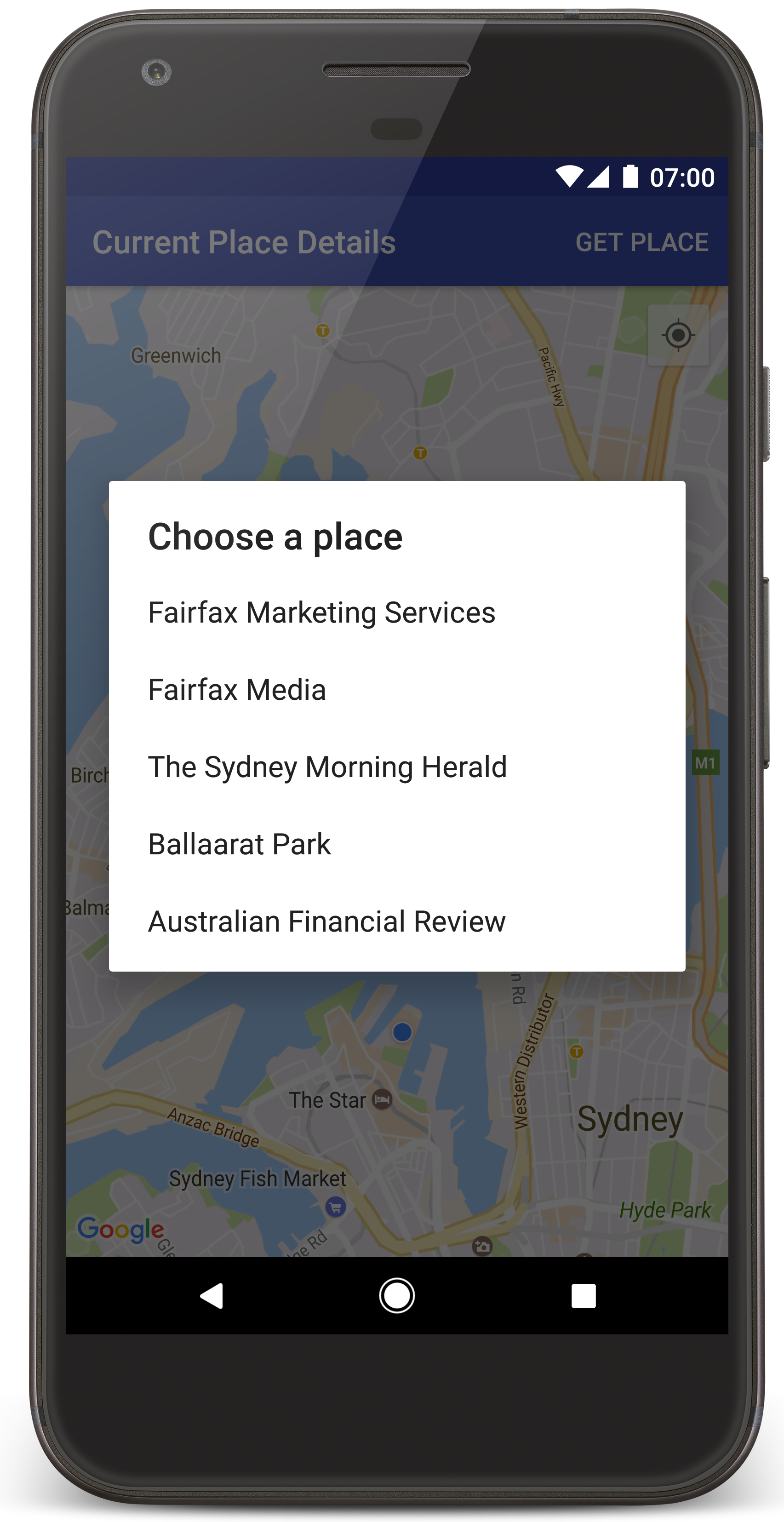
Android Studio অ্যাপ তৈরি করার জন্য Gradle-কে কল করে এবং তারপর ডিভাইস বা এমুলেটরে অ্যাপটি রান করে। আপনি এই পৃষ্ঠার ছবির মতো আপনার বর্তমান লোকেশনের চারপাশে কেন্দ্র করে থাকা একাধিক মার্কার সহ একটি ম্যাপ দেখতে পাবেন।
- আপনার বর্তমান লোকেশনের কাছাকাছি জায়গার (ব্যবসা বা অন্যান্য আগ্রহের জায়গা) তালিকা খুলতে জায়গা দেখুন বিকল্প বেছে নিন।
- তালিকা থেকে একটি জায়গা বেছে নিন। বেছে নেওয়া জায়গার জন্য ম্যাপে একটি মার্কার যোগ করা হয়েছে।
সমস্যার সমাধান:
- আপনি ম্যাপ দেখতে না পেলে, উপরে যেমন বর্ণনা করা হয়েছে, সেই অনুযায়ী আপনি API কী পেয়েছেন এবং অ্যাপে যোগ করেছেন কিনা তা চেক করুন। API কী সম্পর্কিত ত্রুটি মেসেজের জন্য Android Studio-এর Android Monitor-এ লগ চেক করুন।
- ম্যাপে যদি সিডনি হারবার ব্রিজে (অ্যাপে উল্লেখ করা ডিফল্ট লোকেশন) শুধু একটি মার্কার দেখা যায়, তাহলে অ্যাপকে লোকেশন সংক্রান্ত অনুমতি দিয়েছেন কিনা তা চেক করুন। Android অনুমতি সংক্রান্ত নির্দেশিকায় উল্লেখ করা প্যাটার্ন অনুযায়ী, রান টাইমে অ্যাপ লোকেশন সংক্রান্ত অনুমতি চায়। মনে রাখবেন, আপনি সরাসরি ডিভাইসেও অনুমতি সেট করতে পারবেন, তার জন্য সেটিংস > অ্যাপ > অ্যাপের নাম > অনুমতি > লোকেশন বিকল্প বেছে নিন। আপনার কোডে কীভাবে অনুমতি ম্যানেজ করবেন সেই সম্পর্কে বিস্তারিত জানতে, আপনার অ্যাপে লোকেশন সংক্রান্ত অনুমতি অনুরোধ করা সম্পর্কে নিচে দেওয়া নির্দেশিকা দেখুন।
- লগ দেখতে ও অ্যাপ ডিবাগ করতে Android Studio ডিবাগিং টুল ব্যবহার করুন।
কোডটি বুঝুন
টিউটোরিয়ালের এই অংশটি CurrentPlaceDetailsOnMap অ্যাপের সবচেয়ে গুরুত্বপূর্ণ অংশগুলি ব্যাখ্যা করে, যাতে আপনি বুঝতে পারেন যে কীভাবে একই ধরনের অ্যাপ তৈরি করতে হয়।
Places API ক্লায়েন্ট ইনস্ট্যান্টিয়েট করুন
Android-এর জন্য Places SDK-তে এইসব অবজেক্ট হল প্রাথমিক এন্ট্রি পয়েন্ট:
- Android-এর জন্য Places SDK-এর ক্লায়েন্ট তৈরি ও ম্যানেজ করার জন্য
Placesক্লাস ব্যবহার করা হয়। PlacesClientইন্টারফেস ডিভাইসের বর্তমান লোকেশন এবং লোকেশনের কাছাকাছি জায়গাগুলি খুঁজে বের করে।
LocationServices ইন্টারফেস হল Android লোকেশন পরিষেবার প্রধান এন্ট্রি পয়েন্ট।
API ব্যবহার করতে, আপনার ফ্র্যাগমেন্ট বা অ্যাক্টিভিটির
onCreate()
মেথডে নিম্নলিখিত ধাপগুলি অনুসরণ করুন:
Placesঅবজেক্ট শুরু করুন।PlacesClientঅবজেক্ট তৈরি করুন।FusedLocationProviderClientঅবজেক্ট তৈরি করুন।
যেমন:
Java
@Override
protected void onCreate(Bundle savedInstanceState) {
    super.onCreate(savedInstanceState);

    // ...

    // Retrieve the content view that renders the map.
    setContentView(R.layout.activity_maps);

    // Construct a PlacesClient
    Places.initialize(getApplicationContext(), getString(R.string.maps_api_key));
    placesClient = Places.createClient(this);

    // Construct a FusedLocationProviderClient.
    fusedLocationProviderClient = LocationServices.getFusedLocationProviderClient(this);
}
Kotlin
override fun onCreate(savedInstanceState: Bundle?) {
    super.onCreate(savedInstanceState)

    // ...

    // Retrieve the content view that renders the map.
    setContentView(R.layout.activity_maps)

    // Construct a PlacesClient
    Places.initialize(applicationContext, getString(R.string.maps_api_key))
    placesClient = Places.createClient(this)

    // Construct a FusedLocationProviderClient.
    fusedLocationProviderClient = LocationServices.getFusedLocationProviderClient(this)

}
লোকেশন অ্যাক্সেস সংক্রান্ত অনুমতির অনুরোধ করুন
ডিভাইসের লোকেশন নির্ধারণ করতে এবং ব্যবহারকারীকে ম্যাপে আমার লোকেশন বোতামে ট্যাপ করার অনুমতি দিতে, আপনার অ্যাপকে অবশ্যই লোকেশন সংক্রান্ত অনুমতি চাইতে হবে।
এই টিউটোরিয়ালে সেই কোড দেওয়া আছে যা সুনির্দিষ্ট লোকেশন সংক্রান্ত অনুমতি চাওয়ার জন্য প্রয়োজন। আরও বিবরণের জন্য, Android অনুমতি সংক্রান্ত নির্দেশিকা দেখুন।
আপনার Android ম্যানিফেস্টে
<manifest>এলিমেন্টের চাইল্ড হিসেবে অনুমতি যোগ করুন:<manifest xmlns:android="http://schemas.android.com/apk/res/android" package="com.example.currentplacedetailsonmap"> <uses-permission android:name="android.permission.ACCESS_FINE_LOCATION" /> </manifest>
আপনার অ্যাপে রানটাইম অনুমতির অনুরোধ করুন, যাতে ব্যবহারকারী লোকেশন সংক্রান্ত অনুমতি দিতে বা প্রত্যাখ্যান করতে পারেন। ব্যবহারকারী সুনির্দিষ্ট লোকেশন সংক্রান্ত অনুমতি দিয়েছেন কিনা তা নিম্নলিখিত কোড চেক করে। যদি না থাকে, তাহলে এটি অনুমতির জন্য অনুরোধ করে:
Java
private void getLocationPermission() { /* * Request location permission, so that we can get the location of the * device. The result of the permission request is handled by a callback, * onRequestPermissionsResult. */ if (ContextCompat.checkSelfPermission( this.getApplicationContext(), android.Manifest.permission.ACCESS_FINE_LOCATION) == PackageManager.PERMISSION_GRANTED) { locationPermissionGranted = true; } else { ActivityCompat.requestPermissions( this, new String[] {android.Manifest.permission.ACCESS_FINE_LOCATION}, PERMISSIONS_REQUEST_ACCESS_FINE_LOCATION); } }
Kotlin
private fun getLocationPermission() { /* * Request location permission, so that we can get the location of the * device. The result of the permission request is handled by a callback, * onRequestPermissionsResult. */ if (ContextCompat.checkSelfPermission( this.applicationContext, Manifest.permission.ACCESS_FINE_LOCATION, ) == PackageManager.PERMISSION_GRANTED ) { locationPermissionGranted = true } else { ActivityCompat.requestPermissions( this, arrayOf(Manifest.permission.ACCESS_FINE_LOCATION), PERMISSIONS_REQUEST_ACCESS_FINE_LOCATION, ) } }
অনুমতির অনুরোধের ফলাফল ম্যানেজ করতে
onRequestPermissionsResult()কলব্যাক ওভাররাইড করুন:Java
@Override public void onRequestPermissionsResult( int requestCode, @NonNull String[] permissions, @NonNull int[] grantResults) { locationPermissionGranted = false; if (requestCode == PERMISSIONS_REQUEST_ACCESS_FINE_LOCATION) { // If request is cancelled, the // result arrays are empty. if (grantResults.length > 0 && grantResults[0] == PackageManager.PERMISSION_GRANTED) { locationPermissionGranted = true; } } else { super.onRequestPermissionsResult(requestCode, permissions, grantResults); } updateLocationUI(); }
Kotlin
override fun onRequestPermissionsResult(requestCode: Int, permissions: Array<String>, grantResults: IntArray) { locationPermissionGranted = false when (requestCode) { PERMISSIONS_REQUEST_ACCESS_FINE_LOCATION -> { // If request is cancelled, the result arrays are empty. if (grantResults.isNotEmpty() && grantResults[0] == PackageManager.PERMISSION_GRANTED ) { locationPermissionGranted = true } } else -> super.onRequestPermissionsResult(requestCode, permissions, grantResults) } updateLocationUI() }
এই টিউটোরিয়ালের পরবর্তী বিভাগে
updateLocationUI()পদ্ধতি বর্ণনা করা হয়েছে।
ম্যাপ যোগ করুন
Android-এর জন্য Maps SDK ব্যবহার করে ম্যাপ দেখানো।
আপনার অ্যাক্টিভিটির লেআউট ফাইলে
<fragment>এলিমেন্ট যোগ করুন,activity_maps.xml। এই এলিমেন্টটি ম্যাপের জন্য কন্টেনার হিসেবে কাজ করতে এবংGoogleMapঅবজেক্টে অ্যাক্সেস প্রদান করতেSupportMapFragmentসংজ্ঞায়িত করে। টিউটোরিয়ালটি ম্যাপ ফ্র্যাগমেন্টের Android সাপোর্ট লাইব্রেরি ভার্সন ব্যবহার করে, যাতে Android ফ্রেমওয়ার্কের আগের ভার্সনের সাথে ব্যাকওয়ার্ড কম্প্যাটিবিলিটি নিশ্চিত করা যায়।<!-- Copyright 2020 Google LLC Licensed under the Apache License, Version 2.0 (the "License"); you may not use this file except in compliance with the License. You may obtain a copy of the License at http://www.apache.org/licenses/LICENSE-2.0 Unless required by applicable law or agreed to in writing, software distributed under the License is distributed on an "AS IS" BASIS, WITHOUT WARRANTIES OR CONDITIONS OF ANY KIND, either express or implied. See the License for the specific language governing permissions and limitations under the License. --> <fragment xmlns:android="http://schemas.android.com/apk/res/android" xmlns:tools="http://schemas.android.com/tools" android:id="@+id/map" android:name="com.google.android.gms.maps.SupportMapFragment" android:layout_width="match_parent" android:layout_height="match_parent" tools:context="com.example.currentplacedetailsonmap.MapsActivityCurrentPlace" />
আপনার অ্যাক্টিভিটির
onCreate()পদ্ধতিতে, লেআউট ফাইলটি কন্টেন্ট ভিউ হিসেবে সেট করুন:Java
@Override protected void onCreate(Bundle savedInstanceState) { super.onCreate(savedInstanceState); // Retrieve the content view that renders the map. setContentView(R.layout.activity_maps); }
Kotlin
override fun onCreate(savedInstanceState: Bundle?) { super.onCreate(savedInstanceState) // Retrieve the content view that renders the map. setContentView(R.layout.activity_maps) }
GoogleMapঅবজেক্ট উপলভ্য হলে ম্যাপ সেট-আপ করতে,OnMapReadyCallbackইন্টারফেস প্রয়োগ করুন এবংonMapReady()পদ্ধতি ওভাররাইড করুন:Java
@Override public void onMapReady(GoogleMap map) { this.map = map; // ... // Turn on the My Location layer and the related control on the map. updateLocationUI(); // Get the current location of the device and set the position of the map. getDeviceLocation(); }
Kotlin
override fun onMapReady(map: GoogleMap) { this.map = map // ... // Turn on the My Location layer and the related control on the map. updateLocationUI() // Get the current location of the device and set the position of the map. getDeviceLocation() }
আপনার অ্যাক্টিভিটির
onCreate()পদ্ধতিতে,FragmentManager.findFragmentById()কল করে ম্যাপ ফ্র্যাগমেন্টের হ্যান্ডেল পান। তারপর ম্যাপ কলব্যাকের জন্য রেজিস্টার করতেgetMapAsync()ব্যবহার করুন:Java
SupportMapFragment mapFragment = (SupportMapFragment) getSupportFragmentManager().findFragmentById(R.id.map); mapFragment.getMapAsync(this);
Kotlin
val mapFragment = supportFragmentManager .findFragmentById(R.id.map) as SupportMapFragment? mapFragment?.getMapAsync(this)
ম্যাপে লোকেশন কন্ট্রোল সেট করতে
updateLocationUI()মেথড লিখুন। ব্যবহারকারী লোকেশন সংক্রান্ত অনুমতি দিয়ে থাকলে, ম্যাপে 'আমার লোকেশন' লেয়ার ও সংশ্লিষ্ট কন্ট্রোল চালু করুন, অন্যথায় লেয়ার ও কন্ট্রোল বন্ধ করে দিন এবং বর্তমান লোকেশন 'কিছুই নয়' হিসেবে সেট করুন:Java
private void updateLocationUI() { if (map == null) { return; } try { if (locationPermissionGranted) { map.setMyLocationEnabled(true); map.getUiSettings().setMyLocationButtonEnabled(true); } else { map.setMyLocationEnabled(false); map.getUiSettings().setMyLocationButtonEnabled(false); lastKnownLocation = null; } } catch (SecurityException e) { Log.e("Exception: %s", e.getMessage()); } }
Kotlin
@SuppressLint("MissingPermission") private fun updateLocationUI() { if (map == null) { return } try { if (locationPermissionGranted) { map?.isMyLocationEnabled = true map?.uiSettings?.isMyLocationButtonEnabled = true } else { map?.isMyLocationEnabled = false map?.uiSettings?.isMyLocationButtonEnabled = false lastKnownLocation = null getLocationPermission() } } catch (e: SecurityException) { Log.e("Exception: %s", e.message, e) } }
Android ডিভাইসের লোকেশন পান এবং ম্যাপে পজিশন করুন
ডিভাইসের শেষ জানা লোকেশন খুঁজে পেতে ফিউজড লোকেশন প্রোভাইডার ব্যবহার করুন, তারপর ম্যাপে পজিশন করতে সেই লোকেশন ব্যবহার করুন। টিউটোরিয়ালে আপনার প্রয়োজনীয় কোড দেওয়া আছে। ডিভাইসের লোকেশন পাওয়ার ব্যাপারে আরও জানতে, Google Play পরিষেবার লোকেশন API-তে ফিউজড লোকেশন প্রোভাইডার সংক্রান্ত নির্দেশিকা দেখুন।
Java
private void getDeviceLocation() { /* * Get the best and most recent location of the device, which may be null in rare * cases when a location is not available. */ try { if (locationPermissionGranted) { Task<Location> locationResult = fusedLocationProviderClient.getLastLocation(); locationResult.addOnCompleteListener( this, new OnCompleteListener<Location>() { @Override public void onComplete(@NonNull Task<Location> task) { if (task.isSuccessful()) { // Set the map's camera position to the current location of the // device. lastKnownLocation = task.getResult(); if (lastKnownLocation != null) { map.moveCamera( CameraUpdateFactory.newLatLngZoom( new LatLng( lastKnownLocation.getLatitude(), lastKnownLocation.getLongitude()), DEFAULT_ZOOM)); } } else { Log.d(TAG, "Current location is null. Using defaults."); Log.e(TAG, "Exception: %s", task.getException()); map.moveCamera( CameraUpdateFactory.newLatLngZoom( defaultLocation, DEFAULT_ZOOM)); map.getUiSettings().setMyLocationButtonEnabled(false); } } }); } } catch (SecurityException e) { Log.e("Exception: %s", e.getMessage(), e); } }
Kotlin
@SuppressLint("MissingPermission") private fun getDeviceLocation() { /* * Get the best and most recent location of the device, which may be null in rare * cases when a location is not available. */ try { if (locationPermissionGranted) { val locationResult = fusedLocationProviderClient.lastLocation locationResult.addOnCompleteListener(this) { task -> if (task.isSuccessful) { // Set the map's camera position to the current location of the device. lastKnownLocation = task.result if (lastKnownLocation != null) { map?.moveCamera( CameraUpdateFactory.newLatLngZoom( LatLng( lastKnownLocation!!.latitude, lastKnownLocation!!.longitude, ), DEFAULT_ZOOM.toFloat(), ), ) } } else { Log.d(TAG, "Current location is null. Using defaults.") Log.e(TAG, "Exception: %s", task.exception) map?.moveCamera( CameraUpdateFactory .newLatLngZoom(defaultLocation, DEFAULT_ZOOM.toFloat()), ) map?.uiSettings?.isMyLocationButtonEnabled = false } } } } catch (e: SecurityException) { Log.e("Exception: %s", e.message, e) } }
বর্তমান জায়গা সম্পর্কে জানুন
ডিভাইসের বর্তমান লোকেশনে সম্ভাব্য জায়গার তালিকা পেতে Android-এর জন্য Places SDK ব্যবহার করুন। এই প্রসঙ্গে, জায়গা বলতে কোনও ব্যবসা বা অন্য কোনও উল্লেখযোগ্য স্থানকে বোঝানো হয়।
ব্যবহারকারী জায়গা পান বোতামে ক্লিক করলে, এই টিউটোরিয়াল বর্তমান জায়গাটি পায়। এটি ব্যবহারকারীকে বেছে নেওয়ার জন্য সম্ভাব্য জায়গার একটি তালিকা অফার করে, তারপর বেছে নেওয়া জায়গার লোকেশনে ম্যাপে একটি মার্কার যোগ করে। Android-এর জন্য Places SDK-এর সাথে ইন্টার্যাক্ট করার জন্য প্রয়োজনীয় কোড টিউটোরিয়ালে দেওয়া আছে। আরও তথ্যের জন্য, বর্তমান জায়গা পাওয়ার নির্দেশিকা দেখুন।
- বিকল্পের মেনুর জন্য একটি লেআউট ফাইল (
current_place_menu.xml) তৈরি করুন এবং বিকল্পের মেনু সেট-আপ করতেonCreateOptionsMenu()পদ্ধতি ওভাররাইড করুন। কোডের জন্য সাথে থাকা স্যাম্পেল অ্যাপ দেখুন। - ব্যবহারকারী জায়গা পান বিকল্পে ক্লিক করলে,
বর্তমান জায়গা পেতে
onOptionsItemSelected()পদ্ধতি ওভাররাইড করুন:Java
@Override public boolean onOptionsItemSelected(MenuItem item) { if (item.getItemId() == R.id.option_get_place) { showCurrentPlace(); } return true; }
Kotlin
override fun onOptionsItemSelected(item: MenuItem): Boolean { if (item.itemId == R.id.option_get_place) { showCurrentPlace() } return true }
ডিভাইসের বর্তমান লোকেশনে সম্ভাব্য জায়গার তালিকা পেতে
showCurrentPlace()পদ্ধতি তৈরি করুন:Java
private void showCurrentPlace() { if (map == null) { return; } if (locationPermissionGranted) { // Use fields to define the data types to return. List<Place.Field> placeFields = Arrays.asList( Place.Field.DISPLAY_NAME, Place.Field.FORMATTED_ADDRESS, Place.Field.LOCATION); // Search around the device's last-known location, falling back to the center of the // map if the location is not available yet. LatLng center = lastKnownLocation != null ? new LatLng( lastKnownLocation.getLatitude(), lastKnownLocation.getLongitude()) : map.getCameraPosition().target; CircularBounds searchArea = CircularBounds.newInstance(center, SEARCH_RADIUS_METERS); // Use the builder to create a SearchNearbyRequest that returns the closest places // first. SearchNearbyRequest request = SearchNearbyRequest.builder(searchArea, placeFields) .setMaxResultCount(M_MAX_ENTRIES) .setRankPreference(SearchNearbyRequest.RankPreference.DISTANCE) .build(); // Get the likely places - that is, the businesses and other points of interest that // are closest to the device's current location. final Task<SearchNearbyResponse> placeResult = placesClient.searchNearby(request); placeResult.addOnCompleteListener( new OnCompleteListener<SearchNearbyResponse>() { @Override public void onComplete(@NonNull Task<SearchNearbyResponse> task) { if (task.isSuccessful() && task.getResult() != null) { List<Place> likelyPlaces = task.getResult().getPlaces(); // Set the count, handling cases where less than 5 entries are // returned. int count = Math.min(likelyPlaces.size(), M_MAX_ENTRIES); likelyPlaceNames = new String[count]; likelyPlaceAddresses = new String[count]; likelyPlaceAttributions = new List[count]; likelyPlaceLatLngs = new LatLng[count]; for (int i = 0; i < count; i++) { // Build a list of likely places to show the user. Place place = likelyPlaces.get(i); likelyPlaceNames[i] = place.getDisplayName(); likelyPlaceAddresses[i] = place.getFormattedAddress(); likelyPlaceAttributions[i] = place.getAttributions(); likelyPlaceLatLngs[i] = place.getLocation(); } // Show a dialog offering the user the list of likely places, and // add a // marker at the selected place. MapsActivityCurrentPlace.this.openPlacesDialog(); } else { Log.e(TAG, "Exception: %s", task.getException()); } } }); } else { // The user has not granted permission. Log.i(TAG, "The user did not grant location permission."); // Add a default marker, because the user hasn't selected a place. map.addMarker( new MarkerOptions() .title(getString(R.string.default_info_title)) .position(defaultLocation) .snippet(getString(R.string.default_info_snippet))); // Prompt the user for permission. getLocationPermission(); } }
Kotlin
private fun showCurrentPlace() { val map = map ?: return if (locationPermissionGranted) { // Use fields to define the data types to return. val placeFields = listOf( Place.Field.DISPLAY_NAME, Place.Field.FORMATTED_ADDRESS, Place.Field.LOCATION, ) // Search around the device's last-known location, falling back to the center of // the map if the location is not available yet. val center = lastKnownLocation?.let { LatLng(it.latitude, it.longitude) } ?: map.cameraPosition.target val searchArea = CircularBounds.newInstance(center, SEARCH_RADIUS_METERS) // Use the builder to create a SearchNearbyRequest that returns the closest places // first. val request = SearchNearbyRequest.builder(searchArea, placeFields) .setMaxResultCount(M_MAX_ENTRIES) .setRankPreference(SearchNearbyRequest.RankPreference.DISTANCE) .build() // Get the likely places - that is, the businesses and other points of interest that // are closest to the device's current location. val placeResult = placesClient.searchNearby(request) placeResult.addOnCompleteListener { task -> if (task.isSuccessful && task.result != null) { val likelyPlaces = task.result.places.take(M_MAX_ENTRIES) // Build a list of likely places to show the user. likelyPlaceNames = likelyPlaces.map { it.displayName }.toTypedArray() likelyPlaceAddresses = likelyPlaces.map { it.formattedAddress }.toTypedArray() likelyPlaceAttributions = likelyPlaces.map { it.attributions }.toTypedArray() likelyPlaceLatLngs = likelyPlaces.map { it.location }.toTypedArray() // Show a dialog offering the user the list of likely places, and add a // marker at the selected place. openPlacesDialog() } else { Log.e(TAG, "Exception: %s", task.exception) } } } else { // The user has not granted permission. Log.i(TAG, "The user did not grant location permission.") // Add a default marker, because the user hasn't selected a place. map.addMarker( MarkerOptions() .title(getString(R.string.default_info_title)) .position(defaultLocation) .snippet(getString(R.string.default_info_snippet)), ) // Prompt the user for permission. getLocationPermission() } }
একটি ফর্ম দেখানোর জন্য
openPlacesDialog()পদ্ধতি তৈরি করুন যা ব্যবহারকারীকে সম্ভাব্য স্থানের তালিকা থেকে একটি স্থান বেছে নেওয়ার অনুমতি দেয়। বেছে নেওয়া জায়গার জন্য ম্যাপে চিহ্ন যোগ করুন। মার্কার কন্টেন্টে জায়গার নাম ও ঠিকানা এবং API-এর মাধ্যমে প্রদান করা যেকোনও অ্যাট্রিবিউশন অন্তর্ভুক্ত থাকে:Java
private void openPlacesDialog() { // Ask the user to choose the place where they are now. DialogInterface.OnClickListener listener = new DialogInterface.OnClickListener() { @Override public void onClick(DialogInterface dialog, int which) { // The "which" argument contains the position of the selected item. LatLng markerLatLng = likelyPlaceLatLngs[which]; String markerSnippet = likelyPlaceAddresses[which]; if (likelyPlaceAttributions[which] != null) { markerSnippet = markerSnippet + "\n" + likelyPlaceAttributions[which]; } // Add a marker for the selected place, with an info window // showing information about that place. map.addMarker( new MarkerOptions() .title(likelyPlaceNames[which]) .position(markerLatLng) .snippet(markerSnippet)); // Position the map's camera at the location of the marker. map.moveCamera( CameraUpdateFactory.newLatLngZoom(markerLatLng, DEFAULT_ZOOM)); } }; // Display the dialog. AlertDialog dialog = new AlertDialog.Builder(this) .setTitle(R.string.pick_place) .setItems(likelyPlaceNames, listener) .show(); }
Kotlin
private fun openPlacesDialog() { // Ask the user to choose the place where they are now. val listener = DialogInterface.OnClickListener { dialog, which -> // The "which" argument contains the position of the selected item. val markerLatLng = likelyPlaceLatLngs[which] var markerSnippet = likelyPlaceAddresses[which] if (likelyPlaceAttributions[which] != null) { markerSnippet = """ $markerSnippet ${likelyPlaceAttributions[which]} """.trimIndent() } if (markerLatLng == null) { return@OnClickListener } // Add a marker for the selected place, with an info window // showing information about that place. map?.addMarker( MarkerOptions() .title(likelyPlaceNames[which]) .position(markerLatLng) .snippet(markerSnippet), ) // Position the map's camera at the location of the marker. map?.moveCamera( CameraUpdateFactory.newLatLngZoom( markerLatLng, DEFAULT_ZOOM.toFloat(), ), ) } // Display the dialog. AlertDialog.Builder(this) .setTitle(R.string.pick_place) .setItems(likelyPlaceNames, listener) .show() }
তথ্য উইন্ডো কন্টেন্টের জন্য একটি কাস্টম লেআউট তৈরি করুন। এর ফলে তথ্য উইন্ডোতে একাধিক লাইনের কন্টেন্ট দেখানো সম্ভব হয়। প্রথমে, একটি XML লেআউট ফাইল,
custom_info_contents.xmlযোগ করুন, যাতে তথ্য উইন্ডোর শীর্ষকের জন্য একটি টেক্সট ভিউ এবং স্নিপেটের জন্য আরেকটি টেক্সট ভিউ (অর্থাৎ, তথ্য উইন্ডোর টেক্সট কন্টেন্ট) থাকে:<?xml version="1.0" encoding="utf-8"?> <!-- Copyright 2020 Google LLC Licensed under the Apache License, Version 2.0 (the "License"); you may not use this file except in compliance with the License. You may obtain a copy of the License at http://www.apache.org/licenses/LICENSE-2.0 Unless required by applicable law or agreed to in writing, software distributed under the License is distributed on an "AS IS" BASIS, WITHOUT WARRANTIES OR CONDITIONS OF ANY KIND, either express or implied. See the License for the specific language governing permissions and limitations under the License. --> <LinearLayout xmlns:android="http://schemas.android.com/apk/res/android" android:layout_width="wrap_content" android:layout_height="wrap_content" android:layoutDirection="locale" android:orientation="vertical"> <TextView android:id="@+id/title" android:layout_width="wrap_content" android:layout_height="wrap_content" android:layout_gravity="center_horizontal" android:textColor="#ff000000" android:textStyle="bold" /> <TextView android:id="@+id/snippet" android:layout_width="wrap_content" android:layout_height="wrap_content" android:textColor="#ff7f7f7f" /> </LinearLayout>
লে-আউট ইনফ্লেট করতে এবং তথ্য উইন্ডোর কন্টেন্ট লোড করতে
InfoWindowAdapterইন্টারফেস প্রয়োগ করুন:Java
// Use a custom info window adapter to handle multiple lines of text in the // info window contents. this.map.setInfoWindowAdapter( new GoogleMap.InfoWindowAdapter() { @Override // Return null here, so that getInfoContents() is called next. public View getInfoWindow(Marker arg0) { return null; } @Override public View getInfoContents(Marker marker) { // Inflate the layouts for the info window, title and snippet. View infoWindow = getLayoutInflater() .inflate( R.layout.custom_info_contents, (FrameLayout) findViewById(R.id.map), false); TextView title = infoWindow.findViewById(R.id.title); title.setText(marker.getTitle()); TextView snippet = infoWindow.findViewById(R.id.snippet); snippet.setText(marker.getSnippet()); return infoWindow; } });
Kotlin
// Use a custom info window adapter to handle multiple lines of text in the // info window contents. this.map?.setInfoWindowAdapter(object : InfoWindowAdapter { // Return null here, so that getInfoContents() is called next. override fun getInfoWindow(arg0: Marker): View? = null override fun getInfoContents(marker: Marker): View { // Inflate the layouts for the info window, title and snippet. val infoWindow = layoutInflater.inflate( R.layout.custom_info_contents, findViewById<FrameLayout>(R.id.map), false, ) val title = infoWindow.findViewById<TextView>(R.id.title) title.text = marker.title val snippet = infoWindow.findViewById<TextView>(R.id.snippet) snippet.text = marker.snippet return infoWindow } })
ম্যাপের অবস্থা সেভ করুন
ম্যাপের ক্যামেরা পজিশন ও ডিভাইসের লোকেশন সেভ করুন। কোনও ব্যবহারকারী Android ডিভাইস ঘোরালে বা কনফিগারেশনে পরিবর্তন করলে, Android ফ্রেমওয়ার্ক ম্যাপ অ্যাক্টিভিটি নষ্ট করে আবার তৈরি করে। ব্যবহারকারীর অভিজ্ঞতা যাতে মসৃণ হয় তা নিশ্চিত করতে, প্রাসঙ্গিক অ্যাপ্লিকেশন স্টেট স্টোর করে রাখা এবং প্রয়োজন হলে তা রিস্টোর করা ভাল।
ম্যাপের স্ট্যাটাস সেভ করার জন্য প্রয়োজনীয় সব কোড এই টিউটোরিয়ালে দেওয়া আছে। আরও
বিবরণের জন্য, savedInstanceState
বান্ডেল সংক্রান্ত নির্দেশিকা দেখুন।
আপনার ম্যাপ অ্যাক্টিভিটিতে, অ্যাক্টিভিটি স্টেট স্টোর করার জন্য কী ভ্যালু সেট-আপ করুন:
Java
private static final String KEY_CAMERA_POSITION = "camera_position"; private static final String KEY_LOCATION = "location";
Kotlin
private const val KEY_CAMERA_POSITION = "camera_position" private const val KEY_LOCATION = "location"
অ্যাক্টিভিটি পজ করার সময় স্ট্যাটাস সেভ করতে
onSaveInstanceState()কলব্যাক প্রয়োগ করুন:Java
@Override protected void onSaveInstanceState(Bundle outState) { if (map != null) { outState.putParcelable(KEY_CAMERA_POSITION, map.getCameraPosition()); outState.putParcelable(KEY_LOCATION, lastKnownLocation); } super.onSaveInstanceState(outState); }
Kotlin
override fun onSaveInstanceState(outState: Bundle) { map?.let { map -> outState.putParcelable(KEY_CAMERA_POSITION, map.cameraPosition) outState.putParcelable(KEY_LOCATION, lastKnownLocation) } super.onSaveInstanceState(outState) }
আপনার অ্যাক্টিভিটির
onCreate()পদ্ধতিতে, ডিভাইসের লোকেশন এবং ম্যাপের ক্যামেরা পজিশন আগে সেভ করা থাকলে তা ফিরিয়ে আনুন:Java
// Retrieve location and camera position from saved instance state. if (savedInstanceState != null) { lastKnownLocation = savedInstanceState.getParcelable(KEY_LOCATION); cameraPosition = savedInstanceState.getParcelable(KEY_CAMERA_POSITION); }
Kotlin
if (savedInstanceState != null) { lastKnownLocation = savedInstanceState.getParcelable(KEY_LOCATION) cameraPosition = savedInstanceState.getParcelable(KEY_CAMERA_POSITION) }