

Android cihazın mevcut konumunu bulmayı ve bu konumdaki yerin (işletme veya diğer önemli yerler) ayrıntılarını görüntülemeyi öğrenin. Android için Haritalar SDK'sı, Android için Places SDK ve Google Play Hizmetleri konum API'lerindeki çok kaynaklı konum sağlayıcıyı kullanarak Android uygulaması oluşturmak için bu eğitimdeki adımları uygulayın.
Kodu alın
Google Haritalar Android API v2 Örnekleri deposunu GitHub'dan kopyalayın veya indirin.
Etkinliğin Java sürümünü görüntüleyin:
// Copyright 2020 Google LLC // // Licensed under the Apache License, Version 2.0 (the "License"); // you may not use this file except in compliance with the License. // You may obtain a copy of the License at // // http://www.apache.org/licenses/LICENSE-2.0 // // Unless required by applicable law or agreed to in writing, software // distributed under the License is distributed on an "AS IS" BASIS, // WITHOUT WARRANTIES OR CONDITIONS OF ANY KIND, either express or implied. // See the License for the specific language governing permissions and // limitations under the License. package com.example.currentplacedetailsonmap; import android.content.DialogInterface; import android.content.pm.PackageManager; import android.location.Location; import android.os.Bundle; import android.util.Log; import android.view.Menu; import android.view.MenuItem; import android.view.View; import android.widget.FrameLayout; import android.widget.TextView; import androidx.annotation.NonNull; import androidx.appcompat.app.AlertDialog; import androidx.appcompat.app.AppCompatActivity; import androidx.core.app.ActivityCompat; import androidx.core.content.ContextCompat; import com.google.android.gms.location.FusedLocationProviderClient; import com.google.android.gms.location.LocationServices; import com.google.android.gms.maps.CameraUpdateFactory; import com.google.android.gms.maps.GoogleMap; import com.google.android.gms.maps.OnMapReadyCallback; import com.google.android.gms.maps.SupportMapFragment; import com.google.android.gms.maps.model.CameraPosition; import com.google.android.gms.maps.model.LatLng; import com.google.android.gms.maps.model.Marker; import com.google.android.gms.maps.model.MarkerOptions; import com.google.android.gms.tasks.OnCompleteListener; import com.google.android.gms.tasks.Task; import com.google.android.libraries.places.api.Places; import com.google.android.libraries.places.api.model.CircularBounds; import com.google.android.libraries.places.api.model.Place; import com.google.android.libraries.places.api.net.PlacesClient; import com.google.android.libraries.places.api.net.SearchNearbyRequest; import com.google.android.libraries.places.api.net.SearchNearbyResponse; import java.util.Arrays; import java.util.List; /** An activity that displays a map showing the place at the device's current location. */ public class MapsActivityCurrentPlace extends AppCompatActivity implements OnMapReadyCallback { private static final String TAG = MapsActivityCurrentPlace.class.getSimpleName(); private GoogleMap map; private CameraPosition cameraPosition; // The entry point to the Places API. private PlacesClient placesClient; // The entry point to the Fused Location Provider. private FusedLocationProviderClient fusedLocationProviderClient; // A default location (Sydney, Australia) and default zoom to use when location permission is // not granted. private final LatLng defaultLocation = new LatLng(-33.8523341, 151.2106085); private static final int DEFAULT_ZOOM = 15; private static final int PERMISSIONS_REQUEST_ACCESS_FINE_LOCATION = 1; private boolean locationPermissionGranted; // The geographical location where the device is currently located. That is, the last-known // location retrieved by the Fused Location Provider. private Location lastKnownLocation; // Keys for storing activity state. private static final String KEY_CAMERA_POSITION = "camera_position"; private static final String KEY_LOCATION = "location"; // Used for selecting the current place. private static final int M_MAX_ENTRIES = 5; private static final double SEARCH_RADIUS_METERS = 100.0; private String[] likelyPlaceNames; private String[] likelyPlaceAddresses; private List[] likelyPlaceAttributions; private LatLng[] likelyPlaceLatLngs; @Override protected void onCreate(Bundle savedInstanceState) { super.onCreate(savedInstanceState); // Retrieve location and camera position from saved instance state. if (savedInstanceState != null) { lastKnownLocation = savedInstanceState.getParcelable(KEY_LOCATION); cameraPosition = savedInstanceState.getParcelable(KEY_CAMERA_POSITION); } // Retrieve the content view that renders the map. setContentView(R.layout.activity_maps); // Construct a PlacesClient Places.initializeWithNewPlacesApiEnabled(getApplicationContext(), BuildConfig.MAPS_API_KEY); placesClient = Places.createClient(this); // Construct a FusedLocationProviderClient. fusedLocationProviderClient = LocationServices.getFusedLocationProviderClient(this); // Build the map. SupportMapFragment mapFragment = (SupportMapFragment) getSupportFragmentManager().findFragmentById(R.id.map); mapFragment.getMapAsync(this); } /** Saves the state of the map when the activity is paused. */ @Override protected void onSaveInstanceState(Bundle outState) { if (map != null) { outState.putParcelable(KEY_CAMERA_POSITION, map.getCameraPosition()); outState.putParcelable(KEY_LOCATION, lastKnownLocation); } super.onSaveInstanceState(outState); } /** * Sets up the options menu. * * @param menu The options menu. * @return Boolean. */ @Override public boolean onCreateOptionsMenu(Menu menu) { getMenuInflater().inflate(R.menu.current_place_menu, menu); return true; } /** * Handles a click on the menu option to get a place. * * @param item The menu item to handle. * @return Boolean. */ @Override public boolean onOptionsItemSelected(MenuItem item) { if (item.getItemId() == R.id.option_get_place) { showCurrentPlace(); } return true; } /** * Manipulates the map when it's available. This callback is triggered when the map is ready to * be used. */ @Override public void onMapReady(GoogleMap map) { this.map = map; // Use a custom info window adapter to handle multiple lines of text in the // info window contents. this.map.setInfoWindowAdapter( new GoogleMap.InfoWindowAdapter() { @Override // Return null here, so that getInfoContents() is called next. public View getInfoWindow(Marker arg0) { return null; } @Override public View getInfoContents(Marker marker) { // Inflate the layouts for the info window, title and snippet. View infoWindow = getLayoutInflater() .inflate( R.layout.custom_info_contents, (FrameLayout) findViewById(R.id.map), false); TextView title = infoWindow.findViewById(R.id.title); title.setText(marker.getTitle()); TextView snippet = infoWindow.findViewById(R.id.snippet); snippet.setText(marker.getSnippet()); return infoWindow; } }); // Prompt the user for permission. getLocationPermission(); // Turn on the My Location layer and the related control on the map. updateLocationUI(); // Get the current location of the device and set the position of the map. getDeviceLocation(); } /** Gets the current location of the device, and positions the map's camera. */ private void getDeviceLocation() { /* * Get the best and most recent location of the device, which may be null in rare * cases when a location is not available. */ try { if (locationPermissionGranted) { Task<Location> locationResult = fusedLocationProviderClient.getLastLocation(); locationResult.addOnCompleteListener( this, new OnCompleteListener<Location>() { @Override public void onComplete(@NonNull Task<Location> task) { if (task.isSuccessful()) { // Set the map's camera position to the current location of the // device. lastKnownLocation = task.getResult(); if (lastKnownLocation != null) { map.moveCamera( CameraUpdateFactory.newLatLngZoom( new LatLng( lastKnownLocation.getLatitude(), lastKnownLocation.getLongitude()), DEFAULT_ZOOM)); } } else { Log.d(TAG, "Current location is null. Using defaults."); Log.e(TAG, "Exception: %s", task.getException()); map.moveCamera( CameraUpdateFactory.newLatLngZoom( defaultLocation, DEFAULT_ZOOM)); map.getUiSettings().setMyLocationButtonEnabled(false); } } }); } } catch (SecurityException e) { Log.e("Exception: %s", e.getMessage(), e); } } /** Prompts the user for permission to use the device location. */ private void getLocationPermission() { /* * Request location permission, so that we can get the location of the * device. The result of the permission request is handled by a callback, * onRequestPermissionsResult. */ if (ContextCompat.checkSelfPermission( this.getApplicationContext(), android.Manifest.permission.ACCESS_FINE_LOCATION) == PackageManager.PERMISSION_GRANTED) { locationPermissionGranted = true; } else { ActivityCompat.requestPermissions( this, new String[] {android.Manifest.permission.ACCESS_FINE_LOCATION}, PERMISSIONS_REQUEST_ACCESS_FINE_LOCATION); } } /** Handles the result of the request for location permissions. */ @Override public void onRequestPermissionsResult( int requestCode, @NonNull String[] permissions, @NonNull int[] grantResults) { locationPermissionGranted = false; if (requestCode == PERMISSIONS_REQUEST_ACCESS_FINE_LOCATION) { // If request is cancelled, the // result arrays are empty. if (grantResults.length > 0 && grantResults[0] == PackageManager.PERMISSION_GRANTED) { locationPermissionGranted = true; } } else { super.onRequestPermissionsResult(requestCode, permissions, grantResults); } updateLocationUI(); } /** * Prompts the user to select the current place from a list of likely places, and shows the * current place on the map - provided the user has granted location permission. */ private void showCurrentPlace() { if (map == null) { return; } if (locationPermissionGranted) { // Use fields to define the data types to return. List<Place.Field> placeFields = Arrays.asList( Place.Field.DISPLAY_NAME, Place.Field.FORMATTED_ADDRESS, Place.Field.LOCATION); // Search around the device's last-known location, falling back to the center of the // map if the location is not available yet. LatLng center = lastKnownLocation != null ? new LatLng( lastKnownLocation.getLatitude(), lastKnownLocation.getLongitude()) : map.getCameraPosition().target; CircularBounds searchArea = CircularBounds.newInstance(center, SEARCH_RADIUS_METERS); // Use the builder to create a SearchNearbyRequest that returns the closest places // first. SearchNearbyRequest request = SearchNearbyRequest.builder(searchArea, placeFields) .setMaxResultCount(M_MAX_ENTRIES) .setRankPreference(SearchNearbyRequest.RankPreference.DISTANCE) .build(); // Get the likely places - that is, the businesses and other points of interest that // are closest to the device's current location. final Task<SearchNearbyResponse> placeResult = placesClient.searchNearby(request); placeResult.addOnCompleteListener( new OnCompleteListener<SearchNearbyResponse>() { @Override public void onComplete(@NonNull Task<SearchNearbyResponse> task) { if (task.isSuccessful() && task.getResult() != null) { List<Place> likelyPlaces = task.getResult().getPlaces(); // Set the count, handling cases where less than 5 entries are // returned. int count = Math.min(likelyPlaces.size(), M_MAX_ENTRIES); likelyPlaceNames = new String[count]; likelyPlaceAddresses = new String[count]; likelyPlaceAttributions = new List[count]; likelyPlaceLatLngs = new LatLng[count]; for (int i = 0; i < count; i++) { // Build a list of likely places to show the user. Place place = likelyPlaces.get(i); likelyPlaceNames[i] = place.getDisplayName(); likelyPlaceAddresses[i] = place.getFormattedAddress(); likelyPlaceAttributions[i] = place.getAttributions(); likelyPlaceLatLngs[i] = place.getLocation(); } // Show a dialog offering the user the list of likely places, and // add a // marker at the selected place. MapsActivityCurrentPlace.this.openPlacesDialog(); } else { Log.e(TAG, "Exception: %s", task.getException()); } } }); } else { // The user has not granted permission. Log.i(TAG, "The user did not grant location permission."); // Add a default marker, because the user hasn't selected a place. map.addMarker( new MarkerOptions() .title(getString(R.string.default_info_title)) .position(defaultLocation) .snippet(getString(R.string.default_info_snippet))); // Prompt the user for permission. getLocationPermission(); } } /** Displays a form allowing the user to select a place from a list of likely places. */ private void openPlacesDialog() { // Ask the user to choose the place where they are now. DialogInterface.OnClickListener listener = new DialogInterface.OnClickListener() { @Override public void onClick(DialogInterface dialog, int which) { // The "which" argument contains the position of the selected item. LatLng markerLatLng = likelyPlaceLatLngs[which]; String markerSnippet = likelyPlaceAddresses[which]; if (likelyPlaceAttributions[which] != null) { markerSnippet = markerSnippet + "\n" + likelyPlaceAttributions[which]; } // Add a marker for the selected place, with an info window // showing information about that place. map.addMarker( new MarkerOptions() .title(likelyPlaceNames[which]) .position(markerLatLng) .snippet(markerSnippet)); // Position the map's camera at the location of the marker. map.moveCamera( CameraUpdateFactory.newLatLngZoom(markerLatLng, DEFAULT_ZOOM)); } }; // Display the dialog. AlertDialog dialog = new AlertDialog.Builder(this) .setTitle(R.string.pick_place) .setItems(likelyPlaceNames, listener) .show(); } /** Updates the map's UI settings based on whether the user has granted location permission. */ private void updateLocationUI() { if (map == null) { return; } try { if (locationPermissionGranted) { map.setMyLocationEnabled(true); map.getUiSettings().setMyLocationButtonEnabled(true); } else { map.setMyLocationEnabled(false); map.getUiSettings().setMyLocationButtonEnabled(false); lastKnownLocation = null; } } catch (SecurityException e) { Log.e("Exception: %s", e.getMessage()); } } }
Etkinliğin Kotlin sürümünü görüntüleyin:
    // Copyright 2020 Google LLC
//
// Licensed under the Apache License, Version 2.0 (the "License");
// you may not use this file except in compliance with the License.
// You may obtain a copy of the License at
//
//      http://www.apache.org/licenses/LICENSE-2.0
//
// Unless required by applicable law or agreed to in writing, software
// distributed under the License is distributed on an "AS IS" BASIS,
// WITHOUT WARRANTIES OR CONDITIONS OF ANY KIND, either express or implied.
// See the License for the specific language governing permissions and
// limitations under the License.
package com.example.currentplacedetailsonmap

import android.Manifest
import android.annotation.SuppressLint
import android.content.DialogInterface
import android.content.pm.PackageManager
import android.location.Location
import android.os.Bundle
import android.util.Log
import android.view.Menu
import android.view.MenuItem
import android.view.View
import android.widget.FrameLayout
import android.widget.TextView
import androidx.appcompat.app.AlertDialog
import androidx.appcompat.app.AppCompatActivity
import androidx.core.app.ActivityCompat
import androidx.core.content.ContextCompat
import com.google.android.gms.location.FusedLocationProviderClient
import com.google.android.gms.location.LocationServices
import com.google.android.gms.maps.CameraUpdateFactory
import com.google.android.gms.maps.GoogleMap
import com.google.android.gms.maps.GoogleMap.InfoWindowAdapter
import com.google.android.gms.maps.OnMapReadyCallback
import com.google.android.gms.maps.SupportMapFragment
import com.google.android.gms.maps.model.CameraPosition
import com.google.android.gms.maps.model.LatLng
import com.google.android.gms.maps.model.Marker
import com.google.android.gms.maps.model.MarkerOptions
import com.google.android.libraries.places.api.Places
import com.google.android.libraries.places.api.model.CircularBounds
import com.google.android.libraries.places.api.model.Place
import com.google.android.libraries.places.api.net.PlacesClient
import com.google.android.libraries.places.api.net.SearchNearbyRequest

/**
 * An activity that displays a map showing the place at the device's current location.
 */
class MapsActivityCurrentPlace :
    AppCompatActivity(),
    OnMapReadyCallback {
    private var map: GoogleMap? = null
    private var cameraPosition: CameraPosition? = null

    // The entry point to the Places API.
    private lateinit var placesClient: PlacesClient

    // The entry point to the Fused Location Provider.
    private lateinit var fusedLocationProviderClient: FusedLocationProviderClient

    // A default location (Sydney, Australia) and default zoom to use when location permission is
    // not granted.
    private val defaultLocation = LatLng(-33.8523341, 151.2106085)
    private var locationPermissionGranted = false

    // The geographical location where the device is currently located. That is, the last-known
    // location retrieved by the Fused Location Provider.
    private var lastKnownLocation: Location? = null
    private var likelyPlaceNames: Array<String?> = arrayOfNulls(0)
    private var likelyPlaceAddresses: Array<String?> = arrayOfNulls(0)
    private var likelyPlaceAttributions: Array<List<*>?> = arrayOfNulls(0)
    private var likelyPlaceLatLngs: Array<LatLng?> = arrayOfNulls(0)

    override fun onCreate(savedInstanceState: Bundle?) {
        super.onCreate(savedInstanceState)

        // Retrieve location and camera position from saved instance state.
        if (savedInstanceState != null) {
            lastKnownLocation = savedInstanceState.getParcelable(KEY_LOCATION)
            cameraPosition = savedInstanceState.getParcelable(KEY_CAMERA_POSITION)
        }

        // Retrieve the content view that renders the map.
        setContentView(R.layout.activity_maps)

        // Construct a PlacesClient
        Places.initializeWithNewPlacesApiEnabled(applicationContext, BuildConfig.MAPS_API_KEY)
        placesClient = Places.createClient(this)

        // Construct a FusedLocationProviderClient.
        fusedLocationProviderClient = LocationServices.getFusedLocationProviderClient(this)

        // Build the map.
        val mapFragment = supportFragmentManager
            .findFragmentById(R.id.map) as SupportMapFragment?
        mapFragment?.getMapAsync(this)
    }

    /**
     * Saves the state of the map when the activity is paused.
     */
    override fun onSaveInstanceState(outState: Bundle) {
        map?.let { map ->
            outState.putParcelable(KEY_CAMERA_POSITION, map.cameraPosition)
            outState.putParcelable(KEY_LOCATION, lastKnownLocation)
        }
        super.onSaveInstanceState(outState)
    }

    /**
     * Sets up the options menu.
     * @param menu The options menu.
     * @return Boolean.
     */
    override fun onCreateOptionsMenu(menu: Menu): Boolean {
        menuInflater.inflate(R.menu.current_place_menu, menu)
        return true
    }

    /**
     * Handles a click on the menu option to get a place.
     * @param item The menu item to handle.
     * @return Boolean.
     */
    override fun onOptionsItemSelected(item: MenuItem): Boolean {
        if (item.itemId == R.id.option_get_place) {
            showCurrentPlace()
        }
        return true
    }

    /**
     * Manipulates the map when it's available.
     * This callback is triggered when the map is ready to be used.
     */
    override fun onMapReady(map: GoogleMap) {
        this.map = map

        // Use a custom info window adapter to handle multiple lines of text in the
        // info window contents.
        this.map?.setInfoWindowAdapter(object : InfoWindowAdapter {
            // Return null here, so that getInfoContents() is called next.
            override fun getInfoWindow(arg0: Marker): View? = null

            override fun getInfoContents(marker: Marker): View {
                // Inflate the layouts for the info window, title and snippet.
                val infoWindow = layoutInflater.inflate(
                    R.layout.custom_info_contents,
                    findViewById<FrameLayout>(R.id.map),
                    false,
                )
                val title = infoWindow.findViewById<TextView>(R.id.title)
                title.text = marker.title
                val snippet = infoWindow.findViewById<TextView>(R.id.snippet)
                snippet.text = marker.snippet
                return infoWindow
            }
        })

        // Prompt the user for permission.
        getLocationPermission()

        // Turn on the My Location layer and the related control on the map.
        updateLocationUI()

        // Get the current location of the device and set the position of the map.
        getDeviceLocation()
    }

    /**
     * Gets the current location of the device, and positions the map's camera.
     */
    @SuppressLint("MissingPermission")
    private fun getDeviceLocation() {
        /*
         * Get the best and most recent location of the device, which may be null in rare
         * cases when a location is not available.
         */
        try {
            if (locationPermissionGranted) {
                val locationResult = fusedLocationProviderClient.lastLocation
                locationResult.addOnCompleteListener(this) { task ->
                    if (task.isSuccessful) {
                        // Set the map's camera position to the current location of the device.
                        lastKnownLocation = task.result
                        if (lastKnownLocation != null) {
                            map?.moveCamera(
                                CameraUpdateFactory.newLatLngZoom(
                                    LatLng(
                                        lastKnownLocation!!.latitude,
                                        lastKnownLocation!!.longitude,
                                    ),
                                    DEFAULT_ZOOM.toFloat(),
                                ),
                            )
                        }
                    } else {
                        Log.d(TAG, "Current location is null. Using defaults.")
                        Log.e(TAG, "Exception: %s", task.exception)
                        map?.moveCamera(
                            CameraUpdateFactory
                                .newLatLngZoom(defaultLocation, DEFAULT_ZOOM.toFloat()),
                        )
                        map?.uiSettings?.isMyLocationButtonEnabled = false
                    }
                }
            }
        } catch (e: SecurityException) {
            Log.e("Exception: %s", e.message, e)
        }
    }

    /**
     * Prompts the user for permission to use the device location.
     */
    private fun getLocationPermission() {
        /*
         * Request location permission, so that we can get the location of the
         * device. The result of the permission request is handled by a callback,
         * onRequestPermissionsResult.
         */
        if (ContextCompat.checkSelfPermission(
                this.applicationContext,
                Manifest.permission.ACCESS_FINE_LOCATION,
            )
            == PackageManager.PERMISSION_GRANTED
        ) {
            locationPermissionGranted = true
        } else {
            ActivityCompat.requestPermissions(
                this,
                arrayOf(Manifest.permission.ACCESS_FINE_LOCATION),
                PERMISSIONS_REQUEST_ACCESS_FINE_LOCATION,
            )
        }
    }

    /**
     * Handles the result of the request for location permissions.
     */
    override fun onRequestPermissionsResult(requestCode: Int, permissions: Array<String>, grantResults: IntArray) {
        locationPermissionGranted = false
        when (requestCode) {
            PERMISSIONS_REQUEST_ACCESS_FINE_LOCATION -> {
                // If request is cancelled, the result arrays are empty.
                if (grantResults.isNotEmpty() &&
                    grantResults[0] == PackageManager.PERMISSION_GRANTED
                ) {
                    locationPermissionGranted = true
                }
            }

            else -> super.onRequestPermissionsResult(requestCode, permissions, grantResults)
        }
        updateLocationUI()
    }

    /**
     * Prompts the user to select the current place from a list of likely places, and shows the
     * current place on the map - provided the user has granted location permission.
     */
    private fun showCurrentPlace() {
        val map = map ?: return
        if (locationPermissionGranted) {
            // Use fields to define the data types to return.
            val placeFields = listOf(
                Place.Field.DISPLAY_NAME,
                Place.Field.FORMATTED_ADDRESS,
                Place.Field.LOCATION,
            )

            // Search around the device's last-known location, falling back to the center of
            // the map if the location is not available yet.
            val center = lastKnownLocation?.let { LatLng(it.latitude, it.longitude) }
                ?: map.cameraPosition.target
            val searchArea = CircularBounds.newInstance(center, SEARCH_RADIUS_METERS)

            // Use the builder to create a SearchNearbyRequest that returns the closest places
            // first.
            val request = SearchNearbyRequest.builder(searchArea, placeFields)
                .setMaxResultCount(M_MAX_ENTRIES)
                .setRankPreference(SearchNearbyRequest.RankPreference.DISTANCE)
                .build()

            // Get the likely places - that is, the businesses and other points of interest that
            // are closest to the device's current location.
            val placeResult = placesClient.searchNearby(request)
            placeResult.addOnCompleteListener { task ->
                if (task.isSuccessful && task.result != null) {
                    val likelyPlaces = task.result.places.take(M_MAX_ENTRIES)

                    // Build a list of likely places to show the user.
                    likelyPlaceNames = likelyPlaces.map { it.displayName }.toTypedArray()
                    likelyPlaceAddresses = likelyPlaces.map { it.formattedAddress }.toTypedArray()
                    likelyPlaceAttributions = likelyPlaces.map { it.attributions }.toTypedArray()
                    likelyPlaceLatLngs = likelyPlaces.map { it.location }.toTypedArray()

                    // Show a dialog offering the user the list of likely places, and add a
                    // marker at the selected place.
                    openPlacesDialog()
                } else {
                    Log.e(TAG, "Exception: %s", task.exception)
                }
            }
        } else {
            // The user has not granted permission.
            Log.i(TAG, "The user did not grant location permission.")

            // Add a default marker, because the user hasn't selected a place.
            map.addMarker(
                MarkerOptions()
                    .title(getString(R.string.default_info_title))
                    .position(defaultLocation)
                    .snippet(getString(R.string.default_info_snippet)),
            )

            // Prompt the user for permission.
            getLocationPermission()
        }
    }

    /**
     * Displays a form allowing the user to select a place from a list of likely places.
     */
    private fun openPlacesDialog() {
        // Ask the user to choose the place where they are now.
        val listener = DialogInterface.OnClickListener { dialog, which ->
            // The "which" argument contains the position of the selected item.
            val markerLatLng = likelyPlaceLatLngs[which]
            var markerSnippet = likelyPlaceAddresses[which]
            if (likelyPlaceAttributions[which] != null) {
                markerSnippet = """
                    $markerSnippet
                    ${likelyPlaceAttributions[which]}
                """.trimIndent()
            }

            if (markerLatLng == null) {
                return@OnClickListener
            }

            // Add a marker for the selected place, with an info window
            // showing information about that place.
            map?.addMarker(
                MarkerOptions()
                    .title(likelyPlaceNames[which])
                    .position(markerLatLng)
                    .snippet(markerSnippet),
            )

            // Position the map's camera at the location of the marker.
            map?.moveCamera(
                CameraUpdateFactory.newLatLngZoom(
                    markerLatLng,
                    DEFAULT_ZOOM.toFloat(),
                ),
            )
        }

        // Display the dialog.
        AlertDialog.Builder(this)
            .setTitle(R.string.pick_place)
            .setItems(likelyPlaceNames, listener)
            .show()
    }

    /**
     * Updates the map's UI settings based on whether the user has granted location permission.
     */
    @SuppressLint("MissingPermission")
    private fun updateLocationUI() {
        if (map == null) {
            return
        }
        try {
            if (locationPermissionGranted) {
                map?.isMyLocationEnabled = true
                map?.uiSettings?.isMyLocationButtonEnabled = true
            } else {
                map?.isMyLocationEnabled = false
                map?.uiSettings?.isMyLocationButtonEnabled = false
                lastKnownLocation = null
                getLocationPermission()
            }
        } catch (e: SecurityException) {
            Log.e("Exception: %s", e.message, e)
        }
    }

    companion object {
        private val TAG = MapsActivityCurrentPlace::class.java.simpleName
        private const val DEFAULT_ZOOM = 15
        private const val PERMISSIONS_REQUEST_ACCESS_FINE_LOCATION = 1

        // Keys for storing activity state.
        private const val KEY_CAMERA_POSITION = "camera_position"
        private const val KEY_LOCATION = "location"

        // Used for selecting the current place.
        private const val M_MAX_ENTRIES = 5
        private const val SEARCH_RADIUS_METERS = 100.0
    }
}
Geliştirme projenizi oluşturma
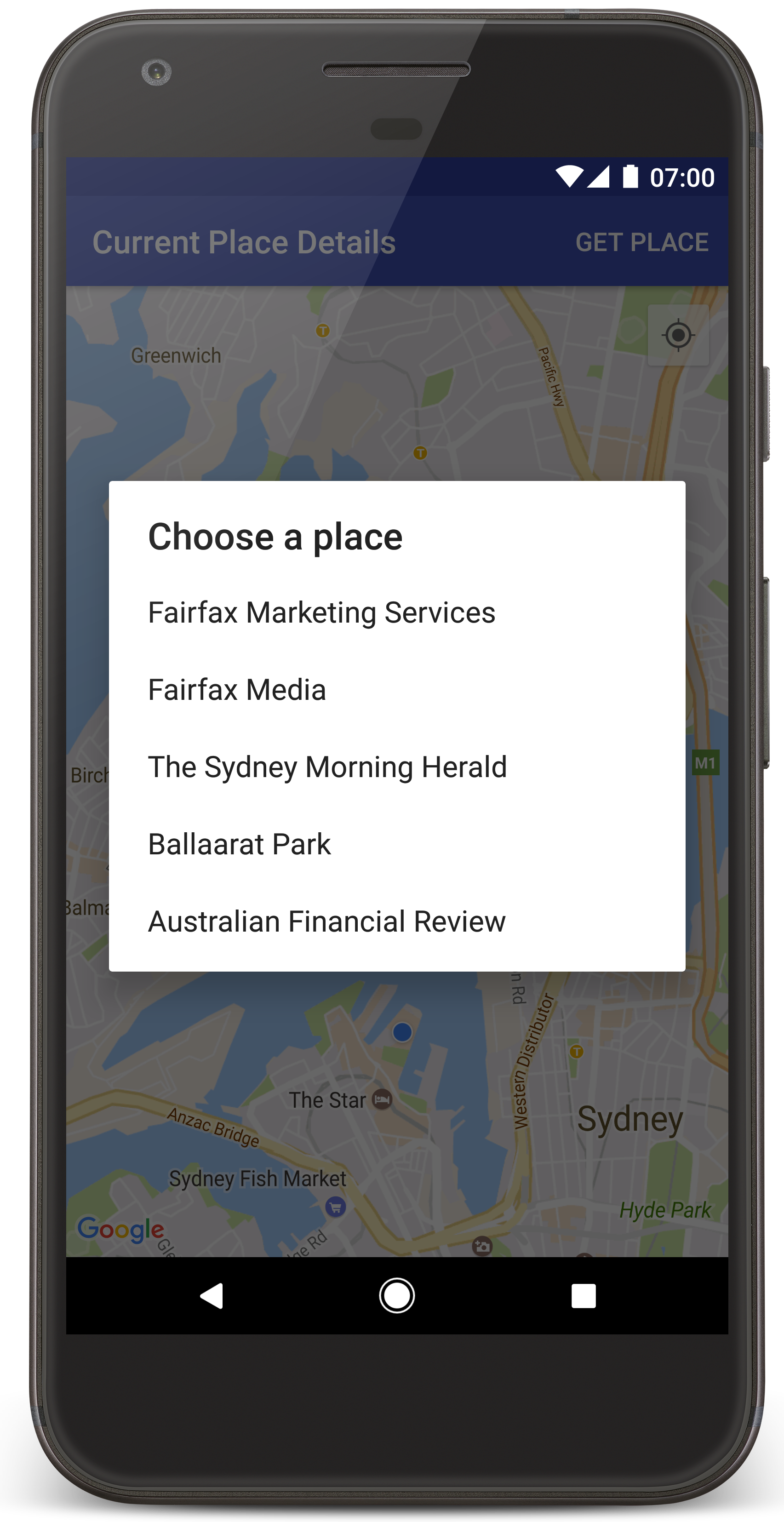
Android Studio'da eğitim projesini oluşturmak için aşağıdaki adımları uygulayın.
- Android Studio'yu indirip yükleyin.
- Android Studio'ya Google Play Hizmetleri paketini ekleyin.
- Bu eğiticiyi okumaya başladığınızda yapmadıysanız Google Haritalar Android API v2 Örnekleri deposunu kopyalayın veya indirin.
Eğitim projesini içe aktarın:
- Android Studio'da File > New > Import Project'i (Dosya > Yeni > Projeyi İçe Aktar) seçin.
- İndirdikten sonra Google Haritalar Android API v2 Örnekleri deposunu kaydettiğiniz konuma gidin.
- CurrentPlaceDetailsOnMap projesini şu konumda bulabilirsiniz:
PATH-TO-SAVED-REPO/android-samples/tutorials/java/CurrentPlaceDetailsOnMap(Java) veya
PATH-TO-SAVED-REPO/android-samples/tutorials/kotlin/CurrentPlaceDetailsOnMap(Kotlin) - Proje dizinini seçin ve Open'ı (Aç) tıklayın. Android Studio artık Gradle derleme aracını kullanarak projenizi derler.
Gerekli API'leri etkinleştirme ve API anahtarı alma
Bu eğitimi tamamlamak için gerekli API'lerin etkinleştirildiği bir Google Cloud projeniz ve Android için Haritalar SDK'sını kullanma yetkisine sahip bir API anahtarınız olmalıdır. Daha fazla bilgi için:
Etkinleştirdiğiniz API'leri görüntülemek için Cloud Console'da Google Haritalar Platformu sayfasına gidip projenizi seçin:
Google Haritalar Platformu sayfasına gidinProjenizde Places API'nin etkinleştirildiğini görmüyorsanız etkinleştirmeniz gerekir:
Places API'yi etkinleştirmeAPI anahtarınıza kısıtlama eklediyseniz Places API'yi anahtara eklediğinizden emin olun. Daha fazla bilgi için API Anahtarlarını Kullanma konusunu inceleyin.
API anahtarını uygulamanıza ekleme
- Projenizin
local.propertiesdosyasını açın. Aşağıdaki dizeyi ekleyin ve
YOUR_API_KEYkısmını API anahtarınızın değeriyle değiştirin:MAPS_API_KEY=YOUR_API_KEY
Uygulamanızı derlediğinizde Android için Secrets Gradle Plugin, API anahtarını kopyalar ve Android manifest dosyasında derleme değişkeni olarak kullanılabilir hale getirir.
Uygulamanızı derleyip çalıştırma
Android cihazınızı bilgisayarınıza bağlayın. Android cihazınızda geliştirici seçeneklerini etkinleştirmek ve sisteminizi cihazı algılayacak şekilde yapılandırmak için talimatları uygulayın.
Alternatif olarak, sanal cihaz yapılandırmak için Android Sanal Cihaz (AVD) Yöneticisi'ni kullanabilirsiniz. Emülatör seçerken Google API'lerini içeren bir görüntü seçtiğinizden emin olun. Daha fazla bilgi için Android Studio Projesi Oluşturma başlıklı makaleyi inceleyin.
- Android Studio'da Run (Çalıştır) menü seçeneğini (veya oynat düğmesi simgesini) tıklayın. İstendiğinde bir cihaz seçin.
Android Studio, uygulamayı derlemek için Gradle'ı çağırır ve ardından uygulamayı cihazda veya emülatörde çalıştırır. Bu sayfadaki resme benzer şekilde, mevcut konumunuzun etrafında ortalanmış bir dizi işaretçi içeren bir harita görürsünüz.
- Mevcut konumunuzun yakınındaki yerlerin (bir işletme veya başka bir önemli yer) listesini açmak için Yeri Al'ı seçin.
- Listeden bir yer seçin. Seçilen yer için haritaya bir işaretçi eklenir.
Sorun Giderme:
- Harita görmüyorsanız bir API anahtarı aldığınızdan ve bunu uygulamaya eklediğinizden emin olun (yukarıda açıklandığı gibi). API anahtarıyla ilgili hata mesajları için Android Studio'nun Android Monitor bölümündeki günlüğü kontrol edin.
- Haritada yalnızca Sydney Harbour Bridge'de (uygulamada belirtilen varsayılan konum) tek bir işaretçi gösteriliyorsa uygulamaya konum izni verdiğinizden emin olun. Uygulama, Android izinleri kılavuzunda açıklanan kalıbı izleyerek çalışma zamanında konum izni ister. İzinleri doğrudan cihazda Ayarlar > Uygulamalar > uygulama adı > İzinler > Konum'u seçerek de ayarlayabilirsiniz. Kodunuzda izinleri nasıl işleyeceğinizle ilgili ayrıntılı bilgi için aşağıdaki uygulamanızda konum izni isteme kılavuzuna bakın.
- Günlükleri görüntülemek ve uygulamada hata ayıklamak için Android Studio hata ayıklama araçlarını kullanın.
Kodu anlama
Eğitimin bu bölümünde, benzer bir uygulamayı nasıl oluşturacağınızı anlamanıza yardımcı olmak için CurrentPlaceDetailsOnMap uygulamasının en önemli kısımları açıklanmaktadır.
Places API istemcisini örneklendirme
Bu nesneler, Android için Yerler SDK'sının birincil giriş noktalarıdır:
Placessınıfı, Android için Yerler SDK'sına yönelik istemciler oluşturur ve yönetir.PlacesClientarayüzü, cihazın mevcut konumunu ve konumun yakınındaki yerleri alır.
LocationServices arayüzü, Android konum hizmetleri için ana giriş noktasıdır.
API'leri kullanmak için parçanızın veya etkinliğinizin onCreate() yönteminde aşağıdakileri yapın:
Placesnesnesi başlatın.PlacesClientnesnesi oluşturun.FusedLocationProviderClientnesnesi oluşturun.
Örneğin:
Java
@Override
protected void onCreate(Bundle savedInstanceState) {
    super.onCreate(savedInstanceState);

    // ...

    // Retrieve the content view that renders the map.
    setContentView(R.layout.activity_maps);

    // Construct a PlacesClient
    Places.initialize(getApplicationContext(), getString(R.string.maps_api_key));
    placesClient = Places.createClient(this);

    // Construct a FusedLocationProviderClient.
    fusedLocationProviderClient = LocationServices.getFusedLocationProviderClient(this);
}
Kotlin
override fun onCreate(savedInstanceState: Bundle?) {
    super.onCreate(savedInstanceState)

    // ...

    // Retrieve the content view that renders the map.
    setContentView(R.layout.activity_maps)

    // Construct a PlacesClient
    Places.initialize(applicationContext, getString(R.string.maps_api_key))
    placesClient = Places.createClient(this)

    // Construct a FusedLocationProviderClient.
    fusedLocationProviderClient = LocationServices.getFusedLocationProviderClient(this)

}
Konum izni iste
Uygulamanız, cihazın konumunu belirlemek ve kullanıcının haritadaki Konumum düğmesine dokunmasına izin vermek için konum izni istemelidir.
Bu eğitimde, tam konum izni istemek için gereken kod sağlanmaktadır. Daha fazla bilgi için Android izinleri kılavuzunu inceleyin.
İzni, Android manifest dosyanızdaki
<manifest>öğesinin alt öğesi olarak ekleyin:<manifest xmlns:android="http://schemas.android.com/apk/res/android" package="com.example.currentplacedetailsonmap"> <uses-permission android:name="android.permission.ACCESS_FINE_LOCATION" /> </manifest>
Uygulamanızda çalışma zamanında istenen izinleri isteyerek kullanıcıya konum izni verme veya reddetme fırsatı sunun. Aşağıdaki kod, kullanıcının tam konum izni verip vermediğini kontrol eder. İzin verilmemişse izin ister:
Java
private void getLocationPermission() { /* * Request location permission, so that we can get the location of the * device. The result of the permission request is handled by a callback, * onRequestPermissionsResult. */ if (ContextCompat.checkSelfPermission( this.getApplicationContext(), android.Manifest.permission.ACCESS_FINE_LOCATION) == PackageManager.PERMISSION_GRANTED) { locationPermissionGranted = true; } else { ActivityCompat.requestPermissions( this, new String[] {android.Manifest.permission.ACCESS_FINE_LOCATION}, PERMISSIONS_REQUEST_ACCESS_FINE_LOCATION); } }
Kotlin
private fun getLocationPermission() { /* * Request location permission, so that we can get the location of the * device. The result of the permission request is handled by a callback, * onRequestPermissionsResult. */ if (ContextCompat.checkSelfPermission( this.applicationContext, Manifest.permission.ACCESS_FINE_LOCATION, ) == PackageManager.PERMISSION_GRANTED ) { locationPermissionGranted = true } else { ActivityCompat.requestPermissions( this, arrayOf(Manifest.permission.ACCESS_FINE_LOCATION), PERMISSIONS_REQUEST_ACCESS_FINE_LOCATION, ) } }
İzin isteğinin sonucunu işlemek için
onRequestPermissionsResult()geri çağırma işlevini geçersiz kılın:Java
@Override public void onRequestPermissionsResult( int requestCode, @NonNull String[] permissions, @NonNull int[] grantResults) { locationPermissionGranted = false; if (requestCode == PERMISSIONS_REQUEST_ACCESS_FINE_LOCATION) { // If request is cancelled, the // result arrays are empty. if (grantResults.length > 0 && grantResults[0] == PackageManager.PERMISSION_GRANTED) { locationPermissionGranted = true; } } else { super.onRequestPermissionsResult(requestCode, permissions, grantResults); } updateLocationUI(); }
Kotlin
override fun onRequestPermissionsResult(requestCode: Int, permissions: Array<String>, grantResults: IntArray) { locationPermissionGranted = false when (requestCode) { PERMISSIONS_REQUEST_ACCESS_FINE_LOCATION -> { // If request is cancelled, the result arrays are empty. if (grantResults.isNotEmpty() && grantResults[0] == PackageManager.PERMISSION_GRANTED ) { locationPermissionGranted = true } } else -> super.onRequestPermissionsResult(requestCode, permissions, grantResults) } updateLocationUI() }
Bu eğitimin sonraki bölümlerinde
updateLocationUI()yöntemi açıklanmaktadır.
Harita ekleme
Android için Haritalar SDK'sını kullanarak harita görüntüleme
Etkinliğinizin düzen dosyasına (
activity_maps.xml) bir<fragment>öğesi ekleyin. Bu öğe, harita için kapsayıcı görevi görecek veGoogleMapnesnesine erişim sağlayacak birSupportMapFragmenttanımlar. Eğitimde, Android çerçevesinin önceki sürümleriyle geriye dönük uyumluluk sağlamak için harita parçasının Android Destek Kitaplığı sürümü kullanılır.<!-- Copyright 2020 Google LLC Licensed under the Apache License, Version 2.0 (the "License"); you may not use this file except in compliance with the License. You may obtain a copy of the License at http://www.apache.org/licenses/LICENSE-2.0 Unless required by applicable law or agreed to in writing, software distributed under the License is distributed on an "AS IS" BASIS, WITHOUT WARRANTIES OR CONDITIONS OF ANY KIND, either express or implied. See the License for the specific language governing permissions and limitations under the License. --> <fragment xmlns:android="http://schemas.android.com/apk/res/android" xmlns:tools="http://schemas.android.com/tools" android:id="@+id/map" android:name="com.google.android.gms.maps.SupportMapFragment" android:layout_width="match_parent" android:layout_height="match_parent" tools:context="com.example.currentplacedetailsonmap.MapsActivityCurrentPlace" />
Etkinliğinizin
onCreate()yönteminde, düzen dosyasını içerik görünümü olarak ayarlayın:Java
@Override protected void onCreate(Bundle savedInstanceState) { super.onCreate(savedInstanceState); // Retrieve the content view that renders the map. setContentView(R.layout.activity_maps); }
Kotlin
override fun onCreate(savedInstanceState: Bundle?) { super.onCreate(savedInstanceState) // Retrieve the content view that renders the map. setContentView(R.layout.activity_maps) }
GoogleMapnesnesi kullanılabilir olduğunda haritayı ayarlamak içinOnMapReadyCallbackarayüzünü uygulayın veonMapReady()yöntemini geçersiz kılın:Java
@Override public void onMapReady(GoogleMap map) { this.map = map; // ... // Turn on the My Location layer and the related control on the map. updateLocationUI(); // Get the current location of the device and set the position of the map. getDeviceLocation(); }
Kotlin
override fun onMapReady(map: GoogleMap) { this.map = map // ... // Turn on the My Location layer and the related control on the map. updateLocationUI() // Get the current location of the device and set the position of the map. getDeviceLocation() }
Etkinliğinizin
onCreate()yönteminde,FragmentManager.findFragmentById()yöntemini çağırarak harita parçası için bir tutma yeri alın. Ardından, harita geri çağırma işlevini kaydetmek içingetMapAsync()kullanın:Java
SupportMapFragment mapFragment = (SupportMapFragment) getSupportFragmentManager().findFragmentById(R.id.map); mapFragment.getMapAsync(this);
Kotlin
val mapFragment = supportFragmentManager .findFragmentById(R.id.map) as SupportMapFragment? mapFragment?.getMapAsync(this)
Haritada konum kontrollerini ayarlamak için bir
updateLocationUI()yöntemi yazın. Kullanıcı konum izni verdiyse haritada Konumum katmanını ve ilgili kontrolü etkinleştirin. Aksi takdirde katmanı ve kontrolü devre dışı bırakın ve mevcut konumu boş olarak ayarlayın:Java
private void updateLocationUI() { if (map == null) { return; } try { if (locationPermissionGranted) { map.setMyLocationEnabled(true); map.getUiSettings().setMyLocationButtonEnabled(true); } else { map.setMyLocationEnabled(false); map.getUiSettings().setMyLocationButtonEnabled(false); lastKnownLocation = null; } } catch (SecurityException e) { Log.e("Exception: %s", e.getMessage()); } }
Kotlin
@SuppressLint("MissingPermission") private fun updateLocationUI() { if (map == null) { return } try { if (locationPermissionGranted) { map?.isMyLocationEnabled = true map?.uiSettings?.isMyLocationButtonEnabled = true } else { map?.isMyLocationEnabled = false map?.uiSettings?.isMyLocationButtonEnabled = false lastKnownLocation = null getLocationPermission() } } catch (e: SecurityException) { Log.e("Exception: %s", e.message, e) } }
Android cihazın konumunu alma ve haritayı konumlandırma
Cihazın bilinen son konumunu bulmak için çok kaynaklı konum sağlayıcıyı kullanın, ardından haritayı konumlandırmak için bu konumu kullanın. Eğitimde ihtiyacınız olan kod sağlanır. Cihazın konumunu alma hakkında daha fazla bilgi için Google Play Hizmetleri konum API'lerindeki çok kaynaklı konum sağlayıcı kılavuzuna bakın.
Java
private void getDeviceLocation() { /* * Get the best and most recent location of the device, which may be null in rare * cases when a location is not available. */ try { if (locationPermissionGranted) { Task<Location> locationResult = fusedLocationProviderClient.getLastLocation(); locationResult.addOnCompleteListener( this, new OnCompleteListener<Location>() { @Override public void onComplete(@NonNull Task<Location> task) { if (task.isSuccessful()) { // Set the map's camera position to the current location of the // device. lastKnownLocation = task.getResult(); if (lastKnownLocation != null) { map.moveCamera( CameraUpdateFactory.newLatLngZoom( new LatLng( lastKnownLocation.getLatitude(), lastKnownLocation.getLongitude()), DEFAULT_ZOOM)); } } else { Log.d(TAG, "Current location is null. Using defaults."); Log.e(TAG, "Exception: %s", task.getException()); map.moveCamera( CameraUpdateFactory.newLatLngZoom( defaultLocation, DEFAULT_ZOOM)); map.getUiSettings().setMyLocationButtonEnabled(false); } } }); } } catch (SecurityException e) { Log.e("Exception: %s", e.getMessage(), e); } }
Kotlin
@SuppressLint("MissingPermission") private fun getDeviceLocation() { /* * Get the best and most recent location of the device, which may be null in rare * cases when a location is not available. */ try { if (locationPermissionGranted) { val locationResult = fusedLocationProviderClient.lastLocation locationResult.addOnCompleteListener(this) { task -> if (task.isSuccessful) { // Set the map's camera position to the current location of the device. lastKnownLocation = task.result if (lastKnownLocation != null) { map?.moveCamera( CameraUpdateFactory.newLatLngZoom( LatLng( lastKnownLocation!!.latitude, lastKnownLocation!!.longitude, ), DEFAULT_ZOOM.toFloat(), ), ) } } else { Log.d(TAG, "Current location is null. Using defaults.") Log.e(TAG, "Exception: %s", task.exception) map?.moveCamera( CameraUpdateFactory .newLatLngZoom(defaultLocation, DEFAULT_ZOOM.toFloat()), ) map?.uiSettings?.isMyLocationButtonEnabled = false } } } } catch (e: SecurityException) { Log.e("Exception: %s", e.message, e) } }
Mevcut yeri alma
Cihazın mevcut konumunda bulunabilecek yerlerin listesini almak için Android için Yerler SDK'sını kullanın. Bu bağlamda yer, bir işletme veya başka bir önemli yerdir.
Bu eğitimde, kullanıcı Yeri Al düğmesini tıkladığında mevcut yer alınır. Kullanıcıya, aralarından seçim yapabileceği olası yerlerin listesini sunar ve ardından seçilen yerin konumuna haritada bir işaretçi ekler. Eğitimde, Android için Yerler SDK'sı ile etkileşim kurmak için gereken kod sağlanır. Daha fazla bilgi için mevcut yeri alma kılavuzuna bakın.
- Seçenekler menüsü için bir düzen dosyası (
current_place_menu.xml) oluşturun ve seçenekler menüsünü ayarlamak içinonCreateOptionsMenu()yöntemini geçersiz kılın. Kod için ekteki örnek uygulamaya bakın. - Kullanıcı Get Place (Yeri Al) seçeneğini tıkladığında mevcut yeri almak için
onOptionsItemSelected()yöntemini geçersiz kılın:Java
@Override public boolean onOptionsItemSelected(MenuItem item) { if (item.getItemId() == R.id.option_get_place) { showCurrentPlace(); } return true; }
Kotlin
override fun onOptionsItemSelected(item: MenuItem): Boolean { if (item.itemId == R.id.option_get_place) { showCurrentPlace() } return true }
Cihazın mevcut konumundaki olası yerlerin listesini almak için bir
showCurrentPlace()yöntemi oluşturun:Java
private void showCurrentPlace() { if (map == null) { return; } if (locationPermissionGranted) { // Use fields to define the data types to return. List<Place.Field> placeFields = Arrays.asList( Place.Field.DISPLAY_NAME, Place.Field.FORMATTED_ADDRESS, Place.Field.LOCATION); // Search around the device's last-known location, falling back to the center of the // map if the location is not available yet. LatLng center = lastKnownLocation != null ? new LatLng( lastKnownLocation.getLatitude(), lastKnownLocation.getLongitude()) : map.getCameraPosition().target; CircularBounds searchArea = CircularBounds.newInstance(center, SEARCH_RADIUS_METERS); // Use the builder to create a SearchNearbyRequest that returns the closest places // first. SearchNearbyRequest request = SearchNearbyRequest.builder(searchArea, placeFields) .setMaxResultCount(M_MAX_ENTRIES) .setRankPreference(SearchNearbyRequest.RankPreference.DISTANCE) .build(); // Get the likely places - that is, the businesses and other points of interest that // are closest to the device's current location. final Task<SearchNearbyResponse> placeResult = placesClient.searchNearby(request); placeResult.addOnCompleteListener( new OnCompleteListener<SearchNearbyResponse>() { @Override public void onComplete(@NonNull Task<SearchNearbyResponse> task) { if (task.isSuccessful() && task.getResult() != null) { List<Place> likelyPlaces = task.getResult().getPlaces(); // Set the count, handling cases where less than 5 entries are // returned. int count = Math.min(likelyPlaces.size(), M_MAX_ENTRIES); likelyPlaceNames = new String[count]; likelyPlaceAddresses = new String[count]; likelyPlaceAttributions = new List[count]; likelyPlaceLatLngs = new LatLng[count]; for (int i = 0; i < count; i++) { // Build a list of likely places to show the user. Place place = likelyPlaces.get(i); likelyPlaceNames[i] = place.getDisplayName(); likelyPlaceAddresses[i] = place.getFormattedAddress(); likelyPlaceAttributions[i] = place.getAttributions(); likelyPlaceLatLngs[i] = place.getLocation(); } // Show a dialog offering the user the list of likely places, and // add a // marker at the selected place. MapsActivityCurrentPlace.this.openPlacesDialog(); } else { Log.e(TAG, "Exception: %s", task.getException()); } } }); } else { // The user has not granted permission. Log.i(TAG, "The user did not grant location permission."); // Add a default marker, because the user hasn't selected a place. map.addMarker( new MarkerOptions() .title(getString(R.string.default_info_title)) .position(defaultLocation) .snippet(getString(R.string.default_info_snippet))); // Prompt the user for permission. getLocationPermission(); } }
Kotlin
private fun showCurrentPlace() { val map = map ?: return if (locationPermissionGranted) { // Use fields to define the data types to return. val placeFields = listOf( Place.Field.DISPLAY_NAME, Place.Field.FORMATTED_ADDRESS, Place.Field.LOCATION, ) // Search around the device's last-known location, falling back to the center of // the map if the location is not available yet. val center = lastKnownLocation?.let { LatLng(it.latitude, it.longitude) } ?: map.cameraPosition.target val searchArea = CircularBounds.newInstance(center, SEARCH_RADIUS_METERS) // Use the builder to create a SearchNearbyRequest that returns the closest places // first. val request = SearchNearbyRequest.builder(searchArea, placeFields) .setMaxResultCount(M_MAX_ENTRIES) .setRankPreference(SearchNearbyRequest.RankPreference.DISTANCE) .build() // Get the likely places - that is, the businesses and other points of interest that // are closest to the device's current location. val placeResult = placesClient.searchNearby(request) placeResult.addOnCompleteListener { task -> if (task.isSuccessful && task.result != null) { val likelyPlaces = task.result.places.take(M_MAX_ENTRIES) // Build a list of likely places to show the user. likelyPlaceNames = likelyPlaces.map { it.displayName }.toTypedArray() likelyPlaceAddresses = likelyPlaces.map { it.formattedAddress }.toTypedArray() likelyPlaceAttributions = likelyPlaces.map { it.attributions }.toTypedArray() likelyPlaceLatLngs = likelyPlaces.map { it.location }.toTypedArray() // Show a dialog offering the user the list of likely places, and add a // marker at the selected place. openPlacesDialog() } else { Log.e(TAG, "Exception: %s", task.exception) } } } else { // The user has not granted permission. Log.i(TAG, "The user did not grant location permission.") // Add a default marker, because the user hasn't selected a place. map.addMarker( MarkerOptions() .title(getString(R.string.default_info_title)) .position(defaultLocation) .snippet(getString(R.string.default_info_snippet)), ) // Prompt the user for permission. getLocationPermission() } }
Kullanıcının olası yerler listesinden bir yer seçmesine olanak tanıyan bir form görüntülemek için
openPlacesDialog()yöntemi oluşturun. Seçilen yer için haritaya bir işaretçi ekleyin. İşaretçi içeriği, yerin adını ve adresini ve API'nin sağladığı tüm ilişkilendirmeleri içerir:Java
private void openPlacesDialog() { // Ask the user to choose the place where they are now. DialogInterface.OnClickListener listener = new DialogInterface.OnClickListener() { @Override public void onClick(DialogInterface dialog, int which) { // The "which" argument contains the position of the selected item. LatLng markerLatLng = likelyPlaceLatLngs[which]; String markerSnippet = likelyPlaceAddresses[which]; if (likelyPlaceAttributions[which] != null) { markerSnippet = markerSnippet + "\n" + likelyPlaceAttributions[which]; } // Add a marker for the selected place, with an info window // showing information about that place. map.addMarker( new MarkerOptions() .title(likelyPlaceNames[which]) .position(markerLatLng) .snippet(markerSnippet)); // Position the map's camera at the location of the marker. map.moveCamera( CameraUpdateFactory.newLatLngZoom(markerLatLng, DEFAULT_ZOOM)); } }; // Display the dialog. AlertDialog dialog = new AlertDialog.Builder(this) .setTitle(R.string.pick_place) .setItems(likelyPlaceNames, listener) .show(); }
Kotlin
private fun openPlacesDialog() { // Ask the user to choose the place where they are now. val listener = DialogInterface.OnClickListener { dialog, which -> // The "which" argument contains the position of the selected item. val markerLatLng = likelyPlaceLatLngs[which] var markerSnippet = likelyPlaceAddresses[which] if (likelyPlaceAttributions[which] != null) { markerSnippet = """ $markerSnippet ${likelyPlaceAttributions[which]} """.trimIndent() } if (markerLatLng == null) { return@OnClickListener } // Add a marker for the selected place, with an info window // showing information about that place. map?.addMarker( MarkerOptions() .title(likelyPlaceNames[which]) .position(markerLatLng) .snippet(markerSnippet), ) // Position the map's camera at the location of the marker. map?.moveCamera( CameraUpdateFactory.newLatLngZoom( markerLatLng, DEFAULT_ZOOM.toFloat(), ), ) } // Display the dialog. AlertDialog.Builder(this) .setTitle(R.string.pick_place) .setItems(likelyPlaceNames, listener) .show() }
Bilgi penceresi içeriği için özel bir düzen oluşturun. Bu sayede, bilgi penceresinde birden fazla satır içerik gösterilebilir. Öncelikle, bilgi penceresi başlığı için bir metin görünümü ve snippet (yani bilgi penceresinin metin içeriği) için başka bir metin görünümü içeren bir XML düzen dosyası (
custom_info_contents.xml) ekleyin:<?xml version="1.0" encoding="utf-8"?> <!-- Copyright 2020 Google LLC Licensed under the Apache License, Version 2.0 (the "License"); you may not use this file except in compliance with the License. You may obtain a copy of the License at http://www.apache.org/licenses/LICENSE-2.0 Unless required by applicable law or agreed to in writing, software distributed under the License is distributed on an "AS IS" BASIS, WITHOUT WARRANTIES OR CONDITIONS OF ANY KIND, either express or implied. See the License for the specific language governing permissions and limitations under the License. --> <LinearLayout xmlns:android="http://schemas.android.com/apk/res/android" android:layout_width="wrap_content" android:layout_height="wrap_content" android:layoutDirection="locale" android:orientation="vertical"> <TextView android:id="@+id/title" android:layout_width="wrap_content" android:layout_height="wrap_content" android:layout_gravity="center_horizontal" android:textColor="#ff000000" android:textStyle="bold" /> <TextView android:id="@+id/snippet" android:layout_width="wrap_content" android:layout_height="wrap_content" android:textColor="#ff7f7f7f" /> </LinearLayout>
Düzeni genişletmek ve bilgi penceresi içeriğini yüklemek için
InfoWindowAdapterarayüzünü uygulayın:Java
// Use a custom info window adapter to handle multiple lines of text in the // info window contents. this.map.setInfoWindowAdapter( new GoogleMap.InfoWindowAdapter() { @Override // Return null here, so that getInfoContents() is called next. public View getInfoWindow(Marker arg0) { return null; } @Override public View getInfoContents(Marker marker) { // Inflate the layouts for the info window, title and snippet. View infoWindow = getLayoutInflater() .inflate( R.layout.custom_info_contents, (FrameLayout) findViewById(R.id.map), false); TextView title = infoWindow.findViewById(R.id.title); title.setText(marker.getTitle()); TextView snippet = infoWindow.findViewById(R.id.snippet); snippet.setText(marker.getSnippet()); return infoWindow; } });
Kotlin
// Use a custom info window adapter to handle multiple lines of text in the // info window contents. this.map?.setInfoWindowAdapter(object : InfoWindowAdapter { // Return null here, so that getInfoContents() is called next. override fun getInfoWindow(arg0: Marker): View? = null override fun getInfoContents(marker: Marker): View { // Inflate the layouts for the info window, title and snippet. val infoWindow = layoutInflater.inflate( R.layout.custom_info_contents, findViewById<FrameLayout>(R.id.map), false, ) val title = infoWindow.findViewById<TextView>(R.id.title) title.text = marker.title val snippet = infoWindow.findViewById<TextView>(R.id.snippet) snippet.text = marker.snippet return infoWindow } })
Haritanın durumunu kaydetme
Haritanın kamera konumunu ve cihaz konumunu kaydetme Kullanıcı bir Android cihazı döndürdüğünde veya yapılandırma değişiklikleri yaptığında Android çerçevesi, harita etkinliğini yok eder ve yeniden oluşturur. Sorunsuz bir kullanıcı deneyimi sağlamak için ilgili uygulama durumunu depolamak ve gerektiğinde geri yüklemek iyi bir yöntemdir.
Bu eğitimde, haritanın durumunu kaydetmek için gereken tüm kodlar sağlanır. Daha fazla bilgi için savedInstanceState paketi kılavuzuna bakın.
Harita etkinliğinizde, etkinlik durumunu depolamak için anahtar değerleri ayarlayın:
Java
private static final String KEY_CAMERA_POSITION = "camera_position"; private static final String KEY_LOCATION = "location";
Kotlin
private const val KEY_CAMERA_POSITION = "camera_position" private const val KEY_LOCATION = "location"
Etkinlik duraklatıldığında durumu kaydetmek için
onSaveInstanceState()geri çağırma işlevini uygulayın:Java
@Override protected void onSaveInstanceState(Bundle outState) { if (map != null) { outState.putParcelable(KEY_CAMERA_POSITION, map.getCameraPosition()); outState.putParcelable(KEY_LOCATION, lastKnownLocation); } super.onSaveInstanceState(outState); }
Kotlin
override fun onSaveInstanceState(outState: Bundle) { map?.let { map -> outState.putParcelable(KEY_CAMERA_POSITION, map.cameraPosition) outState.putParcelable(KEY_LOCATION, lastKnownLocation) } super.onSaveInstanceState(outState) }
Etkinliğinizin
onCreate()yönteminde, cihazın konumunu ve daha önce kaydedilmişse haritanın kamera konumunu alın:Java
// Retrieve location and camera position from saved instance state. if (savedInstanceState != null) { lastKnownLocation = savedInstanceState.getParcelable(KEY_LOCATION); cameraPosition = savedInstanceState.getParcelable(KEY_CAMERA_POSITION); }
Kotlin
if (savedInstanceState != null) { lastKnownLocation = savedInstanceState.getParcelable(KEY_LOCATION) cameraPosition = savedInstanceState.getParcelable(KEY_CAMERA_POSITION) }