

ดูวิธีค้นหาตำแหน่งปัจจุบันของอุปกรณ์ Android และแสดงรายละเอียดของสถานที่ (ธุรกิจหรือจุดที่น่าสนใจอื่นๆ) ณ ตำแหน่งนั้น ทำตามบทแนะนำนี้เพื่อสร้างแอป Android โดยใช้ Maps SDK สำหรับ Android, Places SDK สำหรับ Android และผู้ให้บริการ Fused Location ใน API ตำแหน่งของบริการ Google Play
รับโค้ด
โคลนหรือดาวน์โหลดที่เก็บตัวอย่าง Google Maps Android API v2 จาก GitHub
ดูกิจกรรมเวอร์ชัน Java
// Copyright 2020 Google LLC // // Licensed under the Apache License, Version 2.0 (the "License"); // you may not use this file except in compliance with the License. // You may obtain a copy of the License at // // http://www.apache.org/licenses/LICENSE-2.0 // // Unless required by applicable law or agreed to in writing, software // distributed under the License is distributed on an "AS IS" BASIS, // WITHOUT WARRANTIES OR CONDITIONS OF ANY KIND, either express or implied. // See the License for the specific language governing permissions and // limitations under the License. package com.example.currentplacedetailsonmap; import android.content.DialogInterface; import android.content.pm.PackageManager; import android.location.Location; import android.os.Bundle; import android.util.Log; import android.view.Menu; import android.view.MenuItem; import android.view.View; import android.widget.FrameLayout; import android.widget.TextView; import androidx.annotation.NonNull; import androidx.appcompat.app.AlertDialog; import androidx.appcompat.app.AppCompatActivity; import androidx.core.app.ActivityCompat; import androidx.core.content.ContextCompat; import com.google.android.gms.location.FusedLocationProviderClient; import com.google.android.gms.location.LocationServices; import com.google.android.gms.maps.CameraUpdateFactory; import com.google.android.gms.maps.GoogleMap; import com.google.android.gms.maps.OnMapReadyCallback; import com.google.android.gms.maps.SupportMapFragment; import com.google.android.gms.maps.model.CameraPosition; import com.google.android.gms.maps.model.LatLng; import com.google.android.gms.maps.model.Marker; import com.google.android.gms.maps.model.MarkerOptions; import com.google.android.gms.tasks.OnCompleteListener; import com.google.android.gms.tasks.Task; import com.google.android.libraries.places.api.Places; import com.google.android.libraries.places.api.model.CircularBounds; import com.google.android.libraries.places.api.model.Place; import com.google.android.libraries.places.api.net.PlacesClient; import com.google.android.libraries.places.api.net.SearchNearbyRequest; import com.google.android.libraries.places.api.net.SearchNearbyResponse; import java.util.Arrays; import java.util.List; /** An activity that displays a map showing the place at the device's current location. */ public class MapsActivityCurrentPlace extends AppCompatActivity implements OnMapReadyCallback { private static final String TAG = MapsActivityCurrentPlace.class.getSimpleName(); private GoogleMap map; private CameraPosition cameraPosition; // The entry point to the Places API. private PlacesClient placesClient; // The entry point to the Fused Location Provider. private FusedLocationProviderClient fusedLocationProviderClient; // A default location (Sydney, Australia) and default zoom to use when location permission is // not granted. private final LatLng defaultLocation = new LatLng(-33.8523341, 151.2106085); private static final int DEFAULT_ZOOM = 15; private static final int PERMISSIONS_REQUEST_ACCESS_FINE_LOCATION = 1; private boolean locationPermissionGranted; // The geographical location where the device is currently located. That is, the last-known // location retrieved by the Fused Location Provider. private Location lastKnownLocation; // Keys for storing activity state. private static final String KEY_CAMERA_POSITION = "camera_position"; private static final String KEY_LOCATION = "location"; // Used for selecting the current place. private static final int M_MAX_ENTRIES = 5; private static final double SEARCH_RADIUS_METERS = 100.0; private String[] likelyPlaceNames; private String[] likelyPlaceAddresses; private List[] likelyPlaceAttributions; private LatLng[] likelyPlaceLatLngs; @Override protected void onCreate(Bundle savedInstanceState) { super.onCreate(savedInstanceState); // Retrieve location and camera position from saved instance state. if (savedInstanceState != null) { lastKnownLocation = savedInstanceState.getParcelable(KEY_LOCATION); cameraPosition = savedInstanceState.getParcelable(KEY_CAMERA_POSITION); } // Retrieve the content view that renders the map. setContentView(R.layout.activity_maps); // Construct a PlacesClient Places.initializeWithNewPlacesApiEnabled(getApplicationContext(), BuildConfig.MAPS_API_KEY); placesClient = Places.createClient(this); // Construct a FusedLocationProviderClient. fusedLocationProviderClient = LocationServices.getFusedLocationProviderClient(this); // Build the map. SupportMapFragment mapFragment = (SupportMapFragment) getSupportFragmentManager().findFragmentById(R.id.map); mapFragment.getMapAsync(this); } /** Saves the state of the map when the activity is paused. */ @Override protected void onSaveInstanceState(Bundle outState) { if (map != null) { outState.putParcelable(KEY_CAMERA_POSITION, map.getCameraPosition()); outState.putParcelable(KEY_LOCATION, lastKnownLocation); } super.onSaveInstanceState(outState); } /** * Sets up the options menu. * * @param menu The options menu. * @return Boolean. */ @Override public boolean onCreateOptionsMenu(Menu menu) { getMenuInflater().inflate(R.menu.current_place_menu, menu); return true; } /** * Handles a click on the menu option to get a place. * * @param item The menu item to handle. * @return Boolean. */ @Override public boolean onOptionsItemSelected(MenuItem item) { if (item.getItemId() == R.id.option_get_place) { showCurrentPlace(); } return true; } /** * Manipulates the map when it's available. This callback is triggered when the map is ready to * be used. */ @Override public void onMapReady(GoogleMap map) { this.map = map; // Use a custom info window adapter to handle multiple lines of text in the // info window contents. this.map.setInfoWindowAdapter( new GoogleMap.InfoWindowAdapter() { @Override // Return null here, so that getInfoContents() is called next. public View getInfoWindow(Marker arg0) { return null; } @Override public View getInfoContents(Marker marker) { // Inflate the layouts for the info window, title and snippet. View infoWindow = getLayoutInflater() .inflate( R.layout.custom_info_contents, (FrameLayout) findViewById(R.id.map), false); TextView title = infoWindow.findViewById(R.id.title); title.setText(marker.getTitle()); TextView snippet = infoWindow.findViewById(R.id.snippet); snippet.setText(marker.getSnippet()); return infoWindow; } }); // Prompt the user for permission. getLocationPermission(); // Turn on the My Location layer and the related control on the map. updateLocationUI(); // Get the current location of the device and set the position of the map. getDeviceLocation(); } /** Gets the current location of the device, and positions the map's camera. */ private void getDeviceLocation() { /* * Get the best and most recent location of the device, which may be null in rare * cases when a location is not available. */ try { if (locationPermissionGranted) { Task<Location> locationResult = fusedLocationProviderClient.getLastLocation(); locationResult.addOnCompleteListener( this, new OnCompleteListener<Location>() { @Override public void onComplete(@NonNull Task<Location> task) { if (task.isSuccessful()) { // Set the map's camera position to the current location of the // device. lastKnownLocation = task.getResult(); if (lastKnownLocation != null) { map.moveCamera( CameraUpdateFactory.newLatLngZoom( new LatLng( lastKnownLocation.getLatitude(), lastKnownLocation.getLongitude()), DEFAULT_ZOOM)); } } else { Log.d(TAG, "Current location is null. Using defaults."); Log.e(TAG, "Exception: %s", task.getException()); map.moveCamera( CameraUpdateFactory.newLatLngZoom( defaultLocation, DEFAULT_ZOOM)); map.getUiSettings().setMyLocationButtonEnabled(false); } } }); } } catch (SecurityException e) { Log.e("Exception: %s", e.getMessage(), e); } } /** Prompts the user for permission to use the device location. */ private void getLocationPermission() { /* * Request location permission, so that we can get the location of the * device. The result of the permission request is handled by a callback, * onRequestPermissionsResult. */ if (ContextCompat.checkSelfPermission( this.getApplicationContext(), android.Manifest.permission.ACCESS_FINE_LOCATION) == PackageManager.PERMISSION_GRANTED) { locationPermissionGranted = true; } else { ActivityCompat.requestPermissions( this, new String[] {android.Manifest.permission.ACCESS_FINE_LOCATION}, PERMISSIONS_REQUEST_ACCESS_FINE_LOCATION); } } /** Handles the result of the request for location permissions. */ @Override public void onRequestPermissionsResult( int requestCode, @NonNull String[] permissions, @NonNull int[] grantResults) { locationPermissionGranted = false; if (requestCode == PERMISSIONS_REQUEST_ACCESS_FINE_LOCATION) { // If request is cancelled, the // result arrays are empty. if (grantResults.length > 0 && grantResults[0] == PackageManager.PERMISSION_GRANTED) { locationPermissionGranted = true; } } else { super.onRequestPermissionsResult(requestCode, permissions, grantResults); } updateLocationUI(); } /** * Prompts the user to select the current place from a list of likely places, and shows the * current place on the map - provided the user has granted location permission. */ private void showCurrentPlace() { if (map == null) { return; } if (locationPermissionGranted) { // Use fields to define the data types to return. List<Place.Field> placeFields = Arrays.asList( Place.Field.DISPLAY_NAME, Place.Field.FORMATTED_ADDRESS, Place.Field.LOCATION); // Search around the device's last-known location, falling back to the center of the // map if the location is not available yet. LatLng center = lastKnownLocation != null ? new LatLng( lastKnownLocation.getLatitude(), lastKnownLocation.getLongitude()) : map.getCameraPosition().target; CircularBounds searchArea = CircularBounds.newInstance(center, SEARCH_RADIUS_METERS); // Use the builder to create a SearchNearbyRequest that returns the closest places // first. SearchNearbyRequest request = SearchNearbyRequest.builder(searchArea, placeFields) .setMaxResultCount(M_MAX_ENTRIES) .setRankPreference(SearchNearbyRequest.RankPreference.DISTANCE) .build(); // Get the likely places - that is, the businesses and other points of interest that // are closest to the device's current location. final Task<SearchNearbyResponse> placeResult = placesClient.searchNearby(request); placeResult.addOnCompleteListener( new OnCompleteListener<SearchNearbyResponse>() { @Override public void onComplete(@NonNull Task<SearchNearbyResponse> task) { if (task.isSuccessful() && task.getResult() != null) { List<Place> likelyPlaces = task.getResult().getPlaces(); // Set the count, handling cases where less than 5 entries are // returned. int count = Math.min(likelyPlaces.size(), M_MAX_ENTRIES); likelyPlaceNames = new String[count]; likelyPlaceAddresses = new String[count]; likelyPlaceAttributions = new List[count]; likelyPlaceLatLngs = new LatLng[count]; for (int i = 0; i < count; i++) { // Build a list of likely places to show the user. Place place = likelyPlaces.get(i); likelyPlaceNames[i] = place.getDisplayName(); likelyPlaceAddresses[i] = place.getFormattedAddress(); likelyPlaceAttributions[i] = place.getAttributions(); likelyPlaceLatLngs[i] = place.getLocation(); } // Show a dialog offering the user the list of likely places, and // add a // marker at the selected place. MapsActivityCurrentPlace.this.openPlacesDialog(); } else { Log.e(TAG, "Exception: %s", task.getException()); } } }); } else { // The user has not granted permission. Log.i(TAG, "The user did not grant location permission."); // Add a default marker, because the user hasn't selected a place. map.addMarker( new MarkerOptions() .title(getString(R.string.default_info_title)) .position(defaultLocation) .snippet(getString(R.string.default_info_snippet))); // Prompt the user for permission. getLocationPermission(); } } /** Displays a form allowing the user to select a place from a list of likely places. */ private void openPlacesDialog() { // Ask the user to choose the place where they are now. DialogInterface.OnClickListener listener = new DialogInterface.OnClickListener() { @Override public void onClick(DialogInterface dialog, int which) { // The "which" argument contains the position of the selected item. LatLng markerLatLng = likelyPlaceLatLngs[which]; String markerSnippet = likelyPlaceAddresses[which]; if (likelyPlaceAttributions[which] != null) { markerSnippet = markerSnippet + "\n" + likelyPlaceAttributions[which]; } // Add a marker for the selected place, with an info window // showing information about that place. map.addMarker( new MarkerOptions() .title(likelyPlaceNames[which]) .position(markerLatLng) .snippet(markerSnippet)); // Position the map's camera at the location of the marker. map.moveCamera( CameraUpdateFactory.newLatLngZoom(markerLatLng, DEFAULT_ZOOM)); } }; // Display the dialog. AlertDialog dialog = new AlertDialog.Builder(this) .setTitle(R.string.pick_place) .setItems(likelyPlaceNames, listener) .show(); } /** Updates the map's UI settings based on whether the user has granted location permission. */ private void updateLocationUI() { if (map == null) { return; } try { if (locationPermissionGranted) { map.setMyLocationEnabled(true); map.getUiSettings().setMyLocationButtonEnabled(true); } else { map.setMyLocationEnabled(false); map.getUiSettings().setMyLocationButtonEnabled(false); lastKnownLocation = null; } } catch (SecurityException e) { Log.e("Exception: %s", e.getMessage()); } } }
ดูกิจกรรมเวอร์ชัน Kotlin
    // Copyright 2020 Google LLC
//
// Licensed under the Apache License, Version 2.0 (the "License");
// you may not use this file except in compliance with the License.
// You may obtain a copy of the License at
//
//      http://www.apache.org/licenses/LICENSE-2.0
//
// Unless required by applicable law or agreed to in writing, software
// distributed under the License is distributed on an "AS IS" BASIS,
// WITHOUT WARRANTIES OR CONDITIONS OF ANY KIND, either express or implied.
// See the License for the specific language governing permissions and
// limitations under the License.
package com.example.currentplacedetailsonmap

import android.Manifest
import android.annotation.SuppressLint
import android.content.DialogInterface
import android.content.pm.PackageManager
import android.location.Location
import android.os.Bundle
import android.util.Log
import android.view.Menu
import android.view.MenuItem
import android.view.View
import android.widget.FrameLayout
import android.widget.TextView
import androidx.appcompat.app.AlertDialog
import androidx.appcompat.app.AppCompatActivity
import androidx.core.app.ActivityCompat
import androidx.core.content.ContextCompat
import com.google.android.gms.location.FusedLocationProviderClient
import com.google.android.gms.location.LocationServices
import com.google.android.gms.maps.CameraUpdateFactory
import com.google.android.gms.maps.GoogleMap
import com.google.android.gms.maps.GoogleMap.InfoWindowAdapter
import com.google.android.gms.maps.OnMapReadyCallback
import com.google.android.gms.maps.SupportMapFragment
import com.google.android.gms.maps.model.CameraPosition
import com.google.android.gms.maps.model.LatLng
import com.google.android.gms.maps.model.Marker
import com.google.android.gms.maps.model.MarkerOptions
import com.google.android.libraries.places.api.Places
import com.google.android.libraries.places.api.model.CircularBounds
import com.google.android.libraries.places.api.model.Place
import com.google.android.libraries.places.api.net.PlacesClient
import com.google.android.libraries.places.api.net.SearchNearbyRequest

/**
 * An activity that displays a map showing the place at the device's current location.
 */
class MapsActivityCurrentPlace :
    AppCompatActivity(),
    OnMapReadyCallback {
    private var map: GoogleMap? = null
    private var cameraPosition: CameraPosition? = null

    // The entry point to the Places API.
    private lateinit var placesClient: PlacesClient

    // The entry point to the Fused Location Provider.
    private lateinit var fusedLocationProviderClient: FusedLocationProviderClient

    // A default location (Sydney, Australia) and default zoom to use when location permission is
    // not granted.
    private val defaultLocation = LatLng(-33.8523341, 151.2106085)
    private var locationPermissionGranted = false

    // The geographical location where the device is currently located. That is, the last-known
    // location retrieved by the Fused Location Provider.
    private var lastKnownLocation: Location? = null
    private var likelyPlaceNames: Array<String?> = arrayOfNulls(0)
    private var likelyPlaceAddresses: Array<String?> = arrayOfNulls(0)
    private var likelyPlaceAttributions: Array<List<*>?> = arrayOfNulls(0)
    private var likelyPlaceLatLngs: Array<LatLng?> = arrayOfNulls(0)

    override fun onCreate(savedInstanceState: Bundle?) {
        super.onCreate(savedInstanceState)

        // Retrieve location and camera position from saved instance state.
        if (savedInstanceState != null) {
            lastKnownLocation = savedInstanceState.getParcelable(KEY_LOCATION)
            cameraPosition = savedInstanceState.getParcelable(KEY_CAMERA_POSITION)
        }

        // Retrieve the content view that renders the map.
        setContentView(R.layout.activity_maps)

        // Construct a PlacesClient
        Places.initializeWithNewPlacesApiEnabled(applicationContext, BuildConfig.MAPS_API_KEY)
        placesClient = Places.createClient(this)

        // Construct a FusedLocationProviderClient.
        fusedLocationProviderClient = LocationServices.getFusedLocationProviderClient(this)

        // Build the map.
        val mapFragment = supportFragmentManager
            .findFragmentById(R.id.map) as SupportMapFragment?
        mapFragment?.getMapAsync(this)
    }

    /**
     * Saves the state of the map when the activity is paused.
     */
    override fun onSaveInstanceState(outState: Bundle) {
        map?.let { map ->
            outState.putParcelable(KEY_CAMERA_POSITION, map.cameraPosition)
            outState.putParcelable(KEY_LOCATION, lastKnownLocation)
        }
        super.onSaveInstanceState(outState)
    }

    /**
     * Sets up the options menu.
     * @param menu The options menu.
     * @return Boolean.
     */
    override fun onCreateOptionsMenu(menu: Menu): Boolean {
        menuInflater.inflate(R.menu.current_place_menu, menu)
        return true
    }

    /**
     * Handles a click on the menu option to get a place.
     * @param item The menu item to handle.
     * @return Boolean.
     */
    override fun onOptionsItemSelected(item: MenuItem): Boolean {
        if (item.itemId == R.id.option_get_place) {
            showCurrentPlace()
        }
        return true
    }

    /**
     * Manipulates the map when it's available.
     * This callback is triggered when the map is ready to be used.
     */
    override fun onMapReady(map: GoogleMap) {
        this.map = map

        // Use a custom info window adapter to handle multiple lines of text in the
        // info window contents.
        this.map?.setInfoWindowAdapter(object : InfoWindowAdapter {
            // Return null here, so that getInfoContents() is called next.
            override fun getInfoWindow(arg0: Marker): View? = null

            override fun getInfoContents(marker: Marker): View {
                // Inflate the layouts for the info window, title and snippet.
                val infoWindow = layoutInflater.inflate(
                    R.layout.custom_info_contents,
                    findViewById<FrameLayout>(R.id.map),
                    false,
                )
                val title = infoWindow.findViewById<TextView>(R.id.title)
                title.text = marker.title
                val snippet = infoWindow.findViewById<TextView>(R.id.snippet)
                snippet.text = marker.snippet
                return infoWindow
            }
        })

        // Prompt the user for permission.
        getLocationPermission()

        // Turn on the My Location layer and the related control on the map.
        updateLocationUI()

        // Get the current location of the device and set the position of the map.
        getDeviceLocation()
    }

    /**
     * Gets the current location of the device, and positions the map's camera.
     */
    @SuppressLint("MissingPermission")
    private fun getDeviceLocation() {
        /*
         * Get the best and most recent location of the device, which may be null in rare
         * cases when a location is not available.
         */
        try {
            if (locationPermissionGranted) {
                val locationResult = fusedLocationProviderClient.lastLocation
                locationResult.addOnCompleteListener(this) { task ->
                    if (task.isSuccessful) {
                        // Set the map's camera position to the current location of the device.
                        lastKnownLocation = task.result
                        if (lastKnownLocation != null) {
                            map?.moveCamera(
                                CameraUpdateFactory.newLatLngZoom(
                                    LatLng(
                                        lastKnownLocation!!.latitude,
                                        lastKnownLocation!!.longitude,
                                    ),
                                    DEFAULT_ZOOM.toFloat(),
                                ),
                            )
                        }
                    } else {
                        Log.d(TAG, "Current location is null. Using defaults.")
                        Log.e(TAG, "Exception: %s", task.exception)
                        map?.moveCamera(
                            CameraUpdateFactory
                                .newLatLngZoom(defaultLocation, DEFAULT_ZOOM.toFloat()),
                        )
                        map?.uiSettings?.isMyLocationButtonEnabled = false
                    }
                }
            }
        } catch (e: SecurityException) {
            Log.e("Exception: %s", e.message, e)
        }
    }

    /**
     * Prompts the user for permission to use the device location.
     */
    private fun getLocationPermission() {
        /*
         * Request location permission, so that we can get the location of the
         * device. The result of the permission request is handled by a callback,
         * onRequestPermissionsResult.
         */
        if (ContextCompat.checkSelfPermission(
                this.applicationContext,
                Manifest.permission.ACCESS_FINE_LOCATION,
            )
            == PackageManager.PERMISSION_GRANTED
        ) {
            locationPermissionGranted = true
        } else {
            ActivityCompat.requestPermissions(
                this,
                arrayOf(Manifest.permission.ACCESS_FINE_LOCATION),
                PERMISSIONS_REQUEST_ACCESS_FINE_LOCATION,
            )
        }
    }

    /**
     * Handles the result of the request for location permissions.
     */
    override fun onRequestPermissionsResult(requestCode: Int, permissions: Array<String>, grantResults: IntArray) {
        locationPermissionGranted = false
        when (requestCode) {
            PERMISSIONS_REQUEST_ACCESS_FINE_LOCATION -> {
                // If request is cancelled, the result arrays are empty.
                if (grantResults.isNotEmpty() &&
                    grantResults[0] == PackageManager.PERMISSION_GRANTED
                ) {
                    locationPermissionGranted = true
                }
            }

            else -> super.onRequestPermissionsResult(requestCode, permissions, grantResults)
        }
        updateLocationUI()
    }

    /**
     * Prompts the user to select the current place from a list of likely places, and shows the
     * current place on the map - provided the user has granted location permission.
     */
    private fun showCurrentPlace() {
        val map = map ?: return
        if (locationPermissionGranted) {
            // Use fields to define the data types to return.
            val placeFields = listOf(
                Place.Field.DISPLAY_NAME,
                Place.Field.FORMATTED_ADDRESS,
                Place.Field.LOCATION,
            )

            // Search around the device's last-known location, falling back to the center of
            // the map if the location is not available yet.
            val center = lastKnownLocation?.let { LatLng(it.latitude, it.longitude) }
                ?: map.cameraPosition.target
            val searchArea = CircularBounds.newInstance(center, SEARCH_RADIUS_METERS)

            // Use the builder to create a SearchNearbyRequest that returns the closest places
            // first.
            val request = SearchNearbyRequest.builder(searchArea, placeFields)
                .setMaxResultCount(M_MAX_ENTRIES)
                .setRankPreference(SearchNearbyRequest.RankPreference.DISTANCE)
                .build()

            // Get the likely places - that is, the businesses and other points of interest that
            // are closest to the device's current location.
            val placeResult = placesClient.searchNearby(request)
            placeResult.addOnCompleteListener { task ->
                if (task.isSuccessful && task.result != null) {
                    val likelyPlaces = task.result.places.take(M_MAX_ENTRIES)

                    // Build a list of likely places to show the user.
                    likelyPlaceNames = likelyPlaces.map { it.displayName }.toTypedArray()
                    likelyPlaceAddresses = likelyPlaces.map { it.formattedAddress }.toTypedArray()
                    likelyPlaceAttributions = likelyPlaces.map { it.attributions }.toTypedArray()
                    likelyPlaceLatLngs = likelyPlaces.map { it.location }.toTypedArray()

                    // Show a dialog offering the user the list of likely places, and add a
                    // marker at the selected place.
                    openPlacesDialog()
                } else {
                    Log.e(TAG, "Exception: %s", task.exception)
                }
            }
        } else {
            // The user has not granted permission.
            Log.i(TAG, "The user did not grant location permission.")

            // Add a default marker, because the user hasn't selected a place.
            map.addMarker(
                MarkerOptions()
                    .title(getString(R.string.default_info_title))
                    .position(defaultLocation)
                    .snippet(getString(R.string.default_info_snippet)),
            )

            // Prompt the user for permission.
            getLocationPermission()
        }
    }

    /**
     * Displays a form allowing the user to select a place from a list of likely places.
     */
    private fun openPlacesDialog() {
        // Ask the user to choose the place where they are now.
        val listener = DialogInterface.OnClickListener { dialog, which ->
            // The "which" argument contains the position of the selected item.
            val markerLatLng = likelyPlaceLatLngs[which]
            var markerSnippet = likelyPlaceAddresses[which]
            if (likelyPlaceAttributions[which] != null) {
                markerSnippet = """
                    $markerSnippet
                    ${likelyPlaceAttributions[which]}
                """.trimIndent()
            }

            if (markerLatLng == null) {
                return@OnClickListener
            }

            // Add a marker for the selected place, with an info window
            // showing information about that place.
            map?.addMarker(
                MarkerOptions()
                    .title(likelyPlaceNames[which])
                    .position(markerLatLng)
                    .snippet(markerSnippet),
            )

            // Position the map's camera at the location of the marker.
            map?.moveCamera(
                CameraUpdateFactory.newLatLngZoom(
                    markerLatLng,
                    DEFAULT_ZOOM.toFloat(),
                ),
            )
        }

        // Display the dialog.
        AlertDialog.Builder(this)
            .setTitle(R.string.pick_place)
            .setItems(likelyPlaceNames, listener)
            .show()
    }

    /**
     * Updates the map's UI settings based on whether the user has granted location permission.
     */
    @SuppressLint("MissingPermission")
    private fun updateLocationUI() {
        if (map == null) {
            return
        }
        try {
            if (locationPermissionGranted) {
                map?.isMyLocationEnabled = true
                map?.uiSettings?.isMyLocationButtonEnabled = true
            } else {
                map?.isMyLocationEnabled = false
                map?.uiSettings?.isMyLocationButtonEnabled = false
                lastKnownLocation = null
                getLocationPermission()
            }
        } catch (e: SecurityException) {
            Log.e("Exception: %s", e.message, e)
        }
    }

    companion object {
        private val TAG = MapsActivityCurrentPlace::class.java.simpleName
        private const val DEFAULT_ZOOM = 15
        private const val PERMISSIONS_REQUEST_ACCESS_FINE_LOCATION = 1

        // Keys for storing activity state.
        private const val KEY_CAMERA_POSITION = "camera_position"
        private const val KEY_LOCATION = "location"

        // Used for selecting the current place.
        private const val M_MAX_ENTRIES = 5
        private const val SEARCH_RADIUS_METERS = 100.0
    }
}
ตั้งค่าโปรเจ็กต์การพัฒนา
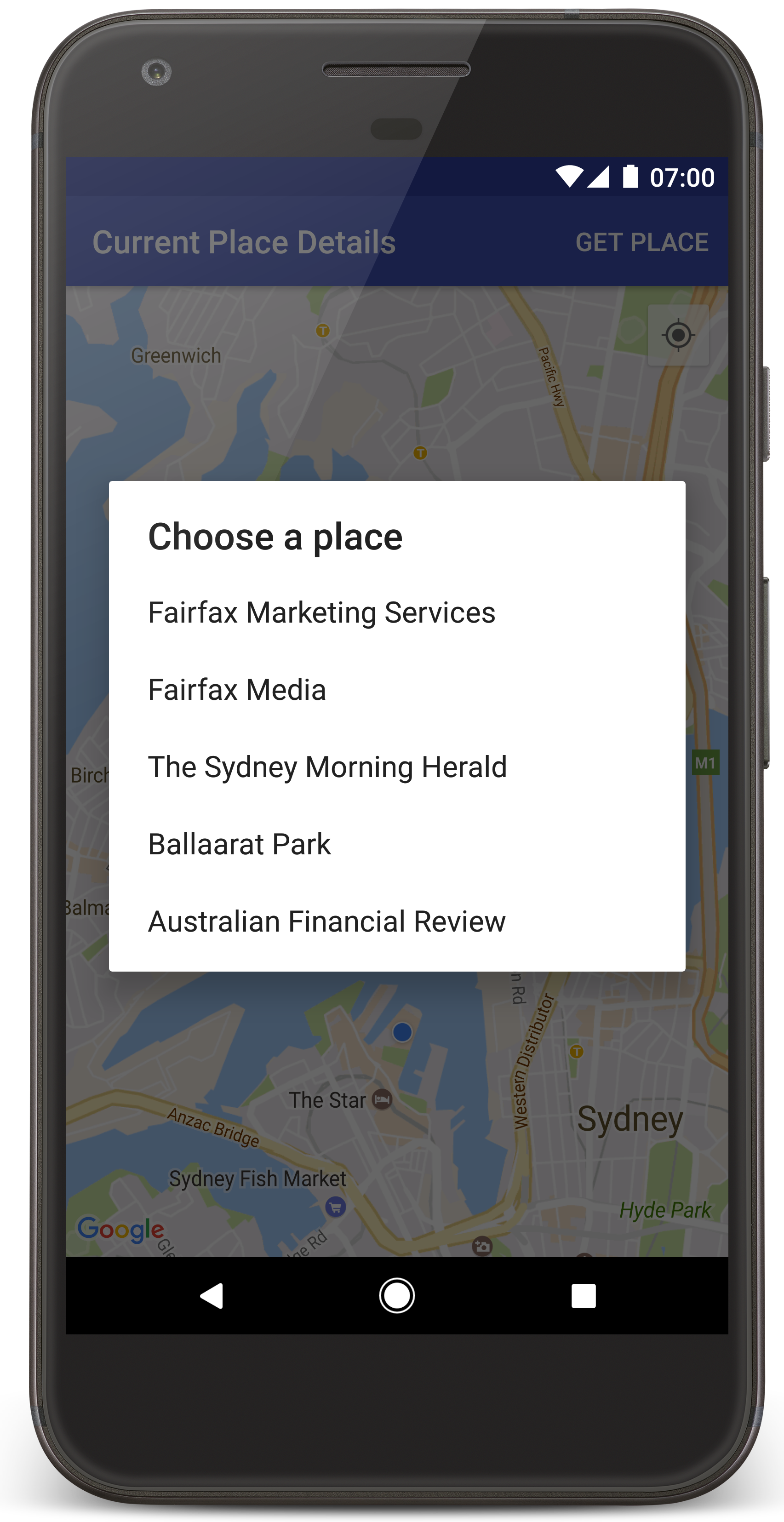
ทำตามขั้นตอนต่อไปนี้เพื่อสร้างโปรเจ็กต์บทแนะนำใน Android Studio
- ดาวน์โหลดและติดตั้ง Android Studio
- เพิ่มแพ็กเกจบริการ Google Play ลงใน Android Studio
- โคลนหรือดาวน์โหลดที่เก็บตัวอย่าง Google Maps Android API v2 หากคุณยังไม่ได้ดำเนินการเมื่อเริ่มอ่านบทแนะนำนี้
นำเข้าโปรเจ็กต์บทแนะนำโดยทำดังนี้
- ใน Android Studio ให้เลือก File > New > Import Project
- ไปที่ตำแหน่งที่คุณบันทึกที่เก็บตัวอย่าง Google Maps Android API v2 ไว้หลังจากดาวน์โหลด
- ค้นหาโปรเจ็กต์ CurrentPlaceDetailsOnMap ได้ที่ตำแหน่งต่อไปนี้
PATH-TO-SAVED-REPO/android-samples/tutorials/java/CurrentPlaceDetailsOnMap(Java) หรือ
PATH-TO-SAVED-REPO/android-samples/tutorials/kotlin/CurrentPlaceDetailsOnMap(Kotlin) - เลือกไดเรกทอรีโปรเจ็กต์ แล้วคลิกเปิด ตอนนี้ Android Studio จะสร้างโปรเจ็กต์โดยใช้เครื่องมือสร้าง Gradle
เปิดใช้ API ที่จำเป็นและรับคีย์ API
หากต้องการทำตามบทแนะนำนี้ให้เสร็จสมบูรณ์ คุณต้องมีโปรเจ็กต์ที่อยู่ในระบบคลาวด์ของ Google Cloud ที่เปิดใช้ API ที่จำเป็นและคีย์ API ที่ได้รับอนุญาตให้ใช้ Maps SDK สำหรับ Android ดูรายละเอียดเพิ่มเติมได้ที่หัวข้อต่อไปนี้
หากต้องการดู API ที่เปิดใช้ ให้ไปที่หน้า Google Maps Platform ในคอนโซล Cloud แล้วเลือกโปรเจ็กต์ของคุณ โดยทำดังนี้
ไปที่หน้า Google Maps Platformหากไม่เห็นว่า Places API เปิดใช้อยู่ในโปรเจ็กต์ คุณต้องเปิดใช้โดยทำดังนี้
เปิดใช้ Places APIหากเพิ่มข้อจำกัดให้กับคีย์ API โปรดเพิ่ม Places API ลงในคีย์ด้วย ดูข้อมูลเพิ่มเติมได้ที่การใช้คีย์ API
เพิ่มคีย์ API ลงในแอป
- เปิดไฟล์
local.propertiesของโปรเจ็กต์ เพิ่มสตริงต่อไปนี้ แล้วแทนที่
YOUR_API_KEYด้วยค่าของคีย์ APIMAPS_API_KEY=YOUR_API_KEY
เมื่อคุณสร้างแอป ปลั๊กอินข้อมูลลับ Gradle สำหรับ Android จะคัดลอกคีย์ API และทำให้พร้อมใช้งานเป็นตัวแปรบิลด์ในไฟล์ Manifest ของ Android
สร้างและเรียกใช้แอป
เชื่อมต่ออุปกรณ์ Android กับคอมพิวเตอร์ ทำตามวิธีการเพื่อเปิดใช้ตัวเลือกสำหรับนักพัฒนาแอปในอุปกรณ์ Android และกำหนดค่าระบบให้ตรวจหาอุปกรณ์
หรือจะใช้ Android Virtual Device (AVD) Manager เพื่อกำหนดค่าอุปกรณ์เสมือนจริงก็ได้ เมื่อเลือกโปรแกรมจำลอง ให้ตรวจสอบว่าคุณเลือกอิมเมจที่มี Google APIs ดูรายละเอียดเพิ่มเติมได้ที่ตั้งค่าโปรเจ็กต์ Android Studio
- ใน Android Studio ให้คลิกตัวเลือกเมนูเรียกใช้ (หรือไอคอนปุ่มเล่น) เลือกอุปกรณ์ตามข้อความแจ้ง
Android Studio จะเรียกใช้ Gradle เพื่อสร้างแอป แล้วเรียกใช้แอปในอุปกรณ์หรือในโปรแกรมจำลอง คุณควรเห็นแผนที่ที่มีเครื่องหมายจำนวนหนึ่งซึ่งมีศูนย์กลางอยู่ที่ตำแหน่งปัจจุบันของคุณ คล้ายกับรูปภาพในหน้านี้
- เลือกดูสถานที่เพื่อเปิดรายการสถานที่ (ธุรกิจหรือจุดที่น่าสนใจอื่นๆ) ใกล้กับตำแหน่งปัจจุบันของคุณ
- เลือกสถานที่จากรายการ ระบบจะเพิ่มเครื่องหมายลงในแผนที่สำหรับสถานที่ที่เลือก
การแก้ปัญหา:
- หากไม่เห็นแผนที่ ให้ตรวจสอบว่าคุณได้รับคีย์ API และเพิ่มลงในแอปแล้วตามที่อธิบายไว้ข้างต้น ตรวจสอบบันทึกใน Android Monitor ของ Android Studio เพื่อดูข้อความแสดงข้อผิดพลาดเกี่ยวกับคีย์ API
- หากแผนที่แสดงเครื่องหมายเพียงอันเดียวที่อยู่บนสะพานซิดนีย์ฮาร์เบอร์ (ตำแหน่งเริ่มต้นที่ระบุในแอป) ให้ตรวจสอบว่าคุณได้ให้สิทธิ์เข้าถึงตำแหน่งแก่แอปแล้ว แอปจะขอสิทธิ์เข้าถึงตำแหน่งขณะรันไทม์ตามรูปแบบที่อธิบายไว้ในคู่มือสิทธิ์ของ Android โปรดทราบว่าคุณยังตั้งค่าสิทธิ์ในอุปกรณ์ได้โดยตรงด้วย โดยเลือกการตั้งค่า > แอป > ชื่อแอป > สิทธิ์ > ตำแหน่ง ดูรายละเอียดเกี่ยวกับวิธีจัดการสิทธิ์ในโค้ดได้ที่คำแนะนำด้านล่างเกี่ยวกับการขอสิทธิ์เข้าถึงตำแหน่งในแอป
- ใช้เครื่องมือแก้ไขข้อบกพร่องของ Android Studio เพื่อดูบันทึกและแก้ไขข้อบกพร่องของแอป
ทำความเข้าใจโค้ด
บทแนะนำส่วนนี้จะอธิบายส่วนที่สำคัญที่สุดของแอป CurrentPlaceDetailsOnMap เพื่อช่วยให้คุณเข้าใจวิธีสร้างแอปที่คล้ายกัน
สร้างอินสแตนซ์ไคลเอ็นต์ Places API
ออบเจ็กต์เหล่านี้เป็นจุดแรกเข้าหลักไปยัง Places SDK สำหรับ Android
- คลาส
Placesจะสร้างและจัดการไคลเอ็นต์สำหรับ Places SDK สำหรับ Android - อินเทอร์เฟซ
PlacesClientจะดึงข้อมูลตำแหน่งปัจจุบันของอุปกรณ์และสถานที่ใกล้เคียง
อินเทอร์เฟซ LocationServices เป็นจุดแรกเข้าหลักสำหรับบริการตำแหน่งของ Android
หากต้องการใช้ API ให้ทำดังต่อไปนี้ในเมธอด onCreate() ของส่วนย่อยหรือกิจกรรม
- เริ่มต้นออบเจ็กต์
Places - สร้างออบเจ็กต์
PlacesClient - สร้างออบเจ็กต์
FusedLocationProviderClient
เช่น
Java
@Override
protected void onCreate(Bundle savedInstanceState) {
    super.onCreate(savedInstanceState);

    // ...

    // Retrieve the content view that renders the map.
    setContentView(R.layout.activity_maps);

    // Construct a PlacesClient
    Places.initialize(getApplicationContext(), getString(R.string.maps_api_key));
    placesClient = Places.createClient(this);

    // Construct a FusedLocationProviderClient.
    fusedLocationProviderClient = LocationServices.getFusedLocationProviderClient(this);
}
Kotlin
override fun onCreate(savedInstanceState: Bundle?) {
    super.onCreate(savedInstanceState)

    // ...

    // Retrieve the content view that renders the map.
    setContentView(R.layout.activity_maps)

    // Construct a PlacesClient
    Places.initialize(applicationContext, getString(R.string.maps_api_key))
    placesClient = Places.createClient(this)

    // Construct a FusedLocationProviderClient.
    fusedLocationProviderClient = LocationServices.getFusedLocationProviderClient(this)

}
ขอสิทธิ์เข้าถึงตำแหน่ง
แอปของคุณต้องขอสิทธิ์เข้าถึงตำแหน่งเพื่อระบุตำแหน่งของอุปกรณ์และอนุญาตให้ผู้ใช้แตะปุ่มตำแหน่งของฉันบนแผนที่
บทแนะนำนี้มีโค้ดที่คุณต้องใช้เพื่อขอสิทธิ์เข้าถึงตำแหน่งที่แน่นอน ดูรายละเอียดเพิ่มเติมได้ที่คู่มือสิทธิ์ของ Android
เพิ่มสิทธิ์เป็นองค์ประกอบย่อยขององค์ประกอบ
<manifest>ในไฟล์ Manifest ของ Android ดังนี้<manifest xmlns:android="http://schemas.android.com/apk/res/android" package="com.example.currentplacedetailsonmap"> <uses-permission android:name="android.permission.ACCESS_FINE_LOCATION" /> </manifest>
ขอสิทธิ์รันไทม์ในแอปเพื่อให้ผู้ใช้มีโอกาสอนุญาตหรือปฏิเสธสิทธิ์เข้าถึงตำแหน่ง โค้ดต่อไปนี้จะตรวจสอบว่าผู้ใช้ได้ให้สิทธิ์เข้าถึงตำแหน่งที่แน่นอนหรือไม่ หากไม่มี ระบบจะขอสิทธิ์ดังนี้
Java
private void getLocationPermission() { /* * Request location permission, so that we can get the location of the * device. The result of the permission request is handled by a callback, * onRequestPermissionsResult. */ if (ContextCompat.checkSelfPermission( this.getApplicationContext(), android.Manifest.permission.ACCESS_FINE_LOCATION) == PackageManager.PERMISSION_GRANTED) { locationPermissionGranted = true; } else { ActivityCompat.requestPermissions( this, new String[] {android.Manifest.permission.ACCESS_FINE_LOCATION}, PERMISSIONS_REQUEST_ACCESS_FINE_LOCATION); } }
Kotlin
private fun getLocationPermission() { /* * Request location permission, so that we can get the location of the * device. The result of the permission request is handled by a callback, * onRequestPermissionsResult. */ if (ContextCompat.checkSelfPermission( this.applicationContext, Manifest.permission.ACCESS_FINE_LOCATION, ) == PackageManager.PERMISSION_GRANTED ) { locationPermissionGranted = true } else { ActivityCompat.requestPermissions( this, arrayOf(Manifest.permission.ACCESS_FINE_LOCATION), PERMISSIONS_REQUEST_ACCESS_FINE_LOCATION, ) } }
ลบล้าง Callback
onRequestPermissionsResult()เพื่อจัดการผลลัพธ์ของคำขอสิทธิ์ ดังนี้Java
@Override public void onRequestPermissionsResult( int requestCode, @NonNull String[] permissions, @NonNull int[] grantResults) { locationPermissionGranted = false; if (requestCode == PERMISSIONS_REQUEST_ACCESS_FINE_LOCATION) { // If request is cancelled, the // result arrays are empty. if (grantResults.length > 0 && grantResults[0] == PackageManager.PERMISSION_GRANTED) { locationPermissionGranted = true; } } else { super.onRequestPermissionsResult(requestCode, permissions, grantResults); } updateLocationUI(); }
Kotlin
override fun onRequestPermissionsResult(requestCode: Int, permissions: Array<String>, grantResults: IntArray) { locationPermissionGranted = false when (requestCode) { PERMISSIONS_REQUEST_ACCESS_FINE_LOCATION -> { // If request is cancelled, the result arrays are empty. if (grantResults.isNotEmpty() && grantResults[0] == PackageManager.PERMISSION_GRANTED ) { locationPermissionGranted = true } } else -> super.onRequestPermissionsResult(requestCode, permissions, grantResults) } updateLocationUI() }
ส่วนถัดไปของบทแนะนํานี้จะอธิบายเมธอด
updateLocationUI()
เพิ่มแผนที่
แสดงแผนที่โดยใช้ Maps SDK สำหรับ Android
เพิ่มองค์ประกอบ
<fragment>ลงในไฟล์เลย์เอาต์ของกิจกรรมactivity_maps.xmlองค์ประกอบนี้กำหนดSupportMapFragmentเพื่อทำหน้าที่เป็นคอนเทนเนอร์สำหรับแผนที่และให้สิทธิ์เข้าถึงออบเจ็กต์GoogleMapบทแนะนำนี้ใช้ส่วนย่อยของแผนที่ในเวอร์ชันไลบรารีการสนับสนุนของ Android เพื่อให้มั่นใจว่าเข้ากันได้แบบย้อนหลังกับเฟรมเวิร์ก Android เวอร์ชันก่อนหน้า<!-- Copyright 2020 Google LLC Licensed under the Apache License, Version 2.0 (the "License"); you may not use this file except in compliance with the License. You may obtain a copy of the License at http://www.apache.org/licenses/LICENSE-2.0 Unless required by applicable law or agreed to in writing, software distributed under the License is distributed on an "AS IS" BASIS, WITHOUT WARRANTIES OR CONDITIONS OF ANY KIND, either express or implied. See the License for the specific language governing permissions and limitations under the License. --> <fragment xmlns:android="http://schemas.android.com/apk/res/android" xmlns:tools="http://schemas.android.com/tools" android:id="@+id/map" android:name="com.google.android.gms.maps.SupportMapFragment" android:layout_width="match_parent" android:layout_height="match_parent" tools:context="com.example.currentplacedetailsonmap.MapsActivityCurrentPlace" />
ในเมธอด
onCreate()ของกิจกรรม ให้ตั้งค่าไฟล์เลย์เอาต์เป็นมุมมองเนื้อหา ดังนี้Java
@Override protected void onCreate(Bundle savedInstanceState) { super.onCreate(savedInstanceState); // Retrieve the content view that renders the map. setContentView(R.layout.activity_maps); }
Kotlin
override fun onCreate(savedInstanceState: Bundle?) { super.onCreate(savedInstanceState) // Retrieve the content view that renders the map. setContentView(R.layout.activity_maps) }
ใช้อินเทอร์เฟซ
OnMapReadyCallbackและลบล้างเมธอดonMapReady()เพื่อตั้งค่าแผนที่เมื่อออบเจ็กต์GoogleMapพร้อมใช้งานJava
@Override public void onMapReady(GoogleMap map) { this.map = map; // ... // Turn on the My Location layer and the related control on the map. updateLocationUI(); // Get the current location of the device and set the position of the map. getDeviceLocation(); }
Kotlin
override fun onMapReady(map: GoogleMap) { this.map = map // ... // Turn on the My Location layer and the related control on the map. updateLocationUI() // Get the current location of the device and set the position of the map. getDeviceLocation() }
ในเมธอด
onCreate()ของกิจกรรม ให้รับแฮนเดิลไปยังส่วนย่อยของแผนที่โดยเรียกใช้FragmentManager.findFragmentById()จากนั้นใช้getMapAsync()เพื่อลงทะเบียนสำหรับ Callback ของแผนที่Java
SupportMapFragment mapFragment = (SupportMapFragment) getSupportFragmentManager().findFragmentById(R.id.map); mapFragment.getMapAsync(this);
Kotlin
val mapFragment = supportFragmentManager .findFragmentById(R.id.map) as SupportMapFragment? mapFragment?.getMapAsync(this)
เขียนเมธอด
updateLocationUI()เพื่อตั้งค่าการควบคุมตำแหน่งบนแผนที่ หากผู้ใช้ให้สิทธิ์เข้าถึงตำแหน่ง ให้เปิดใช้เลเยอร์ตำแหน่งของฉันและการควบคุมที่เกี่ยวข้องบนแผนที่ ไม่เช่นนั้นให้ปิดใช้เลเยอร์และการควบคุมดังกล่าว และตั้งค่าตำแหน่งปัจจุบันเป็น Null ดังนี้Java
private void updateLocationUI() { if (map == null) { return; } try { if (locationPermissionGranted) { map.setMyLocationEnabled(true); map.getUiSettings().setMyLocationButtonEnabled(true); } else { map.setMyLocationEnabled(false); map.getUiSettings().setMyLocationButtonEnabled(false); lastKnownLocation = null; } } catch (SecurityException e) { Log.e("Exception: %s", e.getMessage()); } }
Kotlin
@SuppressLint("MissingPermission") private fun updateLocationUI() { if (map == null) { return } try { if (locationPermissionGranted) { map?.isMyLocationEnabled = true map?.uiSettings?.isMyLocationButtonEnabled = true } else { map?.isMyLocationEnabled = false map?.uiSettings?.isMyLocationButtonEnabled = false lastKnownLocation = null getLocationPermission() } } catch (e: SecurityException) { Log.e("Exception: %s", e.message, e) } }
ดูตำแหน่งของอุปกรณ์ Android และจัดตำแหน่งแผนที่
ใช้ผู้ให้บริการ Fused Location เพื่อค้นหาตำแหน่งที่ทราบล่าสุดของอุปกรณ์ จากนั้นใช้ตำแหน่งนั้นเพื่อวางตำแหน่งแผนที่ บทแนะนำจะมีโค้ดที่คุณต้องการ ดูรายละเอียดเพิ่มเติมเกี่ยวกับการรับตำแหน่งของอุปกรณ์ได้ที่คำแนะนำสำหรับผู้ให้บริการ Fused Location ใน API ตำแหน่งของบริการ Google Play
Java
private void getDeviceLocation() { /* * Get the best and most recent location of the device, which may be null in rare * cases when a location is not available. */ try { if (locationPermissionGranted) { Task<Location> locationResult = fusedLocationProviderClient.getLastLocation(); locationResult.addOnCompleteListener( this, new OnCompleteListener<Location>() { @Override public void onComplete(@NonNull Task<Location> task) { if (task.isSuccessful()) { // Set the map's camera position to the current location of the // device. lastKnownLocation = task.getResult(); if (lastKnownLocation != null) { map.moveCamera( CameraUpdateFactory.newLatLngZoom( new LatLng( lastKnownLocation.getLatitude(), lastKnownLocation.getLongitude()), DEFAULT_ZOOM)); } } else { Log.d(TAG, "Current location is null. Using defaults."); Log.e(TAG, "Exception: %s", task.getException()); map.moveCamera( CameraUpdateFactory.newLatLngZoom( defaultLocation, DEFAULT_ZOOM)); map.getUiSettings().setMyLocationButtonEnabled(false); } } }); } } catch (SecurityException e) { Log.e("Exception: %s", e.getMessage(), e); } }
Kotlin
@SuppressLint("MissingPermission") private fun getDeviceLocation() { /* * Get the best and most recent location of the device, which may be null in rare * cases when a location is not available. */ try { if (locationPermissionGranted) { val locationResult = fusedLocationProviderClient.lastLocation locationResult.addOnCompleteListener(this) { task -> if (task.isSuccessful) { // Set the map's camera position to the current location of the device. lastKnownLocation = task.result if (lastKnownLocation != null) { map?.moveCamera( CameraUpdateFactory.newLatLngZoom( LatLng( lastKnownLocation!!.latitude, lastKnownLocation!!.longitude, ), DEFAULT_ZOOM.toFloat(), ), ) } } else { Log.d(TAG, "Current location is null. Using defaults.") Log.e(TAG, "Exception: %s", task.exception) map?.moveCamera( CameraUpdateFactory .newLatLngZoom(defaultLocation, DEFAULT_ZOOM.toFloat()), ) map?.uiSettings?.isMyLocationButtonEnabled = false } } } } catch (e: SecurityException) { Log.e("Exception: %s", e.message, e) } }
ดูสถานที่ปัจจุบัน
ใช้ Places SDK สำหรับ Android เพื่อดูรายการสถานที่ที่น่าจะเป็นไปได้ ณ ตำแหน่งปัจจุบันของอุปกรณ์ ในบริบทนี้ สถานที่คือธุรกิจหรือจุดที่น่าสนใจอื่นๆ
บทแนะนำนี้จะรับสถานที่ปัจจุบันเมื่อผู้ใช้คลิกปุ่มรับสถานที่ โดยจะแสดงรายการสถานที่ที่น่าจะเป็นไปได้ให้ผู้ใช้เลือก จากนั้นเพิ่มเครื่องหมายบนแผนที่ ณ ตำแหน่งของสถานที่ที่เลือก บทแนะนำนี้มีโค้ดที่คุณต้องใช้เพื่อโต้ตอบกับ Places SDK สำหรับ Android ดูรายละเอียดเพิ่มเติมได้ที่คู่มือการรับสถานที่ปัจจุบัน
- สร้างไฟล์เลย์เอาต์ (
current_place_menu.xml) สำหรับเมนูตัวเลือก และลบล้างเมธอดonCreateOptionsMenu()เพื่อตั้งค่าเมนูตัวเลือก ดูโค้ดได้ในแอปตัวอย่างที่มาพร้อมกัน - ลบล้างเมธอด
onOptionsItemSelected()เพื่อรับสถานที่ปัจจุบันเมื่อผู้ใช้คลิกตัวเลือกรับสถานที่Java
@Override public boolean onOptionsItemSelected(MenuItem item) { if (item.getItemId() == R.id.option_get_place) { showCurrentPlace(); } return true; }
Kotlin
override fun onOptionsItemSelected(item: MenuItem): Boolean { if (item.itemId == R.id.option_get_place) { showCurrentPlace() } return true }
สร้างเมธอด
showCurrentPlace()เพื่อรับรายการสถานที่ที่น่าจะเป็นไปได้ ณ ตำแหน่งปัจจุบันของอุปกรณ์Java
private void showCurrentPlace() { if (map == null) { return; } if (locationPermissionGranted) { // Use fields to define the data types to return. List<Place.Field> placeFields = Arrays.asList( Place.Field.DISPLAY_NAME, Place.Field.FORMATTED_ADDRESS, Place.Field.LOCATION); // Search around the device's last-known location, falling back to the center of the // map if the location is not available yet. LatLng center = lastKnownLocation != null ? new LatLng( lastKnownLocation.getLatitude(), lastKnownLocation.getLongitude()) : map.getCameraPosition().target; CircularBounds searchArea = CircularBounds.newInstance(center, SEARCH_RADIUS_METERS); // Use the builder to create a SearchNearbyRequest that returns the closest places // first. SearchNearbyRequest request = SearchNearbyRequest.builder(searchArea, placeFields) .setMaxResultCount(M_MAX_ENTRIES) .setRankPreference(SearchNearbyRequest.RankPreference.DISTANCE) .build(); // Get the likely places - that is, the businesses and other points of interest that // are closest to the device's current location. final Task<SearchNearbyResponse> placeResult = placesClient.searchNearby(request); placeResult.addOnCompleteListener( new OnCompleteListener<SearchNearbyResponse>() { @Override public void onComplete(@NonNull Task<SearchNearbyResponse> task) { if (task.isSuccessful() && task.getResult() != null) { List<Place> likelyPlaces = task.getResult().getPlaces(); // Set the count, handling cases where less than 5 entries are // returned. int count = Math.min(likelyPlaces.size(), M_MAX_ENTRIES); likelyPlaceNames = new String[count]; likelyPlaceAddresses = new String[count]; likelyPlaceAttributions = new List[count]; likelyPlaceLatLngs = new LatLng[count]; for (int i = 0; i < count; i++) { // Build a list of likely places to show the user. Place place = likelyPlaces.get(i); likelyPlaceNames[i] = place.getDisplayName(); likelyPlaceAddresses[i] = place.getFormattedAddress(); likelyPlaceAttributions[i] = place.getAttributions(); likelyPlaceLatLngs[i] = place.getLocation(); } // Show a dialog offering the user the list of likely places, and // add a // marker at the selected place. MapsActivityCurrentPlace.this.openPlacesDialog(); } else { Log.e(TAG, "Exception: %s", task.getException()); } } }); } else { // The user has not granted permission. Log.i(TAG, "The user did not grant location permission."); // Add a default marker, because the user hasn't selected a place. map.addMarker( new MarkerOptions() .title(getString(R.string.default_info_title)) .position(defaultLocation) .snippet(getString(R.string.default_info_snippet))); // Prompt the user for permission. getLocationPermission(); } }
Kotlin
private fun showCurrentPlace() { val map = map ?: return if (locationPermissionGranted) { // Use fields to define the data types to return. val placeFields = listOf( Place.Field.DISPLAY_NAME, Place.Field.FORMATTED_ADDRESS, Place.Field.LOCATION, ) // Search around the device's last-known location, falling back to the center of // the map if the location is not available yet. val center = lastKnownLocation?.let { LatLng(it.latitude, it.longitude) } ?: map.cameraPosition.target val searchArea = CircularBounds.newInstance(center, SEARCH_RADIUS_METERS) // Use the builder to create a SearchNearbyRequest that returns the closest places // first. val request = SearchNearbyRequest.builder(searchArea, placeFields) .setMaxResultCount(M_MAX_ENTRIES) .setRankPreference(SearchNearbyRequest.RankPreference.DISTANCE) .build() // Get the likely places - that is, the businesses and other points of interest that // are closest to the device's current location. val placeResult = placesClient.searchNearby(request) placeResult.addOnCompleteListener { task -> if (task.isSuccessful && task.result != null) { val likelyPlaces = task.result.places.take(M_MAX_ENTRIES) // Build a list of likely places to show the user. likelyPlaceNames = likelyPlaces.map { it.displayName }.toTypedArray() likelyPlaceAddresses = likelyPlaces.map { it.formattedAddress }.toTypedArray() likelyPlaceAttributions = likelyPlaces.map { it.attributions }.toTypedArray() likelyPlaceLatLngs = likelyPlaces.map { it.location }.toTypedArray() // Show a dialog offering the user the list of likely places, and add a // marker at the selected place. openPlacesDialog() } else { Log.e(TAG, "Exception: %s", task.exception) } } } else { // The user has not granted permission. Log.i(TAG, "The user did not grant location permission.") // Add a default marker, because the user hasn't selected a place. map.addMarker( MarkerOptions() .title(getString(R.string.default_info_title)) .position(defaultLocation) .snippet(getString(R.string.default_info_snippet)), ) // Prompt the user for permission. getLocationPermission() } }
สร้างเมธอด
openPlacesDialog()เพื่อแสดงแบบฟอร์มที่อนุญาตให้ผู้ใช้เลือกสถานที่จากรายการสถานที่ที่น่าจะเป็น เพิ่มเครื่องหมายบนแผนที่สำหรับสถานที่ที่เลือก เนื้อหาเครื่องหมายประกอบด้วยชื่อและที่อยู่ของสถานที่ รวมถึงการระบุแหล่งที่มาที่ API ระบุไว้Java
private void openPlacesDialog() { // Ask the user to choose the place where they are now. DialogInterface.OnClickListener listener = new DialogInterface.OnClickListener() { @Override public void onClick(DialogInterface dialog, int which) { // The "which" argument contains the position of the selected item. LatLng markerLatLng = likelyPlaceLatLngs[which]; String markerSnippet = likelyPlaceAddresses[which]; if (likelyPlaceAttributions[which] != null) { markerSnippet = markerSnippet + "\n" + likelyPlaceAttributions[which]; } // Add a marker for the selected place, with an info window // showing information about that place. map.addMarker( new MarkerOptions() .title(likelyPlaceNames[which]) .position(markerLatLng) .snippet(markerSnippet)); // Position the map's camera at the location of the marker. map.moveCamera( CameraUpdateFactory.newLatLngZoom(markerLatLng, DEFAULT_ZOOM)); } }; // Display the dialog. AlertDialog dialog = new AlertDialog.Builder(this) .setTitle(R.string.pick_place) .setItems(likelyPlaceNames, listener) .show(); }
Kotlin
private fun openPlacesDialog() { // Ask the user to choose the place where they are now. val listener = DialogInterface.OnClickListener { dialog, which -> // The "which" argument contains the position of the selected item. val markerLatLng = likelyPlaceLatLngs[which] var markerSnippet = likelyPlaceAddresses[which] if (likelyPlaceAttributions[which] != null) { markerSnippet = """ $markerSnippet ${likelyPlaceAttributions[which]} """.trimIndent() } if (markerLatLng == null) { return@OnClickListener } // Add a marker for the selected place, with an info window // showing information about that place. map?.addMarker( MarkerOptions() .title(likelyPlaceNames[which]) .position(markerLatLng) .snippet(markerSnippet), ) // Position the map's camera at the location of the marker. map?.moveCamera( CameraUpdateFactory.newLatLngZoom( markerLatLng, DEFAULT_ZOOM.toFloat(), ), ) } // Display the dialog. AlertDialog.Builder(this) .setTitle(R.string.pick_place) .setItems(likelyPlaceNames, listener) .show() }
สร้างเลย์เอาต์ที่กำหนดเองสำหรับเนื้อหาในหน้าต่างข้อมูล ซึ่งจะช่วยให้แสดงเนื้อหาหลายบรรทัดในหน้าต่างข้อมูลได้ ก่อนอื่น ให้เพิ่มไฟล์เลย์เอาต์ XML
custom_info_contents.xmlซึ่งมีมุมมองข้อความสำหรับชื่อหน้าต่างข้อมูล และมุมมองข้อความอีกมุมมองหนึ่งสำหรับตัวอย่างข้อมูล (นั่นคือเนื้อหาข้อความของหน้าต่างข้อมูล) ดังนี้<?xml version="1.0" encoding="utf-8"?> <!-- Copyright 2020 Google LLC Licensed under the Apache License, Version 2.0 (the "License"); you may not use this file except in compliance with the License. You may obtain a copy of the License at http://www.apache.org/licenses/LICENSE-2.0 Unless required by applicable law or agreed to in writing, software distributed under the License is distributed on an "AS IS" BASIS, WITHOUT WARRANTIES OR CONDITIONS OF ANY KIND, either express or implied. See the License for the specific language governing permissions and limitations under the License. --> <LinearLayout xmlns:android="http://schemas.android.com/apk/res/android" android:layout_width="wrap_content" android:layout_height="wrap_content" android:layoutDirection="locale" android:orientation="vertical"> <TextView android:id="@+id/title" android:layout_width="wrap_content" android:layout_height="wrap_content" android:layout_gravity="center_horizontal" android:textColor="#ff000000" android:textStyle="bold" /> <TextView android:id="@+id/snippet" android:layout_width="wrap_content" android:layout_height="wrap_content" android:textColor="#ff7f7f7f" /> </LinearLayout>
ใช้อินเทอร์เฟซ
InfoWindowAdapterเพื่อขยายเลย์เอาต์และโหลดเนื้อหาหน้าต่างข้อมูล ดังนี้Java
// Use a custom info window adapter to handle multiple lines of text in the // info window contents. this.map.setInfoWindowAdapter( new GoogleMap.InfoWindowAdapter() { @Override // Return null here, so that getInfoContents() is called next. public View getInfoWindow(Marker arg0) { return null; } @Override public View getInfoContents(Marker marker) { // Inflate the layouts for the info window, title and snippet. View infoWindow = getLayoutInflater() .inflate( R.layout.custom_info_contents, (FrameLayout) findViewById(R.id.map), false); TextView title = infoWindow.findViewById(R.id.title); title.setText(marker.getTitle()); TextView snippet = infoWindow.findViewById(R.id.snippet); snippet.setText(marker.getSnippet()); return infoWindow; } });
Kotlin
// Use a custom info window adapter to handle multiple lines of text in the // info window contents. this.map?.setInfoWindowAdapter(object : InfoWindowAdapter { // Return null here, so that getInfoContents() is called next. override fun getInfoWindow(arg0: Marker): View? = null override fun getInfoContents(marker: Marker): View { // Inflate the layouts for the info window, title and snippet. val infoWindow = layoutInflater.inflate( R.layout.custom_info_contents, findViewById<FrameLayout>(R.id.map), false, ) val title = infoWindow.findViewById<TextView>(R.id.title) title.text = marker.title val snippet = infoWindow.findViewById<TextView>(R.id.snippet) snippet.text = marker.snippet return infoWindow } })
บันทึกสถานะของแผนที่
บันทึกตำแหน่งกล้องของแผนที่และตำแหน่งอุปกรณ์ เมื่อผู้ใช้หมุนอุปกรณ์ Android หรือทำการเปลี่ยนแปลงการกำหนดค่า เฟรมเวิร์ก Android จะทำลายและสร้างกิจกรรมใน Maps ขึ้นมาใหม่ เพื่อให้ผู้ใช้ได้รับประสบการณ์การใช้งานที่ราบรื่น คุณควรจัดเก็บสถานะแอปพลิเคชันที่เกี่ยวข้องและกู้คืนเมื่อจำเป็น
บทแนะนำนี้มีโค้ดทั้งหมดที่คุณต้องใช้ในการบันทึกสถานะของแผนที่ ดูรายละเอียดเพิ่มเติมได้ที่คู่มือสำหรับแพ็กเกจ savedInstanceState
ในกิจกรรมใน Maps ให้ตั้งค่าคีย์-ค่าสําหรับจัดเก็บสถานะกิจกรรม ดังนี้
Java
private static final String KEY_CAMERA_POSITION = "camera_position"; private static final String KEY_LOCATION = "location";
Kotlin
private const val KEY_CAMERA_POSITION = "camera_position" private const val KEY_LOCATION = "location"
ใช้ Callback
onSaveInstanceState()เพื่อบันทึกสถานะเมื่อกิจกรรมหยุดชั่วคราวJava
@Override protected void onSaveInstanceState(Bundle outState) { if (map != null) { outState.putParcelable(KEY_CAMERA_POSITION, map.getCameraPosition()); outState.putParcelable(KEY_LOCATION, lastKnownLocation); } super.onSaveInstanceState(outState); }
Kotlin
override fun onSaveInstanceState(outState: Bundle) { map?.let { map -> outState.putParcelable(KEY_CAMERA_POSITION, map.cameraPosition) outState.putParcelable(KEY_LOCATION, lastKnownLocation) } super.onSaveInstanceState(outState) }
ในเมธอด
onCreate()ของกิจกรรม ให้ดึงข้อมูลตำแหน่งของอุปกรณ์และตำแหน่งกล้องของแผนที่หากบันทึกไว้ก่อนหน้านี้Java
// Retrieve location and camera position from saved instance state. if (savedInstanceState != null) { lastKnownLocation = savedInstanceState.getParcelable(KEY_LOCATION); cameraPosition = savedInstanceState.getParcelable(KEY_CAMERA_POSITION); }
Kotlin
if (savedInstanceState != null) { lastKnownLocation = savedInstanceState.getParcelable(KEY_LOCATION) cameraPosition = savedInstanceState.getParcelable(KEY_CAMERA_POSITION) }