

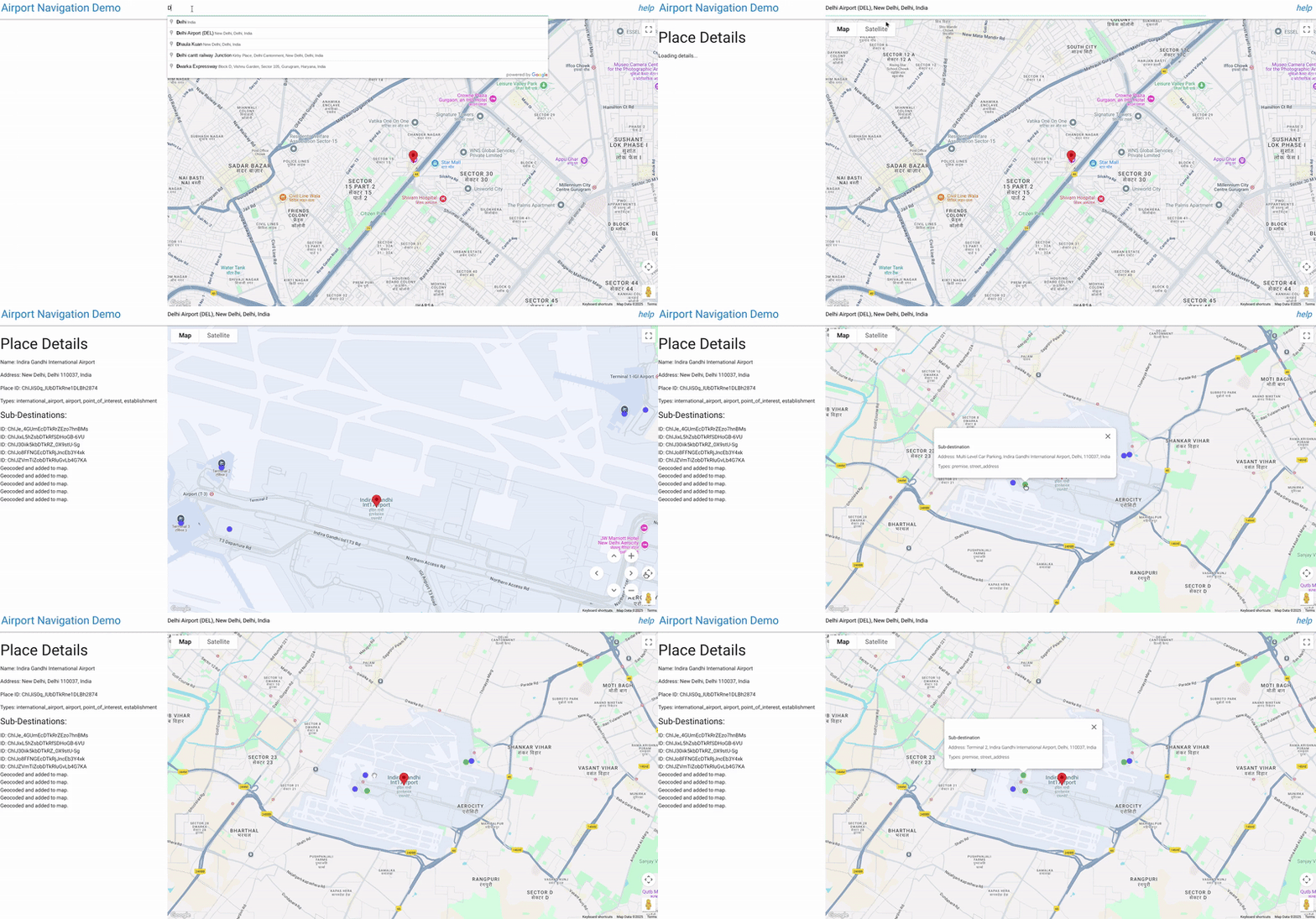
공항은 터미널이 여러 개인 대규모 복합 시설이므로 정시에 도착하고 출발하려면 정확한 탐색이 중요합니다. Google Maps Geocoding API는 일반적으로 좌표 (위도/경도)를 반환하며, 이 좌표는 대부분 대형 공항 단지의 중심입니다. 이 앱은 사용자가 공항 내 특정 터미널이나 승하차 지점과 같은 대규모 복합 시설 내의 정확한 위치를 파악하고 시각화할 수 있도록 특별히 설계된 대화형 도구입니다.

이러한 목표를 달성하는 방법은 다음과 같습니다.
공항/장소 검색: 사용자가 주요 위치 (예: '인디라 간디 국제공항')을 입력합니다. Google Places Autocomplete 입력은 인도로 제한됩니다.
하위 위치 검색: 기본 위치가 선택되면 스크립트에서 Google Places API를 사용하여 세부정보를 가져옵니다. 여기에는 해당 장소와 연결된 '하위 목적지'(예: Google 데이터에서 제공되는 경우 터미널 1, 터미널 3, 특정 게이트 등)가 포함됩니다.
시각적 매핑: 스크립트는 Geocoding API를 사용하여 기본 위치와 하위 목적지의 좌표를 찾습니다.
그런 다음 기본 위치를 표시하고 식별된 각 하위 목적지에 대해 클릭 가능한 고유한 마커(파란색 원)를 지도에 표시합니다.
정확한 식별: 하위 목적지 마커를 클릭하면 마커가 강조 표시되고(녹색으로 바뀜) 이름과 기타 사용 가능한 세부정보 (예: 주소 또는 유형)가 표시된 정보 창이 열리므로 사용자는 올바른 특정 지점을 선택했는지 확인할 수 있습니다.
문맥 뷰: 관련 마커 (기본 위치 + 하위 목적지)가 모두 명확하게 표시되도록 지도가 뷰 (fitBounds)를 자동으로 조정합니다.
공항 탐색 앱의 Google Maps Platform API
이 문서에서는 제공된 '공항으로 이동' 데모 애플리케이션에서 사용되는 주요 Google Maps Platform API와 그 매개변수를 설명합니다. 이 앱은 여러 서비스를 활용하여 지도 표시, 장소 검색, 자세한 장소 정보, 고급 위치 통계를 제공합니다.
1. 지도 초기화 및 표시
애플리케이션의 기반은 대화형 지도 자체입니다.
- 사용된 API:
google.maps.Map(Maps JavaScript API에서) - 목적: 웹페이지에 대화형 지도를 만들고 표시합니다.
- 주요 매개변수:
center: 지도의 초기 지리적 중심을 정의합니다. 이 앱에서는 처음에 델리의 좌표 ({ lat: 28.461835685621395, lng: 77.05004035761647 })로 설정됩니다.zoom: 지도의 초기 확대/축소 수준을 설정합니다.DEFAULT_ZOOM_LEVEL(15)는 클로즈업 뷰에 사용됩니다.mapId: Google Cloud 콘솔에서 구성된 지도 스타일의 고유 식별자입니다.
2. 장소 검색 및 자동 완성
검색창 기능은 Places API에서 제공합니다.
- 사용된 API:
google.maps.places.Autocomplete(Maps JavaScript API의 장소 라이브러리에서) - 목적: 사용자가 입력할 때 지리적 검색의 텍스트 자동 완성 기능을 제공하여 공항과 같은 관련 장소를 추천합니다.
- 주요 매개변수:
input: 사용자가 쿼리를 입력하는 HTML 입력 요소 (#search-input)입니다.componentRestrictions: 검색 결과를 특정 국가로 필터링합니다. 여기서{ country: 'in' }은 결과를 인도로 제한합니다.fields: 선택한 장소에 대해 반환할 데이터 필드를 지정합니다.['place_id']는 처음에는 장소의 고유 식별자만 가져와 데이터 전송을 최적화하는 데 사용됩니다.
- 자동 완성 사용 방법
    // Initialize Autocomplete
    const autocomplete = new google.maps.places.Autocomplete(input, {
      componentRestrictions: { country: 'in' },
      fields: ['place_id'],
    });

    // Add listener to the Autocomplete
    autocomplete.addListener('place_changed', async () => {
      const place = autocomplete.getPlace();
      if (!place.place_id) {
        return;
      }
      // Once a place is selected, fetch details
      await getPlaceDetails(place.place_id);
    });
3. 자세한 장소 정보 가져오기 및 하위 목적지 처리
자동 완성 추천에서 장소를 선택하면 더 포괄적인 세부정보가 가져옵니다.
- 사용된 API: Places API (
https://places.googleapis.com/v1/places/{placeId}에 대한 직접fetch호출을 통해) - 목적: 표시 이름, 주소, 유형, 특히
subDestinations(예: 공항과 같은 대규모 단지 내의 개별 터미널 또는 중요한 지역)을 비롯한 특정 장소에 관한 풍부한 세부정보를 가져옵니다. - URL의 주요 매개변수:
{placeId}: 선택한 장소의 고유 식별자입니다.fields: 가져올 정확한 데이터 필드를 지정합니다. 앱이id,displayName,subDestinations,types,formattedAddress를 요청합니다. 이는 비용을 관리하고 필요한 데이터만 수신하는 데 중요합니다.
- 위치가 주어졌을 때
subDestinations를 가져오는 방법
async function getPlaceDetails(placeId) {
  // Construct the URL for the Places API (v1) details endpoint
  // The 'fields' parameter is crucial for requesting subDestinations
  const url = `https://places.googleapis.com/v1/places/${placeId}?key=YOUR_API_KEY&fields=id,displayName,subDestinations,types,formattedAddress`;

  const response = await fetch(url);
  const data = await response.json();

  // Accessing subDestinations from the Places API response
  if (data.subDestinations && data.subDestinations.length > 0) {
    for (const subDestination of data.subDestinations) {
      // Each subDestination object contains an 'id' and 'displayName'
      console.log(`Sub-destination ID: ${subDestination.id}`);
      console.log(`Sub-destination Name: ${subDestination.displayName?.text}`);
      // This subDestination.id is then used in a geocoding call (as shown in section 4)
    }
  }
}
**Handling `subDestinations`:** When the Places API returns
`subDestinations`, the application initiates a process for each one:
1.  **Geocoding:** It uses the `google.maps.Geocoder` to convert
    each `subDestination.id` into its precise geographical coordinates
    (`lat`, `lng`).
1.  **Marker Placement:** A distinct marker is added to the map for
    each sub-destination. These markers are styled with a blue circle icon
    to differentiate them.
1.  **Map Bounds Adjustment:** The `google.maps.LatLngBounds` object
    is used to dynamically expand the map's view to encompass all retrieved
    sub-destinations, verifying they are all visible within the current map
    frame.
1.  **Interactive Information Window:** A `click` listener is
    attached to each sub-destination marker. When clicked, the marker's
    icon changes to green, and an `InfoWindow` appears, displaying the
    sub-destination's name, address, and types. This provides immediate,
    detailed context to the user.
4. 지오코딩 및 역 지오코딩: 하위 목적지의 세부정보 가져오기
애플리케이션은 장소 ID를 좌표로 변환하고 좌표를 위치 세부정보로 다시 변환하는 두 가지 주요 목적으로 지오코딩을 사용합니다. 이 섹션에서는 특히 지오코딩을 사용하여 하위 목적지에 관한 세부정보를 얻는 방법을 강조합니다.
- 사용된 API:
google.maps.Geocoder(Maps JavaScript API에서) 및 Geocoding API (https://maps.googleapis.com/maps/api/geocode/json에 대한 직접fetch호출을 통해) - 용도:
google.maps.Geocoder:placeId(Autocomplete 또는 Places API에서 가져옴)를 지리적 좌표 (lat,lng) 및 뷰포트로 변환하여 지도가 선택한 장소와 하위 목적지에 올바르게 중앙에 배치되고 확대/축소되도록 하는 데 사용됩니다.- Geocoding API (
fetch): 역 지오코딩 (위도와 경도를 사람이 읽을 수 있는 주소로 변환)에 사용되며 건물 윤곽선, 탐색 지점과 같은 고급 위치 데이터를 검색하는 데도 사용됩니다.
- 주요 매개변수:
google.maps.Geocoder.geocode():placeId: 지오코딩할 장소 ID입니다.location: 리버스 지오코딩을 위한LatLng객체입니다.
- Geocoding API
fetch호출:latlng: 역 지오코딩을 위한 위도 및 경도 좌표입니다.extra_computations=BUILDING_AND_ENTRANCES: 이 중요한 매개변수는 추가 데이터, 특히 건물 발자국 및 입구 정보를 요청하며, 이 정보는 건물 개요와 탐색 포인트를 표시하는 데 사용됩니다.
subDestination ID를 사용하여 추가 세부정보 (예: 위치, 형식화된 주소, 유형)를 가져오는 방법
function geocodeAndAddMarker(subDestination, bounds) {
  return new Promise((resolve, reject) => {
    const geocoder = new google.maps.Geocoder();
    // Using the subDestination.id to geocode and get location details
    geocoder.geocode({ placeId: subDestination.id }, (results, status) => {
      if (status === "OK" && results[0]) {
        const location = results[0].geometry.location;
        const displayName = subDestination.displayName?.text || "Sub-destination";
        const formattedAddress = results[0].formatted_address; // Further detail from Geocoding
        const types = results[0].types; // Further detail from Geocoding

        const marker = new google.maps.Marker({
          map: map,
          position: location,
          title: displayName,
          icon: {
            path: google.maps.SymbolPath.CIRCLE,
            fillColor: 'blue',
            fillOpacity: 0.6,
            strokeWeight: 0,
            scale: 8
          }
        });

        marker.addListener('click', () => {
          marker.setIcon({
            path: google.maps.SymbolPath.CIRCLE,
            fillColor: 'green',
            fillOpacity: 0.6,
            strokeWeight: 0,
            scale: 8
          });
          const infowindow = new google.maps.InfoWindow({
            content: `<b>${displayName}</b><br><p>Address: ${formattedAddress}</p><p>Types: ${types.join(', ')}</p>`,
          });
          infowindow.open(map, marker);
        });
        bounds.extend(location);
        resolve(true);
      } else {
        reject(new Error(`Geocoding failed for placeId: ${subDestination.id}`));
      }
    });
  });
}
5. 마커 표시
마커는 지도에서 특정 위치를 강조하는 데 사용됩니다.
- 사용된 API:
google.maps.Marker(Maps JavaScript API에서) 및google.maps.marker.AdvancedMarkerElement(Maps JavaScript API의 마커 라이브러리에서)와google.maps.marker.PinElement - 용도:
google.maps.Marker: 초기 드래그 가능한 마커(제공된 코드에서draggable이false로 설정되어 있지만 기능의 일부임)와 섹션 3에 설명된 기본 하위 목적지 마커에 사용됩니다.AdvancedMarkerElement및PinElement: 시각적으로 더 뚜렷한 탐색 포인트 마커에 사용되어 마커의 핀을 맞춤 스타일로 지정할 수 있습니다.
- 주요 매개변수:
position: 마커가 배치될LatLng좌표입니다.map: 마커가 표시될 지도 인스턴스입니다.title: 마커 위로 마우스를 가져갈 때 표시되는 텍스트입니다.icon:google.maps.Marker의 맞춤 아이콘을 허용합니다 (예:google.maps.SymbolPath.CIRCLE(맞춤 색상 사용)content:AdvancedMarkerElement의 경우 사전 스타일이 지정된 핀을 위한PinElement를 비롯한 맞춤 HTML 콘텐츠를 삽입할 수 있습니다.PinElement매개변수: 시각적 맞춤설정을 위한background,borderColor,glyphColor,scale
6. 건물 윤곽선 표시
애플리케이션은 건물의 설치 공간을 시각적으로 나타낼 수 있습니다.
- 사용된 API:
google.maps.Data(Maps JavaScript API에서) - 목적: 건물 윤곽선(Geocoding API의
extra_computations에서 GeoJSONdisplay_polygon로 반환됨)과 같은 지리 데이터를 표시합니다. - 주요 매개변수:
map: 데이터 레이어가 적용되는 지도 인스턴스입니다.style: GeoJSON 기능의 시각적 모양을 정의합니다(예:strokeColor,fillColor,fillOpacity)를 사용하려고 할 때 Tegra2 기반 기기 및 기타 기기가 비정상 종료되었습니다.addGeoJson(): 레이어에 GeoJSON 데이터를 추가하는 메서드입니다.
7. 지도 경계 및 확대/축소
지도 보기에 모든 관련 위치가 포함되어 있는지 확인합니다.
- 사용된 API:
google.maps.LatLngBounds(Maps JavaScript API에서) - 목적: 지리적 포인트 모음 (예: 기본 장소 및 모든 하위 목적지)에 맞게 지도의 표시 영역을 동적으로 조정합니다.
- 주요 방법:
extend(location): 경계에LatLng포인트를 추가하여 필요한 경우 확장합니다.fitBounds(bounds):LatLngBounds객체로 정의된 전체 영역을 표시하도록 지도의 중심과 확대/축소 수준을 조정합니다.
이러한 Google Maps Platform API를 결합하여 애플리케이션은 장소를 검색하고, 세부정보를 확인하고, 하위 목적지 및 건물 개요와 같은 관련 지리 정보를 시각화하는 포괄적이고 대화형 환경을 제공합니다.
구현 고려사항 이 기능은 일부 공항 지역에서 작동하지 않으며 (공항 터미널) 데이터 사용 가능 여부에 따라 달라집니다.
리소스 Geocoding API Places API Maps JavaScript API
저자: