Visão geral
O Fazer login com o Google simplificado baseado em OAuth adiciona o Fazer login com o Google à vinculação do OAuth. Isso oferece uma experiência de vinculação perfeita para usuários do Google e também permite a criação de contas, o que permite que o usuário crie uma nova conta no seu serviço usando a Conta do Google.
Para vincular contas com o OAuth e o Fazer login com o Google, siga estas etapas gerais:
- Primeiro, peça ao usuário para dar consentimento de acesso ao perfil do Google dele.
- Use as informações no perfil para verificar se a conta de usuário existe.
- Para usuários atuais, vincule as contas.
- Se você não encontrar uma correspondência para o usuário do Google no seu sistema de autenticação, valide o token de ID recebido do Google. Em seguida, você pode criar um usuário com base nas informações do perfil contidas no token de ID.
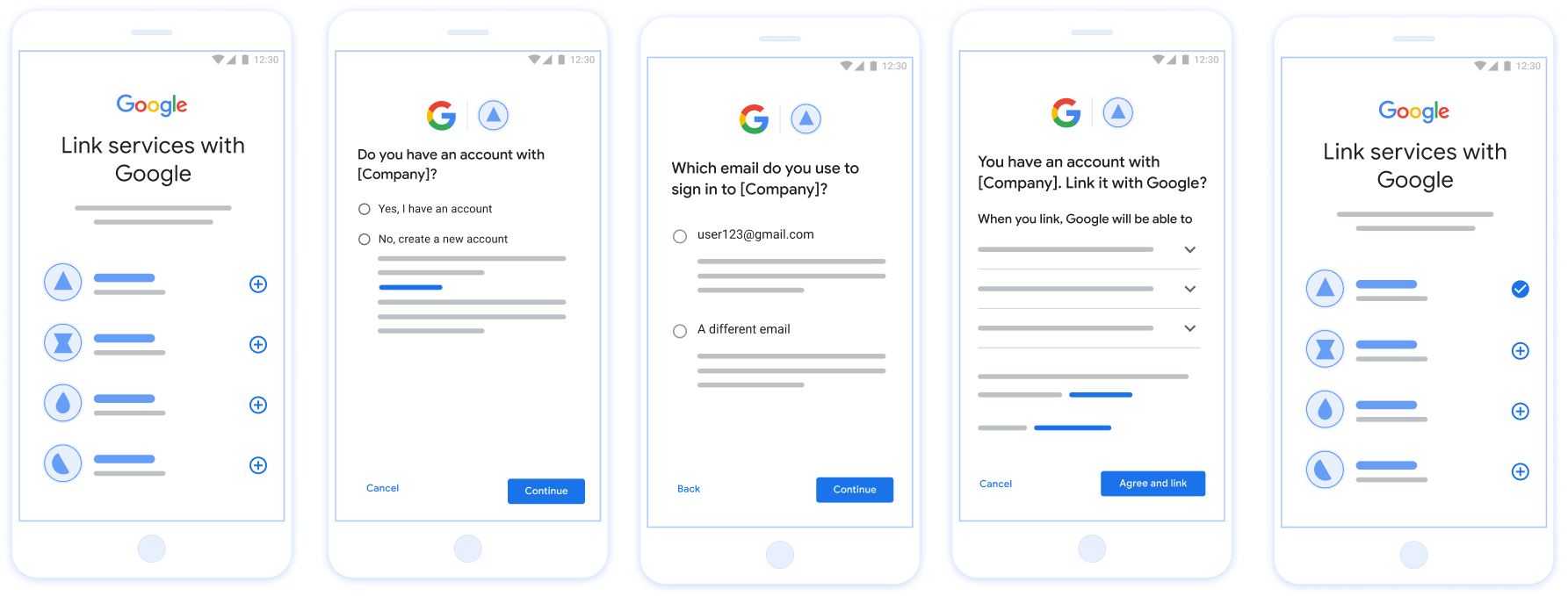
Figura 1. Vinculação de conta no smartphone de um usuário com a vinculação simplificada
Vinculação simplificada: fluxo do OAuth + Fazer login com o Google
O diagrama de sequência a seguir detalha as interações entre o usuário, o Google e seu endpoint de troca de tokens para vinculação simplificada.
Funções e responsabilidades
A tabela a seguir define as funções e responsabilidades dos participantes no fluxo de vinculação simplificada.
| Ator / componente | Função da GAL | Responsabilidades |
|---|---|---|
| App / servidor do Google | Cliente OAuth | Obtém o consentimento do usuário para o recurso Fazer login com o Google, transmite declarações de identidade (JWT) ao seu servidor e armazena com segurança os tokens resultantes. |
| Seu endpoint de troca de token | Provedor de identidade / servidor de autorização | Valida declarações de identidade, verifica se há contas, processa
os intents de vinculação de contas (check, get,
create) e emite tokens com base nos intents
solicitados. |
| Sua API de serviço | Servidor de recursos | Fornece acesso aos dados do usuário quando um token de acesso válido é apresentado. |
Requisitos para a vinculação simplificada
- Implemente o fluxo de vinculação básica do OAuth na Web. Seu serviço precisa oferecer suporte a endpoints de autorização e troca de tokens compatíveis com o OAuth 2.0.
- O endpoint de troca de token precisa oferecer suporte a declarações de JSON Web Token (JWT) e implementar as intents
check,createeget.
Implementar seu servidor OAuth
O endpoint de troca de token precisa oferecer suporte às intents check, create e get.
Siga estas etapas para concluir o fluxo de vinculação de contas e saber quando as
diferentes intents são usadas:
- O usuário tem uma conta no seu sistema de autenticação? (O usuário decide selecionando SIM ou NÃO)
- SIM : o usuário usa o e-mail associado à Conta do Google para fazer login na sua plataforma? (O usuário decide selecionando SIM ou NÃO)
- SIM : o usuário tem uma conta correspondente no seu sistema de autenticação? (
check intenté chamado para confirmar)- SIM :
get intenté chamado e a conta é vinculada se a intent de recebimento for retornada com sucesso. - NÃO : Criar conta? (O usuário decide selecionando SIM ou NÃO)
- SIM :
create intenté chamado e a conta é vinculada se a intent de criação for retornada com sucesso. - NÃO : o fluxo OAuth da Web é acionado, o usuário é direcionado ao navegador e tem a opção de vincular com um e-mail diferente.
- SIM :
- SIM :
- NÃO : o fluxo OAuth da Web é acionado, o usuário é direcionado ao navegador e tem a opção de vincular com um e-mail diferente.
- SIM : o usuário tem uma conta correspondente no seu sistema de autenticação? (
- NÃO : o usuário tem uma conta correspondente no seu sistema de autenticação? (
check intenté chamado para confirmar)- SIM :
get intenté chamado e a conta é vinculada se a intent de recebimento for retornada com sucesso. - NÃO :
create intenté chamado, e a conta é vinculada se a intent de criação for retornada com sucesso.
- SIM :
- SIM : o usuário usa o e-mail associado à Conta do Google para fazer login na sua plataforma? (O usuário decide selecionando SIM ou NÃO)
Check for an existing user account (check intent)
After the user gives consent to access their Google profile, Google sends a request that contains a signed assertion of the Google user's identity. The assertion contains information that includes the user's Google Account ID, name, and email address. The token exchange endpoint configured for your project handles that request.
If the corresponding Google account is already present in your authentication
system, your token exchange endpoint responds with account_found=true. If the
Google account doesn't match an existing user, your token exchange endpoint
returns an HTTP 404 Not Found error with account_found=false.
The request has the following form:
POST /token HTTP/1.1 Host: oauth2.example.com Content-Type: application/x-www-form-urlencoded grant_type=urn:ietf:params:oauth:grant-type:jwt-bearer&intent=check&assertion=JWT&scope=SCOPES&client_id=GOOGLE_CLIENT_ID&client_secret=GOOGLE_CLIENT_SECRET
Your token exchange endpoint must be able to handle the following parameters:
| Token endpoint parameters | |
|---|---|
intent |
For these requests, the value of this parameter is
check. |
grant_type |
The type of token being exchanged. For these requests, this
parameter has the value urn:ietf:params:oauth:grant-type:jwt-bearer. |
assertion |
A JSON Web Token (JWT) that provides a signed assertion of the Google user's identity. The JWT contains information that includes the user's Google Account ID, name, and email address. |
client_id |
The client ID you assigned to Google. |
client_secret |
The client secret you assigned to Google. |
To respond to the check intent requests, your token exchange endpoint must perform the following steps:
- Validate and decode the JWT assertion.
- Check if the Google account is already present in your authentication system.
Validate and decode the JWT assertion
You can validate and decode the JWT assertion by using a JWT-decoding library for your language. Use Google's public keys, available in JWK or PEM formats, to verify the token's signature.
When decoded, the JWT assertion looks like the following example:
{ "sub": "1234567890", // The unique ID of the user's Google Account "iss": "https://accounts.google.com", // The assertion's issuer "aud": "123-abc.apps.googleusercontent.com", // Your server's client ID "iat": 233366400, // Unix timestamp of the assertion's creation time "exp": 233370000, // Unix timestamp of the assertion's expiration time "name": "Jan Jansen", "given_name": "Jan", "family_name": "Jansen", "email": "jan@gmail.com", // If present, the user's email address "email_verified": true, // true, if Google has verified the email address "hd": "example.com", // If present, the host domain of the user's GSuite email address // If present, a URL to user's profile picture "picture": "https://lh3.googleusercontent.com/a-/AOh14GjlTnZKHAeb94A-FmEbwZv7uJD986VOF1mJGb2YYQ", "locale": "en_US" // User's locale, from browser or phone settings }
In addition to verifying the token's signature, verify that the assertion's
issuer (iss field) is https://accounts.google.com, that the audience
(aud field) is your assigned client ID, and that the token has not expired
(exp field).
Using the email, email_verified and hd fields you can determine if
Google hosts and is authoritative for an email address. In cases where Google is
authoritative the user is currently known to be the legitimate account owner
and you may skip password or other challenges methods. Otherwise, these methods
can be used to verify the account prior to linking.
Cases where Google is authoritative:
emailhas a@gmail.comsuffix, this is a Gmail account.email_verifiedis true andhdis set, this is a G Suite account.
Users may register for Google Accounts without using Gmail or G Suite. When
email does not contain a @gmail.com suffix and hd is absent Google is not
authoritative and password or other challenge methods are recommended to verify
the user. email_verified can also be true as Google initially verified the
user when the Google account was created, however ownership of the third party
email account may have since changed.
Check if the Google account is already present in your authentication system
Check whether either of the following conditions are true:
- The Google Account ID, found in the assertion's
subfield, is in your user database. - The email address in the assertion matches a user in your user database.
If either condition is true, the user has already signed up. In that case, return a response like the following:
HTTP/1.1 200 Success
Content-Type: application/json;charset=UTF-8
{
"account_found":"true",
}
If neither the Google Account ID nor the email address specified in the
assertion matches a user in your database, the user hasn't signed up yet. In
this case, your token exchange endpoint needs to reply with a HTTP 404 error
that specifies "account_found": "false", as in the following example:
HTTP/1.1 404 Not found
Content-Type: application/json;charset=UTF-8
{
"account_found":"false",
}
Handle automatic linking (get intent)
After the user gives consent to access their Google profile, Google sends a request that contains a signed assertion of the Google user's identity. The assertion contains information that includes the user's Google Account ID, name, and email address. The token exchange endpoint configured for your project handles that request.
If the corresponding Google Account is already present in your authentication
system, your token exchange endpoint returns a token for the user. If the
Google Account doesn't match an existing user, your token exchange endpoint
returns a linking_error error and optional login_hint.
The request has the following form:
POST /token HTTP/1.1 Host: oauth2.example.com Content-Type: application/x-www-form-urlencoded grant_type=urn:ietf:params:oauth:grant-type:jwt-bearer&intent=get&assertion=JWT&scope=SCOPES&client_id=GOOGLE_CLIENT_ID&client_secret=GOOGLE_CLIENT_SECRET
Your token exchange endpoint must be able to handle the following parameters:
| Token endpoint parameters | |
|---|---|
intent |
For these requests, the value of this parameter is get. |
grant_type |
The type of token being exchanged. For these requests, this
parameter has the value urn:ietf:params:oauth:grant-type:jwt-bearer. |
assertion |
A JSON Web Token (JWT) that provides a signed assertion of the Google user's identity. The JWT contains information that includes the user's Google Account ID, name, and email address. |
scope |
Optional: Any scopes that you've configured Google to request from users. |
client_id |
The client ID you assigned to Google. |
client_secret |
The client secret you assigned to Google. |
To respond to the get intent requests, your token exchange endpoint must perform the following steps:
- Validate and decode the JWT assertion.
- Check if the Google account is already present in your authentication system.
Validate and decode the JWT assertion
You can validate and decode the JWT assertion by using a JWT-decoding library for your language. Use Google's public keys, available in JWK or PEM formats, to verify the token's signature.
When decoded, the JWT assertion looks like the following example:
{ "sub": "1234567890", // The unique ID of the user's Google Account "iss": "https://accounts.google.com", // The assertion's issuer "aud": "123-abc.apps.googleusercontent.com", // Your server's client ID "iat": 233366400, // Unix timestamp of the assertion's creation time "exp": 233370000, // Unix timestamp of the assertion's expiration time "name": "Jan Jansen", "given_name": "Jan", "family_name": "Jansen", "email": "jan@gmail.com", // If present, the user's email address "email_verified": true, // true, if Google has verified the email address "hd": "example.com", // If present, the host domain of the user's GSuite email address // If present, a URL to user's profile picture "picture": "https://lh3.googleusercontent.com/a-/AOh14GjlTnZKHAeb94A-FmEbwZv7uJD986VOF1mJGb2YYQ", "locale": "en_US" // User's locale, from browser or phone settings }
In addition to verifying the token's signature, verify that the assertion's
issuer (iss field) is https://accounts.google.com, that the audience
(aud field) is your assigned client ID, and that the token has not expired
(exp field).
Using the email, email_verified and hd fields you can determine if
Google hosts and is authoritative for an email address. In cases where Google is
authoritative the user is currently known to be the legitimate account owner
and you may skip password or other challenges methods. Otherwise, these methods
can be used to verify the account prior to linking.
Cases where Google is authoritative:
emailhas a@gmail.comsuffix, this is a Gmail account.email_verifiedis true andhdis set, this is a G Suite account.
Users may register for Google Accounts without using Gmail or G Suite. When
email does not contain a @gmail.com suffix and hd is absent Google is not
authoritative and password or other challenge methods are recommended to verify
the user. email_verified can also be true as Google initially verified the
user when the Google account was created, however ownership of the third party
email account may have since changed.
Check if the Google account is already present in your authentication system
Check whether either of the following conditions are true:
- The Google Account ID, found in the assertion's
subfield, is in your user database. - The email address in the assertion matches a user in your user database.
If an account is found for the user, issue an access token and return the values in a JSON object in the body of your HTTPS response, like in the following example:
{ "token_type": "Bearer", "access_token": "ACCESS_TOKEN", "refresh_token": "REFRESH_TOKEN", "expires_in": SECONDS_TO_EXPIRATION }
In some cases, account linking based on ID token might fail for the user. If it
does so for any reason, your token exchange endpoint needs to reply with a HTTP
401 error that specifies error=linking_error, as the following example shows:
HTTP/1.1 401 Unauthorized
Content-Type: application/json;charset=UTF-8
{
"error":"linking_error",
"login_hint":"foo@bar.com"
}
When Google receives a 401 error response with linking_error, Google sends
the user to your authorization endpoint with login_hint as a parameter. The
user completes account linking using the OAuth linking flow in their browser.
Handle account creation using Sign in with Google (create intent)
When a user needs to create an account on your service, Google makes a request
to your token exchange endpoint that specifies intent=create.
The request has the following form:
POST /token HTTP/1.1 Host: oauth2.example.com Content-Type: application/x-www-form-urlencoded response_type=token&grant_type=urn:ietf:params:oauth:grant-type:jwt-bearer&scope=SCOPES&intent=create&assertion=JWT&client_id=GOOGLE_CLIENT_ID&client_secret=GOOGLE_CLIENT_SECRET
Your token exchange endpoint must able to handle the following parameters:
| Token endpoint parameters | |
|---|---|
intent |
For these requests, the value of this parameter is create. |
grant_type |
The type of token being exchanged. For these requests, this
parameter has the value urn:ietf:params:oauth:grant-type:jwt-bearer. |
assertion |
A JSON Web Token (JWT) that provides a signed assertion of the Google user's identity. The JWT contains information that includes the user's Google Account ID, name, and email address. |
client_id |
The client ID you assigned to Google. |
client_secret |
The client secret you assigned to Google. |
The JWT within the assertion parameter contains the user's Google Account ID,
name, and email address, which you can use to create a new account on your
service.
To respond to the create intent requests, your token exchange endpoint must perform the following steps:
- Validate and decode the JWT assertion.
- Validate user information and create new account.
Validate and decode the JWT assertion
You can validate and decode the JWT assertion by using a JWT-decoding library for your language. Use Google's public keys, available in JWK or PEM formats, to verify the token's signature.
When decoded, the JWT assertion looks like the following example:
{ "sub": "1234567890", // The unique ID of the user's Google Account "iss": "https://accounts.google.com", // The assertion's issuer "aud": "123-abc.apps.googleusercontent.com", // Your server's client ID "iat": 233366400, // Unix timestamp of the assertion's creation time "exp": 233370000, // Unix timestamp of the assertion's expiration time "name": "Jan Jansen", "given_name": "Jan", "family_name": "Jansen", "email": "jan@gmail.com", // If present, the user's email address "email_verified": true, // true, if Google has verified the email address "hd": "example.com", // If present, the host domain of the user's GSuite email address // If present, a URL to user's profile picture "picture": "https://lh3.googleusercontent.com/a-/AOh14GjlTnZKHAeb94A-FmEbwZv7uJD986VOF1mJGb2YYQ", "locale": "en_US" // User's locale, from browser or phone settings }
In addition to verifying the token's signature, verify that the assertion's
issuer (iss field) is https://accounts.google.com, that the audience
(aud field) is your assigned client ID, and that the token has not expired
(exp field).
Using the email, email_verified and hd fields you can determine if
Google hosts and is authoritative for an email address. In cases where Google is
authoritative the user is currently known to be the legitimate account owner
and you may skip password or other challenges methods. Otherwise, these methods
can be used to verify the account prior to linking.
Cases where Google is authoritative:
emailhas a@gmail.comsuffix, this is a Gmail account.email_verifiedis true andhdis set, this is a G Suite account.
Users may register for Google Accounts without using Gmail or G Suite. When
email does not contain a @gmail.com suffix and hd is absent Google is not
authoritative and password or other challenge methods are recommended to verify
the user. email_verified can also be true as Google initially verified the
user when the Google account was created, however ownership of the third party
email account may have since changed.
Validate user information and create new account
Check whether either of the following conditions are true:
- The Google Account ID, found in the assertion's
subfield, is in your user database. - The email address in the assertion matches a user in your user database.
If either condition is true, prompt the user to link their existing account
with their Google Account. To do so, respond to the request with an HTTP 401 error
that specifies error=linking_error and gives the user's email address as the
login_hint. The following is a sample response:
HTTP/1.1 401 Unauthorized
Content-Type: application/json;charset=UTF-8
{
"error":"linking_error",
"login_hint":"foo@bar.com"
}
When Google receives a 401 error response with linking_error, Google sends
the user to your authorization endpoint with login_hint as a parameter. The
user completes account linking using the OAuth linking flow in their browser.
If neither condition is true, create a new user account with the information provided in the JWT. New accounts don't typically have a password set. It's recommended that you add Sign in with Google to other platforms to enable users to sign in with Google across the surfaces of your application. Alternatively, you can email the user a link that starts your password recovery flow to allow the user to set a password to sign in on other platforms.
When the creation is completed, issue an access token and refresh token and return the values in a JSON object in the body of your HTTPS response, like in the following example:
{ "token_type": "Bearer", "access_token": "ACCESS_TOKEN", "refresh_token": "REFRESH_TOKEN", "expires_in": SECONDS_TO_EXPIRATION }
Receber seu ID do cliente da API do Google
Você precisará fornecer seu ID do cliente da API do Google durante o processo de registro da vinculação de contas. Para receber o ID do cliente da API usando o projeto criado ao concluir as etapas de Vinculação do OAuth. Para fazer isso, siga estas etapas:
- Acesse a página "Clientes".
Crie ou selecione um projeto das APIs do Google.
Se o projeto não tiver um ID do cliente para o tipo de aplicativo da Web, clique em Criar cliente para criar um. Inclua o domínio do seu site na caixa Origens JavaScript autorizadas. Ao realizar testes ou desenvolvimento local, adicione
http://localhostehttp://localhost:<port_number>ao campo Origens JavaScript autorizadas.
Validar sua implementação
Use a ferramenta OAuth 2.0 Playground para validar sua implementação.
Na ferramenta, siga estas etapas:
- Clique em Configuração para abrir a janela de configuração do OAuth 2.0.
- No campo Fluxo do OAuth, selecione Do lado do cliente.
- No campo Endpoints OAuth, selecione Personalizado.
- Especifique seu endpoint OAuth 2.0 e o ID do cliente atribuído ao Google nos campos correspondentes.
- Na seção Etapa 1, não selecione nenhum escopo do Google. Em vez disso, deixe esse campo em branco ou digite um escopo válido para seu servidor (ou uma string arbitrária se você não usar escopos do OAuth). Quando terminar, clique em Autorizar APIs.
- Nas seções Etapa 2 e Etapa 3, siga o fluxo do OAuth 2.0 e verifique se cada etapa funciona como esperado.
Você pode validar sua implementação usando a ferramenta Demonstração da Vinculação da Conta do Google.
Na ferramenta, siga estas etapas:
- Clique no botão Fazer login com o Google.
- Escolha a conta que você quer vincular.
- Insira o ID do serviço.
- Se quiser, insira um ou mais escopos para os quais você vai solicitar acesso.
- Clique em Iniciar demonstração.
- Quando solicitado, confirme que você pode consentir e negar o pedido de vinculação.
- Confirme se você foi redirecionado para sua plataforma.