קישור יעיל באמצעות OAuth וכניסה באמצעות חשבון Google

סקירה כללית

קישור יעיל באמצעות כניסה מבוססת-OAuth עם חשבון Google מוסיף כניסה באמצעות חשבון Google על גבי קישור OAuth. האפשרות הזו מספקת חוויית קישור חלקה למשתמשי Google, והיא גם מאפשרת יצירת חשבון, כך שהמשתמש יכול ליצור חשבון חדש בשירות שלכם באמצעות חשבון Google שלו.

כדי לקשר חשבונות באמצעות OAuth ו'כניסה באמצעות חשבון Google', צריך לבצע את השלבים הכלליים הבאים:

  1. קודם צריך לבקש מהמשתמש לתת הסכמה לגישה לפרופיל שלו ב-Google.
  2. משתמשים במידע בפרופיל כדי לבדוק אם חשבון המשתמש קיים.
  3. למשתמשים קיימים, מקשרים את החשבונות.
  4. אם לא מצאתם התאמה למשתמש Google במערכת האימות שלכם, צריך לאמת את אסימון הזהות שהתקבל מ-Google. לאחר מכן תוכלו ליצור משתמש על סמך פרטי הפרופיל שכלולים באסימון המזהה.
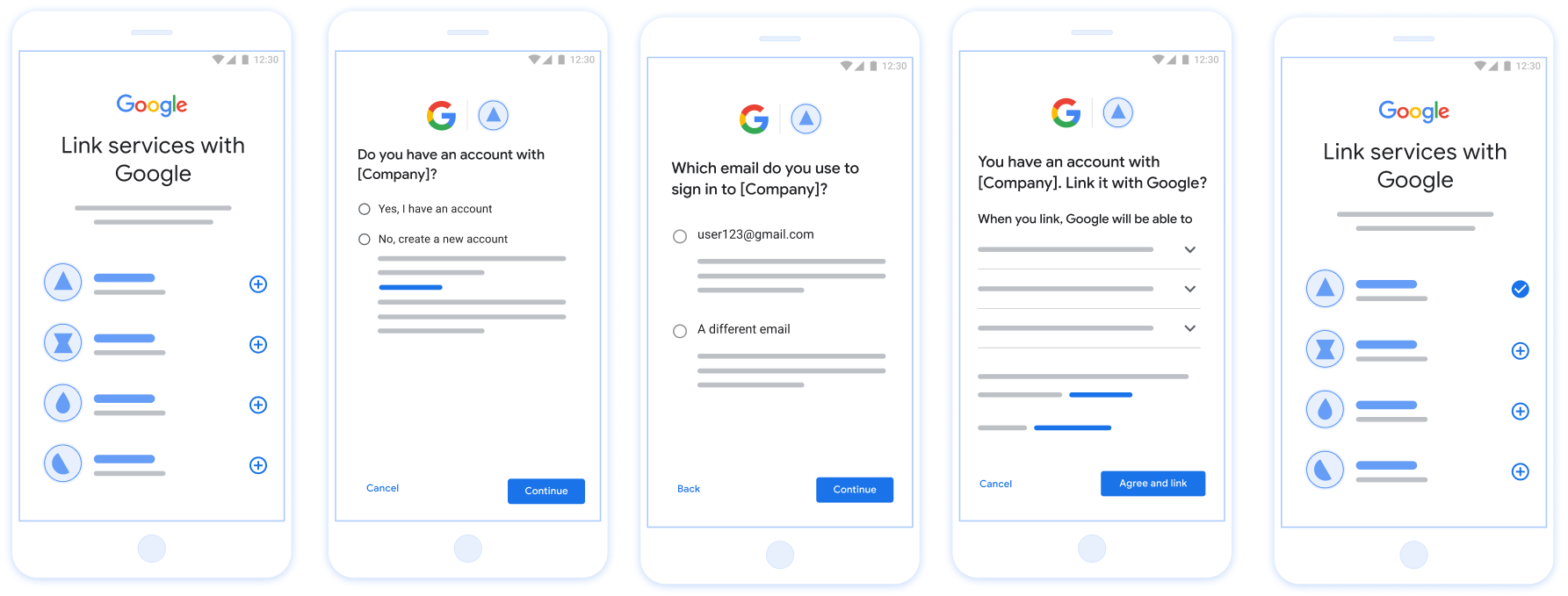
איור שמראה את השלבים שמשתמש צריך לבצע כדי לקשר את חשבון Google שלו באמצעות תהליך הקישור הפשוט. בצילום המסך הראשון אפשר לראות איך משתמש יכול לבחור את האפליקציה שלכם לקישור. בצילום המסך השני, המשתמש יכול לאשר אם יש לו חשבון קיים בשירות שלכם או לא. בצילום המסך השלישי, המשתמש יכול לבחור את חשבון Google שהוא רוצה לקשר. בצילום המסך הרביעי מוצג אישור לקישור חשבון Google לאפליקציה. בצילום המסך החמישי מוצג חשבון משתמש שמקושר בהצלחה באפליקציית Google.

איור 1. קישור חשבון בטלפון של משתמש באמצעות קישור פשוט

הדרישות לקישור פשוט

הטמעת שרת OAuth

נקודת הקצה של החלפת הטוקנים צריכה לתמוך בכוונות check, create ו-get. בצע את השלבים הבאים כדי להשלים את תהליך קישור החשבון וללמוד מתי נעשה שימוש בכוונה מסוימת:

  1. האם למשתמש יש חשבון במערכת האימות שלכם? (המשתמש מחליט על ידי בחירה באפשרות 'כן' או 'לא')
    1. כן : המשתמש משתמש בכתובת האימייל שמשויכת לחשבון Google שלו כדי להיכנס לפלטפורמה שלכם. (המשתמש מחליט על ידי בחירה באפשרות 'כן' או 'לא')
      1. כן : האם למשתמש יש חשבון תואם במערכת האימות שלכם? (מתקשרים אל check intent כדי לאשר)
        1. ‫YES : מתבצעת שיחה אל get intent והחשבון מקושר אם הכוונה get מוחזרת בהצלחה.
        2. לא : ליצור חשבון חדש? (המשתמש בוחר באפשרות YES או NO)
          1. כן : מתבצעת שיחה עם create intent והחשבון מקושר אם כוונת היצירה מוחזרת בהצלחה.
          2. לא : תהליך OAuth באינטרנט מופעל, המשתמש מועבר לדפדפן שלו ומוצגת לו האפשרות לקשר עם כתובת אימייל אחרת.
      2. לא : מופעל תהליך OAuth בדפדפן, המשתמש מועבר לדפדפן שלו ומוצגת לו אפשרות לקשר עם כתובת אימייל אחרת.
    2. לא : האם למשתמש יש חשבון תואם במערכת האימות שלך? (מתקשרים אל check intent כדי לאשר)
      1. ‫YES : מתבצעת שיחה אל get intent והחשבון מקושר אם הכוונה get מוחזרת בהצלחה.
      2. לא : מתבצעת קריאה אל create intent והחשבון מקושר אם כוונת היצירה מוחזרת בהצלחה.

Check for an existing user account (check intent)

After the user gives consent to access their Google profile, Google sends a request that contains a signed assertion of the Google user's identity. The assertion contains information that includes the user's Google Account ID, name, and email address. The token exchange endpoint configured for your project handles that request.

If the corresponding Google account is already present in your authentication system, your token exchange endpoint responds with account_found=true. If the Google account doesn't match an existing user, your token exchange endpoint returns an HTTP 404 Not Found error with account_found=false.

The request has the following form:

POST /token HTTP/1.1
Host: oauth2.example.com
Content-Type: application/x-www-form-urlencoded

grant_type=urn:ietf:params:oauth:grant-type:jwt-bearer&intent=check&assertion=JWT&scope=SCOPES&client_id=GOOGLE_CLIENT_ID&client_secret=GOOGLE_CLIENT_SECRET

Your token exchange endpoint must be able to handle the following parameters:

Token endpoint parameters
intent For these requests, the value of this parameter is check.
grant_type The type of token being exchanged. For these requests, this parameter has the value urn:ietf:params:oauth:grant-type:jwt-bearer.
assertion A JSON Web Token (JWT) that provides a signed assertion of the Google user's identity. The JWT contains information that includes the user's Google Account ID, name, and email address.
client_id The client ID you assigned to Google.
client_secret The client secret you assigned to Google.

To respond to the check intent requests, your token exchange endpoint must perform the following steps:

  • Validate and decode the JWT assertion.
  • Check if the Google account is already present in your authentication system.
Validate and decode the JWT assertion

You can validate and decode the JWT assertion by using a JWT-decoding library for your language. Use Google's public keys, available in JWK or PEM formats, to verify the token's signature.

When decoded, the JWT assertion looks like the following example:

{
  "sub": "1234567890",      // The unique ID of the user's Google Account
  "iss": "https://accounts.google.com",        // The assertion's issuer
  "aud": "123-abc.apps.googleusercontent.com", // Your server's client ID
  "iat": 233366400,         // Unix timestamp of the assertion's creation time
  "exp": 233370000,         // Unix timestamp of the assertion's expiration time
  "name": "Jan Jansen",
  "given_name": "Jan",
  "family_name": "Jansen",
  "email": "jan@gmail.com", // If present, the user's email address
  "email_verified": true,   // true, if Google has verified the email address
  "hd": "example.com",      // If present, the host domain of the user's GSuite email address
                            // If present, a URL to user's profile picture
  "picture": "https://lh3.googleusercontent.com/a-/AOh14GjlTnZKHAeb94A-FmEbwZv7uJD986VOF1mJGb2YYQ",
  "locale": "en_US"         // User's locale, from browser or phone settings
}

In addition to verifying the token's signature, verify that the assertion's issuer (iss field) is https://accounts.google.com, that the audience (aud field) is your assigned client ID, and that the token has not expired (exp field).

Using the email, email_verified and hd fields you can determine if Google hosts and is authoritative for an email address. In cases where Google is authoritative the user is currently known to be the legitimate account owner and you may skip password or other challenges methods. Otherwise, these methods can be used to verify the account prior to linking.

Cases where Google is authoritative:

  • email has a @gmail.com suffix, this is a Gmail account.
  • email_verified is true and hd is set, this is a G Suite account.

Users may register for Google Accounts without using Gmail or G Suite. When email does not contain a @gmail.com suffix and hd is absent Google is not authoritative and password or other challenge methods are recommended to verify the user. email_verified can also be true as Google initially verified the user when the Google account was created, however ownership of the third party email account may have since changed.

Check if the Google account is already present in your authentication system

Check whether either of the following conditions are true:

  • The Google Account ID, found in the assertion's sub field, is in your user database.
  • The email address in the assertion matches a user in your user database.

If either condition is true, the user has already signed up. In that case, return a response like the following:

HTTP/1.1 200 Success
Content-Type: application/json;charset=UTF-8

{
  "account_found":"true",
}

If neither the Google Account ID nor the email address specified in the assertion matches a user in your database, the user hasn't signed up yet. In this case, your token exchange endpoint needs to reply with a HTTP 404 error that specifies "account_found": "false", as in the following example:

HTTP/1.1 404 Not found
Content-Type: application/json;charset=UTF-8

{
  "account_found":"false",
}

Handle automatic linking (get intent)

After the user gives consent to access their Google profile, Google sends a request that contains a signed assertion of the Google user's identity. The assertion contains information that includes the user's Google Account ID, name, and email address. The token exchange endpoint configured for your project handles that request.

If the corresponding Google Account is already present in your authentication system, your token exchange endpoint returns a token for the user. If the Google Account doesn't match an existing user, your token exchange endpoint returns a linking_error error and optional login_hint.

The request has the following form:

POST /token HTTP/1.1
Host: oauth2.example.com
Content-Type: application/x-www-form-urlencoded

grant_type=urn:ietf:params:oauth:grant-type:jwt-bearer&intent=get&assertion=JWT&scope=SCOPES&client_id=GOOGLE_CLIENT_ID&client_secret=GOOGLE_CLIENT_SECRET

Your token exchange endpoint must be able to handle the following parameters:

Token endpoint parameters
intent For these requests, the value of this parameter is get.
grant_type The type of token being exchanged. For these requests, this parameter has the value urn:ietf:params:oauth:grant-type:jwt-bearer.
assertion A JSON Web Token (JWT) that provides a signed assertion of the Google user's identity. The JWT contains information that includes the user's Google Account ID, name, and email address.
scope Optional: Any scopes that you've configured Google to request from users.
client_id The client ID you assigned to Google.
client_secret The client secret you assigned to Google.

To respond to the get intent requests, your token exchange endpoint must perform the following steps:

  • Validate and decode the JWT assertion.
  • Check if the Google account is already present in your authentication system.
Validate and decode the JWT assertion

You can validate and decode the JWT assertion by using a JWT-decoding library for your language. Use Google's public keys, available in JWK or PEM formats, to verify the token's signature.

When decoded, the JWT assertion looks like the following example:

{
  "sub": "1234567890",      // The unique ID of the user's Google Account
  "iss": "https://accounts.google.com",        // The assertion's issuer
  "aud": "123-abc.apps.googleusercontent.com", // Your server's client ID
  "iat": 233366400,         // Unix timestamp of the assertion's creation time
  "exp": 233370000,         // Unix timestamp of the assertion's expiration time
  "name": "Jan Jansen",
  "given_name": "Jan",
  "family_name": "Jansen",
  "email": "jan@gmail.com", // If present, the user's email address
  "email_verified": true,   // true, if Google has verified the email address
  "hd": "example.com",      // If present, the host domain of the user's GSuite email address
                            // If present, a URL to user's profile picture
  "picture": "https://lh3.googleusercontent.com/a-/AOh14GjlTnZKHAeb94A-FmEbwZv7uJD986VOF1mJGb2YYQ",
  "locale": "en_US"         // User's locale, from browser or phone settings
}

In addition to verifying the token's signature, verify that the assertion's issuer (iss field) is https://accounts.google.com, that the audience (aud field) is your assigned client ID, and that the token has not expired (exp field).

Using the email, email_verified and hd fields you can determine if Google hosts and is authoritative for an email address. In cases where Google is authoritative the user is currently known to be the legitimate account owner and you may skip password or other challenges methods. Otherwise, these methods can be used to verify the account prior to linking.

Cases where Google is authoritative:

  • email has a @gmail.com suffix, this is a Gmail account.
  • email_verified is true and hd is set, this is a G Suite account.

Users may register for Google Accounts without using Gmail or G Suite. When email does not contain a @gmail.com suffix and hd is absent Google is not authoritative and password or other challenge methods are recommended to verify the user. email_verified can also be true as Google initially verified the user when the Google account was created, however ownership of the third party email account may have since changed.

Check if the Google account is already present in your authentication system

Check whether either of the following conditions are true:

  • The Google Account ID, found in the assertion's sub field, is in your user database.
  • The email address in the assertion matches a user in your user database.

If an account is found for the user, issue an access token and return the values in a JSON object in the body of your HTTPS response, like in the following example:

{
  "token_type": "Bearer",
  "access_token": "ACCESS_TOKEN",
  "refresh_token": "REFRESH_TOKEN",
  "expires_in": SECONDS_TO_EXPIRATION
}

In some cases, account linking based on ID token might fail for the user. If it does so for any reason, your token exchange endpoint needs to reply with a HTTP 401 error that specifies error=linking_error, as the following example shows:

HTTP/1.1 401 Unauthorized
Content-Type: application/json;charset=UTF-8

{
  "error":"linking_error",
  "login_hint":"foo@bar.com"
}

When Google receives a 401 error response with linking_error, Google sends the user to your authorization endpoint with login_hint as a parameter. The user completes account linking using the OAuth linking flow in their browser.

Handle account creation using Sign in with Google (create intent)

When a user needs to create an account on your service, Google makes a request to your token exchange endpoint that specifies intent=create.

The request has the following form:

POST /token HTTP/1.1
Host: oauth2.example.com
Content-Type: application/x-www-form-urlencoded

response_type=token&grant_type=urn:ietf:params:oauth:grant-type:jwt-bearer&scope=SCOPES&intent=create&assertion=JWT&client_id=GOOGLE_CLIENT_ID&client_secret=GOOGLE_CLIENT_SECRET

Your token exchange endpoint must able to handle the following parameters:

Token endpoint parameters
intent For these requests, the value of this parameter is create.
grant_type The type of token being exchanged. For these requests, this parameter has the value urn:ietf:params:oauth:grant-type:jwt-bearer.
assertion A JSON Web Token (JWT) that provides a signed assertion of the Google user's identity. The JWT contains information that includes the user's Google Account ID, name, and email address.
client_id The client ID you assigned to Google.
client_secret The client secret you assigned to Google.

The JWT within the assertion parameter contains the user's Google Account ID, name, and email address, which you can use to create a new account on your service.

To respond to the create intent requests, your token exchange endpoint must perform the following steps:

  • Validate and decode the JWT assertion.
  • Validate user information and create new account.
Validate and decode the JWT assertion

You can validate and decode the JWT assertion by using a JWT-decoding library for your language. Use Google's public keys, available in JWK or PEM formats, to verify the token's signature.

When decoded, the JWT assertion looks like the following example:

{
  "sub": "1234567890",      // The unique ID of the user's Google Account
  "iss": "https://accounts.google.com",        // The assertion's issuer
  "aud": "123-abc.apps.googleusercontent.com", // Your server's client ID
  "iat": 233366400,         // Unix timestamp of the assertion's creation time
  "exp": 233370000,         // Unix timestamp of the assertion's expiration time
  "name": "Jan Jansen",
  "given_name": "Jan",
  "family_name": "Jansen",
  "email": "jan@gmail.com", // If present, the user's email address
  "email_verified": true,   // true, if Google has verified the email address
  "hd": "example.com",      // If present, the host domain of the user's GSuite email address
                            // If present, a URL to user's profile picture
  "picture": "https://lh3.googleusercontent.com/a-/AOh14GjlTnZKHAeb94A-FmEbwZv7uJD986VOF1mJGb2YYQ",
  "locale": "en_US"         // User's locale, from browser or phone settings
}

In addition to verifying the token's signature, verify that the assertion's issuer (iss field) is https://accounts.google.com, that the audience (aud field) is your assigned client ID, and that the token has not expired (exp field).

Using the email, email_verified and hd fields you can determine if Google hosts and is authoritative for an email address. In cases where Google is authoritative the user is currently known to be the legitimate account owner and you may skip password or other challenges methods. Otherwise, these methods can be used to verify the account prior to linking.

Cases where Google is authoritative:

  • email has a @gmail.com suffix, this is a Gmail account.
  • email_verified is true and hd is set, this is a G Suite account.

Users may register for Google Accounts without using Gmail or G Suite. When email does not contain a @gmail.com suffix and hd is absent Google is not authoritative and password or other challenge methods are recommended to verify the user. email_verified can also be true as Google initially verified the user when the Google account was created, however ownership of the third party email account may have since changed.

Validate user information and create new account

Check whether either of the following conditions are true:

  • The Google Account ID, found in the assertion's sub field, is in your user database.
  • The email address in the assertion matches a user in your user database.

If either condition is true, prompt the user to link their existing account with their Google Account. To do so, respond to the request with an HTTP 401 error that specifies error=linking_error and gives the user's email address as the login_hint. The following is a sample response:

HTTP/1.1 401 Unauthorized
Content-Type: application/json;charset=UTF-8

{
  "error":"linking_error",
  "login_hint":"foo@bar.com"
}

When Google receives a 401 error response with linking_error, Google sends the user to your authorization endpoint with login_hint as a parameter. The user completes account linking using the OAuth linking flow in their browser.

If neither condition is true, create a new user account with the information provided in the JWT. New accounts don't typically have a password set. It's recommended that you add Sign in with Google to other platforms to enable users to sign in with Google across the surfaces of your application. Alternatively, you can email the user a link that starts your password recovery flow to allow the user to set a password to sign in on other platforms.

When the creation is completed, issue an access token and return the values in a JSON object in the body of your HTTPS response, like in the following example:

{
  "token_type": "Bearer",
  "access_token": "ACCESS_TOKEN",
  "refresh_token": "REFRESH_TOKEN",
  "expires_in": SECONDS_TO_EXPIRATION
}

איך מקבלים את מזהה הלקוח ב-Google API

במהלך תהליך ההרשמה לקישור החשבון, תצטרכו לספק את מזהה הלקוח של Google API.

כדי לקבל את מזהה הלקוח של ה-API באמצעות הפרויקט שיצרתם במהלך השלבים של קישור OAuth. כדי לעשות זאת, פועלים לפי השלבים הבאים:

  1. עוברים אל דף הלקוחות.
  2. יוצרים פרויקט ב-Google APIs או בוחרים פרויקט קיים.

    אם בפרויקט שלכם אין מזהה לקוח מסוג אפליקציית אינטרנט, לוחצים על יצירת לקוח כדי ליצור אחד. חשוב להוסיף את הדומיין של האתר לתיבה מקורות מורשים של JavaScript. כשמבצעים בדיקות מקומיות או פיתוח, צריך להוסיף את http://localhost ואת http://localhost:<port_number> לשדה מקורות JavaScript מורשים.

אימות ההטמעה

כדי לאמת את ההטמעה, אפשר להשתמש בכלי OAuth 2.0 Playground.

בכלי, מבצעים את השלבים הבאים:

  1. לוחצים על Configuration (הגדרה) כדי לפתוח את חלון ההגדרה של OAuth 2.0.
  2. בשדה OAuth flow (תהליך OAuth), בוחרים באפשרות Client-side (בצד הלקוח).
  3. בשדה OAuth Endpoints (נקודות קצה של OAuth), בוחרים באפשרות Custom (מותאם אישית).
  4. בשדות המתאימים, מציינים את נקודת הקצה של OAuth 2.0 ואת מזהה הלקוח שהקציתם ל-Google.
  5. בקטע Step 1, לא בוחרים אף היקף של Google. במקום זאת, משאירים את השדה הזה ריק או מקלידים היקף הרשאות שתקף לשרת (או מחרוזת שרירותית אם לא משתמשים בהיקפי הרשאות OAuth). בסיום, לוחצים על הרשאת ממשקי API.
  6. בקטעים שלב 2 ושלב 3, עוברים על תהליך ההרשאה באמצעות OAuth 2.0 ומוודאים שכל שלב פועל כמו שצריך.

כדי לאמת את ההטמעה, אפשר להשתמש בכלי Google Account Linking Demo.

בכלי, מבצעים את השלבים הבאים:

  1. לוחצים על הכפתור כניסה באמצעות חשבון Google.
  2. בוחרים את החשבון שרוצים לקשר.
  3. מזינים את מזהה השירות.
  4. אפשר להזין היקף אחד או יותר שרוצים לבקש גישה אליהם.
  5. לוחצים על התחלת ההדגמה.
  6. כשמופיעה הבקשה, מאשרים שרוצים להסכים לבקשת הקישור או לדחות אותה.
  7. מוודאים שמופנים לפלטפורמה שלכם.