アカウントは、業界標準の OAuth 2.0 インプリシット フローと認可コードフローを使用してリンクされます。サービスは、OAuth 2.0 準拠の認可エンドポイントとトークン交換エンドポイントをサポートする必要があります。
暗黙的フローでは、Google がデベロッパーのブラウザで認可エンドポイントを開きます。ログインに成功したら、認可エンドポイントから長期のアクセス トークンを Google に返します。このアクセス トークンは、Google から送信されるすべてのリクエストに含まれます。
認証コードフローでは、次の 2 つのエンドポイントが必要になります。
認可エンドポイント。ログインしていないユーザーにログイン用の UI を表示します。認可エンドポイントは、リクエストされたアクセスに対するユーザーの同意を記録するために、有効期間の短い認可コードも作成します。
トークン交換エンドポイント。次の 2 種類の交換を行います。
- 長期の更新トークンと短期のアクセス トークンの認可コードを交換します。この処理は、ユーザーがアカウントのリンクフローを行ったときに発生します。
- 長期の更新トークンを短期のアクセス トークンと交換します。この処理は、トークンが期限切れになり、新しいアクセス トークンが必要になった場合に発生します。
OAuth 2.0 フローを選択する
暗黙的フローの実装は簡単ですが、暗黙的フローによって発行されたアクセス トークンには有効期限を設定しないことをおすすめします。これは、暗黙的フローでトークンが期限切れになると、ユーザーがアカウントを再度リンクしなければならないためです。セキュリティ上の理由からトークンに有効期限を設定する必要がある場合は、代わりに認可コードフローを使用することを強くおすすめします。
設計ガイドライン
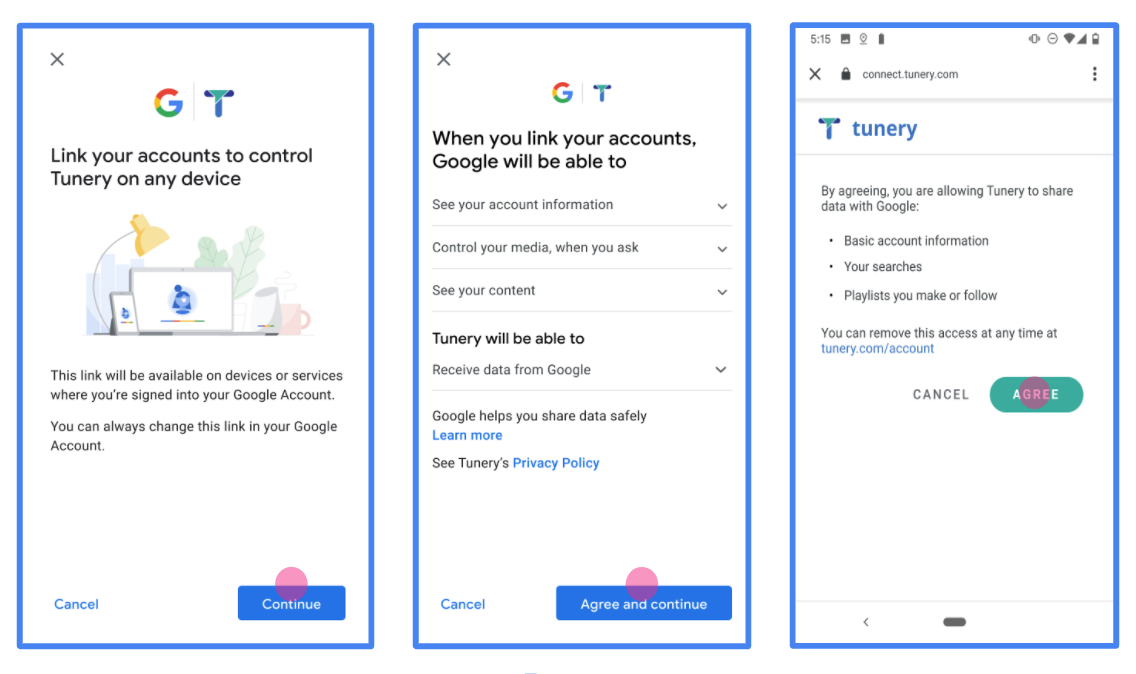
このセクションでは、OAuth リンクフロー用にホストするユーザー画面の設計要件と推奨事項について説明します。Google のアプリから呼び出されると、プラットフォームはユーザーに Google にログインするページとアカウントのリンクに関する同意画面を表示します。アカウントのリンクに同意すると、ユーザーは Google のアプリに戻されます。
要件
- ユーザーのアカウントは、Google Home や Google アシスタントなどの特定の Google プロダクトではなく、Google にリンクされることを伝える必要があります。
推奨事項
次のことをおすすめします。
Google のプライバシー ポリシーを表示する。同意画面に Google のプライバシー ポリシーへのリンクを含めます。
共有するデータ。明確で簡潔な表現を使用して、Google に必要なデータとその理由をユーザーに伝えます。
行動を促す明確なフレーズ同意画面に「同意してリンク」など、わかりやすい行動を促すフレーズを表示します。これは、アカウントをリンクするために Google と共有する必要があるデータをユーザーが理解する必要があるためです。
キャンセルできること。ユーザーがリンクしないことを選択した場合に、ユーザーが戻るまたはキャンセルできる方法を提供します。
ログイン プロセスを明確にする。ユーザーが Google アカウントにログインするための明確な方法(ユーザー名とパスワードのフィールド、Google でログインなど)があることを確認します。
リンクを解除できること。ユーザーがリンクを解除するためのメカニズム(プラットフォームのアカウント設定への URL など)を提供します。または、ユーザーがリンクされたアカウントを管理できる Google アカウントへのリンクを含めることもできます。
ユーザー アカウントを変更する機能。ユーザーがアカウントを切り替える方法を提案します。これは、ユーザーが複数のアカウントを持っている場合に特に便利です。
- ユーザーがアカウントを切り替えるために同意画面を閉じる必要がある場合は、回復可能なエラーを Google に送信して、ユーザーが OAuth リンクと暗黙的フローを使用して目的のアカウントにログインできるようにします。
ロゴを含めます。同意画面に会社のロゴを表示します。 スタイル ガイドラインに沿ってロゴを配置します。Google のロゴも表示する場合は、ロゴと商標をご覧ください。
Create the project
To create your project to use account linking:
- Go to the Google API Console.
- Click Create project.
- Enter a name or accept the generated suggestion.
- Confirm or edit any remaining fields.
- Click Create.
To view your project ID:
- Go to the Google API Console.
- Find your project in the table on the landing page. The project ID appears in the ID column.
Configure your OAuth Consent Screen
The Google Account Linking process includes a consent screen which tells users the application requesting access to their data, what kind of data they are asking for and the terms that apply. You will need to configure your OAuth consent screen before generating a Google API client ID.
- Open the OAuth consent screen page of the Google APIs console.
- If prompted, select the project you just created.
On the "OAuth consent screen" page, fill out the form and click the “Save” button.
Application name: The name of the application asking for consent. The name should accurately reflect your application and be consistent with the application name users see elsewhere. The application name will be shown on the Account Linking consent screen.
Application logo: An image on the consent screen that will help users recognize your app. The logo is shown on Account linking consent screen and on account settings
Support email: For users to contact you with questions about their consent.
Scopes for Google APIs: Scopes allow your application to access your user's private Google data. For the Google Account Linking use case, default scope (email, profile, openid) is sufficient, you don’t need to add any sensitive scopes. It is generally a best practice to request scopes incrementally, at the time access is required, rather than up front. Learn more.
Authorized domains: To protect you and your users, Google only allows applications that authenticate using OAuth to use Authorized Domains. Your applications' links must be hosted on Authorized Domains. Learn more.
Application Homepage link: Home page for your application. Must be hosted on an Authorized Domain.
Application Privacy Policy link: Shown on Google Account Linking consent screen. Must be hosted on an Authorized Domain.
Application Terms of Service link (Optional): Must be hosted on an Authorized Domain.
Figure 1. Google Account Linking Consent Screen for a fictitious Application, Tunery
Check "Verification Status", if your application needs verification then click the "Submit For Verification" button to submit your application for verification. Refer to OAuth verification requirements for details.
OAuth サーバーを実装する
An OAuth 2.0 server implementation of the authorization code flow consists of two endpoints, which your service makes available by HTTPS. The first endpoint is the authorization endpoint, which is responsible for finding or obtaining consent from users for data access. The authorization endpoint presents a sign-in UI to your users that aren't already signed in and records consent to the requested access. The second endpoint is the token exchange endpoint, which is used to obtain encrypted strings, called tokens, that authorize a user to access your service.
When a Google application needs to call one of your service's APIs, Google uses these endpoints together to get permission from your users to call these APIs on their behalf.
An OAuth 2.0 authorization code flow session initiated by Google has the following flow:
- Google opens your authorization endpoint in the user's browser. If the flow started on a voice-only device for an Action, Google transfers the execution to a phone.
- The user signs in, if not signed in already, and grants Google permission to access their data with your API, if they haven't already granted permission.
- Your service creates an authorization code and returns it to Google. To do so, redirect the user's browser back to Google with the authorization code attached to the request.
- Google sends the authorization code to your token exchange endpoint, which verifies the authenticity of the code and returns an access token and a refresh token. The access token is a short-lived token that your service accepts as credentials to access APIs. The refresh token is a long-lived token that Google can store and use to acquire new access tokens when they expire.
- After the user has completed the account linking flow, every subsequent request sent from Google contains an access token.
Handle authorization requests
When you need to perform account linking using the OAuth 2.0 authorization code flow, Google sends the user to your authorization endpoint with a request that includes the following parameters:
| Authorization endpoint parameters | |
|---|---|
client_id |
The Client ID you assigned to Google. |
redirect_uri |
The URL to which you send the response to this request. |
state |
A bookkeeping value that is passed back to Google unchanged in the redirect URI. |
scope |
Optional: A space-delimited set of scope strings that specify the data Google is requesting authorization for. |
response_type |
The type of value to return in the response. For the OAuth 2.0
authorization code flow, the response type is always code.
|
user_locale |
The Google Account language setting in RFC5646 format, used to localize your content in the user's preferred language. |
For example, if your authorization endpoint is available at
https://myservice.example.com/auth, a request might look like the following:
GET https://myservice.example.com/auth?client_id=GOOGLE_CLIENT_ID&redirect_uri=REDIRECT_URI&state=STATE_STRING&scope=REQUESTED_SCOPES&response_type=code&user_locale=LOCALE
For your authorization endpoint to handle sign-in requests, do the following steps:
- Verify that the
client_idmatches the Client ID you assigned to Google, and that theredirect_urimatches the redirect URL provided by Google for your service. These checks are important to prevent granting access to unintended or misconfigured client apps. If you support multiple OAuth 2.0 flows, also confirm that theresponse_typeiscode. - Check if the user is signed in to your service. If the user isn't signed in, complete your service's sign-in or sign-up flow.
- Generate an authorization code for Google to use to access your API. The authorization code can be any string value, but it must uniquely represent the user, the client the token is for, and the code's expiration time, and it must not be guessable. You typically issue authorization codes that expire after approximately 10 minutes.
- Confirm that the URL specified by the
redirect_uriparameter has the following form:https://oauth-redirect.googleusercontent.com/r/YOUR_PROJECT_ID https://oauth-redirect-sandbox.googleusercontent.com/r/YOUR_PROJECT_ID
- Redirect the user's browser to the URL specified by the
redirect_uriparameter. Include the authorization code you just generated and the original, unmodified state value when you redirect by appending thecodeandstateparameters. The following is an example of the resulting URL:https://oauth-redirect.googleusercontent.com/r/YOUR_PROJECT_ID?code=AUTHORIZATION_CODE&state=STATE_STRING
Handle token exchange requests
Your service's token exchange endpoint is responsible for two kinds of token exchanges:
- Exchange authorization codes for access tokens and refresh tokens
- Exchange refresh tokens for access tokens
Token exchange requests include the following parameters:
| Token exchange endpoint parameters | |
|---|---|
client_id |
A string that identifies the request origin as Google. This string must be registered within your system as Google's unique identifier. |
client_secret |
A secret string that you registered with Google for your service. |
grant_type |
The type of token being exchanged. It's either
authorization_code or refresh_token. |
code |
When grant_type=authorization_code, this parameter is the
code Google received from either your sign-in or token exchange
endpoint. |
redirect_uri |
When grant_type=authorization_code, this parameter is the
URL used in the initial authorization request. |
refresh_token |
When grant_type=refresh_token, this parameter is the
refresh token Google received from your token exchange endpoint. |
Exchange authorization codes for access tokens and refresh tokens
After the user signs in and your authorization endpoint returns a short-lived authorization code to Google, Google sends a request to your token exchange endpoint to exchange the authorization code for an access token and a refresh token.
For these requests, the value of grant_type is authorization_code, and the
value of code is the value of the authorization code you previously granted
to Google. The following is an example of a request to exchange an
authorization code for an access token and a refresh token:
POST /token HTTP/1.1 Host: oauth2.example.com Content-Type: application/x-www-form-urlencoded client_id=GOOGLE_CLIENT_ID&client_secret=GOOGLE_CLIENT_SECRET&grant_type=authorization_code&code=AUTHORIZATION_CODE&redirect_uri=REDIRECT_URI
To exchange authorization codes for an access token and a refresh token, your
token exchange endpoint responds to POST requests by executing the following
steps:
- Verify that the
client_ididentifies the request origin as an authorized origin, and that theclient_secretmatches the expected value. - Verify that the authorization code is valid and not expired, and that the client ID specified in the request matches the client ID associated with the authorization code.
- Confirm that the URL specified by the
redirect_uriparameter is identical to the value used in the initial authorization request. - If you can't verify all of the above criteria, return an HTTP
400 Bad Request error with
{"error": "invalid_grant"}as the body. - Otherwise, use the user ID from the authorization code to generate a refresh token and an access token. These tokens can be any string value, but they must uniquely represent the user and the client the token is for, and they must not be guessable. For access tokens, also record the expiration time of the token, which is typically an hour after you issue the token. Refresh tokens don't expire.
- Return the following JSON object in the body of the HTTPS response:
{ "token_type": "Bearer", "access_token": "ACCESS_TOKEN", "refresh_token": "REFRESH_TOKEN", "expires_in": SECONDS_TO_EXPIRATION }
Google stores the access token and the refresh token for the user and records the expiration of the access token. When the access token expires, Google uses the refresh token to get a new access token from your token exchange endpoint.
Exchange refresh tokens for access tokens
When an access token expires, Google sends a request to your token exchange endpoint to exchange a refresh token for a new access token.
For these requests, the value of grant_type is refresh_token, and the value
of refresh_token is the value of the refresh token you previously granted to
Google. The following is an example of a request to exchange a refresh token
for an access token:
POST /token HTTP/1.1 Host: oauth2.example.com Content-Type: application/x-www-form-urlencoded client_id=GOOGLE_CLIENT_ID&client_secret=GOOGLE_CLIENT_SECRET&grant_type=refresh_token&refresh_token=REFRESH_TOKEN
To exchange a refresh token for an access token, your token exchange endpoint
responds to POST requests by executing the following steps:
- Verify that the
client_ididentifies the request origin as Google, and that theclient_secretmatches the expected value. - Verify that the refresh token is valid, and that the client ID specified in the request matches the client ID associated with the refresh token.
- If you can't verify all of the above criteria, return an HTTP 400
Bad Request error with
{"error": "invalid_grant"}as the body. - Otherwise, use the user ID from the refresh token to generate an access token. These tokens can be any string value, but they must uniquely represent the user and the client the token is for, and they must not be guessable. For access tokens, also record the expiration time of the token, typically an hour after you issue the token.
- Return the following JSON object in the body of the HTTPS
response:
{ "token_type": "Bearer", "access_token": "ACCESS_TOKEN", "expires_in": SECONDS_TO_EXPIRATION }
userinfo リクエストを処理する
userinfo エンドポイントは、OAuth 2.0 で保護されたリソースで、リンクされたユーザーに関するクレームを返します。userinfo エンドポイントの実装とホストは任意ですが、以下のユースケースを除きます。
- Google One タップによるリンクされたアカウントへのログイン。
- Android TV のスムーズな定期購入。
トークン エンドポイントからアクセス トークンが正常に取得されると、Google は、リンクされたユーザーに関する基本的なプロフィール情報を取得するためのリクエストを userinfo エンドポイントに送信します。
| userinfo エンドポイント リクエスト ヘッダー | |
|---|---|
Authorization header |
Bearer タイプのアクセス トークン。 |
たとえば、userinfo エンドポイントが
https://myservice.example.com/userinfo の場合、リクエストは次のようになります。
GET /userinfo HTTP/1.1 Host: myservice.example.com Authorization: Bearer ACCESS_TOKEN
userinfo エンドポイントでリクエストを処理するには、次の手順を行います。
- Authorization ヘッダーからアクセス トークンを抽出し、そのアクセス トークンに関連付けられたユーザーの情報を返します。
- アクセス トークンが無効な場合は、
WWW-Authenticateレスポンス ヘッダーを使用して HTTP 401 Unauthorized エラーを返します。userinfo エラー レスポンスの例を次に示します。 リンク処理中に 401 Unauthorized またはその他の失敗したエラー レスポンスが返された場合、そのエラーは修復不能となり、取得したトークンは破棄されるため、ユーザーはリンク処理をやり直す必要があります。HTTP/1.1 401 Unauthorized WWW-Authenticate: error="invalid_token", error_description="The Access Token expired"
アクセス トークンが有効な場合は、HTTPS の本文に次の JSON オブジェクトを含む HTTP 200 レスポンスを返します。 レスポンス:
userinfo エンドポイントが HTTP 200 成功レスポンスを返すと、取得したトークンとクレームがユーザーの Google アカウントに登録されます。{ "sub": "USER_UUID", "email": "EMAIL_ADDRESS", "given_name": "FIRST_NAME", "family_name": "LAST_NAME", "name": "FULL_NAME", "picture": "PROFILE_PICTURE", }userinfo エンドポイント レスポンス subシステム内でユーザーを識別する一意の ID。 emailユーザーのメールアドレス。 given_name省略可: ユーザーの名。 family_name省略可: ユーザーの姓。 name省略可: ユーザーの氏名。 picture省略可: ユーザーのプロフィール写真。
実装の検証
OAuth 2.0 Playground ツールを使用して、実装を検証できます。
このツールで、次の手順を行います。
- [構成] 設定をクリックして、[OAuth 2.0 構成] ウィンドウを開きます。
- [OAuth flow] フィールドで、[クライアントサイド] を選択します。
- [OAuth Endpoints] フィールドで、[Custom] を選択します。
- 対応するフィールドに、OAuth 2.0 エンドポイントと Google に割り当てたクライアント ID を指定します。
- [Step 1] セクションで、Google スコープを選択しないでください。代わりに、このフィールドを空白のままにするか、サーバーで有効なスコープを入力します(OAuth スコープを使用しない場合は任意の文字列を入力します)。完了したら、[Authorize APIs] をクリックします。
- [Step 2] セクションと [Step 3] セクションで、OAuth 2.0 フローを確認し、各ステップが意図したとおりに動作することを確認します。
Google アカウント リンク デモツールを使用して、実装を検証できます。
このツールで、次の手順を行います。
- [Google でログイン] ボタンをクリックします。
- リンクするアカウントを選択します。
- サービス ID を入力します。
- 必要に応じて、アクセスをリクエストするスコープを 1 つ以上入力します。
- [Start Demo] をクリックします。
- 確認のメッセージが表示されたら、リンク リクエストに同意または拒否できることを確認します。
- プラットフォームにリダイレクトされることを確認します。