
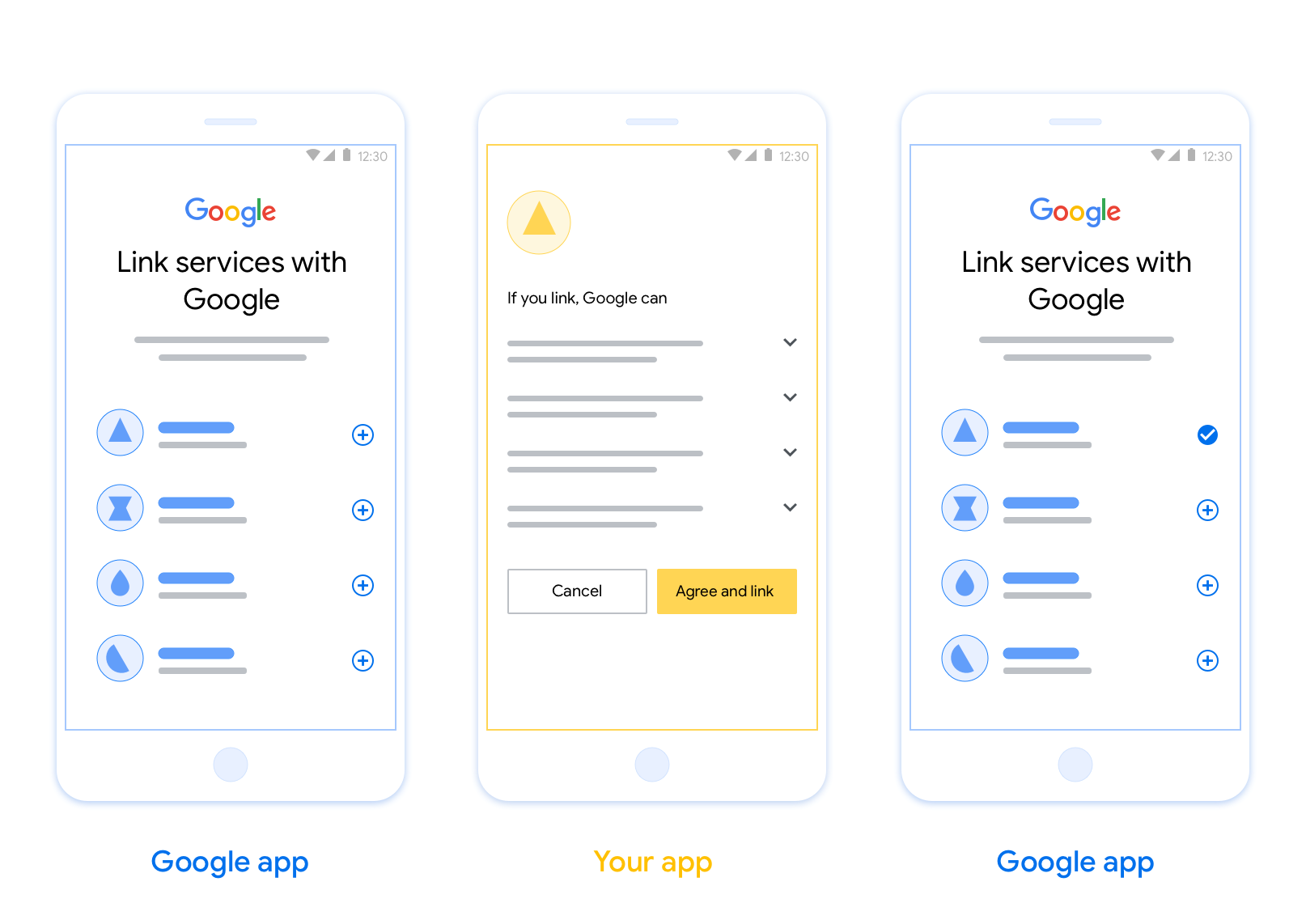
La vinculación de cuentas con App Flip basada en OAuth (App Flip) permite que los usuarios vinculen rápidamente sus cuentas en tu sistema de autenticación a sus Cuentas de Google. Si tu app está instalada en el teléfono del usuario cuando inicia el proceso de vinculación de la cuenta, se lo redirecciona sin problemas a tu app para obtener la autorización del usuario.
Este enfoque proporciona un proceso de vinculación más rápido, ya que el usuario no tiene que volver a ingresar su nombre de usuario y contraseña para autenticarse. En cambio, App Flip aprovecha las credenciales de la cuenta del usuario en tu app. Una vez que un usuario vincula su Cuenta de Google con tu app, puede aprovechar cualquier integración que hayas desarrollado.
Puedes configurar el cambio rápido de apps para apps de iOS y Android.
Requisitos
Para implementar App Flip, debes cumplir con los siguientes requisitos:
- Debes tener una app para Android o iOS.
- Debes ser propietario, administrador y encargado del mantenimiento de un servidor de OAuth 2.0 que admita el flujo de código de autorización de OAuth 2.0.
Flujo de App Flip basado en OAuth
En el siguiente diagrama de secuencia, se detalla la interacción entre el usuario, la app de Google, tu app y tu servidor de autorización para el cambio rápido de apps.
Funciones y responsabilidades
En la siguiente tabla, se definen los roles y las responsabilidades de los participantes en el flujo de App Flip.
| Actor / Componente | Rol de GAL | Responsabilidades |
|---|---|---|
| App o servidor de Google | Cliente de OAuth | Inicia el proceso de vinculación, activa un vínculo directo a tu app para dispositivos móviles, intercambia el código de autorización por tokens y los almacena de forma segura para acceder a las APIs de tu servicio. |
| Tu app | Agente de autorización | Autentica al usuario (por lo general, con las credenciales existentes de la app), obtiene el consentimiento y recupera un código de autorización de tu servidor. |
| Tu servidor de autorización | Servidor de autorización | Valida los códigos de autorización y los tokens de actualización, y emite tokens de acceso al servidor de Google. |
Lineamientos de diseño
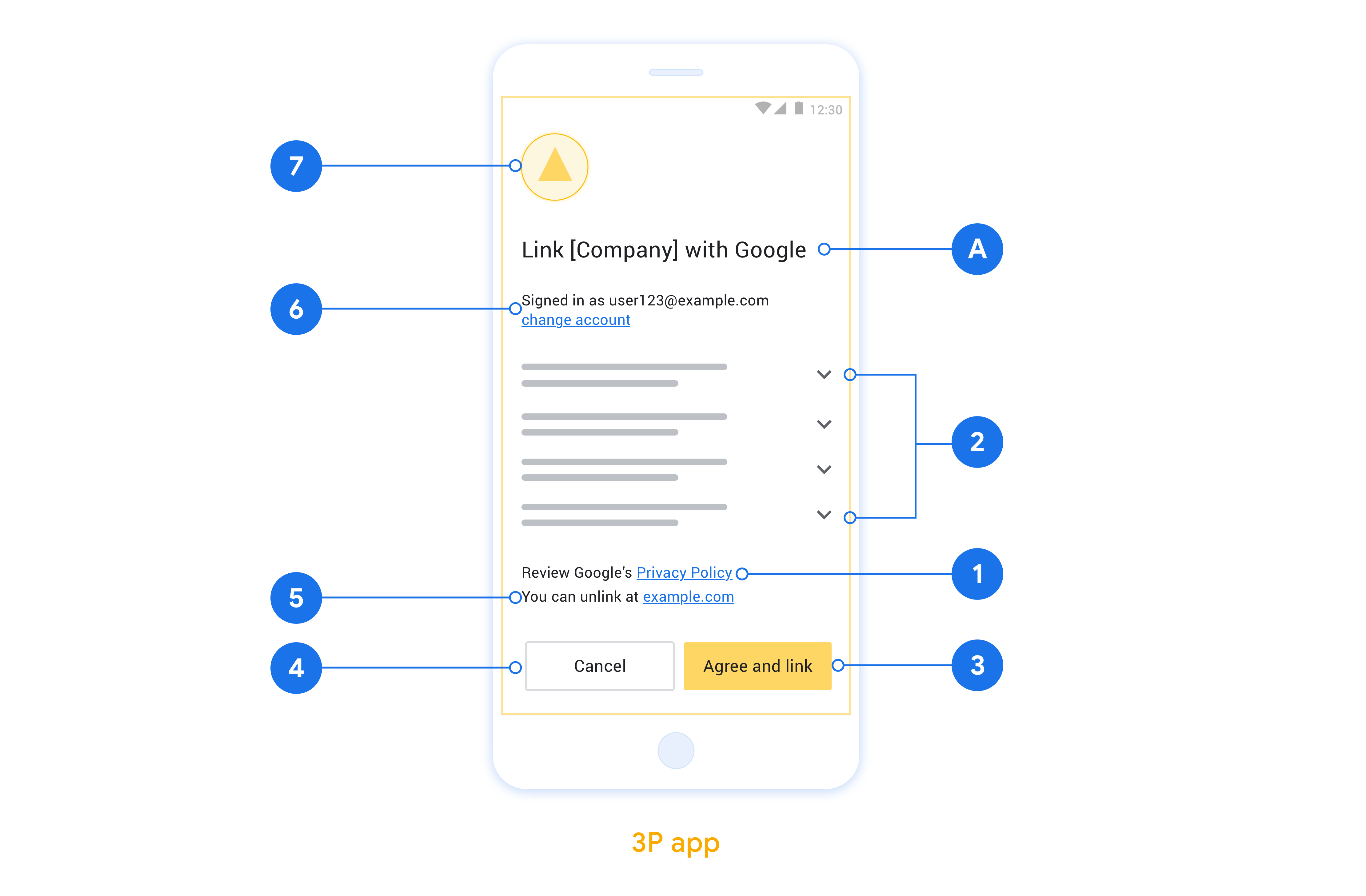
En esta sección, se describen los requisitos y las recomendaciones de diseño para la pantalla de consentimiento de vinculación de cuentas de Cambio de app. Después de que Google llame a tu app, esta mostrará la pantalla de consentimiento al usuario.
Requisitos
- Debes comunicar que la cuenta del usuario se está vinculando a Google, no a un producto específico de Google, como Google Home o Asistente de Google.
Recomendaciones
Te recomendamos que hagas lo siguiente:
Mostrar la Política de Privacidad de Google Incluye un vínculo a la Política de Privacidad de Google en la pantalla de consentimiento.
Datos que se compartirán. Usa un lenguaje claro y conciso para indicarle al usuario qué datos suyos requiere Google y por qué.
Llamado a la acción claro. Incluye un llamado a la acción claro en la pantalla de consentimiento, como “Aceptar y vincular”. Esto se debe a que los usuarios deben comprender qué datos deben compartir con Google para vincular sus cuentas.
Capacidad de rechazar o cancelar Proporciona una forma para que los usuarios vuelvan, rechacen o cancelen la vinculación si deciden no vincular sus cuentas.
Capacidad de desvincular. Ofrece un mecanismo para que los usuarios desvinculen sus cuentas, como una URL a la configuración de la cuenta en tu plataforma. Como alternativa, puedes incluir un vínculo a la Cuenta de Google, en la que los usuarios pueden administrar su cuenta vinculada.
Capacidad de cambiar la cuenta de usuario Sugerir un método para que los usuarios cambien de cuenta Esto es especialmente beneficioso si los usuarios suelen tener varias cuentas.
- Si un usuario debe cerrar la pantalla de consentimiento para cambiar de cuenta, envía un error recuperable a Google para que el usuario pueda acceder a la cuenta deseada con la vinculación de OAuth y el flujo implícito.
Incluye tu logotipo. Muestra el logotipo de tu empresa en la pantalla de consentimiento. Usa tus lineamientos de estilo para colocar tu logotipo. Si también deseas mostrar el logotipo de Google, consulta Logotipos y marcas.
Implementa App Flip en tus apps
Para implementar App Flip, debes modificar el código de autorización del usuario en tu app para aceptar un vínculo directo de Google.
Para admitir App Flip en tu app para Android, sigue las instrucciones de la guía de implementación para Android.
Para admitir App Flip en tu app para iOS, sigue las instrucciones de la guía de implementación para iOS.
Cómo probar el Cambio de app
Se puede simular App Flip con apps de muestra y de prueba antes de que estén disponibles las apps de producción verificadas y un servidor de OAuth 2.0 en funcionamiento.
Durante el cambio de app, primero se abrirá una app de Google que luego solicitará una respuesta de código de autorización de tu servidor de OAuth 2.0. En el paso final, la respuesta se devolverá a la app de Google.
Requisitos previos
Para simular una app de Google y activar el intent que inicia tu app, descarga e instala la herramienta de prueba de App Flip para Android y iOS.
Descarga e instala la muestra de App Flip para Android y iOS para simular tu app y seleccionar un tipo de respuesta de OAuth 2.0.
Secuencia de prueba
- Abre la herramienta de prueba de App Flip.
- Presiona
Try Flip!para iniciar la app de ejemplo de App Flip. - Selecciona una respuesta de los botones de selección en la app de ejemplo.
- Presiona
Sendpara devolver una respuesta simulada de OAuth 2.0 a la herramienta de prueba. - Verifica los mensajes de registro de la herramienta de prueba para ver si hay un código de autorización o detalles del error.
Pruebas de producción
Puedes probar App Flip en producción después de completar el registro y la implementación del servidor de OAuth 2.0.
Para las pruebas automatizadas, se recomienda usar una sola Cuenta de Google y una dirección de correo electrónico específica para la tarea.
El estado de la vinculación de cuentas se puede ver en Cuentas vinculadas cuando se accede como titular de la Cuenta de Google. También se pueden desvincular las cuentas entre pruebas repetidas desde aquí.
De manera opcional, puedes implementar RISC para desvincular y notificar a Google el cambio de forma programática.