使用 OAuth 的 App Flip 連結 Google 帳戶

OAuth-based App Flip Linking (App Flip) allows your users to quickly link their accounts in your authentication system to their Google Accounts. If your app is installed on your user's phone when they initiate the account linking process, they are seamlessly flipped to your app to obtain user authorization.

This approach provides a faster linking process since the user does not have to re-enter their username and password to authenticate; instead, App Flip leverages the credentials from the user's account on your app. Once a user has linked their Google Account with your app, they can take advantage of any integrations that you have developed.

You can set up App Flip for both iOS and Android apps.

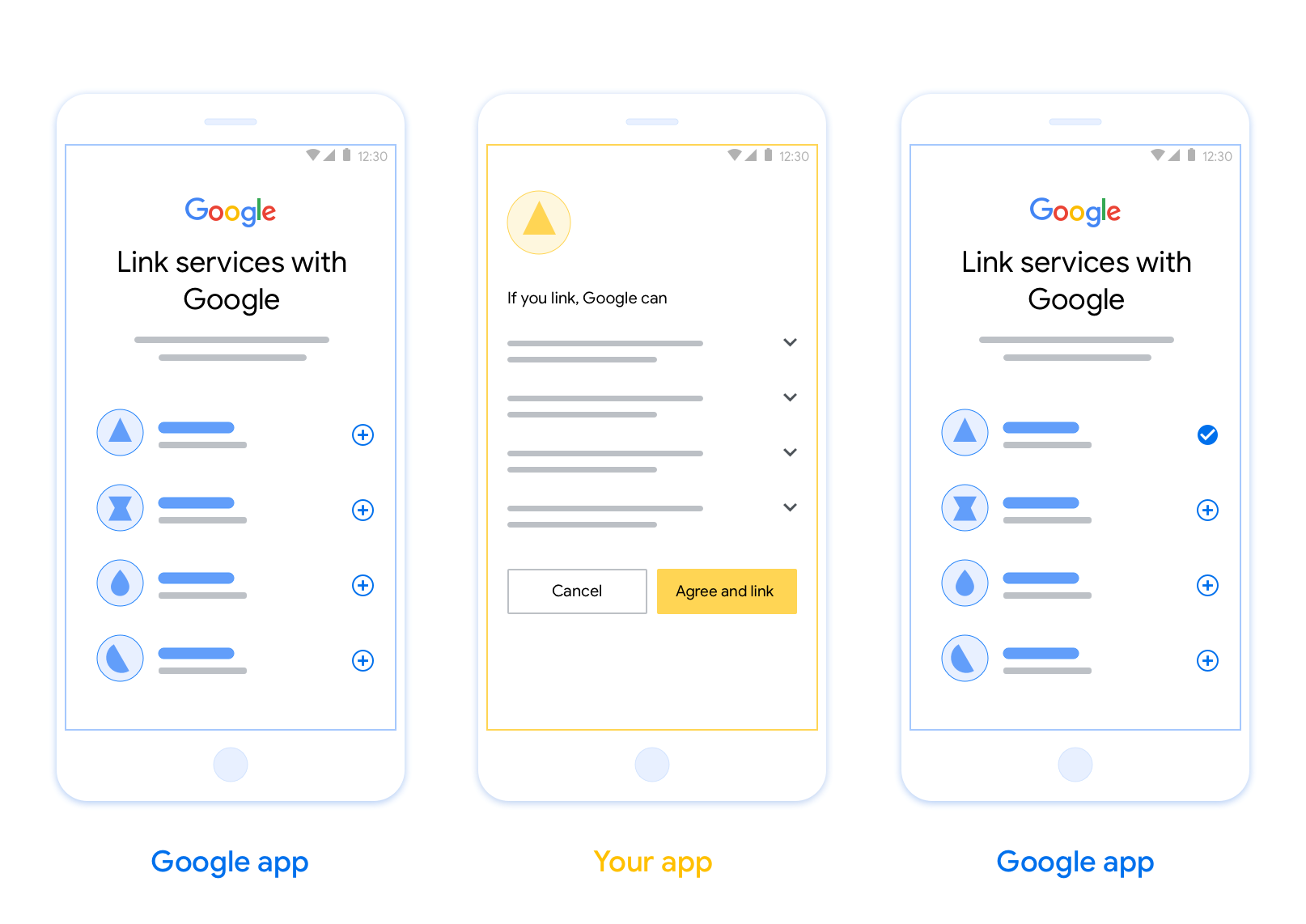
This figure shows the steps for a user to link their Google account
            to your authentication system. The first screenshot shows how a user
            can select your app if their Google account is linked to your app.
            The second screenshot shows the confirmation for linking their
            Google account with your app. The third screenshot shows a
            successfully linked user account in the Google app.
Figure 1. Account linking on a user's phone with App Flip.

Requirements

To implement App Flip, you must fulfill the following requirements:

  • You must have an Android or iOS app.
  • You must own, manage and maintain an OAuth 2.0 server which supports the OAuth 2.0 authorization code flow.

OAuth-based App Flip Flow

The following sequence diagram details the interaction between the User, Google App, Your App, and Your Authorization Server for App Flip.

User Google App Your App Google Server Your Auth Server 1. Initiates linking 2. Deep link to Your App 3. Show Consent Screen 4. User Grants Consent 5. Get Auth Code 6. authorization_code 7. Return to Google App 8. Pass code to Google Server 9. Token Exchange (POST) 10. access_token, refresh_token 11. Store user tokens 12. Access user resources
Figure 2. The sequence of events in the App Flip flow. If an authorization code is provided, the token exchange happens server-to-server, the same way it does in the browser-based OAuth linking flow.

Roles and responsibilities

The following table defines the roles and responsibilities of the actors in the App Flip flow.

Actor / Component GAL Role Responsibilities
Google App / Server OAuth Client Initiates the linking process, triggers a deep link to your mobile app, exchanges the authorization code for tokens, and securely stores them to access your service's APIs.
Your App Authorization Agent Authenticates the user (typically using existing app credentials), obtains consent, and retrieves an authorization code from your server.
Your Authorization Server Authorization Server Validates authorization codes and refresh tokens, and issues access tokens to the Google Server.

Design guidelines

This section describes the design requirements and recommendations for the App Flip account linking consent screen. After Google calls your app, your app displays the consent screen to the user.

Requirements

  1. You must communicate that the user’s account is being linked to Google, not to a specific Google product, such as Google Home or Google Assistant.

Recommendations

We recommend that you do the following:

  1. Display Google's Privacy Policy. Include a link to Google’s Privacy Policy on the consent screen.

  2. Data to be shared. Use clear and concise language to tell the user what data of theirs Google requires and why.

  3. Clear call-to-action. State a clear call-to-action on your consent screen, such as “Agree and link.” This is because users need to understand what data they're required to share with Google to link their accounts.

  4. Ability to deny or cancel. Provide a way for users to go back, deny, or cancel, if they choose not to link.

  5. Ability to unlink. Offer a mechanism for users to unlink, such as a URL to their account settings on your platform. Alternatively, you can include a link to Google Account where users can manage their linked account.

  6. Ability to change user account. Suggest a method for users to switch their account(s). This is especially beneficial if users tend to have multiple accounts.

    • If a user must close the consent screen to switch accounts, send a recoverable error to Google so the user can sign in to the desired account with OAuth linking and the implicit flow.
  7. Include your logo. Display your company logo on the consent screen. Use your style guidelines to place your logo. If you wish to also display Google's logo, see Logos and trademarks.

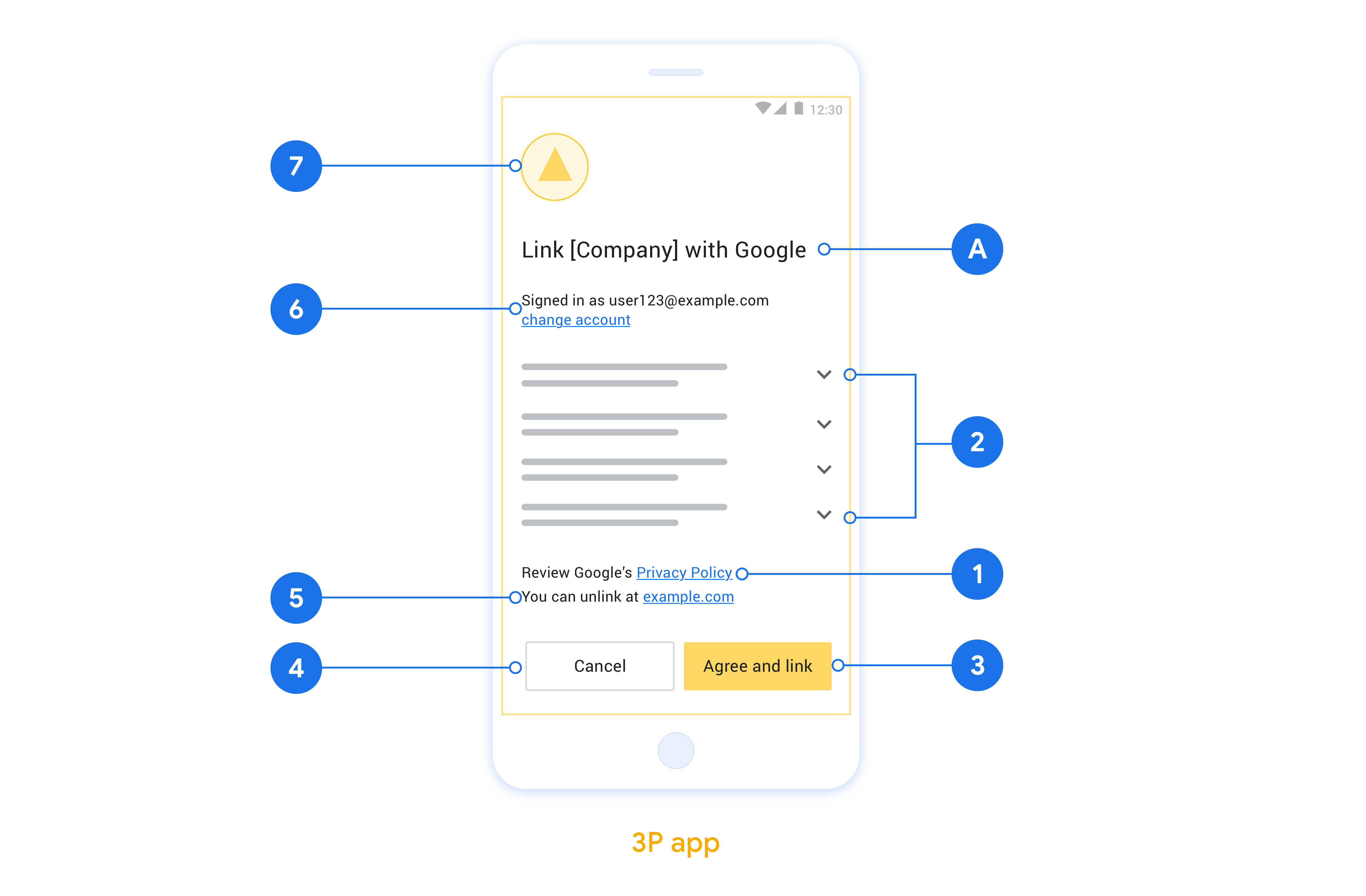
This figure shows an example consent screen with call-outs to the
            individual requirements and recommendations to be followed when
            you design a user consent screen.
Figure 2. Account linking consent screen design guidelines.

在應用程式中實作 App Flip

如要實作應用程式切換功能,您必須修改應用程式中的使用者授權碼,接受來自 Google 的深層連結。

如要在 Android 應用程式中支援應用程式切換功能,請按照 Android 實作指南中的操作說明進行。

如要在 iOS 應用程式中支援 App Flip,請按照 iOS 實作指南中的說明操作。

測試應用程式快速連結

在通過驗證的正式版應用程式和可用的 OAuth 2.0 伺服器推出前,您可以使用範例和測試應用程式模擬應用程式切換功能。

在應用程式快速連結期間,Google 應用程式會先開啟您的應用程式,然後向 OAuth 2.0 伺服器要求授權碼回應,最後將回應傳回 Google 應用程式。

必要條件

如要模擬 Google 應用程式並觸發啟動應用程式的意圖,請下載並安裝適用於 AndroidiOS 的應用程式切換測試工具。

下載並安裝 AndroidiOS 適用的應用程式切換範例,模擬您的應用程式並選取 OAuth 2.0 回應類型。

測試序列

  1. 開啟應用程式切換測試工具。
  2. 按下 Try Flip! 啟動 App Flip 範例應用程式。
  3. 在「範例」應用程式中,從圓形按鈕選取回覆。
  4. 按下 Send,將模擬的 OAuth 2.0 回應傳回測試工具。
  5. 檢查測試工具記錄訊息,瞭解授權碼或錯誤詳細資料。

正式版測試

完成註冊和 OAuth 2.0 伺服器實作後,即可在正式環境中測試應用程式切換功能。

建議您使用單一 Google 帳戶和工作專用電子郵件地址進行自動化測試。

以 Google 帳戶擁有者身分登入後,即可透過「已連結帳戶」查看帳戶連結狀態。您也可以在這裡取消連結帳戶。

您也可以選擇實作 RISC,以程式輔助方式取消連結並通知 Google 這項變更。