
The Synaptics Coralboard – Limited Edition 2 GB comes preloaded with a Linux OS board support package based on Yocto 5.0 (Scarthgap). The Synaptics Astra SDK documentation for this package includes full information for working with the Coralboard and all Synaptics Astra SL2610 processors. Instructions for building custom Yocto Linux images are included. Default support for Coralboard in the Astra SDK will be available later in 2026.
This user guide describes the steps involved in booting the Coralboard and running multimodal applications on the Coral NPU accelerator in the Synaptics Torq™ AI subsystem. ML application code is compiled on the MLIR-based Synaptics Torq compiler which is part of the open-source Torq toolchain.
For help with any hardware, software, or other issues, please file a support request with Synaptics. You can also register at this link to be notified when Coralboards are available for purchase.
Astra SDK (Linux) features
Complete documentation for Astra Yocto Linux is located here. The preloaded image on Coralboard is based on the Astra SDK v2.2 Out-of-Box Experience (OOBE) image, which includes:
- Python3
- IREE runtime for NPU acceleration support
- Multimedia pipelines with GStreamer including Python bindings
- Core services and connectivity
- Graphical desktop with preloaded AI demos (optional, requires display)
The graphical desktop is optional. You can use the board in headless mode or with a display. The Linux kernel and file system is written to on-board eMMC storage. The Coralboard does not currently support booting from an SD card or USB drive directly.
Synaptics continuously updates and optimizes the SDK development tools. Synaptics will release an updated Astra SDK (Linux BSP) in early summer 2026 that will include the latest updates — you can upgrade to get these enhancements. Please monitor the Astra SDK Download Page to access the update as soon as it becomes available.
Python
Example applications are based on Python, although other languages are
supported. Python 3.12.9 is included. Note: Initially, always use the command
python3, not python. Using a virtual environment is recommended — you
can then use python from within the virtual environment.
Enabled features on Coralboard
The preloaded Linux image on Coralboard includes support for:
- Network sharing over USB with Network Control Model (NCM). You can enable network sharing to give the board access to the network through the host machine.
- OV5647 camera (mounted on the included sensor hat board or separately)
- 7" or 13" Waveshare display
- PDM microphones (on sensor hat)
- Buzzer / RGB LED (on sensor hat)
- WiFi card (the AMPAK AP12611_M2 is a compact M.2 2230 card that provides both Wi-Fi 6E and Bluetooth connectivity)
- ETH-over-USB adapter
Information and resources for Astra SDK (Linux)
- Astra SDK Linux documentation
- Torq compiler documentation
- Synaptics AI developer zone
- ML example applications
- Astra SDK Linux releases
- Synaptics Coralboard support requests
Set up and connect Coralboard
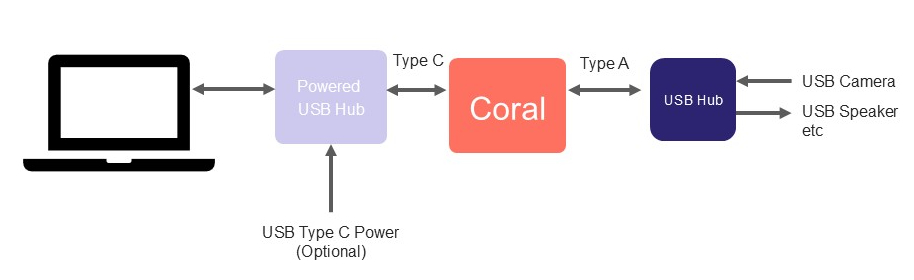
The main power source for the board is delivered through the USB type C connector. The USB type C port also enables communication with a host machine. You can connect USB peripherals to the type A port on the Coralboard, using a hub if necessary. Be mindful of the amount of power required by USB peripherals (hardware limit of approximately 0.6A @ 5V, 3W). You can use powered hubs for peace of mind.
Unbox and assemble hardware
See Getting started.
Connect power and peripherals
- Connect your USB peripherals (such as a camera) to the USB Type-A port on the Coralboard.
- Use a powered USB hub if you are connecting multiple peripherals to ensure you have sufficient power.
- Provide main power to the board by plugging a cable into the USB Type-C port. Connect the other end of this USB Type-C cable to your host machine to enable communication.
Select boot mode
Coralboard includes a physical switch that determines the location of the software boot image. The image can be loaded from the eMMC memory (default) or from an SD card (optional). Ensure the switch is set to the "1" position.
- 1: eMMC boot (default, this is the OFF position)
- ON: SD card boot (optional, not supported out-of-the-box)
Attach WiFi/Bluetooth module (optional)
The Coralboard supports a specific WiFi/Bluetooth module that is designed for Synaptics by Ampak: the AP12611_M2 is a compact M.2 2230 card that provides both Wi-Fi 6E and Bluetooth connectivity. See M.2 card.
To attach the WiFi/Bluetooth module:
- Slide the AMPAK AP12611_M2 module into the M.2 connector on the board and secure it with an M.2 screw.
- Attach the antenna to the module.
To enable the WiFi connection, use nmcli:
nmcli radio wifi on
nmcli dev wifi connect "SSID_NAME" password "YOUR_PASSWORD"
Bluetooth radio can be controlled with bluetoothctl. See this
guide.
Attach display (optional)
- First disconnect the USB-C power cable.
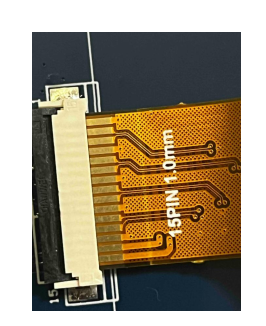
Connect the included ribbon cable to the back of your display by flipping the black strip up, inserting the ribbon with the metal connections facing up, and pushing the black strip down.
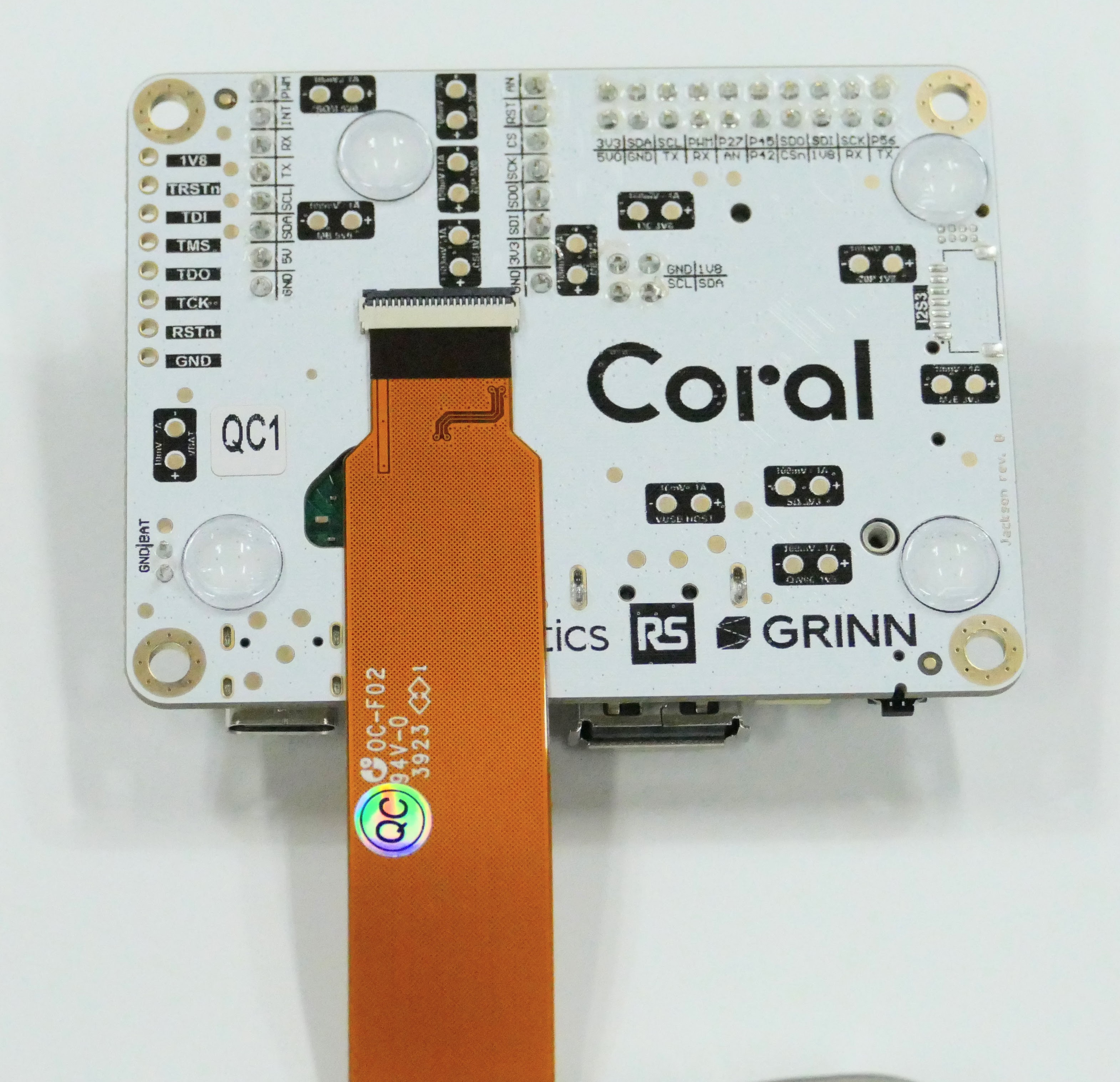
Connect the other end of the ribbon cable to the Coralboard by flipping the black strip up, inserting the ribbon with the metal connections facing down, and locking the strip down.
Connect a power supply to the display.
Note that a 13.3" display has an additional USB-C port on the side that can be used to power the display.
- Reconnect the USB cable.
Enable overlay in U-boot (13" display only)
Support for the (optional) displays and sensor hat is enabled through setting device tree blob object (dtbo) files in U-boot.
- Connect to the USB-to-serial.
- Press reset on the board. Press enter several times quickly to halt the
processor from booting into Linux. You should get to a U-boot command line
with a
=>prompt.
For a 7" panel: (this is the default setting and no action is required unless you changed it and want to set it back)
=> setenv dtbo "grinn-astra-261x-coral-ws-panel-overlay.dtbo grinn-astra-261x-coral-hat-overlay.dtbo"
=> saveenv
For a 13" panel:
=> setenv dtbo "grinn-astra-261x-coral-ws-panel-overlay.dtbo grinn-astra-261x-coral-ws-1080p-panel-overlay.dtbo"
=> saveenv
Connect to a terminal
There are two ways to get a Linux command-line prompt.
Method 1 – ADB (recommended)
Download Android SDK Platform-Tools. See the documentation for ADB.
Use this command to open a shell:
adb shell
You can also send and receive files with ADB (see below).
Method 2 – USB serial
You can use a USB-to-serial adapter to connect to a UART port to access U-boot when the system is booting up, as well as the Linux terminal. The serial-to-USB adapter will enumerate on your machine as a serial device (virtual com port). See additional information here.
Use the sensor hat
If you are using the sensor HAT board (plugged into the Coralboard), you can use its built-in USB to serial adapter.
On Windows:
Install the driver. Use any serial terminal program: Putty, Tera Term, etc. The Coralboard will show up as a new COM port.
On macOS:
For macOS you can use the screen command to connect to the serial port; no
driver required.
# Find out what the device is named
ls /dev/cu.usb*
screen /dev/cu.usbserial-xyz 115200
On Linux:
The cp2101 driver is included in most distributions. You may need to install
screen or another terminal emulator of your choice.
# Find all ttyACM devices
ls /dev/ttyACM*
screen /dev/ttyACM0 115200
Connect to a network over USB
You can grant the Coralboard access to your machine's network over the USB interface. Note that this feature may be blocked by your local IT policies on managed systems.
On Windows 11:
- Open the Start menu and search for Network Connections. Click to open it.
- Right-click your active internet connection and select Properties.
- Go to the Sharing tab.
- Check Allow other network users to connect through this computer's Internet connection.
- In the Home networking connection dropdown, select the UsbNcm Host Device.
Note that on Windows 11, ICS (Internet Connection Sharing) on the host machine does not work after rebooting. In order to start it again, you must disable and then re-enable ICS after reboot.
On macOS:
ICS (Internet Connection Sharing) can be set up on macOS with these actions:
- Connect Device: Connect the Coralboard to the Mac via USB.
- Locate Sharing: Open System Settings > General > Sharing.
- Configure Sharing: Share your connection from: Choose your internet source (e.g., Wi-Fi, Thunderbolt Ethernet).
- To devices using: Select the USB adapter or the specific device identifier corresponding to the NCM device.
- Enable Internet Sharing: Toggle the switch turn on. The Mac will now serve as a DHCP server to the connected USB device.
The IP address scheme for NCM is configurable on the device, allowing you to use either DHCP (recommended) or a static IP configuration. In DHCP mode, the Coralboard gets an IP from the host machine and is able to communicate with the outside network as one would expect.
To enable DHCP:
udhcpc -i usb0
Using sensor hat board features
If you have the sensor hat plugged into your Coralboard, you can use the following features.
Some useful commands are shown to test the features on the command line. You can also use these features in Python applications. See the example applications for more information.
PDM microphone
The microphone is available as an ALSA audio input device.
To list available audio input devices, use this command:
arecord -l
For testing in the Linux CLI (microphones to USB stereo headset stereo), the following command can be used. Plug the USB headset in first.
gst-launch-1.0 -e alsasrc device=hw:0,0 ! audioconvert ! audio/x-raw,format=S16LE,
rate=48000,channels=2 ! alsasink device=hw:1,0 sync=false
Or record to file

gst-launch-1.0 -e alsasrc device=hw:0,0 ! audioconvert ! audio/x-raw,format=S16LE,
rate=48000,channels=2 ! fdkaacenc afterburner=1 bitrate=192000 ! aacparse
! audio/mpeg,mpegversion=4,stream-format=adts ! filesink location=dmic.aac
Buzzer control
To test in the Linux CLI, use these commands:
gpioset 'gpiofind BUZZERn'=1 # OFF
gpioset 'gpiofind BUZZERn'=0 # ON
LED controls
LED controls follow standard Linux mechanisms. They can be found in the
/sys/class/leds/ directory
Enable commands:
echo 255 > red\:status/brightness
echo 255 > green\:status/brightness
echo 255 > blue\:status/brightness
Disable commands:
echo 0 > red\:status/brightness
echo 0 > green\:status/brightness
echo 0 > blue\:status/brightness
LED dimming is not supported, so any value >= 1 enables them fully.
Transferring files
There are two ways to transfer files to and from the Coralboard.
Method 1 – ADB
You can push and pull files from your machine with ADB.
To push a file to the Coralboard home directory: adb push file /home/root/
To get a file from the home directory: adb pull /home/root/<file> <destination-path>
Method 2 – SCP
You can use SCP if you are connected to a network and know the Coralboard's IP address.
To push a file to the Coralboard home directory:
scp -r <file> root@<board-ip>:/home/root/
To get a file from the home directory:
scp root@<board-ip>:/home/root/<file> <destination-path>
USB drive file system
To create a mount point directory:
mkdir -p /mnt/usb
Mount a Fat32 formatted drive:
mount -t vfat /dev/sda1 /mnt/usb
Mount an ext4 formatted drive:
mount -t ext4 /dev/sda1 /mnt/usb
Unmount
umount /mnt/usb
SD card file system
To create a mount point:
mkdir -p /mnt/sd
Mount the drive:
mount /dev/mmcblk2p1 /mnt/sd
Unmount:
umount /mnt/sd
Updating Astra SDK (Linux) image
The Limited Edition Coralboards are preloaded (flashed) with a version of the Synaptics Astra SDK that is customized by Grinn. Future SDK releases will be provided by Synaptics, available from https://github.com/synaptics-astra/sdk/releases.
You can update the Linux SDK image in two ways; both methods require a USB drive.
Method1 – USB boot script
See https://synaptics-astra.github.io/doc/v/latest/linux/index.html#usb-boot-with-sl261x. Run this script to perform the update.
To enter USB download mode, press and hold the Coralboard's USER button and click the RESET button. A new virtual port should enumerate.
Run the command (on your machine) in the usb-tool/ folder. eMMCimg/ is the
new image folder and it should be placed in the usb-tool/ folder as well.
Alternatively, use an absolute directory path. Coralboard requires an additional
-ddr-type flag:
python usb_boot_tool.py --op emmc --img-dir eMMCimg --ddr-type ddr4x16
If U-boot in eMMC is bricked, and xSPI not available, it is possible to use the
usb-tool to reflash U-boot and the kernel.
Method2 – U-boot with USB stick or SD card (recommended)
This method requires serial-to-USB adapter. The correct boot source must be selected — only eMMC is supported (S3 switch in the "1" position) currently.
Download the release file SYNAIMG.zip. Extract it onto the USB drive.
Plug the drive into the USB Type-A connector on the Coralboard.
Unplug and replug the power cable to the Coralboard. Press any key several times
to interrupt the booting process. You should then get to the U-boot prompt =>.
When you are using the Coralboard's sensor hat, it is recommended to use the reset button — otherwise the UART converter will lose power and close the terminal session. It may automatically reconnect but be too late for the U-boot prompt; this is a common problem with Putty and Windows.
Reset the USB to gain access to the devices:
=> usb reset
List files in the USB drive:
=> ls usb 0:1 /
There are just a few commands as described in the Astra documentation:
=> usb2emmc <folder_name>
folder_name in this case is SYNAIMG. Wait until it completes.
To use an SD card instead of USB drive, change the command to:
=> sd2emmc SYNAIMG
Connecting to an external USB-to-serial adapter
If you are not using the sensor hat board, you can still access the system console with any 3.3V TTL serial adapter.
Be sure that you have an adapter that is compatible with your system. One example of these type of adapters is the Adafruit USB to TTL Serial Cable which has 3.3V I/O levels.
Attach the serial port wires as shown, taking care to connect the TX and RX pins correctly for the adapter. Plug the wires onto the GND, TX, and RX pins of the 20-pin GPIO header on the Coralboard:
| Pin | Function |
|---|---|
| 4 | GND |
| 6 (output-only) | SM_URT0_TXD |
| 8 (input-only) | SM_URT0_RXD |
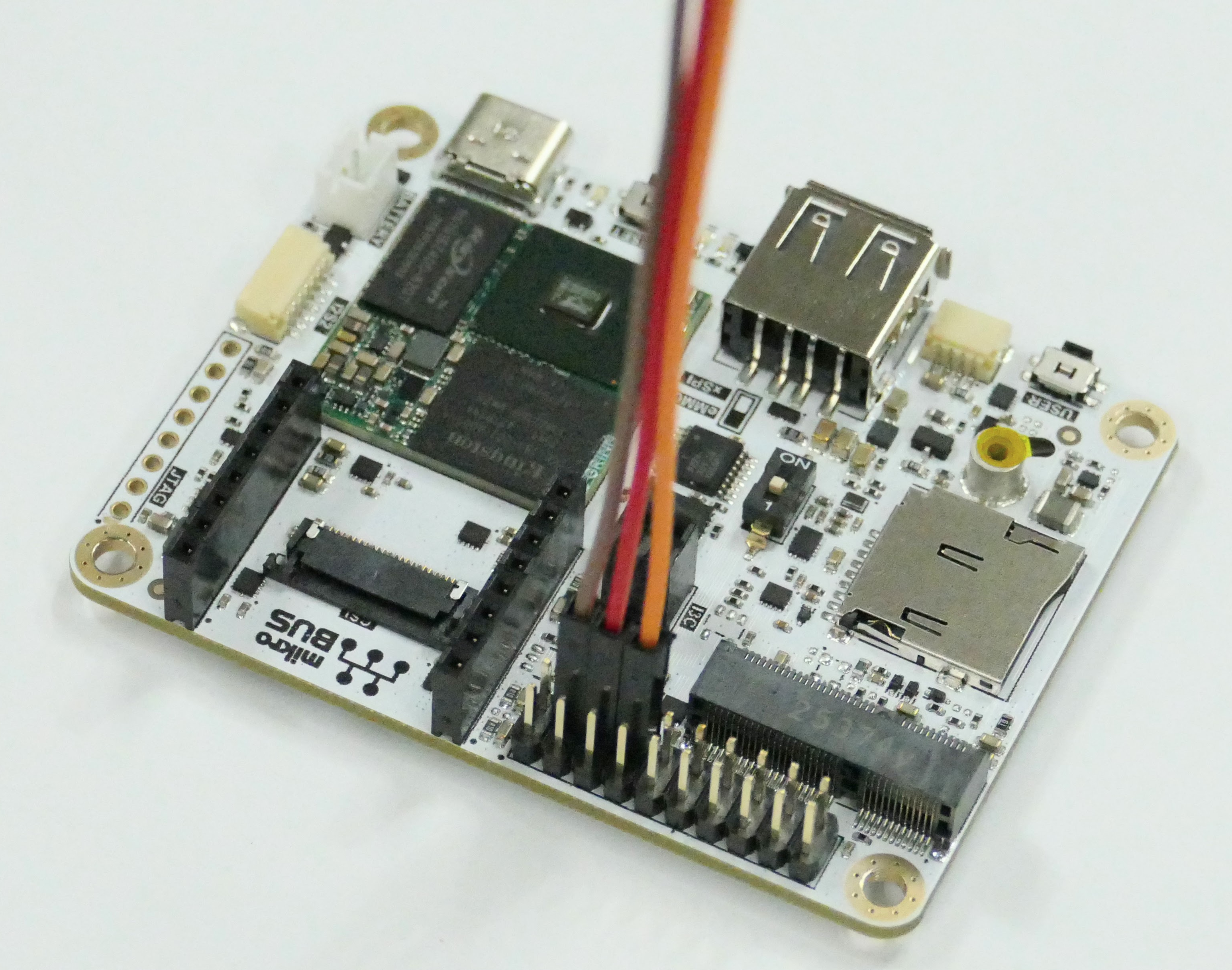
After making these connections, open the connection on your machine.
Supported components and peripherals
The items listed have been tested with Coralboard.
Touchscreen displays
WiFi module
USB peripherals
- Cameras — for example Logitech Brio 100 Full HD 1080p Webcam
- Speakers
- Hubs
USB-to-serial adapters