
Mẫu quảng cáo gốc là các chế độ xem đoạn mã hoàn chỉnh cho quảng cáo gốc, được thiết kế để giúp bạn nhanh chóng triển khai và dễ dàng sửa đổi quảng cáo gốc. Với các mẫu gốc, trình bổ trợ sẽ cung cấp cho bạn các bố cục Android và iOS được tạo sẵn, đồng thời bạn có thể tuỳ chỉnh kiểu của các thành phần gốc bằng cách sử dụng API Dart.
Hướng dẫn này minh hoạ cách sử dụng API Dart để tạo kiểu cho các khung hiển thị nền tảng cơ bản và hiển thị quảng cáo.
Điều kiện tiên quyết
Trước khi tiếp tục, hãy làm như sau:
- Flutter phiên bản 2.4.0 trở lên.
Luôn thử nghiệm bằng quảng cáo thử nghiệm
Khi bạn tạo và thử nghiệm ứng dụng, hãy nhớ sử dụng quảng cáo thử nghiệm thay vì quảng cáo đang chạy trong thực tế. Cách dễ nhất để tải quảng cáo thử nghiệm là sử dụng mã đơn vị quảng cáo thử nghiệm dành riêng cho quảng cáo gốc:
Android
ca-app-pub-3940256099942544/2247696110
iOS
ca-app-pub-3940256099942544/3986624511
Các đơn vị quảng cáo thử nghiệm được định cấu hình để trả về quảng cáo thử nghiệm cho mọi yêu cầu, vì vậy bạn có thể sử dụng các đơn vị quảng cáo này trong ứng dụng của mình khi lập trình, thử nghiệm và gỡ lỗi. Bạn chỉ cần nhớ thay thế các đơn vị quảng cáo này bằng mã đơn vị quảng cáo của riêng bạn trước khi xuất bản ứng dụng.
Tải quảng cáo
Ví dụ sau đây tải một quảng cáo gốc bằng cách sử dụng mẫu gốc có kích thước medium:
class NativeExampleState extends State<NativeExample> {
  NativeAd? nativeAd;
  bool _nativeAdIsLoaded = false;

 // TODO: replace this test ad unit with your own ad unit.
 final String _adUnitId = Platform.isAndroid
      ? 'ca-app-pub-3940256099942544/2247696110'
      : 'ca-app-pub-3940256099942544/3986624511';

  /// Loads a native ad.
  void loadAd() {
    _nativeAd = NativeAd(
        adUnitId: _adUnitId,
        listener: NativeAdListener(
          onAdLoaded: (ad) {
            debugPrint('$NativeAd loaded.');
            setState(() {
              _nativeAdIsLoaded = true;
            });
          },
          onAdFailedToLoad: (ad, error) {
            // Dispose the ad here to free resources.
            debugPrint('$NativeAd failed to load: $error');
            ad.dispose();
          },
        ),
        request: const AdRequest(),
        // Styling
        nativeTemplateStyle: NativeTemplateStyle(
            // Required: Choose a template.
            templateType: TemplateType.medium,
            // Optional: Customize the ad's style.
            mainBackgroundColor: Colors.purple,
            cornerRadius: 10.0,
            callToActionTextStyle: NativeTemplateTextStyle(
                textColor: Colors.cyan,
                backgroundColor: Colors.red,
                style: NativeTemplateFontStyle.monospace,
                size: 16.0),
            primaryTextStyle: NativeTemplateTextStyle(
                textColor: Colors.red,
                backgroundColor: Colors.cyan,
                style: NativeTemplateFontStyle.italic,
                size: 16.0),
            secondaryTextStyle: NativeTemplateTextStyle(
                textColor: Colors.green,
                backgroundColor: Colors.black,
                style: NativeTemplateFontStyle.bold,
                size: 16.0),
            tertiaryTextStyle: NativeTemplateTextStyle(
                textColor: Colors.brown,
                backgroundColor: Colors.amber,
                style: NativeTemplateFontStyle.normal,
                size: 16.0)))
      ..load();
  }
}
Hãy xem phần NativeTemplateStyle và NativeTemplateTextStyle để biết các lựa chọn tạo kiểu có sẵn.
Tuỳ chỉnh quảng cáo
Khi tuỳ chỉnh quảng cáo gốc bằng mẫu gốc, cấu hình giao diện người dùng của quảng cáo sẽ nằm trong lớp NativeTemplateStyle, cho phép bạn tạo kiểu cho toàn bộ quảng cáo gốc trong mã Dart.
Kích thước mẫu
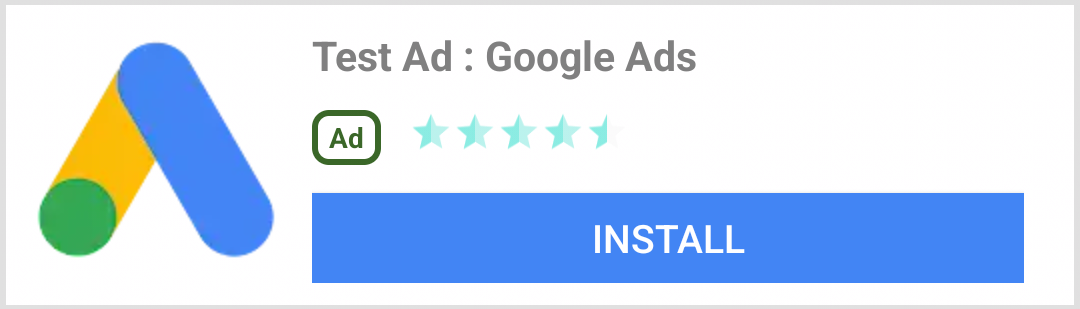
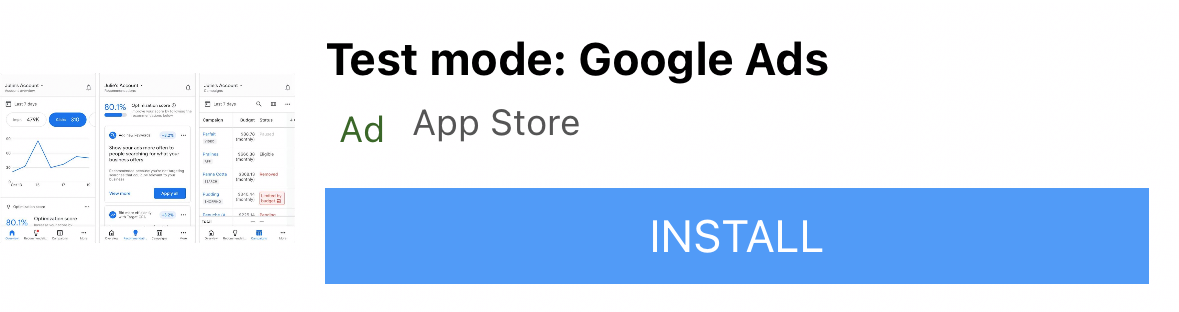
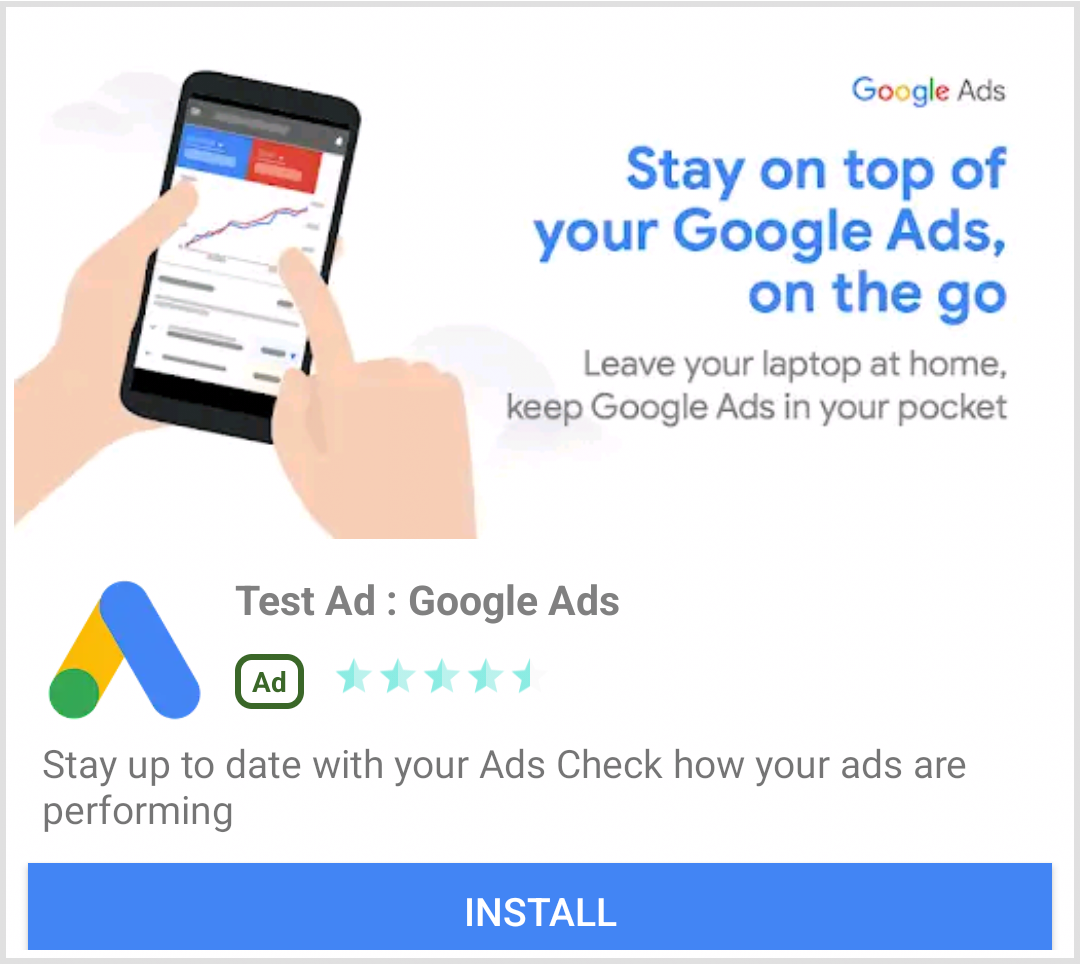
Mẫu quảng cáo gốc Flutter có 2 loại: TemplateType.small và TemplateType.medium. Mẫu nhỏ là lựa chọn lý tưởng cho TableView hoặc GridView, cho quảng cáo trong nguồn cấp dữ liệu hoặc bất cứ nơi nào bạn cần một lượt xem quảng cáo hình chữ nhật hẹp. Mẫu trung bình là mẫu có chế độ xem bằng một nửa đến ba phần tư trang, rất phù hợp với trang đích hoặc trang màn hình chờ.
| Nhỏ | |
|---|---|
 Android |
 iOS |
| Trung bình | |
 Android |
 iOS |
Sự kiện quảng cáo gốc
Để nhận thông báo về những sự kiện có liên quan đến các lượt tương tác với quảng cáo gốc, hãy sử dụng thuộc tính listener của quảng cáo. Sau đó, hãy triển khai NativeAdListener để nhận các lệnh gọi lại sự kiện quảng cáo.
class NativeExampleState extends State<NativeExample> {
  NativeAd? _nativeAd;
  bool _nativeAdIsLoaded = false;

 // TODO: replace this test ad unit with your own ad unit.
 final String _adUnitId = Platform.isAndroid
      ? 'ca-app-pub-3940256099942544/2247696110'
      : 'ca-app-pub-3940256099942544/3986624511';

  /// Loads a native ad.
  void loadAd() {
    _nativeAd = NativeAd(
        adUnitId: _adUnitId,
        listener: NativeAdListener(
          onAdLoaded: (ad) {
            print('$NativeAd loaded.');
            setState(() {
              _nativeAdIsLoaded = true;
            });
          },
          onAdFailedToLoad: (ad, error) {
            // Dispose the ad here to free resources.
            print('$NativeAd failedToLoad: $error');
            ad.dispose();
          },
          // Called when a click is recorded for a NativeAd.
          onAdClicked: (ad) {},
          // Called when an impression occurs on the ad.
          onAdImpression: (ad) {},
          // Called when an ad removes an overlay that covers the screen.
          onAdClosed: (ad) {},
          // Called when an ad opens an overlay that covers the screen.
          onAdOpened: (ad) {},
          // For iOS only. Called before dismissing a full screen view
          onAdWillDismissScreen: (ad) {},
          // Called when an ad receives revenue value.
          onPaidEvent: (ad, valueMicros, precision, currencyCode) {},
        ),
        request: const AdRequest(),
        // Styling
        nativeTemplateStyle: NativeTemplateStyle(
            // Required: Choose a template.
            templateType: TemplateType.medium,
            // Optional: Customize the ad's style.
            mainBackgroundColor: Colors.purple,
            cornerRadius: 10.0,
            callToActionTextStyle: NativeTemplateTextStyle(
                textColor: Colors.cyan,
                backgroundColor: Colors.red,
                style: NativeTemplateFontStyle.monospace,
                size: 16.0),
            primaryTextStyle: NativeTemplateTextStyle(
                textColor: Colors.red,
                backgroundColor: Colors.cyan,
                style: NativeTemplateFontStyle.italic,
                size: 16.0),
            secondaryTextStyle: NativeTemplateTextStyle(
                textColor: Colors.green,
                backgroundColor: Colors.black,
                style: NativeTemplateFontStyle.bold,
                size: 16.0),
            tertiaryTextStyle: NativeTemplateTextStyle(
                textColor: Colors.brown,
                backgroundColor: Colors.amber,
                style: NativeTemplateFontStyle.normal,
                size: 16.0)))
      ..load();
  }
}
Quảng cáo hiển thị hình ảnh
Để hiển thị NativeAd dưới dạng một tiện ích, bạn phải tạo một AdWidget với một quảng cáo được hỗ trợ sau khi gọi load(). Bạn có thể tạo tiện ích trước khi gọi load(), nhưng phải gọi load() trước khi thêm tiện ích đó vào cây tiện ích.
AdWidget kế thừa từ lớp Widget của Flutter và có thể được sử dụng như bất kỳ tiện ích nào khác. Trên iOS, hãy nhớ đặt tiện ích này trong một vùng chứa đã được chỉ định
chiều rộng và chiều cao. Nếu không, quảng cáo của bạn có thể sẽ không hiển thị.
// Small template
final adContainer = ConstrainedBox(
  constraints: const BoxConstraints(
    minWidth: 320, // minimum recommended width
    minHeight: 90, // minimum recommended height
    maxWidth: 400,
    maxHeight: 200,
  ),
  child: AdWidget(ad: _nativeAd!),
);

// Medium template
final adContainer = ConstrainedBox(
  constraints: const BoxConstraints(
    minWidth: 320, // minimum recommended width
    minHeight: 320, // minimum recommended height
    maxWidth: 400,
    maxHeight: 400,
  ),
  child: AdWidget(ad: _nativeAd!),
);
Huỷ quảng cáo
Bạn phải loại bỏ NativeAd khi không còn cần quyền truy cập vào đối tượng này nữa. Bạn nên gọi dispose() sau khi AdWidget liên kết với quảng cáo gốc bị xoá khỏi cây tiện ích và trong lệnh gọi lại AdListener.onAdFailedToLoad().
Các bước tiếp theo
- Tìm hiểu thêm về quảng cáo gốc trong cẩm nang về quảng cáo gốc của chúng tôi.
- Xem chính sách và nguyên tắc về quảng cáo gốc.
- Xem một số câu chuyện thành công của khách hàng: Nghiên cứu điển hình 1, nghiên cứu điển hình 2.
Ví dụ hoàn chỉnh trên GitHub
Để xem ví dụ đầy đủ, hãy xem bản minh hoạ API.