
在新闻 Feed 或社交 Feed 等长列表或无限滚动列表中,为每个商品位置创建横幅广告可能会导致内存消耗过高和界面延迟。为了提高性能,请使用横幅广告回收功能来维护一个大小固定的 BannerAd 实例缓存,并在用户滚动时重复使用屏幕外的广告。
本页介绍了如何调整广告缓存的大小、检查 BannerAd 实例是否位于屏幕外,以及将缓存的广告重新分配给列表位置。
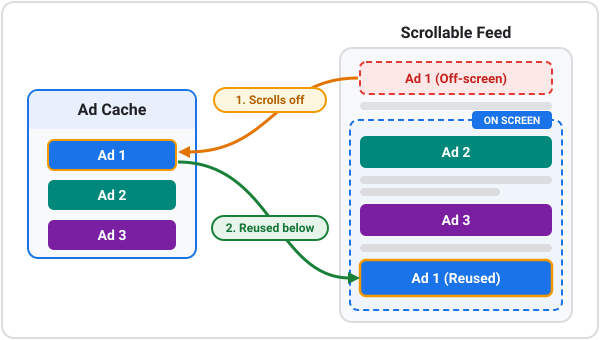
下图展示了当用户滚动屏幕时,屏幕外的横幅广告如何返回到缓存并在列表位置中重复使用:
前提条件
在继续操作之前,请对滚动显示的横幅广告使用内嵌自适应功能。
跟踪分配的列表位置
当用户滚动时,横幅回收会将有限数量的 BannerAd 实例保留在内存中,并在列表位置之间移动这些实例。
为了知道要重复使用哪个广告,请跟踪缓存中每个广告所占用的列表位置。
在 widget 中保持以下状态:
- 一个固定大小的
BannerAd实例缓存。您为缓存设置的大小是内存中一次性保存的广告数量上限。 - 一种广告间隔,用于确定广告在列表中的展示频率。
- 一个位置
Map类,用于将每个BannerAd实例与该实例所占用的列表位置相关联。回收广告时,请更新此Map类中的条目,使其指向最新位置。 - 一个尺寸为
Map的类,用于存储每个已加载广告的平台解析AdSize对象。广告加载后,内嵌自适应横幅广告的高度便已知晓。
以下示例跟踪了缓存中每个广告的分配列表位置:
// Maximum number of banner ad instances kept in the cache.
static const int _cacheSize = 8;
// Spacing between banner ads. For example, index 0, 6, 12, and so on
// display ads.
static const int _adInterval = 6;
// The cache of allocated BannerAd instances.
final List<BannerAd> _banners = [];
// Maps each BannerAd instance to its currently assigned list item position.
final Map<BannerAd, int> _bannerPositions = {};
// Stores the platform-resolved size of each loaded banner ad.
final Map<BannerAd, AdSize> _bannerSizes = {};
选择缓存大小
使缓存大于可同时显示在屏幕上的广告数量上限。如果缓存小于该大小,则选择回收的广告通常仍可见,并且您的应用会分配额外的广告,而不是重用广告。
如需选择尺寸,请执行以下操作:
- 将视口高度除以一个广告间隔的高度,即可估算出屏幕上一次可容纳多少个广告。
- 为在快速滚动时仍处于分离状态的广告添加空间。
- 如果您发现选择回收的广告仍在屏幕上显示,请增加缓存大小。
此页面上的示例每六行显示一个广告,并使用 8 个缓存。此示例为屏幕上同时显示的少量广告留出了空间。
检查广告是否在屏幕上
所有用于渲染平台视图的 Google Mobile Ads Flutter Plugin 类都实现了 AdWithView 类并提供 isMounted getter。在将缓存的广告重新分配给列表位置之前,请检查 isMounted getter 以确认广告已滚动到屏幕外,可以安全地重复使用。
检索和回收横幅广告
当列表请求指定位置的横幅时,请执行以下操作:
- 重用已分配给该位置的广告(如果有)。
- 如果缓存未满,则请求广告。
- 如果缓存已满,请选择一个已缓存的广告,并验证
isMountedgetter 在重新分配广告之前是否为false值。 - 当 widget 从 widget 树中移除时,对缓存中的每个广告调用
dispose()方法。
以下示例检索并回收了一个横幅广告:
BannerAd _getRecycledBannerAd(BuildContext context, int bannerPosition) {
// 1. If an ad is already mapped to this position, reuse it.
final BannerAd? existingBanner = _bannerPositions.entries
.firstWhereOrNull((entry) => entry.value == bannerPosition)
?.key;
if (existingBanner != null) {
return existingBanner;
}
// 2. If the cache is not full, allocate a new ad instance.
if (_banners.length < _cacheSize) {
final BannerAd newBanner = _createBannerAd(context);
_banners.add(newBanner);
_bannerPositions[newBanner] = bannerPosition;
return newBanner;
}
// 3. Select an existing ad from the cache using modulo arithmetic.
final BannerAd targetBanner = _banners[bannerPosition % _cacheSize];
// 4. Verify the ad is detached from the screen before recycling.
if (targetBanner.isMounted) {
// If still on screen during fast scrolls, allocate a temporary instance.
return _createBannerAd(context);
} else {
// Safe to reuse: reassign to the new position.
_bannerPositions[targetBanner] = bannerPosition;
return targetBanner;
}
}
如需查看完整示例,请参阅 Google Mobile Ads Flutter Plugin 示例。