This guide shows you how to use GMA Next-Gen SDK to load and display ads from Unity Ads using AdMob Mediation, covering bidding and waterfall integrations. It covers how to add Unity Ads to an ad unit's mediation configuration, and how to integrate the Unity Ads SDK and adapter into an Android app.
Supported integrations and ad formats
The mediation adapter for Unity Ads has the following capabilities:
| Integration | |
|---|---|
| Bidding | |
| Waterfall | 1 |
| Formats | |
| Banner | |
| Interstitial | |
| Rewarded | |
| Native | |
Prerequisites
Before you continue, verify the following:
- Android API level 24 or later.
- [For bidding]: To integrate all supported ad formats in bidding, use Unity adapter 4.16.0.1 or later (latest version recommended).
Latest GMA Next-Gen SDK version.
Step 1: Set up configurations in Unity Ads UI
Sign up or log in to Unity Ads.
Create a project
On the Unity Ads dashboard, navigate to Projects and click New.
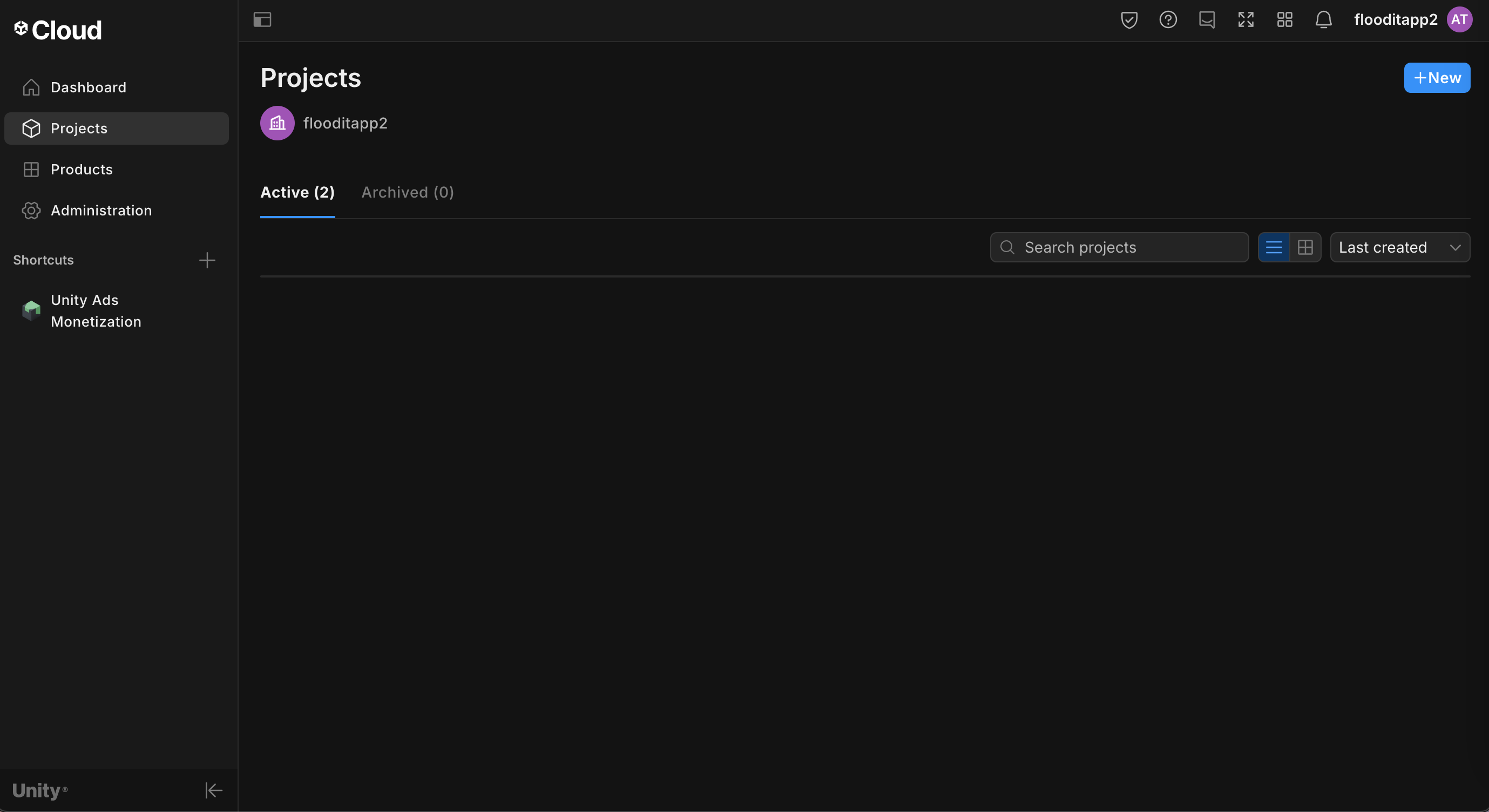
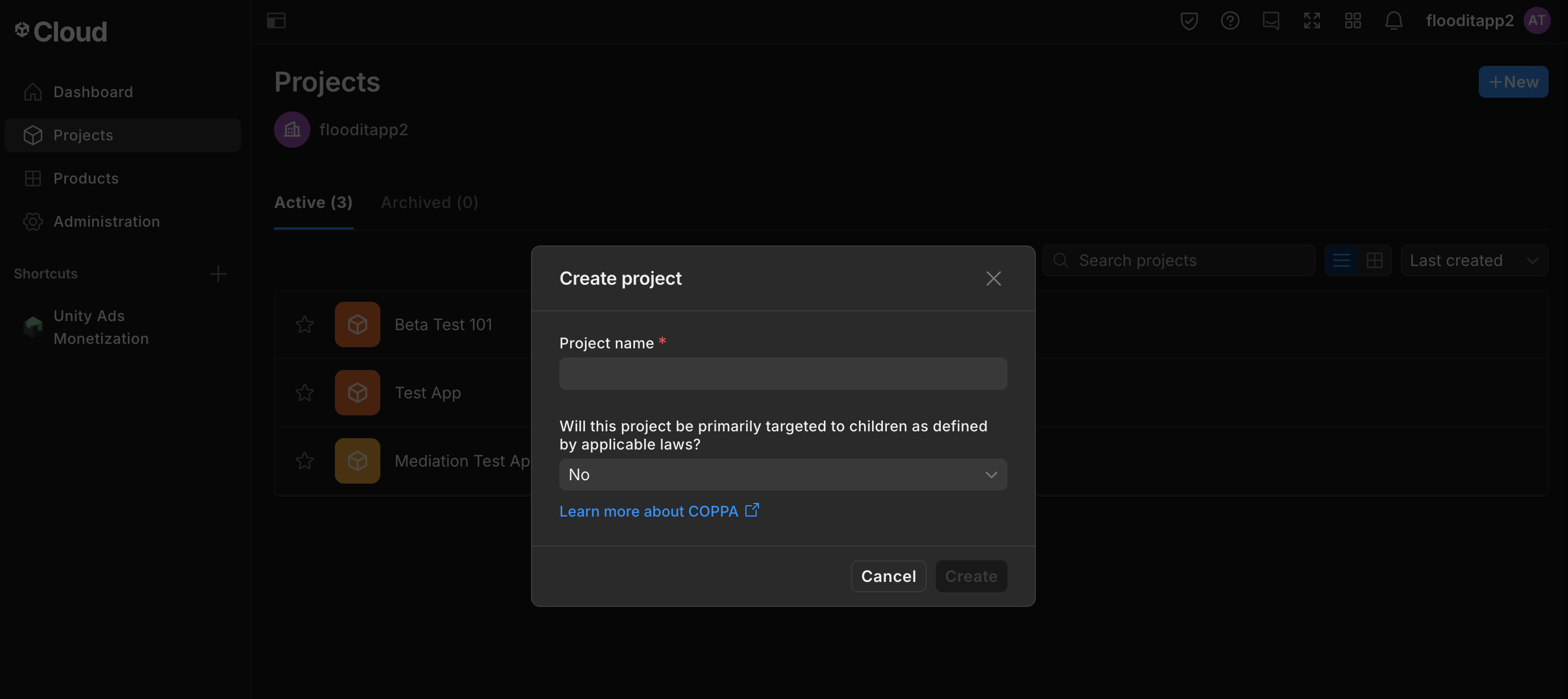
Fill out the form and click Create to add your project.
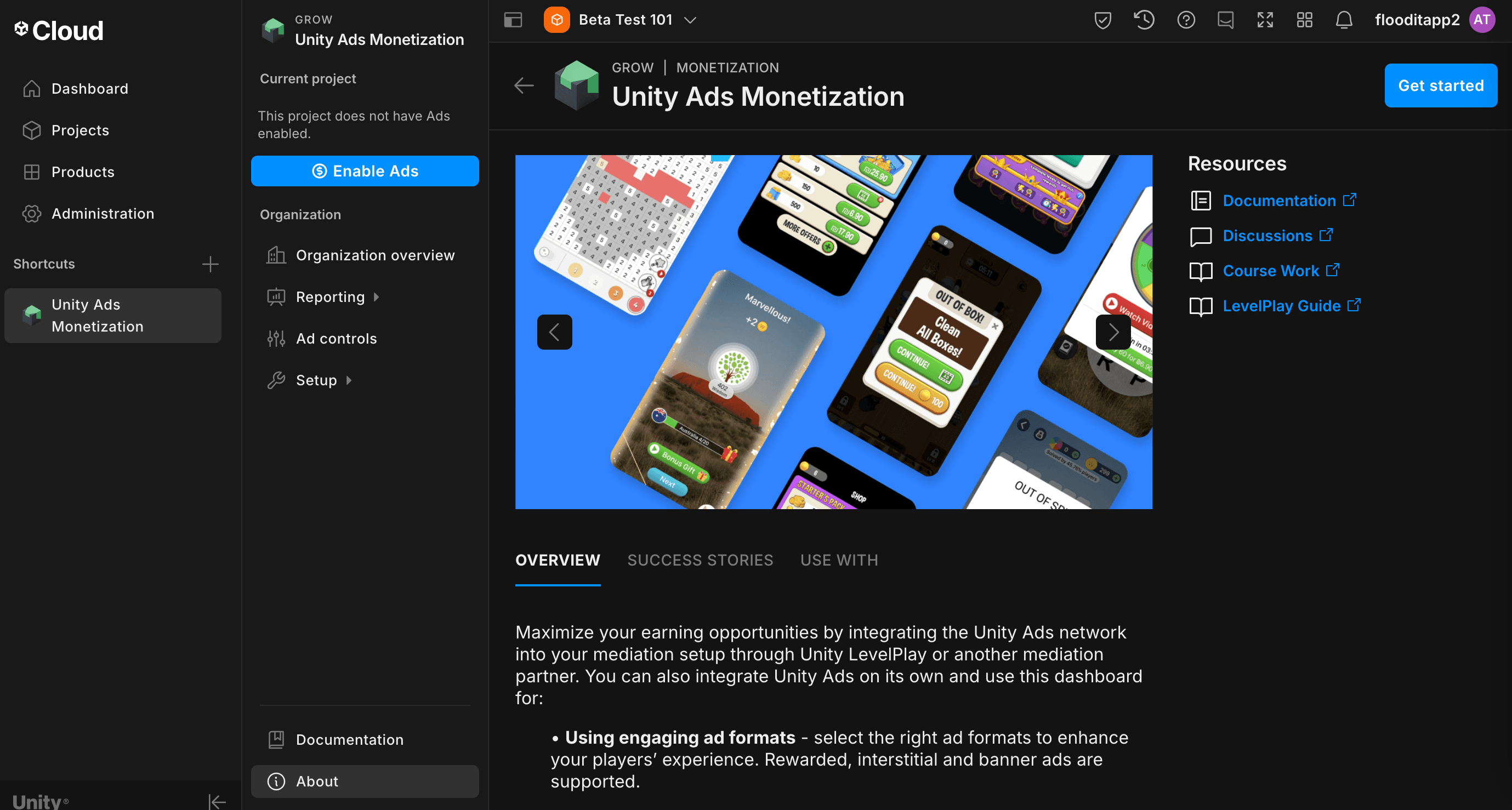
Navigate to Unity Ads Monetization, then click Get started.
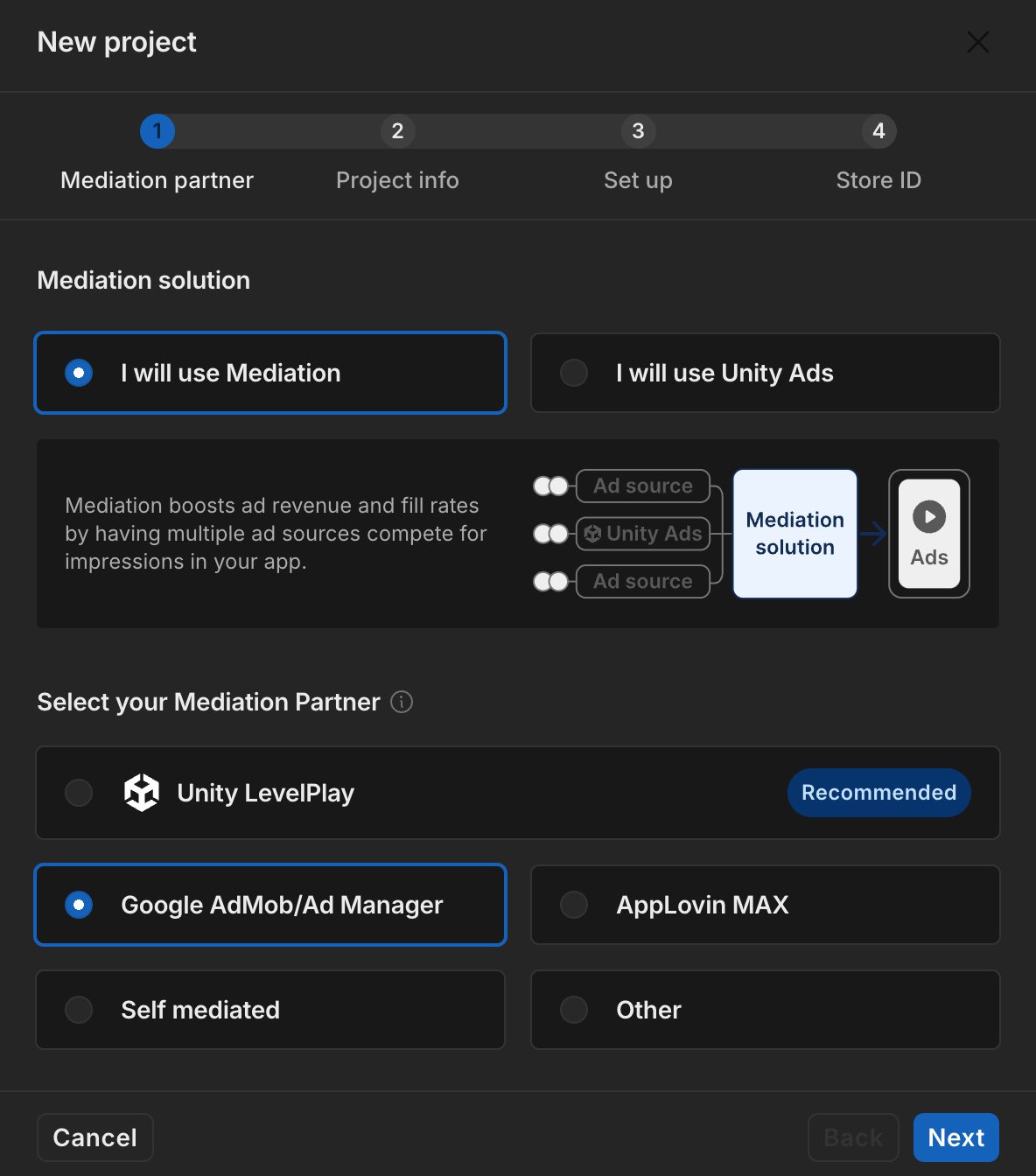
In the New Project modal, select I will use Mediation and Google Admob for Mediation Partner, then click Next.
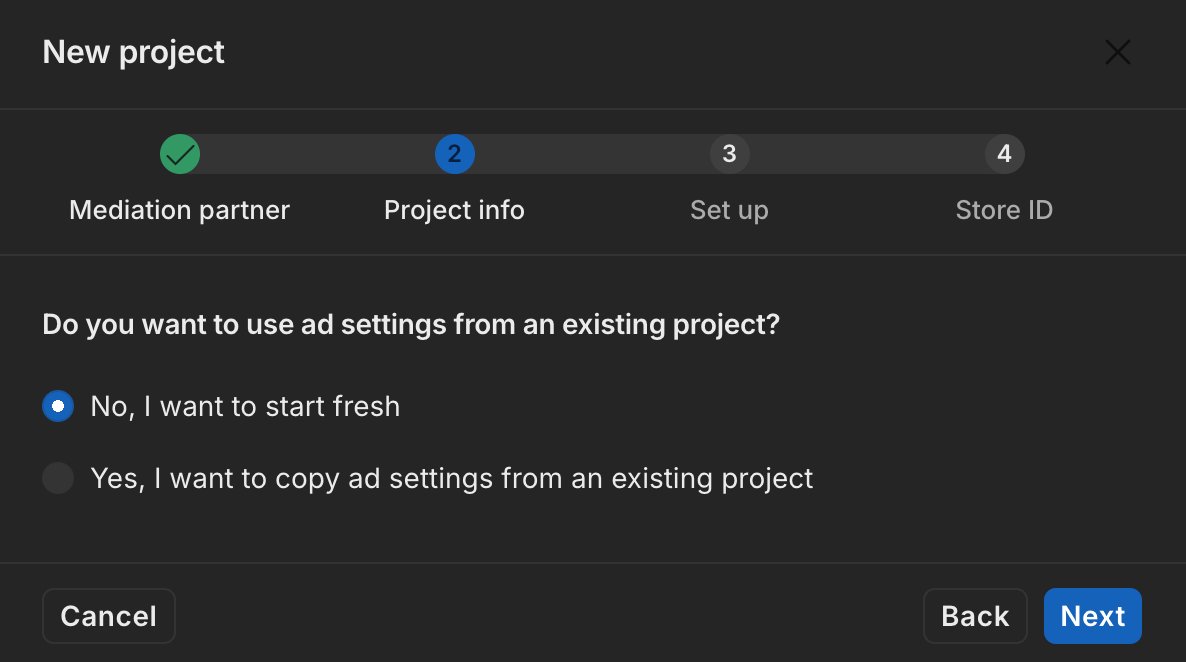
Select the option for ad settings, then click Next.
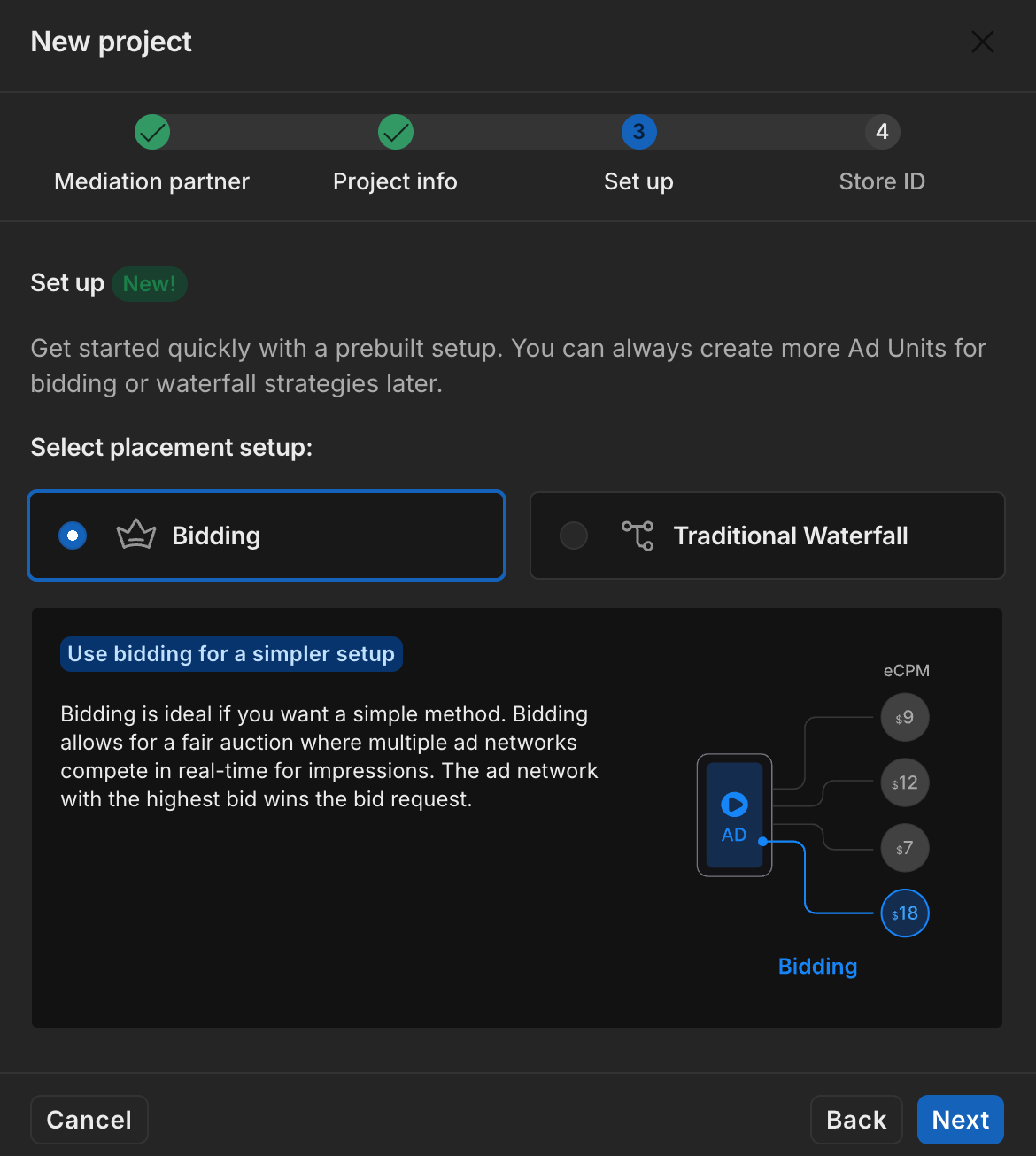
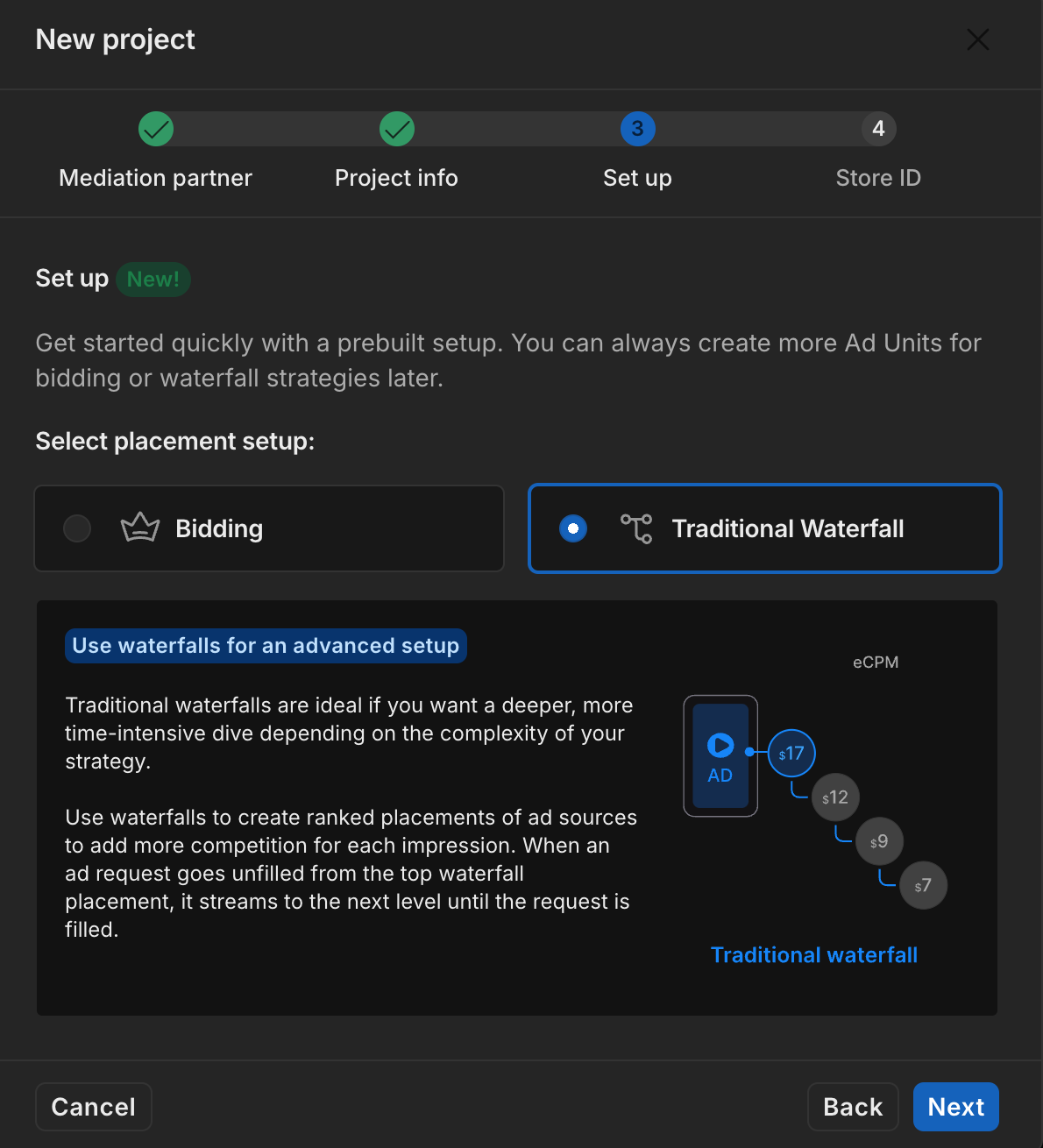
Select your placement setup, then click Next.
Bidding
Waterfall
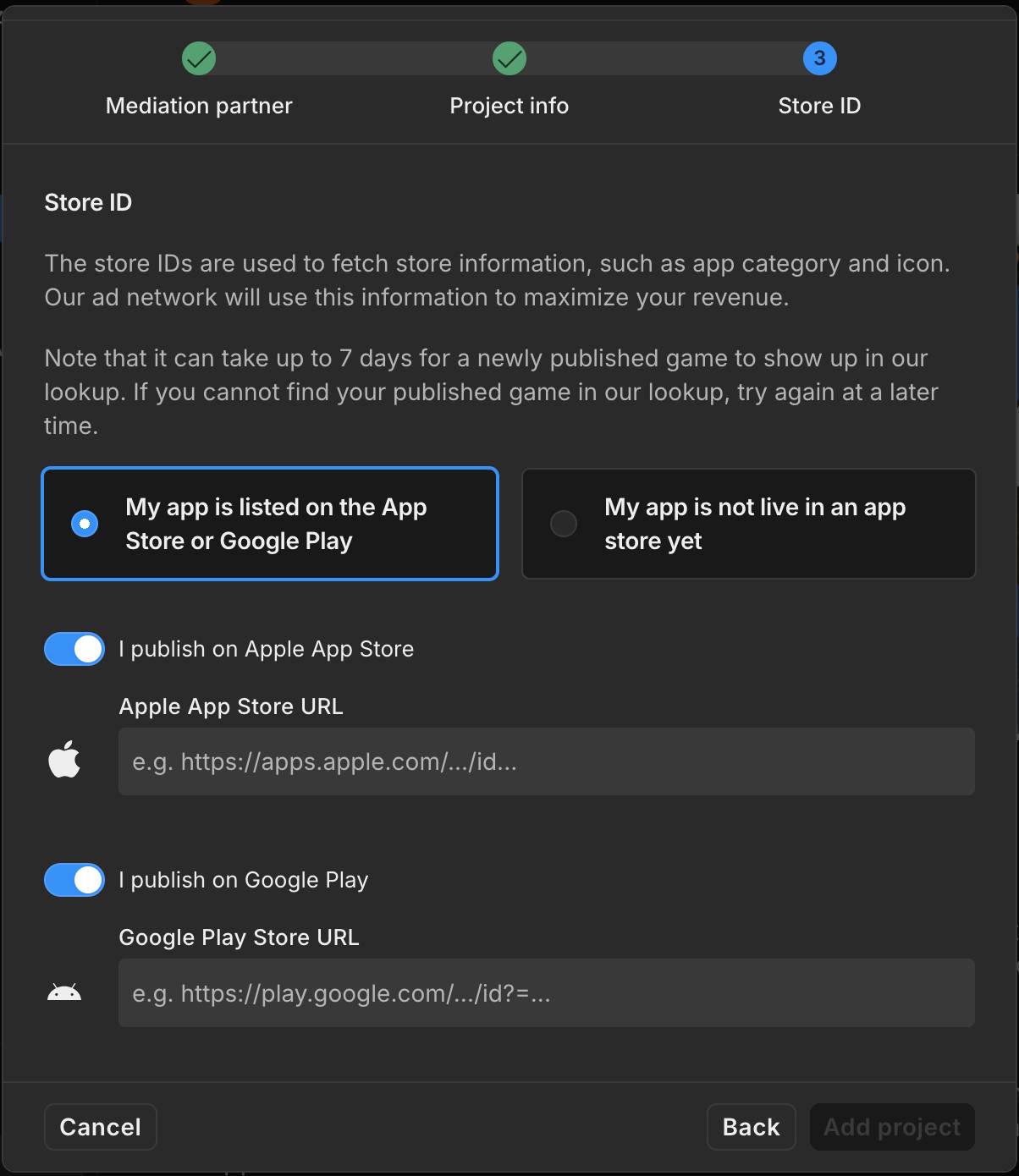
Fill out the form, then click Add project.
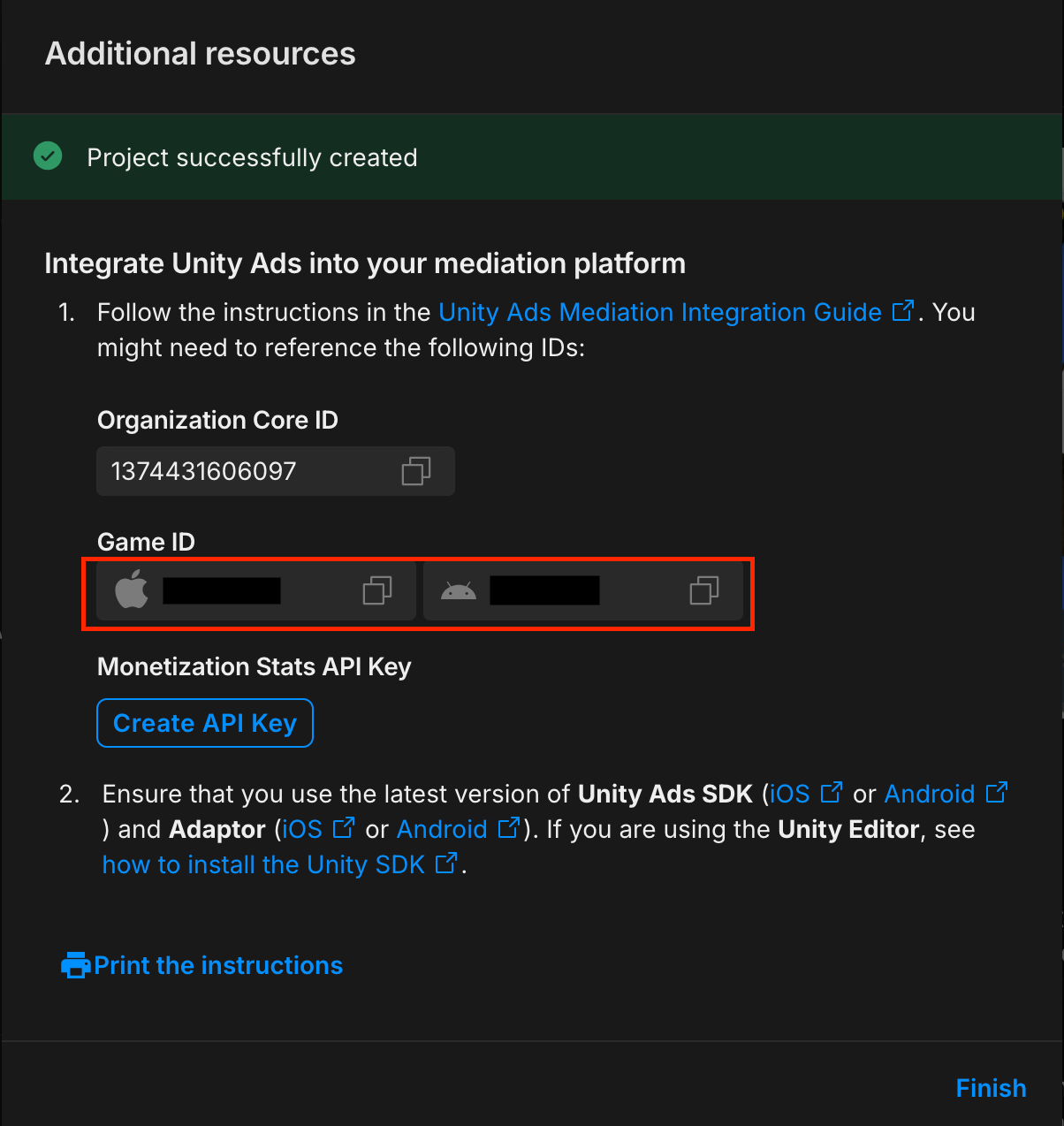
Take note of the Game ID.
Create ad units and placements
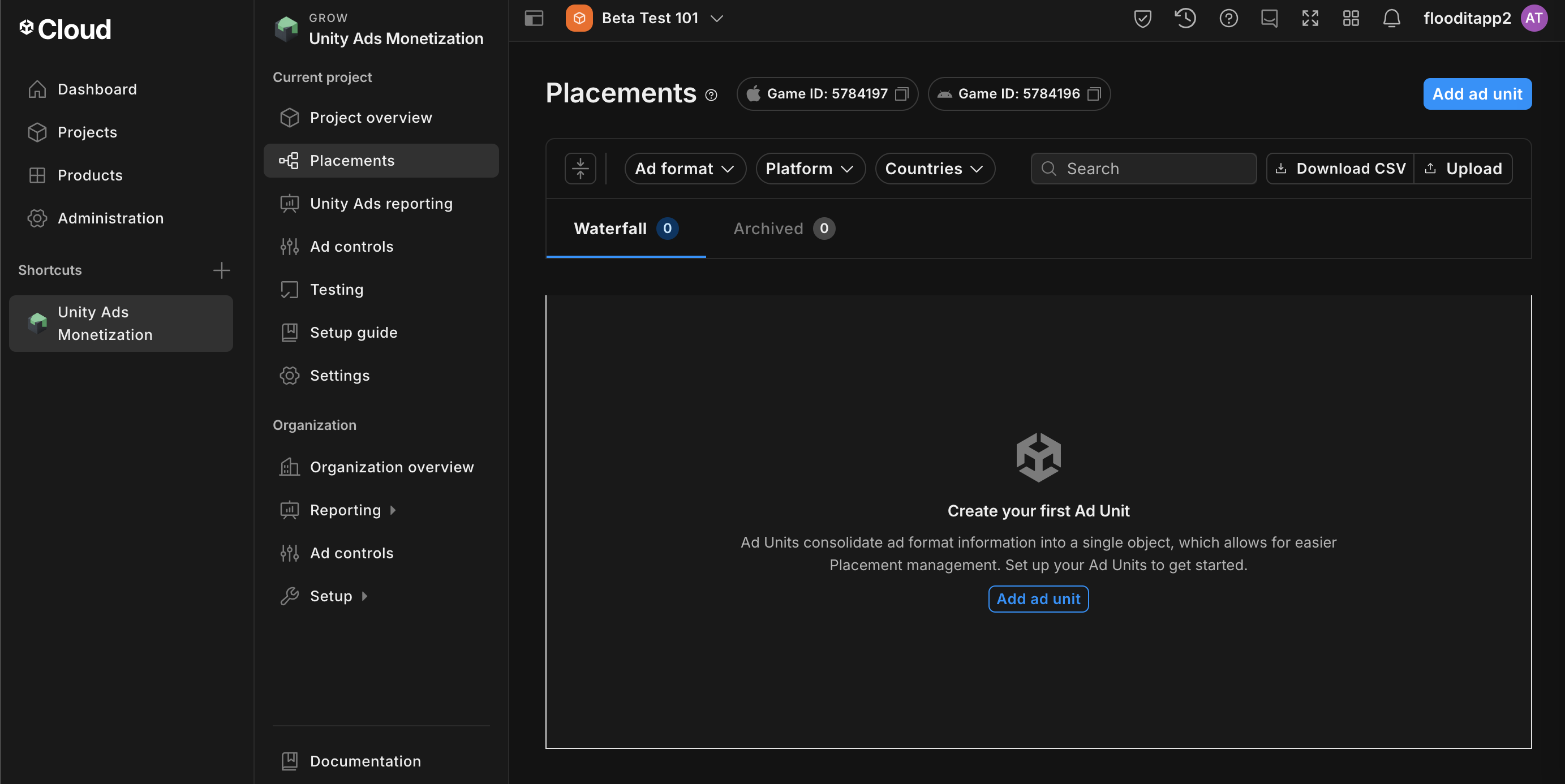
Navigate to Unity Ads Monetization > Placements, then select your project and click Add ad unit.
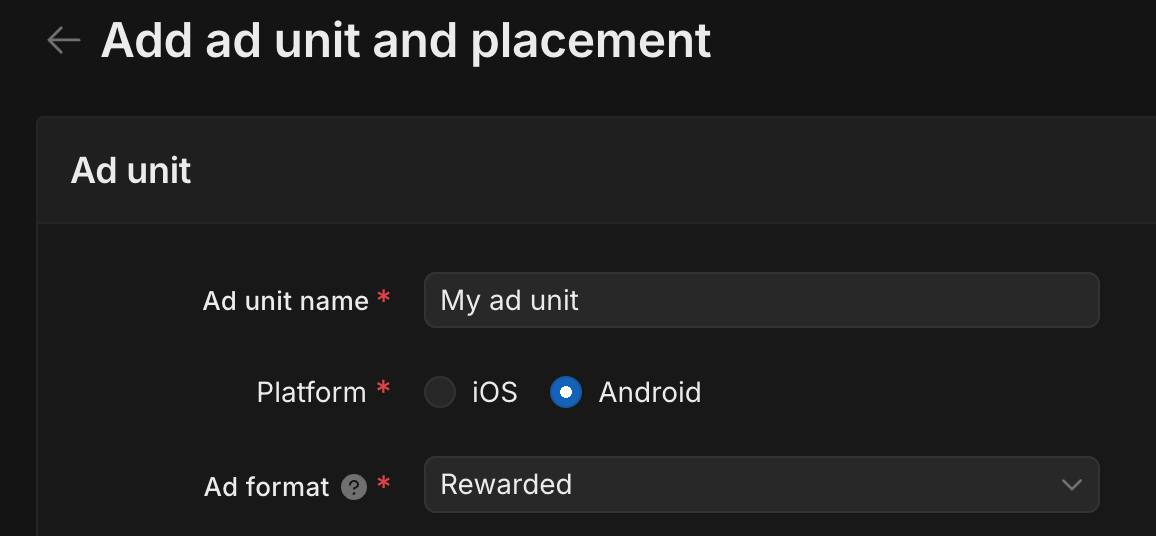
Enter an Ad unit name, then select your Platform and Ad format.
Bidding
Select Bidding for the Setup. Under Placement, enter the Placement name.
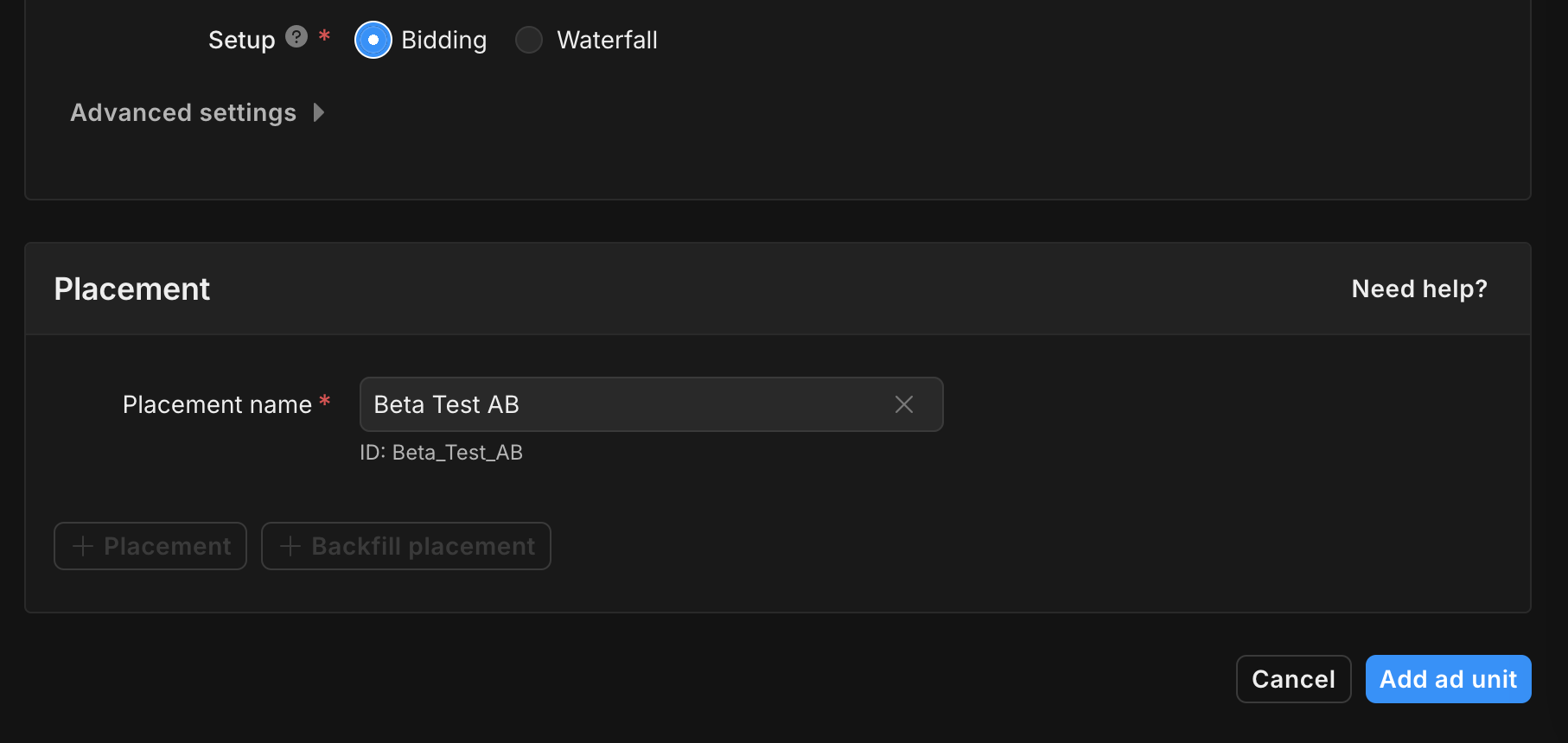
Take note of the Placement ID.
Waterfall
Select Waterfall for the Setup. Under Placement, enter the Placement name, GEO Tagging and Target.
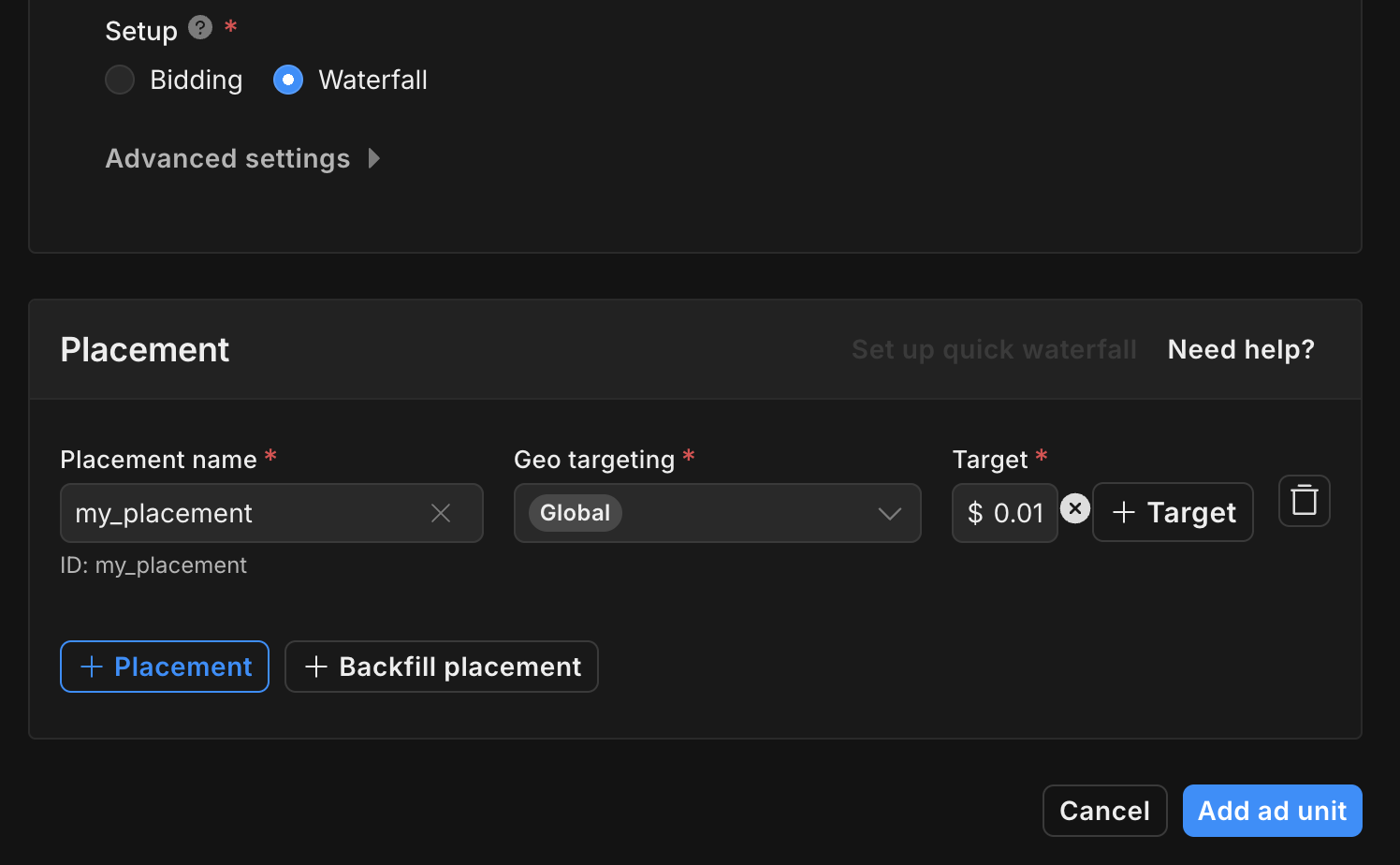
Take note of the Placement ID.
Finally, click Add ad unit to save your ad unit and placement.
Locate Unity Ads Reporting API key
Bidding
This step isn't required for bidding integrations.
Waterfall
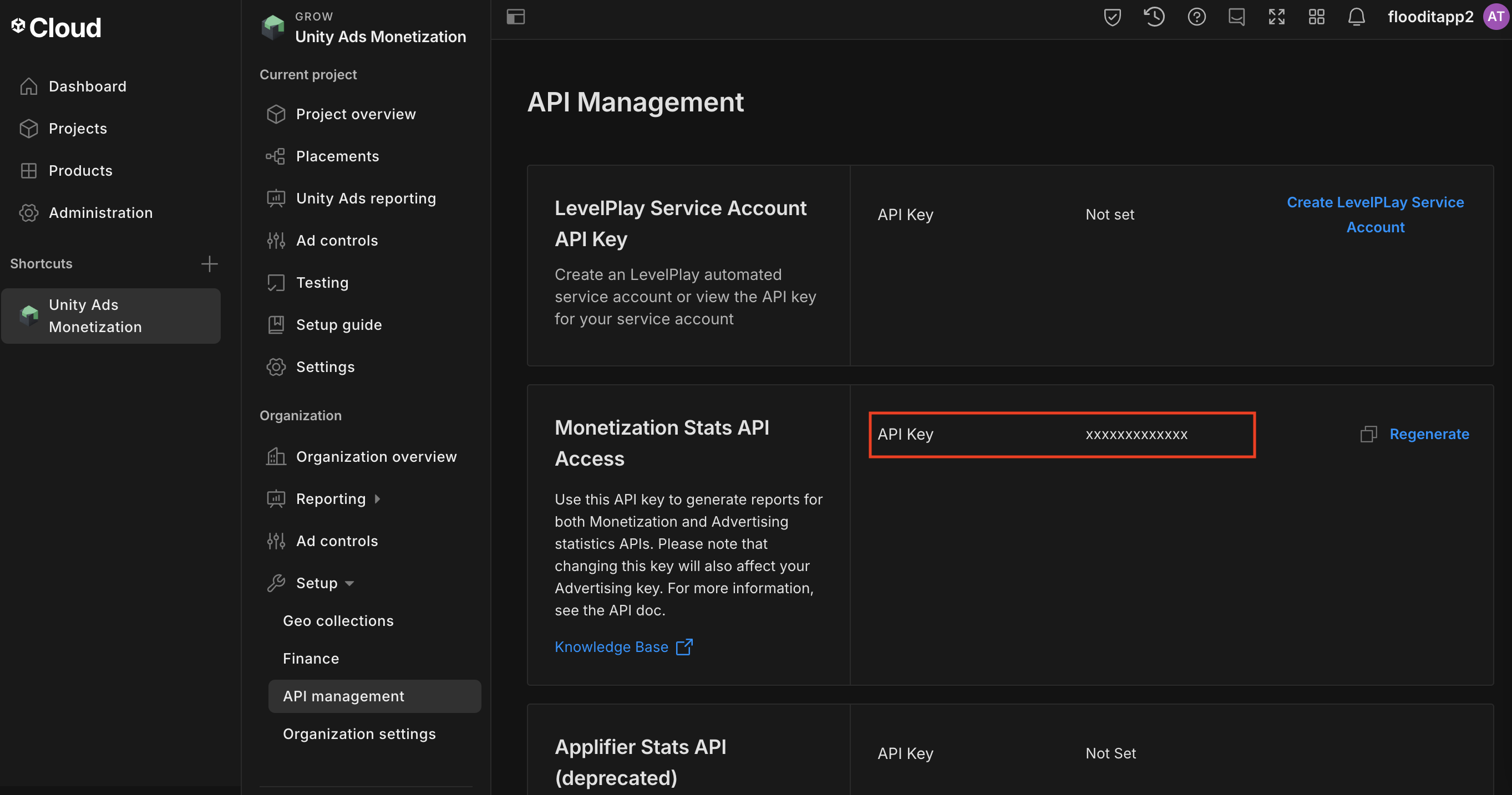
Navigate to the Unity Ads Monetization > API management and take note of the API Key in Monetization Stats API Access.
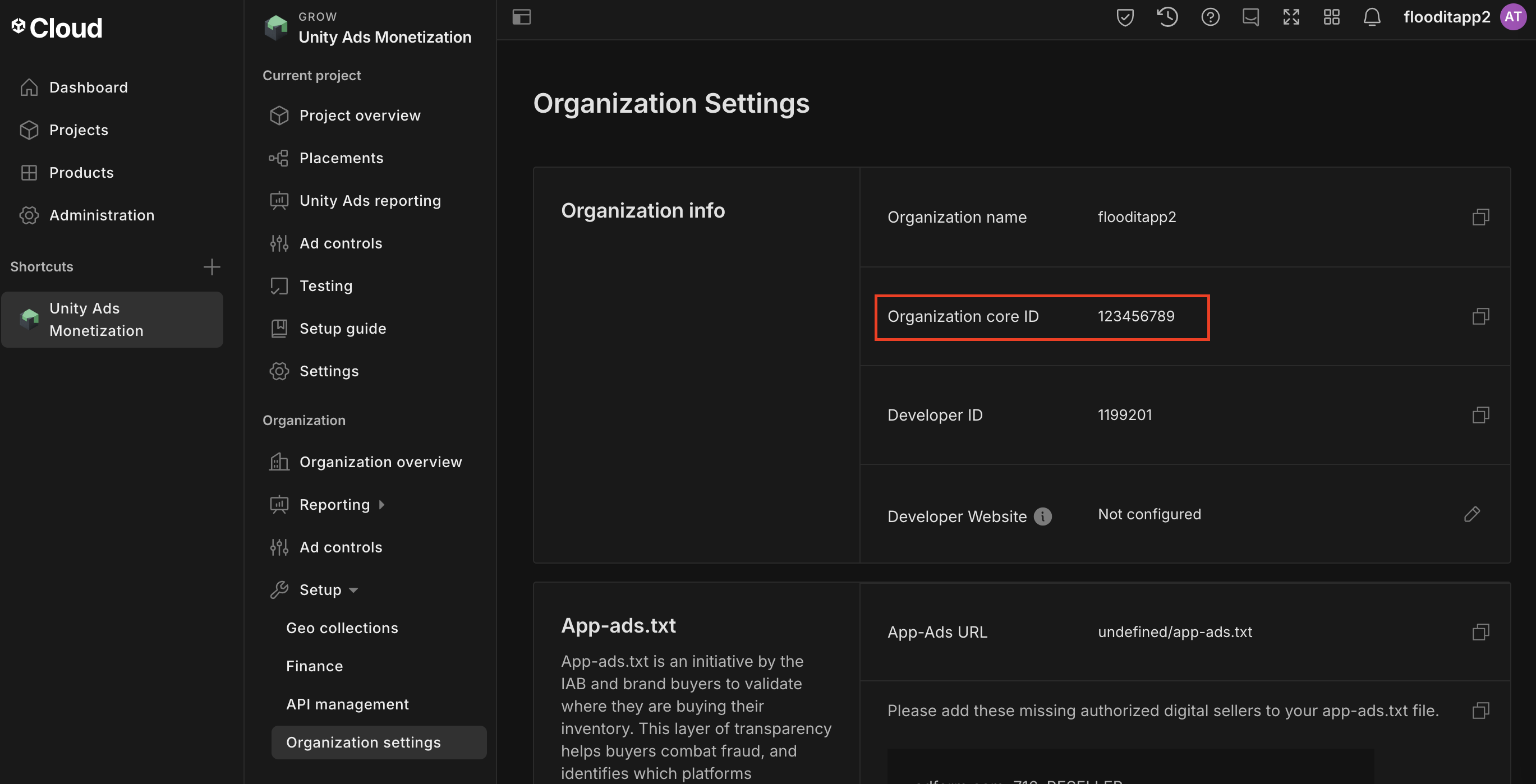
Then, navigate to the Unity Ads Monetization > Organization Settings and take note of the Organization core ID.
Update your app-ads.txt
Authorized Sellers for Apps app-ads.txt is an IAB Tech Lab initiative that helps ensure your
app ad inventory is only sold through channels you've identified as authorized. To prevent a
significant loss in ad revenue, you'll need to implement an app-ads.txt file.
If you haven't done so already,
set up an app-ads.txt file for your app.
To implement app-ads.txt for Unity Ads, see
setting up app-ads.txt for the first time.
Turn on test mode
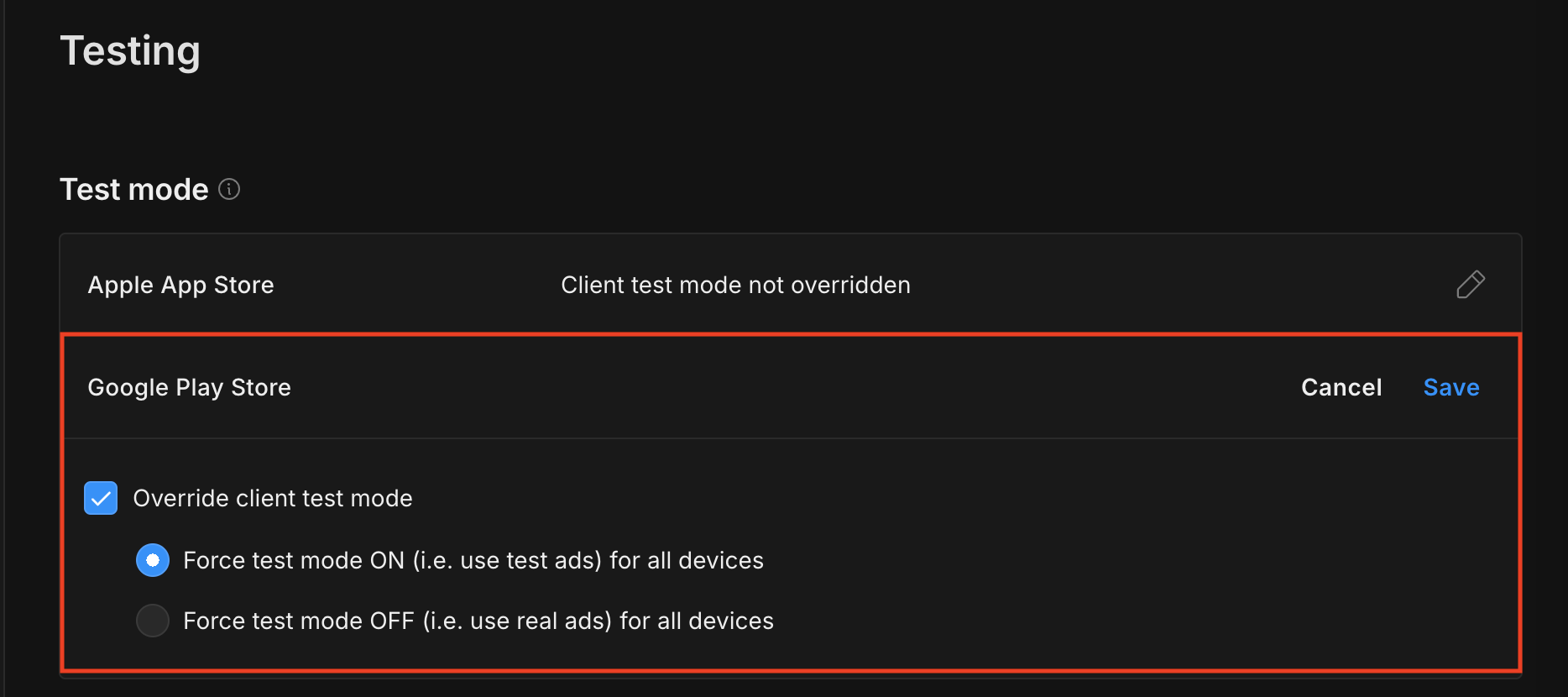
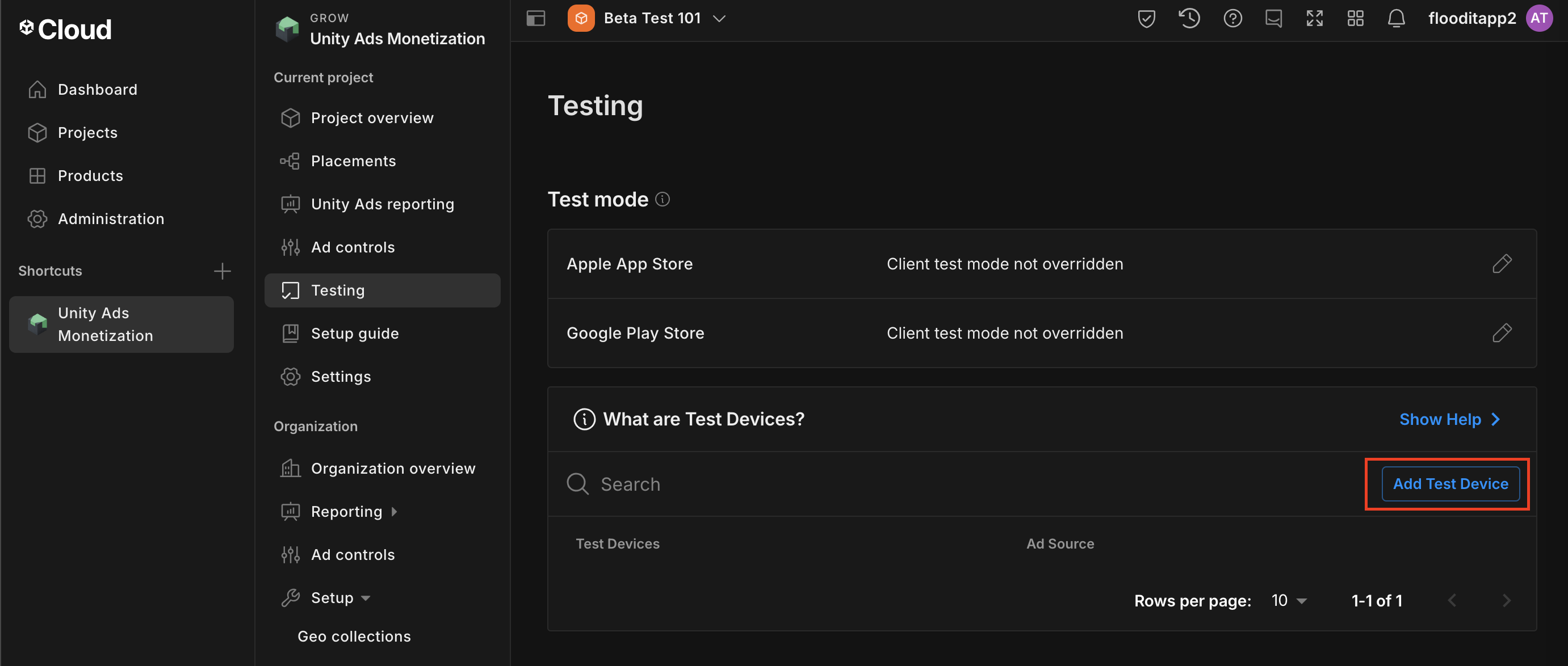
Test mode can be enabled from the Unity Ads dashboard. Navigate to Unity Ads Monetization > Testing.
You can force test mode for your app by clicking the edit button beside Google Play Store , enabling Override client test mode and selecting Force test mode ON (i.e. use test ads) for all devices.
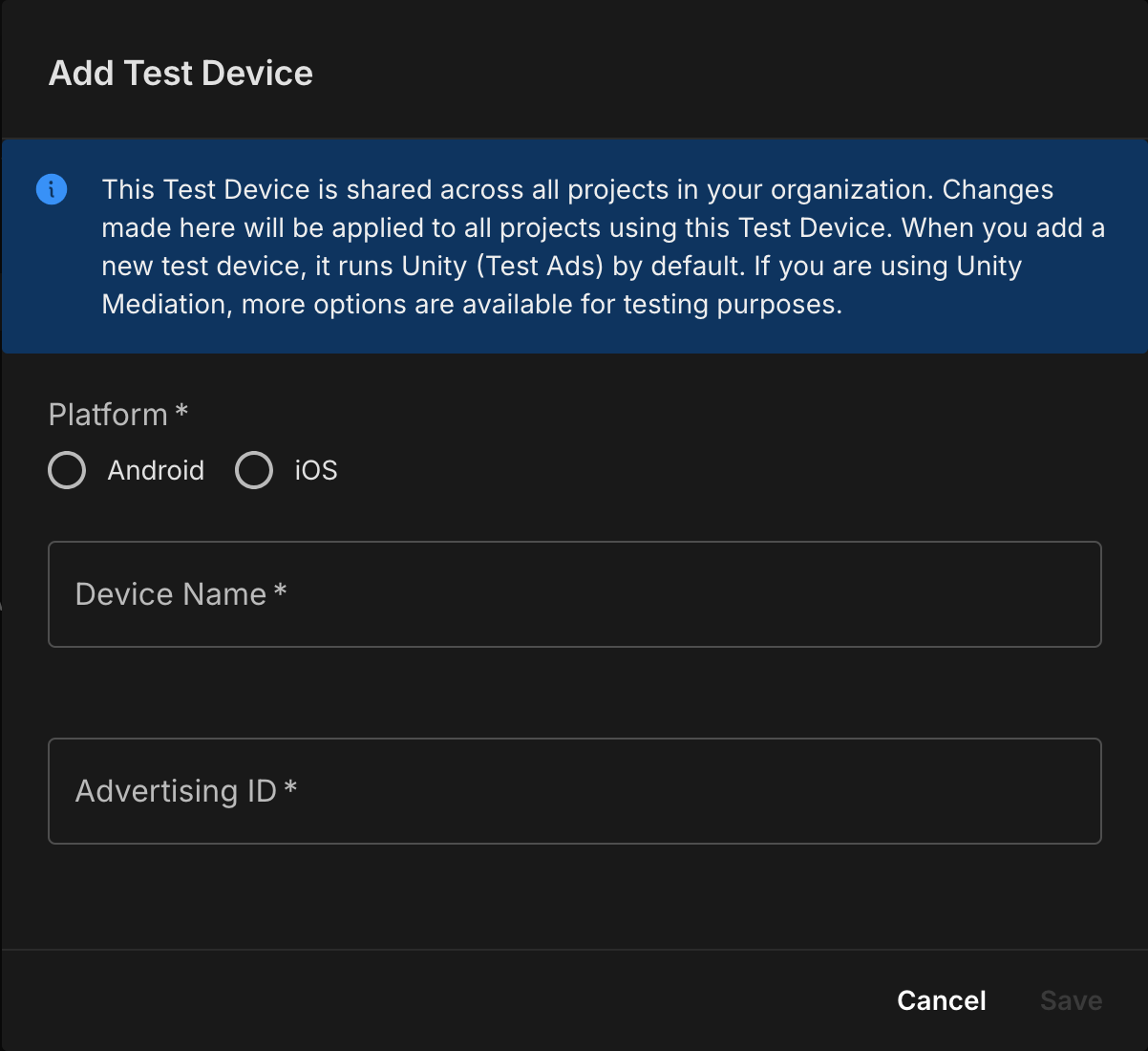
Alternatively, you can enable test mode for specific devices by clicking Add Test Device.
Enter your test device details, then click Save.
Step 2: Set up Unity Ads demand in AdMob UI
Configure mediation settings for your ad unit
You need to add Unity Ads to the mediation configuration for your ad unit.
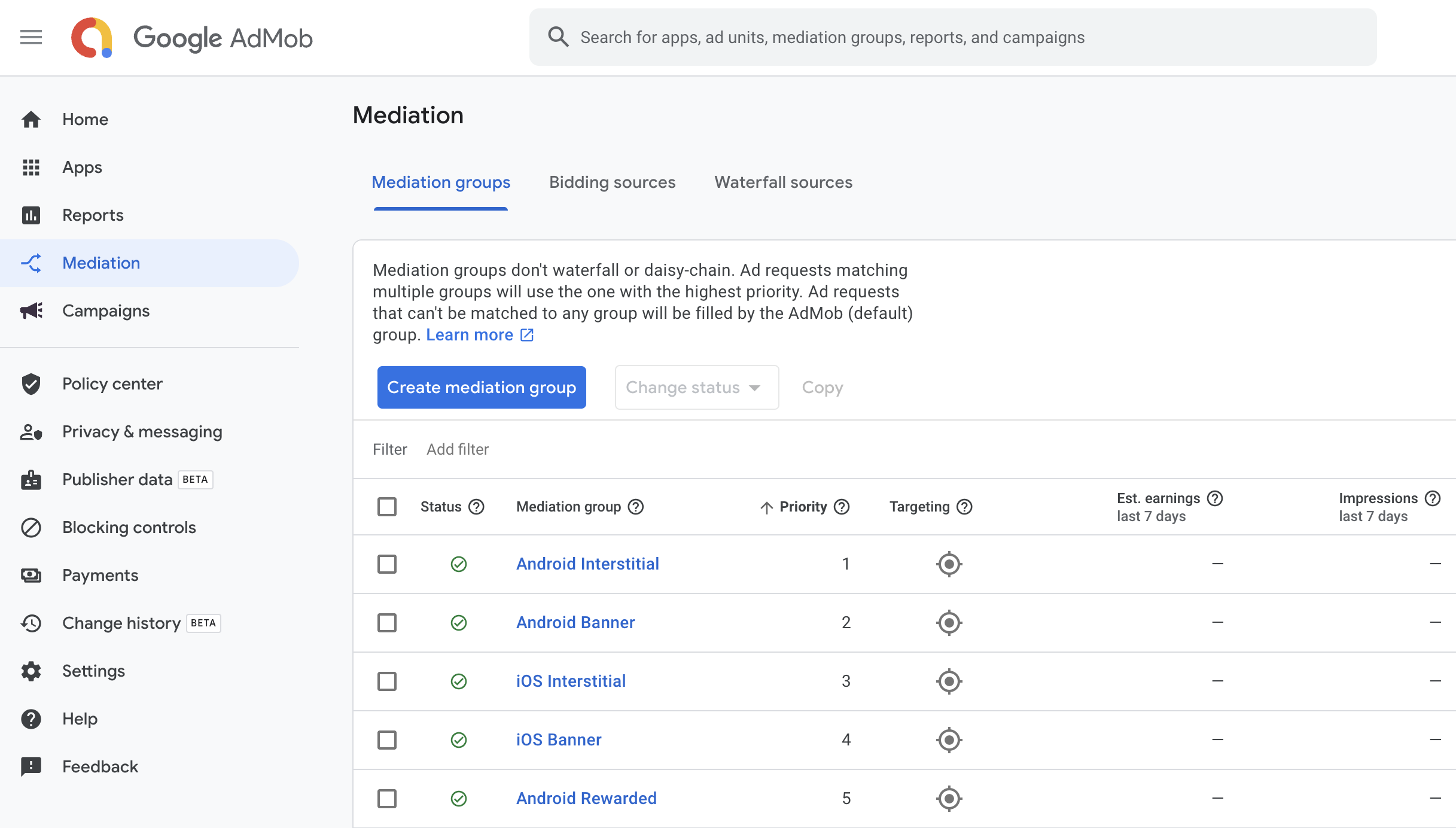
First, sign in to your AdMob account. Next, navigate to the Mediation tab. If you have an existing mediation group you'd like to modify, click the name of that mediation group to edit it, and skip ahead to Add Unity Ads as an ad source.
To create a new mediation group, select Create Mediation Group.
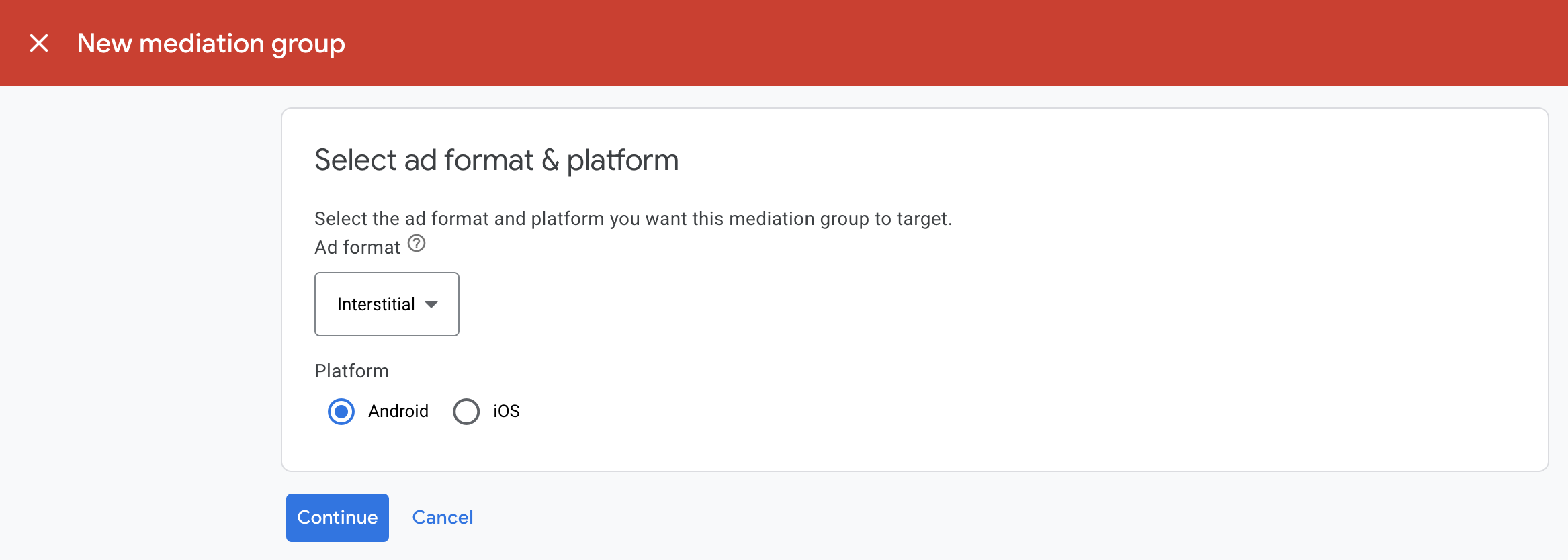
Enter your ad format and platform, then click Continue.
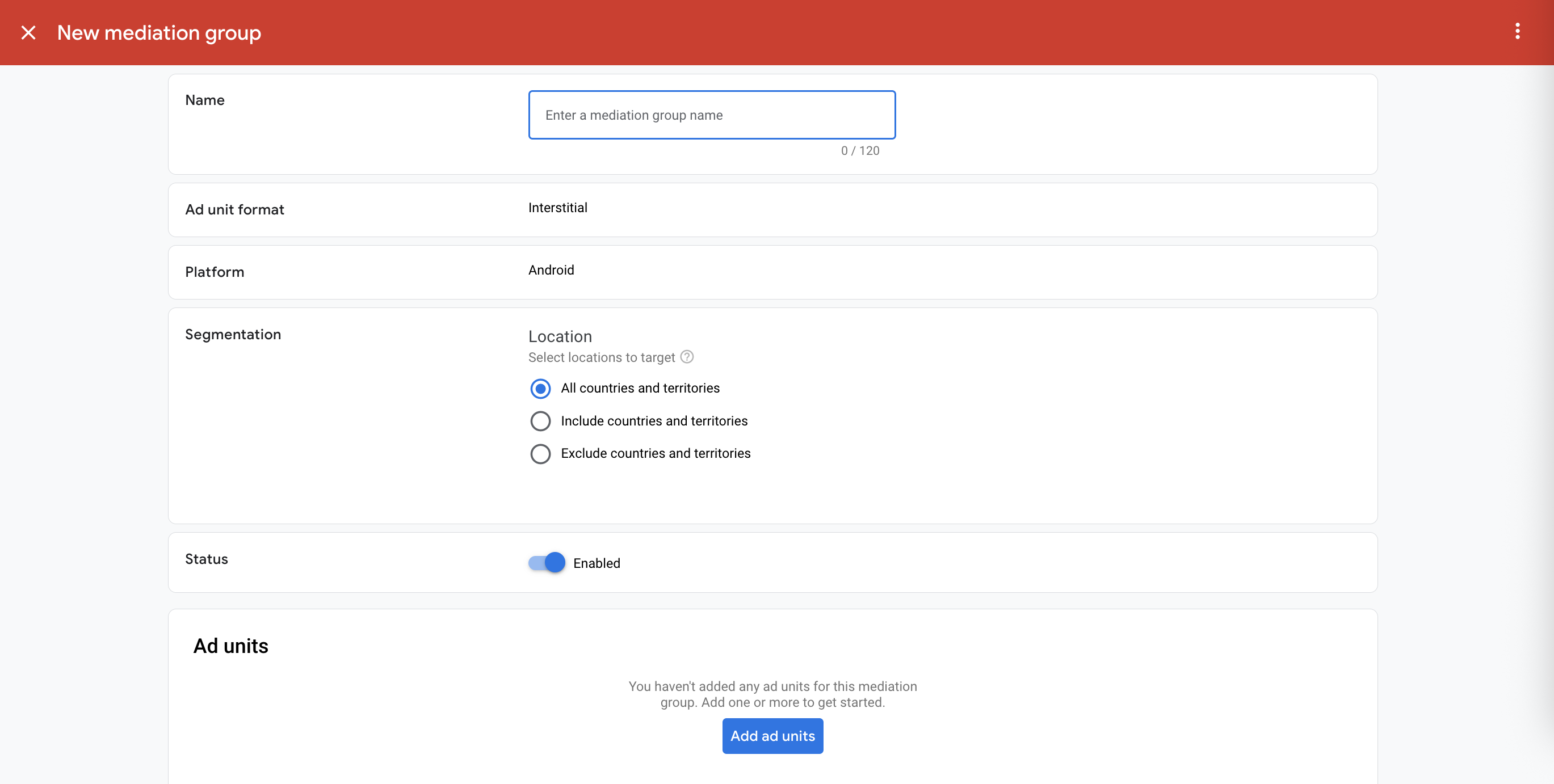
Give your mediation group a name, and select locations to target. Next, set the mediation group status to Enabled, and then click Add Ad Units.
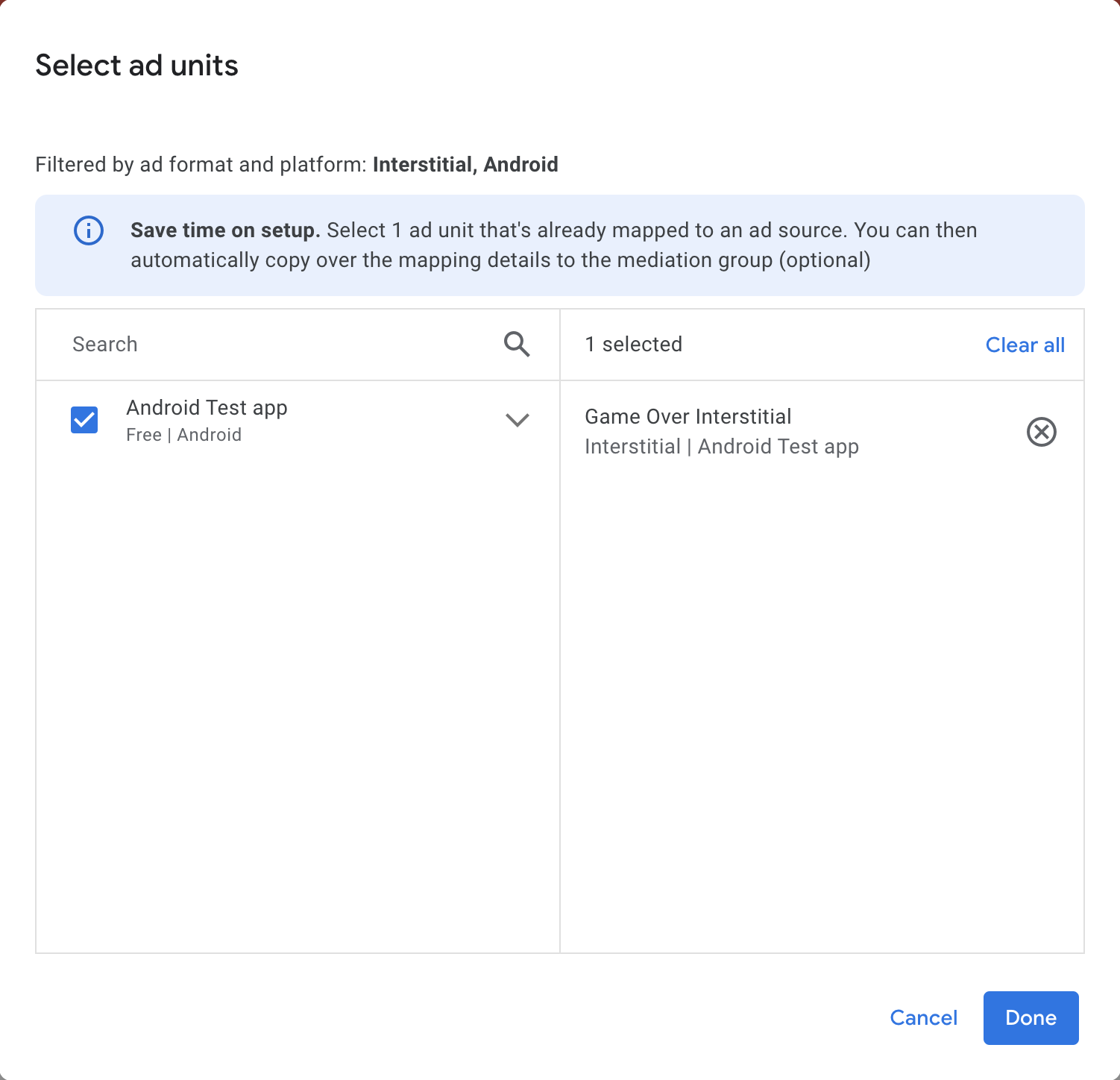
Associate this mediation group with one or more of your existing AdMob ad units. Then click Done.
You should now see the ad units card populated with the ad units you selected:
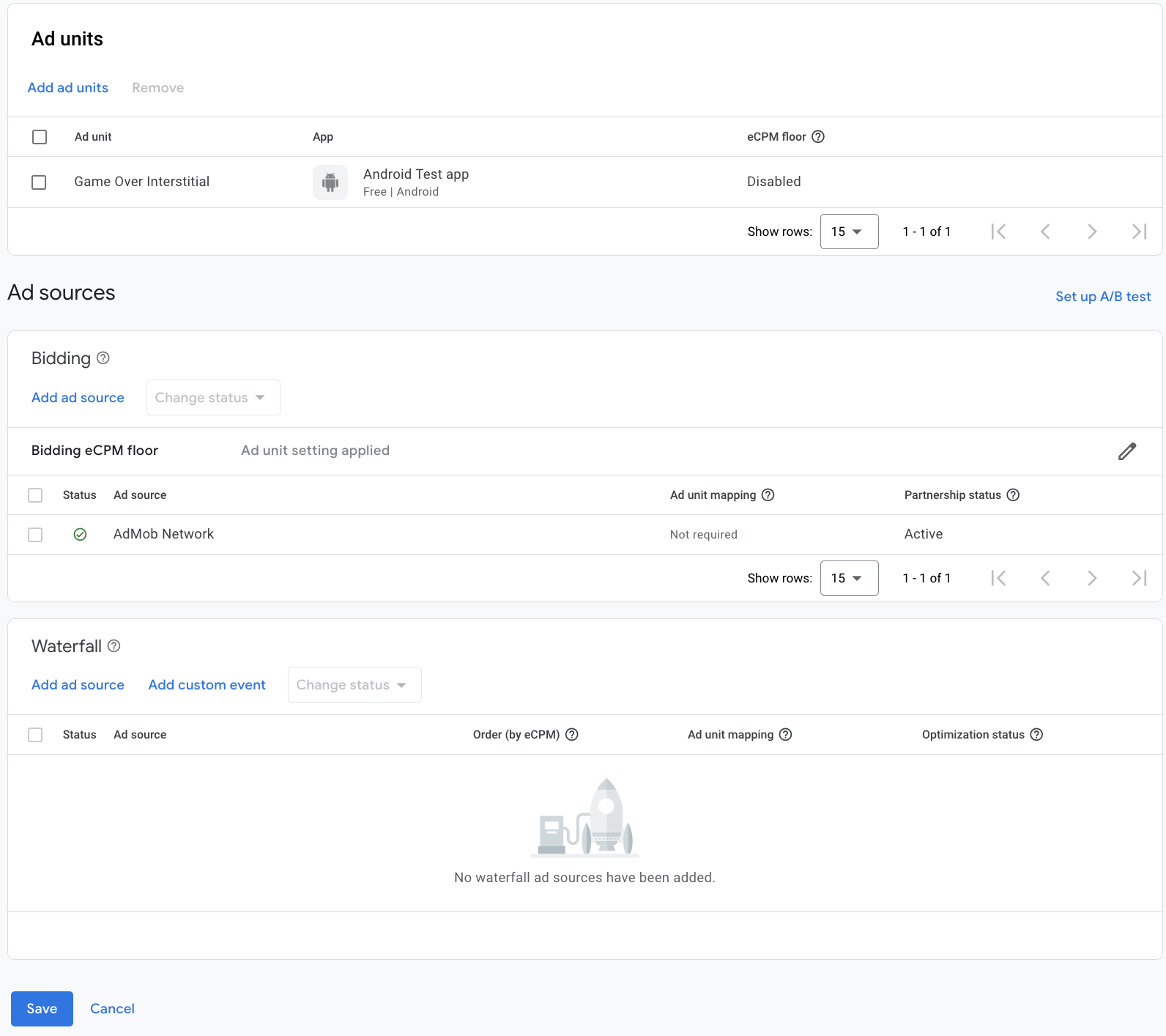
Add Unity Ads as an ad source
Bidding
In the Ad Sources section, find the Bidding card and select Add ad source. Then select Unity Ads .
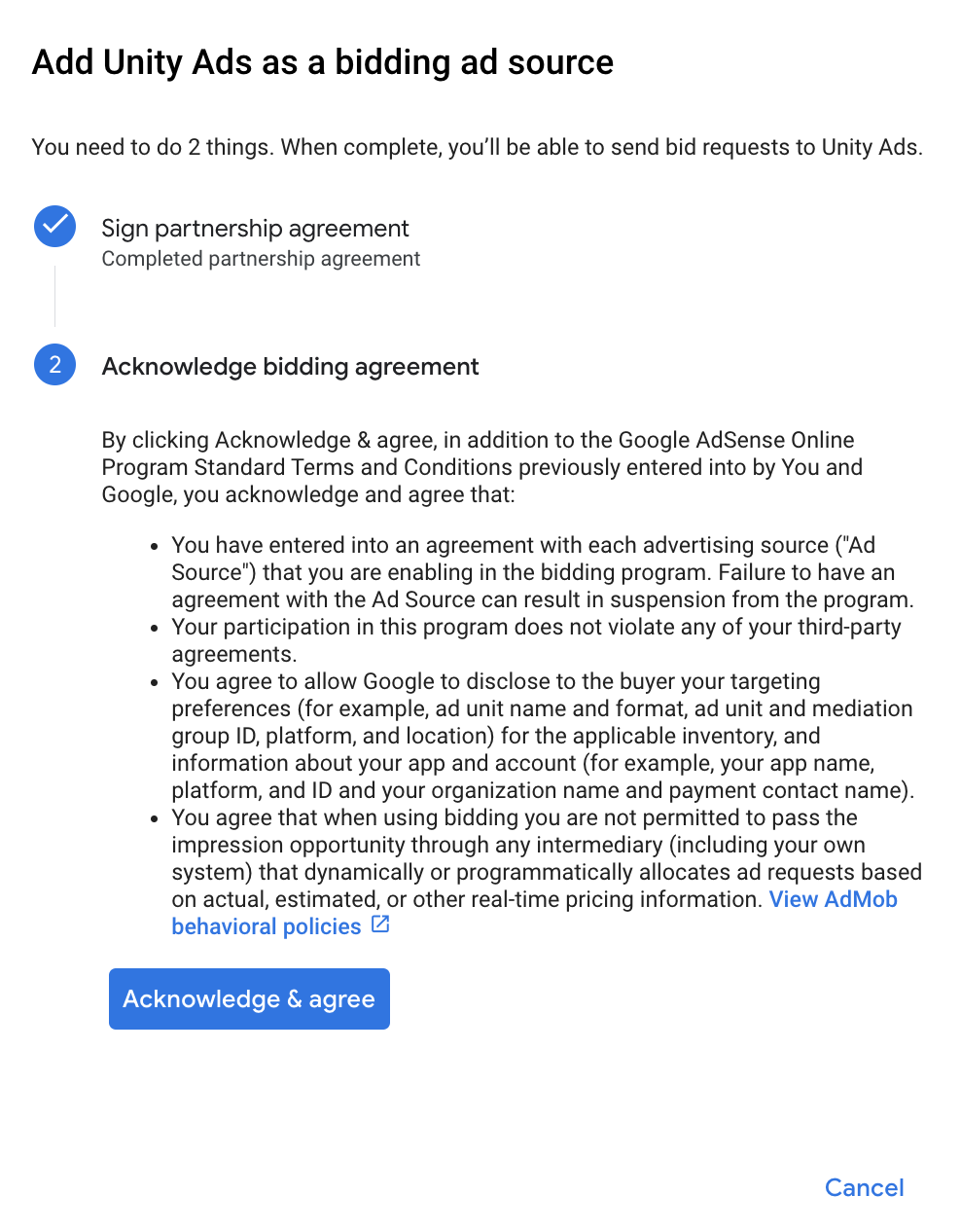
Click How to sign a partnership agreement and set up a bidding partnership with Unity Ads.
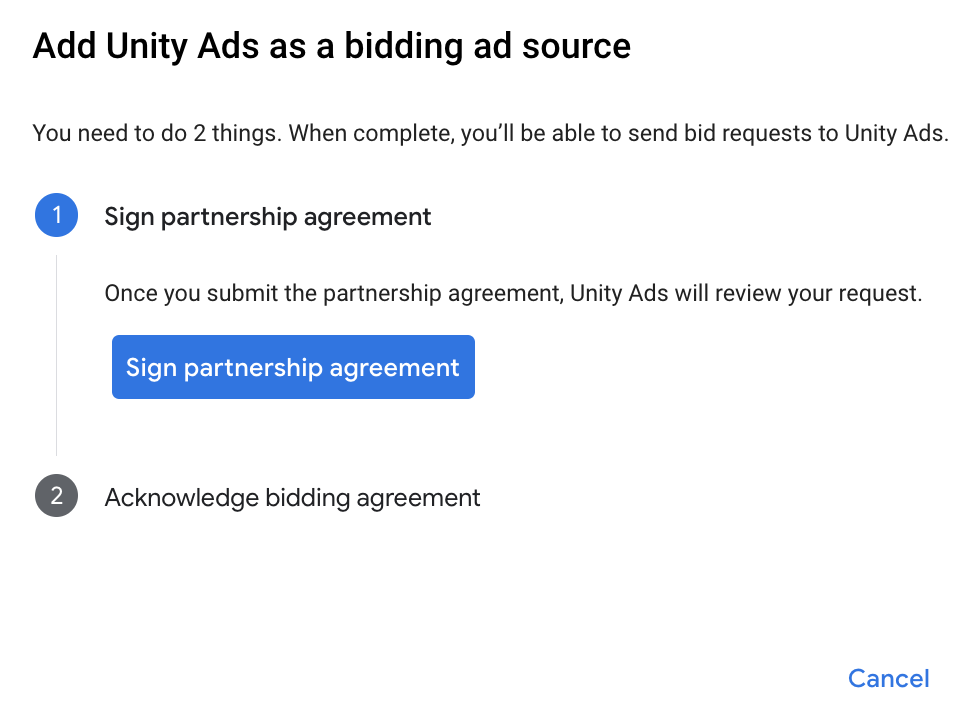
Click Acknowledge & agree, then click Continue.
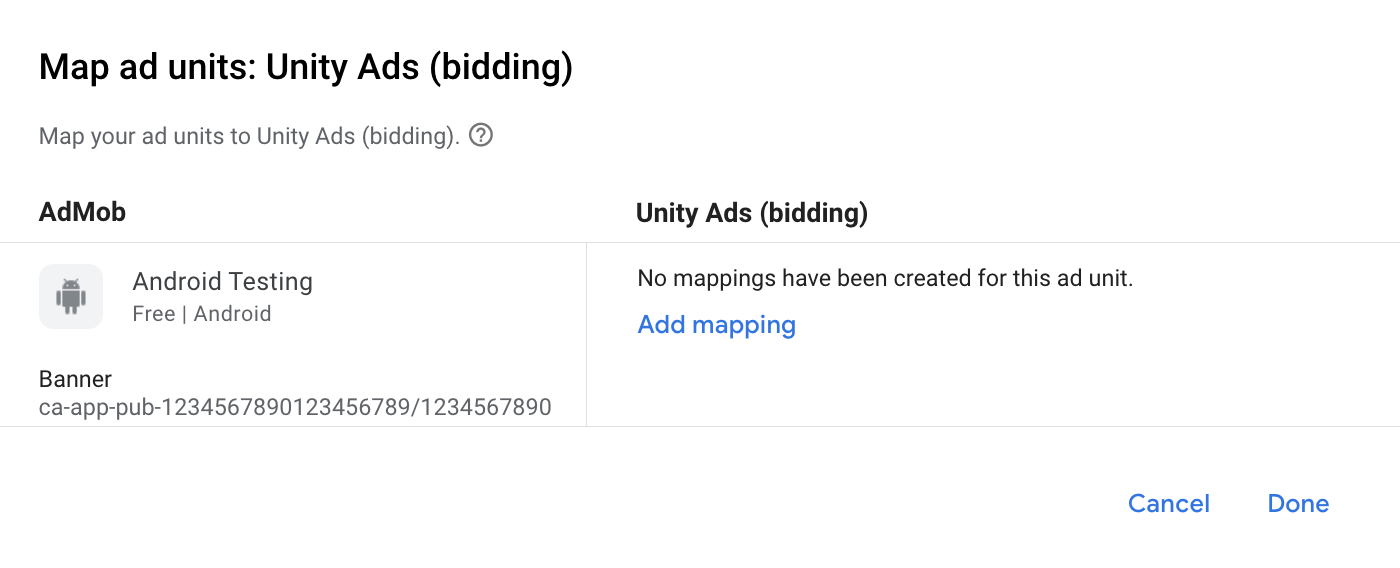
If you already have a mapping for Unity Ads, you can select it. Otherwise, click Add mapping.
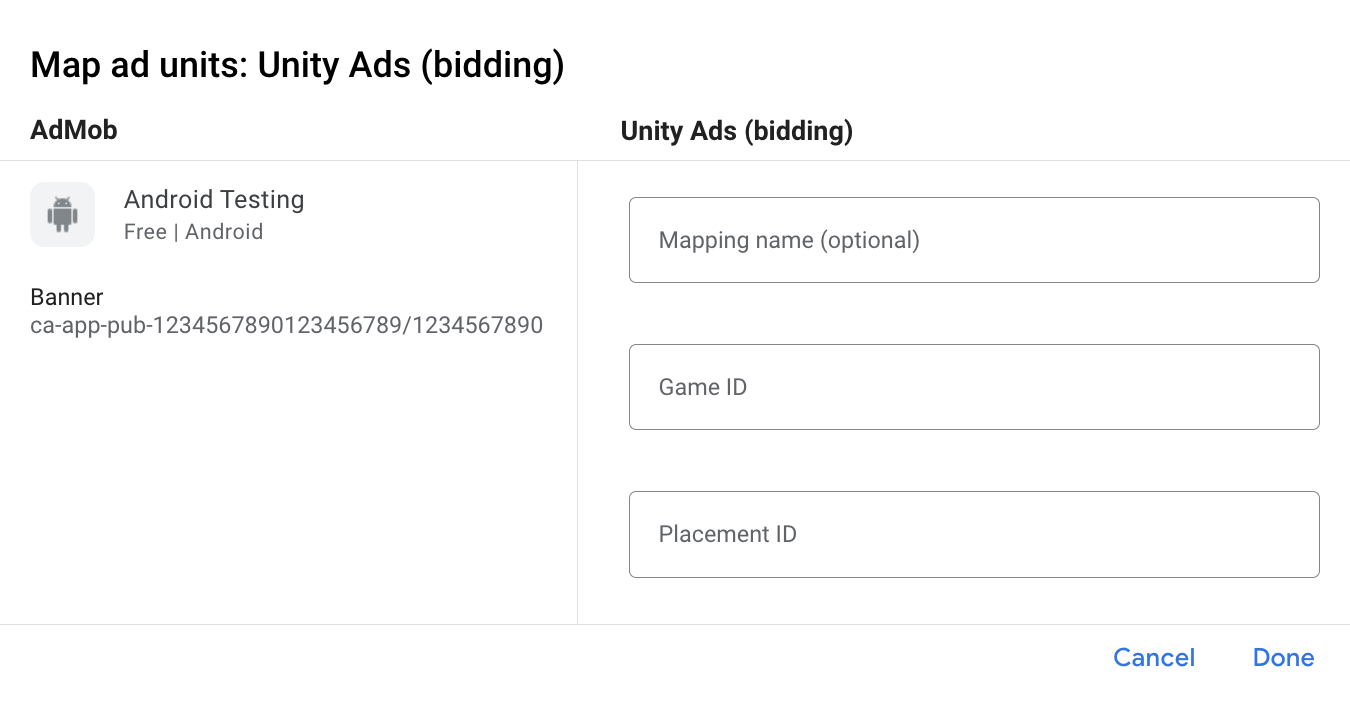
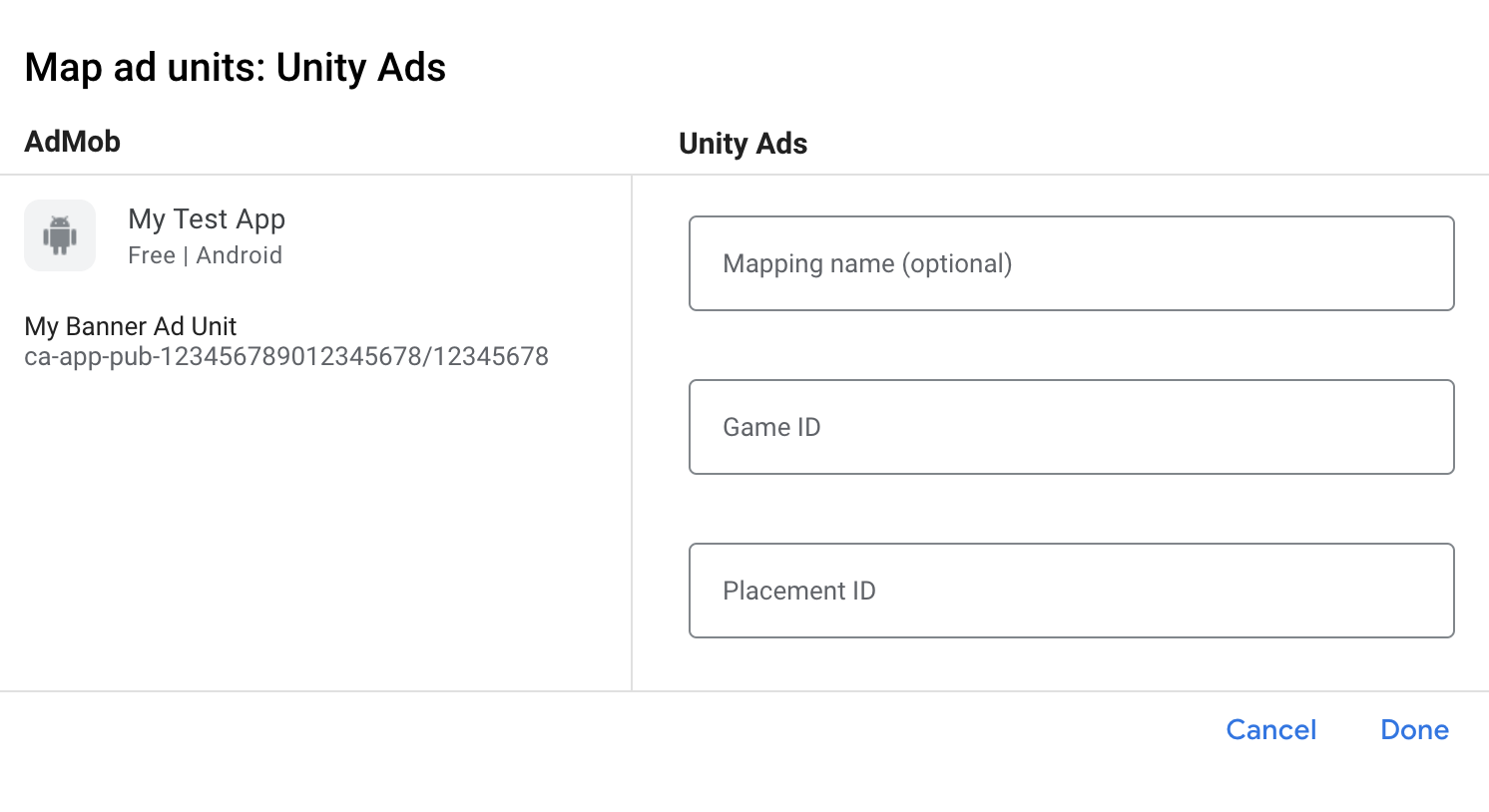
Next, enter the Game ID and Placement ID obtained in the previous section. Then click Done.
Waterfall
Under the Waterfall card in the Ad Sources section, select Add Ad Source.
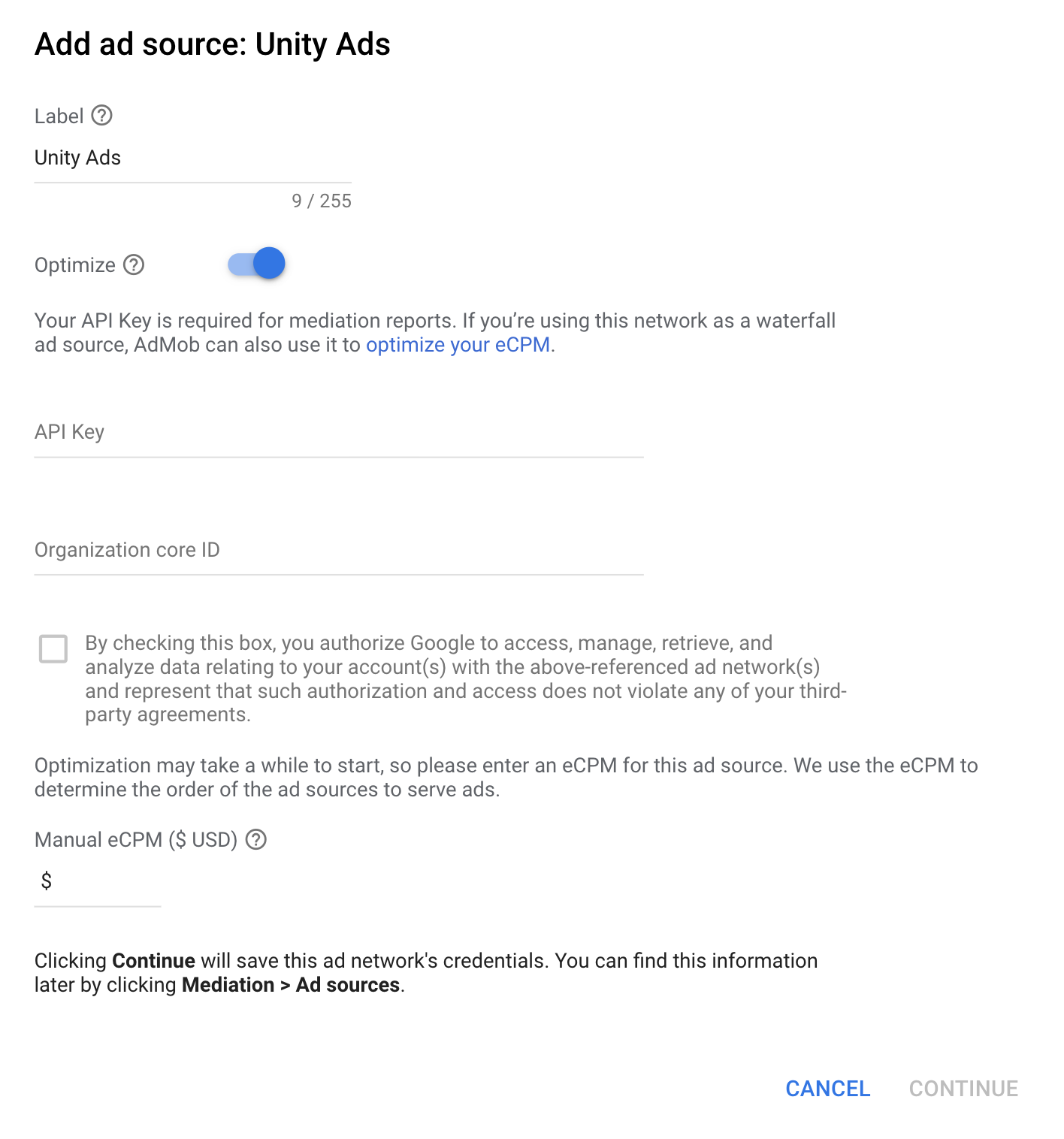
Select Unity Ads and enable the Optimize switch. Enter the API Key and Organization core ID obtained in the previous section to set up ad source optimization for Unity Ads. Then enter an eCPM value for Unity Ads and click Continue.
If you already have a mapping for Unity Ads, you can select it. Otherwise, click Add mapping.
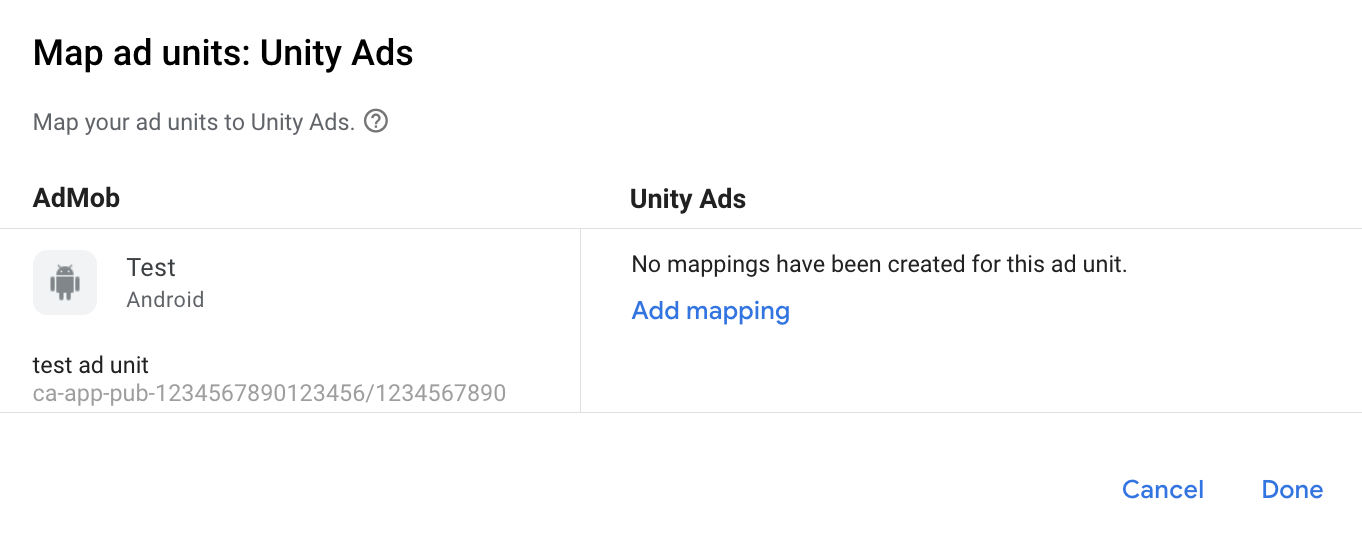
Next, enter the Game ID and Placement ID obtained in the previous section. Then click Done.
Add Unity Ads to GDPR and US state regulations ad partners list
Follow the steps in European regulations settings and US state regulations settings to add Unity Ads to the European and US state regulations ad partners list in the AdMob UI.
Step 3: Import the Unity Ads SDK and adapter
Android Studio integration (recommended)
In your app-level gradle file, add the following implementation dependencies and configurations:
Kotlin
dependencies {
    implementation("com.google.android.libraries.ads.mobile.sdk:ads-mobile-sdk:1.5.0")
    implementation("com.unity3d.ads:unity-ads:4.21.0")
    implementation("com.google.ads.mediation:unity:4.21.0.0")
}

configurations.configureEach {
    exclude(group = "com.google.android.gms", module = "play-services-ads")
    exclude(group = "com.google.android.gms", module = "play-services-ads-lite")
}
Groovy
dependencies {
    implementation 'com.google.android.libraries.ads.mobile.sdk:ads-mobile-sdk:1.5.0'
    implementation 'com.unity3d.ads:unity-ads:4.21.0'
    implementation 'com.google.ads.mediation:unity:4.21.0.0'
}

configurations.configureEach {
    exclude group: 'com.google.android.gms', module: 'play-services-ads'
    exclude group: 'com.google.android.gms', module: 'play-services-ads-lite'
}
Manual integration
Download the latest Unity Ads SDK (
unity-ads.aar) from their GitHub repository and add it to your project.Navigate to the Unity Ads adapter artifacts on Google's Maven Repository. Select the latest version, download the Unity Ads adapter's
.aarfile, and add it to your project.
Step 4: Implement privacy settings on Unity Ads SDK
EU consent and GDPR
To comply with the Google EU User Consent Policy, you must make certain disclosures to your users in the European Economic Area (EEA), the UK, and Switzerland, and obtain their consent for the use of cookies or other local storage where legally required, and for the collection, sharing, and use of personal data for ads personalization. This policy reflects the requirements of the EU ePrivacy Directive and the General Data Protection Regulation (GDPR). You are responsible for verifying that consent is propagated to each ad source in your mediation chain.
Unity Ads Android adapter version 4.19.0.1 and later supports passing GDPR consent signals from consent management platforms that integrate with IAB's Transparency and Consent Framework (TCF) to Unity Ads SDK. For more information, see Set up a TCF or non-TCF consent configuration.
US states privacy laws
US states privacy laws require giving users the right to opt out of the "sale" of their "personal information" (as the law defines those terms), with the opt-out offered through a prominent "Do Not Sell My Personal Information" link on the "selling" party's homepage. The US states privacy laws compliance guide offers the ability to enable restricted data processing for Google ad serving, but Google is unable to apply this setting to each ad network in your mediation chain. Therefore, you must identify each ad network in your mediation chain that may participate in the sale of personal information and follow guidance from each of those networks to ensure compliance.
In SDK version 2.0.0, Unity Ads added an API to support privacy settings. The following sample code shows how to pass this consent information to the Unity Ads SDK. Should you choose to pass consent information to the Unity Ads SDK manually, it is recommended that this code is called prior to requesting ads through GMA Next-Gen SDK.
Java
MetaData ccpaMetaData = new MetaData(this);
ccpaMetaData.set("privacy.consent", true);
ccpaMetaData.commit();
Kotlin
val ccpaMetaData = MetaData(this)
ccpaMetaData["privacy.consent"] = true
ccpaMetaData.commit()
See Unity Ads' Consumer privacy act compliance for more details and the values that can be provided in each method.
Set age treatment
Unity Ads mediation adapter version 4.16.6.0 and later forwards the child-directed setting and users under the age of consent setting to Unity Ads.
To process these signals on a per-user basis, Unity Ads requires you to enable the Mixed Audience designation in the Unity Monetization dashboard. For more information about enabling a mixed audience designation on your project, see Setting game-level age designations.
Step 5: Add required code
Load ad with Activity context
Pass Activity context when loading Banner, Interstitial and Native ad formats.
Without activity context, ad load will fail.
Step 6: Test your implementation
Enable test ads
Make sure you register your test device for AdMob and enable test mode in Unity Ads UI.
Verify test ads
To verify that you are receiving test ads from Unity Ads, enable single ad source testing in ad inspector using the Unity Ads (Bidding) and Unity Ads (Waterfall) ad source(s).
Error codes
If the adapter fails to receive an ad from Unity Ads,
publishers can check the underlying error from the ad response using
ResponseInfo.getAdSourceResponses()
under the following classes:
com.google.ads.mediation.unity.UnityAdapter
com.google.ads.mediation.unity.UnityMediationAdapter
Here are the codes and accompanying messages thrown by the UnityAds adapter when an ad fails to load:
| Error code | Reason |
|---|---|
| 0-10 | UnityAds SDK returned an error. See code for more details. |
| 101 | UnityAds server parameters configured in the AdMob UI are missing/invalid. |
| 102 | UnityAds returned a placement with a NO_FILL state. |
| 103 | UnityAds returned a placement with a DISABLED state. |
| 104 | UnityAds tried to show an ad with a null context. |
| 105 | Context used to initialize, load and/or show ads from Unity Ads is not an Activity instance. |
| 106 | UnityAds tried to show an ad that's not ready to be shown. |
| 107 | UnityAds is not supported on the device. |
| 108 | UnityAds can only load 1 ad per placement at a time. |
| 109 | UnityAds finished with an ERROR state. |
| 110 | The requested ad size does not match a UnityAds supported banner size. |
| 111 | UnityAds returned an initialization error. |
| 112 | Unity Ads returned a null or empty bidding token. |
| 200-204 | UnityAds Banner specific error. See code for more details. |
Unity Ads Android Mediation Adapter Changelog
Next Version
- Added
UnityMediationAdapter.setTestMode()andUnityMediationAdapter.isTestMode()to allow enabling test mode on the Unity Ads SDK.
Version 4.21.0.0
- Verified compatibility with Unity Ads SDK 4.21.0.
Built and tested with:
- Google Mobile Ads SDK version 25.5.0.
- Google Mobile Ads Next-Gen SDK version 1.5.0.
- Unity Ads SDK version 4.21.0.
Version 4.20.1.0
- Pin the adapter's Kotlin dependency to 1.9.0 (the min Kotlin version supported by GMA NextGen SDK).
- Verified compatibility with Unity Ads SDK 4.20.1.
Built and tested with:
- Google Mobile Ads SDK version 25.4.0.
- Google Mobile Ads Next-Gen SDK version 1.4.0.
- Unity Ads SDK version 4.20.1.
Version 4.20.0.1
- Removed adapter requirement of an Activity context for loading banner ads.
- Updated bidding signal collection to fail and report an error if an empty signal is received.
Built and tested with:
- Google Mobile Ads SDK version 25.4.0.
- Google Mobile Ads Next-Gen SDK version 1.4.0.
- Unity Ads SDK version 4.20.0.
Version 4.20.0.0
- Verified compatibility with Unity Ads SDK 4.20.0.
Built and tested with:
- Google Mobile Ads SDK version 25.4.0.
- Google Mobile Ads Next-Gen SDK version 1.3.1.
- Unity Ads SDK version 4.20.0.
Version 4.19.0.1
- Adapter now automatically forwards GDPR consent found inside
IABTCF_AddtlConsentto the Unity Ads SDK if GDPR applies. - Updated to report ad impression when Unity's interstitial ad is displayed.
Built and tested with:
- Google Mobile Ads SDK version 25.4.0.
- Google Mobile Ads Next-Gen SDK version 1.3.1.
- Unity Ads SDK version 4.19.0.
Version 4.19.0.0
- Verified compatibility with Unity Ads SDK 4.19.0.
Built and tested with:
- Google Mobile Ads SDK version 25.4.0.
- Google Mobile Ads Next-Gen SDK version 1.2.1.
- Unity Ads SDK version 4.19.0.
Version 4.18.1.0
- Removed old API implementation for interstitial ads. Adapter will start using the new API implementation.
- Verified compatibility with Unity Ads SDK 4.18.1.
Built and tested with:
- Google Mobile Ads SDK version 25.3.0.
- Google Mobile Ads Next-Gen SDK version 1.2.1.
- Unity Ads SDK version 4.18.1.
Version 4.18.0.0
- Added property to build the adapter with GMA Next-Gen SDK dependency.
- Verified compatibility with Unity Ads SDK 4.18.0.
Built and tested with:
- Google Mobile Ads SDK version 25.2.0.
- Google Mobile Ads Next-Gen SDK version 1.0.1.
- Unity Ads SDK version 4.18.0.
Version 4.17.0.0
- Verified compatibility with Unity Ads SDK 4.17.0.
Built and tested with:
- Google Mobile Ads SDK version 25.0.0.
- Unity Ads SDK version 4.17.0.
Version 4.16.6.0
- Added support for forwarding the
tagForUnderAgeOfConsentGoogle Mobile Ads SDK parameter to the Unity Ads SDK. - Verified compatibility with Unity Ads SDK 4.16.6.
Built and tested with:
- Google Mobile Ads SDK version 24.9.0.
- Unity Ads SDK version 4.16.6.
Version 4.16.5.0
- Verified compatibility with Unity Ads SDK 4.16.5.
Built and tested with:
- Google Mobile Ads SDK version 24.8.0.
- Unity Ads SDK version 4.16.5.
Version 4.16.4.0
- Verified compatibility with Unity Ads SDK 4.16.4.
Built and tested with:
- Google Mobile Ads SDK version 24.7.0.
- Unity Ads SDK version 4.16.4.
Version 4.16.3.0
- Verified compatibility with Unity Ads SDK 4.16.3.
Built and tested with:
- Google Mobile Ads SDK version 24.7.0.
- Unity Ads SDK version 4.16.3.
Version 4.16.2.0
- Added format parameter when getting signal token from Unity Ads SDK.
- Removed old banner API implementation. Note: New banner API implementation already exists in the adapter and GMA SDK will use that.
- Added an error code to identify show failure due to timeout.
- Removed class-level references to
Contextobjects to help with memory leak issues. - Verified compatibility with Unity Ads SDK 4.16.2.
Built and tested with:
- Google Mobile Ads SDK version 24.6.0.
- Unity Ads SDK version 4.16.2.
Version 4.16.1.0
- Verified compatibility with Unity Ads SDK 4.16.1.
Built and tested with:
- Google Mobile Ads SDK version 24.5.0.
- Unity Ads SDK version 4.16.1.
Version 4.16.0.1
- Removed size check from the adapter for banner RTB ads.
Built and tested with:
- Google Mobile Ads SDK version 24.5.0.
- Unity Ads SDK version 4.16.0.
Version 4.16.0.0
- Verified compatibility with Unity Ads SDK 4.16.0.
Built and tested with:
- Google Mobile Ads SDK version 24.5.0.
- Unity Ads SDK version 4.16.0.
Version 4.15.1.0
- Verified compatibility with Unity Ads SDK 4.15.1.
Built and tested with:
- Google Mobile Ads SDK version 24.4.0.
- Unity Ads SDK version 4.15.1.
Version 4.15.0.0
- Updated to fail signal collection for RTB banner ads if the context is not an activity (since Unity Ads SDK requires activity context to load RTB banner ads). This fix will increase ad load success rate for publishers.
- Verified compatibility with Unity Ads SDK 4.15.0.
Built and tested with:
- Google Mobile Ads SDK version 24.3.0.
- Unity Ads SDK version 4.15.0.
Version 4.14.2.0
- Verified compatibility with Unity Ads SDK 4.14.2.
Built and tested with:
- Google Mobile Ads SDK version 24.2.0.
- Unity Ads SDK version 4.14.2.
Version 4.14.1.0
- Verified compatibility with Unity Ads SDK 4.14.1.
Built and tested with:
- Google Mobile Ads SDK version 24.1.0.
- Unity Ads SDK version 4.14.1.
Version 4.14.0.0
- Verified compatibility with Unity Ads SDK 4.14.0.
Built and tested with:
- Google Mobile Ads SDK version 24.0.0.
- Unity Ads SDK version 4.14.0.
Version 4.13.2.0
- Updated the minimum required Android API level to 23.
- Updated the minimum required Google Mobile Ads SDK version to 24.0.0.
Built and tested with:
- Google Mobile Ads SDK version 24.0.0.
- Unity Ads SDK version 4.13.2.
Version 4.13.1.0
- Verified compatibility with Unity Ads SDK 4.13.1.
Built and tested with:
- Google Mobile Ads SDK version 23.6.0.
- Unity Ads SDK version 4.13.1.
Version 4.13.0.0
- Removed unnecessary
Activitycontext checks from the adapter. - Verified compatibility with Unity Ads SDK 4.13.0.
Built and tested with:
- Google Mobile Ads SDK version 23.6.0.
- Unity Ads SDK version 4.13.0.
Version 4.12.5.1
- Fixed bidding banner ad load failures by setting the object ID when loading ads.
Built and tested with:
- Google Mobile Ads SDK version 23.6.0.
- Unity Ads SDK version 4.12.5.
Version 4.12.5.0
- Verified compatibility with Unity Ads SDK 4.12.5.
Built and tested with:
- Google Mobile Ads SDK version 23.5.0.
- Unity Ads SDK version 4.12.5.
Version 4.12.4.0
- Verified compatibility with Unity Ads SDK 4.12.4.
Built and tested with:
- Google Mobile Ads SDK version 23.3.0.
- Unity Ads SDK version 4.12.4.
Version 4.12.3.0
- Verified compatibility with Unity Ads SDK 4.12.3.
Built and tested with:
- Google Mobile Ads SDK version 23.3.0.
- Unity Ads SDK version 4.12.3.
Version 4.12.2.0
- Verified compatibility with Unity Ads SDK 4.12.2.
Built and tested with:
- Google Mobile Ads SDK version 23.2.0.
- Unity Ads SDK version 4.12.2.
Version 4.12.1.0
- Verified compatibility with Unity Ads SDK 4.12.1.
Built and tested with:
- Google Mobile Ads SDK version 23.2.0.
- Unity Ads SDK version 4.12.1.
Version 4.12.0.0
- Verified compatibility with Unity Ads SDK 4.12.0.
Built and tested with:
- Google Mobile Ads SDK version 23.1.0.
- Unity Ads SDK version 4.12.0.
Version 4.11.3.0
- Added bidding support for banner, interstitial and rewarded ad formats.
- Verified compatibility with Unity Ads SDK 4.11.3.
Built and tested with:
- Google Mobile Ads SDK version 23.1.0.
- Unity Ads SDK version 4.11.3.
Version 4.11.2.0
- Verified compatibility with Unity Ads SDK 4.11.2.
Built and tested with:
- Google Mobile Ads SDK version 23.0.0.
- Unity Ads SDK version 4.11.2.
Version 4.10.0.0
- Updated the minimum required Google Mobile Ads SDK version to 23.0.0.
- Verified compatibility with Unity Ads SDK 4.10.0.
Built and tested with:
- Google Mobile Ads SDK version 23.0.0.
- Unity Ads SDK version 4.10.0.
Version 4.9.3.0
- Verified compatibility with Unity Ads SDK 4.9.3.
Built and tested with:
- Google Mobile Ads SDK version 22.6.0.
- Unity Ads SDK version 4.9.3.
Version 4.9.2.0
- Verified compatibility with Unity Ads SDK 4.9.2.
Built and tested with:
- Google Mobile Ads SDK version 22.3.0.
- Unity Ads SDK version 4.9.2.
Version 4.9.1.0
- Updated the minimum required Google Mobile Ads SDK version to 22.3.0.
- Verified compatibility with Unity Ads SDK 4.9.1.
Built and tested with:
- Google Mobile Ads SDK version 22.3.0.
- Unity Ads SDK version 4.9.1.
Version 4.8.0.0
- Reports ad impression when Unity Ads SDK invokes its new onBannerShown() callback method.
- Verified compatibility with Unity Ads SDK 4.8.0.
Built and tested with:
- Google Mobile Ads SDK version 22.2.0.
- Unity Ads SDK version 4.8.0.
Version 4.7.1.0
- Verified compatibility with Unity Ads SDK 4.7.1.
Built and tested with:
- Google Mobile Ads SDK version 22.1.0.
- Unity Ads SDK version 4.7.1.
Version 4.7.0.0
- Verified compatibility with Unity Ads SDK 4.7.0.
Built and tested with:
- Google Mobile Ads SDK version 22.0.0.
- Unity Ads SDK version 4.7.0.
Version 4.6.1.1
- Updated adapter to use new
VersionInfoclass. - Updated the minimum required Google Mobile Ads SDK version to 22.0.0.
Built and tested with:
- Google Mobile Ads SDK version 22.0.0.
- Unity Ads SDK version 4.6.1.
Version 4.6.1.0
- Verified compatibility with Unity Ads SDK 4.6.1.
Built and tested with:
- Google Mobile Ads SDK version 21.5.0
- Unity Ads SDK version 4.6.1.
Version 4.6.0.0
- Added support for forwarding COPPA information to the Unity Ads SDK.
- Verified compatibility with Unity Ads SDK 4.6.0.
- Updated the minimum required Google Mobile Ads SDK version to 21.5.0.
Built and tested with:
- Google Mobile Ads SDK version 21.5.0
- Unity Ads SDK version 4.6.0.
Version 4.5.0.0
- Verified compatibility with Unity Ads SDK 4.5.0.
- Updated the minimum required Google Mobile Ads SDK version to 21.4.0.
Built and tested with:
- Google Mobile Ads SDK version 21.4.0
- Unity Ads SDK version 4.5.0.
Version 4.4.1.0
- Verified compatibility with Unity Ads SDK 4.4.1.
Built and tested with:
- Google Mobile Ads SDK version 21.2.0
- Unity Ads SDK version 4.4.1.
Version 4.4.0.0
- Verified compatibility with Unity Ads SDK 4.4.0.
- Updated the minimum required Google Mobile Ads SDK version to 21.2.0.
Built and tested with:
- Google Mobile Ads SDK version 21.2.0
- Unity Ads SDK version 4.4.0.
Version 4.3.0.0
- Verified compatibility with Unity Ads SDK 4.3.0.
- The
onAdOpened()callback is now forwarded when interstitial and rewarded ads start playing.
Built and tested with:
- Google Mobile Ads SDK version 21.1.0
- Unity Ads SDK version 4.3.0.
Version 4.2.1.1
- Updated
compileSdkVersionandtargetSdkVersionto API 31. - Updated the minimum required Google Mobile Ads SDK version to 21.0.0.
Built and tested with:
- Google Mobile Ads SDK version 21.0.0.
- Unity Ads SDK version 4.2.1.
Version 4.2.1.0
- Verified compatibility with Unity Ads SDK 4.2.1.
Built and tested with:
- Google Mobile Ads SDK version 20.6.0.
- Unity Ads SDK version 4.2.1.
Version 4.1.0.0
- Verified compatibility with Unity Ads SDK 4.1.0.
Built and tested with:
- Google Mobile Ads SDK version 20.6.0.
- Unity Ads SDK version 4.1.0.
Version 4.0.1.0
- Verified compatibility with Unity Ads SDK 4.0.1.
- Updated the minimum required Google Mobile Ads SDK version to 20.6.0.
Built and tested with:
- Google Mobile Ads SDK version 20.6.0.
- Unity Ads SDK version 4.0.1.
Version 4.0.0.0
- Verified compatibility with Unity Ads SDK 4.0.0.
- Updated the minimum required Google Mobile Ads SDK version to 20.5.0.
Built and tested with:
- Google Mobile Ads SDK version 20.5.0.
- Unity Ads SDK version 4.0.0.
Version 3.7.5.0
- Verified compatibility with Unity Ads SDK 3.7.5.
Built and tested with:
- Google Mobile Ads SDK version 20.2.0.
- Unity Ads SDK version 3.7.5.
Version 3.7.4.0
- Verified compatibility with Unity Ads SDK 3.7.4.
Built and tested with:
- Google Mobile Ads SDK version 20.2.0.
- Unity Ads SDK version 3.7.4.
Version 3.7.2.0
- Verified compatibility with Unity Ads SDK 3.7.2.
- Updated the minimum required Google Mobile Ads SDK version to 20.2.0.
Built and tested with:
- Google Mobile Ads SDK version 20.2.0.
- Unity Ads SDK version 3.7.2.
Version 3.7.1.0
- Verified compatibility with Unity Ads SDK 3.7.1.
- Updated the minimum required Google Mobile Ads SDK version to 20.1.0.
Built and tested with:
- Google Mobile Ads SDK version 20.1.0.
- Unity Ads SDK version 3.7.1.
Version 3.6.2.0
- Verified compatibility with Unity Ads SDK 3.6.2.
- Fixed an issue where rewarded ads were not forwarding click callbacks.
- The UnityAds SDK has been removed from the bundled adapter build. Publishers are now required to manually include the UnityAds SDK as an additional dependency.
- Updated the minimum required Google Mobile Ads SDK version to 19.8.0.
Built and tested with:
- Google Mobile Ads SDK version 19.8.0.
- Unity Ads SDK version 3.6.2.
Version 3.6.0.0
- Verified compatibility with Unity Ads SDK 3.6.0.
- Updated the minimum required Google Mobile Ads SDK version to 19.6.0.
Built and tested with:
- Google Mobile Ads SDK version 19.6.0.
- Unity Ads SDK version 3.6.0.
Version 3.5.1.1
- Fixed an issue where when trying to request for multiple interstitial and rewarded ads.
Built and tested with:
- Google Mobile Ads SDK version 19.5.0.
- Unity Ads SDK version 3.5.1.
Version 3.5.1.0
- Verified compatibility with Unity Ads SDK 3.5.1.
- Fixed an issue that causes smart banner ad requests to fail.
Built and tested with:
- Google Mobile Ads SDK version 19.5.0.
- Unity Ads SDK version 3.5.1.
Version 3.5.0.0
- Verified compatibility with Unity Ads SDK 3.5.0.
- Added adaptive banner support.
- Updated the minimum required Google Mobile Ads SDK version to 19.5.0.
Built and tested with:
- Google Mobile Ads SDK version 19.5.0.
- Unity Ads SDK version 3.5.0.
Version 3.4.8.0
- Fixed a
NullPointerExceptionerror that occurs when a banner ad is destroyed. - Updated the minimum required Google Mobile Ads SDK version to 19.3.0.
Built and tested with:
- Google Mobile Ads SDK version 19.3.0.
- Unity Ads SDK version 3.4.8.
Version 3.4.6.1
- Created an adapter build that does not include the Unity Ads SDK bundled in.
This gives publishers an option to use the Unity Ads Services when mediating on
Unity to avoid conflicting dependency issues.
- Publishers may opt to use this by including the
com.google.ads.mediation:unity-adapter-only:x.y.z.pdependency on their app-levelbuild.gradlefile.
- Publishers may opt to use this by including the
Built and tested with:
- Google Mobile Ads SDK version 19.1.0.
- Unity Ads SDK version 3.4.6.
Version 3.4.6.0
- Verified compatibility with Unity Ads SDK 3.4.6.
- Adapter now forwards the
onAdOpened()callback when a banner ad is clicked.
Built and tested with:
- Google Mobile Ads SDK version 19.1.0.
- Unity Ads SDK version 3.4.6.
Version 3.4.2.3
- Added descriptive error codes and reasons for adapter load/show failures.
- Updated the minimum required Google Mobile Ads SDK version to 19.1.0.
Built and tested with:
- Google Mobile Ads SDK version 19.1.0.
- Unity Ads SDK version 3.4.2.
Version 3.4.2.2
- Fixed a
ConcurrentModificationExceptioncrash that occurred when Unity Ads returns an error.
Built and tested with:
- Google Mobile Ads SDK version 19.0.1.
- Unity Ads SDK version 3.4.2.
Version 3.4.2.1
- Improved forwarding of Unity's errors to recognize initialization and ad load failures earlier and reduce timeouts.
- Updated the minimum required Google Mobile Ads SDK version to 19.0.1.
Built and tested with:
- Google Mobile Ads SDK version 19.0.1.
- Unity Ads SDK version 3.4.2.
Version 3.4.2.0
- Verified compatibility with Unity Ads SDK 3.4.2.
- Updated the minimum required Google Mobile Ads SDK version to 18.3.0.
Built and tested with:
- Google Mobile Ads SDK version 18.3.0.
- Unity Ads SDK version 3.4.2.
Version 3.4.0.0
- Verified compatibility with Unity Ads SDK 3.4.0.
- Updated the minimum required Google Mobile Ads SDK version to 18.3.0.
Built and tested with:
- Google Mobile Ads SDK version 18.3.0.
- Unity Ads SDK version 3.4.0.
Version 3.3.0.0
- Verified compatibility with Unity Ads SDK 3.3.0.
Built and tested with:
- Google Mobile Ads SDK version 18.2.0.
- Unity Ads SDK version 3.3.0.
Version 3.2.0.1
- Fixed a null pointer exception crash that occurred when calling
loadAd()before callingUnityAds.initialize(). - Updated the minimum required Google Mobile Ads SDK version to 18.2.0.
Version 3.2.0.0
- Fixed an issue that caused Banner Ad requests to fail.
- Verified compatibility with Unity Ads SDK 3.2.0.
- Migrated the adapter to AndroidX.
- Updated the minimum required Google Mobile Ads SDK version to 18.1.1.
Version 3.1.0.0
- Added support for flexible banner ad sizes.
- Adapter fails the ad request if the requested size isn't compatible with any Unity Ads banner sizes
- Verified compatibility with Unity Ads SDK 3.1.0.
Version 3.0.1.0
- Verified compatibility with Unity Ads SDK 3.0.1.
- Fixed a bug that caused 'NPE' while showing an interstitial ad.
Version 3.0.0.2
- Updated adapter to support new open-beta Rewarded API.
- Updated the minimum required Google Mobile Ads SDK version to 17.2.0.
Version 3.0.0.1
- Added support for Unity Ads Banner.
Version 3.0.0.0
- Verified compatibility with Unity Ads SDK 3.0.0.
Version 2.3.0.0
- Verified compatibility with Unity Ads SDK 2.3.0.
Version 2.2.1.1
- Updated the adapter to invoke the
onRewardedVideoComplete()ad event.
Version 2.2.1.0
- Verified compatibility with Unity Ads SDK 2.2.1.
Version 2.2.0.0
- Verified compatibility with Unity Ads SDK 2.2.0.
Version 2.1.2.0
- Verified compatibility with Unity Ads SDK 2.1.2.
Version 2.1.1.0
- Verified compatibility with Unity Ads SDK 2.1.1.
Version 2.1.0.0
- Updated the adapter to make it compatible with Unity Ads SDK 2.1.0.
Version 2.0.8.0
- Verified compatibility with Unity Ads SDK 2.0.8.
Version 2.0.7.0
- Using Unity Ads's click reporting (AdMob and Unity Ads click statistics will match up).
- Added onAdLeftApplication callback support.
Version 2.0.6.0
- Verified compatibility with Unity Ads SDK 2.0.6.
Version 2.0.5.0
- The adapters can now be added as a compile dependency by adding the following
to the build.gradle file's dependencies tag:
compile 'com.google.ads.mediation:unity:2.0.5.0' - Moved to distributing the adapter as an aar instead of a jar file (see README for additional instructions).
Version 2.0.4.0
- Fixed a bug that caused rewarded video ads to fail to load when an interstitial ad was loaded first.
Version 2.0.2.0
- Changed the version naming system to [Unity Ads SDK version].[adapter patch version].
- Updated the minimum required Unity Ads SDK to v2.0.2.
- Updated the minimum required Google Mobile Ads SDK to v9.0.0.
- Apps are no longer required to call UnityAds.changeActivity(this).
Version 1.0.0
- Initial release. Supports reward-based video ads and interstitial ads.