This guide shows you how to use GMA Next-Gen SDK to load and display ads from Meta Audience Network using AdMob Mediation, covering bidding integrations. It covers how to add Meta Audience Network to an ad unit's mediation configuration, and how to integrate the Meta Audience Network SDK and adapter into an Android app.
Supported integrations and ad formats
The mediation adapter for Meta Audience Network has the following capabilities:
| Integration | |
|---|---|
| Bidding | |
| Waterfall 1 | |
| Formats | |
| Banner | |
| Interstitial | |
| Rewarded | |
| Rewarded Interstitial | |
| Native | |
1 Meta Audience Network became bidding only in 2021.
Prerequisites
Before you continue, verify the following:
- Android API level 24 or later.
- Meta Audience Network adapter 5.10.0.0 or later (latest version recommended).
Latest GMA Next-Gen SDK version.
Step 1: Set up configurations in Meta Audience Network UI
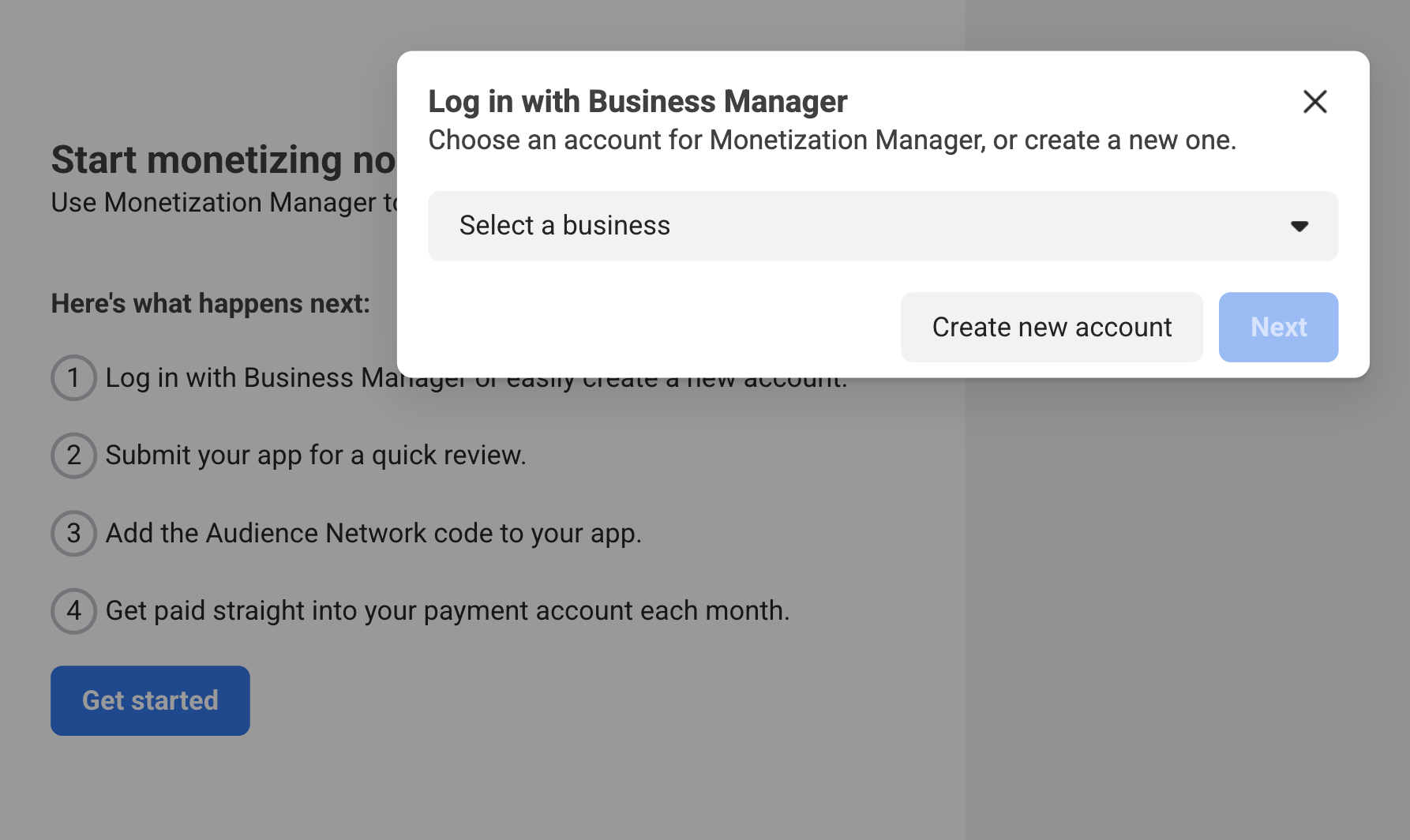
Sign up and log in to the Business Manager Start page.
Click Get started then Create new account.
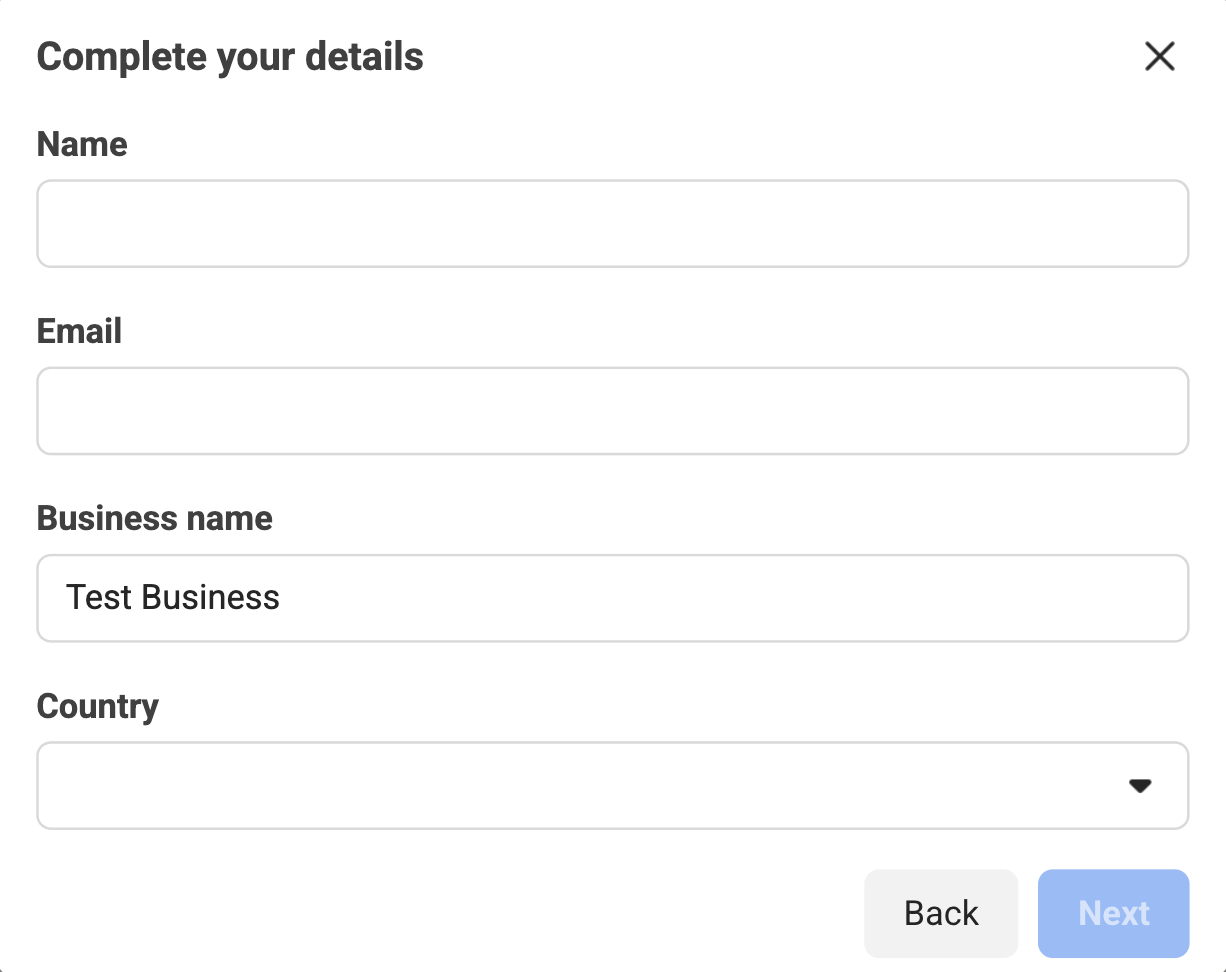
Fill out the required fields with your business details and click Next.
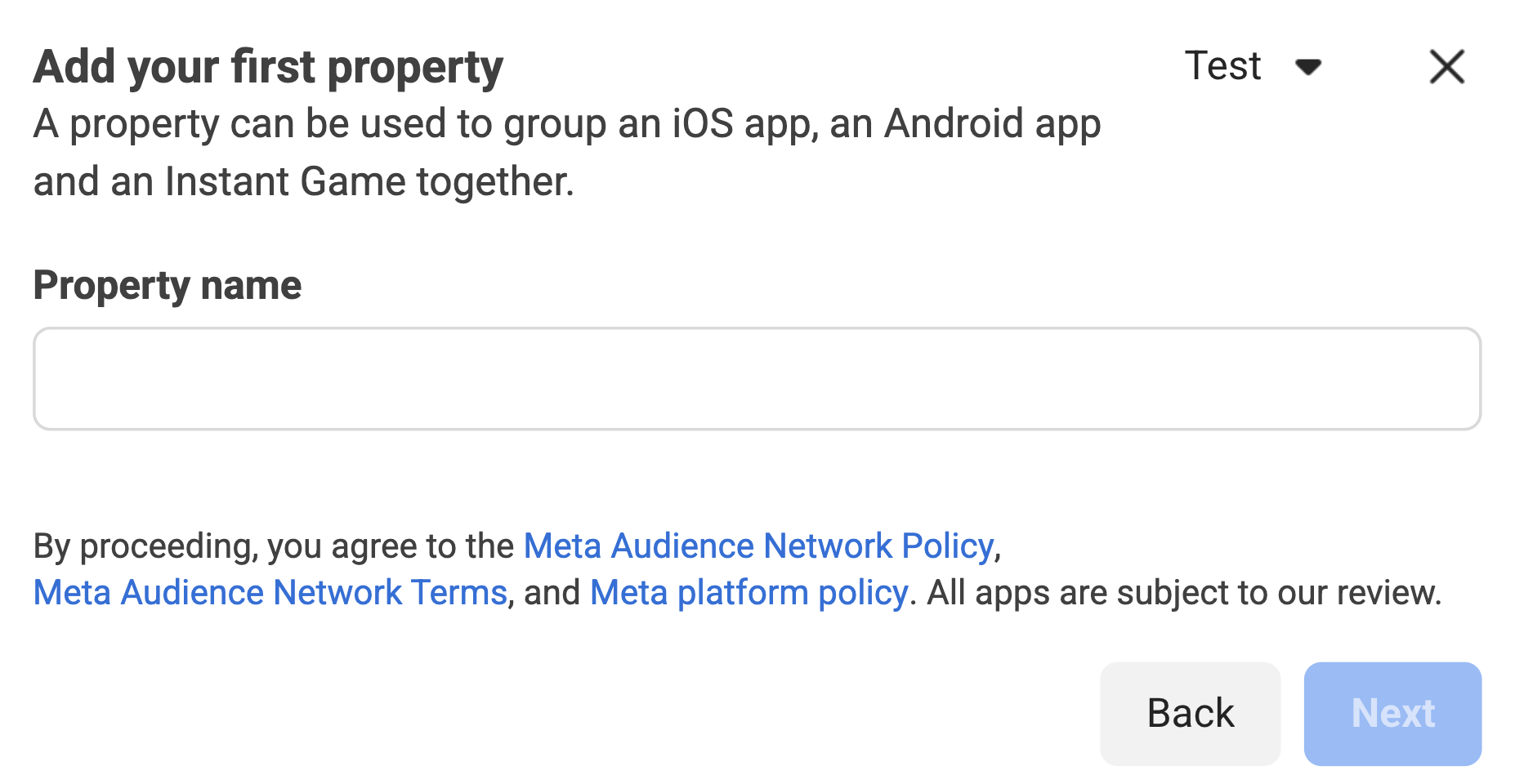
Create a property
After you've filled out the required information, you're prompted to create a property for your app. Enter the desired name of the property for your app and click Next.
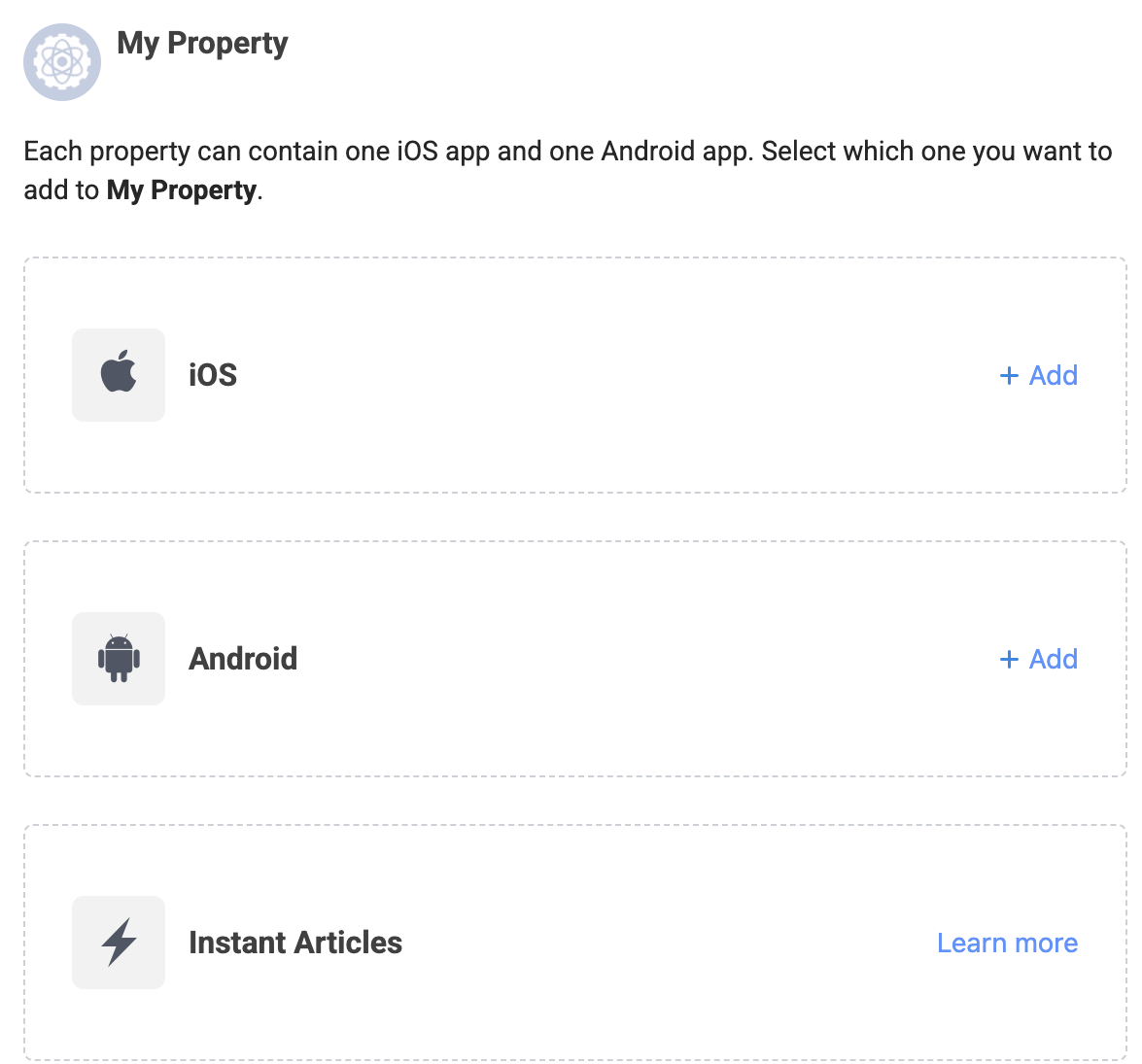
Next, select your platform to monetize.
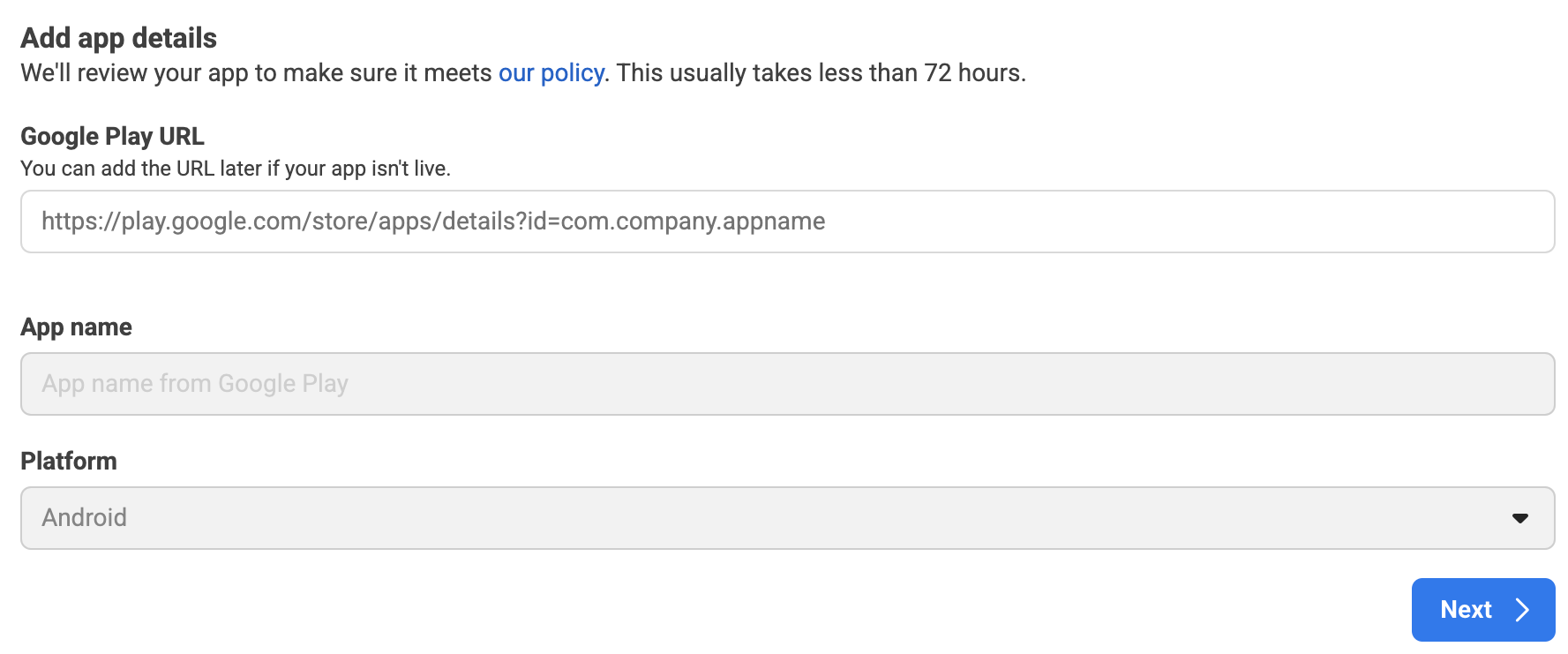
Add your app details and click Next.
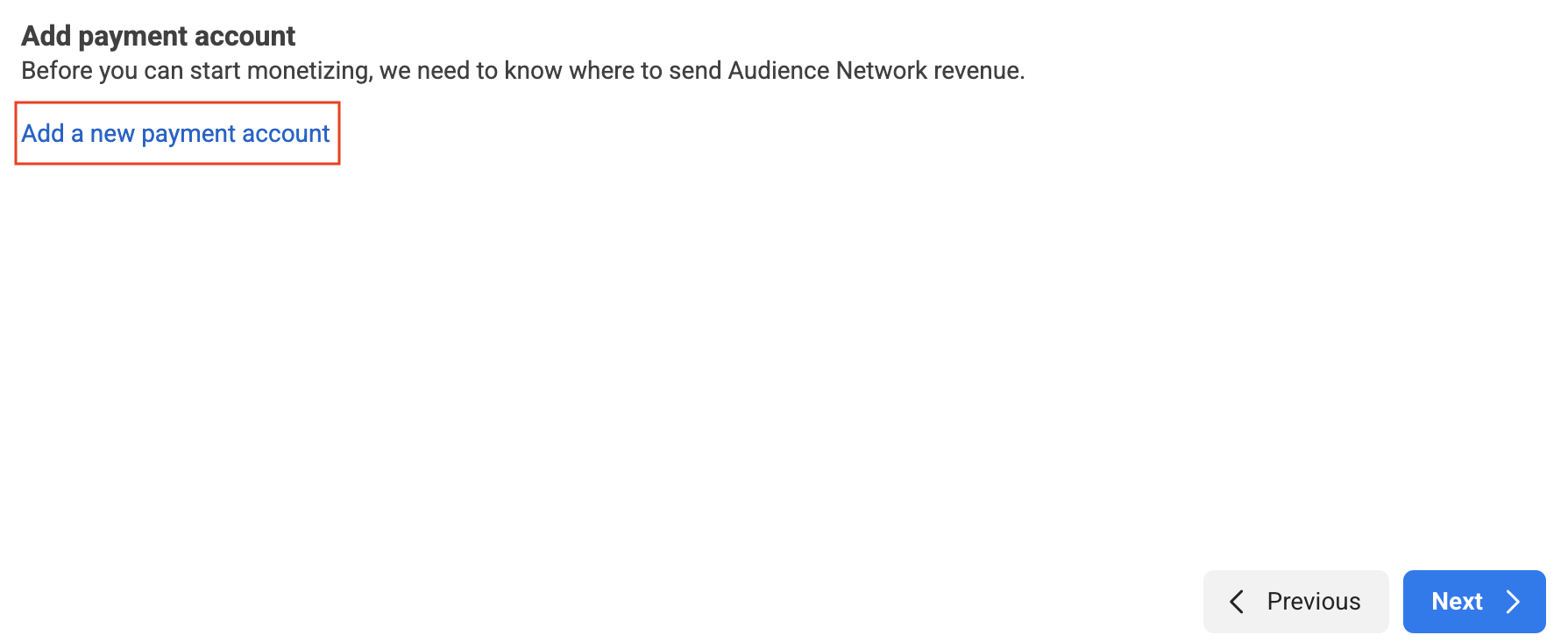
Set up your payment account by clicking Add a new payment account. You will be redirected to a new page to enter your payment information. Fill out the necessary details, then click Next.
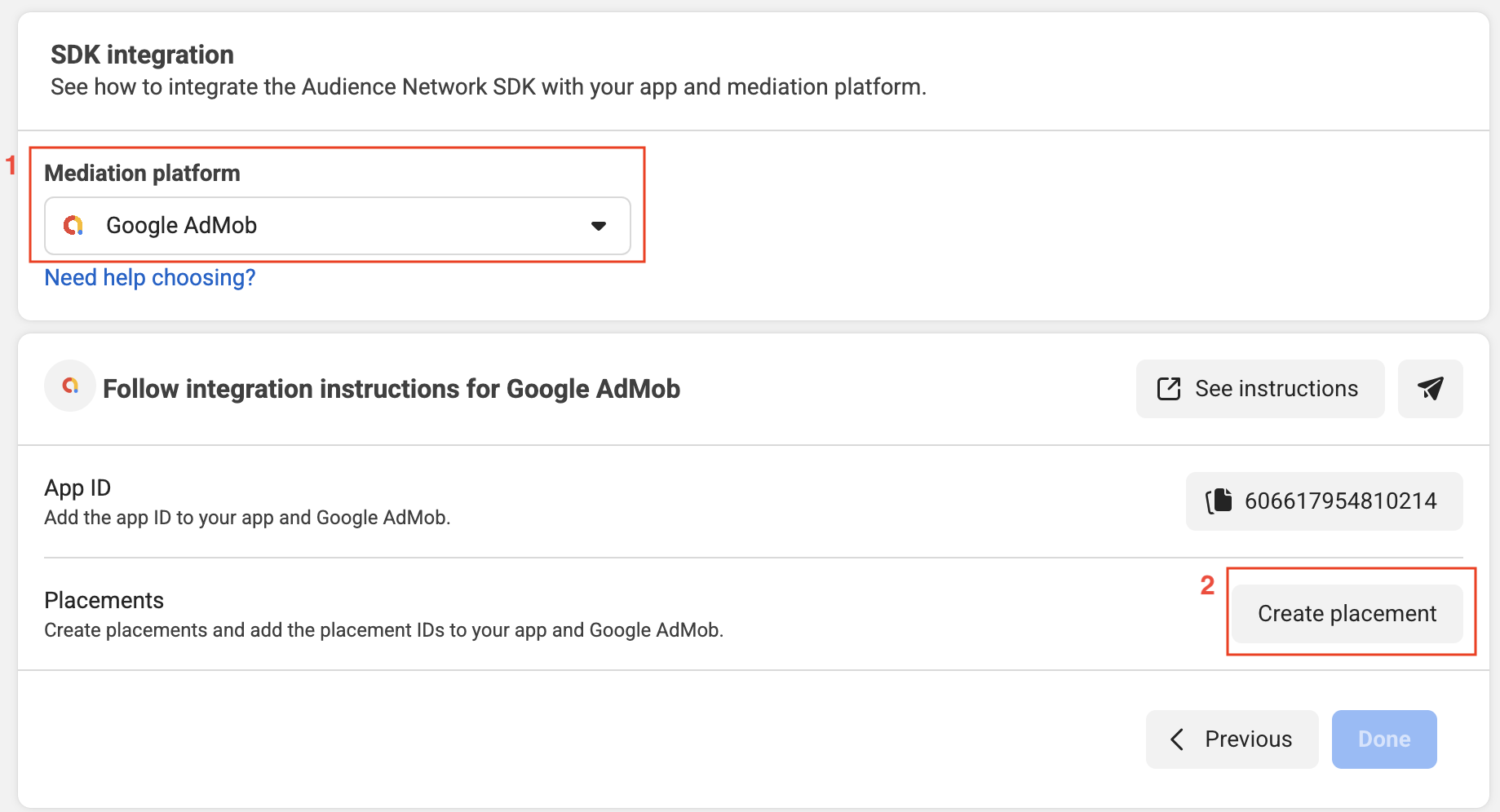
Select Google AdMob as the Mediation platform, then click Create placement.
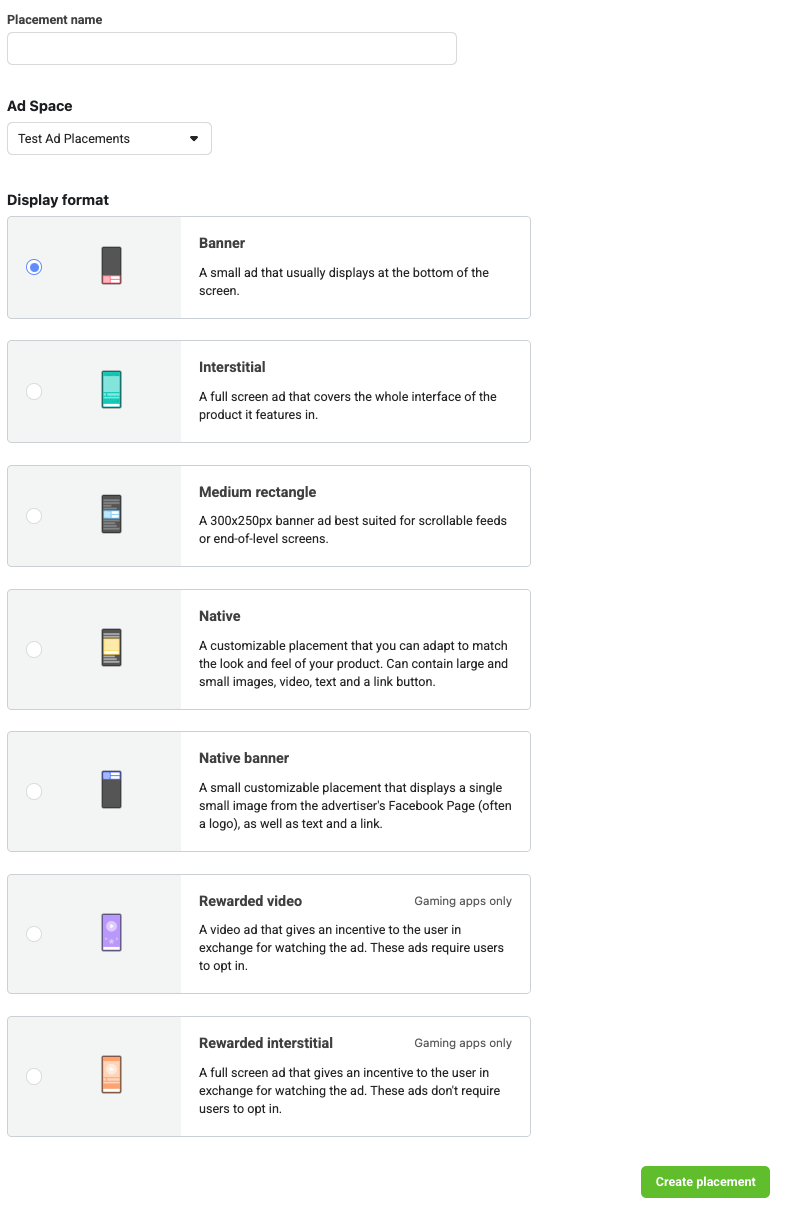
Select a format, fill out the form and click Create.
Take note of the Placement ID.

Click Done.
Update your app-ads.txt
Authorized Sellers for Apps app-ads.txt is an IAB Tech Lab initiative that helps ensure your
app ad inventory is only sold through channels you've identified as authorized. To prevent a
significant loss in ad revenue, you'll need to implement an app-ads.txt file.
If you haven't done so already,
set up an app-ads.txt file for your app.
To implement app-ads.txt for Meta Audience Network, see
Identifying Authorized Sellers with app-ads.txt.
Turn on test mode
See the Testing Audience Network Implementation guide for detailed instructions on how to enable Meta Audience Network test ads.
Step 2: Set up Meta Audience Network demand in AdMob UI
Configure mediation settings for your ad unit
You need to add Meta Audience Network to the mediation configuration for your ad unit.
First, sign in to your AdMob account. Next, navigate to the Mediation tab. If you have an existing mediation group you'd like to modify, click the name of that mediation group to edit it, and skip ahead to Add Meta Audience Network as an ad source.
To create a new mediation group, select Create Mediation Group.
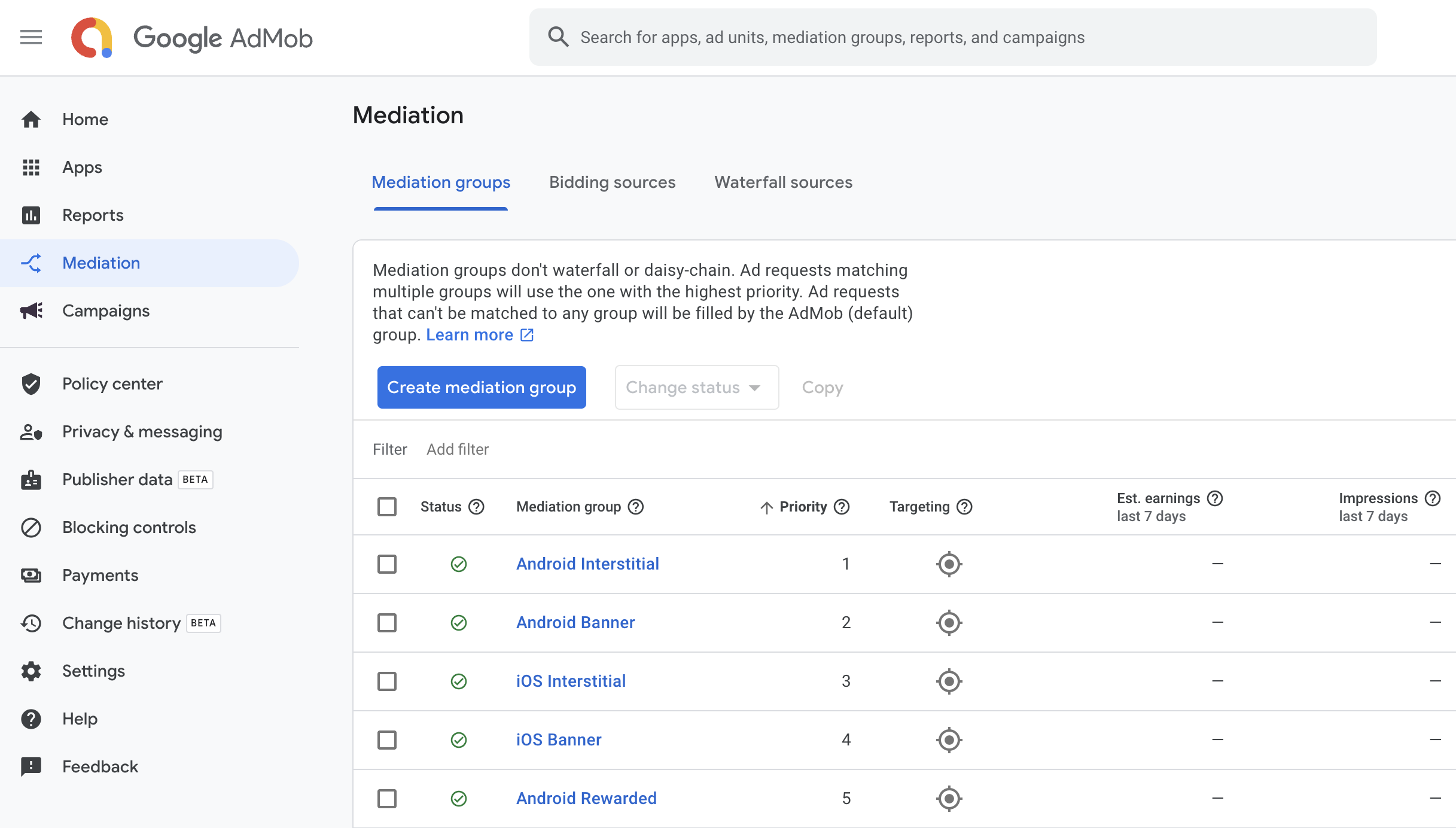
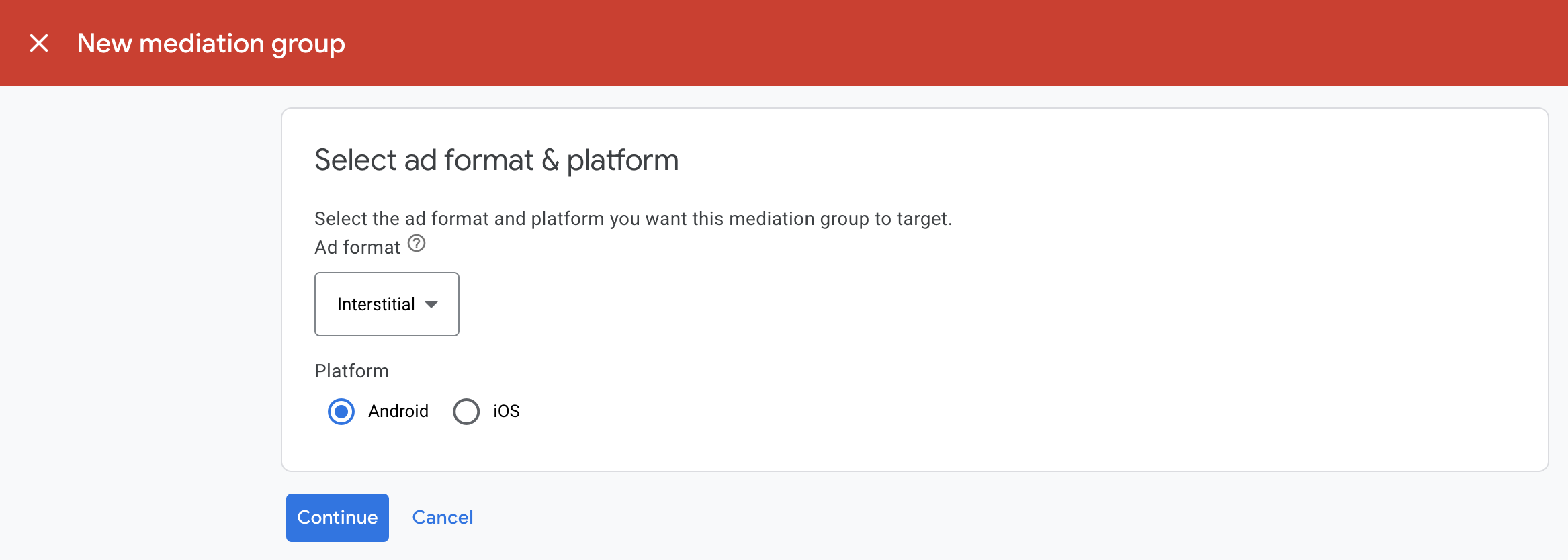
Enter your ad format and platform, then click Continue.
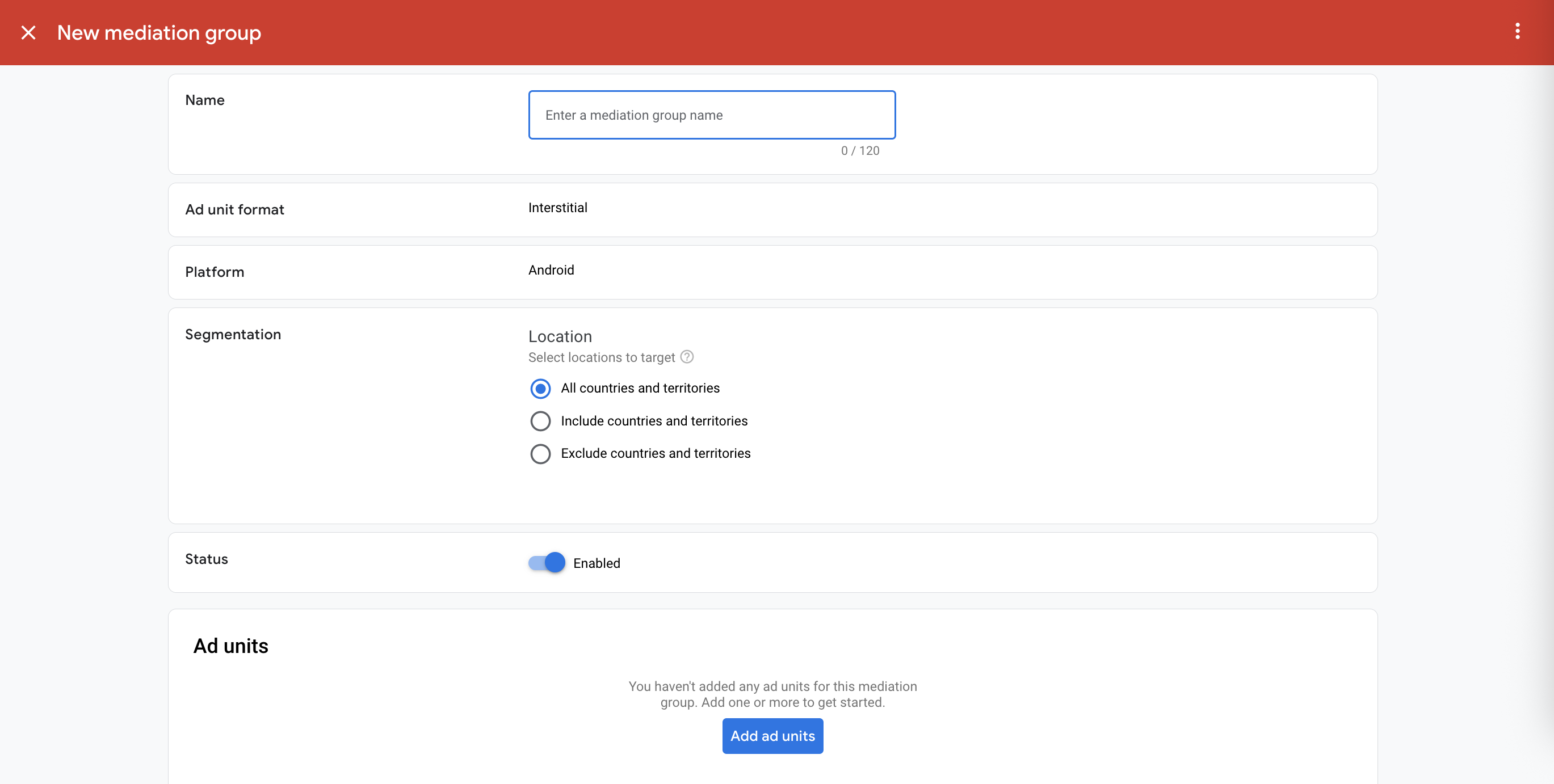
Give your mediation group a name, and select locations to target. Next, set the mediation group status to Enabled, and then click Add Ad Units.
Associate this mediation group with one or more of your existing AdMob ad units. Then click Done.
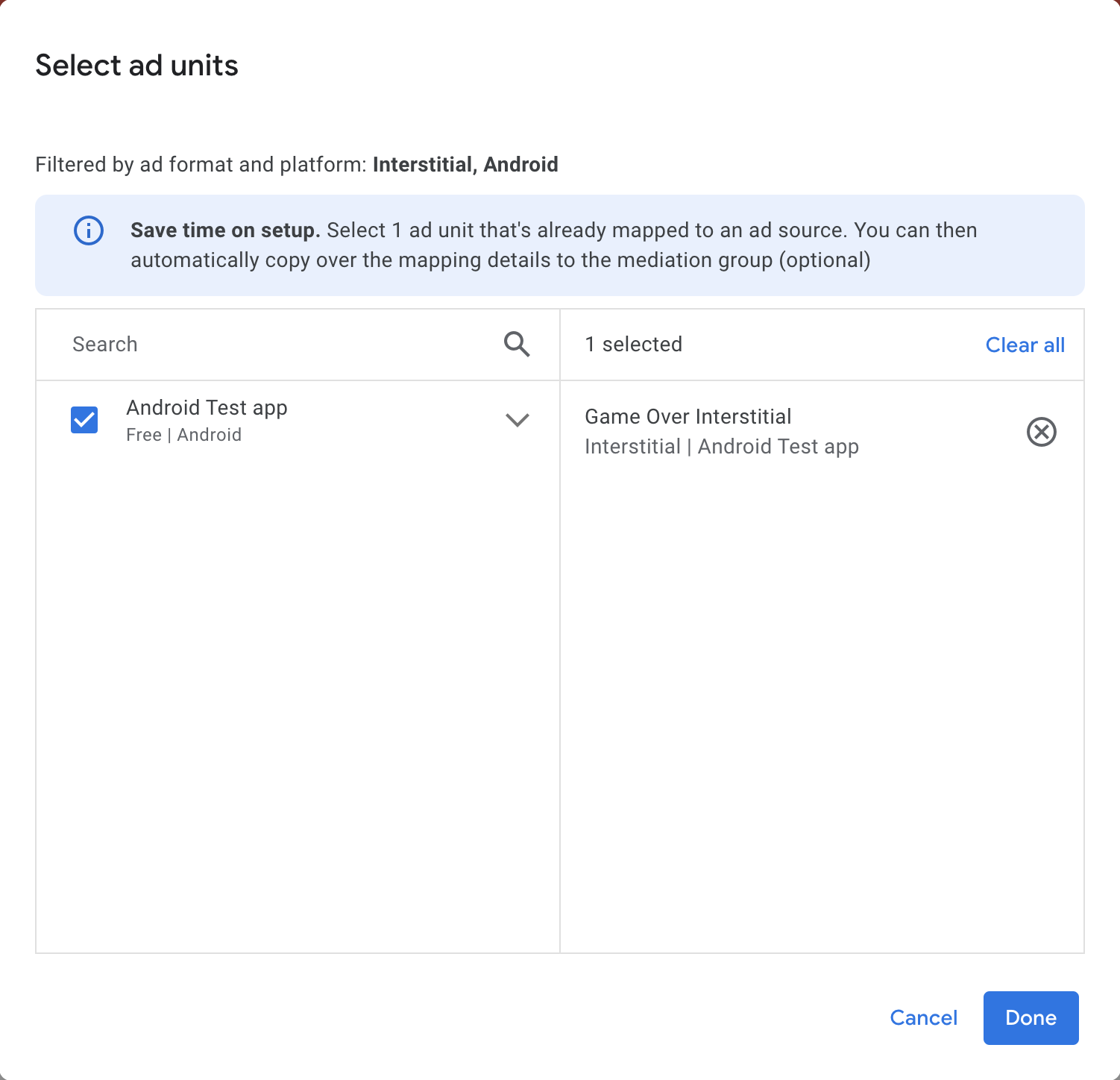
You should now see the ad units card populated with the ad units you selected:
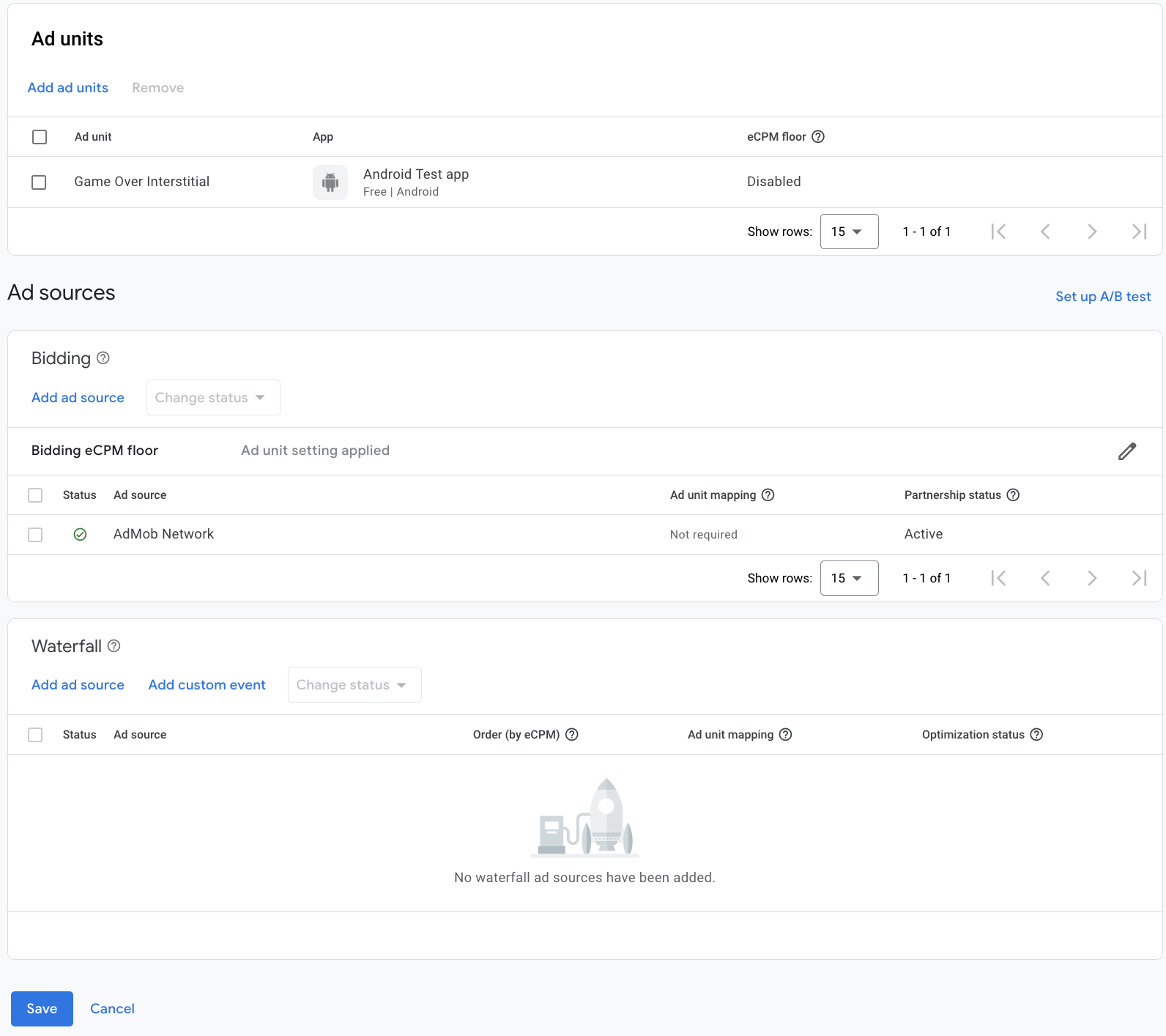
Add Meta Audience Network as an ad source
In the Ad Sources section, find the Bidding card and select Add ad source. Then select Meta Audience Network .
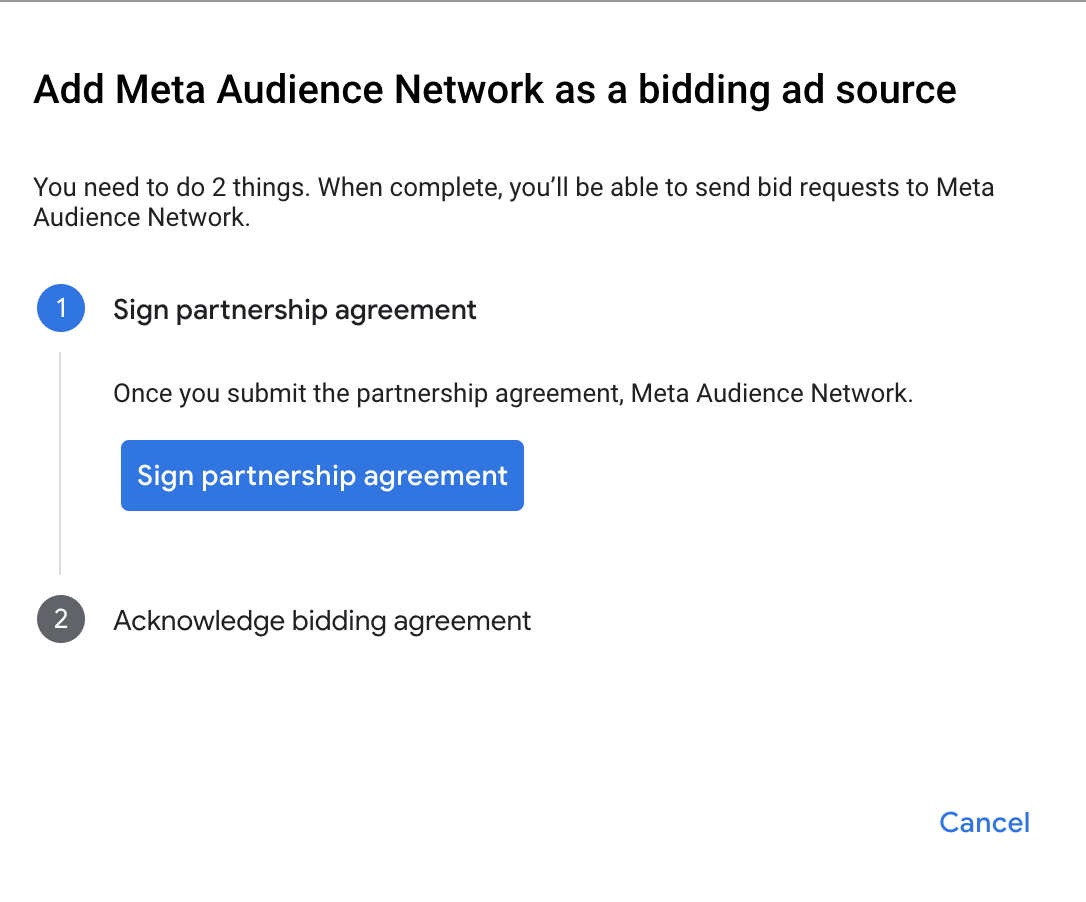
Click How to sign a partnership agreement and set up a bidding partnership with Meta Audience Network.
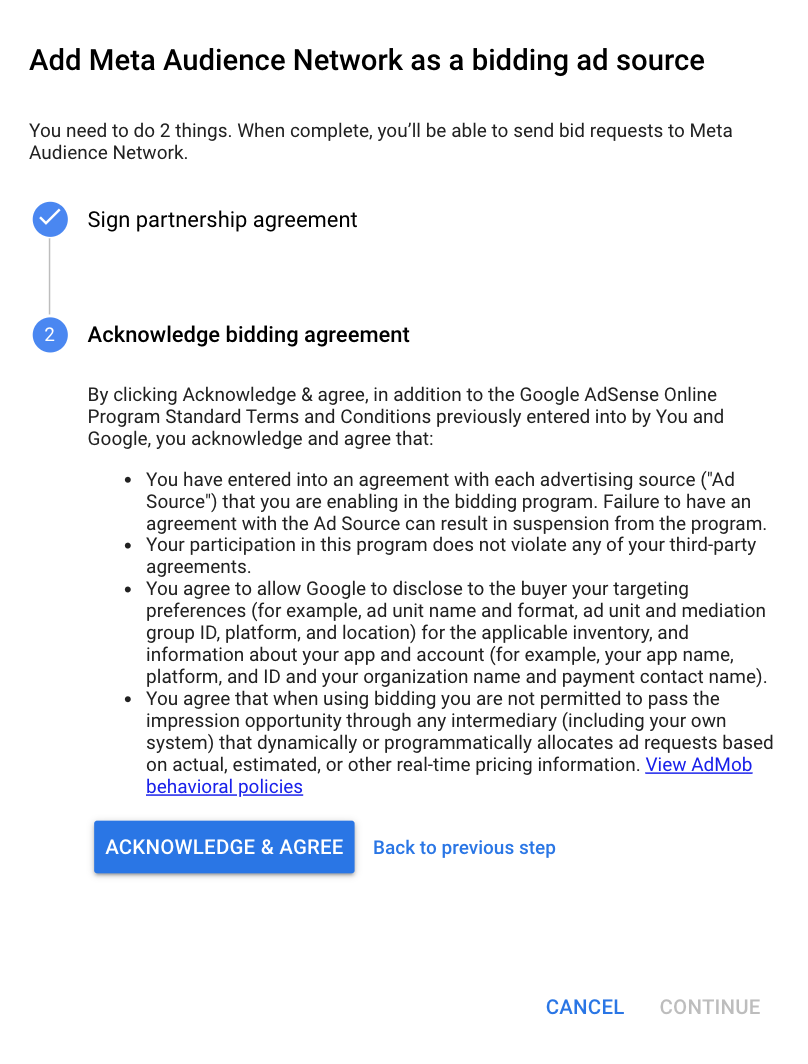
Click Acknowledge & agree, then click Continue.
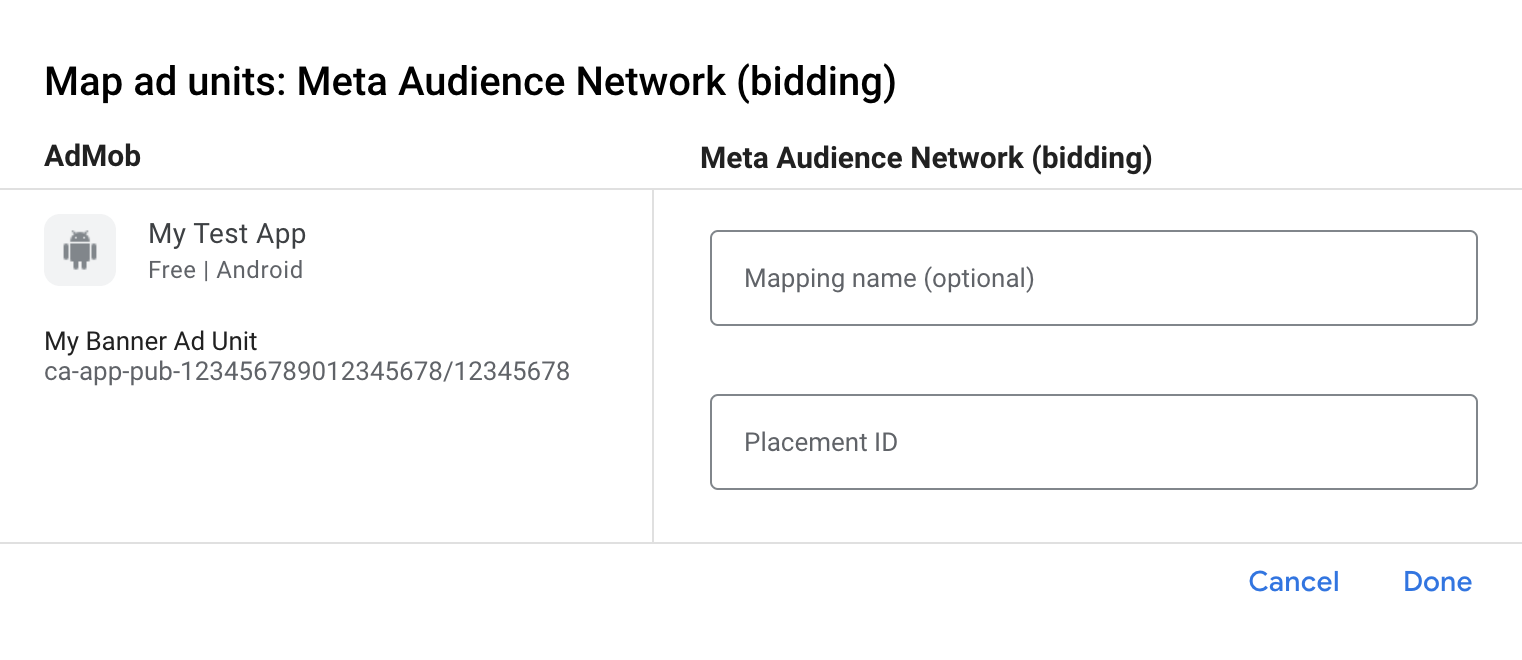
If you already have a mapping for Meta Audience Network, you can select it. Otherwise, click Add mapping.
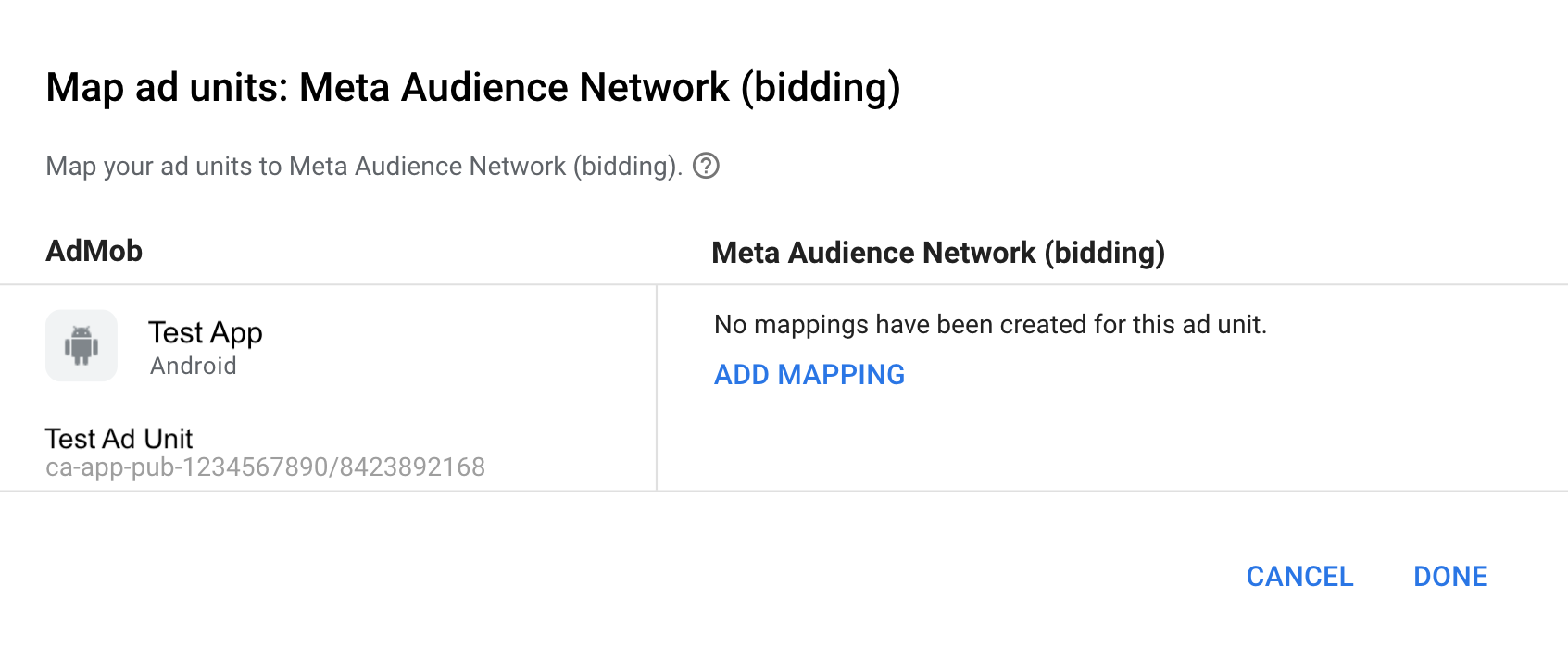
Next, enter the Placement ID obtained in the previous section. Then click Done.
Add Meta to GDPR and US state regulations ad partners list
Follow the steps in European regulations settings and US state regulations settings to add Meta to the European and US state regulations ad partners list in the AdMob UI.
Step 3: Import the Meta Audience Network SDK and adapter
Android Studio integration (recommended)
In your app-level gradle file, add the following implementation dependencies and configurations:
Kotlin
dependencies {
    implementation("com.google.android.libraries.ads.mobile.sdk:ads-mobile-sdk:1.5.0")
    implementation("com.google.ads.mediation:facebook:6.22.0.1")
}

configurations.configureEach {
    exclude(group = "com.google.android.gms", module = "play-services-ads")
    exclude(group = "com.google.android.gms", module = "play-services-ads-lite")
}
Groovy
dependencies {
    implementation 'com.google.android.libraries.ads.mobile.sdk:ads-mobile-sdk:1.5.0'
    implementation 'com.google.ads.mediation:facebook:6.22.0.1'
}

configurations.configureEach {
    exclude group: 'com.google.android.gms', module: 'play-services-ads'
    exclude group: 'com.google.android.gms', module: 'play-services-ads-lite'
}
Manual integration
Download the latest version of the Meta Audience Network SDK for Android. Extract the
AudienceNetwork.aarunder theAudienceNetwork/binfolder and add it to your project.Navigate to the Meta Audience Network adapter artifacts on Google's Maven Repository. Select the latest version, download the Meta Audience Network adapter's
.aarfile, and add it to your project.
Step 4: Implement privacy settings on Meta Audience Network SDK
EU consent and GDPR
To comply with the Google EU User Consent Policy, you must make certain disclosures to your users in the European Economic Area (EEA), the UK, and Switzerland, and obtain their consent for the use of cookies or other local storage where legally required, and for the collection, sharing, and use of personal data for ads personalization. This policy reflects the requirements of the EU ePrivacy Directive and the General Data Protection Regulation (GDPR). You are responsible for verifying that consent is propagated to each ad source in your mediation chain.
Meta isn't registered on the IAB Europe Global Vendor List (GVL). Instead, you must use the Additional Consent technical specification. For more details, see Components of the Additional Consent. The Additional Consent specification works in conjunction with IAB Europe Transparency & Consent Framework (TCF) version 2. This specification lets you, along with their Consent Management Platforms (CMPs) and partners, collect and transmit supplementary consent signals for companies listed on the Google Ad Tech Providers (ATP) list, but are not yet part of the IAB Europe GVL.
Follow the guidance in Meta's documentation for GDPR and Meta advertising.
US states privacy laws
US states privacy laws require giving users the right to opt out of the "sale" of their "personal information" (as the law defines those terms), with the opt-out offered through a prominent "Do Not Sell My Personal Information" link on the "selling" party's homepage. The US states privacy laws compliance guide offers the ability to enable restricted data processing for Google ad serving, but Google is unable to apply this setting to each ad network in your mediation chain. Therefore, you must identify each ad network in your mediation chain that may participate in the sale of personal information and follow guidance from each of those networks to ensure compliance.
Follow the guidance in Meta's documentation for data processing options for users in California.
Step 5: Add required code
No additional code is required for Meta Audience Network integration.
Step 6: Test your implementation
Enable test ads
Make sure you register your test device for AdMob and enable test mode in Meta Audience Network UI.
Verify test ads
To verify that you are receiving test ads from Meta Audience Network, enable single ad source testing in ad inspector using the Meta Audience Network (Bidding) ad source(s).
Optional steps
Native ads
Some
Meta Audience Network native ad
assets don't map one-to-one to Google native ad assets. Such assets are passed
back to the publisher in a bundle through the getExtras() method in NativeAd.
The adapter supports passing the following assets:
| Request parameters and values | |
|---|---|
FacebookMediationAdapter.KEY_ID
|
String. A unique ID of the native ad |
FacebookMediationAdapter.KEY_SOCIAL_CONTEXT_ASSET
|
String. The ad social context |
Here's a code example showing how to extract these assets:
Example:
Kotlin
val extras = nativeAd.getExtras()
if (extras.containsKey(FacebookMediationAdapter.KEY_SOCIAL_CONTEXT_ASSET)) {
  var socialContext = extras.getString(FacebookMediationAdapter.KEY_SOCIAL_CONTEXT_ASSET)
  // ...
}
Java
Bundle extras = nativeAd.getExtras();
if (extras.containsKey(FacebookMediationAdapter.KEY_SOCIAL_CONTEXT_ASSET)) {
    String socialContext = extras.getString(FacebookMediationAdapter.KEY_SOCIAL_CONTEXT_ASSET);
    // ...
}
Using Meta Audience Network native ads without a MediaView
Meta Audience Network's native ad format requires rendering the
MediaView
asset. If you plan to render native ads without that asset, make sure to use
Meta Audience Network's
native banner
ad format.
To use Meta Audience Network's native banner ads instead, you must select the
Native Banner format when setting up Meta Audience Network and the
adapter will automatically load the corresponding native ad format.
Ad rendering
The Audience Network adapter returns its native ads as
NativeAd
objects. It populates the following
Native ads field descriptions
for a
NativeAd.
| Field | Populated by Meta Audience Network adapter |
|---|---|
| Headline | |
| Image | 1 |
| Body | |
| App icon | |
| Call to action | |
| Advertiser Name | |
| Star rating | |
| Store | |
| Price |
1 The Meta Audience Network adapter
does not provide direct access to the main image asset
for its native ads. Instead, the adapter populates the
MediaView
with a video or an image.
Impression and click tracking
The following table highlights when native ad impressions and clicks are recorded by GMA Next-Gen SDK.
| Impression recording | Click recording |
|---|---|
| 1px of Meta Audience Network native ad asset on screen + asset rendering requirements | Meta Audience Network SDK callback |
Meta Audience Network has specific asset rendering requirements in order for an impression to be considered valid, depending on whether you selected the Native or Native Banner format when setting up Meta Audience Network.
| Meta Audience Network native format | Required asset | Required rendering class |
|---|---|---|
| Native | Media View |
MediaView
|
| Native Banner | App icon |
ImageView
|
Caching on Android 9
Starting with Android 9 (API level 28), cleartext support is disabled by default, which will affect the functionality of media caching of the Meta Audience Network SDK and could affect user experience and ads revenue. Follow Meta's documentation to update the network security configuration in your app.
Error codes
If the adapter fails to receive an ad from Audience Network, you can check the
underlying error from the ad response using
ResponseInfo.getAdSourceResponses()
under the following classes:
com.google.ads.mediation.facebook.FacebookAdapter
com.google.ads.mediation.facebook.FacebookMediationAdapter
Here are the codes and accompanying messages thrown by the Audience Network adapter when an ad fails to load:
| Error code | Reason |
|---|---|
| 101 | Invalid server parameters (e.g. missing Placement ID). |
| 102 | The requested ad size does not match a Meta Audience Network supported banner size. |
| 103 | The publisher must request ads with an Activity context. |
| 104 | The Meta Audience Network SDK failed to initialize. |
| 105 | The publisher did not request for Unified native ads. |
| 106 | The native ad loaded is a different object than the one expected. |
| 107 | The Context object used is invalid. |
| 108 | The loaded ad is missing the required native ad assets. |
| 109 | Failed to create a native ad from the bid payload. |
| 110 | The Meta Audience Network SDK failed to present their interstitial/rewarded ad. |
| 111 | Exception thrown when creating a Meta Audience Network AdView object. |
| 1000-9999 | The Meta Audience Network returned an SDK-specific error. See Meta Audience Network's documentation for more details. |
Meta Audience Network Android Mediation Adapter Changelog
Next Version
- Clean up native ad assets on load and mapping failure paths.
- Override
NativeAdMapper.destroy()for native ad lifecycle cleanup.
Version 6.22.0.1
- Pin the adapter's Kotlin dependency to 1.9.0 (the min Kotlin version supported by GMA NextGen SDK).
- Updated to report native ad impression when Meta logs impression for native ads.
Built and tested with:
- Google Mobile Ads SDK version 25.4.0.
- Google Mobile Ads Next-Gen SDK version 1.5.0.
- Meta Audience Network SDK version 6.22.0.
Version 6.22.0.0
- Verified compatibility with Meta Audience Network SDK v6.22.0.
Built and tested with:
- Google Mobile Ads SDK version 25.4.0.
- Google Mobile Ads Next-Gen SDK version 1.3.0.
- Meta Audience Network SDK version 6.22.0.
Version 6.21.0.4
- Maps
AgeRestrictedTreatmentto Meta Audience Network's mixed audience settings. - Fixed a memory leak issue with interstitial ads.
Built and tested with:
- Google Mobile Ads SDK version 25.4.0.
- Google Mobile Ads Next-Gen SDK version 1.2.1.
- Meta Audience Network SDK version 6.21.0.
Version 6.21.0.3
- Updated native ad implementation to use the updated
NativeAdMapperAPI. - Destroy
NativeAdBaseandMediaViewwhenuntrackViewis called to release resources.
Built and tested with:
- Google Mobile Ads SDK version 25.2.0.
- Google Mobile Ads Next-Gen SDK version 0.25.0-beta01.
- Meta Audience Network SDK version 6.21.0.
Version 6.21.0.2
- Added property to build the adapter with GMA Next-Gen SDK dependency.
Built and tested with:
- Google Mobile Ads SDK version 25.1.0.
- Meta Audience Network SDK version 6.21.0.
Version 6.21.0.1
- Added support for forwarding the
tagForUnderAgeOfConsentGoogle Mobile Ads SDK parameter to the Meta Audience Network SDK.
Built and tested with:
- Google Mobile Ads SDK version 24.9.0.
- Meta Audience Network SDK version 6.21.0.
Version 6.21.0.0
- Verified compatibility with Meta Audience Network SDK v6.21.0.
Built and tested with:
- Google Mobile Ads SDK version 24.7.0.
- Meta Audience Network SDK version 6.21.0.
Version 6.20.0.2
- Removed class-level references to
Contextobjects to help with memory leak issues.
Built and tested with:
- Google Mobile Ads SDK version 24.7.0.
- Meta Audience Network SDK version 6.20.0.
Version 6.20.0.1
- Removed the check that fails initialization if there are no placement IDs. Removed this to allow for RTB to work even if a publisher doesn't define ad unit mappings.
- Verified compatibility with Meta Audience Network SDK v6.20.0.
Built and tested with:
- Google Mobile Ads SDK version 24.6.0.
- Meta Audience Network SDK version 6.20.0.
Version 6.20.0.0
- Verified compatibility with Meta Audience Network SDK v6.20.0.
Built and tested with:
- Google Mobile Ads SDK version 24.2.0.
- Meta Audience Network SDK version 6.20.0.
Version 6.19.0.1
- Updated the minimum required Android API level to 23.
- Updated the minimum required Google Mobile Ads SDK version to 24.0.0.
Built and tested with:
- Google Mobile Ads SDK version 24.0.0.
- Meta Audience Network SDK version 6.19.0.
Version 6.19.0.0
- Verified compatibility with Meta Audience Network SDK v6.19.0.
Built and tested with:
- Google Mobile Ads SDK version 23.6.0.
- Meta Audience Network SDK version 6.19.0.
Version 6.18.0.0
- Verified compatibility with Meta Audience Network SDK v6.18.0.
Built and tested with:
- Google Mobile Ads SDK version 23.3.0.
- Meta Audience Network SDK version 6.18.0.
Version 6.17.0.0
- Updated the minimum required Google Mobile Ads SDK version to 23.0.0.
- Verified compatibility with Meta Audience Network SDK v6.17.0.
Built and tested with:
- Google Mobile Ads SDK version 23.0.0.
- Meta Audience Network SDK version 6.17.0.
Version 6.16.0.0
- Updated the adapter to call MediationInterstitialAdCallback#onAdFailedToShow() when Meta SDK reports that interstitial ad show failed.
- Verified compatibility with Meta Audience Network SDK v6.16.0.
Built and tested with:
- Google Mobile Ads SDK version 22.3.0.
- Meta Audience Network SDK version 6.16.0.
Version 6.15.0.0
- Verified compatibility with Meta Audience Network SDK v6.15.0.
- Updated the minimum required Google Mobile Ads SDK version to 22.2.0.
Built and tested with:
- Google Mobile Ads SDK version 22.2.0.
- Meta Audience Network SDK version 6.15.0.
Version 6.14.0.0
- Verified compatibility with Meta Audience Network SDK v6.14.0.
Built and tested with:
- Google Mobile Ads SDK version 22.0.0.
- Meta Audience Network SDK version 6.14.0.
Version 6.13.7.1
- Updated adapter to use new
VersionInfoclass. - Updated the minimum required Google Mobile Ads SDK version to 22.0.0.
Built and tested with:
- Google Mobile Ads SDK version 22.0.0.
- Meta Audience Network SDK version 6.13.7.
Version 6.13.7.0
- Verified compatibility with Meta Audience Network SDK v6.13.7.
- Updated the minimum required Google Mobile Ads SDK version to 21.5.0.
Built and tested with:
- Google Mobile Ads SDK version 21.5.0.
- Meta Audience Network SDK version 6.13.7.
Version 6.12.0.0
- Verified compatibility with Meta Audience Network SDK v6.12.0.
- Updated the minimum required Google Mobile Ads SDK version to 21.2.0.
- Rebranded adapter name to "Meta Audience Network".
- Removed waterfall integration.
Built and tested with:
- Google Mobile Ads SDK version 21.2.0.
- Meta Audience Network SDK version 6.12.0.
Version 6.11.0.1
- Updated
compileSdkVersionandtargetSdkVersionto API 31. - Updated the minimum required Google Mobile Ads SDK version to 21.0.0.
- Updated the minimum required Android API level to 19.
Built and tested with:
- Google Mobile Ads SDK version 21.0.0.
- Facebook SDK version 6.11.0.
Version 6.11.0.0
- Verified compatibility with Facebook SDK v6.11.0.
- Added warning messages for waterfall mediation deprecation. See Meta's blog for more information.
Built and tested with:
- Google Mobile Ads SDK version 20.6.0.
- Facebook SDK version 6.11.0.
Version 6.10.0.0
- Verified compatibility with Facebook SDK v6.10.0.
Built and tested with:
- Google Mobile Ads SDK version 20.6.0.
- Facebook SDK version 6.10.0.
Version 6.8.0.1
- Added support for forwarding click and impression callbacks in bidding ads.
- Added support for forwarding the
onAdFailedToShow()callback when interstitial bidding ads fail to present. - Updated the minimum required Google Mobile Ads SDK version to 20.6.0.
Built and tested with:
- Google Mobile Ads SDK version 20.6.0.
- Facebook SDK version 6.8.0.
Version 6.8.0.0
- Verified compatibility with Facebook SDK v6.8.0.
- Updated the minimum required Google Mobile Ads SDK version to 20.4.0.
Built and tested with:
- Google Mobile Ads SDK version 20.4.0.
- Facebook SDK version 6.8.0.
Version 6.7.0.0
- Verified compatibility with Facebook SDK v6.7.0.
Built and tested with:
- Google Mobile Ads SDK version 20.3.0.
- Facebook SDK version 6.7.0.
Version 6.6.0.0
- Verified compatibility with Facebook SDK v6.6.0.
- Updated the minimum required Google Mobile Ads SDK version to 20.3.0.
Built and tested with:
- Google Mobile Ads SDK version 20.3.0.
- Facebook SDK version 6.6.0.
Version 6.5.1.1
- Fixed a bug introduced in 6.5.1.0 where test ads are returned instead of live ads.
- Updated the adapter to use the new
AdErrorAPI.
Built and tested with:
- Google Mobile Ads SDK version 20.2.0.
- Facebook SDK version 6.5.1.
Version 6.5.1.0 (Deprecated)
- An issue with version 6.5.1.0 has been detected and confirmed. It is recommended to upgrade to version 6.5.1.1.
- Verified compatibility with Facebook SDK v6.5.1.
- Updated the minimum required Google Mobile Ads SDK version to 20.2.0.
Built and tested with:
- Google Mobile Ads SDK version 20.2.0.
- Facebook SDK version 6.5.1.
Version 6.5.0.0
- Verified compatibility with Facebook SDK v6.5.0.
- Fixed an issue where native ads did not include Facebook's cover image.
- Updated the minimum required Google Mobile Ads SDK version to 20.1.0.
Built and tested with:
- Google Mobile Ads SDK version 20.1.0.
- Facebook SDK version 6.5.0.
Version 6.4.0.0
- Verified compatibility with Facebook SDK v6.4.0.
- Updated the minimum required Google Mobile Ads SDK version to 20.0.0.
Built and tested with:
- Google Mobile Ads SDK version 20.0.0.
- Facebook SDK version 6.4.0.
Version 6.3.0.1
- Fixed an issue where a
ClassCastExceptionis thrown when rendering native ads on apps that don't useImageViewto render image assets.
Built and tested with:
- Google Mobile Ads SDK version 19.7.0.
- Facebook SDK version 6.3.0.
Version 6.3.0.0
- Verified compatibility with Facebook SDK v6.3.0.
Built and tested with:
- Google Mobile Ads SDK version 19.7.0.
- Facebook SDK version 6.3.0.
Version 6.2.1.0
- Verified compatibility with Facebook SDK v6.2.1.
- Updated the minimum required Google Mobile Ads SDK version to 19.7.0.
Built and tested with:
- Google Mobile Ads SDK version 19.7.0.
- Facebook SDK version 6.2.1.
Version 6.2.0.1
- Removed support for the deprecated
NativeAppInstallAdformat. Apps should request for unified native ads. - Updated the minimum required Google Mobile Ads SDK version to 19.6.0.
Built and tested with:
- Google Mobile Ads SDK version 19.6.0.
- Facebook SDK version 6.2.0.
Version 6.2.0.0
- Verified compatibility with Facebook SDK v6.2.0.
- Updated the minimum required Google Mobile Ads SDK version to 19.5.0.
Built and tested with:
- Google Mobile Ads SDK version 19.5.0.
- Facebook SDK version 6.2.0.
Version 6.1.0.0
- Verified compatibility with Facebook SDK v6.1.0.
- Updated the minimum required Google Mobile Ads SDK version to 19.4.0.
Built and tested with:
- Google Mobile Ads SDK version 19.4.0.
- Facebook SDK version 6.1.0.
Version 6.0.0.0
- Verified compatibility with Facebook SDK v6.0.0.
- Updated the minimum required Google Mobile Ads SDK version to 19.3.0.
Built and tested with:
- Google Mobile Ads SDK version 19.3.0.
- Facebook SDK version 6.0.0.
Version 5.11.0.0
- Verified compatibility with Facebook SDK v5.11.0.
Built and tested with:
- Google Mobile Ads SDK version 19.2.0.
- Facebook SDK version 5.11.0.
Version 5.10.1.0
- Verified compatibility with Facebook SDK v5.10.1.
Built and tested with:
- Google Mobile Ads SDK version 19.2.0.
- Facebook SDK version 5.10.1.
Version 5.10.0.0
- Verified compatibility with Facebook SDK v5.10.0.
Built and tested with:
- Google Mobile Ads SDK version 19.2.0.
- Facebook SDK version 5.10.0.
Version 5.9.1.0
- Verified compatibility with Facebook SDK v5.9.1.
Built and tested with:
- Google Mobile Ads SDK version 19.2.0.
- Facebook SDK version 5.9.1.
Version 5.9.0.2
- Added support for rewarded interstitial ads.
- Updated the adapter to support inline adaptive banner requests.
- Fixed an issue where bidding banner ads always render full-width.
- Updated the minimum required Google Mobile Ads SDK version to 19.2.0.
Built and tested with:
- Google Mobile Ads SDK version 19.2.0.
- Facebook SDK version 5.9.0.
Version 5.9.0.1
- Adapter now forwards an error if the FAN SDK encounters an error while presenting an interstitial/rewarded ad.
Built and tested with:
- Google Mobile Ads SDK version 19.1.0.
- Facebook SDK version 5.9.0.
Version 5.9.0.0
- Verified compatibility with Facebook SDK v5.9.0.
Built and tested with:
- Google Mobile Ads SDK version 19.1.0.
- Facebook SDK version 5.9.0.
Version 5.8.0.2
- Fixed incorrect variable reference which caused a crash in certain scenarios when loading native ads.
Built and tested with:
- Google Mobile Ads SDK version 19.1.0.
- Facebook SDK version 5.8.0.
Version 5.8.0.1
- Added additional descriptive error codes and reasons for adapter load/show failures.
- Updated the minimum required Google Mobile Ads SDK version to 19.1.0.
Built and tested with:
- Google Mobile Ads SDK version 19.1.0.
- Facebook SDK version 5.8.0.
Version 5.8.0.0
- Verified compatibility with Facebook SDK v5.8.0.
- Updated the minimum required Google Mobile Ads SDK version to 19.0.1.
Built and tested with:
- Google Mobile Ads SDK version 19.0.1.
- Facebook SDK version 5.8.0.
Version 5.7.1.1
- Added support for Facebook Audience Network adapter errors.
- Added descriptive error codes and reasons for adapter load/show failures.
Built and tested with:
- Google Mobile Ads SDK version 18.3.0.
- Facebook SDK version 5.7.1.
Version 5.7.1.0
- Verified compatibility with Facebook SDK v5.7.1.
- Added support for Facebook Native Banner ads when using bidding.
- Native ads now use 'Drawable' for the icon asset.
Built and tested with:
- Google Mobile Ads SDK version 18.3.0.
- Facebook SDK version 5.7.1.
Version 5.7.0.0
- Verified compatibility with Facebook SDK v5.7.0.
Built and tested with:
- Google Mobile Ads SDK version 18.3.0.
- Facebook SDK version 5.7.0.
Version 5.6.1.0
- Verified compatibility with Facebook SDK v5.6.1.
- Updated the minimum required Google Mobile Ads SDK version to 18.3.0.
Built and tested with:
- Google Mobile Ads SDK version 18.3.0.
- Facebook SDK version 5.6.1.
Version 5.6.0.0
- Verified compatibility with Facebook SDK v5.6.0.
- Updated Facebook Adapter to use
AdChoicesView.
Built and tested with:
- Google Mobile Ads SDK version 18.2.0.
- Facebook SDK version 5.6.0.
Version 5.5.0.0
- Verified compatibility with Facebook SDK v5.5.0.
Version 5.4.1.1
- Fixed an issue that causes a crash when Native Ads are removed.
Version 5.4.1.0
- Verified compatibility with Facebook SDK v5.4.1.
- Added support for Facebook Native Banner Ads for waterfall mediation.
- Use
setNativeBanner()from theFacebookExtrasclass to request for Native Banner Ads.
- Use
- Fixed an issue that caused Smart Banner Ad requests to fail.
- Fixed an issue where Rewarded Video Ads were not forwarding the
onAdClosed()event in some cases where the app was backgrounded while the video was in progress. - Migrated the adapter to
AndroidX. - Updated the minimum required Google Mobile Ads SDK version to 18.1.1.
Version 5.4.0.0
- Verified compatibility with Facebook SDK v5.4.0.
Version 5.3.1.2
- Fixed a bug where Facebook bidding failed to initialize due to "No placement IDs found".
Version 5.3.1.1
- Updated native RTB ads impression tracking.
- Updated the minimum required Google Mobile Ads SDK version to 17.2.1.
Version 5.3.1.0
- Added bidding capability to the adapter for banner, interstitial, rewarded and native ads.
- Verified compatibility with Facebook SDK v5.3.1.
Version 5.3.0.0
- Updated mediation service name for Google Mobile Ads.
- Added adapter version to the initialization call.
- Verified compatibility with Facebook SDK v5.3.0.
Version 5.2.0.2
- Added support for flexible banner ad sizes.
Version 5.2.0.1
- Updated adapter to support new open-beta Rewarded API.
- Updated the minimum required Google Mobile Ads SDK version to 17.2.0.
Version 5.2.0.0
- Verified compatibility with Facebook SDK v5.2.0.
Version 5.1.1.1
- Updated the adapter to populate Advertiser Name for Unified Native Ads.
Version 5.1.1.0
- Replaced AdChoices View with AdOptions View.
- Verified compatibility with Facebook SDK v5.1.1
Version 5.1.0.1
- Fixed an ANR issue caused by 'getGMSVersionCode()'.
Version 5.1.0.0
- Initialize Facebook SDK for each ad format.
Version 5.0.1.0
- Verified compatibility with Facebook SDK v5.0.1.
Version 5.0.0.1
- Updated the adapter to create the rewarded ad object at ad request time.
Version 5.0.0.0
- Verified compatibility with Facebook SDK v5.0.0.
Version 4.99.3.0
- Verified compatibility with Facebook SDK v4.99.3.
Version 4.99.1.1
- Fixed a bug where the Ad Choices icon is not shown for Unified Native Ads.
- Fixed a bug where the adapter would throw an exception when trying to download images.
Version 4.99.1.0
- Verified compatibility with Facebook SDK v4.99.1.
Version 4.28.2.1
- Updated the adapter to invoke the
onRewardedVideoComplete()ad event.
Version 4.28.2.0
- Verified compatibility with Facebook SDK v4.28.2.
Version 4.28.1.1
- Fixed an issue where clicks are not being registered for Unified Native Ads.
Version 4.28.1.0
- Verified compatibility with Facebook SDK v4.28.1.
Version 4.28.0.0
- Verified compatibility with Facebook SDK v4.28.0.
Version 4.27.1.0
- Verified compatibility with Facebook SDK v4.27.1.
Version 4.27.0.0
- Verified compatibility with Facebook SDK v4.27.0.
Version 4.26.1.0
- Verified compatibility with Facebook SDK v4.26.1.
- Updated the Adapter project for Android Studio 3.0
Version 4.26.0.0
- Added support for rewarded video ads.
- Added support for native video ads.
- Verified compatibility with Facebook SDK v4.26.0.
Version 4.25.0.0
- Fixed an issue where incorrectly sized banners were being returned.
- Updated the adapter's view tracking for native ads to register individual asset views with the Facebook SDK rather than the entire ad view. This means that background (or "whitespace") clicks on the native ad will no longer result in clickthroughs.
- Verified compatibility with Facebook SDK v4.25.0.
Version 4.24.0.0
- Verified compatibility with Facebook SDK v4.24.0.
Version 4.23.0.0
- Verified compatibility with Facebook SDK v4.23.0.
Version 4.22.1.0
- Verified compatibility with Facebook SDK v4.22.1.
Version 4.22.0.0
- Updated the adapter to make it compatible with Facebook SDK v4.22.0.
Version 4.21.1.0
- Verified compatibility with Facebook SDK v4.21.1.
Version 4.21.0.0
- Verified compatibility with Facebook SDK v4.21.0.
Version 4.20.0.0
- Updated the minimum supported Android API level to 14+.
- Verified compatibility with Facebook SDK v4.20.0.
Version 4.19.0.0
- Verified compatibility with Facebook SDK v4.19.0.
Version 4.18.0.0
- Verified compatibility with Facebook SDK v4.18.0.
Version 4.17.0.0
- Added support for native ads.
Version 4.15.0.0
- Changed the version naming system to [FAN SDK version].[adapter patch version].
- Updated the minimum required FAN SDK to v4.15.0.
- Updated the minimum required Google Mobile Ads SDK to v9.2.0.
- Fixed a bug where Facebook's click callbacks for interstitial ads weren't forwarded correctly.
- The adapter now also forwards onAdLeftApplication when an ad is clicked.
Version 1.2.0
- Fixed a bug that so that AdSize.SMART_BANNER is now a valid size.
Version 1.1.0
- Added support for full width x 250 format when request is for AdSize.MEDIUM_RECTANGLE
Version 1.0.1
- Added support for AdSize.SMART_BANNER
Version 1.0.0
- Initial release