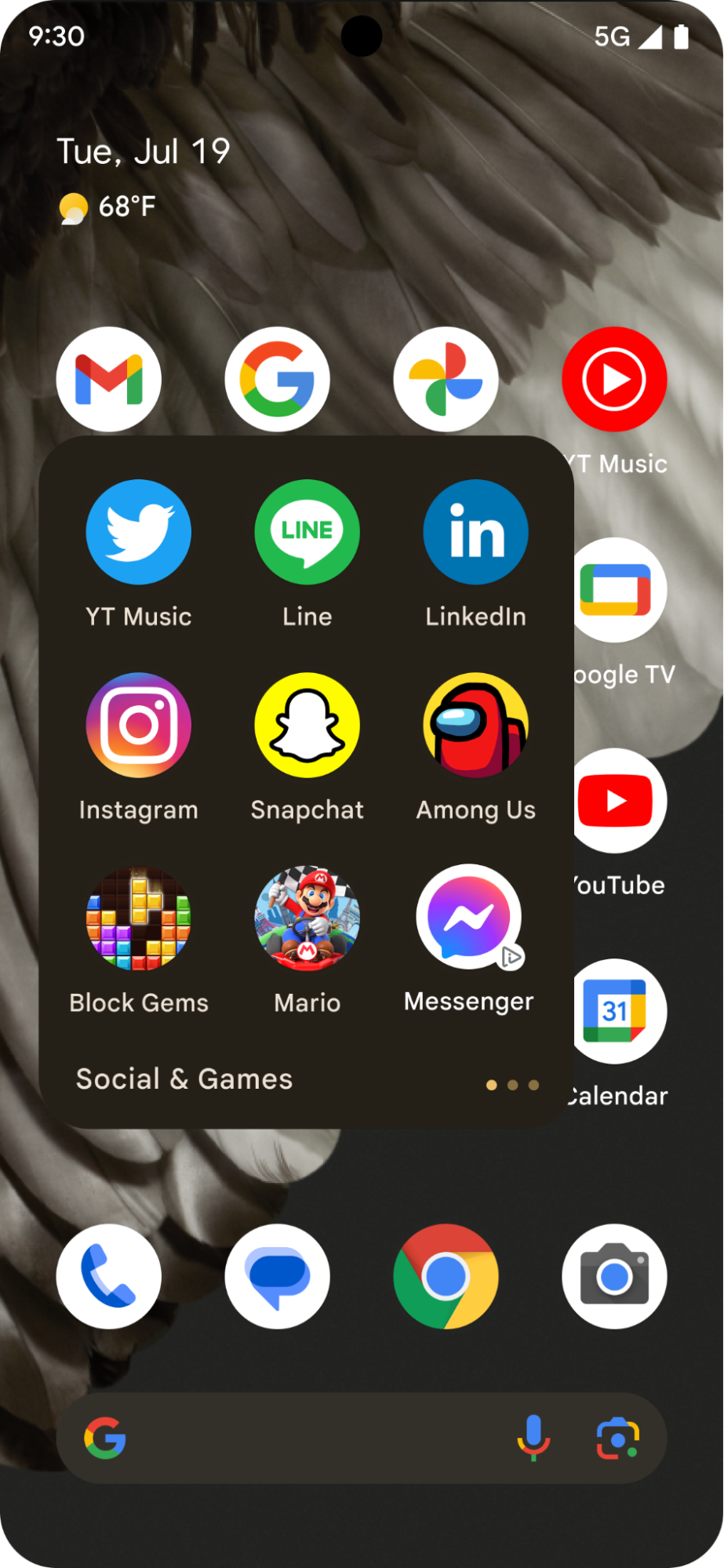
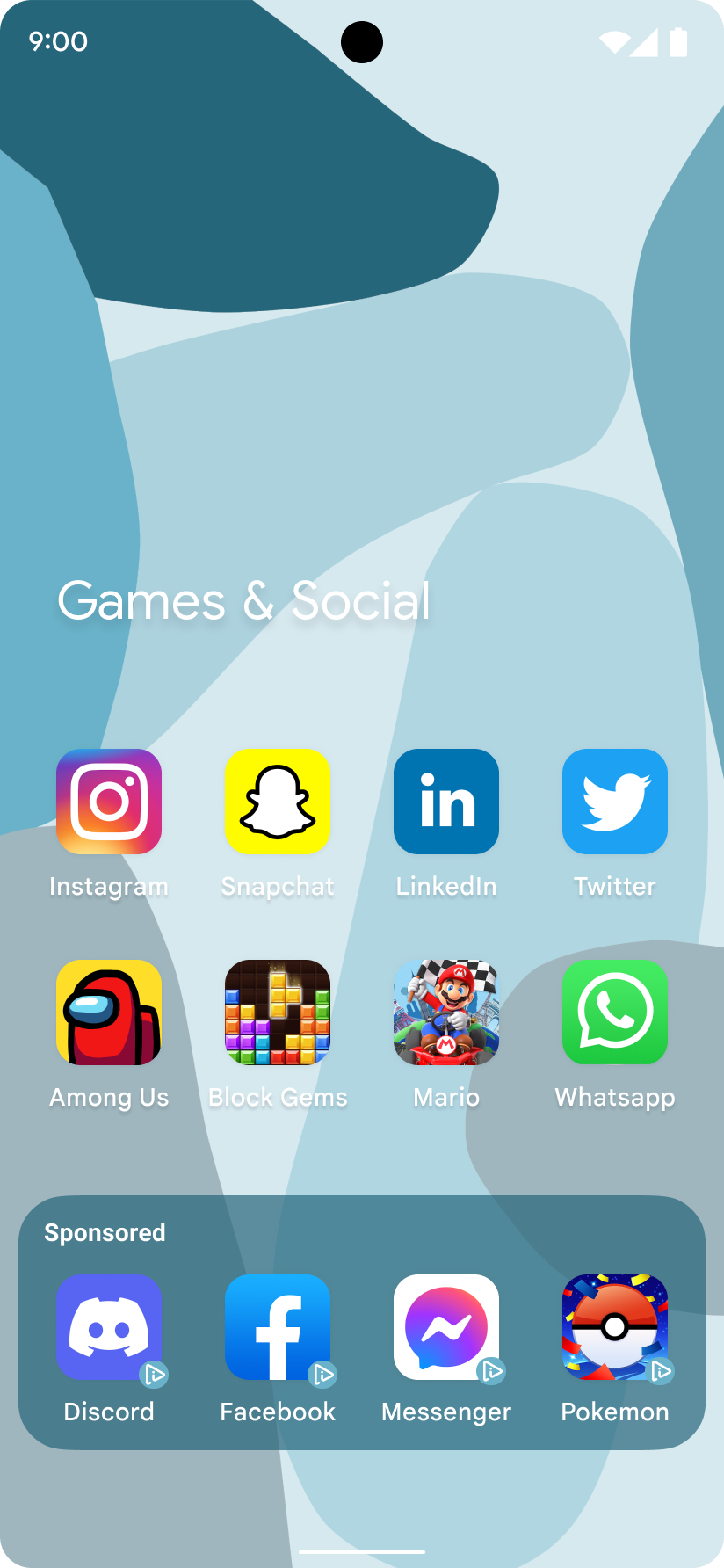
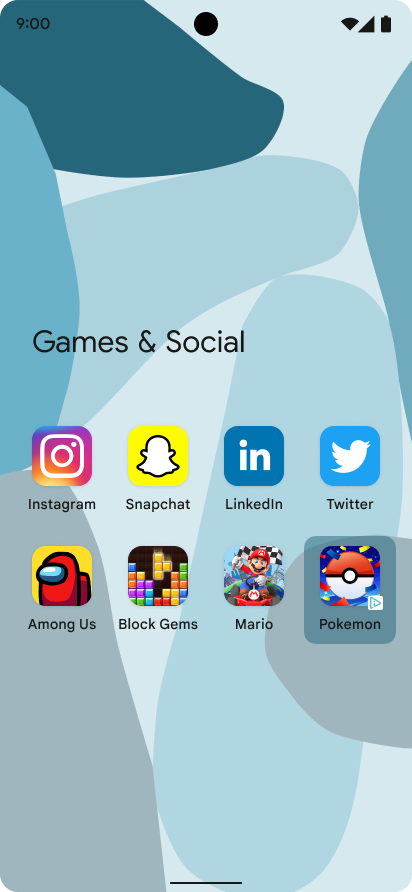
Icon ads are small, app icon placements that complement the operating system user experience and are flexible to accompany most OS-level activities, such as lock screen and share screen. You can display icon ads individually, or in multiple groups. Each ad provides a set of text and string elements that your app is responsible for rendering. The following images show icon ads on display in an app folder:
|
|
|
This guide shows you how to request and display icon ads.
Prerequisites
Before you begin, you must have GMA Next-Gen SDK 0.8.0-alpha01 or higher.
Always test with test ads
When building and testing your apps, make sure you use test ads rather than live, production ads. Failure to not use test ads can lead to suspension of your account.
Use either your ad units and enable test devices to get test ads, or the following dedicated test ad unit ID for Android icon ads:
ca-app-pub-3940256099942544/1476272466
Load an icon ad
Load an icon ad with your icon ad request, and handle ad load events:
Kotlin
private fun loadIconAd() {
val request =
IconAdRequest.Builder(AD_UNIT_ID)
// The "AdChoices" badge is rendered at the top right corner of the icon ad
// if left unspecified.
.setAdChoicesPlacement(AdChoicesPlacement.BOTTOM_RIGHT)
// It is recommended to specify the placement of your icon ad
// to help Google optimize your icon ad performance.
.setIconAdPlacement(IconAdPlacement.BROWSER)
.build()
IconAd.load(
request,
object : AdLoadCallback<IconAd> {
override fun onAdFailedToLoad(adError: LoadAdError) {
Log.w(Constant.TAG, "Icon ad failed to load: $adError")
showToast("Icon ad failed to load.")
}
override fun onAdLoaded(ad: IconAd) {
Log.d(Constant.TAG, "Icon ad loaded")
// Always call destroy() on ads on removal.
iconAd?.destroy()
iconAd = ad
setAdEventCallback(ad)
displayIconAd(ad)
}
},
)
}
Java
private void loadIconAd() {
IconAdRequest request =
new IconAdRequest.Builder(AD_UNIT_ID)
// The "AdChoices" badge is rendered at the top right corner of the icon ad
// if left unspecified.
.setAdChoicesPlacement(AdChoicesPlacement.BOTTOM_RIGHT)
// It is recommended to specify the placement of your icon ad
// to help Google optimize your icon ad performance.
.setIconAdPlacement(IconAdPlacement.BROWSER)
.build();
IconAd.load(
request,
new AdLoadCallback<IconAd>() {
@Override
public void onAdFailedToLoad(@NonNull LoadAdError adError) {
Log.w(Constant.TAG, "Icon ad failed to load :" + adError);
showToast("Icon ad failed to load with error code: " + adError.getCode());
}
@Override
public void onAdLoaded(@NonNull IconAd ad) {
Log.d(Constant.TAG, "Icon ad loaded.");
// Always call destroy() on ads on removal.
if (iconAd != null) {
iconAd.destroy();
}
iconAd = ad;
setAdEventCallback(ad);
displayIconAd(ad);
}
});
}
Create an icon ad view
Icon ads must use IconAdView as the root element for their assets. Within the
icon ad view, place all visual elements for your ad.
The following example shows a layout to create a view for an icon ad:
<?xml version="1.0" encoding="utf-8"?>
<com.google.android.libraries.ads.mobile.sdk.iconad.IconAdView xmlns:android="http://schemas.android.com/apk/res/android"
    android:layout_width="match_parent"
    android:layout_height="wrap_content">

  <LinearLayout
      android:id="@+id/icon_ad_container"
      android:layout_width="wrap_content"
      android:layout_height="wrap_content"
      android:layout_gravity="center"
      android:background="#00FFC107"
      android:orientation="vertical">

    <LinearLayout
        android:layout_width="wrap_content"
        android:layout_height="wrap_content"
        android:orientation="horizontal">
      <TextView
          android:id="@+id/ad_badge"
          android:width="15dp"
          android:height="15dp"
          android:layout_width="wrap_content"
          android:layout_height="wrap_content"
          android:background="#FFC107"
          android:text="Ad"
          android:textColor="#FFFFFF"
          android:textSize="12sp" />
      <TextView
          android:id="@+id/ad_headline"
          android:textStyle="normal"
          android:layout_width="match_parent"
          android:layout_height="wrap_content"
          android:layout_gravity="center"
          android:autoText="true"
          android:inputType="text|textMultiLine"
          android:textColor="#808080"
          android:textSize="12sp" />
    </LinearLayout>

    <com.google.android.material.imageview.ShapeableImageView xmlns:app="http://schemas.android.com/apk/res-auto"
        android:id="@+id/ad_icon"
        android:layout_width="100dp"
        android:layout_height="100dp"
        android:layout_gravity="center"
        android:adjustViewBounds="true"
        android:background="@android:color/holo_green_light"
        android:contentDescription="@string/content_description_icon_ad"
        android:theme="@style/Theme.AppCompat.Light"
        app:shapeAppearanceOverlay="@style/roundedCorners"
        app:strokeColor="@null" />

    <RatingBar
        android:id="@+id/ad_stars"
        style="?android:attr/ratingBarStyleSmall"
        android:layout_width="wrap_content"
        android:layout_height="wrap_content"
        android:layout_gravity="center"
        android:isIndicator="true"
        android:numStars="5"
        android:stepSize="0.5" />
    <Button
        android:id="@+id/ad_call_to_action"
        android:layout_width="wrap_content"
        android:layout_height="wrap_content"
        android:layout_gravity="center"
        android:gravity="center"
        android:textSize="12sp" />
  </LinearLayout>

</com.google.android.libraries.ads.mobile.sdk.iconad.IconAdView>
Display the icon ad on screen
To display the icon ad on a screen, complete the following steps:
Inflate the icon ad view and add it to your view hierarchy.
Populate each child view with the corresponding icon ad asset.
The following example covers the previous steps to display the icon ad on screen:
Kotlin
val iconAdViewBinding = IconAdBinding.inflate(layoutInflater)
// Add the ad view to the active view hierarchy.
binding.iconAdContainer.addView(iconAdViewBinding.root)
val iconAdView = iconAdViewBinding.root
// Populate the view elements with their respective icon ad asset.
iconAdView.callToActionView = iconAdViewBinding.adCallToAction
iconAdView.headlineView = iconAdViewBinding.adHeadline
iconAdView.iconView = iconAdViewBinding.adIcon
iconAdView.starRatingView = iconAdViewBinding.adStars
Java
IconAdBinding iconAdViewBinding = IconAdBinding.inflate(getLayoutInflater());
// Add the ad view to the active view hierarchy.
binding.iconAdContainer.addView(iconAdViewBinding.getRoot());
IconAdView iconAdView = iconAdViewBinding.getRoot();
// Populate the view elements with their respective icon ad asset.
iconAdView.setCallToActionView(iconAdViewBinding.adCallToAction);
iconAdView.setHeadlineView(iconAdViewBinding.adHeadline);
iconAdView.setIconView(iconAdViewBinding.adIcon);
iconAdView.setStarRatingView(iconAdViewBinding.adStars);
Make the icon ad clickable
The GMA Next-Gen SDK registers click listeners for each asset view that
is mapped when registerIconAd() is called. Map the icon ad view properties to
their corresponding view in your view hierarchy prior to registering the icon
ad:
Kotlin
// Map each asset view property to the corresponding view in your view hierarchy.
iconAdViewBinding.adCallToAction.text = iconAd.callToAction
iconAdViewBinding.adHeadline.text = iconAd.headline
iconAdViewBinding.adIcon.setImageDrawable(iconAd.icon.drawable)
iconAd.starRating?.toFloat().also { value ->
if (value != null) {
iconAdViewBinding.adStars.rating = value
}
}
// Register the icon ad with the view presenting it.
iconAdView.registerIconAd(iconAd)
Java
// Map each asset view property to the corresponding view in your view hierarchy.
iconAdViewBinding.adCallToAction.setText(iconAd.getCallToAction());
iconAdViewBinding.adHeadline.setText(iconAd.getHeadline());
iconAdViewBinding.adIcon.setImageDrawable(iconAd.getIcon().getDrawable());
if (iconAd.getStarRating() != null) {
iconAdViewBinding.adStars.setRating(iconAd.getStarRating().floatValue());
}
// Register the icon ad with the view presenting it.
iconAdView.registerIconAd(iconAd);
Optional: Set the icon ad event callback
To handle icon ad lifecycle events, set the event callback:
Kotlin
iconAd.adEventCallback =
object : IconAdEventCallback {
override fun onAdShowedFullScreenContent() {
// Icon ad showed full screen content.
}
override fun onAdDismissedFullScreenContent() {
// Icon ad dismissed full screen content.
}
override fun onAdFailedToShowFullScreenContent(
fullScreenContentError: FullScreenContentError
) {
// Icon ad failed to show full screen content.
}
override fun onAdImpression() {
// Icon ad recorded an impression.
}
override fun onAdClicked() {
// Icon ad recorded a click.
}
override fun onAdPaid(value: AdValue) {
// Icon ad estimated to have earned money.
}
}
Java
iconAd.setAdEventCallback(
new IconAdEventCallback() {
@Override
public void onAdShowedFullScreenContent() {
// Icon ad showed full screen content.
}
@Override
public void onAdDismissedFullScreenContent() {
// Icon ad dismissed full screen content.
}
@Override
public void onAdFailedToShowFullScreenContent(
@NonNull FullScreenContentError fullScreenContentError) {
// Icon ad failed to show full screen content.
}
@Override
public void onAdImpression() {
// Icon ad recorded an impression.
}
@Override
public void onAdClicked() {
// Icon ad recorded a click.
}
@Override
public void onAdPaid(@NonNull AdValue value) {
// Icon ad estimated to have earned money.
}
});
Optimize the performance
The following sections cover optional implementation steps to optimize the performance of icon ads.
Use correlator to load multiple ads
When loading multiple icon ads to display together, make sequential requests using the same correlator value to ensure that the ads loaded are unique. The correlator lifespan is 10 seconds. The server does not consider requests made more than 10 seconds apart as correlated.
The following example shows how to set a correlator value on the ad request:
Kotlin
val correlator = Correlator.generateCorrelator()
val request =
      IconAdRequest.Builder("ca-app-pub-3940256099942544/1476272466")
        .setCorrelator(correlator)
        .build()
Java
Correlator correlator = Correlator.generateCorrelator();
IconAdRequest request =
    new IconAdRequest.Builder("ca-app-pub-3940256099942544/1476272466")
        .setCorrelator(correlator)
        .build();
Set an icon ad placement
To help Google understand your icon ad placement to optimize icon ad performance, it is recommended to specify where you intend to display the icon ads at request time.
Use the IconAdPlacement enum value that most closely represents your use
case:
Kotlin
val request =
  IconAdRequest.Builder("ca-app-pub-3940256099942544/1476272466")
    .setIconAdPlacement(IconAdPlacement.BROWSER)
    .build()
Java
IconAdRequest request =
    new IconAdRequest.Builder("ca-app-pub-3940256099942544/1476272466")
        .setIconAdPlacement(IconAdPlacement.BROWSER)
        .build();