

Các bước được mô tả trên trang này giải thích cách nhanh chóng tạo một ứng dụng iOS đơn giản đưa ra yêu cầu đối với YouTube Data API. Mẫu này cho biết cách truy xuất dữ liệu về kênh YouTube GoogleDevelopers. Mã này cũng bao gồm các nhận xét giải thích cách sửa đổi truy vấn để truy xuất dữ liệu về kênh YouTube của người dùng hiện tại.
Điều kiện tiên quyết
Để chạy hướng dẫn bắt đầu nhanh này, bạn cần có:
- Xcode 8.0 trở lên.
- CocoaPods trình quản lý phần phụ thuộc.
- Quyền truy cập vào Internet và trình duyệt web.
- Tài khoản Google.
Bước 1: Bật YouTube Data API
-
Sử dụng trình hướng dẫn này để tạo hoặc chọn một dự án trong Google Developers Console và tự động bật API. Nhấp vào Tiếp tục, sau đó Chuyển đến thông tin xác thực.
-
Trên trang Tạo thông tin xác thực, hãy nhấp vào nút Huỷ.
-
Ở đầu trang, hãy chọn thẻ Màn hình xin chấp thuận OAuth. Chọn một Địa chỉ email, nhập Tên sản phẩm (nếu chưa đặt) rồi nhấp vào nút Lưu.
-
Chọn thẻ Thông tin xác thực, nhấp vào nút Tạo thông tin xác thực rồi chọn Mã ứng dụng khách OAuth.
- Chọn loại ứng dụng iOS, nhập tên "YouTube Data API
Quickstart", mã nhận dạng gói
com.example.QuickstartApprồi nhấp vào nút Create button.
Bước 2: Chuẩn bị không gian làm việc
- Mở Xcode rồi tạo một dự án mới:
- Nhấp vào File > New > Project (Tệp > Mới > Dự án), chọn mẫu iOS > Application > Single View Application (iOS > Ứng dụng > Ứng dụng chế độ xem đơn) rồi nhấp vào Next (Tiếp theo).
- Đặt Product Name (Tên sản phẩm) thành "QuickstartApp", Organization Identifier
(Mã nhận dạng tổ chức) thành "com.example" và Language (Ngôn ngữ) thành
Objective-C.
Bên dưới mã nhận dạng tổ chức, bạn sẽ thấy một
Bundle Identifier (Mã nhận dạng gói) được tạo khớp với iOS Bundle ID
(Mã nhận dạng gói iOS) (
com.example.QuickstartApp) mà bạn đã nhập ở bước 1.b. - Nhấp vào Next (Tiếp theo).
- Chọn một thư mục đích cho dự án rồi nhấp vào Create (Tạo).
- Đóng dự án bằng cách nhấp vào File > Close Project (Tệp > Đóng dự án).
- Mở cửa sổ dòng lệnh rồi chuyển đến thư mục chứa tệp
QuickstartApp.xcodeprojmà bạn vừa tạo. Chạy các lệnh sau để tạo Podfile, cài đặt thư viện và mở dự án XCode kết quả:
cat << EOF > Podfile &&
platform :ios, '8.0'
target 'QuickstartApp' do
    pod 'GoogleAPIClientForREST/YouTube', '~> 1.2.1'
    pod 'Google/SignIn', '~> 3.0.3'
end
EOF
pod install &&
open QuickstartApp.xcworkspace
Trong XCode Project Navigator (Trình điều hướng dự án XCode), hãy chọn nút dự án "QuickstartApp". Sau đó, hãy nhấp vào mục trình đơn File > Add files to "QuickstartApp" (Tệp > Thêm tệp vào "QuickstartApp").
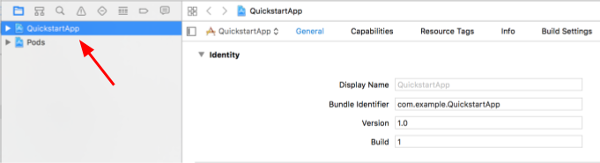
Tìm tệp
GoogleService-Info.plistđã tải xuống trước đó rồi chọn tệp đó. Nhấp vào nút Options (Tuỳ chọn).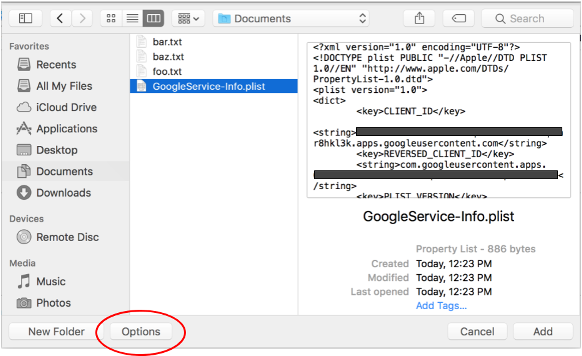
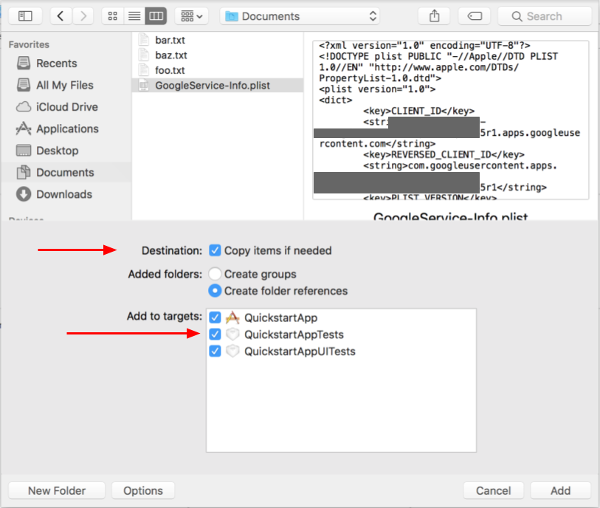
Chọn các mục sau trong cửa sổ tuỳ chọn rồi nhấp vào nút Add (Thêm):
- Đánh dấu vào hộp Copy items if needed (Sao chép các mục nếu cần).
- Đánh dấu vào tất cả mục tiêu được liệt kê trong phần Add to targets (Thêm vào mục tiêu).
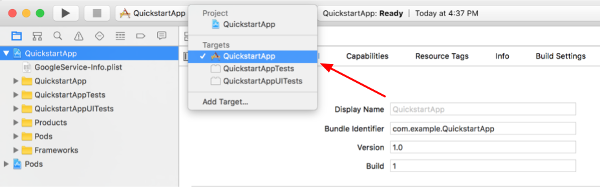
Khi nút dự án vẫn được chọn, hãy chọn "QuickstartApp" trong phần TARGETS (MỤC TIÊU) như trong 2 hình bên dưới:
Nhấp vào khu vực được minh hoạ trong ảnh chụp màn hình này:
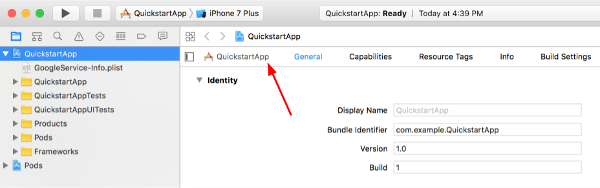
Sau đó, hãy chọn mục tiêu thích hợp:
Chọn thẻ Info (Thông tin) rồi mở rộng phần URL Types (Loại URL).
Nhấp vào nút + rồi thêm URL scheme (Lược đồ URL) cho mã ứng dụng khách đảo ngược. Để tìm giá trị này, hãy mở tệp cấu hình
GoogleService-Info.plistmà bạn đã chọn ở bước 2.f. Tìm khoá REVERSED_CLIENT_ID. Sao chép giá trị của khoá đó rồi dán vào hộp URL Schemes (Lược đồ URL) trên trang cấu hình. Để trống các trường khác.Tạo lại dự án:
- Nhấp vào Product > Clean Build Folder (trong khi giữ phím option ).
- Nhấp vào Product > Build (Sản phẩm > Bản dựng).
Bước 3: Thiết lập mẫu
Thay thế nội dung của các tệp sau bằng mã được cung cấp:#import <UIKit/UIKit.h> @import GoogleSignIn; @interface AppDelegate : UIResponder <UIApplicationDelegate> @property (strong, nonatomic) UIWindow *window; @end
#import "AppDelegate.h"

@implementation AppDelegate

- (BOOL)application:(UIApplication *)application
didFinishLaunchingWithOptions:(NSDictionary *)launchOptions {
    // Initialize Google sign-in.
    [GIDSignIn sharedInstance].clientID = @"<YOUR_CLIENT_ID>";

    return YES;
}

- (BOOL)application:(UIApplication *)application
            openURL:(NSURL *)url
  sourceApplication:(NSString *)sourceApplication
         annotation:(id)annotation {
    return [[GIDSignIn sharedInstance] handleURL:url
                               sourceApplication:sourceApplication
                                      annotation:annotation];
}


@end
#import <UIKit/UIKit.h>
@import GoogleSignIn;
#import <GTLRYouTube.h>

@interface ViewController : UIViewController <GIDSignInDelegate, GIDSignInUIDelegate>

@property (nonatomic, strong) IBOutlet GIDSignInButton *signInButton;
@property (nonatomic, strong) UITextView *output;
@property (nonatomic, strong) GTLRYouTubeService *service;


@end
#import "ViewController.h"

@implementation ViewController

- (void)viewDidLoad {
    [super viewDidLoad];
    // Configure Google Sign-in.
    GIDSignIn* signIn = [GIDSignIn sharedInstance];
    signIn.delegate = self;
    signIn.uiDelegate = self;
    signIn.scopes = [NSArray arrayWithObjects:kGTLRAuthScopeYouTubeReadonly, nil];
    [signIn signInSilently];

    // Add the sign-in button.
    self.signInButton = [[GIDSignInButton alloc] init];
    [self.view addSubview:self.signInButton];

    // Create a UITextView to display output.
    self.output = [[UITextView alloc] initWithFrame:self.view.bounds];
    self.output.editable = false;
    self.output.contentInset = UIEdgeInsetsMake(20.0, 0.0, 20.0, 0.0);
    self.output.autoresizingMask = UIViewAutoresizingFlexibleHeight | UIViewAutoresizingFlexibleWidth;
    self.output.hidden = true;
    [self.view addSubview:self.output];

    // Initialize the service object.
    self.service = [[GTLRYouTubeService alloc] init];
}

- (void)signIn:(GIDSignIn *)signIn
didSignInForUser:(GIDGoogleUser *)user
     withError:(NSError *)error {
    if (error != nil) {
        [self showAlert:@"Authentication Error" message:error.localizedDescription];
        self.service.authorizer = nil;
    } else {
        self.signInButton.hidden = true;
        self.output.hidden = false;
        self.service.authorizer = user.authentication.fetcherAuthorizer;
        [self fetchChannelResource];
    }
}


// Construct a query and retrieve the channel resource for the GoogleDevelopers
// YouTube channel. Display the channel title, description, and view count.
- (void)fetchChannelResource {
    GTLRYouTubeQuery_ChannelsList *query =
    [GTLRYouTubeQuery_ChannelsList queryWithPart:@"snippet,statistics"];
  query.identifier = @"UC_x5XG1OV2P6uZZ5FSM9Ttw";
  // To retrieve data for the current user's channel, comment out the previous
  // line (query.identifier ...) and uncomment the next line (query.mine ...).
  // query.mine = true;

  [self.service executeQuery:query
                    delegate:self
           didFinishSelector:@selector(displayResultWithTicket:finishedWithObject:error:)];
}

// Process the response and display output
- (void)displayResultWithTicket:(GTLRServiceTicket *)ticket
             finishedWithObject:(GTLRYouTube_ChannelListResponse *)channels
                          error:(NSError *)error {
  if (error == nil) {
    NSMutableString *output = [[NSMutableString alloc] init];
    if (channels.items.count > 0) {
      [output appendString:@"Channel information:\n"];
      for (GTLRYouTube_Channel *channel in channels) {
        NSString *title = channel.snippet.title;
        NSString *description = channel.snippet.description;
        NSNumber *viewCount = channel.statistics.viewCount;
        [output appendFormat:@"Title: %@\nDescription: %@\nViewCount: %@\n", title, description, viewCount];
      }
    } else {
      [output appendString:@"Channel not found."];
    }
    self.output.text = output;
  } else {
    [self showAlert:@"Error" message:error.localizedDescription];
  }
}


// Helper for showing an alert
- (void)showAlert:(NSString *)title message:(NSString *)message {
    UIAlertController *alert =
    [UIAlertController alertControllerWithTitle:title
                                        message:message
                                 preferredStyle:UIAlertControllerStyleAlert];
    UIAlertAction *ok =
    [UIAlertAction actionWithTitle:@"OK"
                             style:UIAlertActionStyleDefault
                           handler:^(UIAlertAction * action)
     {
         [alert dismissViewControllerAnimated:YES completion:nil];
     }];
    [alert addAction:ok];
    [self presentViewController:alert animated:YES completion:nil];
}


@end
Bước 4: Chạy mẫu
Chuyển sang lược đồ QuickstartApp bằng cách nhấp vào Product > Scheme > QuickstartApp (Sản phẩm > Lược đồ > QuickstartApp) rồi chạy mẫu (Cmd+R) bằng trình mô phỏng thiết bị hoặc thiết bị đã định cấu hình. Trong lần đầu tiên chạy mẫu, hệ thống sẽ nhắc bạn đăng nhập vào tài khoản Google và cho phép truy cập.
Ghi chú
- Thông tin uỷ quyền được lưu trữ trong Chuỗi khoá, vì vậy, các lần thực thi tiếp theo sẽ không nhắc bạn uỷ quyền.