
Panoramica
Collegamento semplificato di Accedi con Google basato su OAuth aggiunge Accedi con Google in aggiunta al collegamento OAuth. In questo modo, gli utenti Google possono collegare facilmente i propri account e, se vogliono, possono creare un account sul tuo servizio utilizzando il proprio Account Google.
Per eseguire il collegamento degli account con OAuth e Accedi con Google, segui questi passaggi generali:
- Per prima cosa, chiedi all'utente di dare il consenso per accedere al suo profilo Google.
- Utilizza le informazioni nel profilo per verificare se l'account utente esiste.
- Per gli utenti esistenti, collega gli account.
- Se non riesci a trovare una corrispondenza per l'utente Google nel tuo sistema di autenticazione, convalida il token ID ricevuto da Google. Se il tuo servizio supporta la creazione di account, puoi creare un utente in base alle informazioni del profilo contenute nel token ID.
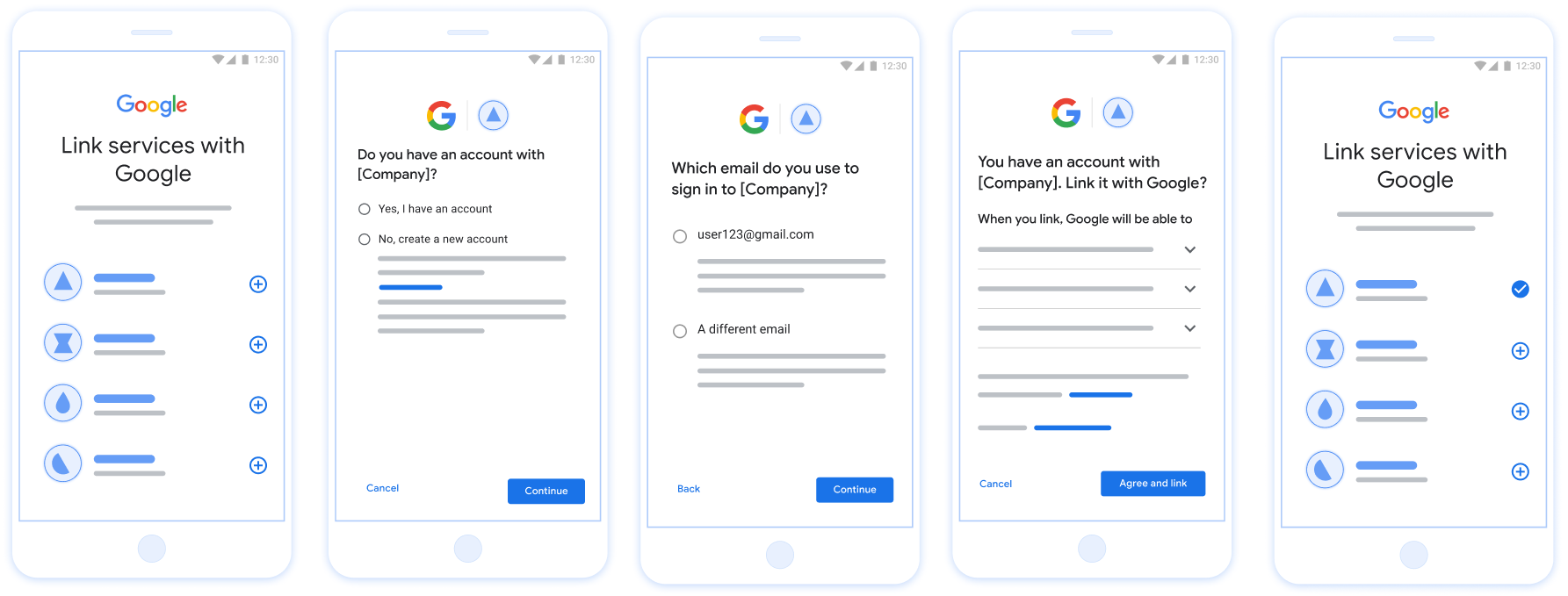
Figura 1. Collegamento dell'account sullo smartphone di un utente con il collegamento semplificato
Collegamento semplificato: flusso OAuth + Accedi con Google
Il seguente diagramma di sequenza descrive in dettaglio le interazioni tra l'utente, Google e l'endpoint di scambio di token per il collegamento semplificato.
Ruoli e responsabilità
La seguente tabella definisce i ruoli e le responsabilità degli attori nel flusso di collegamento semplificato.
| Attore / componente | Ruolo GAL | Responsabilità |
|---|---|---|
| App / server Google | Client OAuth | Ottiene il consenso dell'utente per Accedi con Google, trasmette le asserzioni di identità (JWT) al tuo server e archivia in modo sicuro i token risultanti. |
| Endpoint di scambio token | Provider di identità / server di autorizzazione | Convalida le asserzioni di identità, verifica la presenza di account esistenti, gestisce
gli intent di collegamento degli account richiesti (check,
get) e l'intent facoltativo create ed emette
token in base agli intent richiesti. |
| La tua API di servizio | Resource Server | Fornisce l'accesso ai dati utente quando viene presentato un token di accesso valido. |
Requisiti per il collegamento semplificato
- Implementa il flusso di collegamento OAuth di base. Il tuo servizio deve supportare endpoint di autorizzazione e scambio di token conformi a OAuth 2.0.
- L'endpoint di scambio di token deve supportare le asserzioni JSON Web Token (JWT) e implementare gli intent
checkegetrichiesti, nonché, facoltativamente, l'intentcreate.
Logica decisionale per il collegamento semplificato
La seguente logica determina come vengono chiamati gli intent durante il flusso di collegamento semplificato:
- L'utente ha un account nel tuo sistema di autenticazione? (L'utente decide
selezionando SÌ o NO)
- SÌ : l'utente utilizza l'email associata al suo Account Google
per accedere alla tua piattaforma? (L'utente decide selezionando SÌ o NO)
- SÌ : l'utente ha un account corrispondente nel tuo sistema di autenticazione? (
checkintent viene chiamato per la conferma)- SÌ : viene chiamato l'intent
gete l'account viene collegato se get intent viene restituito correttamente. - NO : Create New Account? (L'utente decide selezionando SÌ o NO;
applicabile solo se il tuo servizio supporta la creazione di account)
- SÌ : viene chiamato l'intent
createe l'account viene collegato se l'intent di creazione viene restituito correttamente. - NO : viene attivato il flusso di collegamento OAuth, l'utente viene indirizzato al browser e gli viene data la possibilità di collegarsi con un'altra email.
- SÌ : viene chiamato l'intent
- SÌ : viene chiamato l'intent
- NO : viene attivato il flusso di collegamento OAuth, l'utente viene indirizzato al browser e gli viene data la possibilità di collegarsi con un'altra email.
- SÌ : l'utente ha un account corrispondente nel tuo sistema di autenticazione? (
- NO : l'utente ha un account corrispondente nel tuo sistema di autenticazione? (
checkintent viene chiamato per la conferma)- SÌ : viene chiamato l'intent
gete l'account viene collegato se get intent viene restituito correttamente. - NO : se il tuo servizio supporta la creazione di account, viene chiamato l'intent
createe l'account viene collegato se l'intent di creazione viene restituito correttamente. Se la creazione dell'account non è supportata, l'endpoint deve restituire l'errore HTTP 401 linking_error per attivare il flusso di collegamento OAuth di riserva.
- SÌ : viene chiamato l'intent
- SÌ : l'utente utilizza l'email associata al suo Account Google
per accedere alla tua piattaforma? (L'utente decide selezionando SÌ o NO)
Implementation Recipe
L'endpoint di scambio di token deve implementare gli intent check e get richiesti e, facoltativamente, l'intent create per supportare il collegamento semplificato.
Segui questi passaggi per gestire i diversi intent:
Check for an existing user account (check intent)
Google calls your token exchange endpoint to verify if the Google user exists in your system. For parameter details, see Streamlined Linking Intents.
Implementation Recipe
To handle the required check intent, perform the following actions:
Validate the request:
- Verify
client_id,client_secret, andgrant_type(must beurn:ietf:params:oauth:grant-type:jwt-bearer). - Validate the
assertion(JWT) using the criteria in JWT Validation.
- Verify
Lookup user:
- Check if the Google Account ID (
sub) or email address in the JWT matches a user in your database.
- Check if the Google Account ID (
Respond:
- If found: Return HTTP
200 OKwith{"account_found": "true"}. - If not found: Return HTTP
404 Not Foundwith{"account_found": "false"}.
- If found: Return HTTP
Handle automatic linking (get intent)
If the account exists, Google calls your endpoint with intent=get to retrieve
tokens. For parameter details, see Streamlined Linking
Intents.
Implementation Recipe
To handle the required get intent, perform the following actions:
Validate the request:
- Verify
client_id,client_secret, andgrant_type. - Validate the
assertion(JWT).
- Verify
Lookup user:
- Verify the user exists using the
suboremailclaim.
- Verify the user exists using the
Respond:
- If successful: Generate and return
access_token,refresh_token, andexpires_inin a JSON response (HTTP200 OK). - If linking fails: Return HTTP
401 Unauthorizedwith{"error": "linking_error"}and an optionallogin_hintto fall back to standard OAuth linking.
- If successful: Generate and return
Handle account creation using Sign in with Google (create intent)
If your service supports account creation and no account exists, Google calls
your endpoint with intent=create to create a new user. For parameter details,
see Streamlined Linking
Intents.
Implementation Recipe
To handle the optional create intent, perform the following actions:
Validate the request:
- Verify
client_id,client_secret, andgrant_type. - Validate the
assertion(JWT).
- Verify
Verify user does not exist:
- Check if the
suboremailis already in your database. - If the user does exist: Return HTTP
401 Unauthorizedwith{"error": "linking_error", "login_hint": "USER_EMAIL"}to force fallback to OAuth linking.
- Check if the
Create account:
- Use the
sub,email,name, andpictureclaims from the JWT to create a new user record.
- Use the
Respond:
- Generate and return tokens in a JSON response (HTTP
200 OK).
- Generate and return tokens in a JSON response (HTTP
Ottenere l'ID client API di Google
Ti verrà chiesto di fornire l'ID client API di Google durante la procedura di registrazione del collegamento degli account. Per ottenere l'ID client API utilizzando il progetto che hai creato durante il completamento dei passaggi di collegamento OAuth. Per farlo, completa i seguenti passaggi:
- Vai alla pagina Clienti.
Crea o seleziona un progetto API di Google.
Se il tuo progetto non ha un ID client per il tipo di applicazione web, fai clic su Crea client per crearne uno. Assicurati di includere il dominio del tuo sito nella casella Origini JavaScript autorizzate. Quando esegui test locali o sviluppo, devi aggiungere sia
http://localhostsiahttp://localhost:<port_number>al campo Origini JavaScript autorizzate.
Convalidare l'implementazione
You can validate your implementation by using the OAuth 2.0 Playground tool.
In the tool, do the following steps:
- Click Configuration to open the OAuth 2.0 Configuration window.
- In the OAuth flow field, select Client-side.
- In the OAuth Endpoints field, select Custom.
- Specify your OAuth 2.0 endpoint and the client ID you assigned to Google in the corresponding fields.
- In the Step 1 section, don't select any Google scopes. Instead, leave this field blank or type a scope valid for your server (or an arbitrary string if you don't use OAuth scopes). When you're done, click Authorize APIs.
- In the Step 2 and Step 3 sections, go through the OAuth 2.0 flow and verify that each step works as intended.
You can validate your implementation by using the Google Account Linking Demo tool.
In the tool, do the following steps:
- Click the Sign in with Google button.
- Choose the account you'd like to link.
- Enter the service ID.
- Optionally enter one or more scopes that you will request access for.
- Click Start Demo.
- When prompted, confirm that you may consent and deny the linking request.
- Confirm that you are redirected to your platform.