Genel Bakış
OAuth tabanlı Google ile Oturum Açma - Basitleştirilmiş bağlantı oluşturma, OAuth bağlantısının üzerine Google ile Oturum Açma'yı ekler. Bu, Google kullanıcıları için sorunsuz bir bağlantı deneyimi sağlar. Ayrıca, hesap oluşturma özelliğini etkinleştirerek kullanıcının Google Hesabı'nı kullanarak hizmetinizde yeni bir hesap oluşturmasına olanak tanır.
OAuth ve Google ile oturum açma kullanarak hesap bağlama işlemini gerçekleştirmek için şu genel adımları uygulayın:
- Öncelikle kullanıcıdan Google profiline erişim izni vermesini isteyin.
- Kullanıcı hesabının mevcut olup olmadığını kontrol etmek için profilindeki bilgileri kullanın.
- Mevcut kullanıcılar için hesapları bağlayın.
- Kimlik doğrulama sisteminizde Google kullanıcısıyla eşleşen bir kullanıcı bulamıyorsanız Google'dan alınan kimlik jetonunu doğrulayın. Daha sonra, kimlik jetonunda yer alan profil bilgilerine göre bir kullanıcı oluşturabilirsiniz.
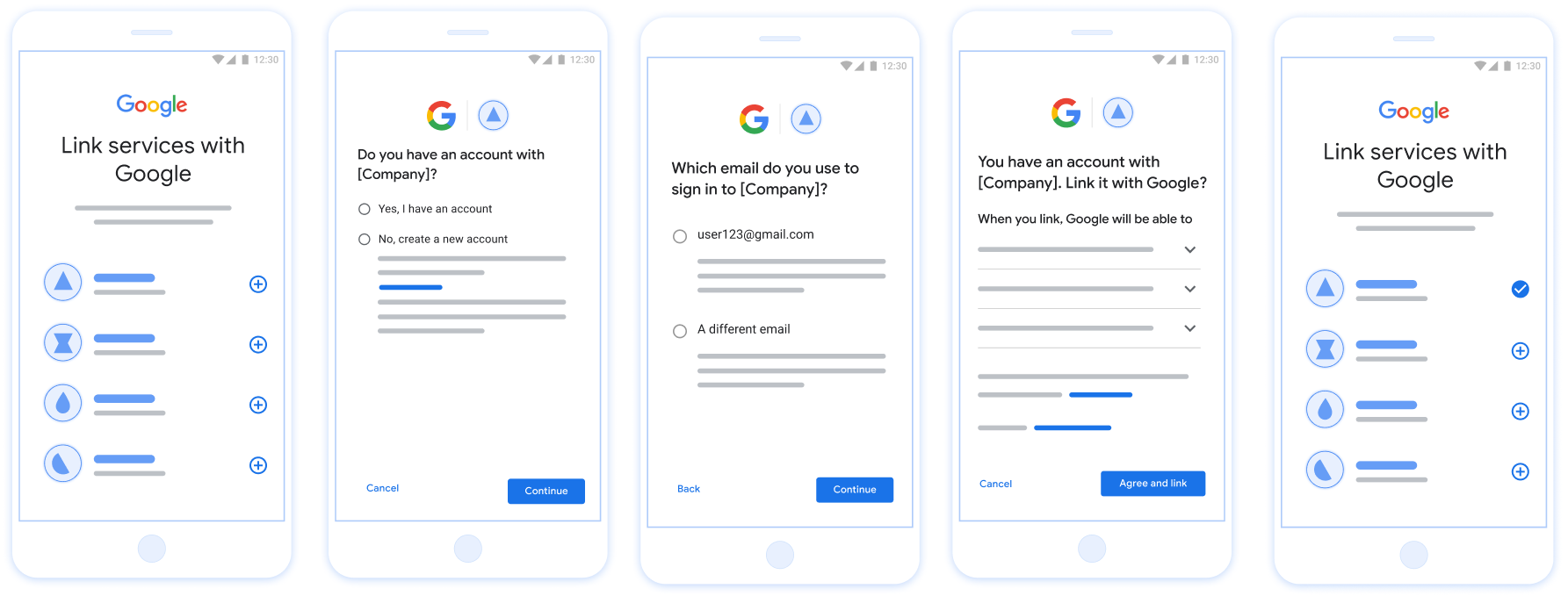
Şekil 1. Basitleştirilmiş Bağlantı ile kullanıcının telefonunda hesap bağlama
Basitleştirilmiş Bağlama: OAuth + Google ile Oturum Açma Akışı
Aşağıdaki sıra şeması, Basitleştirilmiş Bağlantı için Kullanıcı, Google ve jeton değişimi uç noktanız arasındaki etkileşimleri ayrıntılı olarak açıklar.
Roller ve sorumluluklar
Aşağıdaki tabloda, basitleştirilmiş bağlantı oluşturma akışındaki aktörlerin rolleri ve sorumlulukları tanımlanmaktadır.
| İşlemi gerçekleştiren / Bileşen | GAL Rolü | Sorumluluklar |
|---|---|---|
| Google Uygulaması / Sunucusu | OAuth İstemcisi | Google ile oturum açma için kullanıcı izni alır, kimlik onaylarını (JWT) sunucunuza iletir ve sonuç jetonlarını güvenli bir şekilde depolar. |
| Jeton Değişimi Uç Noktanız | Kimlik sağlayıcı / yetkilendirme sunucusu | Kimlik onaylarını doğrular, mevcut hesapları kontrol eder, hesap bağlama amaçlarını (check, get, create) işler ve istenen amaçlara göre jetonlar verir. |
| Hizmet API'niz | Kaynak Sunucusu | Geçerli bir erişim jetonu sunulduğunda kullanıcı verilerine erişim sağlar. |
Basitleştirilmiş bağlantı oluşturma koşulları
- Temel web OAuth bağlantısı akışını uygulayın. Hizmetiniz, OAuth 2.0 uyumlu yetkilendirme ve jeton değişimi uç noktalarını desteklemelidir.
- Jeton değişimi uç noktanız JSON Web Token (JWT) onaylarını desteklemeli ve
check,createvegetintent'lerini uygulamalıdır.
OAuth sunucunuzu uygulama
Jeton değişimi uç noktanız check, create, get amaçlarını desteklemelidir.
Hesap bağlama akışını tamamlamak ve farklı amaçların ne zaman kullanıldığını öğrenmek için aşağıdaki adımları uygulayın:
- Kullanıcının kimlik doğrulama sisteminizde hesabı var mı? (Kullanıcı EVET veya HAYIR'ı seçerek karar verir)
- EVET : Kullanıcı, platformunuzda oturum açmak için Google Hesabı ile ilişkili e-posta adresini kullanıyor mu? (Kullanıcı EVET veya HAYIR'ı seçerek karar verir)
- EVET : Kullanıcının kimlik doğrulama sisteminizde eşleşen bir hesabı var mı? (Onaylamak için
check intentnumaralı telefon aranır)- EVET :
get intentaranır ve get intent başarılı bir şekilde döndürülürse hesap bağlanır. - HAYIR : Yeni Hesap Oluştur? (Kullanıcı EVET veya HAYIR'ı seçerek karar verir)
- EVET :
create intentçağrılır ve oluşturma amacı başarılı bir şekilde döndürülürse hesap bağlanır. - HAYIR : Web OAuth akışı tetiklenir, kullanıcı tarayıcısına yönlendirilir ve farklı bir e-postayla bağlantı oluşturma seçeneği sunulur.
- EVET :
- EVET :
- HAYIR : Web OAuth akışı tetiklenir, kullanıcı tarayıcısına yönlendirilir ve farklı bir e-postayla bağlantı oluşturma seçeneği sunulur.
- EVET : Kullanıcının kimlik doğrulama sisteminizde eşleşen bir hesabı var mı? (Onaylamak için
- HAYIR : Kullanıcının kimlik doğrulama sisteminizde eşleşen bir hesabı var mı? (Onaylamak için
check intentnumaralı telefon aranır)- EVET :
get intentaranır ve get intent başarılı bir şekilde döndürülürse hesap bağlanır. - HAYIR :
create intentçağrılır ve oluşturma amacı başarılı bir şekilde döndürülürse hesap bağlanır.
- EVET :
- EVET : Kullanıcı, platformunuzda oturum açmak için Google Hesabı ile ilişkili e-posta adresini kullanıyor mu? (Kullanıcı EVET veya HAYIR'ı seçerek karar verir)
Check for an existing user account (check intent)
After the user gives consent to access their Google profile, Google sends a request that contains a signed assertion of the Google user's identity. The assertion contains information that includes the user's Google Account ID, name, and email address. The token exchange endpoint configured for your project handles that request.
If the corresponding Google account is already present in your authentication
system, your token exchange endpoint responds with account_found=true. If the
Google account doesn't match an existing user, your token exchange endpoint
returns an HTTP 404 Not Found error with account_found=false.
The request has the following form:
POST /token HTTP/1.1 Host: oauth2.example.com Content-Type: application/x-www-form-urlencoded grant_type=urn:ietf:params:oauth:grant-type:jwt-bearer&intent=check&assertion=JWT&scope=SCOPES&client_id=GOOGLE_CLIENT_ID&client_secret=GOOGLE_CLIENT_SECRET
Your token exchange endpoint must be able to handle the following parameters:
| Token endpoint parameters | |
|---|---|
intent |
For these requests, the value of this parameter is
check. |
grant_type |
The type of token being exchanged. For these requests, this
parameter has the value urn:ietf:params:oauth:grant-type:jwt-bearer. |
assertion |
A JSON Web Token (JWT) that provides a signed assertion of the Google user's identity. The JWT contains information that includes the user's Google Account ID, name, and email address. |
client_id |
The client ID you assigned to Google. |
client_secret |
The client secret you assigned to Google. |
To respond to the check intent requests, your token exchange endpoint must perform the following steps:
- Validate and decode the JWT assertion.
- Check if the Google account is already present in your authentication system.
Validate and decode the JWT assertion
You can validate and decode the JWT assertion by using a JWT-decoding library for your language. Use Google's public keys, available in JWK or PEM formats, to verify the token's signature.
When decoded, the JWT assertion looks like the following example:
{ "sub": "1234567890", // The unique ID of the user's Google Account "iss": "https://accounts.google.com", // The assertion's issuer "aud": "123-abc.apps.googleusercontent.com", // Your server's client ID "iat": 233366400, // Unix timestamp of the assertion's creation time "exp": 233370000, // Unix timestamp of the assertion's expiration time "name": "Jan Jansen", "given_name": "Jan", "family_name": "Jansen", "email": "jan@gmail.com", // If present, the user's email address "email_verified": true, // true, if Google has verified the email address "hd": "example.com", // If present, the host domain of the user's GSuite email address // If present, a URL to user's profile picture "picture": "https://lh3.googleusercontent.com/a-/AOh14GjlTnZKHAeb94A-FmEbwZv7uJD986VOF1mJGb2YYQ", "locale": "en_US" // User's locale, from browser or phone settings }
In addition to verifying the token's signature, verify that the assertion's
issuer (iss field) is https://accounts.google.com, that the audience
(aud field) is your assigned client ID, and that the token has not expired
(exp field).
Using the email, email_verified and hd fields you can determine if
Google hosts and is authoritative for an email address. In cases where Google is
authoritative the user is currently known to be the legitimate account owner
and you may skip password or other challenges methods. Otherwise, these methods
can be used to verify the account prior to linking.
Cases where Google is authoritative:
emailhas a@gmail.comsuffix, this is a Gmail account.email_verifiedis true andhdis set, this is a G Suite account.
Users may register for Google Accounts without using Gmail or G Suite. When
email does not contain a @gmail.com suffix and hd is absent Google is not
authoritative and password or other challenge methods are recommended to verify
the user. email_verified can also be true as Google initially verified the
user when the Google account was created, however ownership of the third party
email account may have since changed.
Check if the Google account is already present in your authentication system
Check whether either of the following conditions are true:
- The Google Account ID, found in the assertion's
subfield, is in your user database. - The email address in the assertion matches a user in your user database.
If either condition is true, the user has already signed up. In that case, return a response like the following:
HTTP/1.1 200 Success
Content-Type: application/json;charset=UTF-8
{
"account_found":"true",
}
If neither the Google Account ID nor the email address specified in the
assertion matches a user in your database, the user hasn't signed up yet. In
this case, your token exchange endpoint needs to reply with a HTTP 404 error
that specifies "account_found": "false", as in the following example:
HTTP/1.1 404 Not found
Content-Type: application/json;charset=UTF-8
{
"account_found":"false",
}
Handle automatic linking (get intent)
After the user gives consent to access their Google profile, Google sends a request that contains a signed assertion of the Google user's identity. The assertion contains information that includes the user's Google Account ID, name, and email address. The token exchange endpoint configured for your project handles that request.
If the corresponding Google Account is already present in your authentication
system, your token exchange endpoint returns a token for the user. If the
Google Account doesn't match an existing user, your token exchange endpoint
returns a linking_error error and optional login_hint.
The request has the following form:
POST /token HTTP/1.1 Host: oauth2.example.com Content-Type: application/x-www-form-urlencoded grant_type=urn:ietf:params:oauth:grant-type:jwt-bearer&intent=get&assertion=JWT&scope=SCOPES&client_id=GOOGLE_CLIENT_ID&client_secret=GOOGLE_CLIENT_SECRET
Your token exchange endpoint must be able to handle the following parameters:
| Token endpoint parameters | |
|---|---|
intent |
For these requests, the value of this parameter is get. |
grant_type |
The type of token being exchanged. For these requests, this
parameter has the value urn:ietf:params:oauth:grant-type:jwt-bearer. |
assertion |
A JSON Web Token (JWT) that provides a signed assertion of the Google user's identity. The JWT contains information that includes the user's Google Account ID, name, and email address. |
scope |
Optional: Any scopes that you've configured Google to request from users. |
client_id |
The client ID you assigned to Google. |
client_secret |
The client secret you assigned to Google. |
To respond to the get intent requests, your token exchange endpoint must perform the following steps:
- Validate and decode the JWT assertion.
- Check if the Google account is already present in your authentication system.
Validate and decode the JWT assertion
You can validate and decode the JWT assertion by using a JWT-decoding library for your language. Use Google's public keys, available in JWK or PEM formats, to verify the token's signature.
When decoded, the JWT assertion looks like the following example:
{ "sub": "1234567890", // The unique ID of the user's Google Account "iss": "https://accounts.google.com", // The assertion's issuer "aud": "123-abc.apps.googleusercontent.com", // Your server's client ID "iat": 233366400, // Unix timestamp of the assertion's creation time "exp": 233370000, // Unix timestamp of the assertion's expiration time "name": "Jan Jansen", "given_name": "Jan", "family_name": "Jansen", "email": "jan@gmail.com", // If present, the user's email address "email_verified": true, // true, if Google has verified the email address "hd": "example.com", // If present, the host domain of the user's GSuite email address // If present, a URL to user's profile picture "picture": "https://lh3.googleusercontent.com/a-/AOh14GjlTnZKHAeb94A-FmEbwZv7uJD986VOF1mJGb2YYQ", "locale": "en_US" // User's locale, from browser or phone settings }
In addition to verifying the token's signature, verify that the assertion's
issuer (iss field) is https://accounts.google.com, that the audience
(aud field) is your assigned client ID, and that the token has not expired
(exp field).
Using the email, email_verified and hd fields you can determine if
Google hosts and is authoritative for an email address. In cases where Google is
authoritative the user is currently known to be the legitimate account owner
and you may skip password or other challenges methods. Otherwise, these methods
can be used to verify the account prior to linking.
Cases where Google is authoritative:
emailhas a@gmail.comsuffix, this is a Gmail account.email_verifiedis true andhdis set, this is a G Suite account.
Users may register for Google Accounts without using Gmail or G Suite. When
email does not contain a @gmail.com suffix and hd is absent Google is not
authoritative and password or other challenge methods are recommended to verify
the user. email_verified can also be true as Google initially verified the
user when the Google account was created, however ownership of the third party
email account may have since changed.
Check if the Google account is already present in your authentication system
Check whether either of the following conditions are true:
- The Google Account ID, found in the assertion's
subfield, is in your user database. - The email address in the assertion matches a user in your user database.
If an account is found for the user, issue an access token and return the values in a JSON object in the body of your HTTPS response, like in the following example:
{ "token_type": "Bearer", "access_token": "ACCESS_TOKEN", "refresh_token": "REFRESH_TOKEN", "expires_in": SECONDS_TO_EXPIRATION }
In some cases, account linking based on ID token might fail for the user. If it
does so for any reason, your token exchange endpoint needs to reply with a HTTP
401 error that specifies error=linking_error, as the following example shows:
HTTP/1.1 401 Unauthorized
Content-Type: application/json;charset=UTF-8
{
"error":"linking_error",
"login_hint":"foo@bar.com"
}
When Google receives a 401 error response with linking_error, Google sends
the user to your authorization endpoint with login_hint as a parameter. The
user completes account linking using the OAuth linking flow in their browser.
Handle account creation using Sign in with Google (create intent)
When a user needs to create an account on your service, Google makes a request
to your token exchange endpoint that specifies intent=create.
The request has the following form:
POST /token HTTP/1.1 Host: oauth2.example.com Content-Type: application/x-www-form-urlencoded response_type=token&grant_type=urn:ietf:params:oauth:grant-type:jwt-bearer&scope=SCOPES&intent=create&assertion=JWT&client_id=GOOGLE_CLIENT_ID&client_secret=GOOGLE_CLIENT_SECRET
Your token exchange endpoint must able to handle the following parameters:
| Token endpoint parameters | |
|---|---|
intent |
For these requests, the value of this parameter is create. |
grant_type |
The type of token being exchanged. For these requests, this
parameter has the value urn:ietf:params:oauth:grant-type:jwt-bearer. |
assertion |
A JSON Web Token (JWT) that provides a signed assertion of the Google user's identity. The JWT contains information that includes the user's Google Account ID, name, and email address. |
client_id |
The client ID you assigned to Google. |
client_secret |
The client secret you assigned to Google. |
The JWT within the assertion parameter contains the user's Google Account ID,
name, and email address, which you can use to create a new account on your
service.
To respond to the create intent requests, your token exchange endpoint must perform the following steps:
- Validate and decode the JWT assertion.
- Validate user information and create new account.
Validate and decode the JWT assertion
You can validate and decode the JWT assertion by using a JWT-decoding library for your language. Use Google's public keys, available in JWK or PEM formats, to verify the token's signature.
When decoded, the JWT assertion looks like the following example:
{ "sub": "1234567890", // The unique ID of the user's Google Account "iss": "https://accounts.google.com", // The assertion's issuer "aud": "123-abc.apps.googleusercontent.com", // Your server's client ID "iat": 233366400, // Unix timestamp of the assertion's creation time "exp": 233370000, // Unix timestamp of the assertion's expiration time "name": "Jan Jansen", "given_name": "Jan", "family_name": "Jansen", "email": "jan@gmail.com", // If present, the user's email address "email_verified": true, // true, if Google has verified the email address "hd": "example.com", // If present, the host domain of the user's GSuite email address // If present, a URL to user's profile picture "picture": "https://lh3.googleusercontent.com/a-/AOh14GjlTnZKHAeb94A-FmEbwZv7uJD986VOF1mJGb2YYQ", "locale": "en_US" // User's locale, from browser or phone settings }
In addition to verifying the token's signature, verify that the assertion's
issuer (iss field) is https://accounts.google.com, that the audience
(aud field) is your assigned client ID, and that the token has not expired
(exp field).
Using the email, email_verified and hd fields you can determine if
Google hosts and is authoritative for an email address. In cases where Google is
authoritative the user is currently known to be the legitimate account owner
and you may skip password or other challenges methods. Otherwise, these methods
can be used to verify the account prior to linking.
Cases where Google is authoritative:
emailhas a@gmail.comsuffix, this is a Gmail account.email_verifiedis true andhdis set, this is a G Suite account.
Users may register for Google Accounts without using Gmail or G Suite. When
email does not contain a @gmail.com suffix and hd is absent Google is not
authoritative and password or other challenge methods are recommended to verify
the user. email_verified can also be true as Google initially verified the
user when the Google account was created, however ownership of the third party
email account may have since changed.
Validate user information and create new account
Check whether either of the following conditions are true:
- The Google Account ID, found in the assertion's
subfield, is in your user database. - The email address in the assertion matches a user in your user database.
If either condition is true, prompt the user to link their existing account
with their Google Account. To do so, respond to the request with an HTTP 401 error
that specifies error=linking_error and gives the user's email address as the
login_hint. The following is a sample response:
HTTP/1.1 401 Unauthorized
Content-Type: application/json;charset=UTF-8
{
"error":"linking_error",
"login_hint":"foo@bar.com"
}
When Google receives a 401 error response with linking_error, Google sends
the user to your authorization endpoint with login_hint as a parameter. The
user completes account linking using the OAuth linking flow in their browser.
If neither condition is true, create a new user account with the information provided in the JWT. New accounts don't typically have a password set. It's recommended that you add Sign in with Google to other platforms to enable users to sign in with Google across the surfaces of your application. Alternatively, you can email the user a link that starts your password recovery flow to allow the user to set a password to sign in on other platforms.
When the creation is completed, issue an access token and return the values in a JSON object in the body of your HTTPS response, like in the following example:
{ "token_type": "Bearer", "access_token": "ACCESS_TOKEN", "refresh_token": "REFRESH_TOKEN", "expires_in": SECONDS_TO_EXPIRATION }
Google API'si istemci kimliğinizi alma
Hesap bağlama kayıt işlemi sırasında Google API istemci kimliğinizi sağlamanız gerekir. OAuth bağlantısı oluşturma adımlarını tamamlarken oluşturduğunuz projeyi kullanarak API istemci kimliğinizi almak için. Bunun için aşağıdaki adımları uygulayın:
- Müşteriler sayfasına gidin.
Bir Google API'leri projesi oluşturun veya seçin.
Projenizde Web uygulaması türü için bir istemci kimliği yoksa istemci kimliği oluşturmak üzere İstemci oluştur'u tıklayın. Sitenizin alanını Yetkilendirilmiş JavaScript kaynakları kutusuna eklediğinizden emin olun. Yerel testler veya geliştirme yaparken hem
http://localhosthem dehttp://localhost:<port_number>öğesini Yetkilendirilmiş JavaScript kaynakları alanına eklemeniz gerekir.
Uygulamanızı doğrulama
You can validate your implementation by using the OAuth 2.0 Playground tool.
In the tool, do the following steps:
- Click Configuration to open the OAuth 2.0 Configuration window.
- In the OAuth flow field, select Client-side.
- In the OAuth Endpoints field, select Custom.
- Specify your OAuth 2.0 endpoint and the client ID you assigned to Google in the corresponding fields.
- In the Step 1 section, don't select any Google scopes. Instead, leave this field blank or type a scope valid for your server (or an arbitrary string if you don't use OAuth scopes). When you're done, click Authorize APIs.
- In the Step 2 and Step 3 sections, go through the OAuth 2.0 flow and verify that each step works as intended.
You can validate your implementation by using the Google Account Linking Demo tool.
In the tool, do the following steps:
- Click the Sign in with Google button.
- Choose the account you'd like to link.
- Enter the service ID.
- Optionally enter one or more scopes that you will request access for.
- Click Start Demo.
- When prompted, confirm that you may consent and deny the linking request.
- Confirm that you are redirected to your platform.