OAuth और 'Google से साइन इन करें' सुविधा का इस्तेमाल करके, आसानी से खाता लिंक करना

खास जानकारी

OAuth पर आधारित, 'Google से साइन इन करें' सुविधा के साथ आसानी से खाता लिंक करने की सुविधा, OAuth की मदद से खाता लिंक करने की सुविधा के साथ-साथ 'Google से साइन इन करें' सुविधा भी जोड़ती है. इससे Google उपयोगकर्ताओं को खाता लिंक करने का बेहतर अनुभव मिलता है. साथ ही, इससे खाता बनाने की सुविधा भी चालू होती है. इसकी मदद से, उपयोगकर्ता अपने Google खाते का इस्तेमाल करके आपकी सेवा पर नया खाता बना सकता है.

OAuth और 'Google से साइन इन करें' सुविधा का इस्तेमाल करके खाता लिंक करने के लिए, यह सामान्य तरीका अपनाएं:

  1. सबसे पहले, उपयोगकर्ता से उसकी Google प्रोफ़ाइल को ऐक्सेस करने की अनुमति माँगें.
  2. उनकी प्रोफ़ाइल में मौजूद जानकारी का इस्तेमाल करके, यह पता लगाएं कि उपयोगकर्ता का खाता मौजूद है या नहीं.
  3. मौजूदा उपयोगकर्ताओं के लिए, खातों को लिंक करें.
  4. अगर आपको अपने पुष्टि करने वाले सिस्टम में Google उपयोगकर्ता का कोई मैच नहीं मिलता है, तो Google से मिले आईडी टोकन की पुष्टि करें. इसके बाद, आईडी टोकन में मौजूद प्रोफ़ाइल की जानकारी के आधार पर उपयोगकर्ता बनाया जा सकता है.
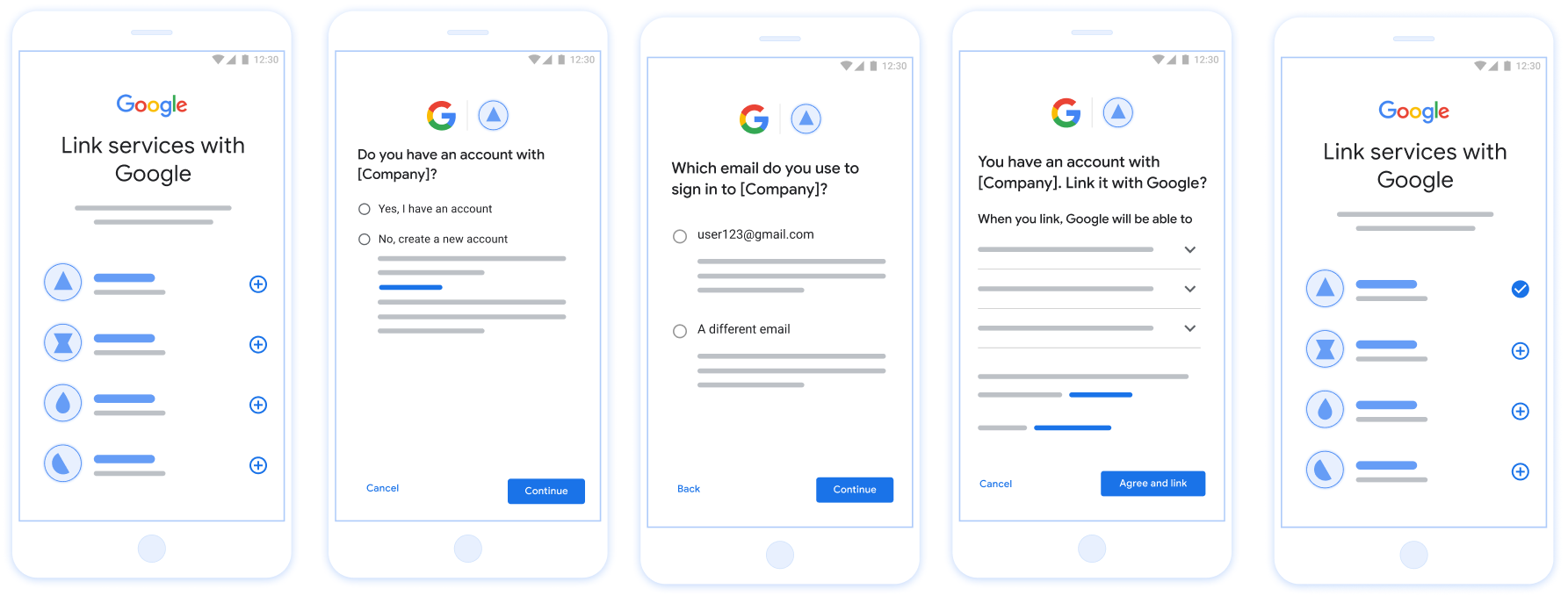
इस इमेज में, उपयोगकर्ता के लिए Google खाते को लिंक करने का तरीका दिखाया गया है. इसके लिए, लिंक करने की आसान प्रोसेस का इस्तेमाल किया गया है. पहले स्क्रीनशॉट में दिखाया गया है कि कोई उपयोगकर्ता, लिंक करने के लिए आपका ऐप्लिकेशन कैसे चुन सकता है. दूसरे स्क्रीनशॉट से, उपयोगकर्ता यह पुष्टि कर सकता है कि आपकी सेवा पर उसका कोई मौजूदा खाता है या नहीं. तीसरे स्क्रीनशॉट में, उपयोगकर्ता को वह Google खाता चुनने का विकल्प मिलता है जिसे उसे लिंक करना है. चौथे स्क्रीनशॉट में, Google खाते को आपके ऐप्लिकेशन से लिंक करने की पुष्टि दिखाई गई है. पांचवें स्क्रीनशॉट में, Google ऐप्लिकेशन में उपयोगकर्ता का लिंक किया गया खाता दिखाया गया है.

पहली इमेज. उपयोगकर्ता के फ़ोन पर, आसानी से खाता लिंक करने की सुविधा का इस्तेमाल करके खाता लिंक करना

आसानी से लिंक करने की सुविधा के लिए ज़रूरी शर्तें

अपना OAuth सर्वर लागू करना

आपके टोकन एक्सचेंज एंडपॉइंट को check, create, get इंटेंट के साथ काम करना चाहिए. खाता लिंक करने की प्रोसेस पूरी करने के लिए, यह तरीका अपनाएं. साथ ही, यह जानें कि अलग-अलग इंटेंट का इस्तेमाल कब किया जाता है:

  1. क्या उपयोगकर्ता का खाता आपके पुष्टि करने वाले सिस्टम में है? (उपयोगकर्ता, हां या नहीं चुनकर फ़ैसला लेता है)
    1. हां : क्या उपयोगकर्ता, आपके प्लैटफ़ॉर्म में साइन इन करने के लिए, अपने Google खाते से जुड़े ईमेल पते का इस्तेमाल करता है? (उपयोगकर्ता, हां या नहीं चुनकर फ़ैसला लेता है)
      1. हां : क्या उपयोगकर्ता का खाता, आपके पुष्टि करने वाले सिस्टम में मौजूद है? (पुष्टि करने के लिए, check intent को कॉल किया गया)
        1. हां : अगर इंटेंट का जवाब सही मिलता है, तो get intent को कॉल किया जाता है और खाते को लिंक कर दिया जाता है.
        2. NO : Create New Account? (उपयोगकर्ता, हां या नहीं चुनकर फ़ैसला लेता है)
          1. हां : create intent को कॉल किया जाता है. अगर क्रिएट इंटेंट का जवाब 'सफल' के तौर पर मिलता है, तो खाता लिंक हो जाता है.
          2. नहीं : वेब OAuth फ़्लो ट्रिगर होता है. उपयोगकर्ता को उसके ब्राउज़र पर रीडायरेक्ट किया जाता है. साथ ही, उसे किसी दूसरे ईमेल से लिंक करने का विकल्प दिया जाता है.
      2. नहीं : वेब OAuth फ़्लो ट्रिगर होता है. उपयोगकर्ता को उसके ब्राउज़र पर रीडायरेक्ट किया जाता है. साथ ही, उसे किसी दूसरे ईमेल से लिंक करने का विकल्प दिया जाता है.
    2. नहीं : क्या उपयोगकर्ता का खाता, पुष्टि करने वाले आपके सिस्टम में मौजूद है? (पुष्टि करने के लिए, check intent को कॉल किया गया)
      1. हां : अगर इंटेंट का जवाब सही मिलता है, तो get intent को कॉल किया जाता है और खाते को लिंक कर दिया जाता है.
      2. नहीं : create intent को कॉल किया जाता है. अगर खाता बनाने का अनुरोध पूरा हो जाता है, तो खाता लिंक हो जाता है.

मौजूदा उपयोगकर्ता खाते की जांच करें (इंटेंट देखें)

जब उपयोगकर्ता अपनी Google प्रोफ़ाइल को ऐक्सेस करने की सहमति देता है, तो Google अनुरोध जिसमें Google उपयोगकर्ता की पहचान का हस्ताक्षर किया गया दावा शामिल हो. कॉन्टेंट बनाने दावे में ऐसी जानकारी शामिल है जिसमें उपयोगकर्ता का Google खाता आईडी शामिल है, आपका नाम और ईमेल पता. आपके लिए कॉन्फ़िगर किया गया टोकन एक्सचेंज एंडपॉइंट प्रोजेक्ट हैंडल करता है.

अगर संबंधित Google खाता पहले से ही आपकी पुष्टि में मौजूद है सिस्टम, तो आपका टोकन एक्सचेंज एंडपॉइंट account_found=true के साथ जवाब देता है. अगर Google खाता किसी मौजूदा उपयोगकर्ता और आपके टोकन एक्सचेंज एंडपॉइंट से मैच नहीं करता account_found=false के साथ एचटीटीपी 404 नहीं मिला गड़बड़ी दिखाता है.

अनुरोध में यह फ़ॉर्म मौजूद है:

POST /token HTTP/1.1
Host: oauth2.example.com
Content-Type: application/x-www-form-urlencoded

grant_type=urn:ietf:params:oauth:grant-type:jwt-bearer&intent=check&assertion=JWT&scope=SCOPES&client_id=GOOGLE_CLIENT_ID&client_secret=GOOGLE_CLIENT_SECRET

यह ज़रूरी है कि आपका टोकन एक्सचेंज एंडपॉइंट इन पैरामीटर को मैनेज कर सके:

टोकन एंडपॉइंट पैरामीटर
intent इन अनुरोधों के लिए, इस पैरामीटर का मान है check.
grant_type किस टाइप के टोकन की अदला-बदली की जा रही है. इन अनुरोधों के लिए, यह पैरामीटर की वैल्यू urn:ietf:params:oauth:grant-type:jwt-bearer है.
assertion JSON Web Token (JWT), जो Google का हस्ताक्षर किया गया दावा उपलब्ध कराता है उपयोगकर्ता की पहचान होती है. JWT में ऐसी जानकारी होती है जिसमें उपयोगकर्ता Google खाता आईडी, नाम, और ईमेल पता.
client_id वह क्लाइंट आईडी जिसे आपने Google को असाइन किया है.
client_secret वह क्लाइंट सीक्रेट जिसे आपने Google को असाइन किया है.

check इंटेंट के अनुरोधों का जवाब देने के लिए, आपके टोकन एक्सचेंज एंडपॉइंट को ये चरण पूरे करने होंगे:

  • JWT के दावे की पुष्टि करें और उन्हें डिकोड करें.
  • देखें कि आपके पुष्टि करने वाले सिस्टम में Google खाता पहले से मौजूद है या नहीं.
Validate and decode the JWT assertion

You can validate and decode the JWT assertion by using a JWT-decoding library for your language. Use Google's public keys, available in JWK or PEM formats, to verify the token's signature.

When decoded, the JWT assertion looks like the following example:

{
  "sub": "1234567890",      // The unique ID of the user's Google Account
  "iss": "https://accounts.google.com",        // The assertion's issuer
  "aud": "123-abc.apps.googleusercontent.com", // Your server's client ID
  "iat": 233366400,         // Unix timestamp of the assertion's creation time
  "exp": 233370000,         // Unix timestamp of the assertion's expiration time
  "name": "Jan Jansen",
  "given_name": "Jan",
  "family_name": "Jansen",
  "email": "jan@gmail.com", // If present, the user's email address
  "email_verified": true,   // true, if Google has verified the email address
  "hd": "example.com",      // If present, the host domain of the user's GSuite email address
                            // If present, a URL to user's profile picture
  "picture": "https://lh3.googleusercontent.com/a-/AOh14GjlTnZKHAeb94A-FmEbwZv7uJD986VOF1mJGb2YYQ",
  "locale": "en_US"         // User's locale, from browser or phone settings
}

In addition to verifying the token's signature, verify that the assertion's issuer (iss field) is https://accounts.google.com, that the audience (aud field) is your assigned client ID, and that the token has not expired (exp field).

Using the email, email_verified and hd fields you can determine if Google hosts and is authoritative for an email address. In cases where Google is authoritative the user is currently known to be the legitimate account owner and you may skip password or other challenges methods. Otherwise, these methods can be used to verify the account prior to linking.

Cases where Google is authoritative:

  • email has a @gmail.com suffix, this is a Gmail account.
  • email_verified is true and hd is set, this is a G Suite account.

Users may register for Google Accounts without using Gmail or G Suite. When email does not contain a @gmail.com suffix and hd is absent Google is not authoritative and password or other challenge methods are recommended to verify the user. email_verified can also be true as Google initially verified the user when the Google account was created, however ownership of the third party email account may have since changed.

देखें कि आपके पुष्टि करने वाले सिस्टम में Google खाता पहले से मौजूद है या नहीं

देखें कि इनमें से कोई एक शर्त सही है या नहीं:

  • दावे के sub फ़ील्ड में मौजूद Google खाता आईडी, आपके उपयोगकर्ता का है डेटाबेस.
  • दावे में दिया गया ईमेल पता, आपके उपयोगकर्ता डेटाबेस के किसी उपयोगकर्ता से मेल खाता है.

अगर दोनों में से कोई भी शर्त सही है, तो इसका मतलब है कि उपयोगकर्ता ने पहले ही साइन अप कर लिया है. ऐसी स्थिति में, इस तरह से जवाब दें:

HTTP/1.1 200 Success
Content-Type: application/json;charset=UTF-8

{
  "account_found":"true",
}

अगर Google खाता आईडी और ईमेल पता, दावा आपके डेटाबेस के किसी उपयोगकर्ता से मेल खाता है, तो उपयोगकर्ता ने अभी तक साइन अप नहीं किया है. तय सीमा में इस मामले में, आपके टोकन एक्सचेंज एंडपॉइंट को एचटीटीपी 404 वाली गड़बड़ी का जवाब देना होगा जो "account_found": "false" के बारे में बताता है, जैसा कि इस उदाहरण में दिखाया गया है:

HTTP/1.1 404 Not found
Content-Type: application/json;charset=UTF-8

{
  "account_found":"false",
}

अपने-आप लिंक होने की सुविधा मैनेज करना (इंटेंट पाएं)

जब उपयोगकर्ता अपनी Google प्रोफ़ाइल को ऐक्सेस करने की सहमति देता है, तो Google ऐसा अनुरोध जिसमें Google उपयोगकर्ता की पहचान का हस्ताक्षर किया गया दावा शामिल हो. कॉन्टेंट बनाने दावे में ऐसी जानकारी शामिल है जिसमें उपयोगकर्ता का Google खाता आईडी शामिल है, आपका नाम और ईमेल पता. आपके लिए कॉन्फ़िगर किया गया टोकन एक्सचेंज एंडपॉइंट प्रोजेक्ट हैंडल करता है.

अगर इससे जुड़ा Google खाता, पुष्टि करने के लिए पहले से मौजूद है सिस्टम का इस्तेमाल करता है, तो आपका टोकन एक्सचेंज एंडपॉइंट, उपयोगकर्ता के लिए टोकन दिखाता है. अगर Google खाता किसी मौजूदा उपयोगकर्ता और आपके टोकन एक्सचेंज एंडपॉइंट से मैच नहीं करता यह linking_error गड़बड़ी और वैकल्पिक login_hint दिखाता है.

अनुरोध में यह फ़ॉर्म मौजूद है:

POST /token HTTP/1.1
Host: oauth2.example.com
Content-Type: application/x-www-form-urlencoded

grant_type=urn:ietf:params:oauth:grant-type:jwt-bearer&intent=get&assertion=JWT&scope=SCOPES&client_id=GOOGLE_CLIENT_ID&client_secret=GOOGLE_CLIENT_SECRET

यह ज़रूरी है कि आपका टोकन एक्सचेंज एंडपॉइंट इन पैरामीटर को मैनेज कर सके:

टोकन एंडपॉइंट पैरामीटर
intent इन अनुरोधों के लिए, इस पैरामीटर की वैल्यू get है.
grant_type किस टाइप के टोकन की अदला-बदली की जा रही है. इन अनुरोधों के लिए, यह पैरामीटर की वैल्यू urn:ietf:params:oauth:grant-type:jwt-bearer है.
assertion JSON Web Token (JWT), जो Google का हस्ताक्षर किया गया दावा उपलब्ध कराता है उपयोगकर्ता की पहचान होती है. JWT में ऐसी जानकारी होती है जिसमें उपयोगकर्ता Google खाता आईडी, नाम, और ईमेल पता.
scope ज़रूरी नहीं: ऐसे कोई भी दायरे जिन्हें आपने Google को, अनुरोध करने के लिए कॉन्फ़िगर किया है उपयोगकर्ता.
client_id वह क्लाइंट आईडी जिसे आपने Google को असाइन किया है.
client_secret वह क्लाइंट सीक्रेट जिसे आपने Google को असाइन किया है.

get इंटेंट के अनुरोधों का जवाब देने के लिए, आपके टोकन एक्सचेंज एंडपॉइंट को ये चरण पूरे करने होंगे:

  • JWT के दावे की पुष्टि करें और उन्हें डिकोड करें.
  • देखें कि आपके पुष्टि करने वाले सिस्टम में Google खाता पहले से मौजूद है या नहीं.
Validate and decode the JWT assertion

You can validate and decode the JWT assertion by using a JWT-decoding library for your language. Use Google's public keys, available in JWK or PEM formats, to verify the token's signature.

When decoded, the JWT assertion looks like the following example:

{
  "sub": "1234567890",      // The unique ID of the user's Google Account
  "iss": "https://accounts.google.com",        // The assertion's issuer
  "aud": "123-abc.apps.googleusercontent.com", // Your server's client ID
  "iat": 233366400,         // Unix timestamp of the assertion's creation time
  "exp": 233370000,         // Unix timestamp of the assertion's expiration time
  "name": "Jan Jansen",
  "given_name": "Jan",
  "family_name": "Jansen",
  "email": "jan@gmail.com", // If present, the user's email address
  "email_verified": true,   // true, if Google has verified the email address
  "hd": "example.com",      // If present, the host domain of the user's GSuite email address
                            // If present, a URL to user's profile picture
  "picture": "https://lh3.googleusercontent.com/a-/AOh14GjlTnZKHAeb94A-FmEbwZv7uJD986VOF1mJGb2YYQ",
  "locale": "en_US"         // User's locale, from browser or phone settings
}

In addition to verifying the token's signature, verify that the assertion's issuer (iss field) is https://accounts.google.com, that the audience (aud field) is your assigned client ID, and that the token has not expired (exp field).

Using the email, email_verified and hd fields you can determine if Google hosts and is authoritative for an email address. In cases where Google is authoritative the user is currently known to be the legitimate account owner and you may skip password or other challenges methods. Otherwise, these methods can be used to verify the account prior to linking.

Cases where Google is authoritative:

  • email has a @gmail.com suffix, this is a Gmail account.
  • email_verified is true and hd is set, this is a G Suite account.

Users may register for Google Accounts without using Gmail or G Suite. When email does not contain a @gmail.com suffix and hd is absent Google is not authoritative and password or other challenge methods are recommended to verify the user. email_verified can also be true as Google initially verified the user when the Google account was created, however ownership of the third party email account may have since changed.

देखें कि आपके पुष्टि करने वाले सिस्टम में Google खाता पहले से मौजूद है या नहीं

देखें कि इनमें से कोई एक शर्त सही है या नहीं:

  • दावे के sub फ़ील्ड में मौजूद Google खाता आईडी, आपके उपयोगकर्ता का है डेटाबेस.
  • दावे में दिया गया ईमेल पता, आपके उपयोगकर्ता डेटाबेस के किसी उपयोगकर्ता से मेल खाता है.

अगर उपयोगकर्ता का कोई खाता मिल जाता है, तो ऐक्सेस टोकन जारी करें और अपने एचटीटीपीएस रिस्पॉन्स के मुख्य हिस्से में, JSON ऑब्जेक्ट में वैल्यू दिखाएं, जैसा कि इस उदाहरण में दिखाया गया है:

{
  "token_type": "Bearer",
  "access_token": "ACCESS_TOKEN",
  "refresh_token": "REFRESH_TOKEN",
  "expires_in": SECONDS_TO_EXPIRATION
}

कुछ मामलों में, हो सकता है कि आईडी टोकन के आधार पर खाता लिंक न किया जा सके. अगर यह किसी भी वजह से ऐसा करता है, तो आपके टोकन एक्सचेंज एंडपॉइंट को एचटीटीपी के साथ जवाब देना होगा 401 वाली गड़बड़ी, जो error=linking_error के बारे में बताती है, जैसा कि नीचे दिए गए उदाहरण में बताया गया है:

HTTP/1.1 401 Unauthorized
Content-Type: application/json;charset=UTF-8

{
  "error":"linking_error",
  "login_hint":"foo@bar.com"
}

जब Google को linking_error के साथ 401 वाली गड़बड़ी का जवाब मिलता है, तो Google उपयोगकर्ता को आपके ऑथराइज़ेशन एंडपॉइंट पर भेजने के लिए, पैरामीटर के तौर पर login_hint का इस्तेमाल करता है. कॉन्टेंट बनाने उपयोगकर्ता अपने ब्राउज़र में OAuth लिंक करने के फ़्लो का इस्तेमाल करके, खाता लिंक करता है.

'Google से साइन इन करें' सुविधा का इस्तेमाल करके खाता बनाने की प्रोसेस मैनेज करना (खाता बनाने का इरादा)

जब किसी व्यक्ति को आपकी सेवा पर खाता बनाना होता है, तो Google आपके टोकन एक्सचेंज एंडपॉइंट को एक अनुरोध भेजता है. इसमें intent=create की जानकारी होती है.

अनुरोध इस तरह का होता है:

POST /token HTTP/1.1
Host: oauth2.example.com
Content-Type: application/x-www-form-urlencoded

response_type=token&grant_type=urn:ietf:params:oauth:grant-type:jwt-bearer&scope=SCOPES&intent=create&assertion=JWT&client_id=GOOGLE_CLIENT_ID&client_secret=GOOGLE_CLIENT_SECRET

आपका टोकन एक्सचेंज एंडपॉइंट, इन पैरामीटर को मैनेज कर सकता हो:

टोकन एंडपॉइंट पैरामीटर
intent इन अनुरोधों के लिए, इस पैरामीटर की वैल्यू create है.
grant_type एक्सचेंज किया जा रहा टोकन किस तरह का है. इन अनुरोधों के लिए, इस पैरामीटर की वैल्यू urn:ietf:params:oauth:grant-type:jwt-bearer होती है.
assertion JSON Web Token (JWT), जो Google उपयोगकर्ता की पहचान के बारे में हस्ताक्षर किया गया दावा दिखाता है. JWT में ऐसी जानकारी होती है जिसमें उपयोगकर्ता का Google खाता आईडी, नाम, और ईमेल पता शामिल होता है.
client_id Google को असाइन किया गया क्लाइंट आईडी.
client_secret वह क्लाइंट सीक्रेट जिसे आपने Google को असाइन किया है.

assertion पैरामीटर में मौजूद JWT में उपयोगकर्ता का Google खाता आईडी, नाम, और ईमेल पता होता है. इसका इस्तेमाल, अपनी सेवा पर नया खाता बनाने के लिए किया जा सकता है.

create के इंटेंट अनुरोधों का जवाब देने के लिए, आपके टोकन एक्सचेंज एंडपॉइंट को यह तरीका अपनाना होगा:

  • JWT दावे की पुष्टि करें और उसे डिकोड करें.
  • उपयोगकर्ता की जानकारी की पुष्टि करना और नया खाता बनाना.
Validate and decode the JWT assertion

You can validate and decode the JWT assertion by using a JWT-decoding library for your language. Use Google's public keys, available in JWK or PEM formats, to verify the token's signature.

When decoded, the JWT assertion looks like the following example:

{
  "sub": "1234567890",      // The unique ID of the user's Google Account
  "iss": "https://accounts.google.com",        // The assertion's issuer
  "aud": "123-abc.apps.googleusercontent.com", // Your server's client ID
  "iat": 233366400,         // Unix timestamp of the assertion's creation time
  "exp": 233370000,         // Unix timestamp of the assertion's expiration time
  "name": "Jan Jansen",
  "given_name": "Jan",
  "family_name": "Jansen",
  "email": "jan@gmail.com", // If present, the user's email address
  "email_verified": true,   // true, if Google has verified the email address
  "hd": "example.com",      // If present, the host domain of the user's GSuite email address
                            // If present, a URL to user's profile picture
  "picture": "https://lh3.googleusercontent.com/a-/AOh14GjlTnZKHAeb94A-FmEbwZv7uJD986VOF1mJGb2YYQ",
  "locale": "en_US"         // User's locale, from browser or phone settings
}

In addition to verifying the token's signature, verify that the assertion's issuer (iss field) is https://accounts.google.com, that the audience (aud field) is your assigned client ID, and that the token has not expired (exp field).

Using the email, email_verified and hd fields you can determine if Google hosts and is authoritative for an email address. In cases where Google is authoritative the user is currently known to be the legitimate account owner and you may skip password or other challenges methods. Otherwise, these methods can be used to verify the account prior to linking.

Cases where Google is authoritative:

  • email has a @gmail.com suffix, this is a Gmail account.
  • email_verified is true and hd is set, this is a G Suite account.

Users may register for Google Accounts without using Gmail or G Suite. When email does not contain a @gmail.com suffix and hd is absent Google is not authoritative and password or other challenge methods are recommended to verify the user. email_verified can also be true as Google initially verified the user when the Google account was created, however ownership of the third party email account may have since changed.

उपयोगकर्ता की जानकारी की पुष्टि करना और नया खाता बनाना

देखें कि इनमें से कोई शर्त पूरी होती है या नहीं:

  • अशन के sub फ़ील्ड में मौजूद Google खाता आईडी, आपके उपयोगकर्ता डेटाबेस में मौजूद है.
  • असर्शन में दिया गया ईमेल पता, आपकी उपयोगकर्ता डेटाबेस में मौजूद किसी उपयोगकर्ता से मेल खाता हो.

अगर इनमें से कोई भी शर्त पूरी होती है, तो उपयोगकर्ता को अपने मौजूदा खाते को Google खाते से लिंक करने के लिए कहें. इसके लिए, अनुरोध का जवाब एचटीटीपी 401 गड़बड़ी के साथ दें. इसमें error=linking_error की जानकारी दें और उपयोगकर्ता का ईमेल पता login_hint के तौर पर दें. यहां जवाब का एक नमूना दिया गया है:

HTTP/1.1 401 Unauthorized
Content-Type: application/json;charset=UTF-8

{
  "error":"linking_error",
  "login_hint":"foo@bar.com"
}

जब Google को linking_error के साथ 401 गड़बड़ी का रिस्पॉन्स मिलता है, तो Google उपयोगकर्ता को login_hint पैरामीटर के साथ, मंज़ूरी वाले एंडपॉइंट पर भेजता है. उपयोगकर्ता, अपने ब्राउज़र में OAuth लिंकिंग फ़्लो का इस्तेमाल करके खाता लिंक करने की प्रोसेस पूरी करता है.

अगर इनमें से कोई भी शर्त पूरी नहीं होती है, तो JWT में दी गई जानकारी का इस्तेमाल करके, नया उपयोगकर्ता खाता बनाएं. आम तौर पर, नए खातों के लिए पासवर्ड सेट नहीं होता. हमारा सुझाव है कि आप अन्य प्लैटफ़ॉर्म पर 'Google से साइन इन करें' सुविधा जोड़ें, ताकि उपयोगकर्ता आपके ऐप्लिकेशन के सभी प्लैटफ़ॉर्म पर Google से साइन इन कर सकें. इसके अलावा, उपयोगकर्ता को एक लिंक ईमेल किया जा सकता है. इससे पासवर्ड वापस पाने की प्रोसेस शुरू हो जाएगी. इससे उपयोगकर्ता, अन्य प्लैटफ़ॉर्म पर साइन इन करने के लिए पासवर्ड सेट कर पाएगा.

खाता बन जाने के बाद, ऐक्सेस टोकन जारी करें. साथ ही, एचटीटीपीएस रिस्पॉन्स के मुख्य हिस्से में JSON ऑब्जेक्ट के तौर पर वैल्यू दिखाएं. जैसे, यहां दिए गए उदाहरण में दिखाया गया है:

{
  "token_type": "Bearer",
  "access_token": "ACCESS_TOKEN",
  "refresh_token": "REFRESH_TOKEN",
  "expires_in": SECONDS_TO_EXPIRATION
}

अपना Google API क्लाइंट आईडी पाना

खाता लिंक करने की रजिस्ट्रेशन प्रोसेस के दौरान, आपको अपना Google API क्लाइंट आईडी देना होगा.

OAuth लिंक करने के चरणों को पूरा करते समय बनाए गए प्रोजेक्ट का इस्तेमाल करके, अपना एपीआई क्लाइंट आईडी पाने के लिए. इसके लिए, यह तरीका अपनाएं:

  1. क्लाइंट पेज पर जाएं.
  2. Google APIs प्रोजेक्ट बनाएं या कोई मौजूदा प्रोजेक्ट चुनें.

    अगर आपके प्रोजेक्ट में वेब ऐप्लिकेशन टाइप के लिए क्लाइंट आईडी नहीं है, तो इसे बनाने के लिए क्लाइंट बनाएं पर क्लिक करें. अनुमति वाले JavaScript ऑरिजिन बॉक्स में, अपनी साइट का डोमेन शामिल करना न भूलें. स्थानीय टेस्ट या डेवलपमेंट करते समय, आपको अनुमति वाले JavaScript ऑरिजिन फ़ील्ड में http://localhost और http://localhost:<port_number>, दोनों को जोड़ना होगा.

लागू करने की पुष्टि करें

OAuth 2.0 Playground टूल का इस्तेमाल करके, लागू करने की पुष्टि की जा सकती है.

टूल में, यह तरीका अपनाएं:

  1. OAuth 2.0 कॉन्फ़िगरेशन विंडो खोलने के लिए, कॉन्फ़िगरेशन पर क्लिक करें.
  2. OAuth फ़्लो फ़ील्ड में, क्लाइंट-साइड चुनें.
  3. OAuth एंडपॉइंट फ़ील्ड में, कस्टम चुनें.
  4. अपने OAuth 2.0 एंडपॉइंट और Google को असाइन किया गया क्लाइंट आईडी, उससे जुड़े फ़ील्ड में डालें.
  5. पहला चरण सेक्शन में, कोई भी Google स्कोप न चुनें. इसके बजाय, इस फ़ील्ड को खाली छोड़ दें या अपने सर्वर के लिए मान्य स्कोप टाइप करें. अगर OAuth स्कोप का इस्तेमाल नहीं किया जाता है, तो कोई भी स्ट्रिंग टाइप करें. जब आपका काम पूरा हो जाए, तो एपीआई को अनुमति दें पर क्लिक करें.
  6. दूसरे चरण और तीसरे चरण सेक्शन में, OAuth 2.0 फ़्लो देखें. साथ ही, यह पुष्टि करें कि हर चरण उम्मीद के मुताबिक काम कर रहा है.

Google खाता लिंक करने की सुविधा का डेमो टूल का इस्तेमाल करके, लागू की गई सुविधा की पुष्टि की जा सकती है.

टूल में, यह तरीका अपनाएं:

  1. Google से साइन इन करें बटन पर क्लिक करें.
  2. वह खाता चुनें जिसे आपको लिंक करना है.
  3. सेवा आईडी डालें.
  4. विकल्प के तौर पर, एक या उससे ज़्यादा ऐसे स्कोप डालें जिनके लिए आपको ऐक्सेस का अनुरोध करना है.
  5. डेमो शुरू करें पर क्लिक करें.
  6. जब कहा जाए, तब पुष्टि करें कि आपके पास खाते को लिंक करने के अनुरोध को स्वीकार या अस्वीकार करने का विकल्प है.
  7. पुष्टि करें कि आपको अपने प्लैटफ़ॉर्म पर रीडायरेक्ट किया गया हो.