Descripción general
La vinculación optimizada basada en OAuth de Acceder con Google agrega Acceder con Google a la vinculación de OAuth. Esto proporciona una experiencia de vinculación fluida para los usuarios de Google y también permite la creación de cuentas, lo que permite que el usuario cree una cuenta nueva en tu servicio con su Cuenta de Google.
Para vincular cuentas con OAuth y Acceder con Google, sigue estos pasos generales:
- Primero, pídele al usuario que otorgue su consentimiento para acceder a su perfil de Google.
- Usa la información de su perfil para verificar si existe la cuenta de usuario.
- En el caso de los usuarios existentes, vincula las cuentas.
- Si no encuentras una coincidencia para el usuario de Google en tu sistema de autenticación, valida el token de ID que recibiste de Google. Luego, puedes crear un usuario en función de la información del perfil que contiene el token de ID.
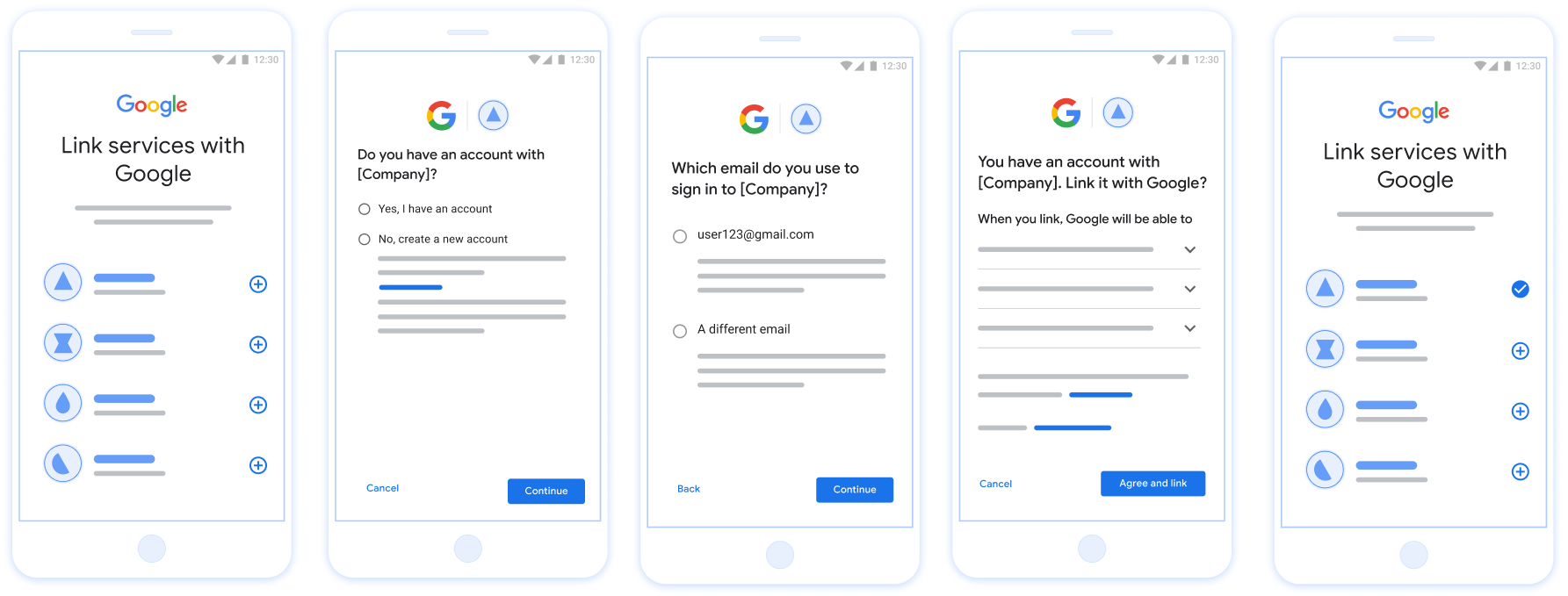
Figura 1. Vinculación de cuentas en el teléfono de un usuario con la vinculación optimizada
Requisitos para la vinculación simplificada
- Implementa el flujo de vinculación básica de OAuth web. Tu servicio debe admitir extremos de autorización y de intercambio de tokens que cumplan con OAuth 2.0.
- Tu extremo de intercambio de tokens debe admitir aserciones de tokens web JSON (JWT) y, además, implementar las intenciones
check,createyget.
Implementa tu servidor de OAuth
Tu extremo de intercambio de tokens debe admitir las intenciones check, create y get.
Sigue estos pasos para completar el flujo de vinculación de cuentas y saber cuándo se usan los diferentes intents:
- ¿El usuario tiene una cuenta en tu sistema de autenticación? (El usuario decide seleccionando SÍ o NO)
- SÍ: ¿El usuario usa el correo electrónico asociado a su Cuenta de Google para acceder a tu plataforma? (El usuario decide seleccionando SÍ o NO)
- SÍ: ¿El usuario tiene una cuenta coincidente en tu sistema de autenticación? (Se llama a
check intentpara confirmar).- SÍ : Se llama a
get intenty se vincula la cuenta si el intent de obtención se devuelve correctamente. - NO: ¿Crear una cuenta nueva? (El usuario decide seleccionando SÍ o NO)
- SÍ : Se llama a
create intenty se vincula la cuenta si la intención de creación se devuelve correctamente. - NO : Se activa el flujo de OAuth web, se dirige al usuario a su navegador y se le da la opción de vincularse con un correo electrónico diferente.
- SÍ : Se llama a
- SÍ : Se llama a
- NO : Se activa el flujo de OAuth web, se dirige al usuario a su navegador y se le da la opción de vincularse con un correo electrónico diferente.
- SÍ: ¿El usuario tiene una cuenta coincidente en tu sistema de autenticación? (Se llama a
- NO: ¿El usuario tiene una cuenta coincidente en tu sistema de autenticación? (Se llama a
check intentpara confirmar).- SÍ : Se llama a
get intenty se vincula la cuenta si el intent de obtención se devuelve correctamente. - NO : Se llama a
create intenty se vincula la cuenta si el intent de creación se devuelve correctamente.
- SÍ : Se llama a
- SÍ: ¿El usuario usa el correo electrónico asociado a su Cuenta de Google para acceder a tu plataforma? (El usuario decide seleccionando SÍ o NO)
Check for an existing user account (check intent)
After the user gives consent to access their Google profile, Google sends a request that contains a signed assertion of the Google user's identity. The assertion contains information that includes the user's Google Account ID, name, and email address. The token exchange endpoint configured for your project handles that request.
If the corresponding Google account is already present in your authentication
system, your token exchange endpoint responds with account_found=true. If the
Google account doesn't match an existing user, your token exchange endpoint
returns an HTTP 404 Not Found error with account_found=false.
The request has the following form:
POST /token HTTP/1.1 Host: oauth2.example.com Content-Type: application/x-www-form-urlencoded grant_type=urn:ietf:params:oauth:grant-type:jwt-bearer&intent=check&assertion=JWT&scope=SCOPES&client_id=GOOGLE_CLIENT_ID&client_secret=GOOGLE_CLIENT_SECRET
Your token exchange endpoint must be able to handle the following parameters:
| Token endpoint parameters | |
|---|---|
intent |
For these requests, the value of this parameter is
check. |
grant_type |
The type of token being exchanged. For these requests, this
parameter has the value urn:ietf:params:oauth:grant-type:jwt-bearer. |
assertion |
A JSON Web Token (JWT) that provides a signed assertion of the Google user's identity. The JWT contains information that includes the user's Google Account ID, name, and email address. |
client_id |
The client ID you assigned to Google. |
client_secret |
The client secret you assigned to Google. |
To respond to the check intent requests, your token exchange endpoint must perform the following steps:
- Validate and decode the JWT assertion.
- Check if the Google account is already present in your authentication system.
Valida y decodifica la aserción de JWT
Puedes validar y decodificar la aserción de JWT con un Biblioteca de decodificación JWT para tu lenguaje. Usa las claves públicas de Google, disponibles en JWK o PEM para verificar la firma del token.
Cuando se decodifica, la aserción de JWT luce como el siguiente ejemplo:
{ "sub": "1234567890", // The unique ID of the user's Google Account "iss": "https://accounts.google.com", // The assertion's issuer "aud": "123-abc.apps.googleusercontent.com", // Your server's client ID "iat": 233366400, // Unix timestamp of the assertion's creation time "exp": 233370000, // Unix timestamp of the assertion's expiration time "name": "Jan Jansen", "given_name": "Jan", "family_name": "Jansen", "email": "jan@gmail.com", // If present, the user's email address "email_verified": true, // true, if Google has verified the email address "hd": "example.com", // If present, the host domain of the user's GSuite email address // If present, a URL to user's profile picture "picture": "https://lh3.googleusercontent.com/a-/AOh14GjlTnZKHAeb94A-FmEbwZv7uJD986VOF1mJGb2YYQ", "locale": "en_US" // User's locale, from browser or phone settings }
Además de verificar la firma del token, comprueba que el token de la aserción
entidad emisora (campo iss) es https://accounts.google.com, que el público
(campo aud) es tu ID de cliente asignado y que el token no haya vencido.
(Campo exp).
Usa los campos email, email_verified y hd para determinar si
Google aloja una dirección de correo electrónico y tiene la autoridad para hacerlo. En los casos en que Google sea
autorizado, se sabe que el usuario actualmente es el propietario legítimo de la cuenta
y puedes omitir la contraseña y otros métodos de verificación de identidad. De lo contrario, estos métodos
se puede usar para verificar la cuenta antes de realizar la vinculación.
Casos en los que Google es confiable:
emailtiene el sufijo@gmail.com; esta es una cuenta de Gmail.email_verifiedes verdadero yhdestá configurado. Esta es una cuenta de G Suite.
Los usuarios pueden registrarse en Cuentas de Google sin usar Gmail ni G Suite. Cuándo
email no contiene un sufijo @gmail.com ni hd, ni tampoco
se recomienda verificar con métodos de verificación, tanto confiables como con contraseñas
del usuario. email_verified también puede ser verdadero, ya que Google verificó inicialmente el
usuario cuando se creó la cuenta de Google, sin embargo, la propiedad del tercero
de correo electrónico puede haber cambiado desde entonces.
Check if the Google account is already present in your authentication system
Check whether either of the following conditions are true:
- The Google Account ID, found in the assertion's
subfield, is in your user database. - The email address in the assertion matches a user in your user database.
If either condition is true, the user has already signed up. In that case, return a response like the following:
HTTP/1.1 200 Success
Content-Type: application/json;charset=UTF-8
{
"account_found":"true",
}
If neither the Google Account ID nor the email address specified in the
assertion matches a user in your database, the user hasn't signed up yet. In
this case, your token exchange endpoint needs to reply with a HTTP 404 error
that specifies "account_found": "false", as in the following example:
HTTP/1.1 404 Not found
Content-Type: application/json;charset=UTF-8
{
"account_found":"false",
}
Handle automatic linking (get intent)
After the user gives consent to access their Google profile, Google sends a request that contains a signed assertion of the Google user's identity. The assertion contains information that includes the user's Google Account ID, name, and email address. The token exchange endpoint configured for your project handles that request.
If the corresponding Google Account is already present in your authentication
system, your token exchange endpoint returns a token for the user. If the
Google Account doesn't match an existing user, your token exchange endpoint
returns a linking_error error and optional login_hint.
The request has the following form:
POST /token HTTP/1.1 Host: oauth2.example.com Content-Type: application/x-www-form-urlencoded grant_type=urn:ietf:params:oauth:grant-type:jwt-bearer&intent=get&assertion=JWT&scope=SCOPES&client_id=GOOGLE_CLIENT_ID&client_secret=GOOGLE_CLIENT_SECRET
Your token exchange endpoint must be able to handle the following parameters:
| Token endpoint parameters | |
|---|---|
intent |
For these requests, the value of this parameter is get. |
grant_type |
The type of token being exchanged. For these requests, this
parameter has the value urn:ietf:params:oauth:grant-type:jwt-bearer. |
assertion |
A JSON Web Token (JWT) that provides a signed assertion of the Google user's identity. The JWT contains information that includes the user's Google Account ID, name, and email address. |
scope |
Optional: Any scopes that you've configured Google to request from users. |
client_id |
The client ID you assigned to Google. |
client_secret |
The client secret you assigned to Google. |
To respond to the get intent requests, your token exchange endpoint must perform the following steps:
- Validate and decode the JWT assertion.
- Check if the Google account is already present in your authentication system.
Valida y decodifica la aserción de JWT
Puedes validar y decodificar la aserción de JWT con un Biblioteca de decodificación JWT para tu lenguaje. Usa las claves públicas de Google, disponibles en JWK o PEM para verificar la firma del token.
Cuando se decodifica, la aserción de JWT luce como el siguiente ejemplo:
{ "sub": "1234567890", // The unique ID of the user's Google Account "iss": "https://accounts.google.com", // The assertion's issuer "aud": "123-abc.apps.googleusercontent.com", // Your server's client ID "iat": 233366400, // Unix timestamp of the assertion's creation time "exp": 233370000, // Unix timestamp of the assertion's expiration time "name": "Jan Jansen", "given_name": "Jan", "family_name": "Jansen", "email": "jan@gmail.com", // If present, the user's email address "email_verified": true, // true, if Google has verified the email address "hd": "example.com", // If present, the host domain of the user's GSuite email address // If present, a URL to user's profile picture "picture": "https://lh3.googleusercontent.com/a-/AOh14GjlTnZKHAeb94A-FmEbwZv7uJD986VOF1mJGb2YYQ", "locale": "en_US" // User's locale, from browser or phone settings }
Además de verificar la firma del token, comprueba que el token de la aserción
entidad emisora (campo iss) es https://accounts.google.com, que el público
(campo aud) es tu ID de cliente asignado y que el token no haya vencido.
(Campo exp).
Usa los campos email, email_verified y hd para determinar si
Google aloja una dirección de correo electrónico y tiene la autoridad para hacerlo. En los casos en que Google sea
autorizado, se sabe que el usuario actualmente es el propietario legítimo de la cuenta
y puedes omitir la contraseña y otros métodos de verificación de identidad. De lo contrario, estos métodos
se puede usar para verificar la cuenta antes de realizar la vinculación.
Casos en los que Google es confiable:
emailtiene el sufijo@gmail.com; esta es una cuenta de Gmail.email_verifiedes verdadero yhdestá configurado. Esta es una cuenta de G Suite.
Los usuarios pueden registrarse en Cuentas de Google sin usar Gmail ni G Suite. Cuándo
email no contiene un sufijo @gmail.com ni hd, ni tampoco
se recomienda verificar con métodos de verificación, tanto confiables como con contraseñas
del usuario. email_verified también puede ser verdadero, ya que Google verificó inicialmente el
usuario cuando se creó la cuenta de Google, sin embargo, la propiedad del tercero
de correo electrónico puede haber cambiado desde entonces.
Check if the Google account is already present in your authentication system
Check whether either of the following conditions are true:
- The Google Account ID, found in the assertion's
subfield, is in your user database. - The email address in the assertion matches a user in your user database.
If an account is found for the user, issue an access token and return the values in a JSON object in the body of your HTTPS response, like in the following example:
{ "token_type": "Bearer", "access_token": "ACCESS_TOKEN", "refresh_token": "REFRESH_TOKEN", "expires_in": SECONDS_TO_EXPIRATION }
In some cases, account linking based on ID token might fail for the user. If it
does so for any reason, your token exchange endpoint needs to reply with a HTTP
401 error that specifies error=linking_error, as the following example shows:
HTTP/1.1 401 Unauthorized
Content-Type: application/json;charset=UTF-8
{
"error":"linking_error",
"login_hint":"foo@bar.com"
}
When Google receives a 401 error response with linking_error, Google sends
the user to your authorization endpoint with login_hint as a parameter. The
user completes account linking using the OAuth linking flow in their browser.
Handle account creation using Sign in with Google (create intent)
When a user needs to create an account on your service, Google makes a request
to your token exchange endpoint that specifies intent=create.
The request has the following form:
POST /token HTTP/1.1 Host: oauth2.example.com Content-Type: application/x-www-form-urlencoded response_type=token&grant_type=urn:ietf:params:oauth:grant-type:jwt-bearer&scope=SCOPES&intent=create&assertion=JWT&client_id=GOOGLE_CLIENT_ID&client_secret=GOOGLE_CLIENT_SECRET
Your token exchange endpoint must able to handle the following parameters:
| Token endpoint parameters | |
|---|---|
intent |
For these requests, the value of this parameter is create. |
grant_type |
The type of token being exchanged. For these requests, this
parameter has the value urn:ietf:params:oauth:grant-type:jwt-bearer. |
assertion |
A JSON Web Token (JWT) that provides a signed assertion of the Google user's identity. The JWT contains information that includes the user's Google Account ID, name, and email address. |
client_id |
The client ID you assigned to Google. |
client_secret |
The client secret you assigned to Google. |
The JWT within the assertion parameter contains the user's Google Account ID,
name, and email address, which you can use to create a new account on your
service.
To respond to the create intent requests, your token exchange endpoint must perform the following steps:
- Validate and decode the JWT assertion.
- Validate user information and create new account.
Valida y decodifica la aserción de JWT
Puedes validar y decodificar la aserción de JWT con un Biblioteca de decodificación JWT para tu lenguaje. Usa las claves públicas de Google, disponibles en JWK o PEM para verificar la firma del token.
Cuando se decodifica, la aserción de JWT luce como el siguiente ejemplo:
{ "sub": "1234567890", // The unique ID of the user's Google Account "iss": "https://accounts.google.com", // The assertion's issuer "aud": "123-abc.apps.googleusercontent.com", // Your server's client ID "iat": 233366400, // Unix timestamp of the assertion's creation time "exp": 233370000, // Unix timestamp of the assertion's expiration time "name": "Jan Jansen", "given_name": "Jan", "family_name": "Jansen", "email": "jan@gmail.com", // If present, the user's email address "email_verified": true, // true, if Google has verified the email address "hd": "example.com", // If present, the host domain of the user's GSuite email address // If present, a URL to user's profile picture "picture": "https://lh3.googleusercontent.com/a-/AOh14GjlTnZKHAeb94A-FmEbwZv7uJD986VOF1mJGb2YYQ", "locale": "en_US" // User's locale, from browser or phone settings }
Además de verificar la firma del token, comprueba que el token de la aserción
entidad emisora (campo iss) es https://accounts.google.com, que el público
(campo aud) es tu ID de cliente asignado y que el token no haya vencido.
(Campo exp).
Usa los campos email, email_verified y hd para determinar si
Google aloja una dirección de correo electrónico y tiene la autoridad para hacerlo. En los casos en que Google sea
autorizado, se sabe que el usuario actualmente es el propietario legítimo de la cuenta
y puedes omitir la contraseña y otros métodos de verificación de identidad. De lo contrario, estos métodos
se puede usar para verificar la cuenta antes de realizar la vinculación.
Casos en los que Google es confiable:
emailtiene el sufijo@gmail.com; esta es una cuenta de Gmail.email_verifiedes verdadero yhdestá configurado. Esta es una cuenta de G Suite.
Los usuarios pueden registrarse en Cuentas de Google sin usar Gmail ni G Suite. Cuándo
email no contiene un sufijo @gmail.com ni hd, ni tampoco
se recomienda verificar con métodos de verificación, tanto confiables como con contraseñas
del usuario. email_verified también puede ser verdadero, ya que Google verificó inicialmente el
usuario cuando se creó la cuenta de Google, sin embargo, la propiedad del tercero
de correo electrónico puede haber cambiado desde entonces.
Validate user information and create new account
Check whether either of the following conditions are true:
- The Google Account ID, found in the assertion's
subfield, is in your user database. - The email address in the assertion matches a user in your user database.
If either condition is true, prompt the user to link their existing account
with their Google Account. To do so, respond to the request with an HTTP 401 error
that specifies error=linking_error and gives the user's email address as the
login_hint. The following is a sample response:
HTTP/1.1 401 Unauthorized
Content-Type: application/json;charset=UTF-8
{
"error":"linking_error",
"login_hint":"foo@bar.com"
}
When Google receives a 401 error response with linking_error, Google sends
the user to your authorization endpoint with login_hint as a parameter. The
user completes account linking using the OAuth linking flow in their browser.
If neither condition is true, create a new user account with the information provided in the JWT. New accounts don't typically have a password set. It's recommended that you add Sign in with Google to other platforms to enable users to sign in with Google across the surfaces of your application. Alternatively, you can email the user a link that starts your password recovery flow to allow the user to set a password to sign in on other platforms.
When the creation is completed, issue an access token and return the values in a JSON object in the body of your HTTPS response, like in the following example:
{ "token_type": "Bearer", "access_token": "ACCESS_TOKEN", "refresh_token": "REFRESH_TOKEN", "expires_in": SECONDS_TO_EXPIRATION }
Obtén tu ID de cliente de la API de Google
Deberás proporcionar tu ID de cliente de la API de Google durante el proceso de registro de la vinculación de la cuenta.
Obtener tu ID de cliente de API con el proyecto que creaste mientras completabas los pasos de Vinculación de OAuth Para ello, completa los siguientes pasos:
- Ve a la página Clientes.
Crea o selecciona un proyecto de las APIs de Google.
Si tu proyecto no tiene un ID de cliente para el tipo de aplicación web, haz clic en Crear cliente para crear uno. Asegúrate de incluir el dominio de tu sitio en el cuadro Orígenes autorizados de JavaScript. Cuando realices pruebas o desarrollos locales, debes agregar
http://localhostyhttp://localhost:<port_number>al campo Orígenes de JavaScript autorizados.
Valida la implementación
Puedes validar tu implementación con la herramienta OAuth 2.0 Playground.
En la herramienta, sigue estos pasos:
- Haz clic en Configuración para abrir la ventana Configuración de OAuth 2.0.
- En el campo Flujo de OAuth, selecciona Del cliente.
- En el campo Extremos de OAuth, selecciona Personalizado.
- Especifica tu extremo de OAuth 2.0 y el ID de cliente que le asignaste a Google en los campos correspondientes.
- En la sección Paso 1, no selecciones ningún alcance de Google. En su lugar, deja este campo en blanco o escribe un alcance válido para tu servidor (o una cadena arbitraria si no usas alcances de OAuth). Cuando termines, haz clic en Autorizar APIs.
- En las secciones Paso 2 y Paso 3, sigue el flujo de OAuth 2.0 y verifica que cada paso funcione según lo previsto.
Puedes validar tu implementación con la herramienta de demostración de vinculación de Cuentas de Google.
En la herramienta, sigue estos pasos:
- Haz clic en el botón Acceder con Google.
- Elige la cuenta que quieras vincular.
- Ingresa el ID de servicio.
- De manera opcional, ingresa uno o más alcances para los que solicitarás acceso.
- Haz clic en Iniciar demostración.
- Cuando se te solicite, confirma que puedes dar tu consentimiento y rechazar la solicitud de vinculación.
- Confirma que se te redirecciona a tu plataforma.