
खातों को लिंक करने के लिए, इंडस्ट्री के स्टैंडर्ड OAuth 2.0 ऑथराइज़ेशन कोड फ़्लो का इस्तेमाल किया जाता है.
एजेंट के लिए OAuth 2.1 और पीकेसीई
स्टेटलेस एआई एजेंट और मल्टी-मॉडल पाइपलाइन के लिए, OAuth 2.1 को लागू करने का सुझाव दिया जाता है.
- पीकेसीई (प्रूफ़ की फ़ॉर कोड एक्सचेंज): ऑथराइज़ेशन कोड फ़्लो को सुरक्षित करने के लिए, इसका इस्तेमाल करना ज़रूरी है. इससे इंटरसेप्शन हमलों को रोका जा सकता है.
- इंप्लिसिट फ़्लो नहीं: इंप्लिसिट फ़्लो, यूआरएल में ऐक्सेस टोकन दिखाता है, इससे एजेंट के एनवायरमेंट के लिए सुरक्षा से जुड़ा जोखिम पैदा होता है.
आपकी सेवा में, OAuth 2.0/2.1 के मुताबिक ऑथराइज़ेशन और टोकन एक्सचेंज एंडपॉइंट काम करने चाहिए.
प्रोजेक्ट बनाना
खाता जोड़ने की सुविधा का इस्तेमाल करने के लिए, अपना प्रोजेक्ट बनाने के लिए:
- Google API Console पर जाएं.
- प्रोजेक्ट बनाएं पर क्लिक करें.
- कोई नाम डालें या जनरेट किए गए सुझाव को स्वीकार करें.
- बाकी बचे फ़ील्ड की पुष्टि करें या उनमें बदलाव करें.
- बनाएं पर क्लिक करें.
अपना प्रोजेक्ट आईडी देखने के लिए:
- Google API Console पर जाएं.
- लैंडिंग पेज पर मौजूद टेबल में, अपना प्रोजेक्ट ढूंढें. प्रोजेक्ट आईडी, आईडी कॉलम में दिखता है.
उस स्क्रीन को कॉन्फ़िगर करना जहां OAuth के लिए सहमति दी जाती है
Google खाता जोड़ने की प्रोसेस में, सहमति वाली स्क्रीन शामिल होती है. इस स्क्रीन पर उपयोगकर्ताओं को यह जानकारी मिलती है कि कौनसे ऐप्लिकेशन उनके डेटा को ऐक्सेस करने का अनुरोध कर रहे हैं, वे किस तरह का डेटा मांग रहे हैं, और उन पर कौनसी शर्तें लागू होती हैं. Google API क्लाइंट आईडी जनरेट करने से पहले, आपको उस स्क्रीन को कॉन्फ़िगर करना होगा जहां OAuth के लिए सहमति दी जाती है.
- Google APIs कंसोल के, उस स्क्रीन वाले पेज को खोलें जहां OAuth के लिए सहमति दी जाती है.
- अगर आपसे पूछा जाए, तो वह प्रोजेक्ट चुनें जिसे आपने अभी बनाया है.
"OAuth के लिए सहमति वाली स्क्रीन" पेज पर, फ़ॉर्म भरें और “सेव करें” बटन पर क्लिक करें.
ऐप्लिकेशन का नाम: सहमति का अनुरोध करने वाले ऐप्लिकेशन का नाम. नाम से आपके ऐप्लिकेशन की सही जानकारी मिलनी चाहिए. साथ ही, यह नाम उपयोगकर्ताओं को अन्य जगहों पर दिखने वाले ऐप्लिकेशन के नाम से मेल खाना चाहिए. ऐप्लिकेशन का नाम, खाता जोड़ने के लिए सहमति वाली स्क्रीन पर दिखेगा.
ऐप्लिकेशन का लोगो: सहमति वाली स्क्रीन पर दिखने वाली इमेज. इससे उपयोगकर्ताओं को आपके ऐप्लिकेशन को पहचानने में मदद मिलेगी. लोगो, खाता जोड़ने के लिए सहमति वाली स्क्रीन और खाते की सेटिंग में दिखता है
सहायता के लिए ईमेल पता: ताकि उपयोगकर्ता, सहमति से जुड़े सवालों के लिए आपसे संपर्क कर सकें.
Google APIs के लिए स्कोप: स्कोप की मदद से, आपका ऐप्लिकेशन उपयोगकर्ता के निजी Google डेटा को ऐक्सेस कर सकता है. Google खाता जोड़ने के इस्तेमाल के मामले में, डिफ़ॉल्ट स्कोप (ईमेल, प्रोफ़ाइल, openid) काफ़ी है. आपको संवेदनशील स्कोप जोड़ने की ज़रूरत नहीं है. आम तौर पर, स्कोप के लिए अनुरोध, ऐक्सेस की ज़रूरत पड़ने पर ही करना चाहिए. पहले से अनुरोध करके रखना सही नहीं है. ज़्यादा जानें.
अनुमति वाले डोमेन: Google, आपको और आपके उपयोगकर्ताओं को सुरक्षित रखने के लिए, सिर्फ़ उन ऐप्लिकेशन को अनुमति वाले डोमेन का इस्तेमाल करने की अनुमति देता है जो OAuth का इस्तेमाल करके पुष्टि करते हैं. आपके ऐप्लिकेशन के लिंक, अनुमति वाले डोमेन पर होस्ट किए जाने चाहिए. ज़्यादा जानें.
ऐप्लिकेशन के होम पेज का लिंक: आपके ऐप्लिकेशन का होम पेज. यह अनुमति वाले डोमेन पर होस्ट किया जाना चाहिए.
ऐप्लिकेशन की निजता नीति का लिंक: यह Google खाता जोड़ने के लिए सहमति वाली स्क्रीन पर दिखता है. यह अनुमति वाले डोमेन पर होस्ट किया जाना चाहिए.
ऐप्लिकेशन की सेवा की शर्तों का लिंक (ज़रूरी नहीं): यह अनुमति वाले डोमेन पर होस्ट किया जाना चाहिए.
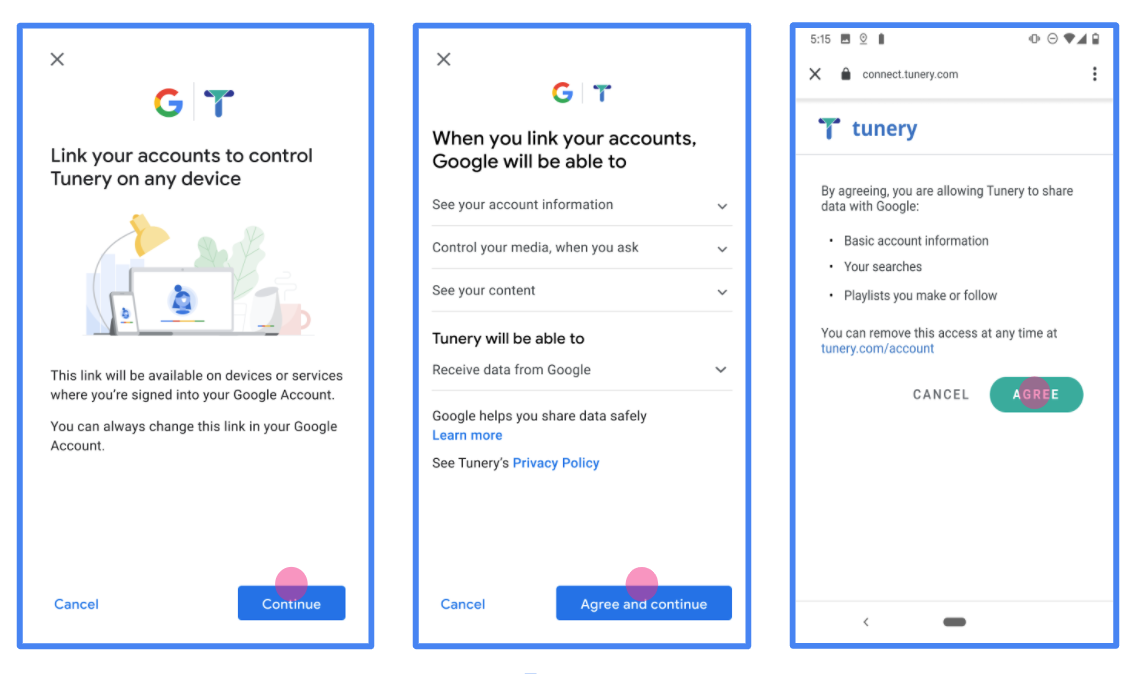
पहली इमेज. Tunery नाम के काल्पनिक ऐप्लिकेशन के लिए, Google खाता जोड़ने के लिए सहमति वाली स्क्रीन
"पुष्टि की स्थिति" देखें. अगर आपके ऐप्लिकेशन की पुष्टि की जानी है, तो "पुष्टि के लिए सबमिट करें" बटन पर क्लिक करके, अपने ऐप्लिकेशन को पुष्टि के लिए सबमिट करें. ज़्यादा जानकारी के लिए, OAuth की पुष्टि से जुड़ी ज़रूरी शर्तें देखें.
अपना OAuth सर्वर लागू करना
ऑथराइज़ेशन कोड फ़्लो के लिए, OAuth 2.0 सर्वर को लागू करने के लिए दो एंडपॉइंट की ज़रूरत होती है. आपकी सेवा, एचटीटीपीएस के ज़रिए इन एंडपॉइंट को उपलब्ध कराती है. पहला एंडपॉइंट, ऑथराइज़ेशन एंडपॉइंट होता है. यह डेटा ऐक्सेस करने के लिए, उपयोगकर्ताओं से सहमति पाने या हासिल करने के लिए ज़िम्मेदार होता है. ऑथराइज़ेशन एंडपॉइंट, आपके उन उपयोगकर्ताओं को साइन-इन यूज़र इंटरफ़ेस (यूआई) दिखाता है जिन्होंने पहले से साइन इन नहीं किया है. साथ ही, यह अनुरोध किए गए ऐक्सेस के लिए सहमति रिकॉर्ड करता है. दूसरा एंडपॉइंट, टोकन एक्सचेंज एंडपॉइंट होता है. इसका इस्तेमाल, एनक्रिप्ट किए गए स्ट्रिंग पाने के लिए किया जाता है. इन्हें टोकन कहा जाता है. ये टोकन, किसी उपयोगकर्ता को आपकी सेवा को ऐक्सेस करने की अनुमति देते हैं.
जब Google के किसी ऐप्लिकेशन को आपकी सेवा के किसी एपीआई को कॉल करना होता है, तो Google इन एंडपॉइंट का इस्तेमाल एक साथ करता है, ताकि आपके उपयोगकर्ताओं से उनकी ओर से इन एपीआई को कॉल करने की अनुमति मिल सके.
Google खाता लिंक करना: OAuth ऑथराइज़ेशन कोड फ़्लो
इस क्रम के डायग्राम में, उपयोगकर्ता, Google, और आपकी सेवा के एंडपॉइंट के बीच होने वाले इंटरैक्शन के बारे में बताया गया है.
भूमिकाएं और ज़िम्मेदारियां
इस टेबल में, Google खाता लिंक करने (जीएएल) के OAuth फ़्लो में शामिल लोगों की भूमिकाओं और ज़िम्मेदारियों के बारे में बताया गया है. ध्यान दें कि जीएएल में, Google, OAuth क्लाइंट के तौर पर काम करता है. वहीं, आपकी सेवा, पहचान/सेवा देने वाली कंपनी के तौर पर काम करती है.
| ऐक्टर / कॉम्पोनेंट | जीएएल में भूमिका | ज़िम्मेदारियां |
|---|---|---|
| Google ऐप्लिकेशन / सर्वर | OAuth क्लाइंट | यह फ़्लो शुरू करता है, ऑथराइज़ेशन कोड हासिल करता है, उसे टोकन के लिए एक्सचेंज करता है, और आपकी सेवा के एपीआई को ऐक्सेस करने के लिए, उन्हें सुरक्षित तरीके से सेव करता है. |
| आपका ऑथराइज़ेशन एंडपॉइंट | ऑथराइज़ेशन सर्वर | यह आपके उपयोगकर्ताओं की पुष्टि करता है और Google के साथ अपने डेटा का ऐक्सेस शेयर करने के लिए, उनकी सहमति लेता है. |
| आपका टोकन एक्सचेंज एंडपॉइंट | ऑथराइज़ेशन सर्वर | यह ऑथराइज़ेशन कोड और रीफ़्रेश टोकन की पुष्टि करता है. साथ ही, Google सर्वर को ऐक्सेस टोकन जारी करता है. |
| Google रीडायरेक्ट यूआरआई | कॉलबैक एंडपॉइंट | यह
code और state वैल्यू के साथ, आपके ऑथराइज़ेशन सेवा से उपयोगकर्ता के रीडायरेक्ट को स्वीकार करता है. |
Google की ओर से शुरू किए गए OAuth 2.0 ऑथराइज़ेशन कोड फ़्लो सेशन का फ़्लो इस तरह होता है:
- Google, उपयोगकर्ता के ब्राउज़र में आपका ऑथराइज़ेशन एंडपॉइंट खोलता है. अगर किसी कार्रवाई के लिए, सिर्फ़ आवाज़ वाले डिवाइस पर फ़्लो शुरू किया गया है, तो Google, फ़ोन पर कार्रवाई ट्रांसफ़र कर देता है.
- उपयोगकर्ता साइन इन करता है. अगर उसने पहले से साइन इन नहीं किया है, तो वह Google को आपके एपीआई की मदद से अपने डेटा को ऐक्सेस करने की अनुमति देता है. अगर उसने पहले से अनुमति नहीं दी है, तो वह अनुमति देता है.
- आपकी सेवा, एक ऑथराइज़ेशन कोड बनाती है और उसे Google को लौटाती है. ऐसा करने के लिए, उपयोगकर्ता के ब्राउज़र को Google पर रीडायरेक्ट करें. साथ ही, अनुरोध में ऑथराइज़ेशन कोड जोड़ें.
- Google, ऑथराइज़ेशन कोड को आपके टोकन एक्सचेंज एंडपॉइंट पर भेजता है. यह कोड की पुष्टि करता है और ऐक्सेस टोकन और रीफ़्रेश टोकन लौटाता है. ऐक्सेस टोकन, कम समय के लिए मान्य होता है. आपकी सेवा, एपीआई को ऐक्सेस करने के लिए, इसे क्रेडेंशियल के तौर पर स्वीकार करती है. रीफ़्रेश टोकन, लंबे समय के लिए मान्य होता है. Google इसे सेव कर सकता है और इसकी समयसीमा खत्म होने पर, नए ऐक्सेस टोकन पाने के लिए इसका इस्तेमाल कर सकता है.
- उपयोगकर्ता के खाता लिंक करने का फ़्लो पूरा करने के बाद, Google से भेजे गए हर अनुरोध में एक ऐक्सेस टोकन शामिल होता है.
लागू करने की रेसिपी
ऑथराइज़ेशन कोड फ़्लो लागू करने के लिए, यह तरीका अपनाएं.
पहला चरण: ऑथराइज़ेशन के अनुरोधों को मैनेज करना
जब Google, खाता लिंक करने की प्रोसेस शुरू करता है, तो वह उपयोगकर्ता को आपके ऑथराइज़ेशन एंडपॉइंट पर रीडायरेक्ट करता है. प्रोटोकॉल के कॉन्ट्रैक्ट और पैरामीटर की ज़रूरी शर्तों के बारे में ज़्यादा जानने के लिए, ऑथराइज़ेशन एंडपॉइंट देखें.
अनुरोध को मैनेज करने के लिए, यह तरीका अपनाएं:
अनुरोध की पुष्टि करना:
- पुष्टि करें कि
client_id, Google को असाइन किए गए क्लाइंट आईडी से मेल खाता हो. - पुष्टि करें कि
redirect_uriGoogle के रीडायरेक्ट यूआरएल से मेल खाता हो:none https://oauth-redirect.googleusercontent.com/r/YOUR_PROJECT_ID https://oauth-redirect-sandbox.googleusercontent.com/r/YOUR_PROJECT_ID - पुष्टि करें कि
response_typecodeहो.
- पुष्टि करें कि
उपयोगकर्ता की पुष्टि करना:
- देखें कि उपयोगकर्ता ने आपकी सेवा में साइन इन किया है या नहीं.
- अगर उपयोगकर्ता ने साइन इन नहीं किया है, तो उसे साइन-इन या साइन-अप फ़्लो पूरा करने के लिए कहें.
ऑथराइज़ेशन कोड जनरेट करना:
- उपयोगकर्ता और क्लाइंट के लिए, अनुमान न लगाया जा सकने वाला यूनीक ऑथराइज़ेशन कोड बनाएं.
- कोड की समयसीमा करीब 10 मिनट पर सेट करें.
Google पर वापस रीडायरेक्ट करना:
- ब्राउज़र को
redirect_uriमें दिए गए यूआरएल पर रीडायरेक्ट करें. - ये क्वेरी पैरामीटर जोड़ें:
code: आपके जनरेट किए गए ऑथराइज़ेशन कोड.state: Google से मिली, बिना बदलाव वाली स्टेट वैल्यू.
- ब्राउज़र को
दूसरा चरण: टोकन एक्सचेंज के अनुरोधों को मैनेज करना
आपका टोकन एक्सचेंज एंडपॉइंट, दो तरह के अनुरोधों को प्रोसेस करता है: कोड को टोकन के लिए एक्सचेंज करना और समयसीमा खत्म हो चुके ऐक्सेस टोकन को रीफ़्रेश करना. प्रोटोकॉल के कॉन्ट्रैक्ट और पैरामीटर की ज़रूरी शर्तों के बारे में ज़्यादा जानने के लिए, टोकन एक्सचेंज एंडपॉइंट देखें.
A. टोकन के लिए ऑथराइज़ेशन कोड एक्सचेंज करना
जब Google को ऑथराइज़ेशन कोड मिलता है, तो वह टोकन पाने के लिए, आपके टोकन एक्सचेंज एंडपॉइंट (POST) को कॉल करता है.
अनुरोध की पुष्टि करना:
client_idऔरclient_secretकी पुष्टि करें.- पुष्टि करें कि ऑथराइज़ेशन कोड मान्य है और उसकी समयसीमा खत्म नहीं हुई है.
- पुष्टि करें कि
redirect_uri, पहले चरण में इस्तेमाल की गई वैल्यू से मेल खाता हो. - अगर पुष्टि नहीं हो पाती है, तो एचटीटीपी
400 Bad Requestके साथ{"error": "invalid_grant"}दिखाएं.
टोकन जारी करना:
- लंबे समय के लिए मान्य
refresh_tokenऔर कम समय के लिए मान्यaccess_token(आम तौर पर, एक घंटा) जनरेट करें. - मानक JSON टोकन के जवाब के साथ, एचटीटीपी
200 OKदिखाएं.
- लंबे समय के लिए मान्य
B. ऐक्सेस टोकन रीफ़्रेश करना
जब ऐक्सेस टोकन की समयसीमा खत्म हो जाती है, तो Google, रीफ़्रेश टोकन का इस्तेमाल करके, नए टोकन का अनुरोध करता है.
अनुरोध की पुष्टि करना:
client_id,client_secret, औरrefresh_tokenकी पुष्टि करें.- अगर पुष्टि नहीं हो पाती है, तो एचटीटीपी
400 Bad Requestके साथ{"error": "invalid_grant"}दिखाएं.
नया ऐक्सेस टोकन जारी करना:
- कम समय के लिए मान्य नया
access_tokenजनरेट करें. - JSON टोकन के जवाब के साथ, एचटीटीपी
200 OKदिखाएं. इसमें, नया रीफ़्रेश टोकन भी शामिल किया जा सकता है.
- कम समय के लिए मान्य नया
उपयोगकर्ता की जानकारी के अनुरोधों को मैनेज करना
userinfo एंडपॉइंट, OAuth 2.0 से सुरक्षित किया गया एक ऐसा संसाधन है जो लिंक किए गए उपयोगकर्ता के बारे में दावे दिखाता है. नीचे दिए गए इस्तेमाल के उदाहरणों को छोड़कर, userinfo एंडपॉइंट को लागू और होस्ट करना ज़रूरी नहीं है:
- Google One Tap की मदद से, लिंक किए गए खाते में साइन इन करें.
- AndroidTV पर बिना किसी रुकावट के सदस्यता.
आपके टोकन एंडपॉइंट से ऐक्सेस टोकन पाने के बाद, Google आपके userinfo एंडपॉइंट पर एक अनुरोध भेजता है, ताकि लिंक किए गए उपयोगकर्ता की प्रोफ़ाइल की बुनियादी जानकारी फिर से मिल सके.
| userinfo एंडपॉइंट अनुरोध के हेडर | |
|---|---|
Authorization header |
बेयरर टाइप का ऐक्सेस टोकन. |
उदाहरण के लिए, अगर आपका userinfo एंडपॉइंट यहां उपलब्ध है
https://myservice.example.com/userinfo, अनुरोध कुछ ऐसा दिख सकता है:
GET /userinfo HTTP/1.1
Host: myservice.example.com
Authorization: Bearer ACCESS_TOKEN
अपने userinfo एंडपॉइंट पर अनुरोधों को मैनेज करने के लिए यह तरीका अपनाएं:
- ऑथराइज़ेशन हेडर से ऐक्सेस टोकन निकालें और ऐक्सेस टोकन से जुड़े उपयोगकर्ता की जानकारी दिखाएं.
- अगर ऐक्सेस टोकन अमान्य है, तो
WWW-Authenticateरिस्पॉन्स हेडर का इस्तेमाल करके, एचटीटीपी 401 बिना अनुमति वाली गड़बड़ी दिखाएं. नीचे userinfo गड़बड़ी के जवाब का एक उदाहरण दिया गया है:HTTP/1.1 401 Unauthorized WWW-Authenticate: error="invalid_token", error_description="The Access Token expired"
अगर ऐक्सेस टोकन मान्य है, तो वापस जाएं और एचटीटीपीएस के मुख्य हिस्से में, यहां दिए गए JSON ऑब्जेक्ट के साथ एचटीटीपी 200 रिस्पॉन्स भेजें जवाब:
{ "sub": "USER_UUID", "email": "EMAIL_ADDRESS", "given_name": "FIRST_NAME", "family_name": "LAST_NAME", "name": "FULL_NAME", "picture": "PROFILE_PICTURE", }userinfo एंडपॉइंट रिस्पॉन्स subएक यूनीक आईडी, जो आपके सिस्टम में उपयोगकर्ता की पहचान करता है. emailउपयोगकर्ता का ईमेल पता. given_nameज़रूरी नहीं: उपयोगकर्ता का नाम. family_nameज़रूरी नहीं: उपयोगकर्ता का सरनेम. nameज़रूरी नहीं: उपयोगकर्ता का पूरा नाम. pictureज़रूरी नहीं: उपयोगकर्ता की प्रोफ़ाइल फ़ोटो.
लागू करने की पुष्टि करना
OAuth 2.0 Playground टूल का इस्तेमाल करके, लागू करने की पुष्टि की जा सकती है.
टूल में, यह तरीका अपनाएं:
- OAuth 2.0 कॉन्फ़िगरेशन विंडो खोलने के लिए, कॉन्फ़िगरेशन पर क्लिक करें.
- OAuth फ़्लो फ़ील्ड में, क्लाइंट-साइड चुनें.
- OAuth एंडपॉइंट फ़ील्ड में, कस्टम चुनें.
- अपने OAuth 2.0 एंडपॉइंट और Google को असाइन किया गया क्लाइंट आईडी, उससे जुड़े फ़ील्ड में डालें.
- पहला चरण सेक्शन में, कोई भी Google स्कोप न चुनें. इसके बजाय, इस फ़ील्ड को खाली छोड़ दें या अपने सर्वर के लिए मान्य स्कोप टाइप करें. अगर OAuth स्कोप का इस्तेमाल नहीं किया जाता है, तो कोई भी स्ट्रिंग टाइप करें. जब आपका काम पूरा हो जाए, तो एपीआई को अनुमति दें पर क्लिक करें.
- दूसरे चरण और तीसरे चरण सेक्शन में, OAuth 2.0 फ़्लो देखें. साथ ही, यह पुष्टि करें कि हर चरण उम्मीद के मुताबिक काम कर रहा है.
Google खाता लिंक करने की सुविधा का डेमो टूल का इस्तेमाल करके, लागू की गई सुविधा की पुष्टि की जा सकती है.
टूल में, यह तरीका अपनाएं:
- Google से साइन इन करें बटन पर क्लिक करें.
- वह खाता चुनें जिसे आपको लिंक करना है.
- सेवा आईडी डालें.
- विकल्प के तौर पर, एक या उससे ज़्यादा ऐसे स्कोप डालें जिनके लिए आपको ऐक्सेस का अनुरोध करना है.
- डेमो शुरू करें पर क्लिक करें.
- जब कहा जाए, तब पुष्टि करें कि आपके पास खाते को लिंक करने के अनुरोध को स्वीकार या अस्वीकार करने का विकल्प है.
- पुष्टि करें कि आपको अपने प्लैटफ़ॉर्म पर रीडायरेक्ट किया गया हो.