
帳戶是透過業界標準的 OAuth 2.0 授權碼流程連結。
代理程式適用的 OAuth 2.1 和 PKCE
對於無狀態 AI 代理程式和多模態管道,建議強制執行 OAuth 2.1。
- PKCE (用於程式碼交換的金鑰證明):必須用於保護授權碼流程,防止攔截攻擊。
- 沒有隱含流程:隱含流程會在網址中公開存取權杖, 這會對代理程式環境造成安全風險。
您的服務必須支援符合 OAuth 2.0/2.1 規範的授權和權杖交換端點。
建立專案
如要建立專案以使用帳戶連結,請按照下列步驟操作:
- 前往 Google API 控制台。
- 按一下 [Create Project]。
- 輸入名稱或接受系統產生的建議。
- 確認或編輯其餘欄位。
- 點選「建立」。
如要查看專案 ID,請按照下列步驟操作:
- 前往 Google API 控制台。
- 在到達網頁的表格中找出專案。專案 ID 會顯示在「ID」欄中。
設定 OAuth 同意畫面
Google 帳戶連結程序會顯示同意畫面,告知使用者要求存取資料的應用程式、要求存取的資料類型,以及適用條款。您必須先設定 OAuth 同意畫面,才能產生 Google API 用戶端 ID。
- 開啟 Google API 控制台的「OAuth consent screen」(OAuth 同意畫面) 頁面。
- 如果出現提示,請選取您剛建立的專案。
在「OAuth 同意畫面」頁面中填寫表單,然後按一下「儲存」按鈕。
應用程式名稱:要求同意的應用程式名稱。名稱應如實反映應用程式,且與使用者在其他地方看到的應用程式名稱一致。應用程式名稱會顯示在帳戶連結同意畫面上。
應用程式標誌:同意畫面上的圖片,可協助使用者識別您的應用程式。標誌會顯示在帳戶連結同意畫面和帳戶設定中。
支援電子郵件:方便使用者與您聯絡,洽詢同意聲明相關事宜。
Google API 的範圍:範圍可讓應用程式存取使用者的私人 Google 資料。如果是 Google 帳戶連結用途,預設範圍 (電子郵件地址、個人資料、openid) 就已足夠,不需要新增任何敏感範圍。一般而言,最佳做法是在需要存取權時,逐步要求範圍,而不是預先要求。瞭解詳情。
授權網域:為保障您與使用者的安全,Google 只允許應用程式透過 OAuth 驗證,使用授權網域。應用程式的連結必須託管於授權網域。瞭解詳情。
應用程式首頁連結:應用程式的首頁。必須託管在已授權網域。
應用程式隱私權政策連結:顯示在 Google 帳戶連結同意畫面上。必須託管在已授權網域。
應用程式服務條款連結 (選填):必須託管於已授權網域。
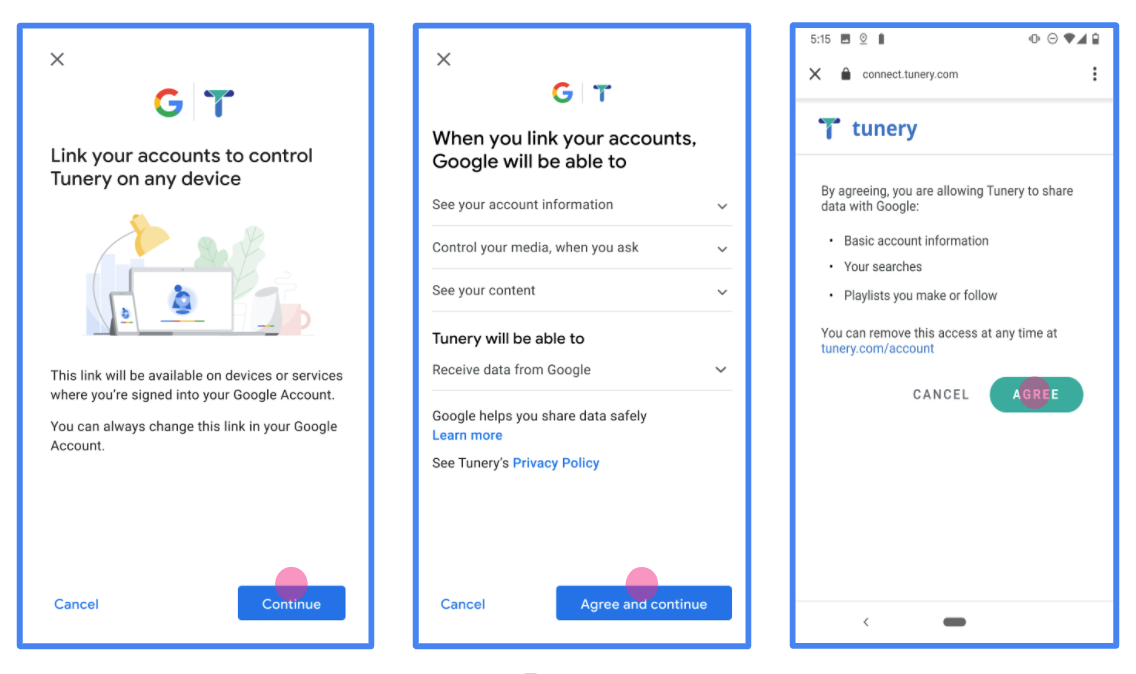
圖 1. 虛構應用程式 Tunery 的 Google 帳戶連結同意畫面
查看「驗證狀態」,如果應用程式需要驗證,請點按「送交驗證」按鈕,將應用程式送交驗證。詳情請參閱「OAuth 驗證規定」。
導入 OAuth 伺服器
OAuth 2.0 伺服器實作的授權碼流程包含兩個端點,您的服務會透過 HTTPS 提供這些端點。第一個端點是授權端點,負責尋找或取得使用者同意聲明,允許存取資料。授權端點會向尚未登入的使用者顯示登入 UI,並記錄他們對所要求存取的同意聲明。第二個端點是權杖交換端點,用於取得加密字串 (稱為權杖),授權使用者存取您的服務。
當 Google 應用程式需要呼叫您服務的 API 時,Google 會一併使用這些端點,向使用者取得代表他們呼叫這些 API 的權限。
Google 帳戶連結:OAuth 授權碼流程
下方的序列圖詳細說明使用者、Google 和服務端點之間的互動。
角色與職責
下表定義 Google 帳戶連結 (GAL) OAuth 流程中參與者的角色和職責。請注意,在 GAL 中,Google 是 OAuth 用戶端,而您的服務是身分/服務供應商。
| 執行者 / 元件 | GAL 角色 | 職責 |
|---|---|---|
| Google 應用程式 / 伺服器 | OAuth 用戶端 | 啟動流程、接收授權碼、將授權碼換成權杖,並安全地儲存權杖,以便存取服務的 API。 |
| 您的授權端點 | 授權伺服器 | 驗證使用者身分,並徵得同意,允許 Google 存取使用者資料。 |
| 您的權杖交換端點 | 授權伺服器 | 驗證授權碼和更新權杖,並將存取權杖核發給 Google 伺服器。 |
| Google 重新導向 URI | 回呼端點 | 從授權服務接收使用者重新導向,其中包含 code 和 state 值。 |
Google 啟動的 OAuth 2.0 授權碼流程工作階段會依下列流程進行:
- Google 會在使用者瀏覽器中開啟授權端點。如果使用者在僅支援語音的裝置上啟動動作流程,Google 會將執行作業轉移至手機。
- 使用者登入 (如果尚未登入),並授權 Google 透過您的 API 存取資料 (如果尚未授權)。
- 您的服務會建立授權碼,並傳回給 Google。如要這麼做,請將使用者的瀏覽器重新導向回 Google,並在要求中附加授權碼。
- Google 會將授權碼傳送至權杖交換端點,該端點會驗證授權碼的真實性,並傳回存取權杖和更新權杖。存取權杖是短期權杖,服務會接受這類權杖做為存取 API 的憑證。更新權杖是長期有效的權杖,Google 可以儲存並在存取權杖過期時使用,以取得新的存取權杖。
- 使用者完成帳戶連結流程後,Google 傳送的每個後續要求都會包含存取權杖。
導入作業參考資料
請按照下列步驟導入授權碼流程。
步驟 1:處理授權要求
Google 啟動帳戶連結程序時,會將使用者重新導向至授權端點。如需詳細的通訊協定合約和參數規定,請參閱「授權端點」。
如要處理要求,請執行下列動作:
驗證要求:
- 確認
client_id與指派給 Google 的用戶端 ID 相符。 - 確認
redirect_uri與預期的 Google 重新導向網址相符:none https://oauth-redirect.googleusercontent.com/r/YOUR_PROJECT_ID https://oauth-redirect-sandbox.googleusercontent.com/r/YOUR_PROJECT_ID - 確認
response_type為code。
- 確認
驗證使用者:
- 確認使用者是否已登入您的服務。
- 如果使用者未登入,請提示他們完成登入或註冊流程。
產生授權碼:
- 建立與使用者和用戶端相關聯的專屬授權碼,且該授權碼無法猜出。
- 將驗證碼的有效期限設為約 10 分鐘。
重新導向回 Google:
- 將瀏覽器重新導向至
redirect_uri中提供的網址。 - 附加下列查詢參數:
code:您產生的授權碼。state:從 Google 收到的未修改狀態值。
- 將瀏覽器重新導向至
步驟 2:處理權杖交換要求
權杖交換端點會處理兩類要求:將代碼換成權杖,以及更新過期的存取權杖。如需詳細的通訊協定合約和參數規定,請參閱「權杖交換端點」。
A. 交換授權碼以取得權杖
Google 收到授權碼後,會呼叫權杖交換端點 (POST) 來擷取權杖。
驗證要求:
- 驗證「
client_id」和「client_secret」。 - 確認授權碼有效且未過期。
- 確認
redirect_uri與步驟 1 中使用的值相符。 - 如果驗證失敗,請傳回含有
{"error": "invalid_grant"}的 HTTP400 Bad Request。
- 驗證「
核發權杖:
- 產生長期
refresh_token和短期access_token(通常為 1 小時)。 - 傳回 HTTP
200 OK,其中包含標準 JSON 權杖回應。
- 產生長期
B. 重新整理存取權杖
存取權杖到期時,Google 會使用更新權杖要求新的存取權杖。
驗證要求:
- 驗證「
client_id」、「client_secret」和「refresh_token」。 - 如果驗證失敗,請傳回含有
{"error": "invalid_grant"}的 HTTP400 Bad Request。
- 驗證「
核發新的存取權杖:
- 產生新的短期
access_token。 - 傳回含有 JSON 權杖回應的 HTTP
200 OK(可選擇是否包含新的更新權杖)。
- 產生新的短期
處理使用者資訊要求
userinfo 端點是 OAuth 2.0 受保護的資源,可傳回已連結使用者的聲明。除了下列用途外,不一定要實作並代管 userinfo 端點:
成功從權杖端點擷取存取權杖後,Google 會向您的使用者資訊端點傳送要求,以擷取已連結使用者的基本個人資料。
| userinfo 端點要求標頭 | |
|---|---|
Authorization header |
Bearer 類型的存取權杖。 |
舉例來說,如果您的 userinfo 端點位於
https://myservice.example.com/userinfo,要求可能如下所示:
GET /userinfo HTTP/1.1
Host: myservice.example.com
Authorization: Bearer ACCESS_TOKEN
為了讓 userinfo 端點處理要求,請按照下列步驟操作:
- 從授權標頭擷取存取權杖,然後為與存取權杖相關聯的使用者傳回資訊。
- 如果存取權杖無效,請使用
WWW-Authenticate回應標頭傳回 HTTP 401 Unauthorized 錯誤。以下是 userinfo 錯誤回應的範例:HTTP/1.1 401 Unauthorized WWW-Authenticate: error="invalid_token", error_description="The Access Token expired"
如果存取權杖有效,則傳回並傳回 HTTP 200 回應,且 HTTPS 內文含有下列 JSON 物件 回應:
{ "sub": "USER_UUID", "email": "EMAIL_ADDRESS", "given_name": "FIRST_NAME", "family_name": "LAST_NAME", "name": "FULL_NAME", "picture": "PROFILE_PICTURE", }userinfo 端點回應 sub用來在系統中識別使用者的專屬 ID。 email使用者的電子郵件地址。 given_name選填:使用者的名字。 family_name選填:使用者的姓氏。 name選填:使用者全名。 picture選用:使用者的個人資料相片。
驗證實作
您可以使用 OAuth 2.0 Playground 工具驗證實作成果。
在工具中執行下列步驟:
- 點選「設定」 開啟「OAuth 2.0 設定」視窗。
- 在「OAuth flow」欄位中,選取「用戶端」。
- 在「OAuth Endpoints」(OAuth 端點) 欄位中,選取「Custom」(自訂)。
- 在對應欄位中,指定 OAuth 2.0 端點和您指派給 Google 的用戶端 ID。
- 在「步驟 1」部分,請勿選取任何 Google 範圍。請將這個欄位留空,或輸入適用於伺服器的範圍 (如果您未使用 OAuth 範圍,則輸入任意字串)。完成後,請按一下「授權 API」。
- 在「步驟 2」和「步驟 3」部分,請完成 OAuth 2.0 流程,並確認每個步驟都能正常運作。
您可以使用 Google 帳戶連結示範工具驗證實作項目。
在工具中執行下列步驟:
- 按一下「使用 Google 帳戶登入」按鈕。
- 選擇要連結的帳戶。
- 輸入服務 ID。
- 選擇性輸入您要要求存取的一或多個範圍。
- 按一下「開始試用」。
- 系統顯示提示時,確認您要同意或拒絕連結要求。
- 確認系統會將你重新導向至平台。