帳戶是透過業界標準的 OAuth 2.0 隱含和授權碼流程連結。
您的服務必須支援符合 OAuth 2.0 規範的授權和權杖交換端點。In the implicit flow, Google opens your authorization endpoint in the user's browser. After successful sign in, you return a long-lived access token to Google. This access token is now included in every request sent from Google.
In the authorization code flow, you need two endpoints:
The authorization endpoint, which presents the sign-in UI to your users that aren't already signed in. The authorization endpoint also creates a short-lived authorization code to record users' consent to the requested access.
The token exchange endpoint, which is responsible for two types of exchanges:
- Exchanges an authorization code for a long-lived refresh token and a short-lived access token. This exchange happens when the user goes through the account linking flow.
- Exchanges a long-lived refresh token for a short-lived access token. This exchange happens when Google needs a new access token because the one it had expired.
Choose an OAuth 2.0 flow
Although the implicit flow is simpler to implement, Google recommends that access tokens issued by the implicit flow never expire. This is because the user is forced to link their account again after a token expires with the implicit flow. If you need token expiration for security reasons, we strongly recommend that you use the authorization code flow instead.
Design guidelines
This section describes the design requirements and recommendations for the user screen that you host for OAuth linking flows. After it's called by Google's app, your platform displays a sign in to Google page and account linking consent screen to the user. The user is directed back to Google's app after giving their consent to link accounts.
Requirements
- You must communicate that the user’s account will be linked to Google, not a specific Google product like Google Home or Google Assistant.
Recommendations
We recommend that you do the following:
Display Google's Privacy Policy. Include a link to Google’s Privacy Policy on the consent screen.
Data to be shared. Use clear and concise language to tell the user what data of theirs Google requires and why.
Clear call-to-action. State a clear call-to-action on your consent screen, such as “Agree and link.” This is because users need to understand what data they're required to share with Google to link their accounts.
Ability to cancel. Provide a way for users to go back or cancel, if they choose not to link.
Clear sign-in process. Ensure that users have clear method for signing in to their Google account, such as fields for their username and password or Sign in with Google.
Ability to unlink. Offer a mechanism for users to unlink, such as a URL to their account settings on your platform. Alternatively, you can include a link to Google Account where users can manage their linked account.
Ability to change user account. Suggest a method for users to switch their account(s). This is especially beneficial if users tend to have multiple accounts.
- If a user must close the consent screen to switch accounts, send a recoverable error to Google so the user can sign in to the desired account with OAuth linking and the implicit flow.
Include your logo. Display your company logo on the consent screen. Use your style guidelines to place your logo. If you wish to also display Google's logo, see Logos and trademarks.
Create the project
To create your project to use account linking:
- Go to the Google API Console.
- Click Create project.
- Enter a name or accept the generated suggestion.
- Confirm or edit any remaining fields.
- Click Create.
To view your project ID:
- Go to the Google API Console.
- Find your project in the table on the landing page. The project ID appears in the ID column.
Configure your OAuth Consent Screen
The Google Account Linking process includes a consent screen which tells users the application requesting access to their data, what kind of data they are asking for and the terms that apply. You will need to configure your OAuth consent screen before generating a Google API client ID.
- Open the OAuth consent screen page of the Google APIs console.
- If prompted, select the project you just created.
On the "OAuth consent screen" page, fill out the form and click the “Save” button.
Application name: The name of the application asking for consent. The name should accurately reflect your application and be consistent with the application name users see elsewhere. The application name will be shown on the Account Linking consent screen.
Application logo: An image on the consent screen that will help users recognize your app. The logo is shown on Account linking consent screen and on account settings
Support email: For users to contact you with questions about their consent.
Scopes for Google APIs: Scopes allow your application to access your user's private Google data. For the Google Account Linking use case, default scope (email, profile, openid) is sufficient, you don’t need to add any sensitive scopes. It is generally a best practice to request scopes incrementally, at the time access is required, rather than up front. Learn more.
Authorized domains: To protect you and your users, Google only allows applications that authenticate using OAuth to use Authorized Domains. Your applications' links must be hosted on Authorized Domains. Learn more.
Application Homepage link: Home page for your application. Must be hosted on an Authorized Domain.
Application Privacy Policy link: Shown on Google Account Linking consent screen. Must be hosted on an Authorized Domain.
Application Terms of Service link (Optional): Must be hosted on an Authorized Domain.
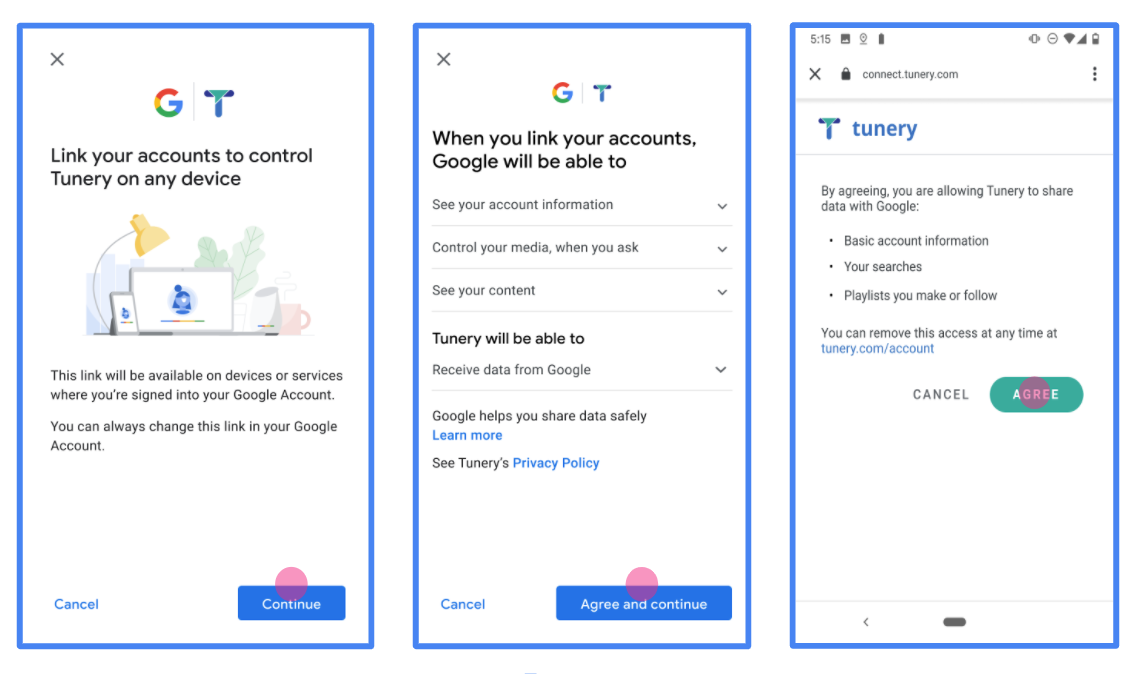
Figure 1. Google Account Linking Consent Screen for a fictitious Application, Tunery
Check "Verification Status", if your application needs verification then click the "Submit For Verification" button to submit your application for verification. Refer to OAuth verification requirements for details.
導入 OAuth 伺服器
OAuth 2.0 伺服器實作的授權碼流程包含兩個端點,您的服務會透過 HTTPS 提供這些端點。第一個端點是授權端點,負責尋找或取得使用者同意聲明,允許存取資料。授權端點會向尚未登入的使用者顯示登入 UI,並記錄他們對所要求存取的同意聲明。第二個端點是權杖交換端點,用於取得加密字串 (稱為權杖),授權使用者存取您的服務。
當 Google 應用程式需要呼叫您服務的 API 時,Google 會一併使用這些端點,向使用者取得代表他們呼叫這些 API 的權限。
Google 帳戶連結:OAuth 授權碼流程
下方的序列圖詳細說明使用者、Google 和服務端點之間的互動。
角色與職責
下表定義 Google 帳戶連結 (GAL) OAuth 流程中參與者的角色和職責。請注意,在 GAL 中,Google 是 OAuth 用戶端,而您的服務是身分/服務供應商。
| 執行者 / 元件 | GAL 角色 | 職責 |
|---|---|---|
| Google 應用程式 / 伺服器 | OAuth 用戶端 | 啟動流程、接收授權碼、將授權碼換成權杖,並安全地儲存權杖,以便存取服務的 API。 |
| 您的授權端點 | 授權伺服器 | 驗證使用者身分,並徵得同意,允許 Google 存取使用者資料。 |
| 您的權杖交換端點 | 授權伺服器 | 驗證授權碼和更新權杖,並將存取權杖核發給 Google 伺服器。 |
| Google 重新導向 URI | 回呼端點 | 從授權服務接收使用者重新導向,其中包含 code 和 state 值。 |
Google 啟動的 OAuth 2.0 授權碼流程工作階段會依下列流程進行:
- Google 會在使用者瀏覽器中開啟授權端點。如果使用者在僅支援語音的裝置上啟動動作流程,Google 會將執行作業轉移至手機。
- 使用者登入 (如果尚未登入),並授權 Google 透過您的 API 存取資料 (如果尚未授權)。
- 您的服務會建立授權碼,並傳回給 Google。如要這麼做,請將使用者的瀏覽器重新導向回 Google,並在要求中附加授權碼。
- Google 會將授權碼傳送至權杖交換端點,該端點會驗證授權碼的真實性,並傳回存取權杖和更新權杖。存取權杖是短期權杖,服務會接受這類權杖做為存取 API 的憑證。更新權杖是長期有效的權杖,Google 可以儲存並在存取權杖過期時使用,以取得新的存取權杖。
- 使用者完成帳戶連結流程後,Google 傳送的每個後續要求都會包含存取權杖。
處理授權要求
如要使用 OAuth 2.0 授權碼流程執行帳戶連結,Google 會將使用者傳送至您的授權端點,並在要求中加入下列參數:
| 授權端點參數 | |
|---|---|
client_id |
您指派給 Google 的用戶端 ID。 |
redirect_uri |
您用來傳送此要求回覆的網址。 |
state |
會傳回給 Google 的記帳值,且在重新導向 URI 中不會變更。 |
scope |
選填:以空格分隔的一組範圍字串,用於指定 Google 要求授權的資料。 |
response_type |
要在回應中傳回的值類型。如果是 OAuth 2.0 授權碼流程,回應類型一律為 code。
|
user_locale |
Google 帳戶語言設定,格式為 RFC5646,用於以使用者偏好的語言顯示內容。 |
舉例來說,如果授權端點位於 https://myservice.example.com/auth,要求可能如下所示:
GET https://myservice.example.com/auth?client_id=GOOGLE_CLIENT_ID&redirect_uri=REDIRECT_URI&state=STATE_STRING&scope=REQUESTED_SCOPES&response_type=code&user_locale=LOCALE
如要讓授權端點處理登入要求,請按照下列步驟操作:
- 確認
client_id與您指派給 Google 的用戶端 ID 相符,且redirect_uri與 Google 為您的服務提供的重新導向網址相符。請務必完成這些檢查作業,以免將存取權授予非預期或設定錯誤的用戶端應用程式。如果支援多個 OAuth 2.0 流程,請一併確認response_type為code。 - 確認使用者是否已登入您的服務。如果使用者未登入,請完成服務的登入或註冊流程。
- 產生授權碼,供 Google 用來存取您的 API。授權碼可以是任何字串值,但必須能代表使用者、權杖所屬的用戶端,以及代碼的到期時間,且不得可供猜測。您通常會發出授權碼,該授權碼會在約 10 分鐘後失效。
- 確認
redirect_uri參數指定的網址具有下列格式:https://oauth-redirect.googleusercontent.com/r/YOUR_PROJECT_ID https://oauth-redirect-sandbox.googleusercontent.com/r/YOUR_PROJECT_ID
- 將使用者的瀏覽器重新導向至
redirect_uri參數指定的網址。重新導向時,請附上您剛產生的授權碼和原始未修改的狀態值,方法是附加code和state參數。以下是最終網址的範例:https://oauth-redirect.googleusercontent.com/r/YOUR_PROJECT_ID?code=AUTHORIZATION_CODE&state=STATE_STRING
處理權杖交換要求
服務的權杖交換端點負責兩種權杖交換:
- 以授權碼換取存取權杖和更新權杖
- 以更新權杖換取存取權杖
權杖交換要求包含下列參數:
| 權杖交換端點參數 | |
|---|---|
client_id |
這個字串可將要求來源識別為 Google。這個字串必須在系統中註冊為 Google 的專屬 ID。 |
client_secret |
你向 Google 註冊的服務專用密鑰。 |
grant_type |
要交換的權杖類型。可以是 authorization_code 或 refresh_token。 |
code |
當 grant_type=authorization_code 時,這個參數是 Google 從登入或權杖交換端點收到的代碼。 |
redirect_uri |
如果是 grant_type=authorization_code,這個參數就是初始授權要求中使用的網址。 |
refresh_token |
如果 grant_type=refresh_token,這個參數就是 Google 從權杖交換端點收到的更新權杖。 |
以授權碼換取存取權杖和更新權杖
使用者登入後,授權端點會將短期授權碼傳回給 Google,接著 Google 會向權杖交換端點傳送要求,將授權碼換成存取權杖和更新權杖。
對於這類要求,grant_type 的值為 authorization_code,而 code 的值則是您先前授予 Google 的授權碼值。以下是要求交換授權碼以取得存取權杖和更新權杖的範例:
POST /token HTTP/1.1 Host: oauth2.example.com Content-Type: application/x-www-form-urlencoded client_id=GOOGLE_CLIENT_ID&client_secret=GOOGLE_CLIENT_SECRET&grant_type=authorization_code&code=AUTHORIZATION_CODE&redirect_uri=REDIRECT_URI
如要將授權碼換成存取權杖和更新權杖,權杖交換端點會執行下列步驟,回應 POST 要求:
- 確認
client_id將要求來源識別為授權來源,且client_secret符合預期值。 - 確認授權碼有效且未過期,且要求中指定的用戶端 ID 與授權碼相關聯的用戶端 ID 相符。
- 確認
redirect_uri參數指定的網址與初始授權要求中使用的值相同。 - 如果無法驗證上述所有條件,請傳回 HTTP 400 Bad Request 錯誤,並以
{"error": "invalid_grant"}做為主體。 - 否則,請使用授權碼中的使用者 ID 產生更新權杖和存取權杖。這些權杖可以是任何字串值,但必須代表權杖所屬的使用者和用戶端,且不得可供猜測。如果是存取權杖,請一併記錄權杖的到期時間,通常是發放權杖後的一小時。更新權杖不會過期。
- 在 HTTPS 回應的主體中傳回下列 JSON 物件:
{ "token_type": "Bearer", "access_token": "ACCESS_TOKEN", "refresh_token": "REFRESH_TOKEN", "expires_in": SECONDS_TO_EXPIRATION }
Google 會儲存使用者的存取權杖和更新權杖,並記錄存取權杖的到期時間。存取權杖過期時,Google 會使用更新權杖,從權杖交換端點取得新的存取權杖。
以更新權杖換取存取權杖
存取權杖到期時,Google 會向權杖交換端點傳送要求,將更新權杖換成新的存取權杖。
對於這類要求,grant_type 的值為 refresh_token,而 refresh_token 的值則是您先前授予 Google 的更新權杖值。以下是要求以更新權杖換取存取權杖的範例:
POST /token HTTP/1.1 Host: oauth2.example.com Content-Type: application/x-www-form-urlencoded client_id=GOOGLE_CLIENT_ID&client_secret=GOOGLE_CLIENT_SECRET&grant_type=refresh_token&refresh_token=REFRESH_TOKEN
如要將更新權杖換成存取權杖,權杖交換端點會執行下列步驟,回應 POST 要求:
- 確認
client_id將要求來源識別為 Google,且client_secret與預期值相符。 - 確認更新權杖有效,且要求中指定的用戶端 ID 與更新權杖相關聯的用戶端 ID 相符。
- 如果無法驗證上述所有條件,請傳回 HTTP 400 Bad Request 錯誤,並將
{"error": "invalid_grant"}做為主體。 - 否則,請使用更新權杖中的使用者 ID 產生存取權杖。這些權杖可以是任何字串值,但必須能唯一代表使用者和權杖所屬的用戶端,且不得可供猜測。如果是存取權杖,請一併記錄權杖的到期時間,通常是在核發權杖後一小時。
- 在 HTTPS 回應主體中傳回下列 JSON 物件:
{ "token_type": "Bearer", "access_token": "ACCESS_TOKEN", "expires_in": SECONDS_TO_EXPIRATION }
Handle userinfo requests
The userinfo endpoint is an OAuth 2.0 protected resource that return claims about the linked user. Implementing and hosting the userinfo endpoint is optional, except for the following use cases:
- Linked Account Sign-In with Google One Tap.
- Frictionless subscription on AndroidTV.
After the access token has been successfully retrieved from your token endpoint, Google sends a request to your userinfo endpoint to retrieve basic profile information about the linked user.
| userinfo endpoint request headers | |
|---|---|
Authorization header |
The access token of type Bearer. |
For example, if your userinfo endpoint is available at
https://myservice.example.com/userinfo, a request might look like the following:
GET /userinfo HTTP/1.1 Host: myservice.example.com Authorization: Bearer ACCESS_TOKEN
For your userinfo endpoint to handle requests, do the following steps:
- Extract access token from the Authorization header and return information for the user associated with the access token.
- If the access token is invalid, return an HTTP 401 Unauthorized error with using the
WWW-AuthenticateResponse Header. Below is an example of a userinfo error response: If a 401 Unauthorized, or any other unsuccessful error response is returned during the linking process, the error will be non-recoverable, the retrieved token will be discarded and the user will have to initiate the linking process again.HTTP/1.1 401 Unauthorized WWW-Authenticate: error="invalid_token", error_description="The Access Token expired"
If the access token is valid, return and HTTP 200 response with the following JSON object in the body of the HTTPS response:
If your userinfo endpoint returns an HTTP 200 success response, the retrieved token and claims are registered against the user's Google account.{ "sub": "USER_UUID", "email": "EMAIL_ADDRESS", "given_name": "FIRST_NAME", "family_name": "LAST_NAME", "name": "FULL_NAME", "picture": "PROFILE_PICTURE", }userinfo endpoint response subA unique ID that identifies the user in your system. emailEmail address of the user. given_nameOptional: First name of the user. family_nameOptional: Last name of the user. nameOptional: Full name of the user. pictureOptional: Profile picture of the user.
驗證實作
You can validate your implementation by using the OAuth 2.0 Playground tool.
In the tool, do the following steps:
- Click Configuration to open the OAuth 2.0 Configuration window.
- In the OAuth flow field, select Client-side.
- In the OAuth Endpoints field, select Custom.
- Specify your OAuth 2.0 endpoint and the client ID you assigned to Google in the corresponding fields.
- In the Step 1 section, don't select any Google scopes. Instead, leave this field blank or type a scope valid for your server (or an arbitrary string if you don't use OAuth scopes). When you're done, click Authorize APIs.
- In the Step 2 and Step 3 sections, go through the OAuth 2.0 flow and verify that each step works as intended.
You can validate your implementation by using the Google Account Linking Demo tool.
In the tool, do the following steps:
- Click the Sign in with Google button.
- Choose the account you'd like to link.
- Enter the service ID.
- Optionally enter one or more scopes that you will request access for.
- Click Start Demo.
- When prompted, confirm that you may consent and deny the linking request.
- Confirm that you are redirected to your platform.