
A vinculação de apps com base no OAuth (App Flip) permite que os usuários vinculem rapidamente as contas no sistema de autenticação às Contas do Google. Se o app estiver instalado no smartphone do usuário quando ele iniciar o processo de conexão de contas, ele será direcionado ao seu app para receber a autorização do usuário.
Essa abordagem oferece um processo de conexão mais rápido, já que o usuário não precisa inserir novamente o nome de usuário e a senha para autenticar. Em vez disso, a vinculação no app aproveita as credenciais da conta do usuário no seu app. Depois que um usuário vincula a Conta do Google ao seu app, ele pode aproveitar todas as integrações que você desenvolveu.
É possível configurar o App Flip para apps iOS e Android.
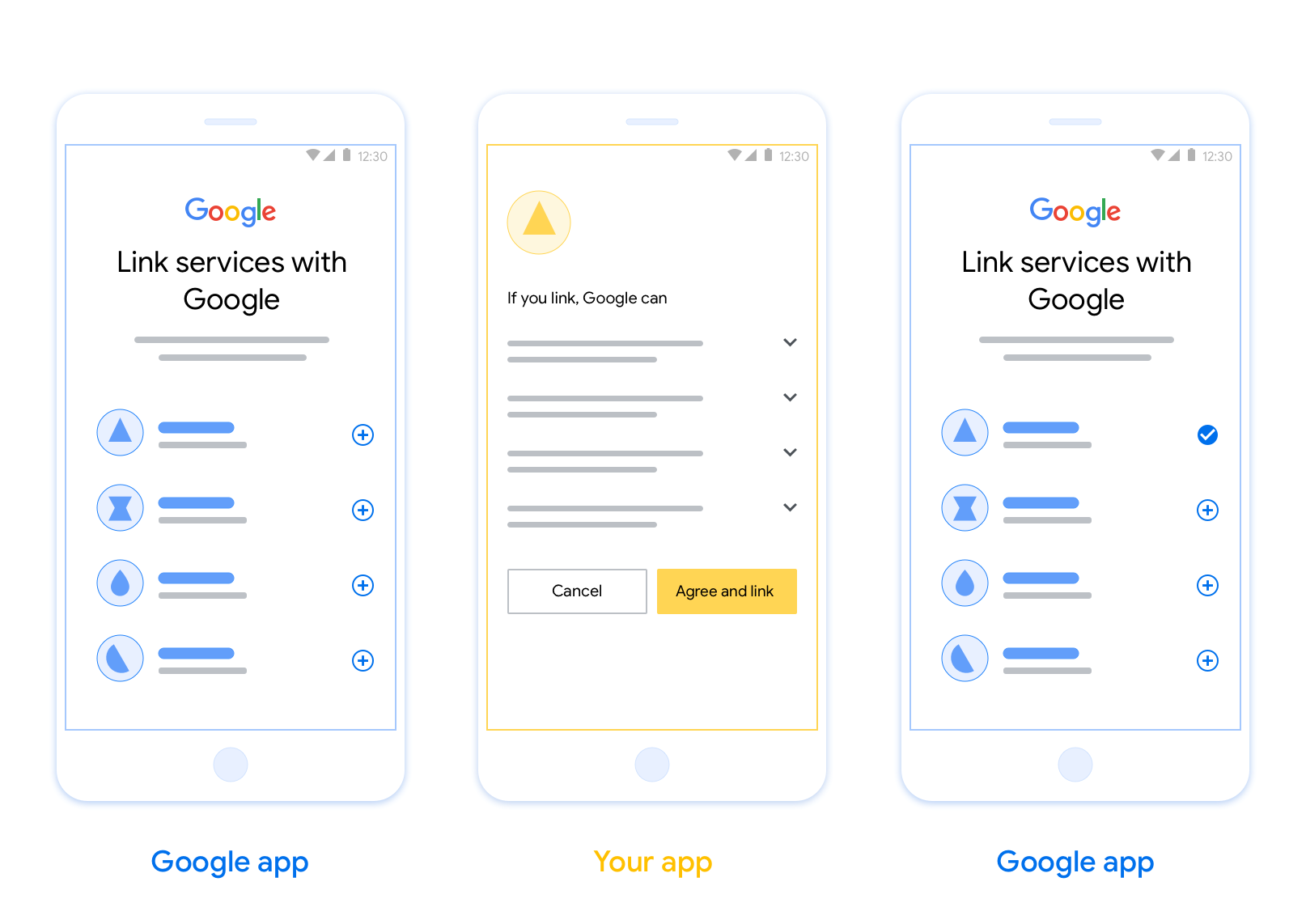
Requisitos
Para implementar o App Flip, você precisa atender aos seguintes requisitos:
- Ter um app Android ou iOS.
- Ter, gerenciar e manter um servidor OAuth 2.0 que ofereça suporte ao fluxo do código de autorização do OAuth 2.0.
Fluxo do App Flip com base no OAuth
O diagrama de sequência a seguir detalha a interação entre o usuário, o app do Google, seu app e o servidor de autorização para o App Flip.
Funções e responsabilidades
A tabela a seguir define as funções e responsabilidades dos atores no fluxo do App Flip.
| Ator / componente | Função do GAL | Responsabilidades |
|---|---|---|
| App / servidor do Google | Cliente OAuth | Inicia o processo de conexão, aciona um link direto para seu app para dispositivos móveis , troca o código de autorização por tokens e os armazena com segurança para acessar as APIs do seu serviço. |
| Seu app | Agente de autorização | Autentica o usuário (normalmente usando as credenciais do app), recebe o consentimento e recupera um código de autorização do seu servidor. |
| Seu servidor de autorização | Servidor de autorização | Valida códigos de autorização e tokens de atualização e emite tokens de acesso para o servidor do Google. |
Diretrizes de design
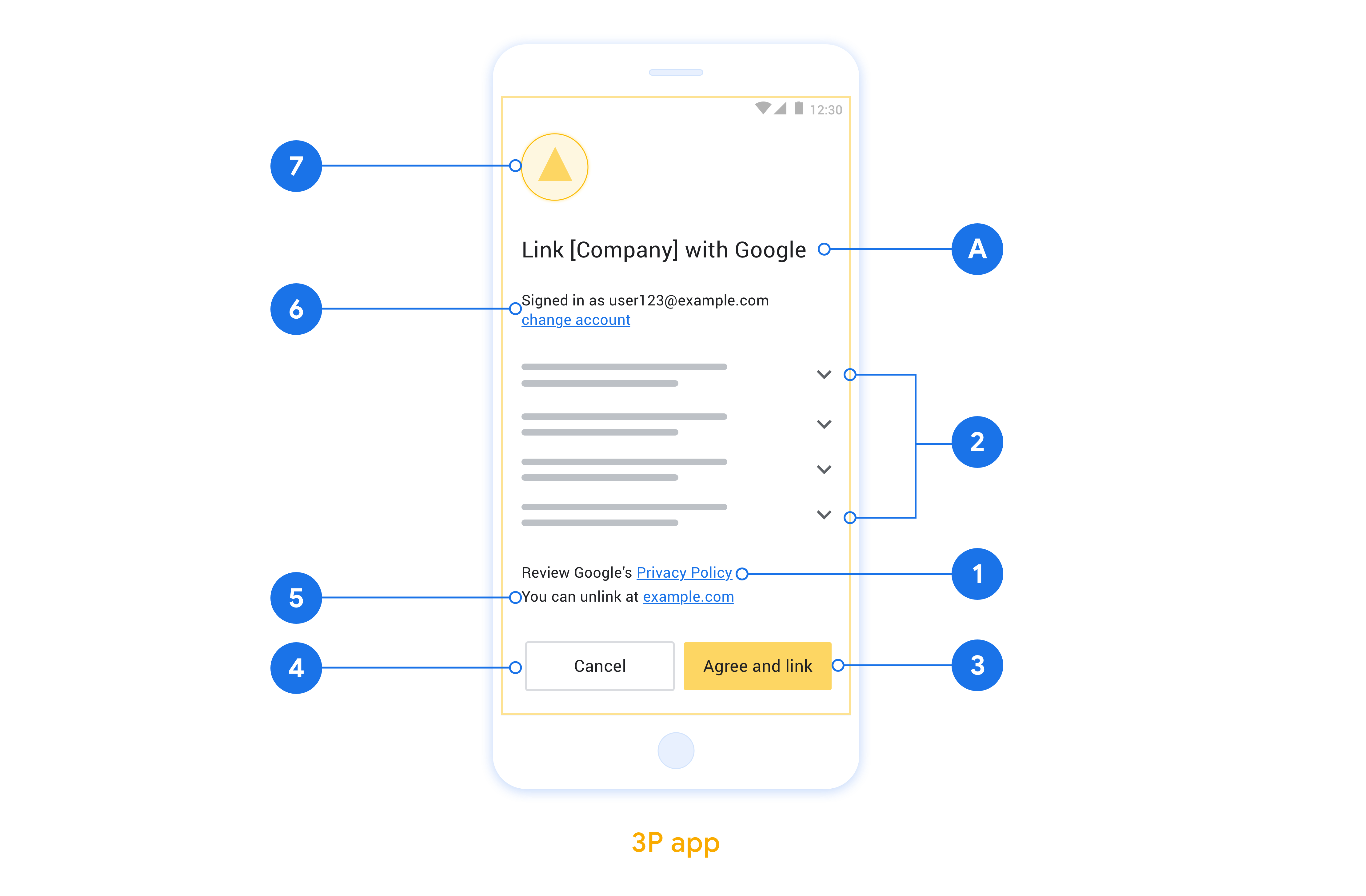
Esta seção descreve os requisitos e as recomendações de design para a tela de consentimento da vinculação de contas do App Flip. Depois que o Google chamar seu app, ele vai mostrar a tela de consentimento ao usuário.
Requisitos
- Você precisa informar que a conta do usuário está sendo vinculada ao Google, não a um produto específico, como o Google Home ou o Google Assistente.
Recomendações
Portanto, recomendamos que você faça o seguinte:
Mostrar a Política de Privacidade do Google. Inclua um link para a Política de Privacidade do Google na tela de consentimento.
Dados que serão compartilhados. Use uma linguagem clara e concisa para informar ao usuário quais dados dele o Google exige e por quê.
Call-to-action clara. Inclua uma call-to-action clara na tela de permissão, como "Concordar e vincular". Isso porque os usuários precisam entender quais dados são obrigatórios para compartilhar com o Google e vincular as contas.
Capacidade de negar ou cancelar. Ofereça uma maneira para os usuários voltarem, negarem ou cancelarem, caso não queiram vincular.
Capacidade de desvincular. Ofereça um mecanismo para os usuários desvincularem, como um URL para as configurações da conta na sua plataforma. Como alternativa, inclua um link para a Conta do Google, onde os usuários podem gerenciar a conta vinculada.
Capacidade de mudar a conta de usuário. Sugira um método para os usuários trocarem de conta. Isso é especialmente útil se os usuários costumam ter várias contas.
- Se um usuário precisar fechar a tela de permissão para trocar de conta, envie um erro recuperável ao Google para que ele possa fazer login na conta desejada com a vinculação do OAuth e o fluxo implícito.
Inclua seu logotipo. Mostre o logotipo da sua empresa na tela de consentimento. Use as diretrizes de estilo para posicionar seu logotipo. Se você também quiser mostrar o logotipo do Google, consulte Logotipos e marcas registradas.
Implementar a vinculação no app nos seus apps
Para implementar a vinculação no app, modifique o código de autorização do usuário no app para aceitar um link direto do Google.
Para oferecer suporte à vinculação no app no seu app Android, siga as instruções no guia de implementação do Android.
Para oferecer suporte à vinculação no app no seu app iOS, siga as instruções no guia de implementação do iOS.
Testar a vinculação no app
A vinculação no app pode ser simulada usando apps de exemplo e de teste antes que os apps de produção verificados e um servidor OAuth 2.0 funcional estejam disponíveis.
Durante a vinculação no app, um app do Google vai abrir seu app, que vai solicitar uma resposta de código de autorização do seu servidor OAuth 2.0. Na etapa final, a resposta é retornada ao app do Google.
Pré-requisitos
Para simular um app do Google e acionar a intent que inicia seu app, faça o download e instale a ferramenta de teste de vinculação no app para Android e iOS.
Faça o download e instale o exemplo de vinculação no app para Android e iOS para simular seu app e selecionar um tipo de resposta do OAuth 2.0.
Sequência de testes
- Abra a ferramenta de teste de vinculação no app.
- Pressione
Try Flip!para iniciar o app de exemplo de vinculação no app. - Selecione uma resposta nos botões de opção no app de exemplo.
- Pressione
Sendpara retornar uma resposta simulada do OAuth 2.0 para a ferramenta de teste. - Verifique as mensagens de registro da ferramenta de teste para ver um auth_code ou detalhes do erro.
Teste de produção
A vinculação no app pode ser testada na produção depois de concluir o registro e a implementação do servidor OAuth 2.0.
Recomendamos uma única Conta do Google e um endereço de e-mail específico da tarefa para testes automatizados.
O estado de vinculação das contas pode ser visualizado usando Contas vinculadas quando você faz login como titular da Conta do Google. As contas também podem ser desvinculadas entre testes repetidos.
Como opção, você pode implementar RISC para desvincular e notificar o Google sobre a mudança de forma programática.