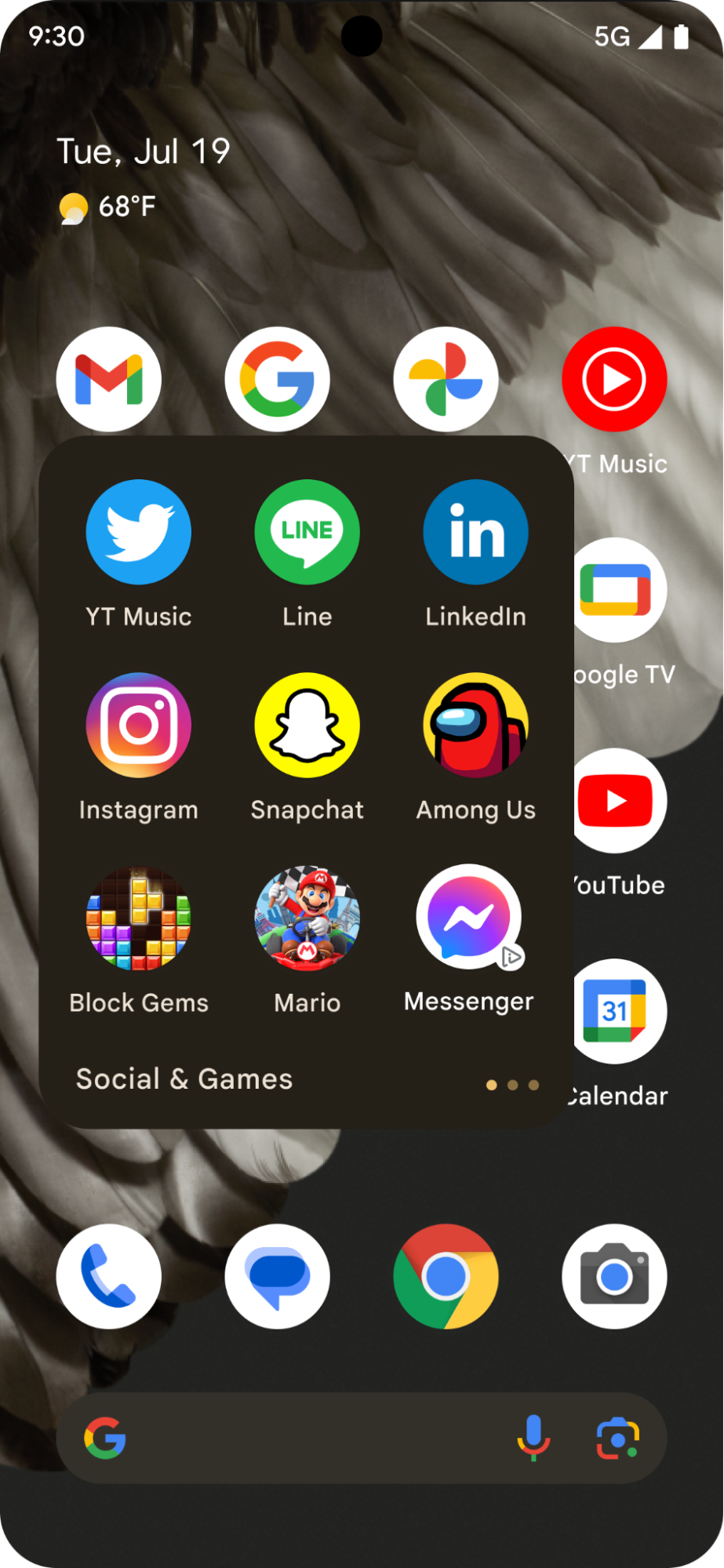
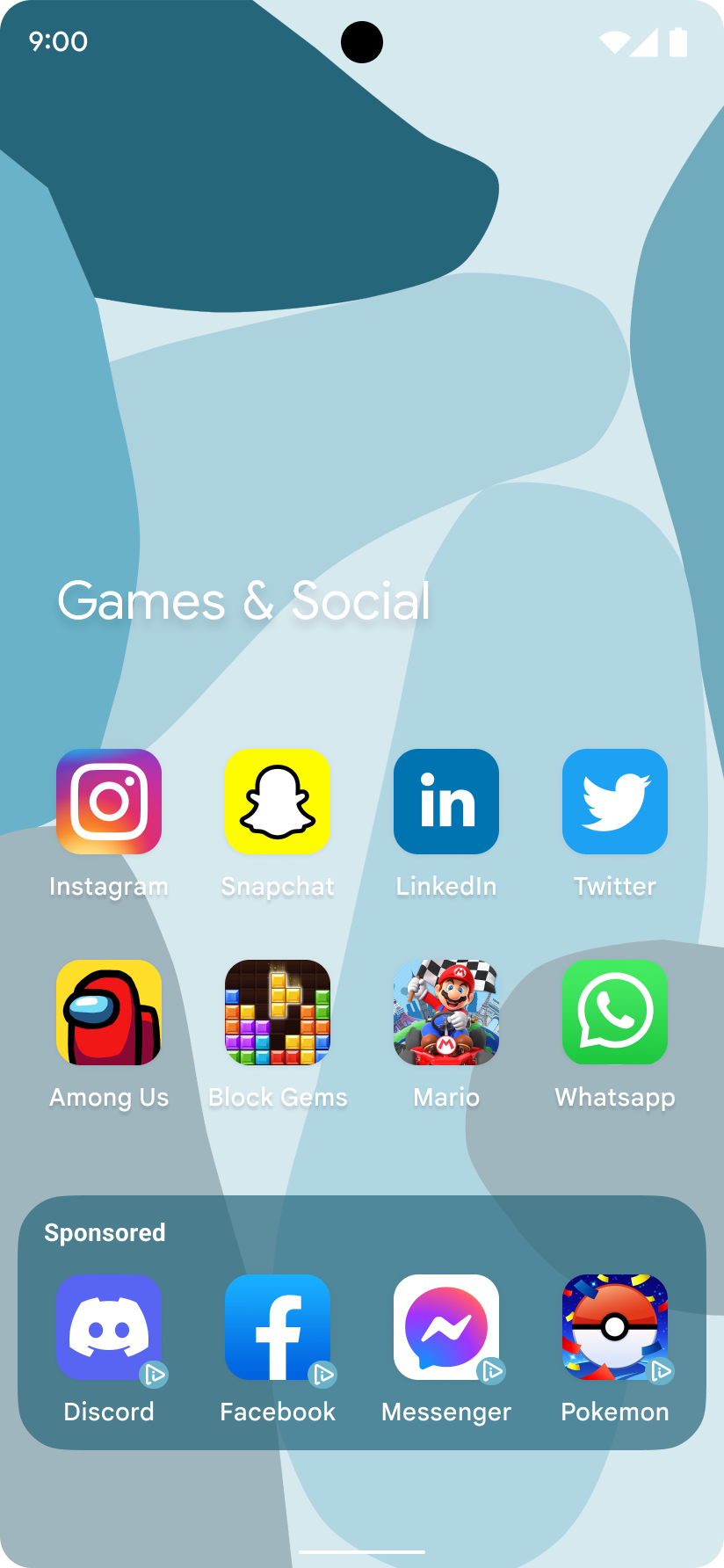
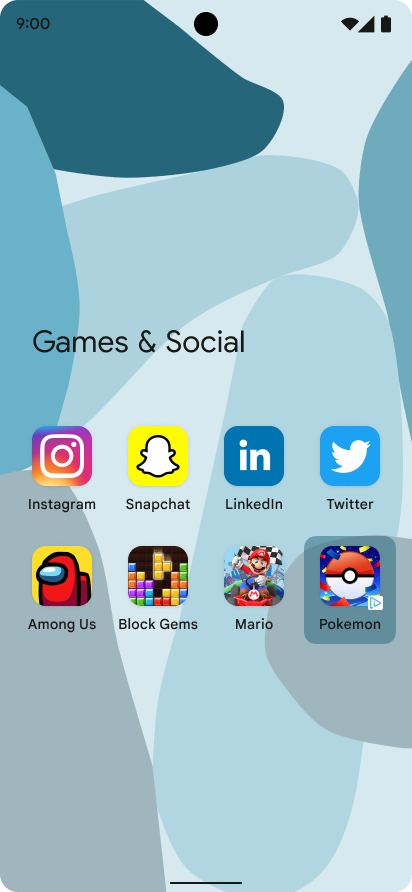
圖示廣告是小型應用程式圖示版位,可輔助作業系統使用者體驗,並靈活搭配大多數作業系統層級的活動,例如鎖定畫面和分享畫面。您可以個別顯示圖示廣告,也可以在多個群組中顯示。每則廣告都會提供一組文字和字串元素,您的應用程式必須負責算繪這些元素。下圖顯示應用程式資料夾中的圖示廣告:
|
|
|
本指南說明如何要求及顯示圖示廣告。
必要條件
開始之前,您必須擁有 GMA Next-Gen SDK 0.8.0-alpha01 以上版本。
一律使用測試廣告進行測試
建構及測試應用程式時,請務必使用測試廣告,而非實際的正式廣告。如未使用測試廣告,帳戶可能會遭到停權。
如要取得測試廣告,請使用您的廣告單元並啟用測試裝置,或是使用下列 Android 圖示廣告專用的測試廣告單元 ID:
ca-app-pub-3940256099942544/1476272466
載入圖示廣告
使用圖示廣告請求載入圖示廣告,並處理廣告載入事件:
Kotlin
private fun loadIconAd() {
val request =
IconAdRequest.Builder(AD_UNIT_ID)
// The "AdChoices" badge is rendered at the top right corner of the icon ad
// if left unspecified.
.setAdChoicesPlacement(AdChoicesPlacement.BOTTOM_RIGHT)
// It is recommended to specify the placement of your icon ad
// to help Google optimize your icon ad performance.
.setIconAdPlacement(IconAdPlacement.BROWSER)
.build()
IconAd.load(
request,
object : AdLoadCallback<IconAd> {
override fun onAdFailedToLoad(adError: LoadAdError) {
Log.w(Constant.TAG, "Icon ad failed to load: $adError")
showToast("Icon ad failed to load.")
}
override fun onAdLoaded(ad: IconAd) {
Log.d(Constant.TAG, "Icon ad loaded")
// Always call destroy() on ads on removal.
iconAd?.destroy()
iconAd = ad
setAdEventCallback(ad)
displayIconAd(ad)
}
},
)
}
Java
private void loadIconAd() {
IconAdRequest request =
new IconAdRequest.Builder(AD_UNIT_ID)
// The "AdChoices" badge is rendered at the top right corner of the icon ad
// if left unspecified.
.setAdChoicesPlacement(AdChoicesPlacement.BOTTOM_RIGHT)
// It is recommended to specify the placement of your icon ad
// to help Google optimize your icon ad performance.
.setIconAdPlacement(IconAdPlacement.BROWSER)
.build();
IconAd.load(
request,
new AdLoadCallback<IconAd>() {
@Override
public void onAdFailedToLoad(@NonNull LoadAdError adError) {
Log.w(Constant.TAG, "Icon ad failed to load :" + adError);
showToast("Icon ad failed to load with error code: " + adError.getCode());
}
@Override
public void onAdLoaded(@NonNull IconAd ad) {
Log.d(Constant.TAG, "Icon ad loaded.");
// Always call destroy() on ads on removal.
if (iconAd != null) {
iconAd.destroy();
}
iconAd = ad;
setAdEventCallback(ad);
displayIconAd(ad);
}
});
}
建立圖示廣告檢視區塊
圖示廣告必須使用 IconAdView 做為素材資源的根元素。在圖示廣告檢視區塊中,放置廣告的所有視覺元素。
以下範例顯示如何建立圖示廣告的檢視區塊版面配置:
<?xml version="1.0" encoding="utf-8"?>
<com.google.android.libraries.ads.mobile.sdk.iconad.IconAdView xmlns:android="http://schemas.android.com/apk/res/android"
    android:layout_width="match_parent"
    android:layout_height="wrap_content">

  <LinearLayout
      android:id="@+id/icon_ad_container"
      android:layout_width="wrap_content"
      android:layout_height="wrap_content"
      android:layout_gravity="center"
      android:background="#00FFC107"
      android:orientation="vertical">

    <LinearLayout
        android:layout_width="wrap_content"
        android:layout_height="wrap_content"
        android:orientation="horizontal">
      <TextView
          android:id="@+id/ad_badge"
          android:width="15dp"
          android:height="15dp"
          android:layout_width="wrap_content"
          android:layout_height="wrap_content"
          android:background="#FFC107"
          android:text="Ad"
          android:textColor="#FFFFFF"
          android:textSize="12sp" />
      <TextView
          android:id="@+id/ad_headline"
          android:textStyle="normal"
          android:layout_width="match_parent"
          android:layout_height="wrap_content"
          android:layout_gravity="center"
          android:autoText="true"
          android:inputType="text|textMultiLine"
          android:textColor="#808080"
          android:textSize="12sp" />
    </LinearLayout>

    <com.google.android.material.imageview.ShapeableImageView xmlns:app="http://schemas.android.com/apk/res-auto"
        android:id="@+id/ad_icon"
        android:layout_width="100dp"
        android:layout_height="100dp"
        android:layout_gravity="center"
        android:adjustViewBounds="true"
        android:background="@android:color/holo_green_light"
        android:contentDescription="@string/content_description_icon_ad"
        android:theme="@style/Theme.AppCompat.Light"
        app:shapeAppearanceOverlay="@style/roundedCorners"
        app:strokeColor="@null" />

    <RatingBar
        android:id="@+id/ad_stars"
        style="?android:attr/ratingBarStyleSmall"
        android:layout_width="wrap_content"
        android:layout_height="wrap_content"
        android:layout_gravity="center"
        android:isIndicator="true"
        android:numStars="5"
        android:stepSize="0.5" />
    <Button
        android:id="@+id/ad_call_to_action"
        android:layout_width="wrap_content"
        android:layout_height="wrap_content"
        android:layout_gravity="center"
        android:gravity="center"
        android:textSize="12sp" />
  </LinearLayout>

</com.google.android.libraries.ads.mobile.sdk.iconad.IconAdView>
在螢幕上顯示圖示廣告
如要在畫面上顯示圖示廣告,請完成下列步驟:
加載圖示廣告檢視區塊,並加入檢視區塊階層。
在每個子項檢視區塊中,填入對應的圖示廣告素材資源。
以下範例涵蓋先前步驟,說明如何在畫面上顯示圖示廣告:
Kotlin
val iconAdViewBinding = IconAdBinding.inflate(layoutInflater)
// Add the ad view to the active view hierarchy.
binding.iconAdContainer.addView(iconAdViewBinding.root)
val iconAdView = iconAdViewBinding.root
// Populate the view elements with their respective icon ad asset.
iconAdView.callToActionView = iconAdViewBinding.adCallToAction
iconAdView.headlineView = iconAdViewBinding.adHeadline
iconAdView.iconView = iconAdViewBinding.adIcon
iconAdView.starRatingView = iconAdViewBinding.adStars
Java
IconAdBinding iconAdViewBinding = IconAdBinding.inflate(getLayoutInflater());
// Add the ad view to the active view hierarchy.
binding.iconAdContainer.addView(iconAdViewBinding.getRoot());
IconAdView iconAdView = iconAdViewBinding.getRoot();
// Populate the view elements with their respective icon ad asset.
iconAdView.setCallToActionView(iconAdViewBinding.adCallToAction);
iconAdView.setHeadlineView(iconAdViewBinding.adHeadline);
iconAdView.setIconView(iconAdViewBinding.adIcon);
iconAdView.setStarRatingView(iconAdViewBinding.adStars);
讓圖示廣告可供點選
當呼叫 registerIconAd() 時,GMA Next-Gen SDK 會為對應的每個素材資源檢視畫面註冊點擊事件監聽器。在註冊圖示廣告前,請先將圖示廣告檢視區塊屬性對應至檢視區塊階層中的相應檢視區塊:
Kotlin
// Map each asset view property to the corresponding view in your view hierarchy.
iconAdViewBinding.adCallToAction.text = iconAd.callToAction
iconAdViewBinding.adHeadline.text = iconAd.headline
iconAdViewBinding.adIcon.setImageDrawable(iconAd.icon.drawable)
iconAd.starRating?.toFloat().also { value ->
if (value != null) {
iconAdViewBinding.adStars.rating = value
}
}
// Register the icon ad with the view presenting it.
iconAdView.registerIconAd(iconAd)
Java
// Map each asset view property to the corresponding view in your view hierarchy.
iconAdViewBinding.adCallToAction.setText(iconAd.getCallToAction());
iconAdViewBinding.adHeadline.setText(iconAd.getHeadline());
iconAdViewBinding.adIcon.setImageDrawable(iconAd.getIcon().getDrawable());
if (iconAd.getStarRating() != null) {
iconAdViewBinding.adStars.setRating(iconAd.getStarRating().floatValue());
}
// Register the icon ad with the view presenting it.
iconAdView.registerIconAd(iconAd);
選用:設定圖示廣告事件回呼
如要處理圖示廣告生命週期事件,請設定事件回呼:
Kotlin
iconAd.adEventCallback =
object : IconAdEventCallback {
override fun onAdShowedFullScreenContent() {
// Icon ad showed full screen content.
}
override fun onAdDismissedFullScreenContent() {
// Icon ad dismissed full screen content.
}
override fun onAdFailedToShowFullScreenContent(
fullScreenContentError: FullScreenContentError
) {
// Icon ad failed to show full screen content.
}
override fun onAdImpression() {
// Icon ad recorded an impression.
}
override fun onAdClicked() {
// Icon ad recorded a click.
}
override fun onAdPaid(value: AdValue) {
// Icon ad estimated to have earned money.
}
}
Java
iconAd.setAdEventCallback(
new IconAdEventCallback() {
@Override
public void onAdShowedFullScreenContent() {
// Icon ad showed full screen content.
}
@Override
public void onAdDismissedFullScreenContent() {
// Icon ad dismissed full screen content.
}
@Override
public void onAdFailedToShowFullScreenContent(
@NonNull FullScreenContentError fullScreenContentError) {
// Icon ad failed to show full screen content.
}
@Override
public void onAdImpression() {
// Icon ad recorded an impression.
}
@Override
public void onAdClicked() {
// Icon ad recorded a click.
}
@Override
public void onAdPaid(@NonNull AdValue value) {
// Icon ad estimated to have earned money.
}
});
提高成效
下列各節將說明選用的導入步驟,協助您盡量提升圖示廣告的成效。
使用關聯器載入多則廣告
如要載入多個圖示廣告並同時顯示,請使用相同的關聯值依序提出請求,確保載入的廣告不重複。關聯器生命週期為 10 秒。伺服器不會將間隔超過 10 秒的要求視為相關。
以下範例說明如何在廣告請求中設定關聯值:
Kotlin
val correlator = Correlator.generateCorrelator()
val request =
      IconAdRequest.Builder("ca-app-pub-3940256099942544/1476272466")
        .setCorrelator(correlator)
        .build()
Java
Correlator correlator = Correlator.generateCorrelator();
IconAdRequest request =
    new IconAdRequest.Builder("ca-app-pub-3940256099942544/1476272466")
        .setCorrelator(correlator)
        .build();
設定圖示廣告刊登位置
為協助 Google 瞭解圖示廣告的刊登位置,進而盡量提升圖示廣告成效,建議您在提出要求時指定圖示廣告的顯示位置。
請使用最能代表用途的 IconAdPlacement 列舉值:
Kotlin
val request =
  IconAdRequest.Builder("ca-app-pub-3940256099942544/1476272466")
    .setIconAdPlacement(IconAdPlacement.BROWSER)
    .build()
Java
IconAdRequest request =
    new IconAdRequest.Builder("ca-app-pub-3940256099942544/1476272466")
        .setIconAdPlacement(IconAdPlacement.BROWSER)
        .build();