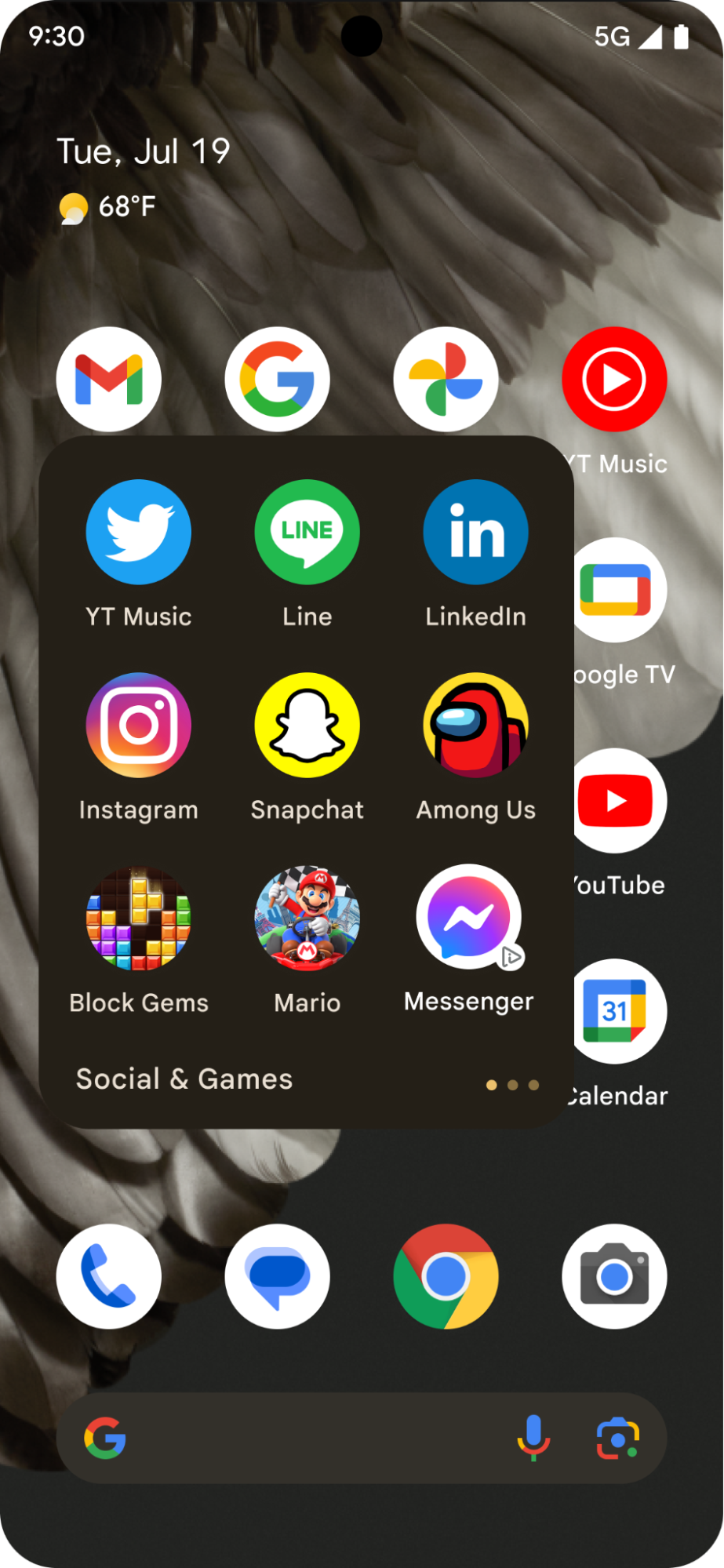
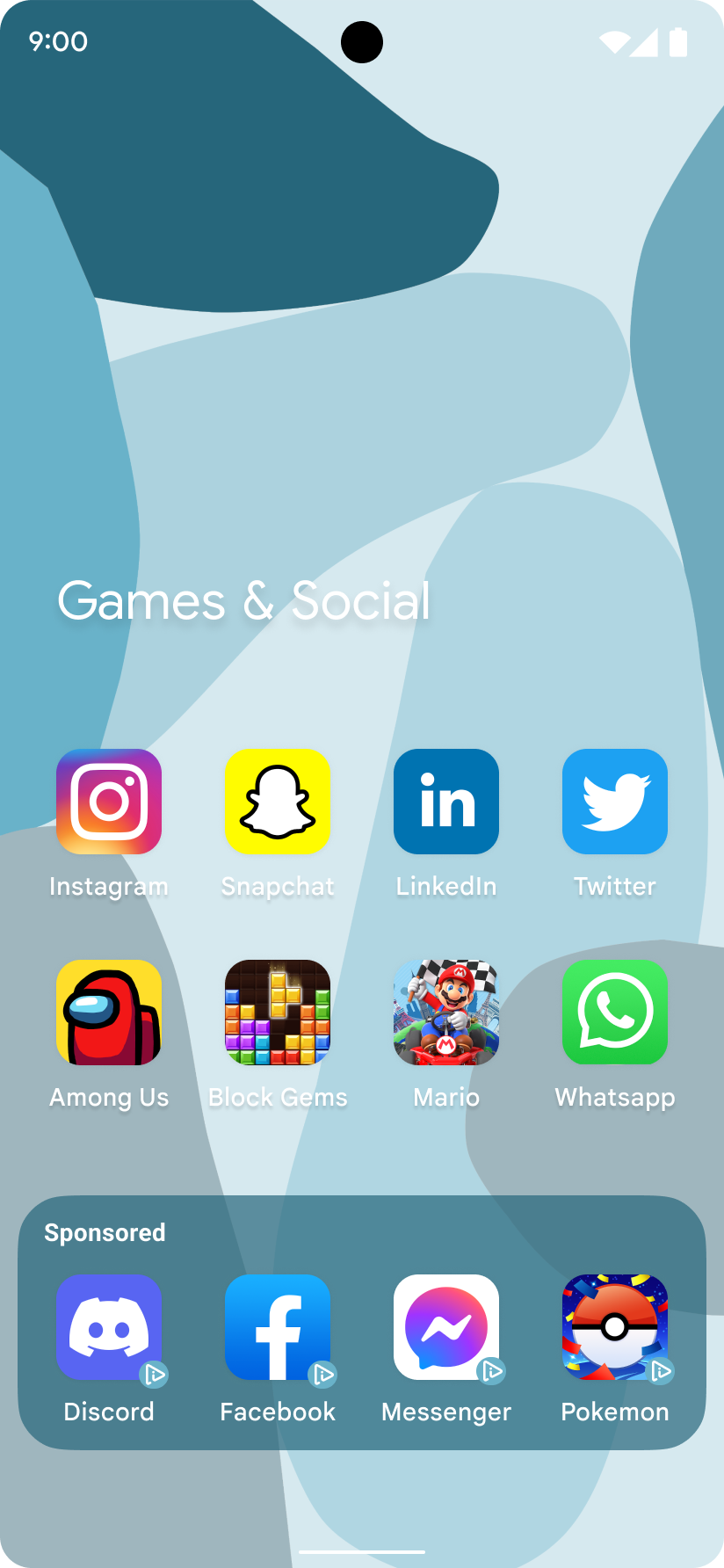
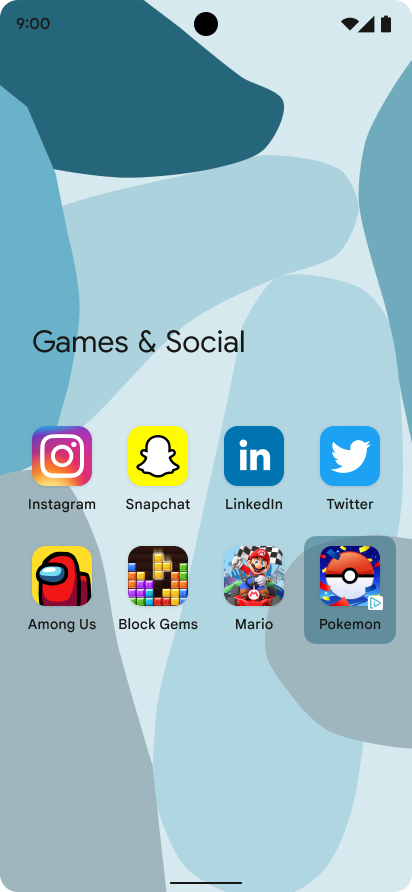
Quảng cáo biểu tượng là các vị trí đặt biểu tượng ứng dụng nhỏ, bổ sung cho trải nghiệm người dùng của hệ điều hành và có thể linh hoạt đi kèm với hầu hết các hoạt động ở cấp hệ điều hành, chẳng hạn như màn hình khoá và màn hình chia sẻ. Bạn có thể hiển thị quảng cáo biểu tượng riêng lẻ hoặc theo nhiều nhóm. Mỗi quảng cáo cung cấp một tập hợp các phần tử văn bản và chuỗi mà ứng dụng của bạn chịu trách nhiệm hiển thị. Hình ảnh sau đây cho thấy quảng cáo biểu tượng đang hiển thị trong một thư mục ứng dụng:
|
|
|
Hướng dẫn này cho bạn biết cách yêu cầu và hiển thị quảng cáo biểu tượng.
Điều kiện tiên quyết
Trước khi bắt đầu, bạn phải có GMA Next-Gen SDK 0.8.0-alpha01 trở lên.
Luôn thử nghiệm bằng quảng cáo thử nghiệm
Khi bạn tạo và thử nghiệm ứng dụng, hãy nhớ sử dụng quảng cáo thử nghiệm thay vì quảng cáo đang chạy trong thực tế. Nếu không sử dụng quảng cáo thử nghiệm, tài khoản của bạn có thể bị tạm ngưng.
Sử dụng đơn vị quảng cáo của bạn và bật các thiết bị thử nghiệm để nhận quảng cáo thử nghiệm hoặc sử dụng mã nhận dạng đơn vị quảng cáo thử nghiệm dành riêng sau đây cho quảng cáo biểu tượng trên Android:
ca-app-pub-3940256099942544/1476272466
Tải quảng cáo biểu tượng
Tải quảng cáo biểu tượng bằng yêu cầu quảng cáo biểu tượng và xử lý các sự kiện lượt tải quảng cáo:
Kotlin
private fun loadIconAd() {
val request =
IconAdRequest.Builder(AD_UNIT_ID)
// The "AdChoices" badge is rendered at the top right corner of the icon ad
// if left unspecified.
.setAdChoicesPlacement(AdChoicesPlacement.BOTTOM_RIGHT)
// It is recommended to specify the placement of your icon ad
// to help Google optimize your icon ad performance.
.setIconAdPlacement(IconAdPlacement.BROWSER)
.build()
IconAd.load(
request,
object : AdLoadCallback<IconAd> {
override fun onAdFailedToLoad(adError: LoadAdError) {
Log.w(Constant.TAG, "Icon ad failed to load: $adError")
showToast("Icon ad failed to load.")
}
override fun onAdLoaded(ad: IconAd) {
Log.d(Constant.TAG, "Icon ad loaded")
// Always call destroy() on ads on removal.
iconAd?.destroy()
iconAd = ad
setAdEventCallback(ad)
displayIconAd(ad)
}
},
)
}
Java
private void loadIconAd() {
IconAdRequest request =
new IconAdRequest.Builder(AD_UNIT_ID)
// The "AdChoices" badge is rendered at the top right corner of the icon ad
// if left unspecified.
.setAdChoicesPlacement(AdChoicesPlacement.BOTTOM_RIGHT)
// It is recommended to specify the placement of your icon ad
// to help Google optimize your icon ad performance.
.setIconAdPlacement(IconAdPlacement.BROWSER)
.build();
IconAd.load(
request,
new AdLoadCallback<IconAd>() {
@Override
public void onAdFailedToLoad(@NonNull LoadAdError adError) {
Log.w(Constant.TAG, "Icon ad failed to load :" + adError);
showToast("Icon ad failed to load with error code: " + adError.getCode());
}
@Override
public void onAdLoaded(@NonNull IconAd ad) {
Log.d(Constant.TAG, "Icon ad loaded.");
// Always call destroy() on ads on removal.
if (iconAd != null) {
iconAd.destroy();
}
iconAd = ad;
setAdEventCallback(ad);
displayIconAd(ad);
}
});
}
Tạo khung hiển thị quảng cáo biểu tượng
Quảng cáo biểu tượng phải sử dụng IconAdView làm phần tử gốc cho các thành phần của quảng cáo. Trong khung hiển thị quảng cáo biểu tượng, hãy đặt tất cả các phần tử trực quan cho quảng cáo của bạn.
Ví dụ sau đây cho thấy một bố cục để tạo khung hiển thị cho quảng cáo biểu tượng:
<?xml version="1.0" encoding="utf-8"?>
<com.google.android.libraries.ads.mobile.sdk.iconad.IconAdView xmlns:android="http://schemas.android.com/apk/res/android"
    android:layout_width="match_parent"
    android:layout_height="wrap_content">

  <LinearLayout
      android:id="@+id/icon_ad_container"
      android:layout_width="wrap_content"
      android:layout_height="wrap_content"
      android:layout_gravity="center"
      android:background="#00FFC107"
      android:orientation="vertical">

    <LinearLayout
        android:layout_width="wrap_content"
        android:layout_height="wrap_content"
        android:orientation="horizontal">
      <TextView
          android:id="@+id/ad_badge"
          android:width="15dp"
          android:height="15dp"
          android:layout_width="wrap_content"
          android:layout_height="wrap_content"
          android:background="#FFC107"
          android:text="Ad"
          android:textColor="#FFFFFF"
          android:textSize="12sp" />
      <TextView
          android:id="@+id/ad_headline"
          android:textStyle="normal"
          android:layout_width="match_parent"
          android:layout_height="wrap_content"
          android:layout_gravity="center"
          android:autoText="true"
          android:inputType="text|textMultiLine"
          android:textColor="#808080"
          android:textSize="12sp" />
    </LinearLayout>

    <com.google.android.material.imageview.ShapeableImageView xmlns:app="http://schemas.android.com/apk/res-auto"
        android:id="@+id/ad_icon"
        android:layout_width="100dp"
        android:layout_height="100dp"
        android:layout_gravity="center"
        android:adjustViewBounds="true"
        android:background="@android:color/holo_green_light"
        android:contentDescription="@string/content_description_icon_ad"
        android:theme="@style/Theme.AppCompat.Light"
        app:shapeAppearanceOverlay="@style/roundedCorners"
        app:strokeColor="@null" />

    <RatingBar
        android:id="@+id/ad_stars"
        style="?android:attr/ratingBarStyleSmall"
        android:layout_width="wrap_content"
        android:layout_height="wrap_content"
        android:layout_gravity="center"
        android:isIndicator="true"
        android:numStars="5"
        android:stepSize="0.5" />
    <Button
        android:id="@+id/ad_call_to_action"
        android:layout_width="wrap_content"
        android:layout_height="wrap_content"
        android:layout_gravity="center"
        android:gravity="center"
        android:textSize="12sp" />
  </LinearLayout>

</com.google.android.libraries.ads.mobile.sdk.iconad.IconAdView>
Hiển thị quảng cáo biểu tượng trên màn hình
Để hiển thị quảng cáo biểu tượng trên màn hình, hãy hoàn tất các bước sau:
Tăng cường khung hiển thị quảng cáo biểu tượng và thêm khung hiển thị đó vào hệ phân cấp khung hiển thị của bạn.
Điền vào mỗi chế độ xem dữ liệu trẻ em bằng thành phần quảng cáo biểu tượng tương ứng.
Ví dụ sau đây trình bày các bước trước đó để hiển thị quảng cáo biểu tượng trên màn hình:
Kotlin
val iconAdViewBinding = IconAdBinding.inflate(layoutInflater)
// Add the ad view to the active view hierarchy.
binding.iconAdContainer.addView(iconAdViewBinding.root)
val iconAdView = iconAdViewBinding.root
// Populate the view elements with their respective icon ad asset.
iconAdView.callToActionView = iconAdViewBinding.adCallToAction
iconAdView.headlineView = iconAdViewBinding.adHeadline
iconAdView.iconView = iconAdViewBinding.adIcon
iconAdView.starRatingView = iconAdViewBinding.adStars
Java
IconAdBinding iconAdViewBinding = IconAdBinding.inflate(getLayoutInflater());
// Add the ad view to the active view hierarchy.
binding.iconAdContainer.addView(iconAdViewBinding.getRoot());
IconAdView iconAdView = iconAdViewBinding.getRoot();
// Populate the view elements with their respective icon ad asset.
iconAdView.setCallToActionView(iconAdViewBinding.adCallToAction);
iconAdView.setHeadlineView(iconAdViewBinding.adHeadline);
iconAdView.setIconView(iconAdViewBinding.adIcon);
iconAdView.setStarRatingView(iconAdViewBinding.adStars);
Tạo quảng cáo biểu tượng có thể nhấp
GMA Next-Gen SDK đăng ký trình nghe lượt nhấp cho mỗi khung hiển thị thành phần
được ánh xạ khi registerIconAd() được gọi. Ánh xạ các thuộc tính lượt xem quảng cáo biểu tượng với khung hiển thị tương ứng trong hệ phân cấp view của bạn trước khi đăng ký quảng cáo biểu tượng:
Kotlin
// Map each asset view property to the corresponding view in your view hierarchy.
iconAdViewBinding.adCallToAction.text = iconAd.callToAction
iconAdViewBinding.adHeadline.text = iconAd.headline
iconAdViewBinding.adIcon.setImageDrawable(iconAd.icon.drawable)
iconAd.starRating?.toFloat().also { value ->
if (value != null) {
iconAdViewBinding.adStars.rating = value
}
}
// Register the icon ad with the view presenting it.
iconAdView.registerIconAd(iconAd)
Java
// Map each asset view property to the corresponding view in your view hierarchy.
iconAdViewBinding.adCallToAction.setText(iconAd.getCallToAction());
iconAdViewBinding.adHeadline.setText(iconAd.getHeadline());
iconAdViewBinding.adIcon.setImageDrawable(iconAd.getIcon().getDrawable());
if (iconAd.getStarRating() != null) {
iconAdViewBinding.adStars.setRating(iconAd.getStarRating().floatValue());
}
// Register the icon ad with the view presenting it.
iconAdView.registerIconAd(iconAd);
Không bắt buộc: Đặt lệnh gọi lại sự kiện quảng cáo biểu tượng
Để xử lý các sự kiện trong vòng đời của quảng cáo biểu tượng, hãy đặt lệnh gọi lại sự kiện:
Kotlin
iconAd.adEventCallback =
object : IconAdEventCallback {
override fun onAdShowedFullScreenContent() {
// Icon ad showed full screen content.
}
override fun onAdDismissedFullScreenContent() {
// Icon ad dismissed full screen content.
}
override fun onAdFailedToShowFullScreenContent(
fullScreenContentError: FullScreenContentError
) {
// Icon ad failed to show full screen content.
}
override fun onAdImpression() {
// Icon ad recorded an impression.
}
override fun onAdClicked() {
// Icon ad recorded a click.
}
override fun onAdPaid(value: AdValue) {
// Icon ad estimated to have earned money.
}
}
Java
iconAd.setAdEventCallback(
new IconAdEventCallback() {
@Override
public void onAdShowedFullScreenContent() {
// Icon ad showed full screen content.
}
@Override
public void onAdDismissedFullScreenContent() {
// Icon ad dismissed full screen content.
}
@Override
public void onAdFailedToShowFullScreenContent(
@NonNull FullScreenContentError fullScreenContentError) {
// Icon ad failed to show full screen content.
}
@Override
public void onAdImpression() {
// Icon ad recorded an impression.
}
@Override
public void onAdClicked() {
// Icon ad recorded a click.
}
@Override
public void onAdPaid(@NonNull AdValue value) {
// Icon ad estimated to have earned money.
}
});
Tối ưu hoá hiệu suất
Các phần sau đây trình bày các bước triển khai không bắt buộc để tối ưu hoá hiệu suất của quảng cáo biểu tượng.
Sử dụng giá trị tương quan để tải nhiều quảng cáo
Khi tải nhiều quảng cáo biểu tượng để hiển thị cùng nhau, hãy đưa ra các yêu cầu tuần tự bằng cùng một giá trị tương quan để đảm bảo rằng các quảng cáo được tải là duy nhất. Thời gian tồn tại của giá trị tương quan là 10 giây. Máy chủ không coi các yêu cầu được đưa ra cách nhau hơn 10 giây là có liên quan.
Ví dụ sau đây cho thấy cách đặt giá trị tương quan cho yêu cầu quảng cáo:
Kotlin
val correlator = Correlator.generateCorrelator()
val request =
      IconAdRequest.Builder("ca-app-pub-3940256099942544/1476272466")
        .setCorrelator(correlator)
        .build()
Java
Correlator correlator = Correlator.generateCorrelator();
IconAdRequest request =
    new IconAdRequest.Builder("ca-app-pub-3940256099942544/1476272466")
        .setCorrelator(correlator)
        .build();
Đặt vị trí đặt quảng cáo biểu tượng
Để giúp Google hiểu vị trí đặt quảng cáo biểu tượng của bạn nhằm tối ưu hoá hiệu suất của quảng cáo biểu tượng, bạn nên chỉ định vị trí mà bạn dự định hiển thị quảng cáo biểu tượng tại thời điểm yêu cầu.
Sử dụng giá trị enum IconAdPlacement đại diện sát nhất cho trường hợp sử dụng của bạn:
Kotlin
val request =
  IconAdRequest.Builder("ca-app-pub-3940256099942544/1476272466")
    .setIconAdPlacement(IconAdPlacement.BROWSER)
    .build()
Java
IconAdRequest request =
    new IconAdRequest.Builder("ca-app-pub-3940256099942544/1476272466")
        .setIconAdPlacement(IconAdPlacement.BROWSER)
        .build();