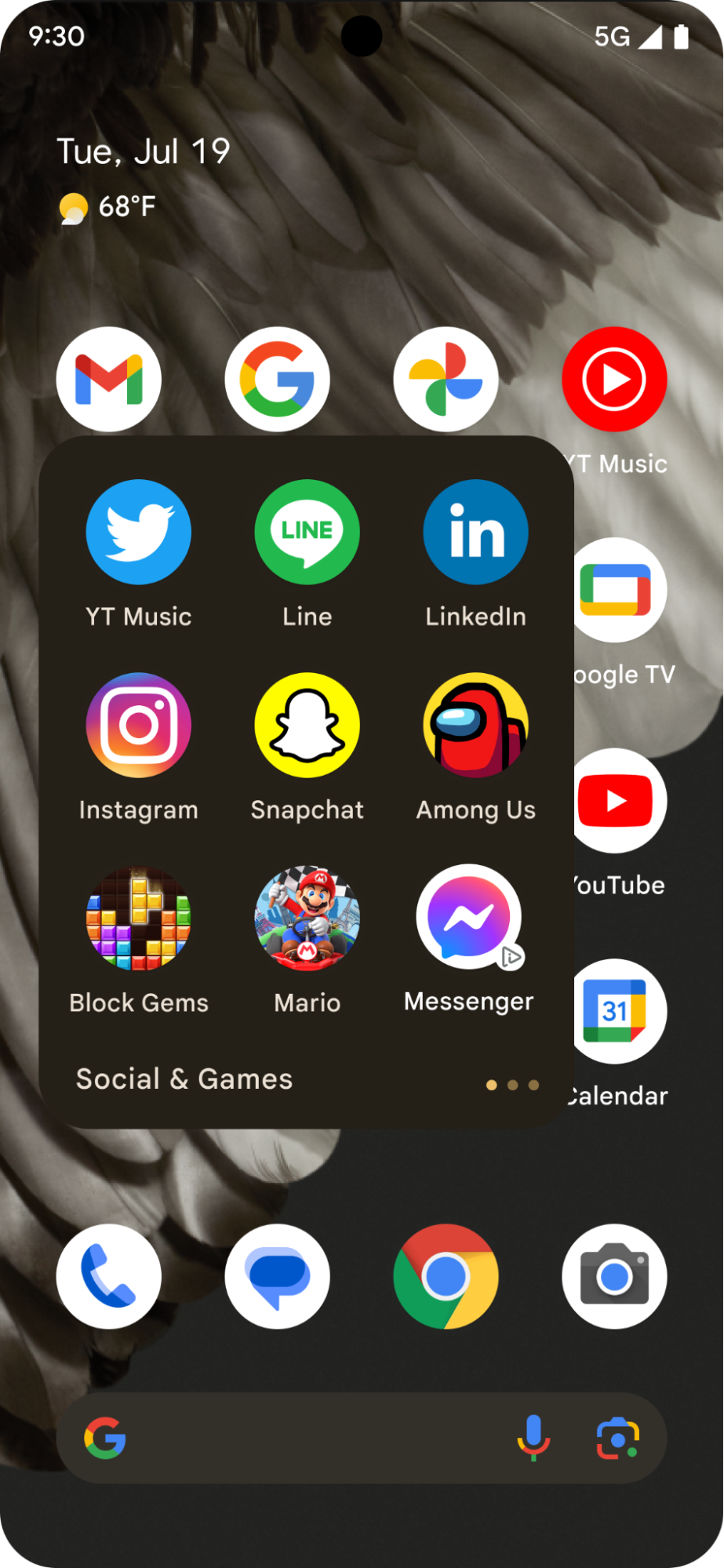
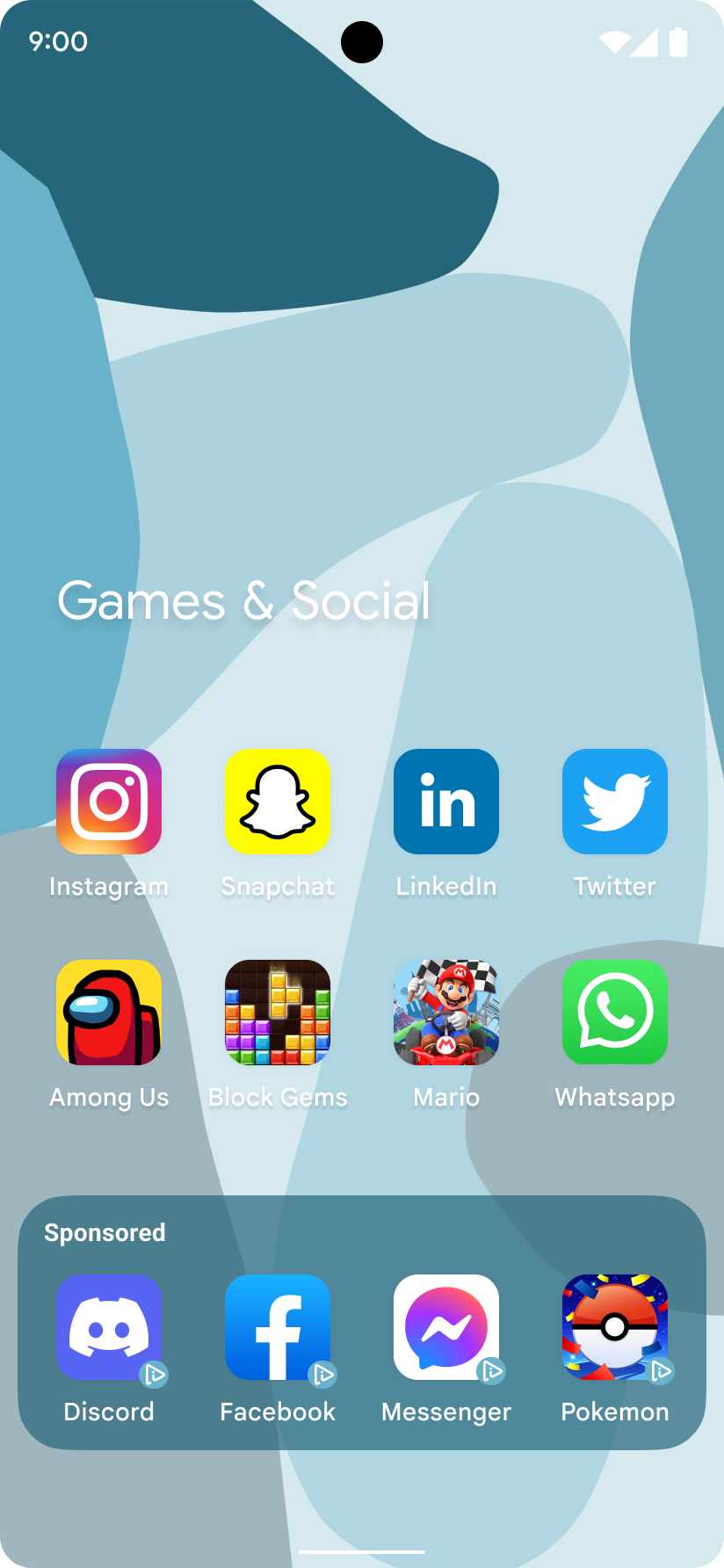
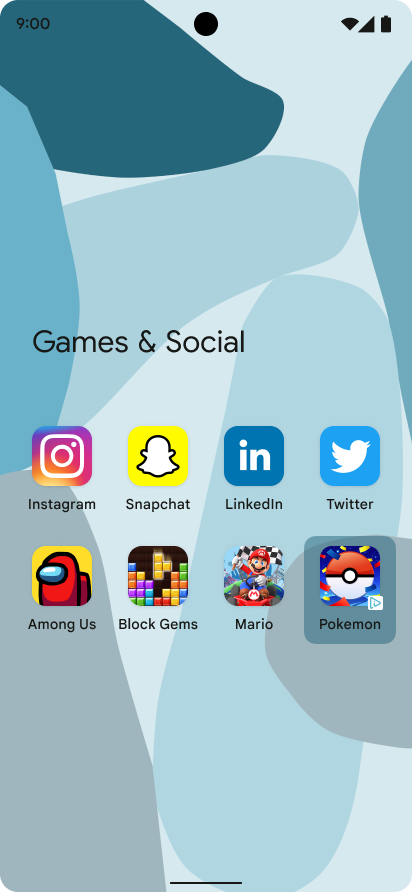
アイコン広告は、オペレーティング システムのユーザー エクスペリエンスを補完する小さなアプリアイコンのプレースメントで、ロック画面や共有画面など、ほとんどの OS レベルのアクティビティに対応できます。アイコン広告は、個別に表示することも、複数のグループで表示することもできます。各広告には、アプリがレンダリングするテキスト要素と文字列要素のセットが用意されています。次の画像は、アプリフォルダに表示されたアイコン広告を示しています。
|
|
|
このガイドでは、アイコン広告をリクエストして表示する方法について説明します。
前提条件
始める前に、GMA Next-Gen SDK 0.8.0-alpha01 以降がインストールされている必要があります。
必ずテスト広告でテストする
アプリの開発とテストでは必ずテスト広告を使用し、配信中の実際の広告は使用しないでください。テスト広告を使用しないと、アカウントが停止される可能性があります。
テスト広告を取得するには、広告ユニットを使用してテストデバイスを有効にするか、Android アイコン広告用の次の専用テスト広告ユニット ID を使用します。
ca-app-pub-3940256099942544/1476272466
アイコン広告を読み込む
アイコン広告リクエストでアイコン広告を読み込み、広告読み込みイベントを処理します。
Kotlin
private fun loadIconAd() {
val request =
IconAdRequest.Builder(AD_UNIT_ID)
// The "AdChoices" badge is rendered at the top right corner of the icon ad
// if left unspecified.
.setAdChoicesPlacement(AdChoicesPlacement.BOTTOM_RIGHT)
// It is recommended to specify the placement of your icon ad
// to help Google optimize your icon ad performance.
.setIconAdPlacement(IconAdPlacement.BROWSER)
.build()
IconAd.load(
request,
object : AdLoadCallback<IconAd> {
override fun onAdFailedToLoad(adError: LoadAdError) {
Log.w(Constant.TAG, "Icon ad failed to load: $adError")
showToast("Icon ad failed to load.")
}
override fun onAdLoaded(ad: IconAd) {
Log.d(Constant.TAG, "Icon ad loaded")
// Always call destroy() on ads on removal.
iconAd?.destroy()
iconAd = ad
setAdEventCallback(ad)
displayIconAd(ad)
}
},
)
}
Java
private void loadIconAd() {
IconAdRequest request =
new IconAdRequest.Builder(AD_UNIT_ID)
// The "AdChoices" badge is rendered at the top right corner of the icon ad
// if left unspecified.
.setAdChoicesPlacement(AdChoicesPlacement.BOTTOM_RIGHT)
// It is recommended to specify the placement of your icon ad
// to help Google optimize your icon ad performance.
.setIconAdPlacement(IconAdPlacement.BROWSER)
.build();
IconAd.load(
request,
new AdLoadCallback<IconAd>() {
@Override
public void onAdFailedToLoad(@NonNull LoadAdError adError) {
Log.w(Constant.TAG, "Icon ad failed to load :" + adError);
showToast("Icon ad failed to load with error code: " + adError.getCode());
}
@Override
public void onAdLoaded(@NonNull IconAd ad) {
Log.d(Constant.TAG, "Icon ad loaded.");
// Always call destroy() on ads on removal.
if (iconAd != null) {
iconAd.destroy();
}
iconAd = ad;
setAdEventCallback(ad);
displayIconAd(ad);
}
});
}
アイコン広告ビューを作成する
アイコン広告では、アセットのルート要素として IconAdView を使用する必要があります。アイコン広告ビュー内に、広告のすべての視覚要素を配置します。
次の例は、アイコン広告のビューを作成するレイアウトを示しています。
<?xml version="1.0" encoding="utf-8"?>
<com.google.android.libraries.ads.mobile.sdk.iconad.IconAdView xmlns:android="http://schemas.android.com/apk/res/android"
    android:layout_width="match_parent"
    android:layout_height="wrap_content">

  <LinearLayout
      android:id="@+id/icon_ad_container"
      android:layout_width="wrap_content"
      android:layout_height="wrap_content"
      android:layout_gravity="center"
      android:background="#00FFC107"
      android:orientation="vertical">

    <LinearLayout
        android:layout_width="wrap_content"
        android:layout_height="wrap_content"
        android:orientation="horizontal">
      <TextView
          android:id="@+id/ad_badge"
          android:width="15dp"
          android:height="15dp"
          android:layout_width="wrap_content"
          android:layout_height="wrap_content"
          android:background="#FFC107"
          android:text="Ad"
          android:textColor="#FFFFFF"
          android:textSize="12sp" />
      <TextView
          android:id="@+id/ad_headline"
          android:textStyle="normal"
          android:layout_width="match_parent"
          android:layout_height="wrap_content"
          android:layout_gravity="center"
          android:autoText="true"
          android:inputType="text|textMultiLine"
          android:textColor="#808080"
          android:textSize="12sp" />
    </LinearLayout>

    <com.google.android.material.imageview.ShapeableImageView xmlns:app="http://schemas.android.com/apk/res-auto"
        android:id="@+id/ad_icon"
        android:layout_width="100dp"
        android:layout_height="100dp"
        android:layout_gravity="center"
        android:adjustViewBounds="true"
        android:background="@android:color/holo_green_light"
        android:contentDescription="@string/content_description_icon_ad"
        android:theme="@style/Theme.AppCompat.Light"
        app:shapeAppearanceOverlay="@style/roundedCorners"
        app:strokeColor="@null" />

    <RatingBar
        android:id="@+id/ad_stars"
        style="?android:attr/ratingBarStyleSmall"
        android:layout_width="wrap_content"
        android:layout_height="wrap_content"
        android:layout_gravity="center"
        android:isIndicator="true"
        android:numStars="5"
        android:stepSize="0.5" />
    <Button
        android:id="@+id/ad_call_to_action"
        android:layout_width="wrap_content"
        android:layout_height="wrap_content"
        android:layout_gravity="center"
        android:gravity="center"
        android:textSize="12sp" />
  </LinearLayout>

</com.google.android.libraries.ads.mobile.sdk.iconad.IconAdView>
アイコン広告を画面に表示する
アイコン広告を画面に表示する手順は次のとおりです。
アイコン広告ビューをインフレートし、ビュー階層に追加します。
各子ビューに、対応するアイコン広告アセットを入力します。
次の例は、上記の手順でアイコン広告を画面に表示する方法を示しています。
Kotlin
val iconAdViewBinding = IconAdBinding.inflate(layoutInflater)
// Add the ad view to the active view hierarchy.
binding.iconAdContainer.addView(iconAdViewBinding.root)
val iconAdView = iconAdViewBinding.root
// Populate the view elements with their respective icon ad asset.
iconAdView.callToActionView = iconAdViewBinding.adCallToAction
iconAdView.headlineView = iconAdViewBinding.adHeadline
iconAdView.iconView = iconAdViewBinding.adIcon
iconAdView.starRatingView = iconAdViewBinding.adStars
Java
IconAdBinding iconAdViewBinding = IconAdBinding.inflate(getLayoutInflater());
// Add the ad view to the active view hierarchy.
binding.iconAdContainer.addView(iconAdViewBinding.getRoot());
IconAdView iconAdView = iconAdViewBinding.getRoot();
// Populate the view elements with their respective icon ad asset.
iconAdView.setCallToActionView(iconAdViewBinding.adCallToAction);
iconAdView.setHeadlineView(iconAdViewBinding.adHeadline);
iconAdView.setIconView(iconAdViewBinding.adIcon);
iconAdView.setStarRatingView(iconAdViewBinding.adStars);
アイコン広告をクリック可能にする
GMA Next-Gen SDK は、マッピングされる各アセットビューのクリック リスナーを登録します。
registerIconAd() が呼び出されたとき。アイコン広告を登録する前に、アイコン広告ビューのプロパティをビュー階層内の対応するビューにマッピングします。
Kotlin
// Map each asset view property to the corresponding view in your view hierarchy.
iconAdViewBinding.adCallToAction.text = iconAd.callToAction
iconAdViewBinding.adHeadline.text = iconAd.headline
iconAdViewBinding.adIcon.setImageDrawable(iconAd.icon.drawable)
iconAd.starRating?.toFloat().also { value ->
if (value != null) {
iconAdViewBinding.adStars.rating = value
}
}
// Register the icon ad with the view presenting it.
iconAdView.registerIconAd(iconAd)
Java
// Map each asset view property to the corresponding view in your view hierarchy.
iconAdViewBinding.adCallToAction.setText(iconAd.getCallToAction());
iconAdViewBinding.adHeadline.setText(iconAd.getHeadline());
iconAdViewBinding.adIcon.setImageDrawable(iconAd.getIcon().getDrawable());
if (iconAd.getStarRating() != null) {
iconAdViewBinding.adStars.setRating(iconAd.getStarRating().floatValue());
}
// Register the icon ad with the view presenting it.
iconAdView.registerIconAd(iconAd);
省略可: アイコン広告イベントのコールバックを設定する
アイコン広告のライフサイクル イベントを処理するには、イベント コールバックを設定します。
Kotlin
iconAd.adEventCallback =
object : IconAdEventCallback {
override fun onAdShowedFullScreenContent() {
// Icon ad showed full screen content.
}
override fun onAdDismissedFullScreenContent() {
// Icon ad dismissed full screen content.
}
override fun onAdFailedToShowFullScreenContent(
fullScreenContentError: FullScreenContentError
) {
// Icon ad failed to show full screen content.
}
override fun onAdImpression() {
// Icon ad recorded an impression.
}
override fun onAdClicked() {
// Icon ad recorded a click.
}
override fun onAdPaid(value: AdValue) {
// Icon ad estimated to have earned money.
}
}
Java
iconAd.setAdEventCallback(
new IconAdEventCallback() {
@Override
public void onAdShowedFullScreenContent() {
// Icon ad showed full screen content.
}
@Override
public void onAdDismissedFullScreenContent() {
// Icon ad dismissed full screen content.
}
@Override
public void onAdFailedToShowFullScreenContent(
@NonNull FullScreenContentError fullScreenContentError) {
// Icon ad failed to show full screen content.
}
@Override
public void onAdImpression() {
// Icon ad recorded an impression.
}
@Override
public void onAdClicked() {
// Icon ad recorded a click.
}
@Override
public void onAdPaid(@NonNull AdValue value) {
// Icon ad estimated to have earned money.
}
});
パフォーマンスを最適化する
以下のセクションでは、アイコン広告のパフォーマンスを最適化するための省略可能な実装手順について説明します。
相関子を使用して複数の広告を読み込む
複数のアイコン広告を読み込んで同時に表示する場合は、同じ correlator 値を使用して連続してリクエストを行い、読み込まれた広告が一意であることを確認します。相関子の有効期間は 10 秒です。サーバーは、10 秒以上間隔を空けて行われたリクエストを、相関関係があると見なしません。
次の例は、広告リクエストに correlator 値を設定する方法を示しています。
Kotlin
val correlator = Correlator.generateCorrelator()
val request =
      IconAdRequest.Builder("ca-app-pub-3940256099942544/1476272466")
        .setCorrelator(correlator)
        .build()
Java
Correlator correlator = Correlator.generateCorrelator();
IconAdRequest request =
    new IconAdRequest.Builder("ca-app-pub-3940256099942544/1476272466")
        .setCorrelator(correlator)
        .build();
アイコン広告のプレースメントを設定する
Google がアイコン広告のプレースメントを把握してアイコン広告のパフォーマンスを最適化できるように、リクエスト時にアイコン広告を表示する場所を指定することをおすすめします。
ユースケースに最も近い IconAdPlacement 列挙値を使用します。
Kotlin
val request =
  IconAdRequest.Builder("ca-app-pub-3940256099942544/1476272466")
    .setIconAdPlacement(IconAdPlacement.BROWSER)
    .build()
Java
IconAdRequest request =
    new IconAdRequest.Builder("ca-app-pub-3940256099942544/1476272466")
        .setIconAdPlacement(IconAdPlacement.BROWSER)
        .build();