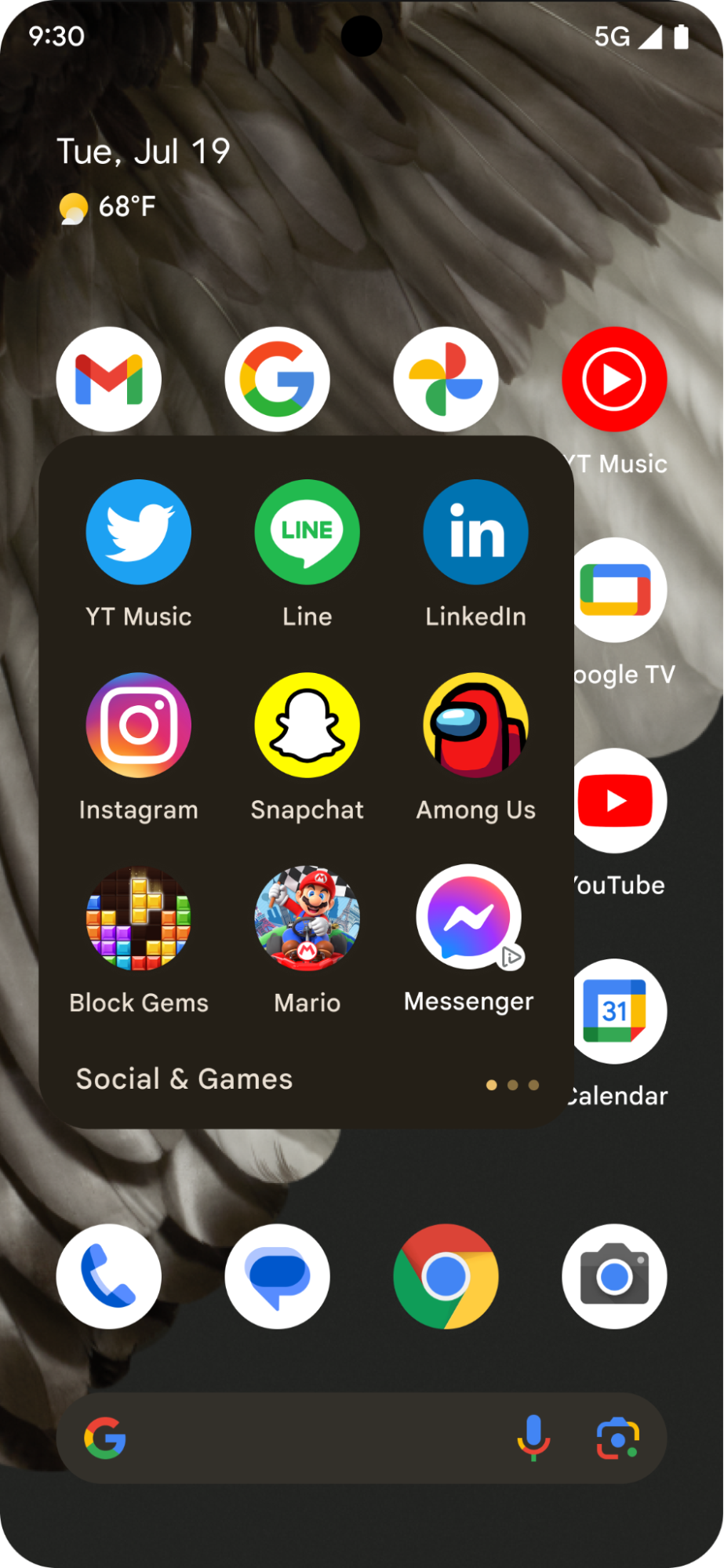
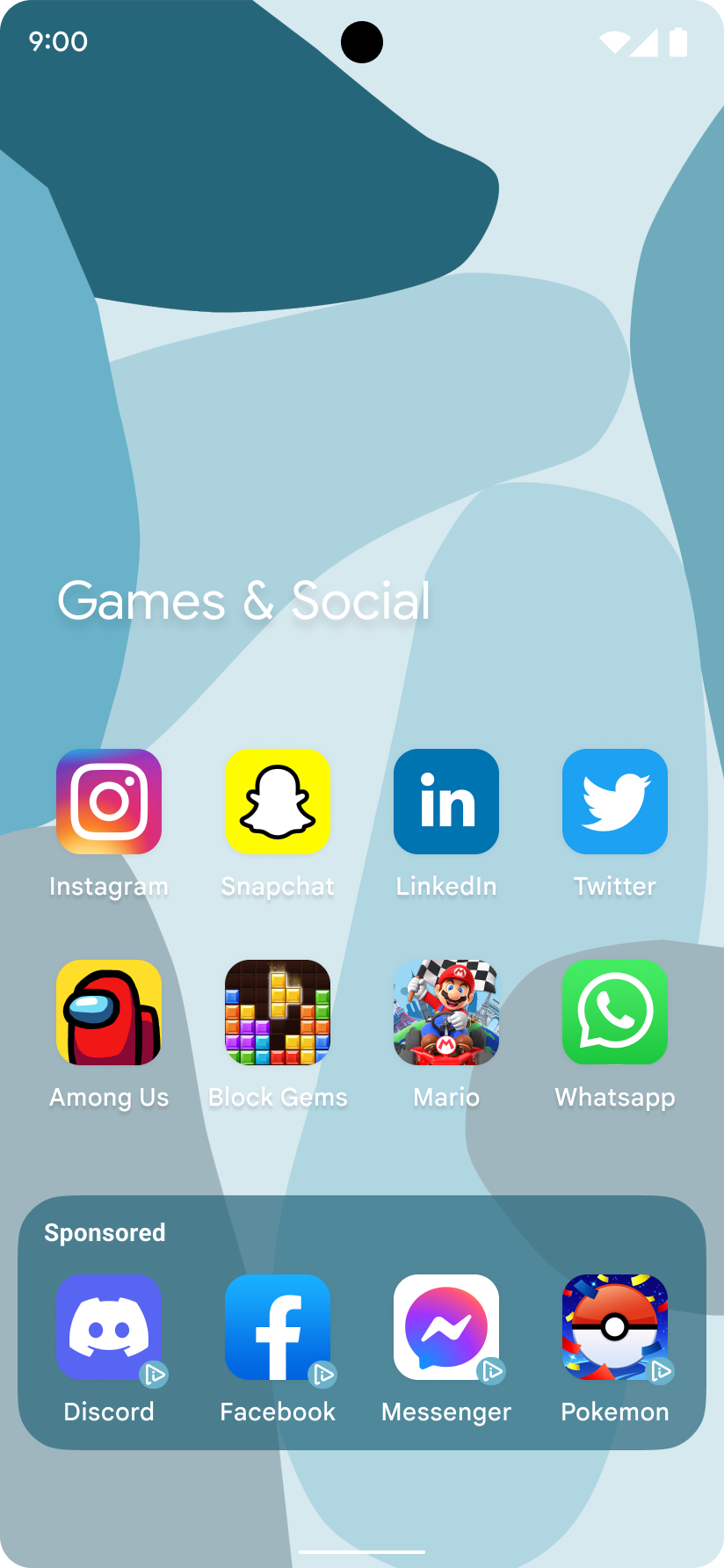
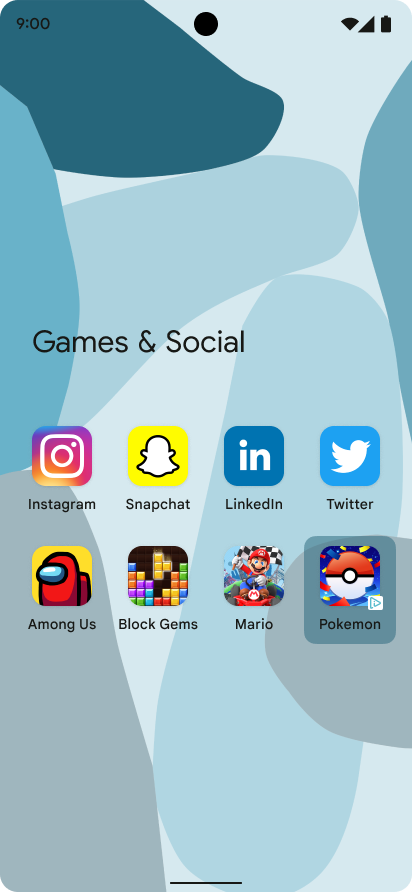
מודעות עם סמלים הן מודעות קטנות עם סמלי אפליקציות שמשתלבות בחוויית המשתמש של מערכת ההפעלה, ומתאימות לרוב הפעילויות ברמת מערכת ההפעלה, כמו מסך הנעילה ומסך השיתוף. אפשר להציג מודעות עם סמלים בנפרד או בכמה קבוצות. כל מודעה מספקת קבוצה של רכיבי טקסט ומחרוזות שהאפליקציה שלכם אחראית לעיבוד שלהם. בתמונות הבאות מוצגות מודעות עם סמלים בתיקיית אפליקציות:
|
|
|
במדריך הזה נסביר איך לבקש ולהציג מודעות עם סמלים.
דרישות מוקדמות
לפני שמתחילים, צריך לוודא שיש לכם גרסה GMA Next-Gen SDK 0.8.0-alpha01 ומעלה.
תמיד כדאי לבצע בדיקות באמצעות מודעות בדיקה
כשמפתחים ובודקים את האפליקציות, חשוב להשתמש במודעות בדיקה ולא במודעות פעילות לפרסום מוצרים. אי-שימוש במודעות בדיקה עלול להוביל להשעיית החשבון.
כדי להציג מודעות בדיקה, אפשר להשתמש ביחידות המודעות שלכם ולהפעיל מכשירי בדיקה, או להשתמש במזהה הייעודי הבא של יחידת מודעות בדיקה למודעות סמלים ל-Android:
ca-app-pub-3940256099942544/1476272466
טעינת מודעה עם סמל
טוענים מודעת סמל עם בקשה להצגת מודעת סמל ומטפלים באירועים של טעינת מודעות:
Kotlin
private fun loadIconAd() {
val request =
IconAdRequest.Builder(AD_UNIT_ID)
// The "AdChoices" badge is rendered at the top right corner of the icon ad
// if left unspecified.
.setAdChoicesPlacement(AdChoicesPlacement.BOTTOM_RIGHT)
// It is recommended to specify the placement of your icon ad
// to help Google optimize your icon ad performance.
.setIconAdPlacement(IconAdPlacement.BROWSER)
.build()
IconAd.load(
request,
object : AdLoadCallback<IconAd> {
override fun onAdFailedToLoad(adError: LoadAdError) {
Log.w(Constant.TAG, "Icon ad failed to load: $adError")
showToast("Icon ad failed to load.")
}
override fun onAdLoaded(ad: IconAd) {
Log.d(Constant.TAG, "Icon ad loaded")
// Always call destroy() on ads on removal.
iconAd?.destroy()
iconAd = ad
setAdEventCallback(ad)
displayIconAd(ad)
}
},
)
}
Java
private void loadIconAd() {
IconAdRequest request =
new IconAdRequest.Builder(AD_UNIT_ID)
// The "AdChoices" badge is rendered at the top right corner of the icon ad
// if left unspecified.
.setAdChoicesPlacement(AdChoicesPlacement.BOTTOM_RIGHT)
// It is recommended to specify the placement of your icon ad
// to help Google optimize your icon ad performance.
.setIconAdPlacement(IconAdPlacement.BROWSER)
.build();
IconAd.load(
request,
new AdLoadCallback<IconAd>() {
@Override
public void onAdFailedToLoad(@NonNull LoadAdError adError) {
Log.w(Constant.TAG, "Icon ad failed to load :" + adError);
showToast("Icon ad failed to load with error code: " + adError.getCode());
}
@Override
public void onAdLoaded(@NonNull IconAd ad) {
Log.d(Constant.TAG, "Icon ad loaded.");
// Always call destroy() on ads on removal.
if (iconAd != null) {
iconAd.destroy();
}
iconAd = ad;
setAdEventCallback(ad);
displayIconAd(ad);
}
});
}
יצירת תצוגה של מודעת סמל
במודעות עם סמלים, צריך להשתמש ב-IconAdView כרכיב הבסיס של הנכסים. בתוך תצוגת הסמל של המודעה, ממקמים את כל הרכיבים החזותיים של המודעה.
בדוגמה הבאה מוצג פריסה ליצירת תצוגה של מודעה עם סמל:
<?xml version="1.0" encoding="utf-8"?>
<com.google.android.libraries.ads.mobile.sdk.iconad.IconAdView xmlns:android="http://schemas.android.com/apk/res/android"
    android:layout_width="match_parent"
    android:layout_height="wrap_content">

  <LinearLayout
      android:id="@+id/icon_ad_container"
      android:layout_width="wrap_content"
      android:layout_height="wrap_content"
      android:layout_gravity="center"
      android:background="#00FFC107"
      android:orientation="vertical">

    <LinearLayout
        android:layout_width="wrap_content"
        android:layout_height="wrap_content"
        android:orientation="horizontal">
      <TextView
          android:id="@+id/ad_badge"
          android:width="15dp"
          android:height="15dp"
          android:layout_width="wrap_content"
          android:layout_height="wrap_content"
          android:background="#FFC107"
          android:text="Ad"
          android:textColor="#FFFFFF"
          android:textSize="12sp" />
      <TextView
          android:id="@+id/ad_headline"
          android:textStyle="normal"
          android:layout_width="match_parent"
          android:layout_height="wrap_content"
          android:layout_gravity="center"
          android:autoText="true"
          android:inputType="text|textMultiLine"
          android:textColor="#808080"
          android:textSize="12sp" />
    </LinearLayout>

    <com.google.android.material.imageview.ShapeableImageView xmlns:app="http://schemas.android.com/apk/res-auto"
        android:id="@+id/ad_icon"
        android:layout_width="100dp"
        android:layout_height="100dp"
        android:layout_gravity="center"
        android:adjustViewBounds="true"
        android:background="@android:color/holo_green_light"
        android:contentDescription="@string/content_description_icon_ad"
        android:theme="@style/Theme.AppCompat.Light"
        app:shapeAppearanceOverlay="@style/roundedCorners"
        app:strokeColor="@null" />

    <RatingBar
        android:id="@+id/ad_stars"
        style="?android:attr/ratingBarStyleSmall"
        android:layout_width="wrap_content"
        android:layout_height="wrap_content"
        android:layout_gravity="center"
        android:isIndicator="true"
        android:numStars="5"
        android:stepSize="0.5" />
    <Button
        android:id="@+id/ad_call_to_action"
        android:layout_width="wrap_content"
        android:layout_height="wrap_content"
        android:layout_gravity="center"
        android:gravity="center"
        android:textSize="12sp" />
  </LinearLayout>

</com.google.android.libraries.ads.mobile.sdk.iconad.IconAdView>
הצגת מודעת הסמל במסך
כדי להציג את מודעת הסמל במסך, פועלים לפי השלבים הבאים:
ליצור אובייקט תצוגה (inflate) של מודעת הסמל ולהוסיף אותו להיררכיית התצוגות.
מאכלסים כל תצוגת צאצא בסמל המתאים של נכס המודעה.
בדוגמה הבאה מוסבר איך להציג את מודעת הסמל במסך:
Kotlin
val iconAdViewBinding = IconAdBinding.inflate(layoutInflater)
// Add the ad view to the active view hierarchy.
binding.iconAdContainer.addView(iconAdViewBinding.root)
val iconAdView = iconAdViewBinding.root
// Populate the view elements with their respective icon ad asset.
iconAdView.callToActionView = iconAdViewBinding.adCallToAction
iconAdView.headlineView = iconAdViewBinding.adHeadline
iconAdView.iconView = iconAdViewBinding.adIcon
iconAdView.starRatingView = iconAdViewBinding.adStars
Java
IconAdBinding iconAdViewBinding = IconAdBinding.inflate(getLayoutInflater());
// Add the ad view to the active view hierarchy.
binding.iconAdContainer.addView(iconAdViewBinding.getRoot());
IconAdView iconAdView = iconAdViewBinding.getRoot();
// Populate the view elements with their respective icon ad asset.
iconAdView.setCallToActionView(iconAdViewBinding.adCallToAction);
iconAdView.setHeadlineView(iconAdViewBinding.adHeadline);
iconAdView.setIconView(iconAdViewBinding.adIcon);
iconAdView.setStarRatingView(iconAdViewBinding.adStars);
הפיכת סמל המודעה ללחיץ
הפונקציה GMA Next-Gen SDK רושמת מאזינים לקליקים לכל תצוגת נכס שממופה כשקוראים לפונקציה registerIconAd(). לפני שמבצעים רישום של מודעת הסמל, ממפים את מאפייני הצפייה במודעת הסמל לתצוגה המתאימה בהיררכיית התצוגות:
Kotlin
// Map each asset view property to the corresponding view in your view hierarchy.
iconAdViewBinding.adCallToAction.text = iconAd.callToAction
iconAdViewBinding.adHeadline.text = iconAd.headline
iconAdViewBinding.adIcon.setImageDrawable(iconAd.icon.drawable)
iconAd.starRating?.toFloat().also { value ->
if (value != null) {
iconAdViewBinding.adStars.rating = value
}
}
// Register the icon ad with the view presenting it.
iconAdView.registerIconAd(iconAd)
Java
// Map each asset view property to the corresponding view in your view hierarchy.
iconAdViewBinding.adCallToAction.setText(iconAd.getCallToAction());
iconAdViewBinding.adHeadline.setText(iconAd.getHeadline());
iconAdViewBinding.adIcon.setImageDrawable(iconAd.getIcon().getDrawable());
if (iconAd.getStarRating() != null) {
iconAdViewBinding.adStars.setRating(iconAd.getStarRating().floatValue());
}
// Register the icon ad with the view presenting it.
iconAdView.registerIconAd(iconAd);
אופציונלי: הגדרת קריאה חוזרת (callback) של אירוע במודעה עם סמל
כדי לטפל באירועים במחזור החיים של מודעות עם סמלים, צריך להגדיר את הקריאה החוזרת (callback) של האירוע:
Kotlin
iconAd.adEventCallback =
object : IconAdEventCallback {
override fun onAdShowedFullScreenContent() {
// Icon ad showed full screen content.
}
override fun onAdDismissedFullScreenContent() {
// Icon ad dismissed full screen content.
}
override fun onAdFailedToShowFullScreenContent(
fullScreenContentError: FullScreenContentError
) {
// Icon ad failed to show full screen content.
}
override fun onAdImpression() {
// Icon ad recorded an impression.
}
override fun onAdClicked() {
// Icon ad recorded a click.
}
override fun onAdPaid(value: AdValue) {
// Icon ad estimated to have earned money.
}
}
Java
iconAd.setAdEventCallback(
new IconAdEventCallback() {
@Override
public void onAdShowedFullScreenContent() {
// Icon ad showed full screen content.
}
@Override
public void onAdDismissedFullScreenContent() {
// Icon ad dismissed full screen content.
}
@Override
public void onAdFailedToShowFullScreenContent(
@NonNull FullScreenContentError fullScreenContentError) {
// Icon ad failed to show full screen content.
}
@Override
public void onAdImpression() {
// Icon ad recorded an impression.
}
@Override
public void onAdClicked() {
// Icon ad recorded a click.
}
@Override
public void onAdPaid(@NonNull AdValue value) {
// Icon ad estimated to have earned money.
}
});
אופטימיזציה של הביצועים
בסעיפים הבאים מפורטים שלבים אופציונליים להטמעה, שיעזרו לכם לשפר את הביצועים של מודעות עם סמלים.
שימוש במתאם לטעינת כמה מודעות
כשמעלים כמה מודעות עם סמלים כדי להציג אותן יחד, צריך לשלוח בקשות עוקבות באמצעות אותו ערך של קורלטור כדי לוודא שהמודעות שנטענו הן ייחודיות. משך החיים של הקורלטור הוא 10 שניות. השרת לא מחשיב בקשות שמופרדות ביותר מ-10 שניות כבקשות שקשורות זו לזו.
בדוגמה הבאה מוצג אופן ההגדרה של ערך קורלטור בבקשה להצגת מודעה:
Kotlin
val correlator = Correlator.generateCorrelator()
val request =
      IconAdRequest.Builder("ca-app-pub-3940256099942544/1476272466")
        .setCorrelator(correlator)
        .build()
Java
Correlator correlator = Correlator.generateCorrelator();
IconAdRequest request =
    new IconAdRequest.Builder("ca-app-pub-3940256099942544/1476272466")
        .setCorrelator(correlator)
        .build();
הגדרת מיקום מודעה עם סמלים
כדי לעזור ל-Google להבין את מיקום מודעות הסמלים שלכם ולבצע אופטימיזציה של הביצועים שלהן, מומלץ לציין בזמן השליחה של הבקשה איפה אתם מתכוונים להציג את מודעות הסמלים.
משתמשים בערך ה-enum IconAdPlacement שמייצג בצורה הכי קרובה את תרחיש השימוש שלכם:
Kotlin
val request =
  IconAdRequest.Builder("ca-app-pub-3940256099942544/1476272466")
    .setIconAdPlacement(IconAdPlacement.BROWSER)
    .build()
Java
IconAdRequest request =
    new IconAdRequest.Builder("ca-app-pub-3940256099942544/1476272466")
        .setIconAdPlacement(IconAdPlacement.BROWSER)
        .build();