The Google Slides API lets you create and edit a
[`PageElement`](https://developers.google.com/workspace/slides/api/reference/rest/v1/presentations.pages#pageelement)
resource, including text boxes, images, tables, basic shapes, lines, and
embedded videos. The examples on this page show some common page element
operations using the
[`presentations.batchUpdate`](https://developers.google.com/workspace/slides/api/reference/rest/v1/presentations/batchUpdate)
method.
These examples use the following variables:
- PRESENTATION_ID---Indicates where you provide the [presentation
ID](https://developers.google.com/workspace/slides/api/guides/overview#the_structure_of_a_presentation). You can retrieve the value for this ID from the presentation URL.
- PAGE_ID---Indicates where you provide the [page object
ID](https://developers.google.com/workspace/slides/api/guides/overview#working_with_object_ids). You can retrieve the value for this from the URL or by using an API read request.
- PAGE_ELEMENT_ID---Indicates where you provide the [page
element object ID](https://developers.google.com/workspace/slides/api/guides/overview#working_with_object_ids). You can specify this ID for elements you create (with [some
restrictions](https://developers.google.com/workspace/slides/api/guides/overview#specifying_object_ids_on_creation)) or allow the Slides API to automatically create one. Element IDs can be retrieved through an API read request.
These examples are presented as HTTP requests to be language neutral. To learn
how to implement a batch update in different languages using the Google API
client libraries, see the following guides:
- [Edit and style text](https://developers.google.com/workspace/slides/api/guides/styling#converting_paragraphs_to_a_list)
- [Add shapes and text](https://developers.google.com/workspace/slides/api/guides/add-shape#example)
- [Add a chart](https://developers.google.com/workspace/slides/api/guides/add-chart#refreshing_a_chart)
## Add a bulleted list to a text box
The following
[`presentations.batchUpdate`](https://developers.google.com/workspace/slides/api/reference/rest/v1/presentations/batchUpdate)
code sample shows how to use the
[`InsertTextRequest`](https://developers.google.com/workspace/slides/api/reference/rest/v1/presentations/request#InsertTextRequest)
method to insert text into an empty text box specified by the
PAGE_ELEMENT_ID. The sample then uses the
[`CreateParagraphBulletsRequest`](https://developers.google.com/workspace/slides/api/reference/rest/v1/presentations/request#CreateParagraphBulletsRequest)
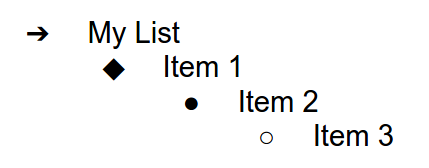
method to convert all the text box text into a bulleted list. Items in the list
are separated by `\n` characters, while indention is controlled with `\t`
characters.
The following is the request protocol to create a presentation:
```
POST https://slides.googleapis.com/v1/presentations/PRESENTATION_ID:batchUpdate
```
```
{
"https://developers.google.com/workspace/slides/api/reference/rest/v1/presentations/request": [
{
"https://developers.google.com/workspace/slides/api/reference/rest/v1/presentations/request#InsertTextRequest": {
"objectId": PAGE_ELEMENT_ID,
"text": "My List\n\tItem 1\n\t\tItem 2\n\t\t\tItem 3",
"insertionIndex": 0
},
"https://developers.google.com/workspace/slides/api/reference/rest/v1/presentations/request#CreateParagraphBulletsRequest": {
"objectId": PAGE_ELEMENT_ID,
"https://developers.google.com/workspace/slides/api/reference/rest/v1/presentations/request#BulletGlyphPreset": "BULLET_ARROW_DIAMOND_DISC",
"https://developers.google.com/workspace/slides/api/reference/rest/v1/presentations/request#Range": {
"https://developers.google.com/workspace/slides/api/reference/rest/v1/presentations/request#Type": "ALL"
}
}
}
]
}
```
This request can create a bulleted list that looks like this:
## Add a shape to a slide
The following
[`presentations.batchUpdate`](https://developers.google.com/workspace/slides/api/reference/rest/v1/presentations/batchUpdate)
code sample shows how to use the
[`CreateShapeRequest`](https://developers.google.com/workspace/slides/api/reference/rest/v1/presentations/request#CreateShapeRequest)
method to add a wave shape to a slide specified by the PAGE_ID.
This request specifies the shape type, then scales and positions the shape in
the slide. It then uses the
[`InsertTextRequest`](https://developers.google.com/workspace/slides/api/reference/rest/v1/presentations/request#InsertTextRequest)
method to add text to that shape. The request sets the line's ID to
PAGE_ELEMENT_ID.
The following is the request protocol to add a shape to a slide:
```
POST https://slides.googleapis.com/v1/presentations/PRESENTATION_ID:batchUpdate
```
```
{
"requests": [
{
"createShape": {
"objectId": PAGE_ELEMENT_ID,
"elementProperties": {
"pageObjectId": PAGE_ID,
"size": {
"width": {
"magnitude": 3000000,
"unit": "EMU"
},
"height": {
"magnitude": 3000000,
"unit": "EMU"
}
},
"transform": {
"scaleX": 0.6807,
"scaleY": 0.4585,
"translateX": 6583050,
"translateY": 1673950,
"unit": "EMU"
}
},
"shapeType": "WAVE"
}
},
{
"insertText": {
"objectId": PAGE_ELEMENT_ID,
"text": "My Wave Shape",
"insertionIndex": 0
}
}
]
}
```
## Add a video to a slide
The following
[`presentations.batchUpdate`](https://developers.google.com/workspace/slides/api/reference/rest/v1/presentations/batchUpdate)
code sample shows how to use the
[`CreateVideoRequest`](https://developers.google.com/workspace/slides/api/reference/rest/v1/presentations/request#CreateVideoRequest)
method to embed a video into a slide specified by the PAGE_ID.
This request scales and positions the video in the slide, and sets the video's
ID to PAGE_ELEMENT_ID. The source video's unique identifier is
set to VIDEO_ID. For example, the YouTube video at
[`https://www.youtube.com/watch?v=7U3axjORYZ0`](https://www.youtube.com/watch?v=7U3axjORYZ0)
has the ID `7U3axjORYZ0`.
The following is the request protocol to add a video to a slide:
```
POST https://slides.googleapis.com/v1/presentations/PRESENTATION_ID:batchUpdate
```
```
{
"requests": [
{
"createVideo": {
"objectId": PAGE_ELEMENT_ID,
"elementProperties": {
"pageObjectId": PAGE_ID,
"size": {
"width": {
"magnitude": 12000,
"unit": "EMU"
},
"height": {
"magnitude": 9000,
"unit": "EMU"
}
},
"transform": {
"scaleX": 381,
"scaleY": 381,
"translateX": 152400,
"translateY": 152400,
"unit": "EMU"
}
},
"source": "YOUTUBE",
"id": VIDEO_ID
}
}
]
}
```
## Copy and edit an element
The following
[`presentations.batchUpdate`](https://developers.google.com/workspace/slides/api/reference/rest/v1/presentations/batchUpdate)
code sample shows how to use the
[`DuplicateObjectRequest`](https://developers.google.com/workspace/slides/api/reference/rest/v1/presentations/request#DuplicateObjectRequest)
method to take an existing shape (specified by the
PAGE_ELEMENT_ID) and make a copy (specified by the
COPY_ELEMENT_ID).
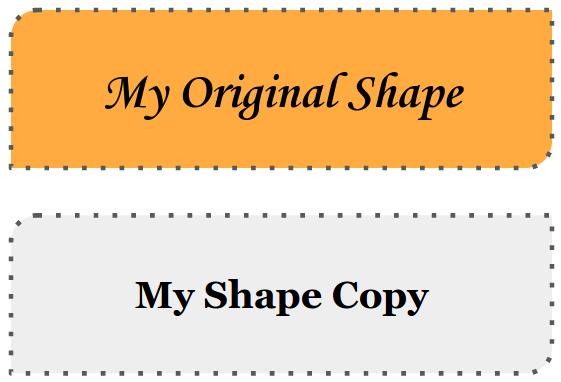
The subsequent requests then make the following changes to the duplicate object:
- Sets the background color to the `LIGHT2` theme color.
- Moves the copy down the page (from the original shape's position).
- Sets the text font to 18-pt Georgia.
- Edits the text to read "My Shape Copy".
The requests here use [field masks](https://developers.google.com/workspace/slides/api/guides/field-masks) to preserve
the shape properties that aren't changed (such as the outline style). Using
field masks also improves performance.
For more information about copying a slide, see the sample [Copy a
slide](https://developers.google.com/workspace/slides/api/samples/slides#copy-slide).
The following is the request protocol to copy and edit an element:
```
POST https://slides.googleapis.com/v1/presentations/PRESENTATION_ID:batchUpdate
```
```
{
"https://developers.google.com/workspace/slides/api/reference/rest/v1/presentations/request": [
{
"https://developers.google.com/workspace/slides/api/reference/rest/v1/presentations/request#DuplicateObjectRequest": {
"objectId": PAGE_ELEMENT_ID,
"objectIds": {
PAGE_ELEMENT_ID: COPY_ELEMENT_ID
}
}
},
{
"https://developers.google.com/workspace/slides/api/reference/rest/v1/presentations/request#UpdateShapePropertiesRequest": {
"objectId": COPY_ELEMENT_ID,
"fields": "shapeBackgroundFill.solidFill.color",
"https://developers.google.com/workspace/slides/api/reference/rest/v1/presentations.pages/shapes#Page.ShapeProperties": {
"https://developers.google.com/workspace/slides/api/reference/rest/v1/presentations.pages/shapes#Page.ShapeBackgroundFill": {
"https://developers.google.com/workspace/slides/api/reference/rest/v1/presentations.pages/other#Page.SolidFill": {
"https://developers.google.com/workspace/slides/api/reference/rest/v1/presentations.pages/other#Page.OpaqueColor": {
"https://developers.google.com/workspace/slides/api/reference/rest/v1/presentations.pages/other#Page.ThemeColorType": "LIGHT2"
}
}
}
}
}
},
{
"https://developers.google.com/workspace/slides/api/reference/rest/v1/presentations/request#UpdatePageElementTransformRequest": {
"objectId": COPY_ELEMENT_ID,
"https://developers.google.com/workspace/slides/api/reference/rest/v1/presentations/request#ApplyMode": "RELATIVE",
"https://developers.google.com/workspace/slides/api/reference/rest/v1/presentations.pages/other#Page.AffineTransform": {
"scaleX": 1,
"scaleY": 1,
"translateX": 0,
"translateY": 1250000,
"https://developers.google.com/workspace/slides/api/reference/rest/v1/Unit": "EMU"
}
}
},
{
"https://developers.google.com/workspace/slides/api/reference/rest/v1/presentations/request#UpdateTextStyleRequest": {
"objectId": COPY_ELEMENT_ID,
"fields": "fontFamily,fontSize",
"https://developers.google.com/workspace/slides/api/reference/rest/v1/presentations/request#Range": {
"https://developers.google.com/workspace/slides/api/reference/rest/v1/presentations/request#Type": "ALL"
},
"https://developers.google.com/workspace/slides/api/reference/rest/v1/presentations.pages/text#Page.TextStyle": {
"fontFamily": "Georgia",
"https://developers.google.com/workspace/slides/api/reference/rest/v1/Dimension": {
"magnitude": 18,
"https://developers.google.com/workspace/slides/api/reference/rest/v1/Unit": "PT"
}
}
}
},
{
"https://developers.google.com/workspace/slides/api/reference/rest/v1/presentations/request#DeleteTextRequest": {
"objectId": COPY_ELEMENT_ID,
"https://developers.google.com/workspace/slides/api/reference/rest/v1/presentations/request#Range": {
"https://developers.google.com/workspace/slides/api/reference/rest/v1/presentations/request#Type": "ALL"
}
}
},
{
"https://developers.google.com/workspace/slides/api/reference/rest/v1/presentations/request#InsertTextRequest": {
"objectId": COPY_ELEMENT_ID,
"text": "My Shape Copy",
"insertionIndex": 0
}
}
]
}
```
Here's what a shape and its copy might look like after these updates:
## Edit an image or video outline
The following
[`presentations.batchUpdate`](https://developers.google.com/workspace/slides/api/reference/rest/v1/presentations/batchUpdate)
code sample shows how to use the
[`UpdateImagePropertiesRequest`](https://developers.google.com/workspace/slides/api/reference/rest/v1/presentations/request#UpdateImagePropertiesRequest)
method to update the outline appearance of an image specified by the
IMAGE_ELEMENT_ID. It also uses the
[`UpdateVideoPropertiesRequest`](https://developers.google.com/workspace/slides/api/reference/rest/v1/presentations/request#UpdateVideoPropertiesRequest)
method to update the outline appearance of an embedded video specified by the
VIDEO_ELEMENT_ID.
The requests make the following changes to the object:
- Sets the image outline color to the `ACCENT5` theme color with partial transparency.
- Sets the video outline color to the `ACCENT1` theme color with no transparency.
- Sets the outline weights to 3-pt for both.
- Sets the image outline style to `SOLID`.
- Sets the video outline style to `DASH_DOT`.
Both the `UpdateImagePropertiesRequest` method and the
`UpdateVideoPropertiesRequest` method can only change the appearance of image
and video outlines. All other properties are read-only. The requests here use
[field masks](https://developers.google.com/workspace/slides/api/guides/field-masks) to specify that only the outline
should be changed to protect the code against future API changes. Using field
masks also improves performance.
The following is the request protocol to edit an image or video outline:
```
POST https://slides.googleapis.com/v1/presentations/PRESENTATION_ID:batchUpdate
```
```
{
"requests": [
{
"updateImageProperties": {
"objectId": IMAGE_ELEMENT_ID,
"fields": "outline",
"imageProperties": {
"outline": {
"dashStyle": "SOLID",
"outlineFill": {
"solidFill": {
"alpha": 0.8,
"color": {
"themeColor": "ACCENT5"
}
}
},
"weight": {
"magnitude": 3,
"unit": "PT"
}
}
}
}
},
{
"updateVideoProperties": {
"objectId": VIDEO_ELEMENT_ID,
"fields": "outline",
"videoProperties": {
"outline": {
"dashStyle": "DASH_DOT",
"outlineFill": {
"solidFill": {
"alpha": 0.8,
"color": {
"themeColor": "ACCENT1"
}
}
},
"weight": {
"magnitude": 3,
"unit": "PT"
}
}
}
}
}
]
}
```
Here's what an image and embedded video might look like after these updates:

## Edit the outline of a shape
The following
[`presentations.batchUpdate`](https://developers.google.com/workspace/slides/api/reference/rest/v1/presentations/batchUpdate)
code sample shows how to use the
[`UpdateShapePropertiesRequest`](https://developers.google.com/workspace/slides/api/reference/rest/v1/presentations/request#UpdateShapePropertiesRequest)
method to take an existing shape (specified by the
PAGE_ELEMENT_ID) and updates the appearance of its outline.
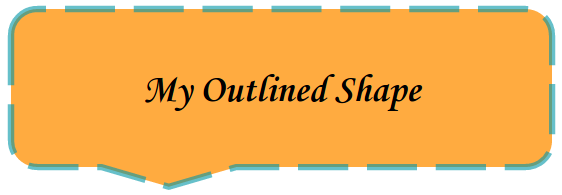
The requests make the following changes to the object:
- Sets the outline color to the `ACCENT5` theme color with partial transparency.
- Sets the outline weight to 3-pt.
- Sets the outline style to `LONG_DASH`.
The requests here use [field masks](https://developers.google.com/workspace/slides/api/guides/field-masks) to preserve
the shape properties that aren't changed (such as the shape fill color). Using
field masks also improves performance.
The following is the request protocol to edit the outline of a shape:
```
POST https://slides.googleapis.com/v1/presentations/PRESENTATION_ID:batchUpdate
```
```
{
"requests": [
{
"updateShapeProperties": {
"objectId": PAGE_ELEMENT_ID,
"fields": "outline",
"shapeProperties": {
"outline": {
"dashStyle": "LONG_DASH",
"outlineFill": {
"solidFill": {
"alpha": 0.6,
"color": {
"themeColor": "ACCENT5"
}
}
},
"weight": {
"magnitude": 3,
"unit": "PT"
}
}
}
}
}
]
}
```
Here's what a shape might look like after these updates:
## Format text in a shape or text box
The following
[`presentations.batchUpdate`](https://developers.google.com/workspace/slides/api/reference/rest/v1/presentations/batchUpdate)
code sample shows how to use the
[`UpdateTextStyleRequest`](https://developers.google.com/workspace/slides/api/reference/rest/v1/presentations/request#UpdateTextStyleRequest)
method to take an existing shape (specified by the
PAGE_ELEMENT_ID) and updates the appearance of its text.
The requests make the following changes to the object:
- Sets the text color to the `ACCENT5` theme color.
- Sets the font to be bold, italic 18-pt Corsiva.
- Underlines the text.
The requests here use [field masks](https://developers.google.com/workspace/slides/api/guides/field-masks) to preserve
the text style properties that aren't changed (such as the background color,
links, or baseline offsets). Using field masks also improves performance.
The following is the request protocol to format text in a shape or text box:
```
POST https://slides.googleapis.com/v1/presentations/PRESENTATION_ID:batchUpdate
```
```
{
"https://developers.google.com/workspace/slides/api/reference/rest/v1/presentations/request": [
{
"https://developers.google.com/workspace/slides/api/reference/rest/v1/presentations/request#UpdateTextStyleRequest": {
"objectId": PAGE_ELEMENT_ID,
"fields": "foregroundColor,bold,italic,fontFamily,fontSize,underline",
"https://developers.google.com/workspace/slides/api/reference/rest/v1/presentations.pages/text#Page.TextStyle": {
"https://developers.google.com/workspace/slides/api/reference/rest/v1/presentations.pages/text#Page.OptionalColor": {
"https://developers.google.com/workspace/slides/api/reference/rest/v1/presentations.pages/other#Page.OpaqueColor": {
"https://developers.google.com/workspace/slides/api/reference/rest/v1/presentations.pages/other#Page.ThemeColorType": "ACCENT5"
}
},
"bold": true,
"italic": true,
"underline": true,
"fontFamily": "Corsiva",
"https://developers.google.com/workspace/slides/api/reference/rest/v1/Dimension": {
"magnitude": 18,
"https://developers.google.com/workspace/slides/api/reference/rest/v1/Unit": "PT"
}
},
"https://developers.google.com/workspace/slides/api/reference/rest/v1/presentations/request#Range": {
"https://developers.google.com/workspace/slides/api/reference/rest/v1/presentations/request#Type": "ALL"
}
}
}
]
}
```
Here's what the shape text might look like after these updates:

## Import a chart from Google Sheets
The following
[`presentations.batchUpdate`](https://developers.google.com/workspace/slides/api/reference/rest/v1/presentations/batchUpdate)
code sample shows how to use the
[`CreateSheetsChartRequest`](https://developers.google.com/workspace/slides/api/reference/rest/v1/presentations/request#createsheetschartrequest)
method to import a chart from a sheet and place it on a slide specified by the
PAGE_ID.
The request requires the spreadsheet ID (specified by the
SPREADSHEET_ID) and the spreadsheet chart ID (specified by the
SPREADSHEET_CHART_ID). The chart ID within the
Slides presentation is specified by the
PRESENTATION_CHART_ID.
The request also sets the
[`LinkingMode`](https://developers.google.com/workspace/slides/api/reference/rest/v1/presentations/request#LinkingMode)
of the Slides chart to `LINKED` so that you can update the
embedded chart if the chart on the source spreadsheet is updated.
The following is the request protocol to import a chart from
Sheets:
```
POST https://slides.googleapis.com/v1/presentations/PRESENTATION_ID:batchUpdate
```
```
{
"requests": [
{
"createSheetsChart": {
"objectId": PRESENTATION_CHART_ID,
"spreadsheetId": SPREADSHEET_ID,
"chartId": SPREADSHEET_CHART_ID,
"linkingMode": "LINKED",
"elementProperties": {
"pageObjectId": PAGE_ID,
"size": {
"width": {
"magnitude": 4000000,
"unit": "EMU"
},
"height": {
"magnitude": 4000000,
"unit": "EMU"
}
},
"transform": {
"scaleX": 1,
"scaleY": 1,
"translateX": 100000,
"translateY": 100000,
"unit": "EMU"
}
}
}
]
}
```
## Refresh a chart from Sheets
The following
[`presentations.batchUpdate`](https://developers.google.com/workspace/slides/api/reference/rest/v1/presentations/batchUpdate)
code sample shows how to use the
[`RefreshSheetsChartRequest`](https://developers.google.com/workspace/slides/api/reference/rest/v1/presentations/request#refreshsheetschartrequest)
method to refresh a linked chart in a presentation, replacing it with the latest
version of that chart from the Sheets source spreadsheet. The
request requires the chart ID within the Slides presentation
(specified by the PRESENTATION_CHART_ID).
The following is the request protocol to refresh a chart from
Sheets:
```
POST https://slides.googleapis.com/v1/presentations/PRESENTATION_ID:batchUpdate
```
```
{
"requests": [
{
"refreshSheetsChart": {
"objectId": PRESENTATION_CHART_ID
}
}
]
}
```