Developers can increase discoverability of their add-ons by
promoting them through Meet's in-call chat and through
Meet's screen sharing feature.
## In-call chat
Google Meet add-ons are promoted to users in Meet's in-call
chat automatically when a message contains link(s) associated with an
add-on. There's no action required by the developer to
promote add-ons in chat. The review team determines which link(s)
to associate with an add-on, based on the side panel
URI and the add-on origins set within the
[deployment manifest](https://developers.google.com/meet/add-ons/guides/deploy-add-on#create-deployment).
When users send a message through an in-call
chat that's associated with an add-on, one of two
things occur:
1. If the add-on isn't installed, a card prompts the user to install the add-on.
2. If the add-on is already installed, a button reminds the user to open the add-on.
## Screen Sharing
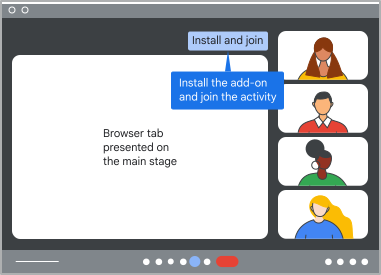
This page describes how to promote an add-on to users
while screen sharing a tab with Google Meet by placing a small amount of code
on another web page.
The
[`exposeToMeetWhenScreensharing()`](https://developers.google.com/workspace/meet/add-ons/reference/websdk/screenshare_api.meetaddonscreenshare.exposetomeetwhenscreensharing)
method allows the site to send information to Meet
when its tab is screen shared. This information is used in the
add-on experience with Meet when the
user clicks "Start activity" on the presentation banner if they have the
add-on installed. If the user doesn't have the
add-on installed when they screen share a tab, they're
prompted to install the add-on.
The
[`AddonScreenshareInfo`](https://developers.google.com/workspace/meet/add-ons/reference/websdk/screenshare_api.addonscreenshareinfo)
object contains five properties that can be added based on the use case:
- [`additionalData`](https://developers.google.com/workspace/meet/add-ons/reference/websdk/screenshare_api.addonscreenshareinfo.additionaldata):
Info the add-on can use to initialize itself. Can
only be set if the `startActivityOnOpen` property is true and can be
accessed using the
[`ActivityStartingState`](https://developers.google.com/workspace/meet/add-ons/reference/websdk/addon_sdk.activitystartingstate).
For more information, see [Get the activity starting
state](https://developers.google.com/workspace/meet/add-ons/guides/collaborate-in-the-add-on#get-state).
- [`cloudProjectNumber`](https://developers.google.com/workspace/meet/add-ons/reference/websdk/screenshare_api.addonscreenshareinfo.cloudprojectnumber):
Required. The project number of your Google Cloud project.
- [`mainStageUrl`](https://developers.google.com/workspace/meet/add-ons/reference/websdk/screenshare_api.addonscreenshareinfo.mainstageurl):
The URL that the main stage opens once the add-on
starts, such as `https://www.example.com`. The URL must belong to the same
[origin](https://developers.google.com/workspace/meet/add-ons/guides/overview#origin) as the URLs specified in the
add-on manifest.
- [`sidePanelUrl`](https://developers.google.com/workspace/meet/add-ons/reference/websdk/screenshare_api.addonscreenshareinfo.sidepanelurl):
The URL that the side panel opens once the add-on
starts, such as `https://www.example.com`. The URL must belong to the same
[origin](https://developers.google.com/workspace/meet/add-ons/guides/overview#origin) as the URLs specified in the
add-on manifest.
- [`startActivityOnOpen`](https://developers.google.com/workspace/meet/add-ons/reference/websdk/screenshare_api.addonscreenshareinfo.startactivityonopen):
Required. Whether to start the activity add-on
experience in Meet immediately when the user starts the
add-on from the presentation banner. Must be true
if the `mainStageUrl` property is used.
> [!NOTE]
> **Note:** In order for the installation prompt on the presentation banner to work, your add-on must be published. For more information, see [Publish your Meet add-on](https://developers.google.com/workspace/meet/add-ons/guides/publish).
## Install and import the SDK
You can access the SDK using npm or using gstatic.
### npm (recommended)
If your project uses npm, you can follow the instructions for the [Meet add-ons SDK npm package](https://www.npmjs.com/package/@googleworkspace/meet-addons).
First, install the npm package:
npm install @googleworkspace/meet-addons
Then, the Meet add-ons SDK is available by importing the
[`MeetAddonScreenshareExport`](https://developers.google.com/workspace/meet/add-ons/reference/websdk/screenshare_api.meetaddonscreenshareexport)
interface:
import {meet} from '@googleworkspace/meet-addons/meet.addons.screenshare';
For TypeScript users, TypeScript definitions are packaged with the module.
TypeScript users should set `moduleResolution` to `"bundler"` within the
project's `tsconfig.json`, so that the
[package.json "exports" spec](https://www.typescriptlang.org/docs/handbook/modules/reference.html#packagejson-exports)
enables importing the [screen sharing package export](https://developers.google.com/workspace/meet/add-ons/reference/websdk/screenshare_api.meetaddonscreenshareexport).
### gstatic
The Google Meet add-ons SDK is available as a
JavaScript bundle from `gstatic`, a domain that serves static content.
To use the Meet add-ons SDK, add the following script tag to your
app:
The Meet add-ons SDK is available through the [`MeetAddon`](https://developers.google.com/workspace/meet/add-ons/reference/websdk/addon_sdk.meetaddon) interface under `window.meet.addon`.
> [!NOTE]
> **Note:** If you're using TypeScript, you can also grab the latest types from [`https://www.gstatic.com/meetjs/addons/1.1.0/meet.addons.screenshare.d.ts`](https://www.gstatic.com/meetjs/addons/1.1.0/meet.addons.screenshare.d.ts). Just save the file locally.
## Example: Load in the side panel without starting an activity
In the following code sample, a user screen shares a page with an
add-on that must adjust resource permissions before the
activity can be started. Due to this requirement, the
add-on should be started in the side panel, without the
activity being started for everyone.
Replace the following:
- CLOUD_PROJECT_NUMBER: String. The project number of your Cloud project.
- SIDE_PANEL_URL: String. The URL for the side panel.
When the user in the Meet call screen shares the page, they see a
presentation banner in Meet. Clicking the button on the banner
opens the add-on for the given cloud project number in
the side panel. Since the
[`startActivityOnOpen`](https://developers.google.com/workspace/meet/add-ons/reference/websdk/screenshare_api.addonscreenshareinfo.startactivityonopen)
property was set to false, the start activity button is disabled until the
`ActivityStartingState` is set. For more information, see [Use the activity
starting state](https://developers.google.com/workspace/meet/add-ons/guides/activity-starting-state).
Once the activity is started, other users in the call are prompted to either
launch or install the add-on.
The ["Animation" sample add-on on GitHub](https://github.com/googleworkspace/meet/tree/3311b735550b8927c8b7ef2c6d06f768d9fe0476/addons-web-sdk/samples/animation-next-js)
includes this example as part of a full add-on. When
the [index page](https://github.com/googleworkspace/meet/blob/3311b735550b8927c8b7ef2c6d06f768d9fe0476/addons-web-sdk/samples/animation-next-js/src/app/page.tsx)
of the web app associated with the add-on is presented,
the presenting user is prompted to either install or set up the
add-on.
## Example: Load in the main stage
In the following code sample, a user who screen shares a web page in
Meet containing the following code is prompted to launch the
add-on:
Replace the following:
- CLOUD_PROJECT_NUMBER: String. The project number of your Google Cloud project.
- MAIN_STAGE_URL: String. The URL for the main stage.
When the user in the Meet call screen shares the page, they see a
presentation banner in Meet. Clicking the button on the banner
opens the add-on for the given cloud project number in
the main stage. The `mainStageUrl` property is loaded, and the
`additionalData` property is used to set the activity starting
state of the add-on. Other users in the call are
immediately prompted to install or launch the add-on.
## Example: Load in the side panel
In the following code sample, a user screen shares a page with an
add-on that wants to start in the side panel rather
than the main stage:
Replace the following:
- CLOUD_PROJECT_NUMBER: String. The project number of your Cloud project.
- SIDE_PANEL_URL: String. The URL for the side panel.
When the user in the Meet call screen shares the page, they see a
presentation banner in Meet. Clicking the button on the banner
opens the add-on for the given cloud project number in
the side panel. The `sidePanelUrl` property is loaded, and the
`additionalData` property is used to set the activity starting
state of the add-on. Other users in the call are
immediately prompted to install or launch the add-on.
## Origin matching
The [origins](https://developers.google.com/workspace/meet/add-ons/guides/overview#origin) provided in the
[`mainStageUrl`](https://developers.google.com/workspace/meet/add-ons/reference/websdk/screenshare_api.addonscreenshareinfo.mainstageurl)
property and the
[`sidePanelUrl`](https://developers.google.com/workspace/meet/add-ons/reference/websdk/screenshare_api.addonscreenshareinfo.sidepanelurl)
property are compared to the origins in the add-on
manifest of the provided cloud project number. If everything matches, the user
is allowed to launch the add-on.
Additionally, the origin of the site initiating the screen share must be listed
in the `addOnOrigins` field in the [add-on
manifest](https://developers.google.com/workspace/meet/add-ons/guides/deploy-add-on#create-deployment).
For more information, see [Add-on
security](https://developers.google.com/workspace/meet/add-ons/guides/add-on-security).
> [!NOTE]
> **Note:** This implementation uses [`CaptureHandle`](https://developer.chrome.com/docs/web-platform/capture-handle/) which is only supported by Chrome browser version 102 and later.
## Related topics
- [Collaborate using a Meet add-on](https://developers.google.com/workspace/meet/add-ons/guides/collaborate-in-the-add-on)
- [Add-on security](https://developers.google.com/workspace/meet/add-ons/guides/add-on-security)